

Google Developer account connection enables in-app product synchronization and Android build submission through automated publishing services.
This document explains how to create a Google Cloud service account, enable required APIs, grant Play Console permissions, and upload credentials to WordPress.
Understanding Google Developer Connection
Google Developer account connection automates workflows for Android app management. Service account authentication provides secure access to Google Play services without password sharing. Connected accounts enable automated product synchronization and build submission processes.
Creating App in Google Play Console
App creation in Google Play Console establishes the foundation for Android app distribution.
- Navigate to Google Play Console at play.google.com/console.
- Click the Create App button.
- Enter the app name in the App name field.
- Select the default language from the Default language dropdown.
- Select the App for the app type.
- Select whether the app is Free or Paid.
- Scroll to the declarations section.
- Check the Developer Program Policies checkbox.
- Check the US export laws checkbox.
- Click Create App to finalize app creation.
Creating Google Cloud Project
Google Cloud project creation provides the container for service account credentials.
- Navigate to Google Cloud Console at console.cloud.google.com.
- Sign in with your Google account credentials.
- Click the project selector at the top of the page.
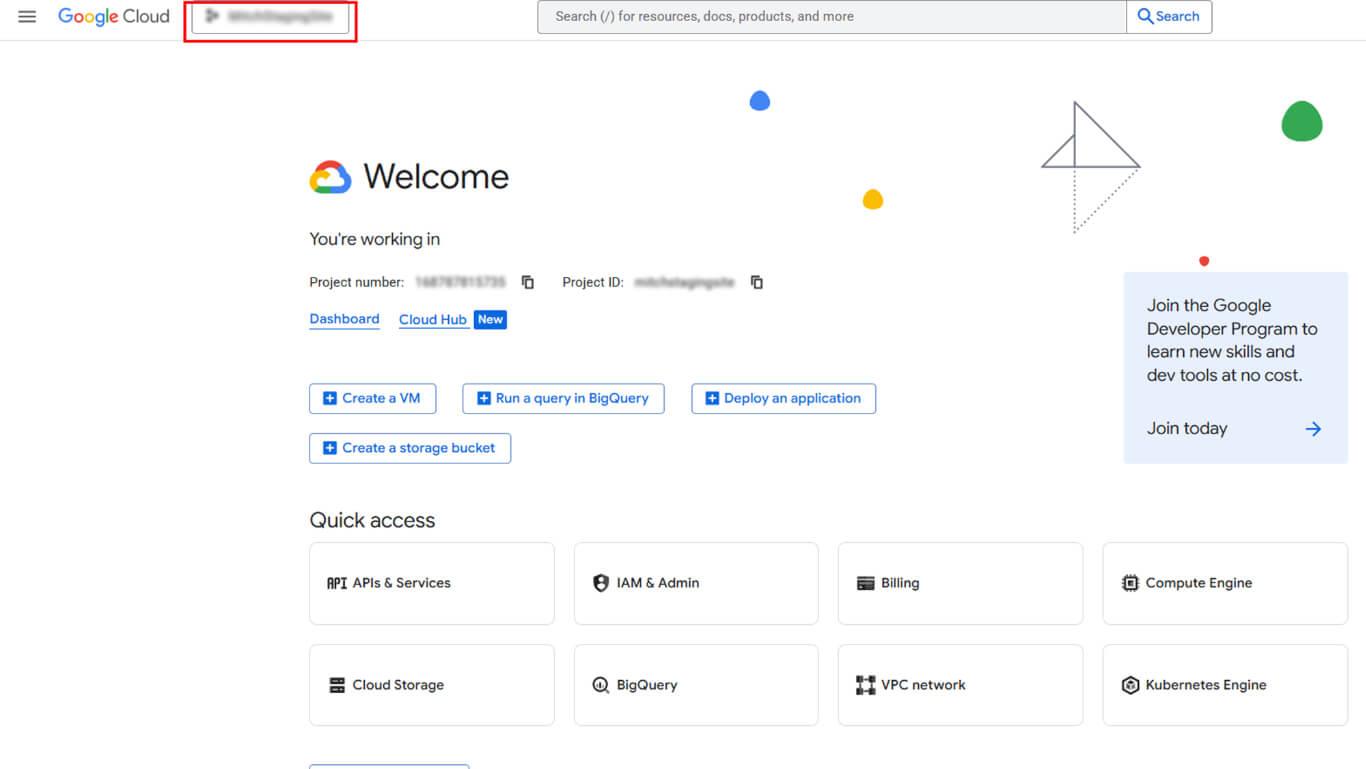
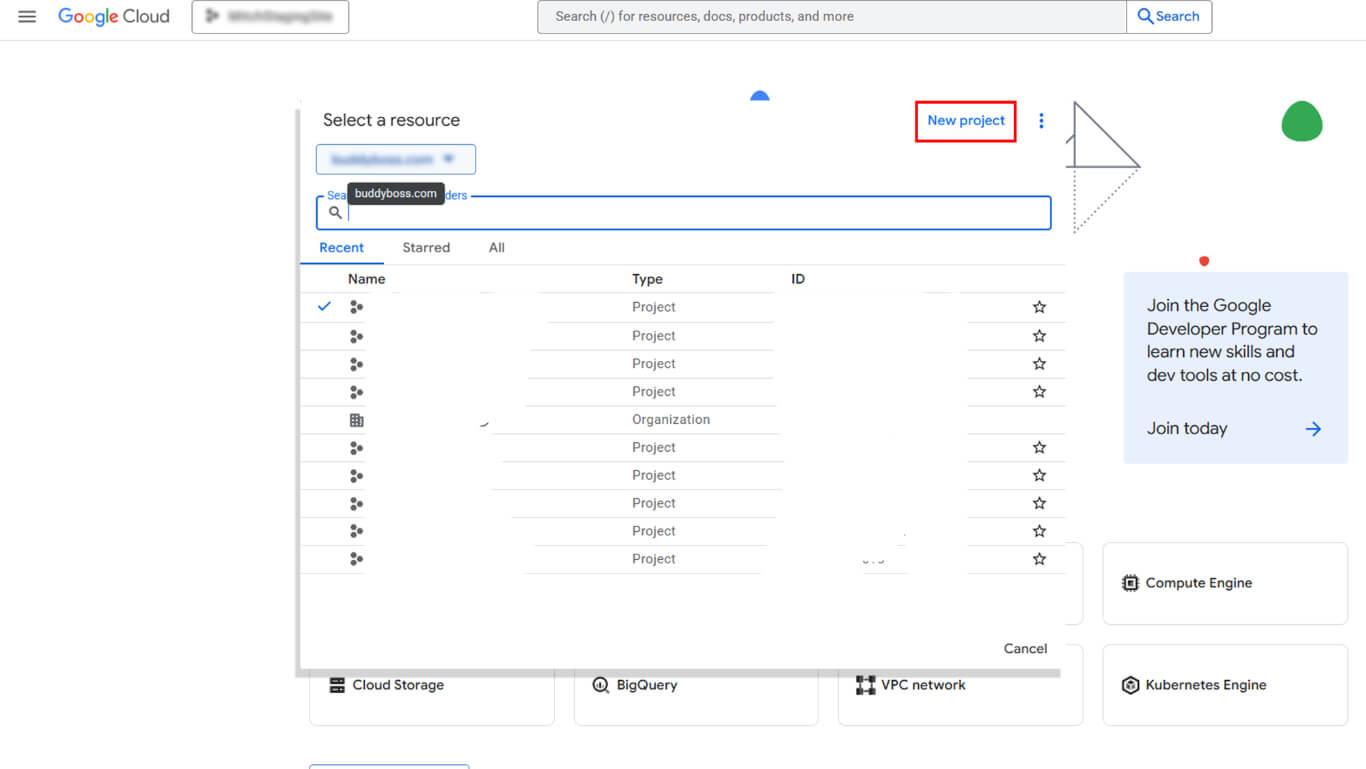
- Click NEW PROJECT in the project selector dialog.
- Enter a descriptive name in the Project Name field.
- Select an organization from the Organization dropdown if applicable.
- Select a location from the Location dropdown if applicable.
- Click Create to finalize project creation.
- Verify the new project is selected in the header dropdown.
Enabling Google Play Android Developer API
API activation enables service account access to Google Play functionality.
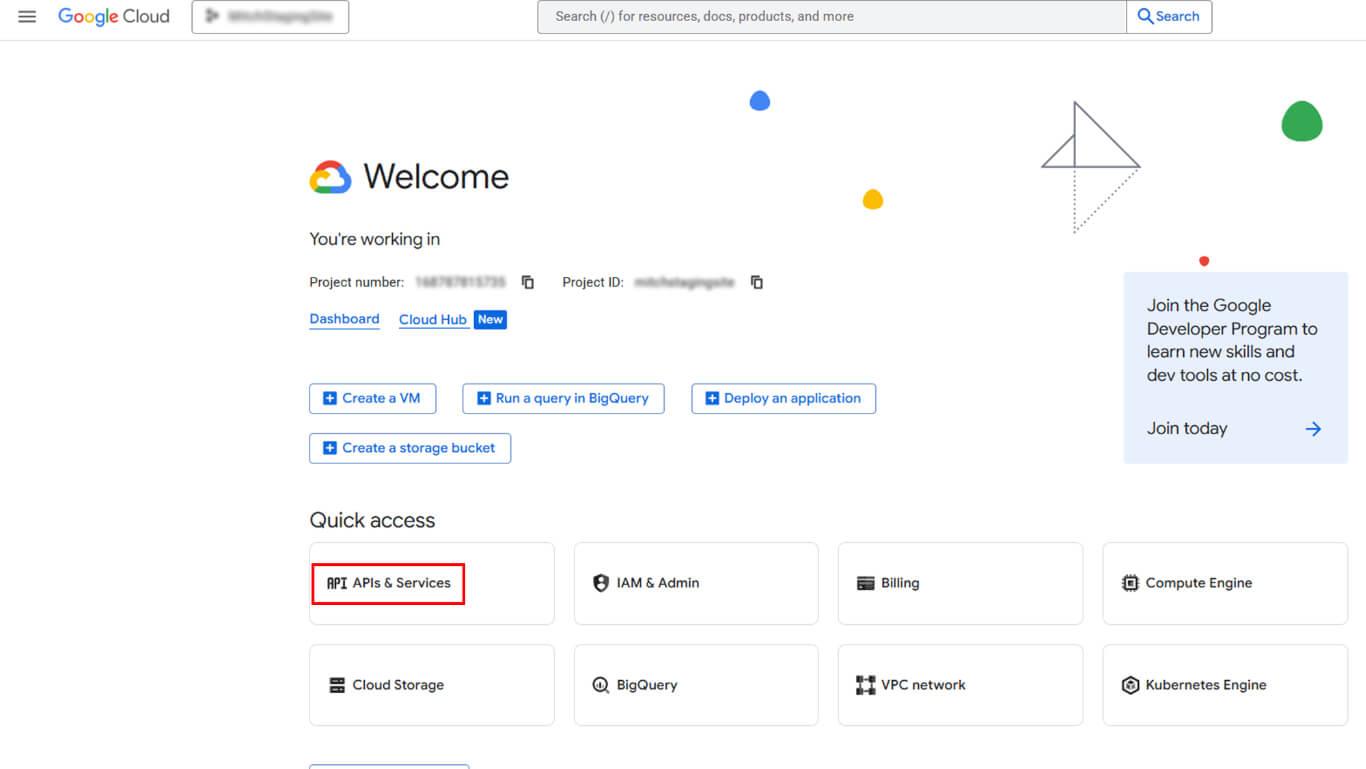
- Navigate to APIs & Services > Enable APIs & Services in the Google Cloud Console.
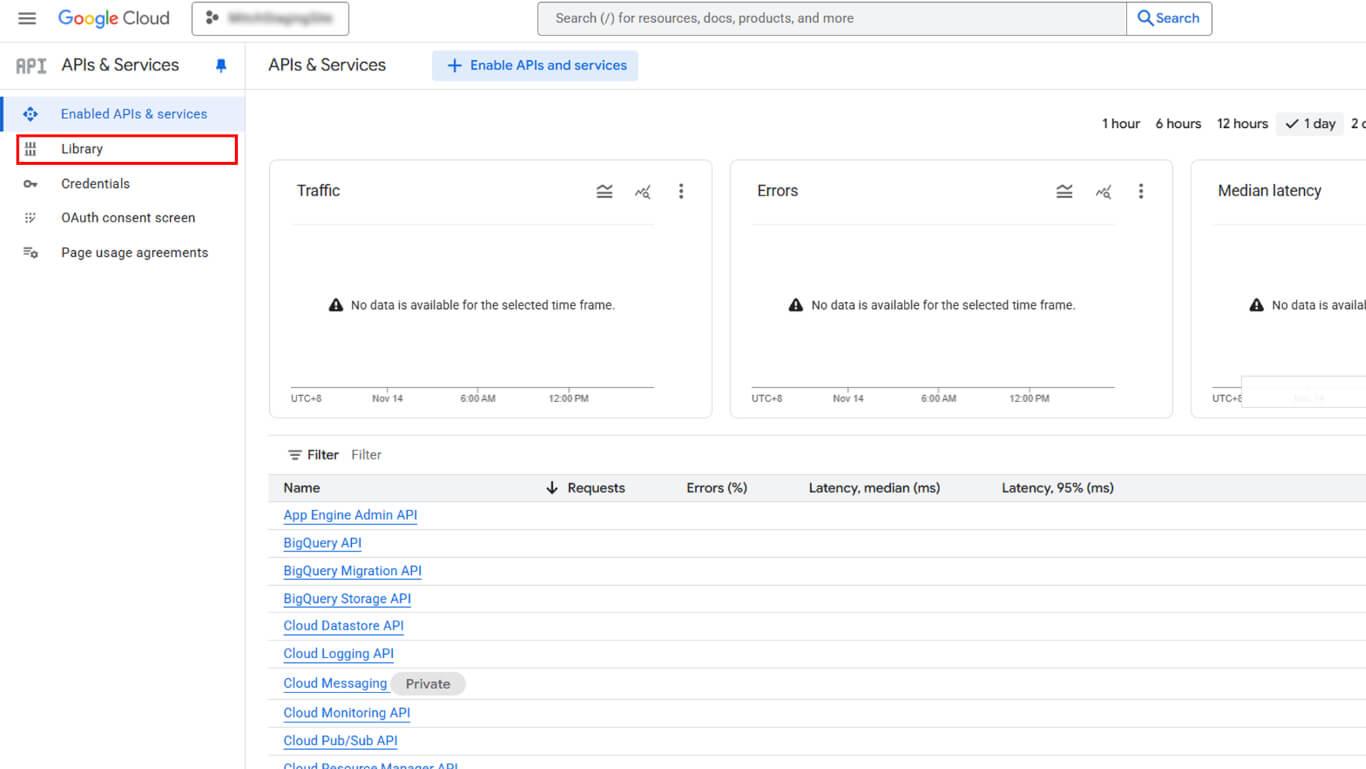
- Click Library to open the API library.
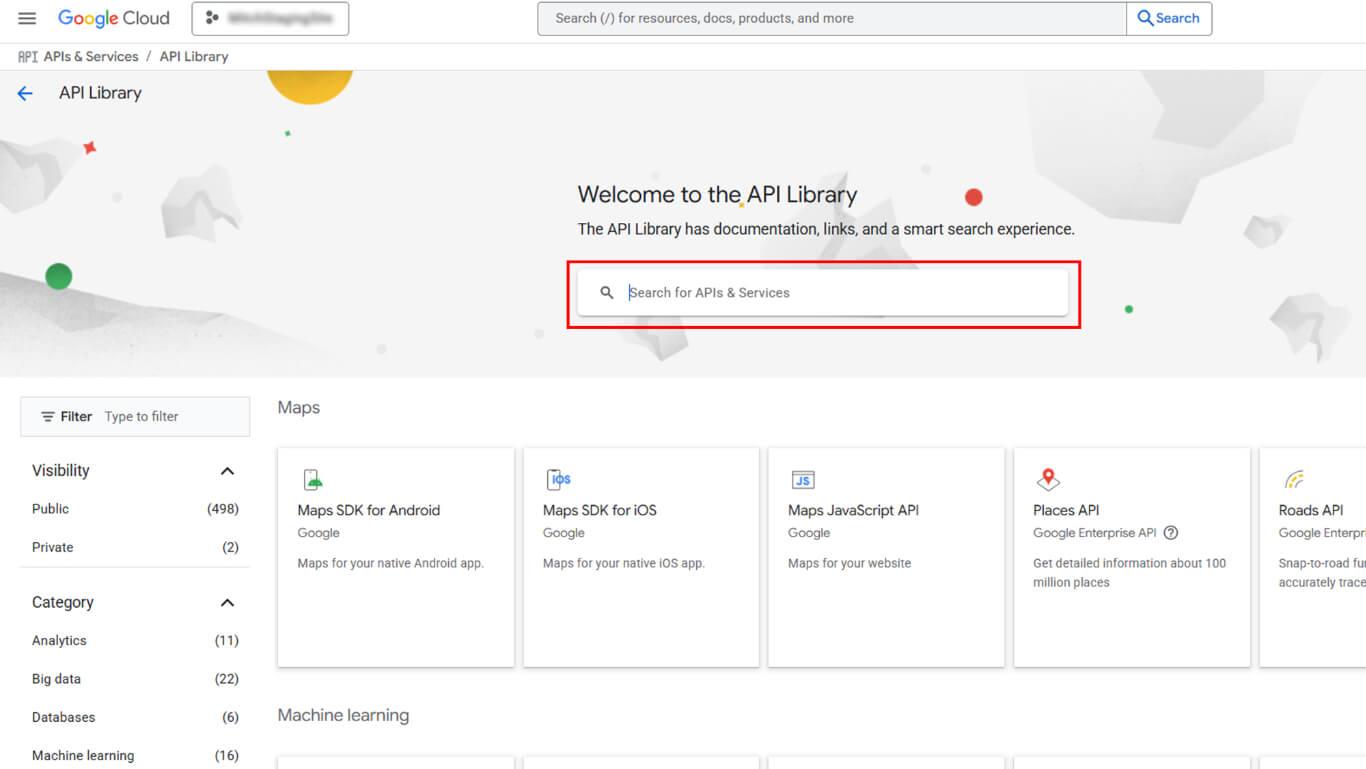
- Search for “Google Play Android Developer API” in the search field.
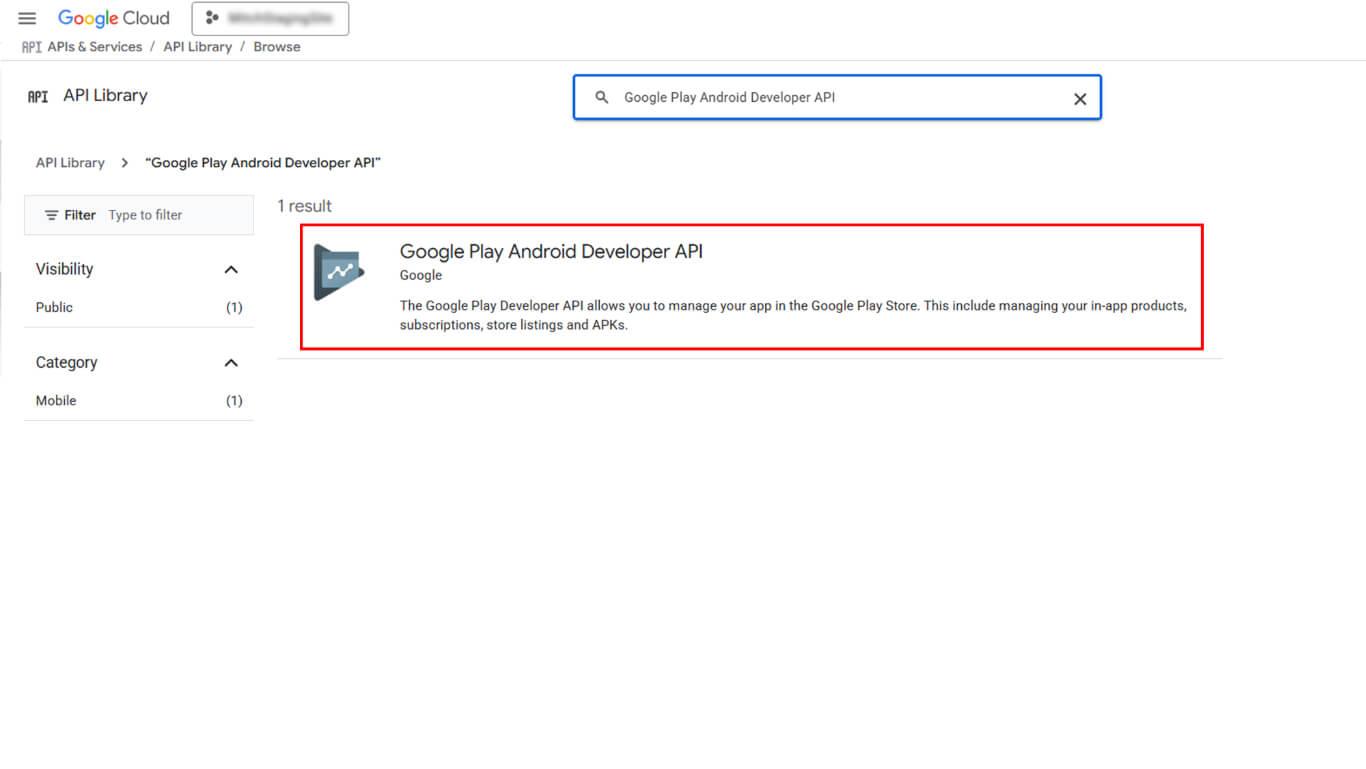
- Click Google Play Android Developer API in the search results.
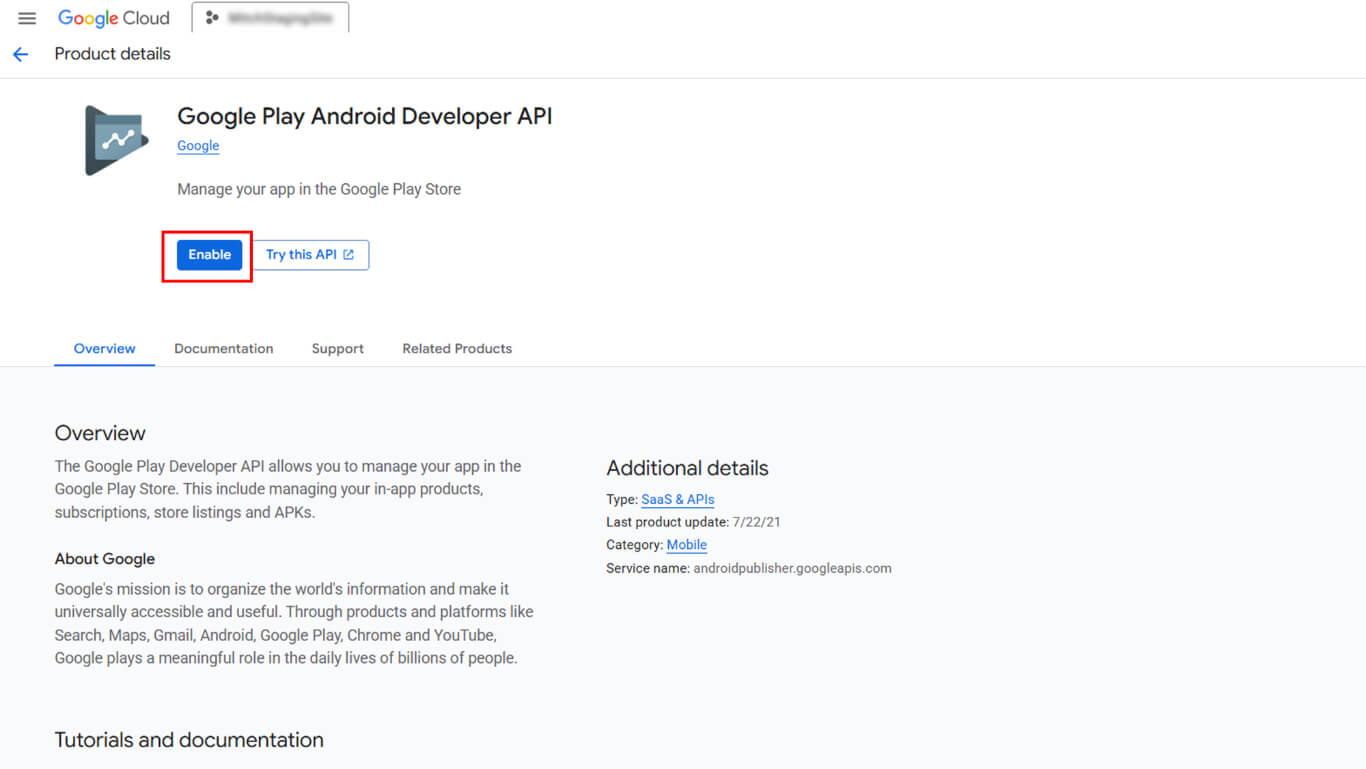
- Click ENABLE to activate the API.
Creating Service Account
Service account creation generates credentials for automated Google Play access.
- Navigate to APIs & Services > Credentials in the Google Cloud Console sidebar.
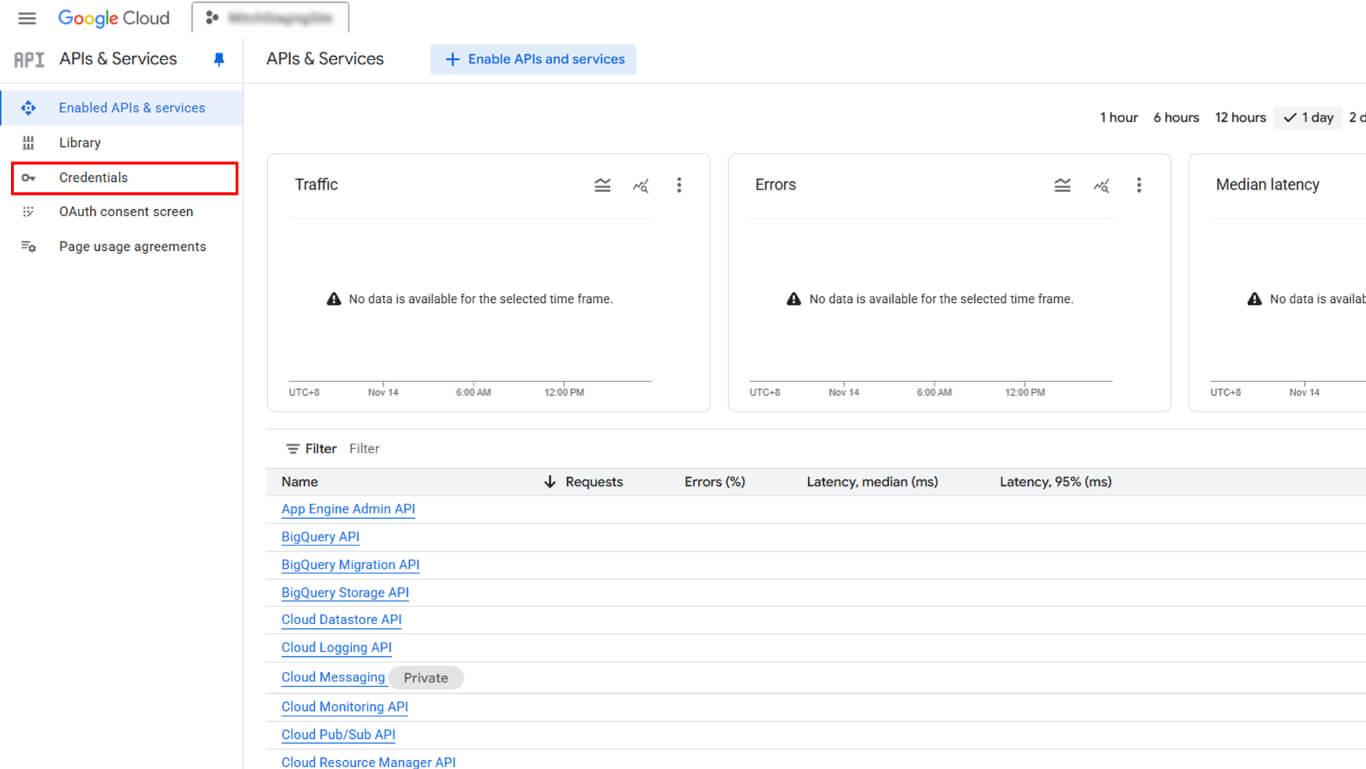
- Click Create Credentials at the top of the page.
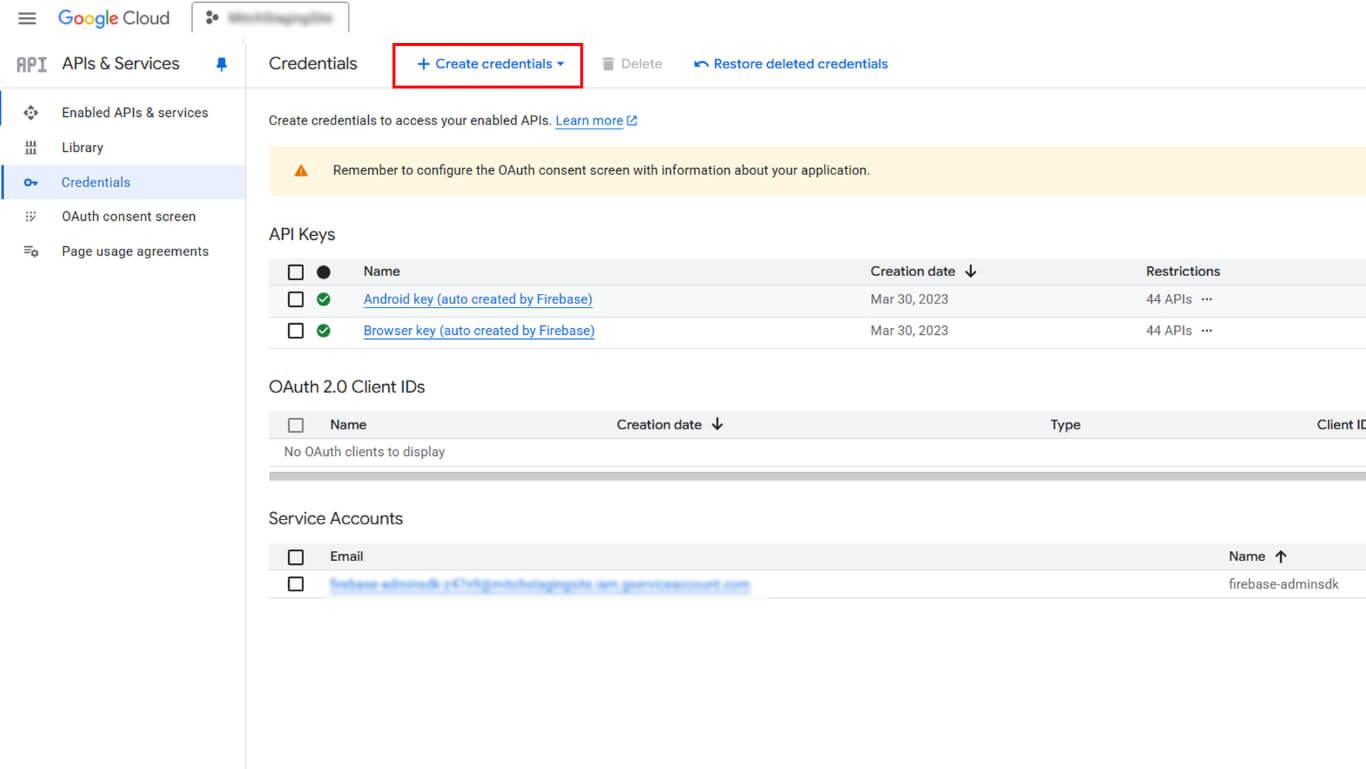
- Select Service Account from the credentials type dropdown.
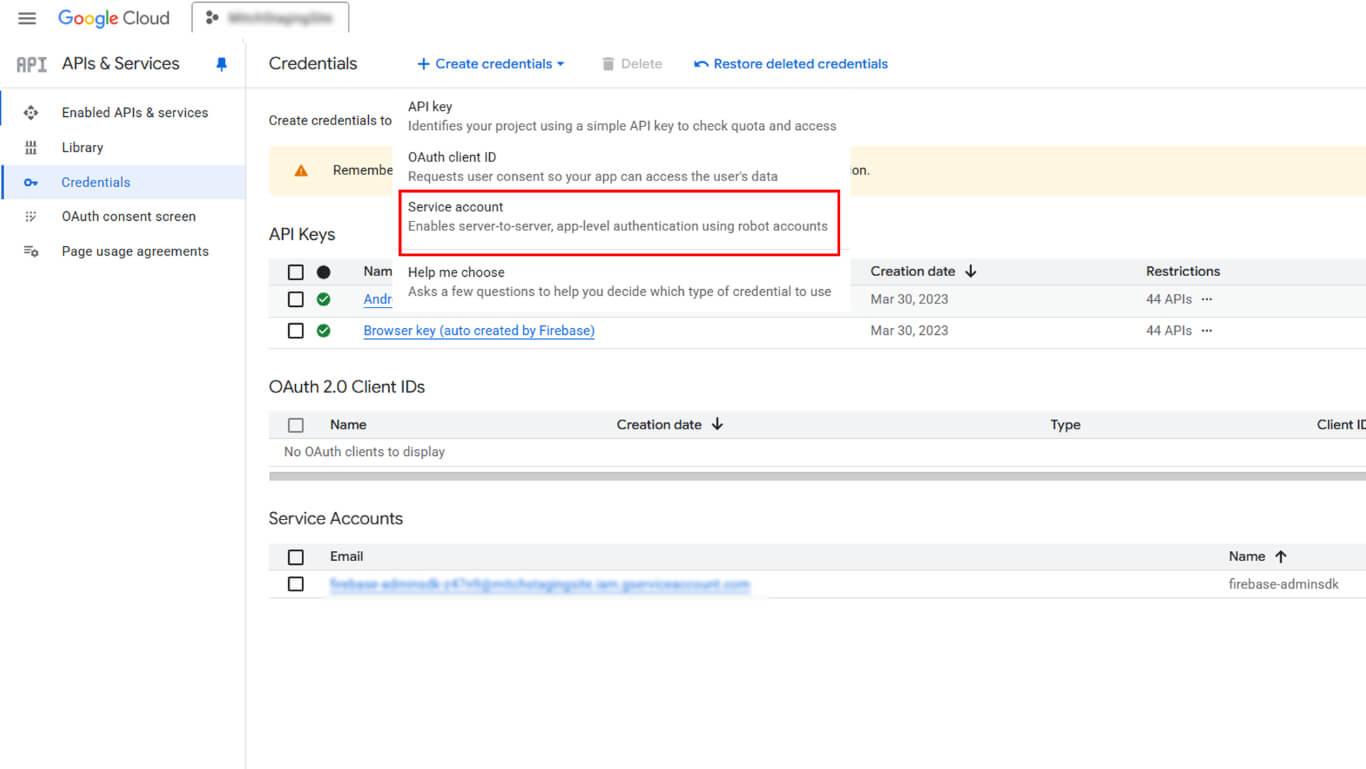
- Enter a descriptive name in the Service account name field.
- Click Create and Continue.
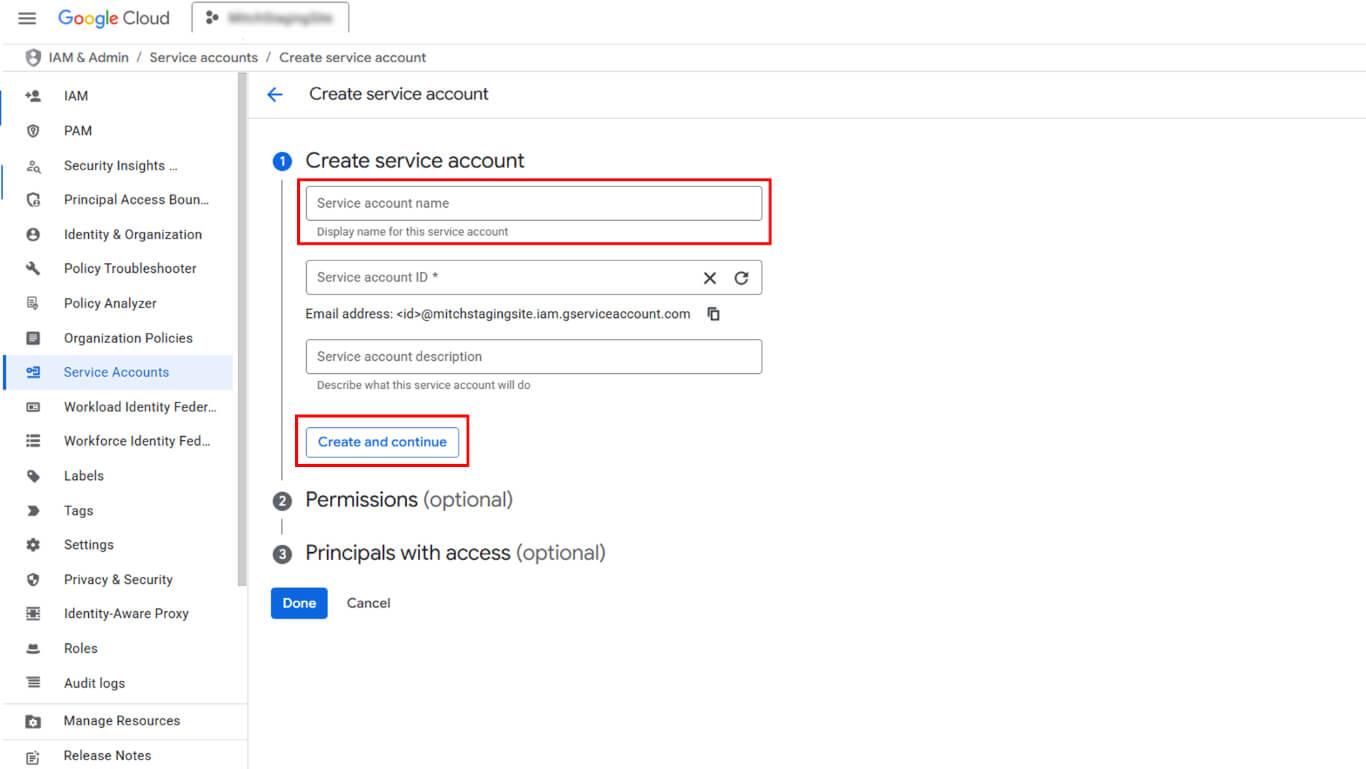
- Click Select a role dropdown under Grant this service account access.
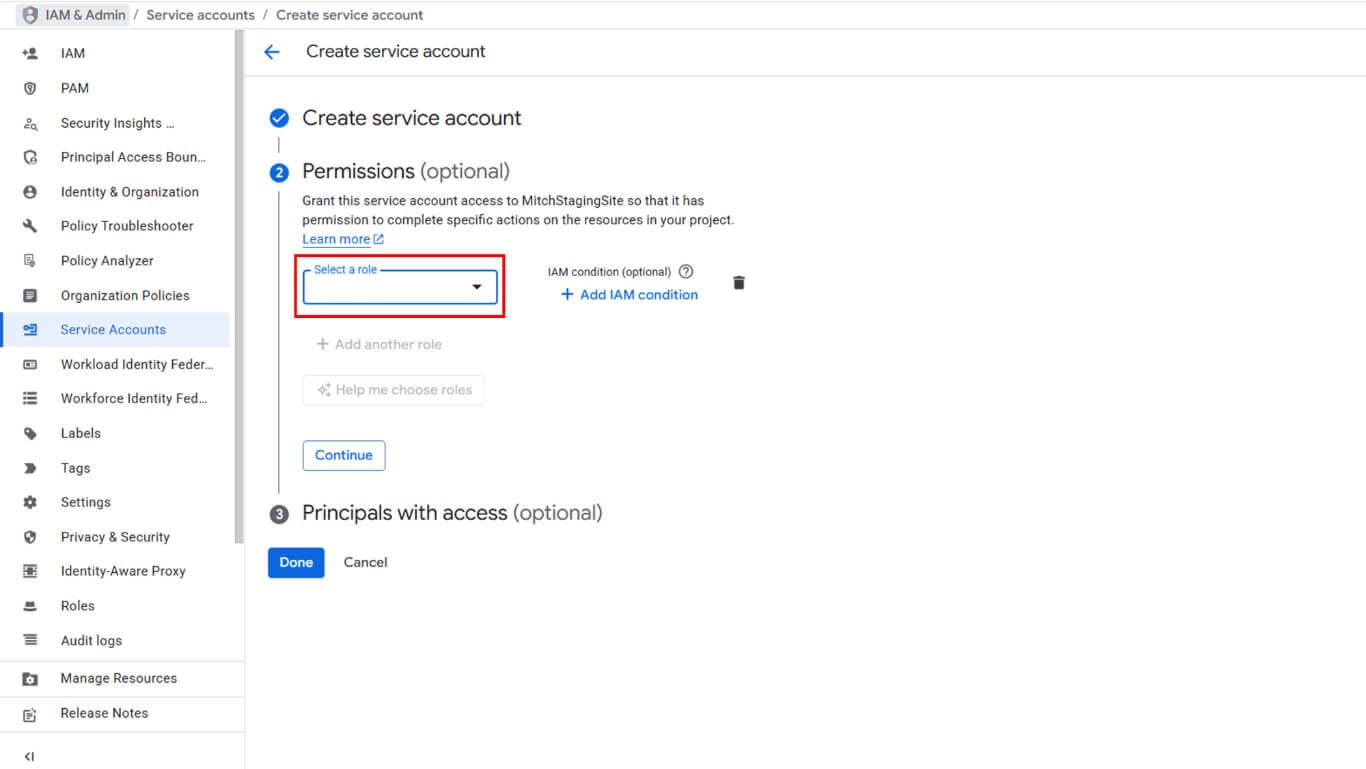
- Navigate to Basic in the role hierarchy.
- Select Owner from the role options.
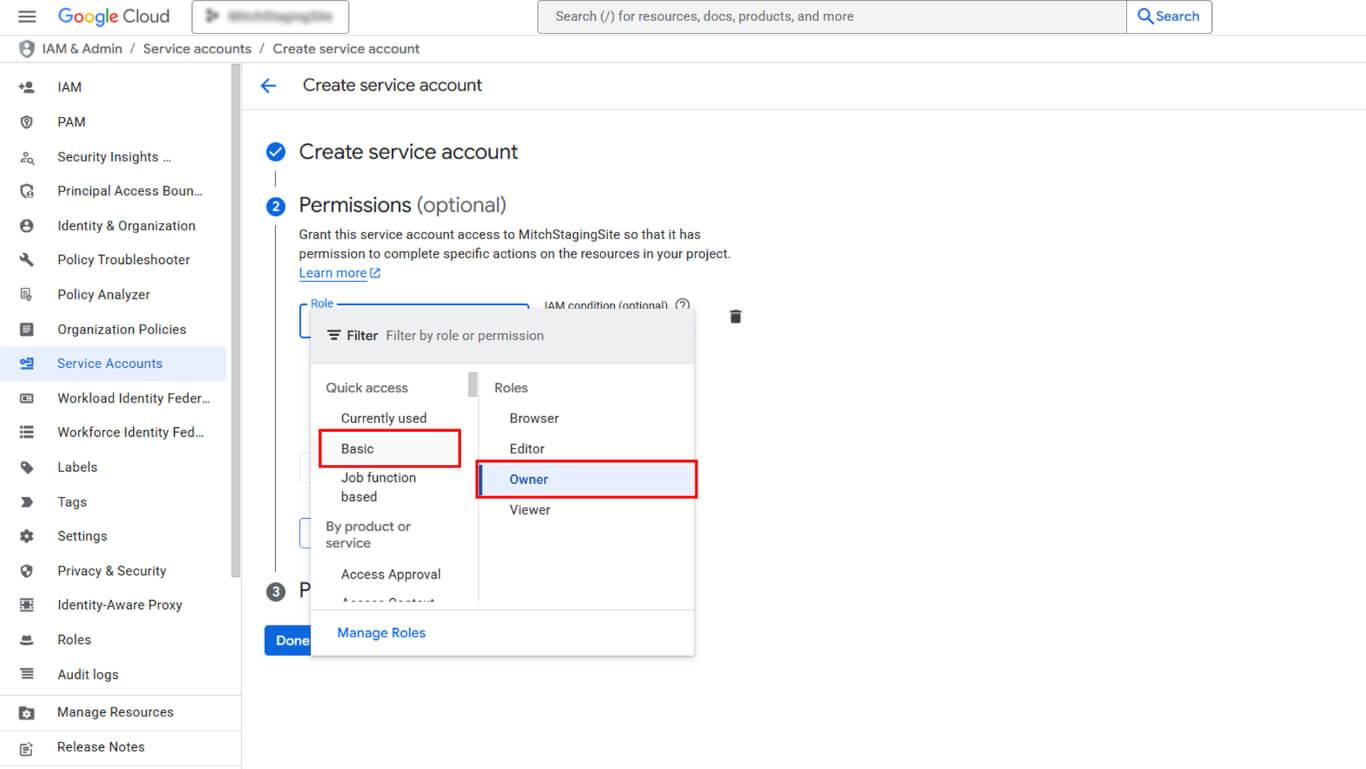
- Click Continue to proceed.
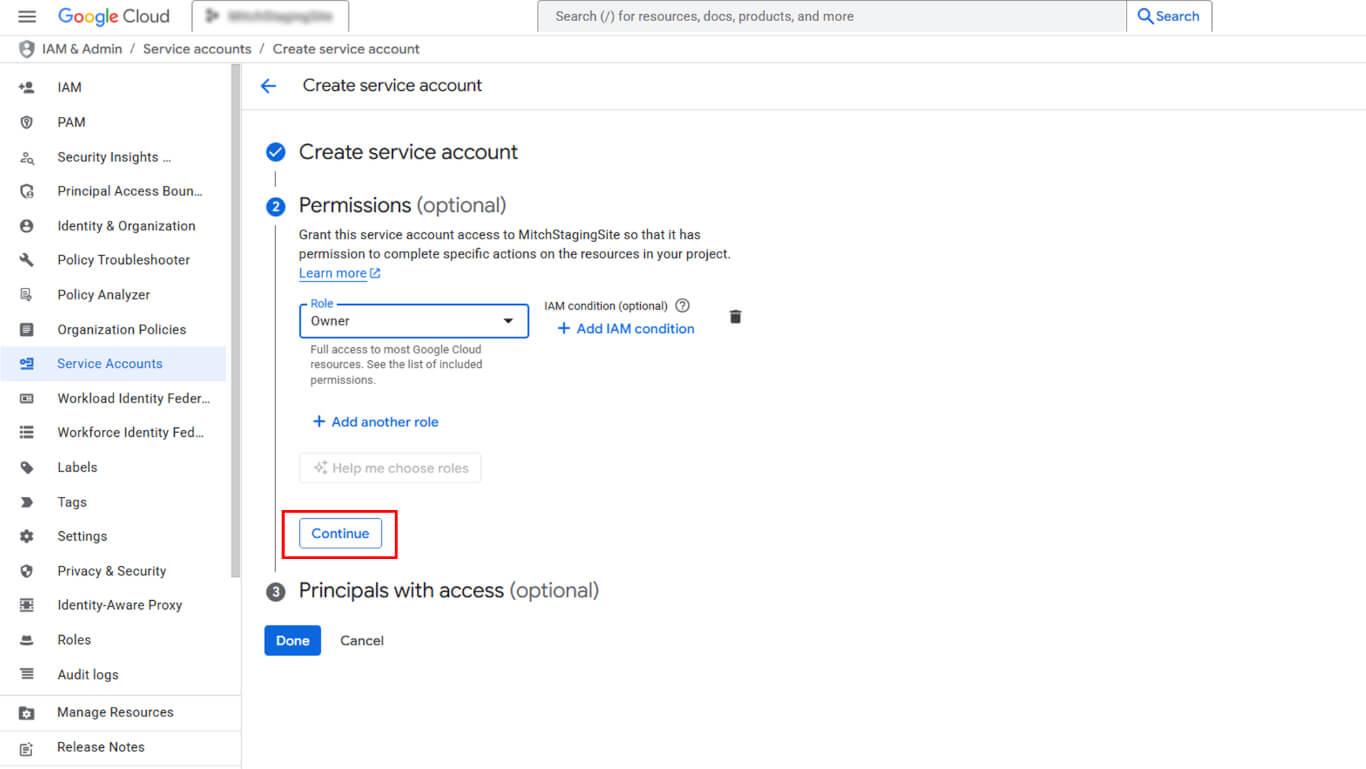
- Click Done to create the service account.
Generating Service Account Key
Service account key generation creates the JSON file required for WordPress upload.
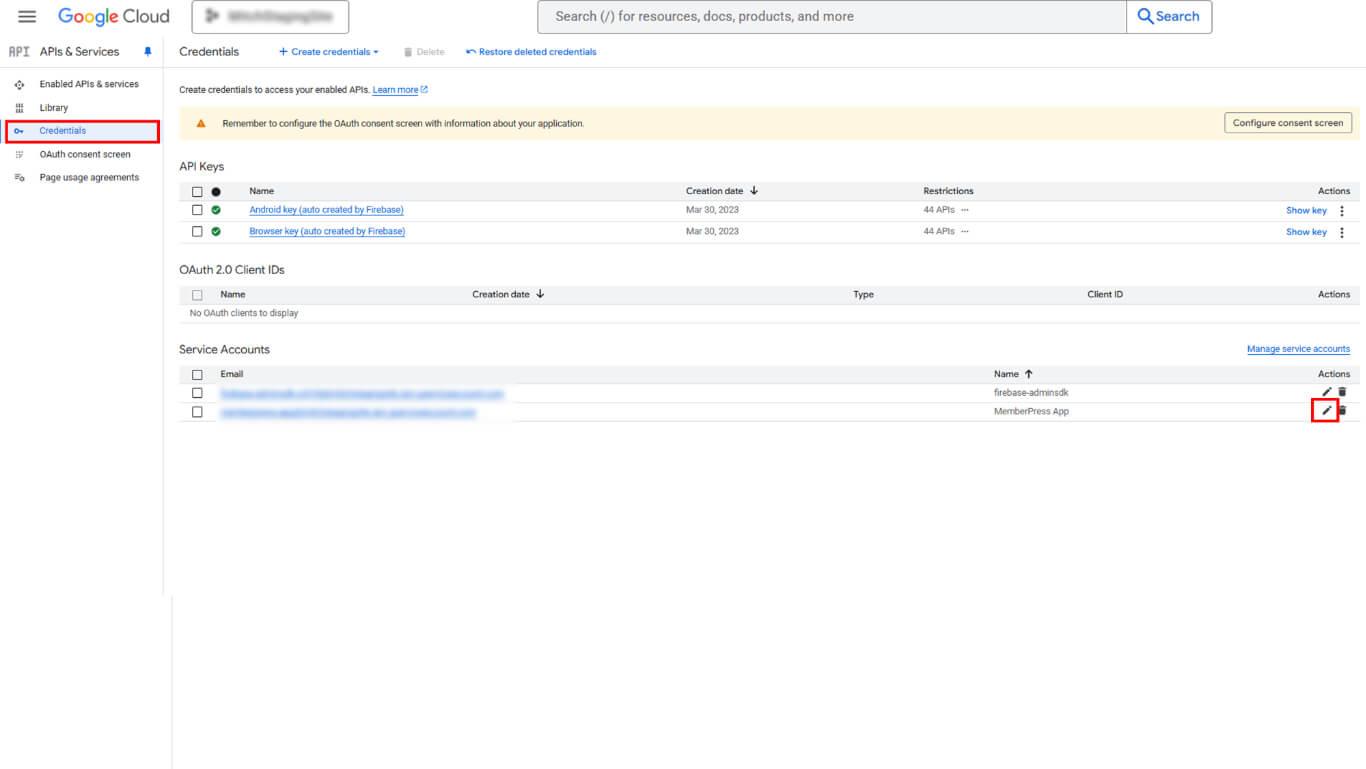
- Navigate to APIs & Services > Credentials in the Google Cloud Console sidebar.
- Locate the created service account in the Service Accounts list.
- Click the pencil icon next to the service account name.
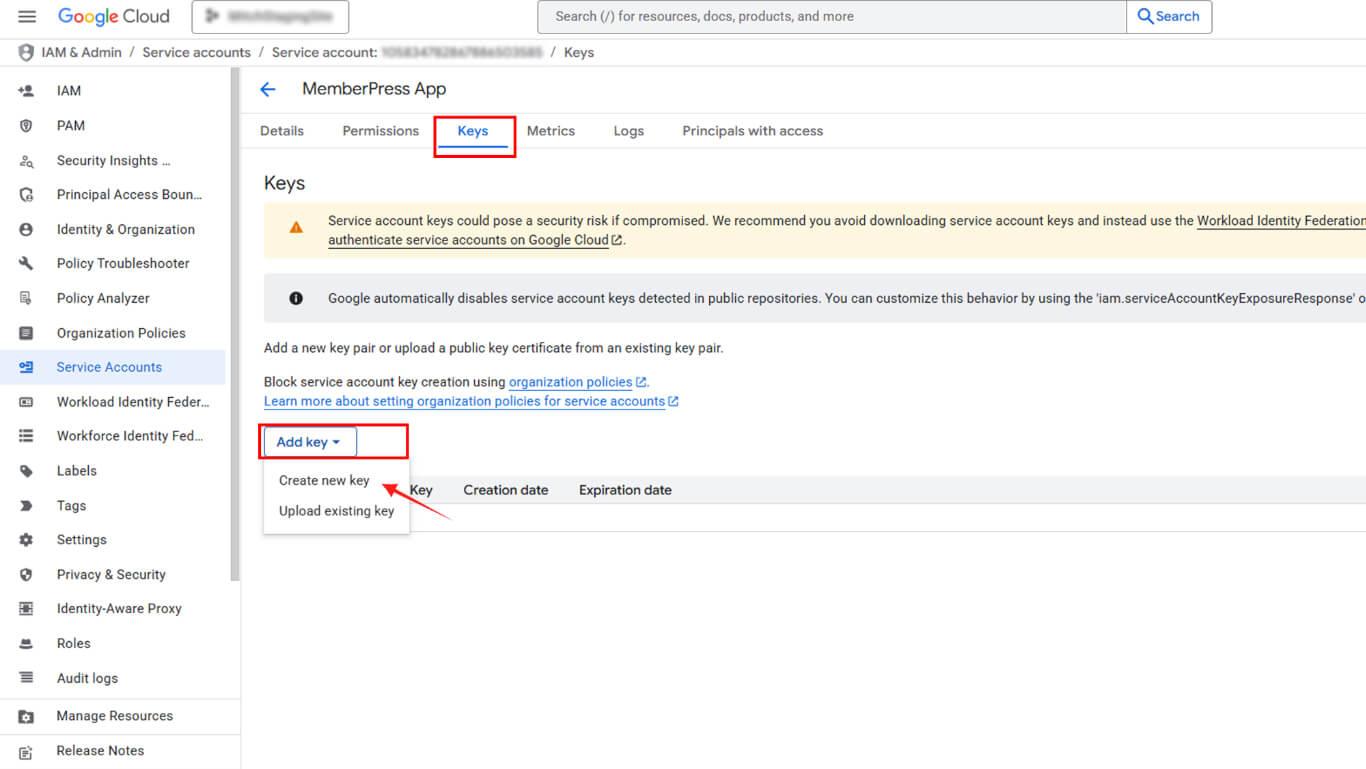
- Click the Keys tab.
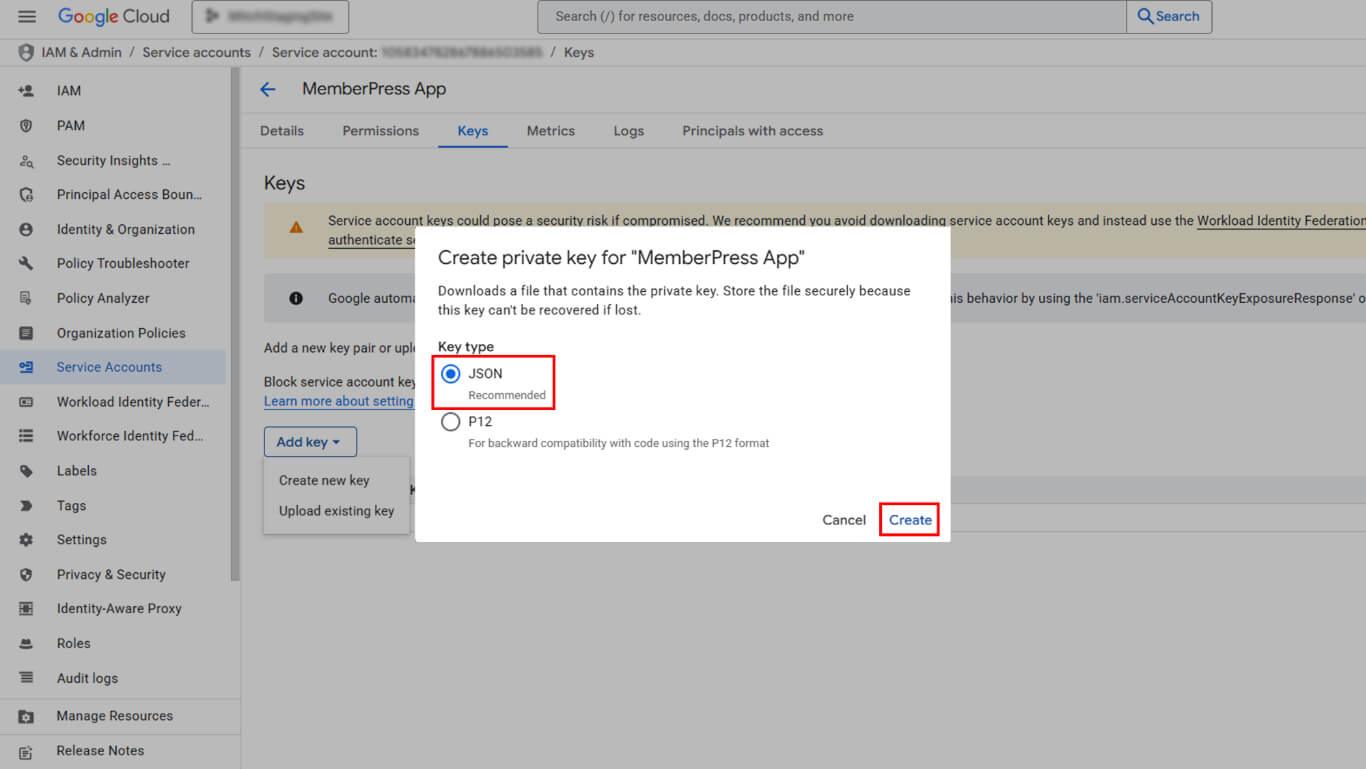
- Click the Add Key dropdown.
- Select Create New Key from the options.
- Select JSON as the key type.
- Click Create to generate and download the key.
- Save the downloaded JSON file securely.
- Copy the Service account email from the details page.
Granting Play Console Permissions
Service account permissions enable Play Console access for automated operations.
- Navigate to Google Play Console at play.google.com/console.
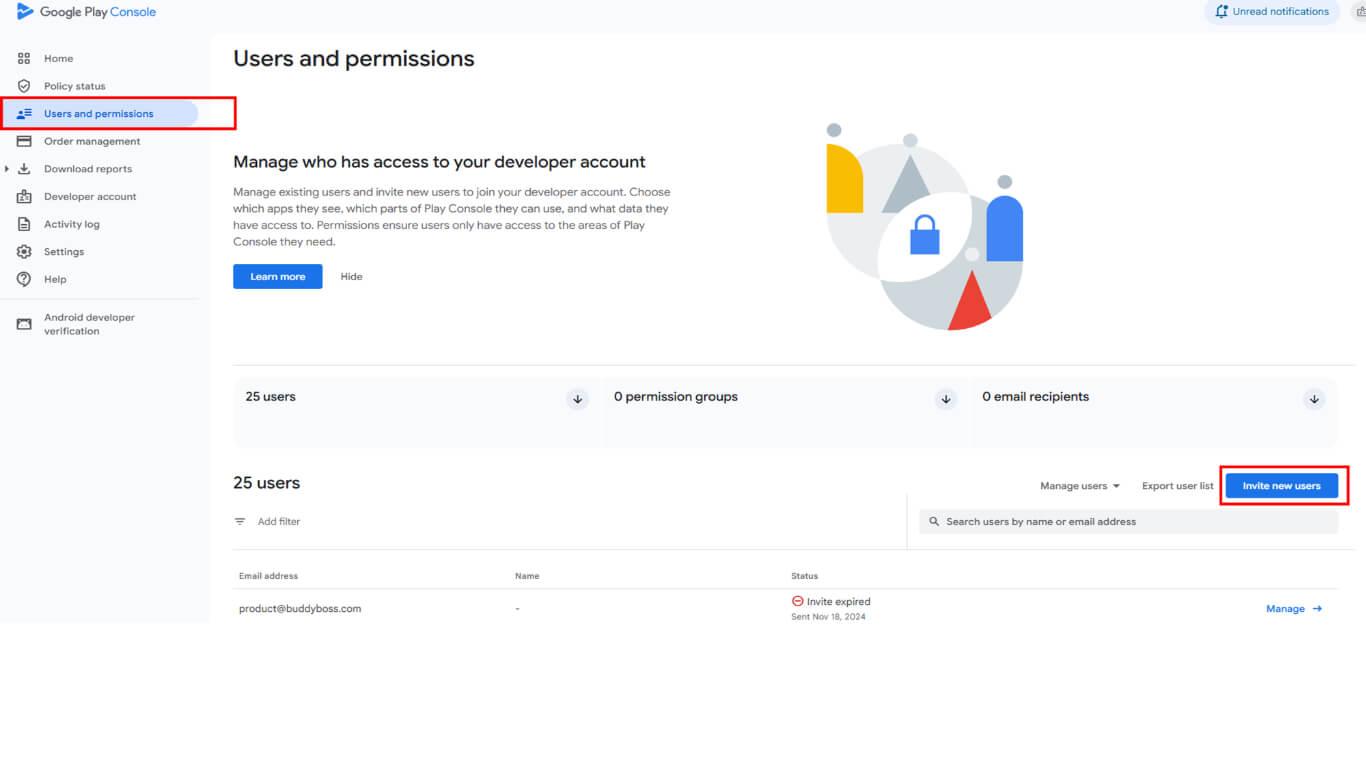
- Click Users and permissions in the left sidebar.
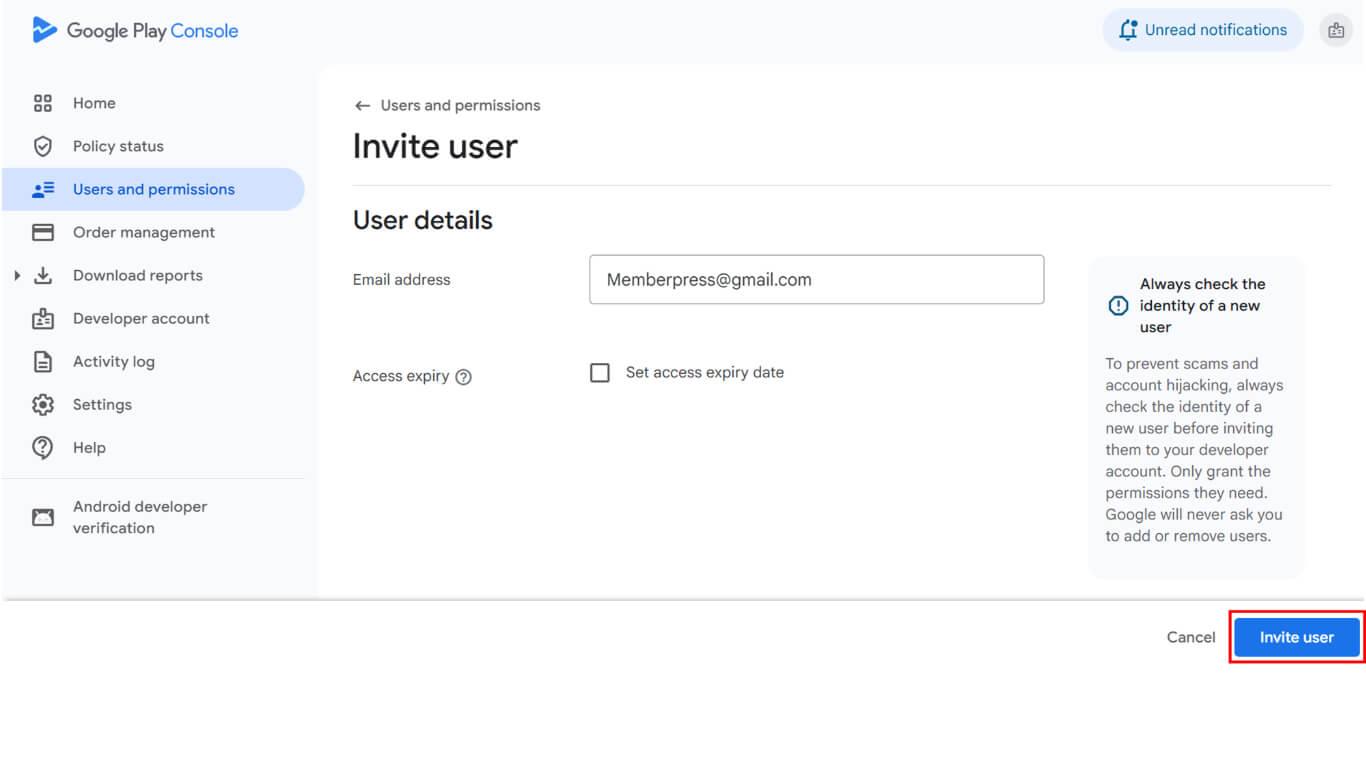
- Click the Invite new users button.
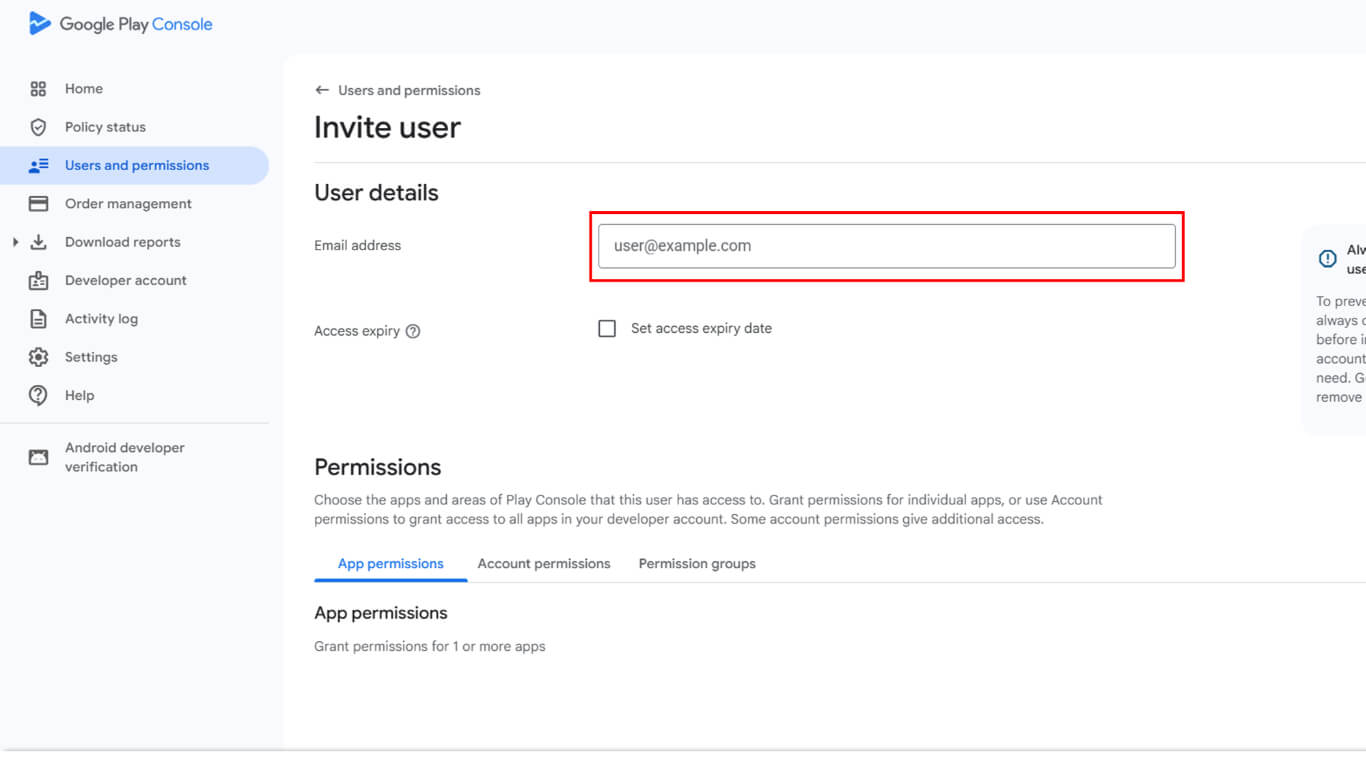
- Paste the service account email into the Email address field.
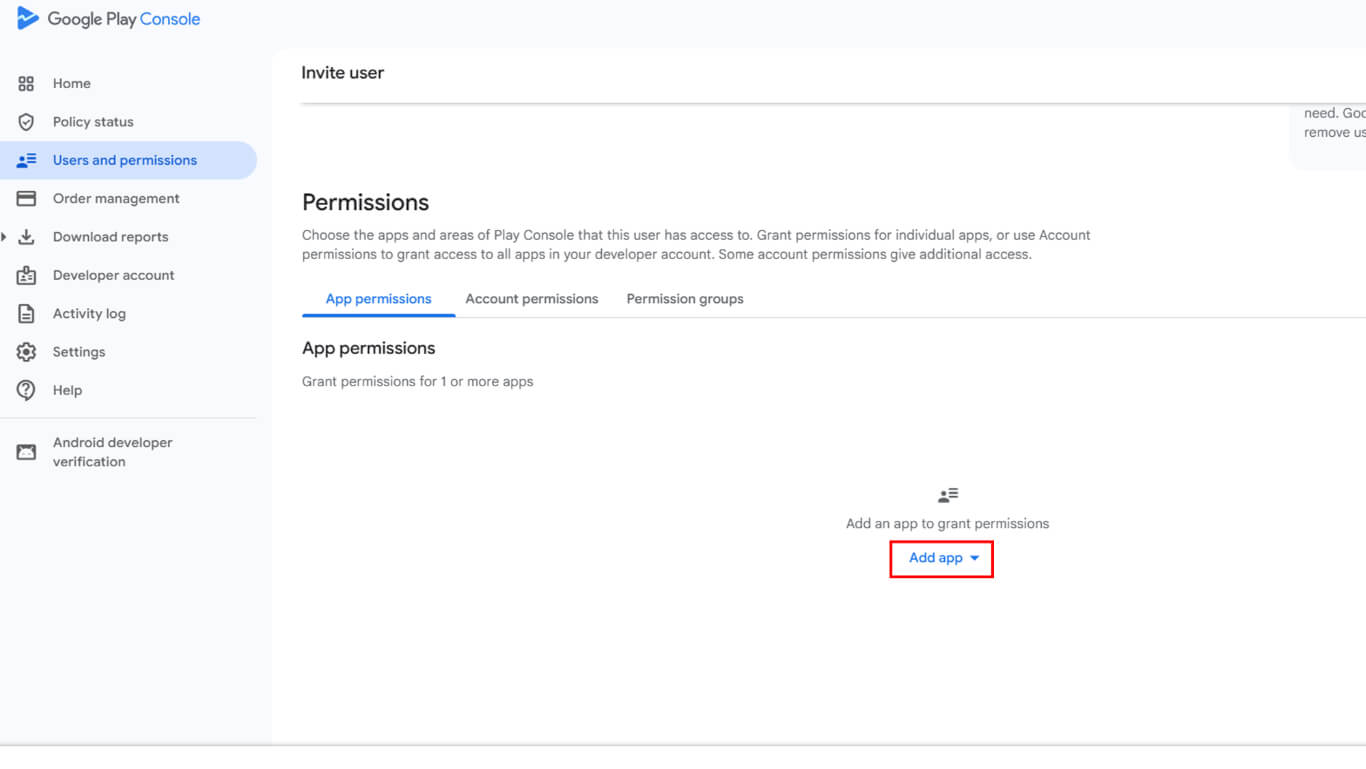
- Scroll down to the App permissions section.
- Click Add app to select accessible apps.
- Select the app from the available apps list.
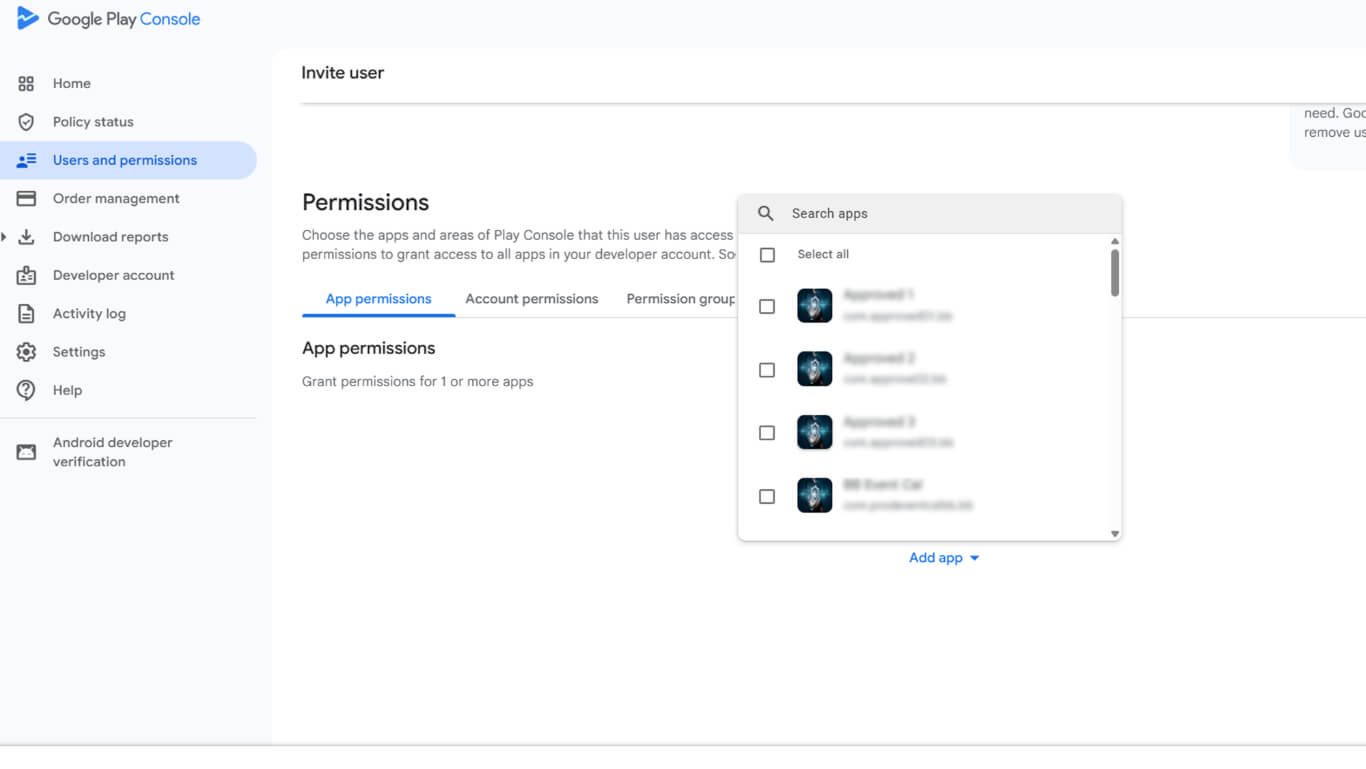
- Click Apply to confirm app selection.
- Select Admin under Account permissions for full access.
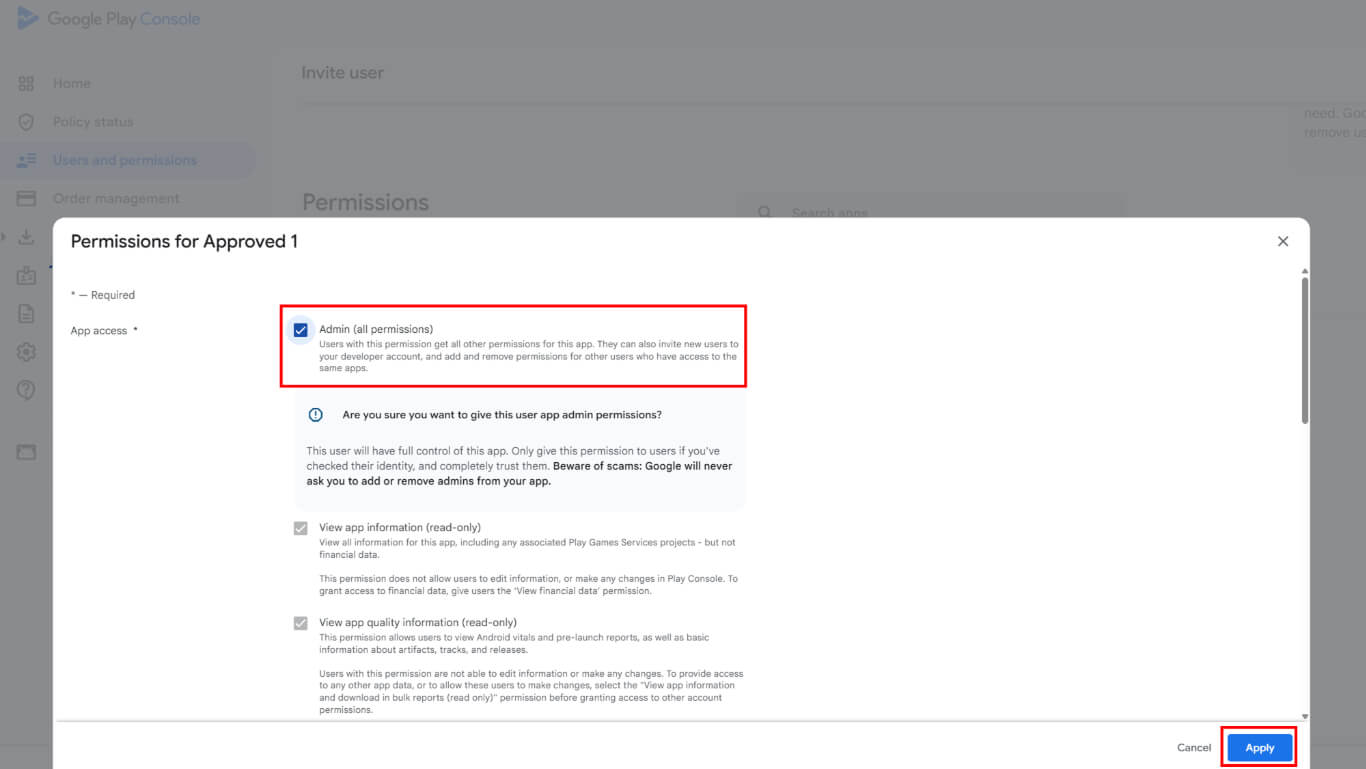
- Click Invite user to send the invitation.
- Navigate to Users in this Group section.
- Add the service account user to the group.
- Verify the service account appears with an Active status in the users list.
Uploading Service Account Key to WordPress
Service account key upload connects the Google Developer account to WordPress.
- Navigate to Dashboard > MP AppKit > Configure > Android Settings.
- Locate the Connect Your Google Developer Account section.
- Click Upload File to open the file selector.
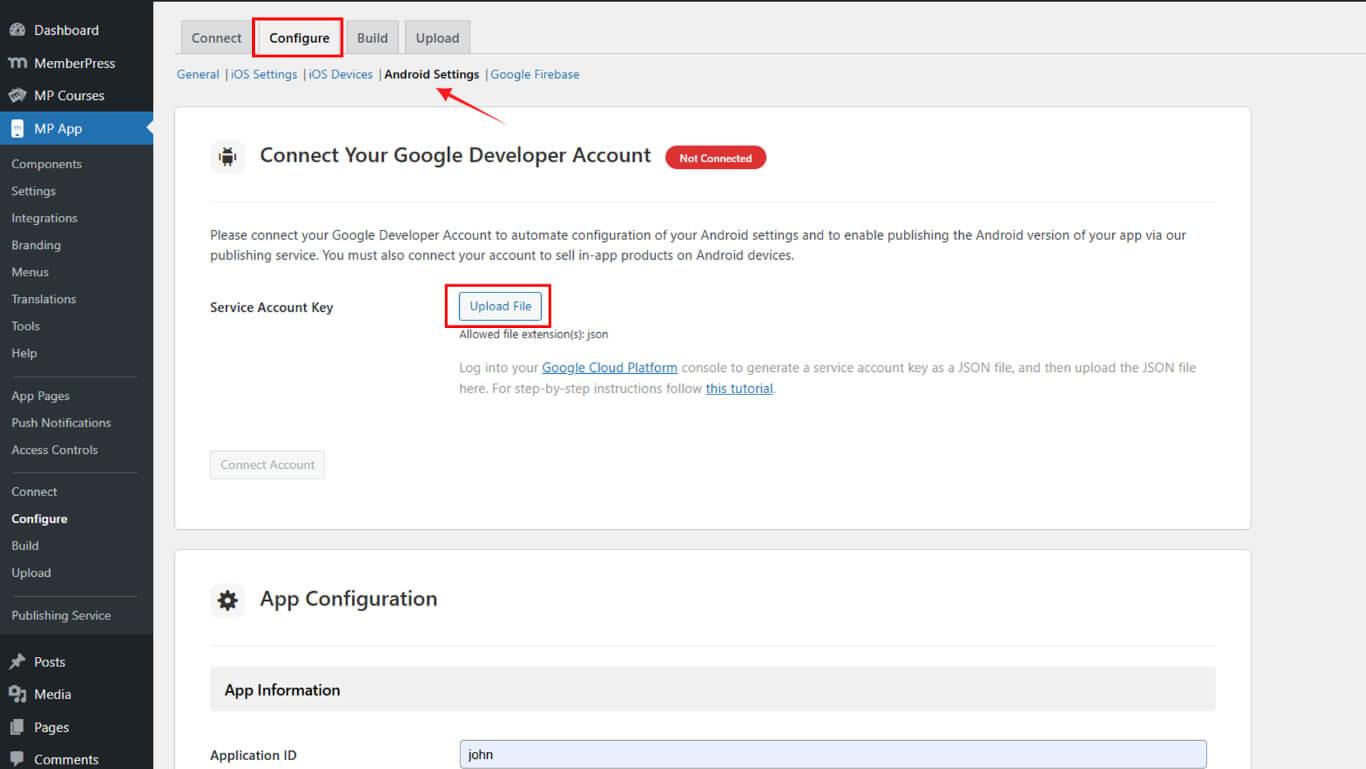
- Select the downloaded JSON key file from the device.
- Click Connect Account to establish a connection.
- Verify the green Connected indicator appears.
The connected status confirms successful integration with the Google Developer account.
Setting Up Internal Testing
Internal testing configuration enables app testing before public release.
Navigating to Internal Testing
- Navigate to Google Play Console at play.google.com/console.
- Select the app from the Home page.
- Click Test and Release > Internal testing in the sidebar.
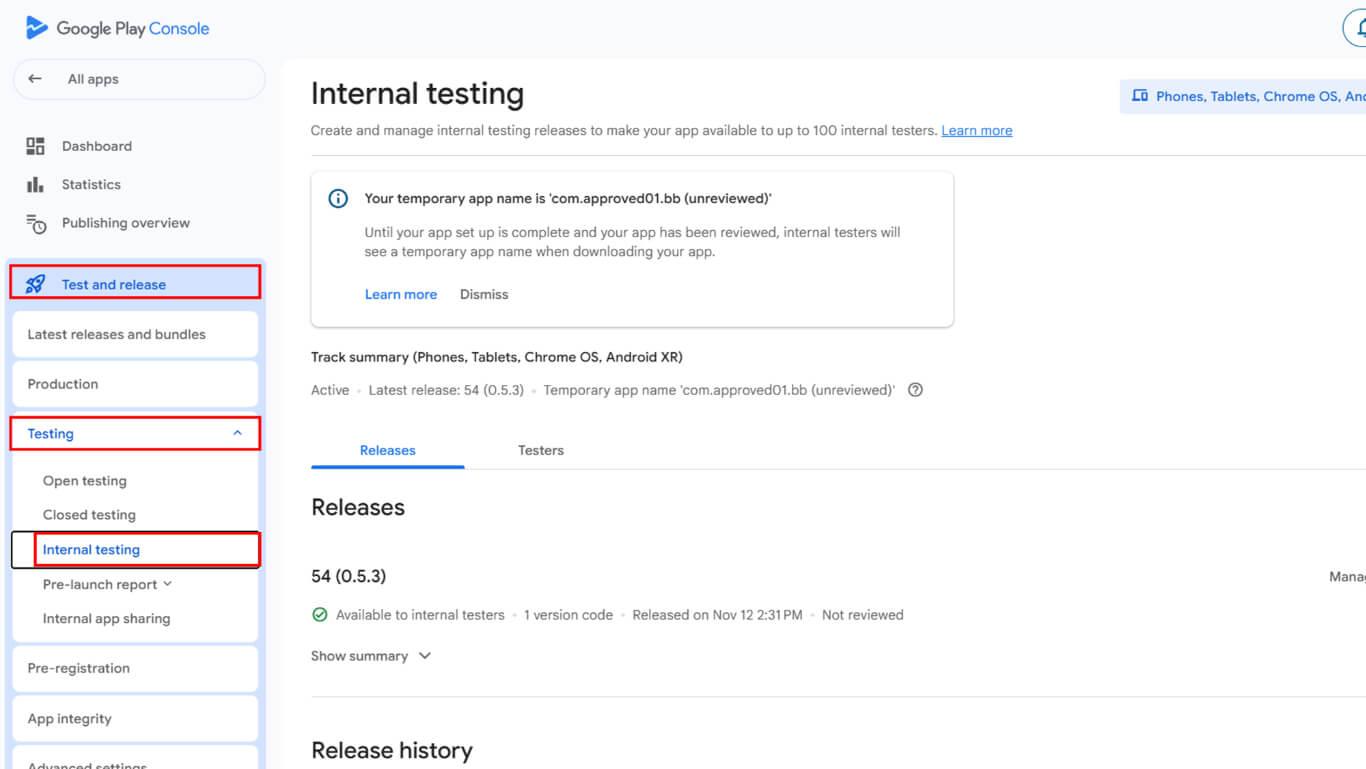
- Click Create new track if no track exists.
- Add tester email addresses or Google Groups in the testers section.
- Enter a feedback URL or email address for bug reports.
- Click Save to finalize testing track configuration.
Creating New Release
Release creation prepares the app for distribution to testers.
- Navigate to Testing > Internal testing in Google Play Console.
- Click the Create new release button.
- Locate the App signing section.
- Click Choose signing key.
- Select the Use Google-generated key option.
- Confirm the signing key selection.
Google Play signs all releases using the generated key after selection confirmation.
Requesting AAB Build
Android App Bundle build request occurs through the WordPress build interface.
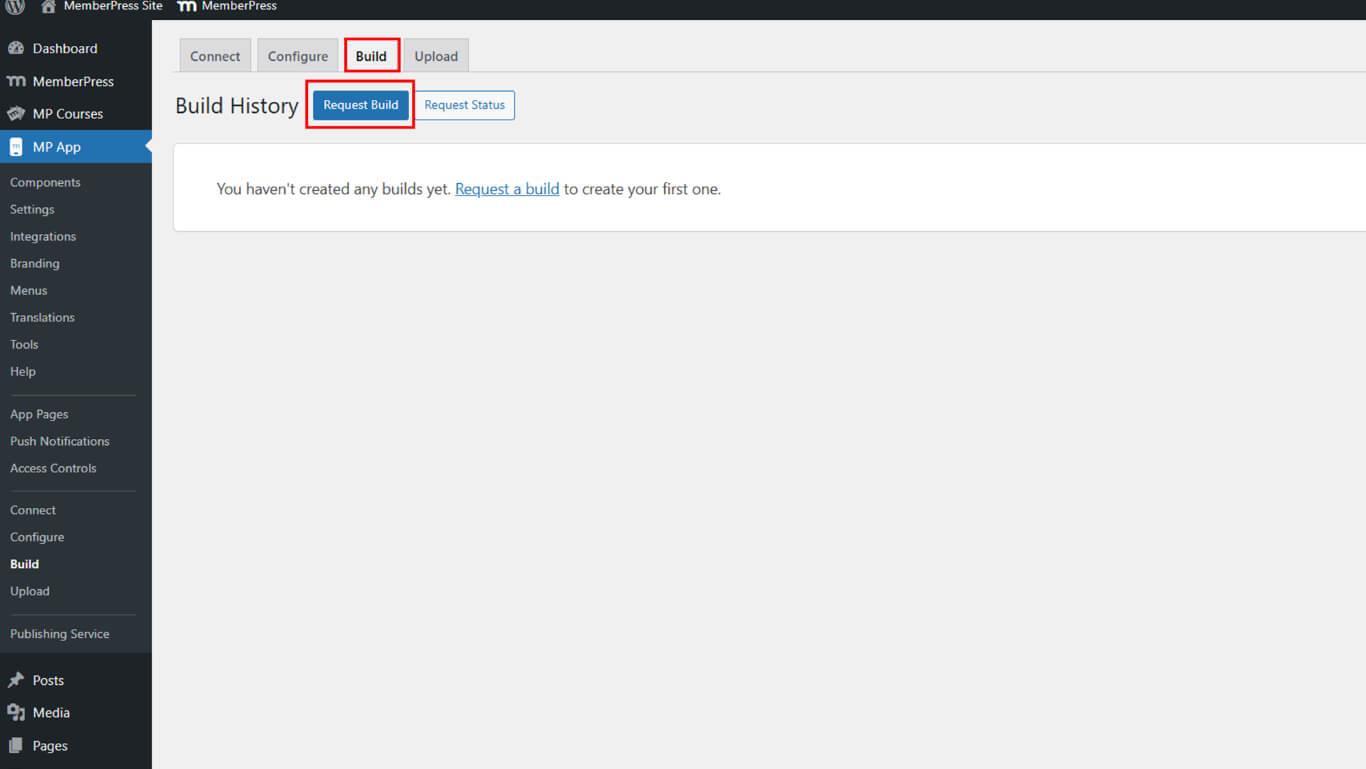
- Navigate to Dashboard > MP AppKit > Build.
- Click the Request Build button.
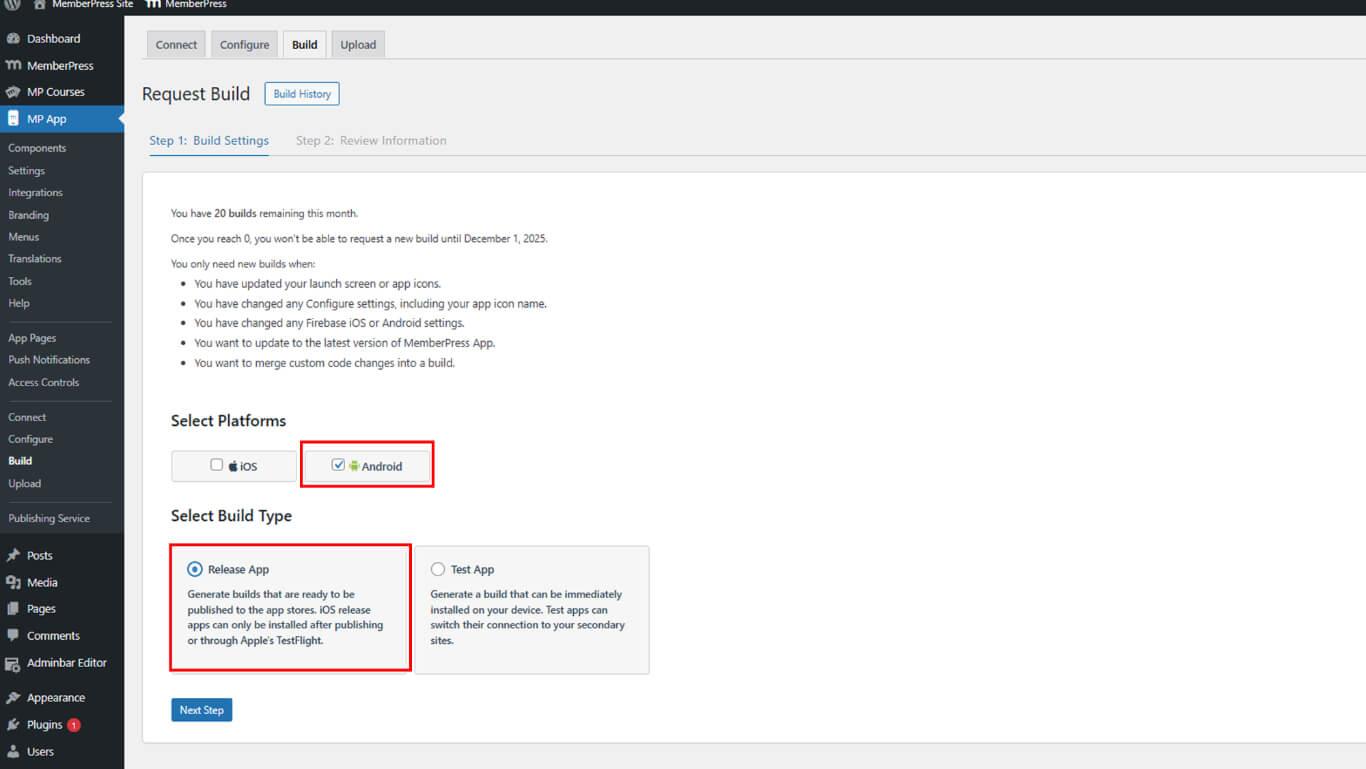
- Check the Android checkbox as the platform.
- Select Release App as the build type.
- Click Next Step to proceed.
- Click Send Build Request to submit the request.
- Monitor request status under Build History.
Build completion typically occurs within 5-10 minutes after request submission.
Uploading AAB to Play Console
AAB file upload to Play Console completes the release preparation.
- Navigate to the Create release screen in Google Play Console.
- Scroll to the App bundles section.
- Click Upload to open file selection.
- Navigate to Dashboard > MP AppKit > Build > Build History in WordPress.
- Click Upload to Google Play Console next to the completed build.
- Click Download build to save the AAB file.
- Return to the Google Play Console upload dialog.
- Select the downloaded AAB file from the device.
- Wait for upload completion.
- Verify the uploaded app bundle appears in the release.
Completing Required Declarations
Metadata declarations must be completed before publication.
- Review any displayed metadata error messages.
- Click Complete declaration to address requirements.
- Navigate to the Advertising ID declaration page.
- Answer Yes to “Does your app use advertising ID?” if applicable.
- Click Save to store the declaration.
- Return to the release screen.
- Click Save again to finalize the release.
Completed declarations enable release publication to the internal testing track.










