

The MemberPress AppKit plugin connects to WordPress, enabling mobile application functionality for membership content. This document explains how to install the MemberPress AppKit plugin, link it to WordPress with license credentials, and verify a successful connection.
Understanding MemberPress AppKit Connection
The MemberPress AppKit plugin provides the bridge between WordPress membership content and mobile applications. Plugin installation adds necessary functionality for app configuration, build generation, and content synchronization. License key authentication connects the WordPress site to MemberPress AppKit services.
Downloading MemberPress AppKit Plugin
Plugin download occurs through the MemberPress account dashboard.
- Log in to the MemberPress Account at the account portal.
- Navigate to Dashboard > Downloads.
- Locate the MemberPress AppKit plugin in the downloads list.
- Click Download to save the plugin ZIP file.
Installing MemberPress AppKit Plugin
Plugin installation adds MemberPress AppKit functionality to WordPress.
- Log in to WordPress Dashboard.
- Navigate to Plugins > Add New Plugin.
- Click the Upload Plugin at the top of the page.
- Click Choose File to open the file selection.
- Select the downloaded MemberPress AppKit plugin ZIP file.
- Click Install Now to begin installation.
- Click Activate after installation completes.
Obtaining MemberPress AppKit License Key
License key retrieval enables plugin connection to MemberPress services.
- Log in to the MemberPress Account at the account portal.
- Navigate to the Subscriptions section.
- Locate the MemberPress AppKit subscription.
- Click Manage next to the subscription.
- Copy the License Key displayed on the page.
Connecting MemberPress AppKit
License key entry establishes a connection between your website and MemberPress AppKit services.
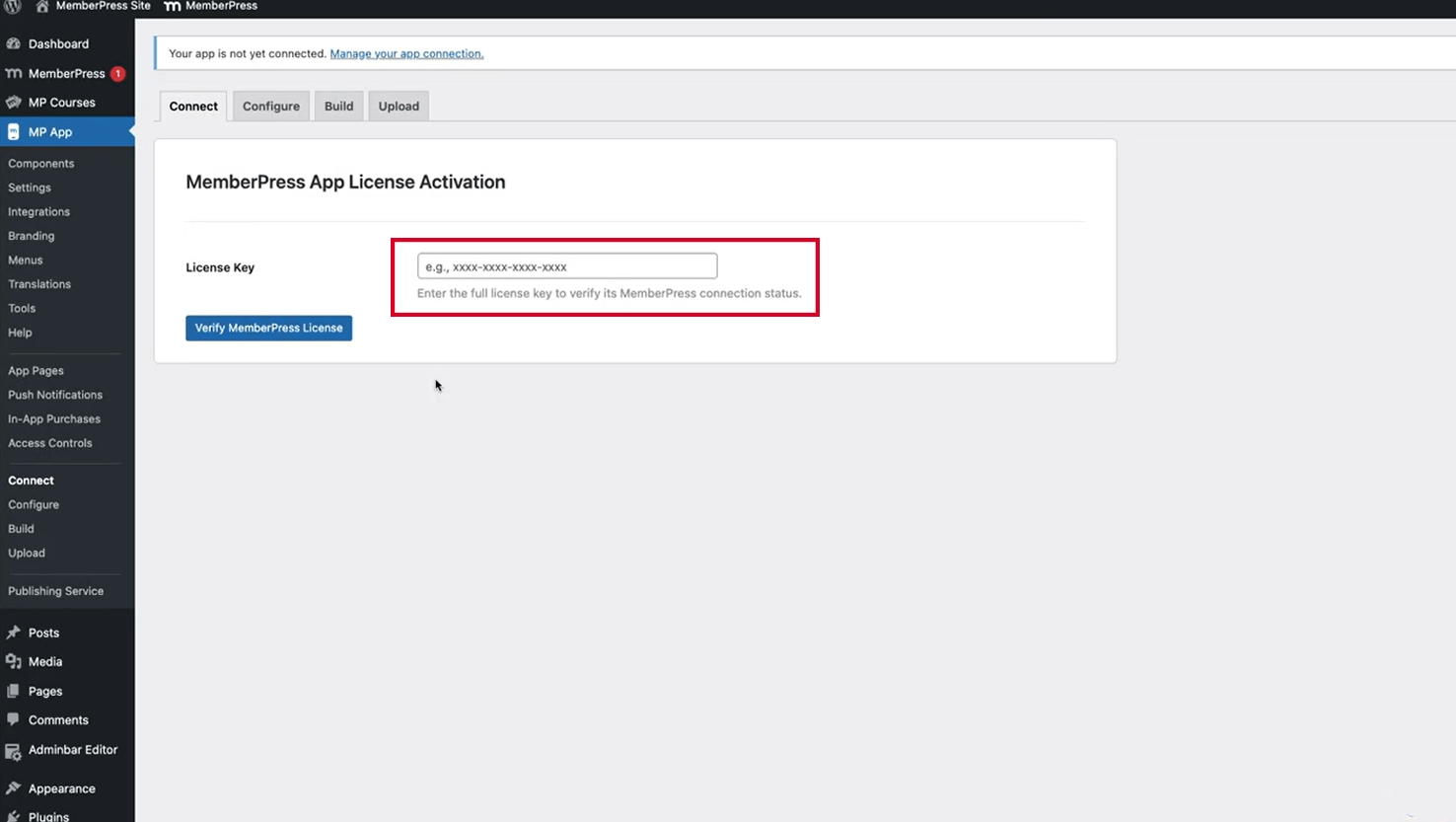
- Navigate to Dashboard > MP AppKit > Connect.
- Locate the License Key field.
- Paste the copied License Key into the field.
- Click Connect to establish a connection.
- Wait for the connection confirmation message.
Connection confirmation indicates successful plugin activation and service access. The plugin is now ready for app configuration and build generation.
Verifying Connection Status
Connection verification confirms proper plugin setup.
- Navigate to Dashboard > MP AppKit.
- Verify the Connect page shows connected status.
- Check that MemberPress AppKit menu items appear in the Dashboard sidebar.
- Navigate to Dashboard > MP AppKit > Settings to confirm access.
- Verify settings pages load without connection errors.
Successful connection enables access to all MemberPress AppKit configuration interfaces, including Components, Settings, Build, and Menus sections.










