

Automate release management and revenue reporting in MemberPress AppKit using the Google Play Developer API.
This guide walks you through linking your Google Cloud project, creating a service account, generating a JSON key, and connecting it in the MemberPress AppKit plugin.
Understanding Service Account Requirements
Service account requirements define necessary configurations for automated Google Play Console API access and management.
API access enablement allows MemberPress AppKit to interact with the Google Play Console programmatically. Service account authentication provides secure automated access to app management features.
Release management automation enables build uploads and release configuration without manual console interaction. Automated workflows streamline app update and submission processes.
Revenue reporting access provides financial data retrieval for analytics and reporting purposes. Service accounts access subscription revenue and transaction information programmatically.
Permission configuration grants specific capabilities to service accounts for operational needs. Proper permission setup ensures service accounts can perform required management tasks.
JSON key authentication uses secure credential files for service account verification. Key files authenticate API requests without exposing account passwords.
Linking Google Cloud Project
Google Cloud project linking connects MemberPress AppKit to Google Play Developer API services.
- In your WordPress admin, navigate to Dashboard > MP AppKit > Configure > Android Settings > Connect Your Google Developer Account.
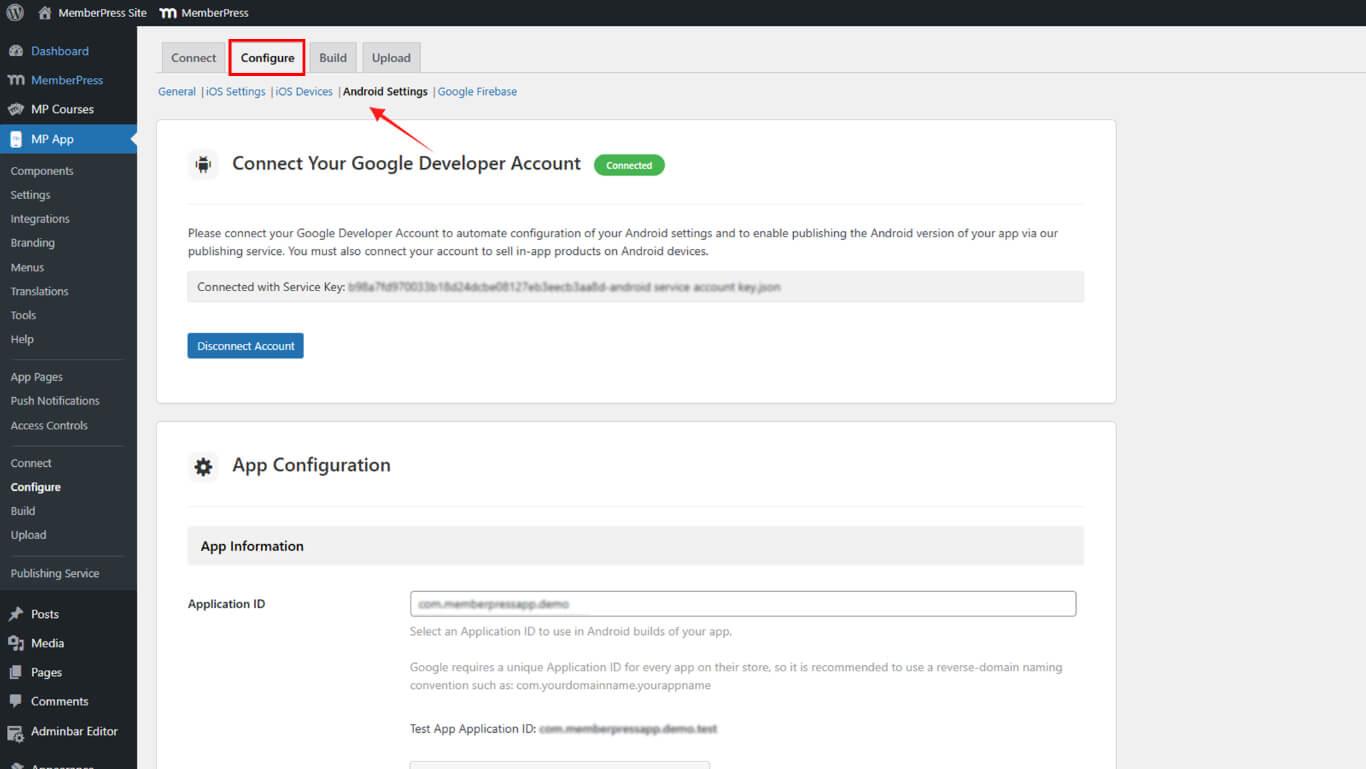
- When prompted, choose Link Existing Project or Create New Project in the Google Cloud dialog.
- Confirm your project is linked before proceeding.
Creating Service Account
Service account creation establishes identity for automated API interactions with Google Play Console.
- From the API Access page in WordPress, click Create New Service Account.
- In the Google Cloud pop-up, click the Google Cloud Platform link.
- Select your project and click Create Service Account.
- Enter a Name and click Create.
- Under Select a role, choose Basic > Owner, then click Continue.
- Click Done to finalize the service account setup.
Generating JSON Key
JSON key generation creates authentication credentials for service account API access.
- Back on the API Access page, find your new service account and click ⋮ > Manage Keys.
- Click Add Key > Create New Key.
- Select JSON for the key type and click Create.
- Click Done to close the key management dialog.
Granting Play Console Permissions
Play Console permission grants enable the service account to perform specific management operations.
- Still under API Access, click Grant Access next to your service account.
- Enable the following permissions:
- View App Information & Download Financial Reports;
- View Financial Data, Orders, & Cancellations;
- Manage Orders & Subscriptions;
- Create/Edit/Delete Draft Apps;
- Release to Production;
- Exclude Devices & Use Play App Signing;
- Release Apps to Testing Tracks;
- Manage Testing Tracks & Tester Lists;
- Manage Store Presence.
- Click Invite User and then Send Invite.
Connecting Key in MemberPress AppKit
Key connection completes service account authentication setup in WordPress for automated API operations.
- In WordPress, go to Dashboard > MP AppKit > Configure > Settings > Developer Account API Access.
- Under Connect Your Service Account, click Upload JSON Key and select the downloaded file.
- Click Save Changes.
Confirm the connection status shows “Connected“.










