

Customized navigation enhances user engagement by displaying relevant menu options based on member attributes. Multiple menu versions allow different navigation structures for logged-out guests, logged-in members, and specific Access Groups.
This document explains how to create menu variations, configure menu styling, and manage menu priority when members qualify for multiple versions.
Understanding Multiple Menu Versions
Multiple menu versions enable personalized navigation experiences within the app. Each menu version displays to members meeting specific criteria, such as login status or Access Group membership. The Tab Bar provides primary navigation at the bottom of the screen, while the More Menu offers secondary navigation options. Both menu types support multiple versions tailored to different member segments.
Creating Menus for Logged-Out Members
Logged-out member menus display to guests who have not authenticated. These menus typically include login, registration, and public information options.
- Navigate to Dashboard > MP AppKit > Menus > Tab Bar or More Menu.
- Click Create a new menu.
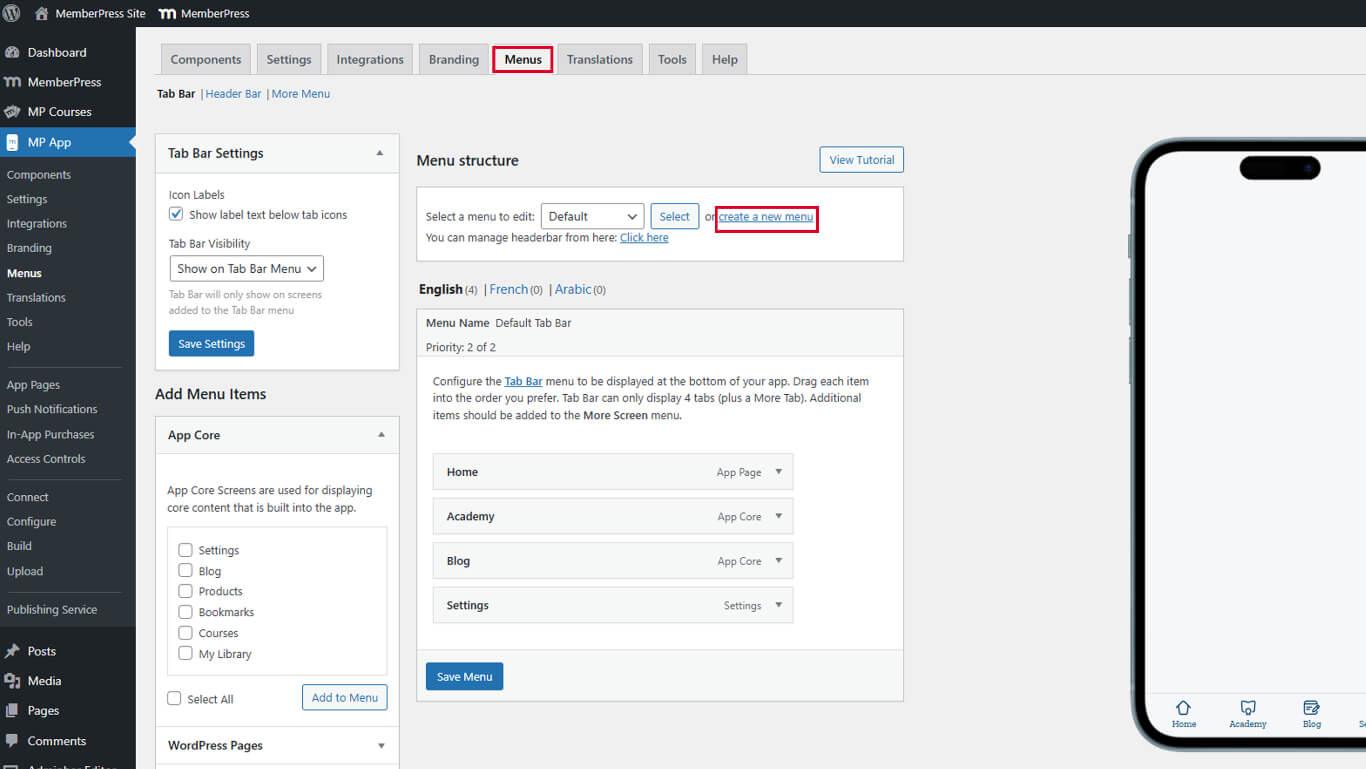
- Enter a descriptive name in the Menu Name field.
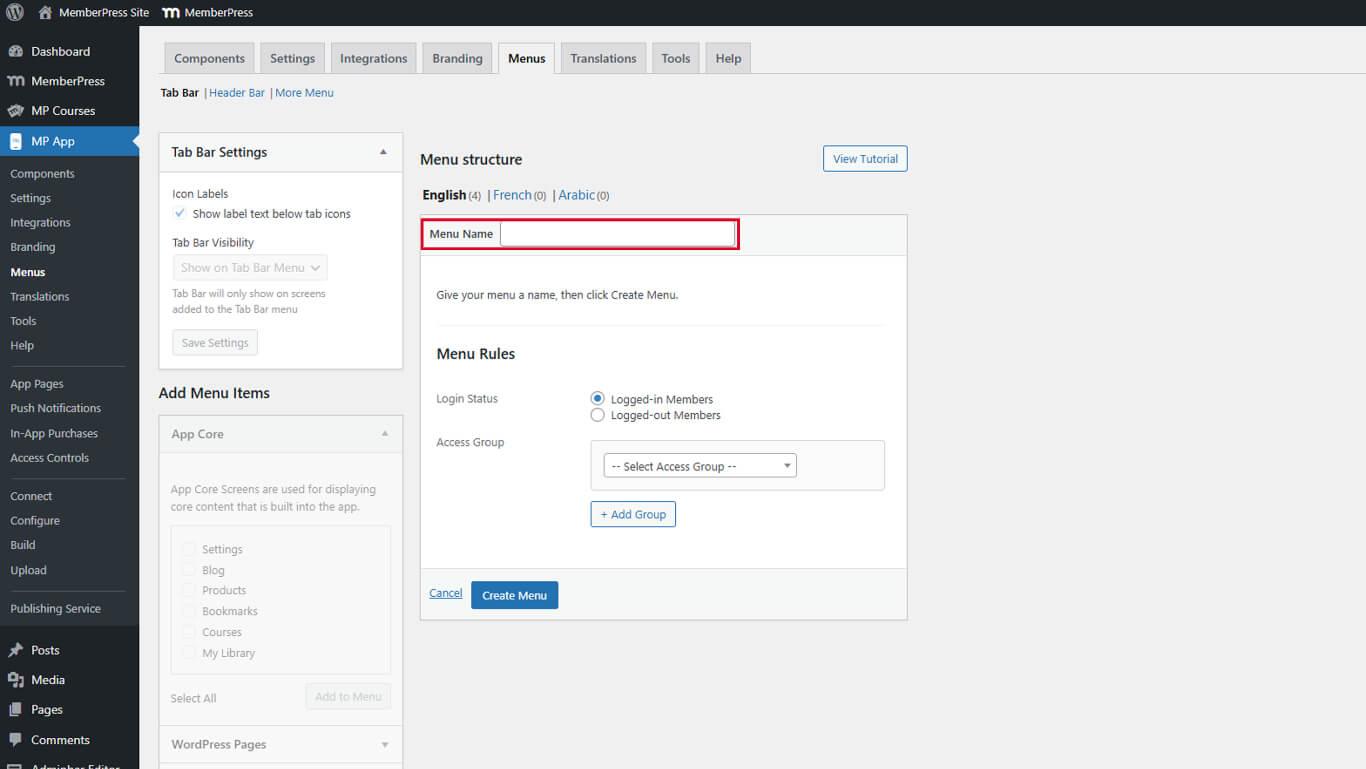
- Select Logged-out Members from the Login Status dropdown.
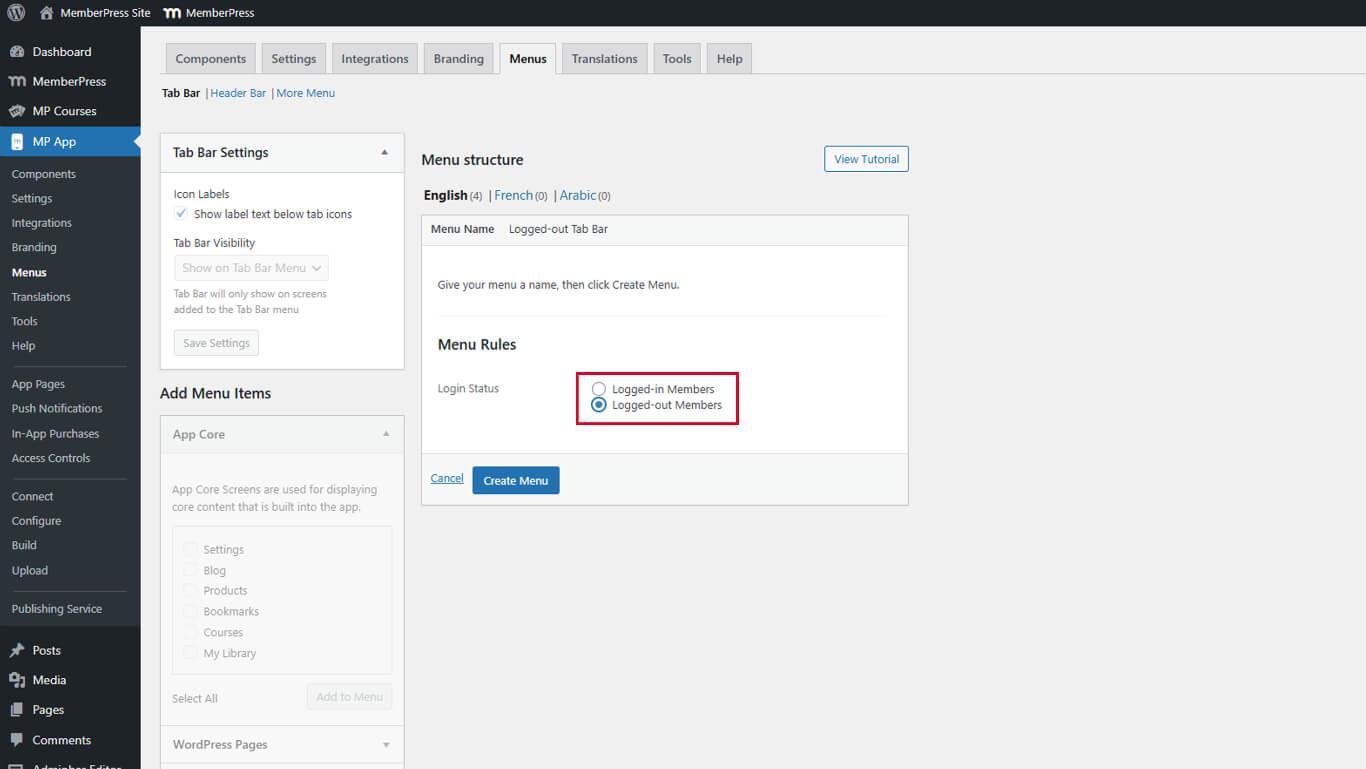
- Click Create Menu.
- Click Add Menu Items to select navigation options.
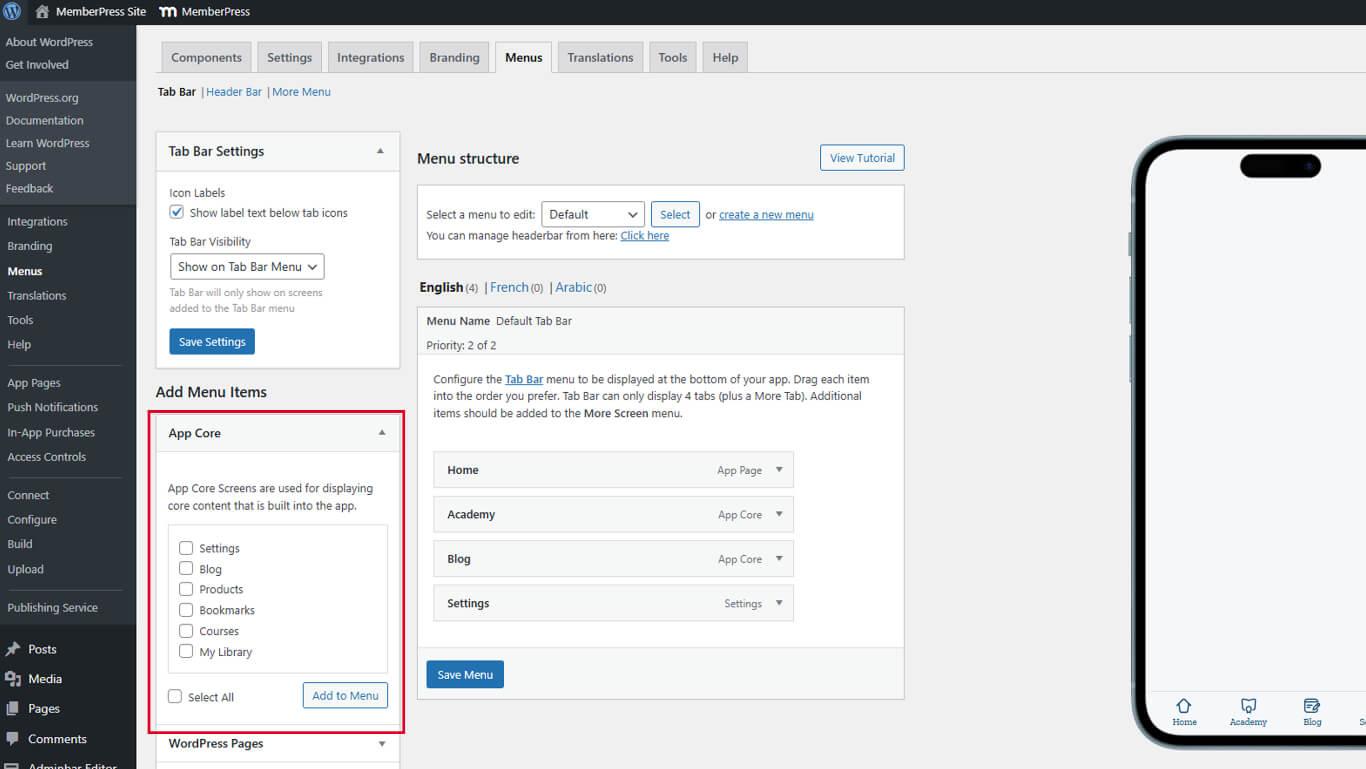
- Drag menu items to arrange display order.
- Click the Save Menu.
Guest Menu Visibility Requirements
Guest menus display only when the Private App setting is disabled.
- Navigate to Dashboard > MP AppKit > Settings > General > Privacy.
- Verify the Private App checkbox is unchecked.
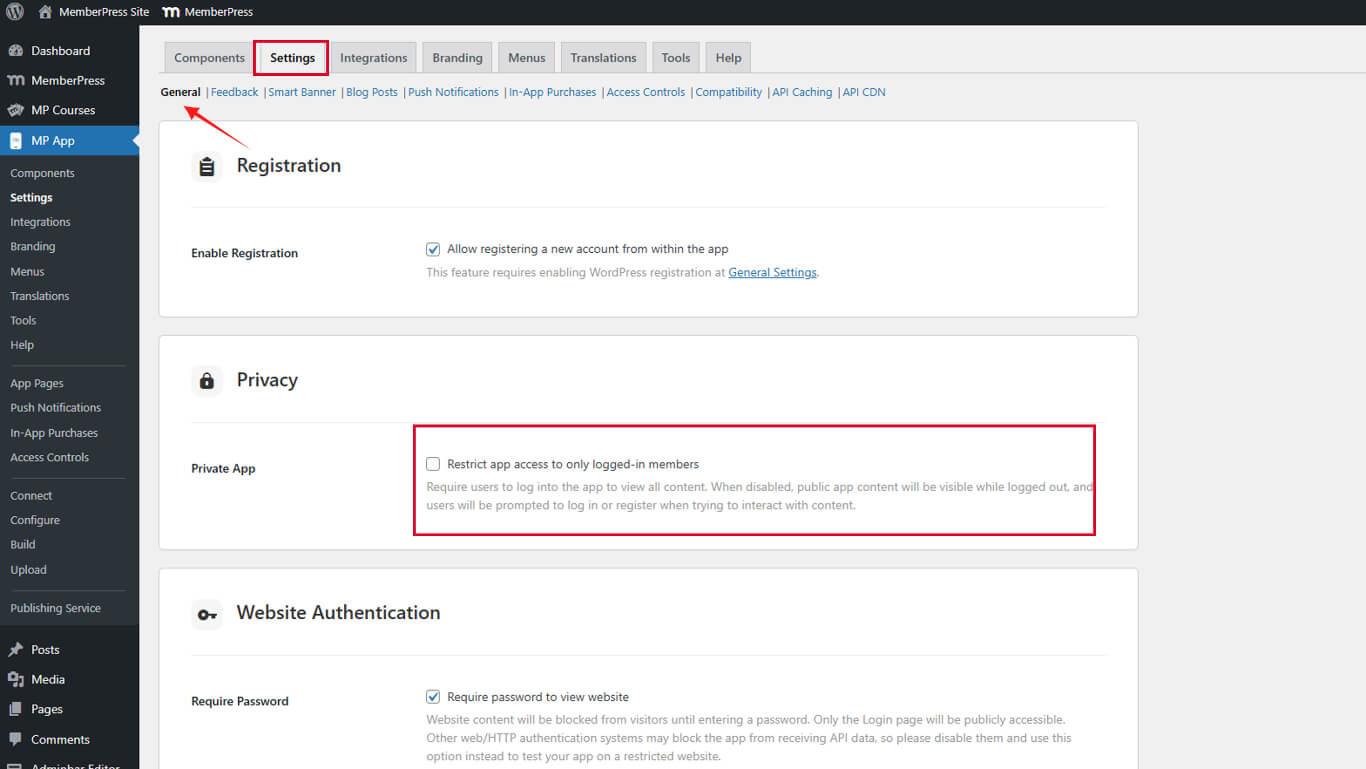
- Click Save Changes if modifications were made.
Creating Menus for Logged-In Members
Logged-in member menus display to authenticated users. These menus can be customized based on Access Group membership.
- Navigate to Dashboard > MP AppKit > Menus > Tab Bar or More Menu.
- Click Create a new menu.
- Enter a descriptive name in the Menu Name field.
- Select Logged-in Members from the Login Status dropdown.
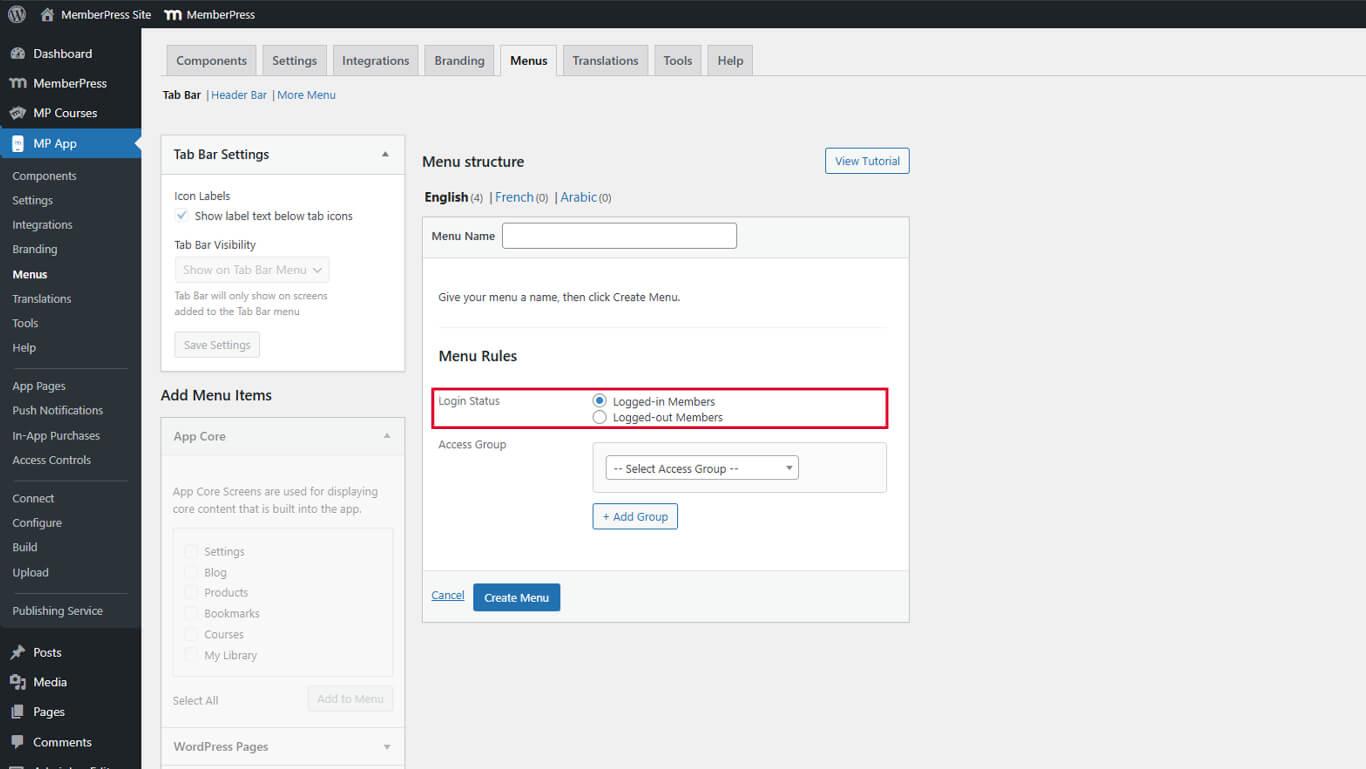
- Click Create Menu.
- Click Add Menu Items to select navigation options.
- Drag menu items to arrange display order.
- Click the Save Menu.
This menu displays to all authenticated users regardless of Access Group membership. Use this option for navigation common to all logged-in members.
Configuring Tab Bar Styling
Tab Bar styling controls the appearance across all Tab Bar menu versions.
- Navigate to Dashboard > MP AppKit > Menus > Tab Bar.
- Toggle Icon Labels to show or hide text labels below icons.
- Set Tab Bar Visibility:
- Show on Tab Bar Menu displays the Tab Bar only on designated screens;
- Show on All Screens displays the Tab Bar throughout the app.
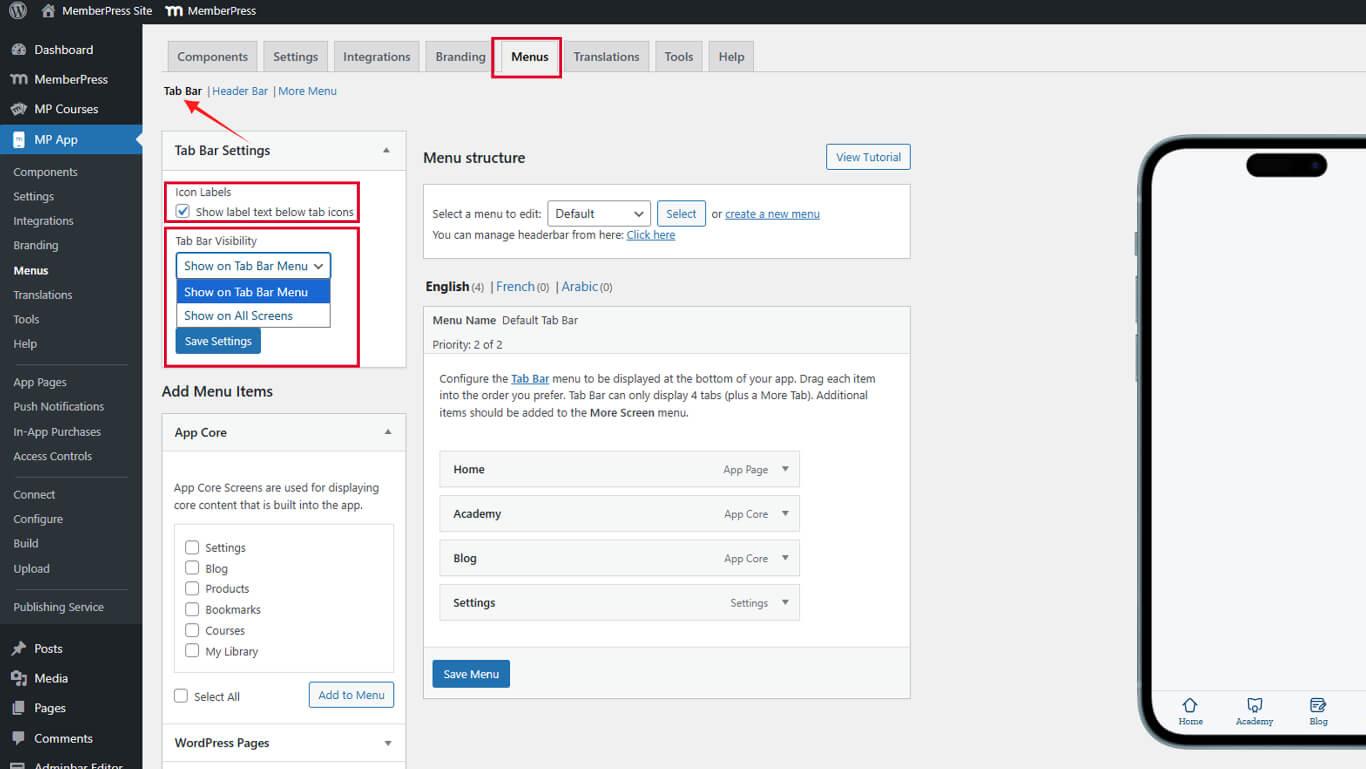
- Click Save Settings.










