

Navigation header customization enhances usability and reinforces branding within mobile applications. The app navigation header supports flexible More Menu placement and icon customization.
This document explains how to configure header settings, relocate the More Menu, and customize header icons for improved member experience.
Understanding MemberPress AppKit Navigation Header
The navigation header appears at the top of mobile app screens, displaying page titles and navigation elements.
Header configuration controls title alignment, scroll behavior, and More Menu placement.
Moving the More Menu from the Tab Bar to the header frees a Tab Bar slot for additional primary navigation. Proper header configuration balances functionality with clean interface design.
Understanding Header Configuration Benefits
Header customization provides multiple usability and branding advantages.
Relocatable More Menu flexibility affects Tab Bar capacity. Moving the More Menu to the header frees the fifth Tab Bar position for primary navigation items.
Tab Bar expansion allows five custom navigation items when More Menu moves to the header. Expanded capacity improves primary navigation access.
Icon customization aligns header appearance with brand identity. Default icons can be replaced with brand-appropriate selections.
Visual consistency maintains More Menu accessibility regardless of location. Members access secondary navigation from a familiar icon.
Accessing Header Bar Settings
Header configuration is available in the menu settings interface.
- Navigate to Dashboard > MP AppKit > Menus.
- Click the Header Bar tab.
- Locate the Header Bar Settings section.
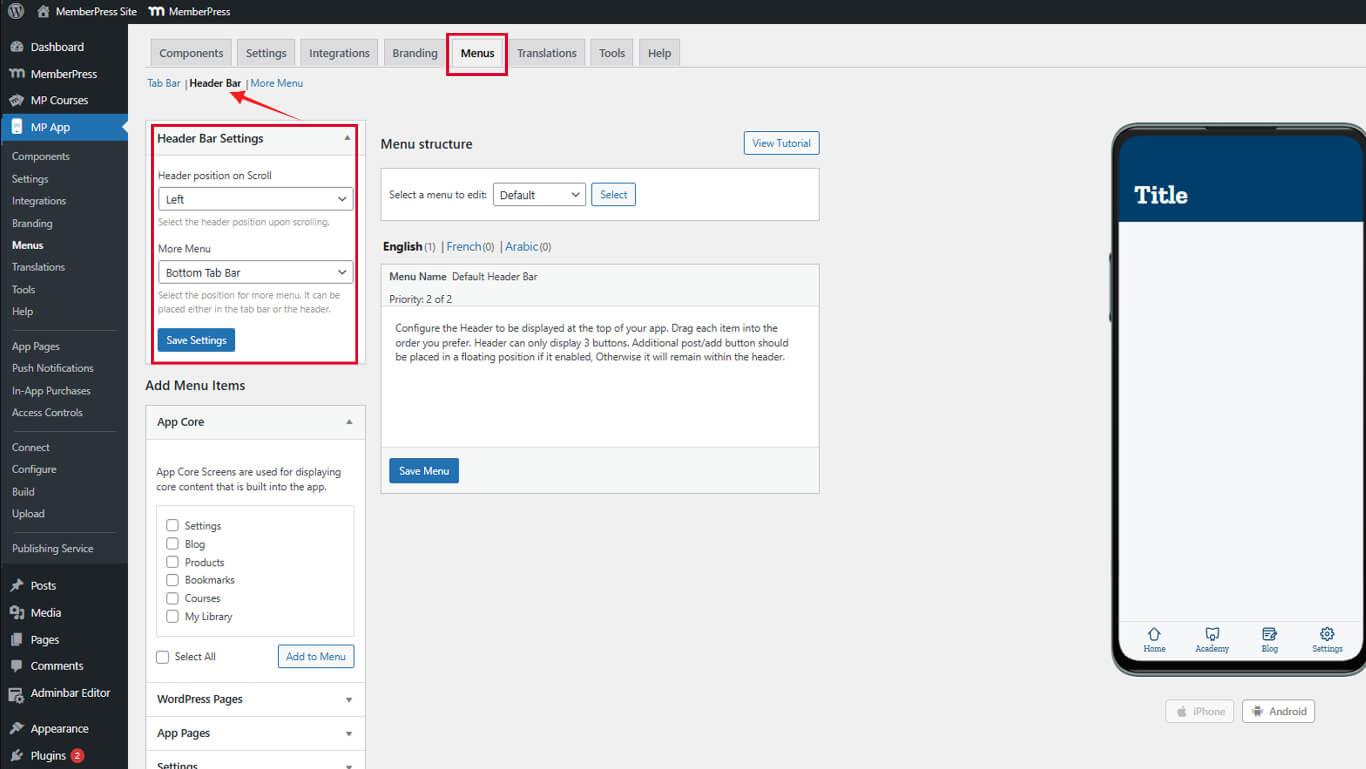
Header Bar settings control alignment, visibility, and More Menu placement.
Configuring Header Alignment
Header alignment affects title positioning and visual balance.
- Locate the Header Bar Settings section.
- Select the desired alignment option:
- Left Aligned keeps page titles aligned to the left;
- Hidden hides the header is hidden during scroll for expanded content space.
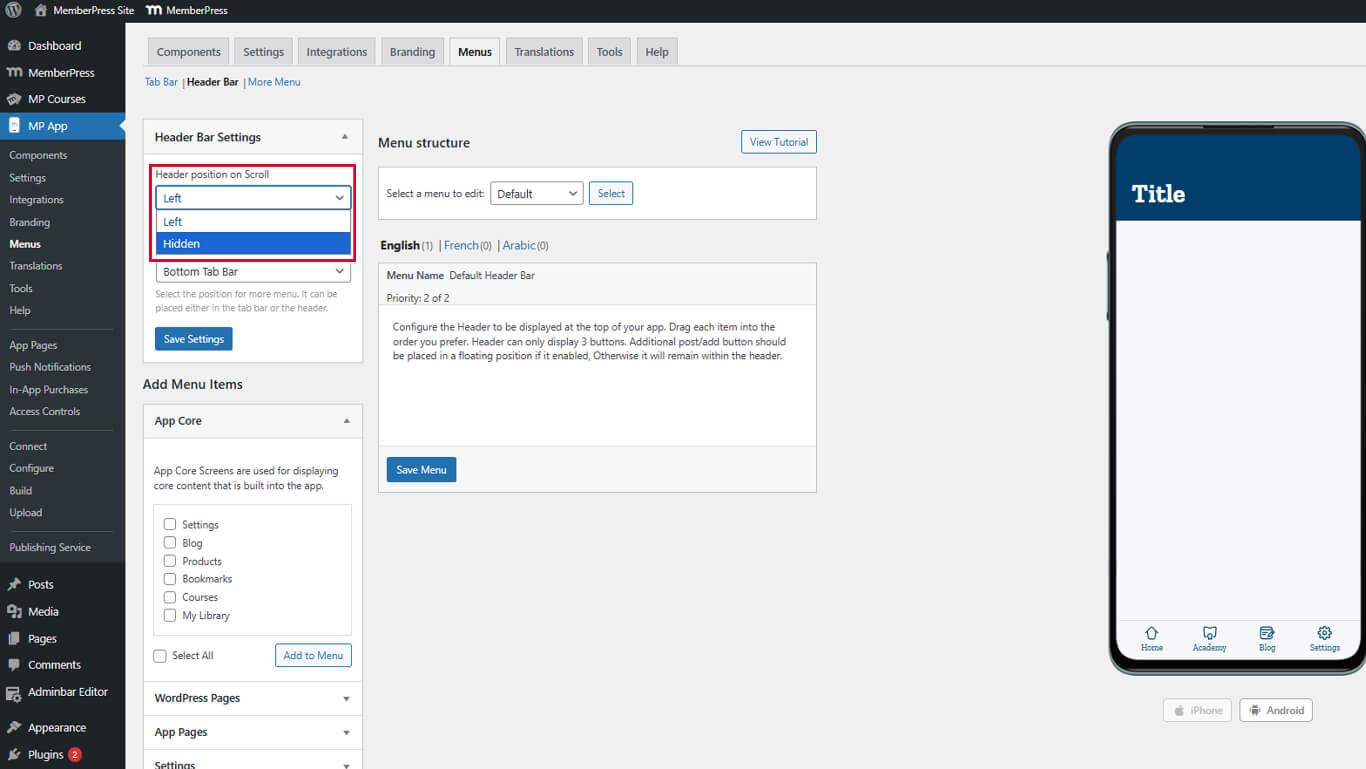
- Click Save Settings.
Left alignment maintains consistency with standard mobile design patterns.
Configuring More Menu Placement
More Menu placement determines whether secondary navigation appears in the Tab Bar or the header.
- Navigate to Dashboard > MP AppKit > Menus > Header Bar.
- Locate the More Menu Placement dropdown in Header Bar Settings.
- Select the desired placement:
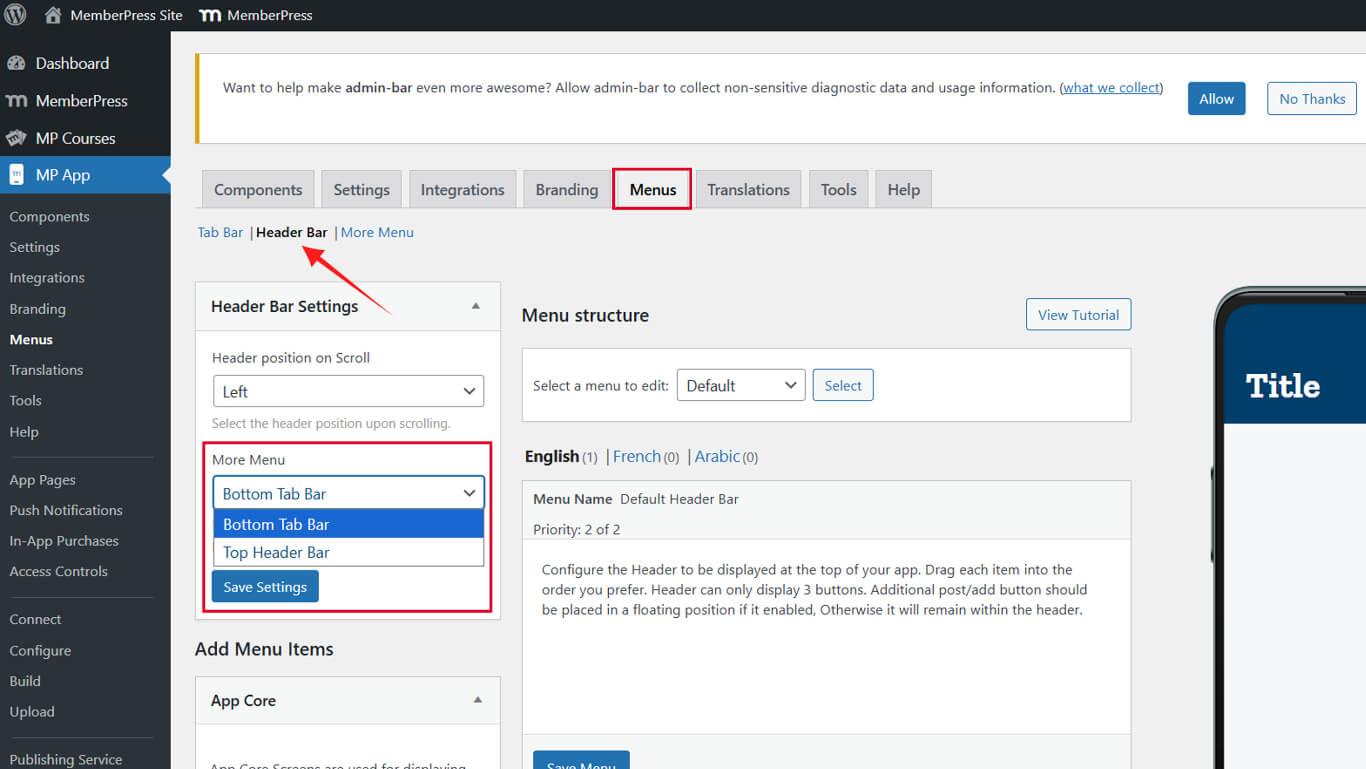
- Bottom Tab Bar keeps the More Menu in the fifth Tab Bar position;
- Top Header Bar moves the More Menu icon to the header.
- Click Save Settings.
More Menu placement affects Tab Bar capacity and overall navigation organization.
Updating Header Menu Items
- Go to the Header Bar Menu tab.
- Find the More Menu item (usually the user avatar).
- Click the dropdown arrow > Item Icon > Select Icon.
- Choose an icon from the Icon Pack or upload your own.
- Click the Select Icon, then the Save Menu.
Repeat for any action buttons (e.g., Create Post, Add Group, Send Message):
- Click their dropdown arrows.
- Choose or upload new icons.
- Click the Select Icon, then the Save Menu.
Updating the Tab Bar Menu
- Switch to the Tab Bar Menu tab.
- Click Add to Menu for one item (e.g., Notifications) from the available menu items listed in the MemberPress AppKit or Logged In Member sections.
- Ensure there are no more than four items total in the Tab Bar.
- Click the Save Menu.
Tab Bar capacity increases only when More Menu successfully moves to the header.










