

Maintenance Mode temporarily restricts app access during updates, troubleshooting, or backend modifications. Users see a branded holding screen during maintenance periods.
This document explains how to enable Maintenance Mode, customize the maintenance screen, and restore normal app access.
Understanding Maintenance Mode
Maintenance Mode prevents user interaction while preserving branding consistency. The maintenance screen displays the app logo, background color, and customizable message. This feature allows technical work without exposing incomplete changes or disrupting user experience.
Enabling Maintenance Mode
Maintenance Mode activation immediately restricts app access for all users.
- Navigate to Dashboard > MP AppKit > Configure > General.
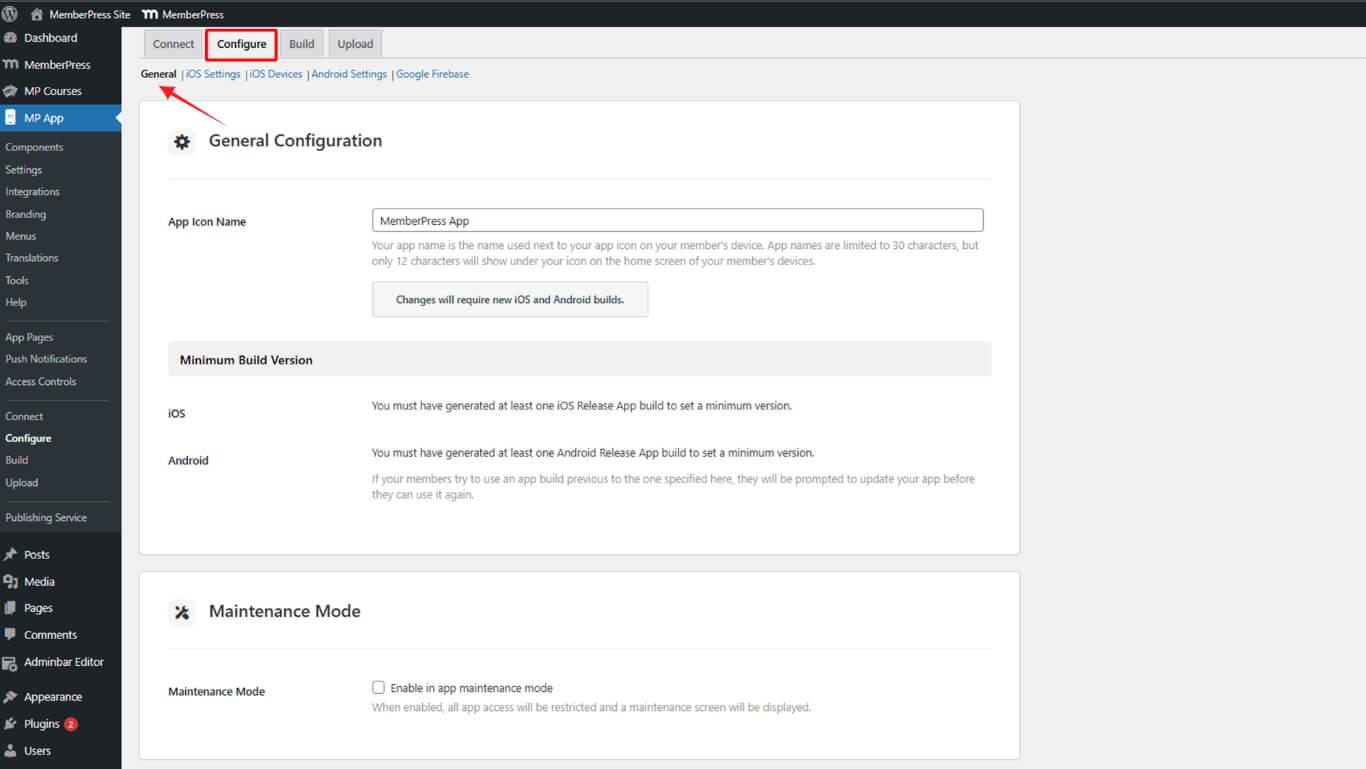
- Scroll to the Maintenance Mode section.
- Check the Enable Maintenance Mode checkbox.
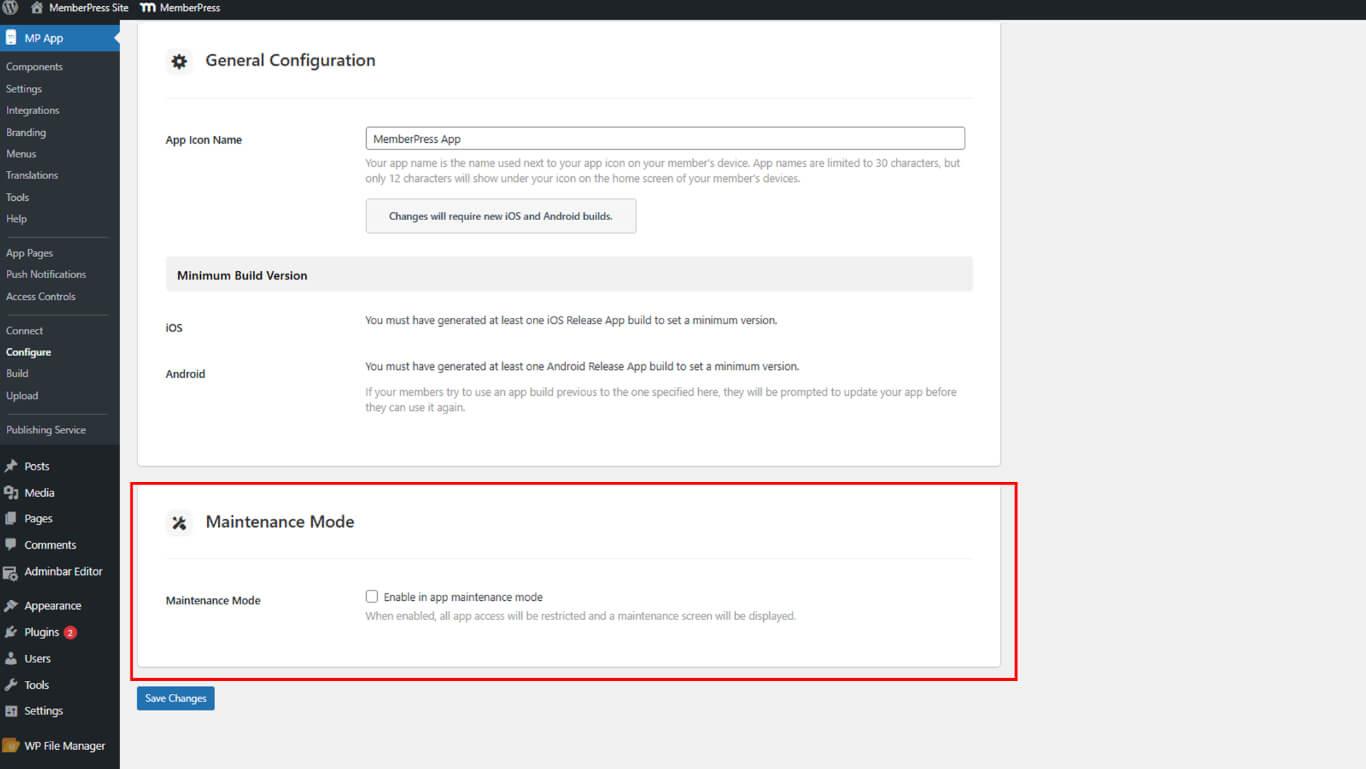
- Click Save Changes.
All users attempting to access the app see the maintenance screen after activation.
Understanding Maintenance Screen Elements
The maintenance screen displays three branded elements during downtime.
- App Logo displays centered on the screen. The system retrieves this logo from Dashboard > MP AppKit > Branding > Logon Screen > Logo. A default placeholder appears if no logo is configured;
- Background Color fills the screen behind the logo and message. The system applies the color from Dashboard > MP AppKit > Branding > General Background Color. The default app background displays if no custom color is set;
- Maintenance Message appears below the logo as centered text. The default message reads “Maintenance Mode is enabled. Please try again later.” This message can be customized through translations.
Disabling Maintenance Mode
Maintenance Mode deactivation restores normal app access for all users.
- Navigate to Dashboard > MP AppKit > Configure > General.
- Scroll to the Maintenance Mode section.
- Uncheck the Enable Maintenance Mode checkbox.
- Click Save Changes.










