

Right-to-left language support provides proper text display and interface orientation for RTL languages. RTL support ensures languages like Arabic and Hebrew display correctly with appropriate text direction and mirrored interface elements.
This document explains how to translate app text strings, enable RTL layout, and verify proper direction throughout the app.
Understanding RTL Language Support
RTL language support adjusts text direction and interface orientation for right-to-left languages. Enabling RTL changes text flow, navigation direction, and visual element positioning. RTL configuration applies globally based on WordPress site language settings.
Adding the RTL Translation
App text strings must be translated to the target RTL language.
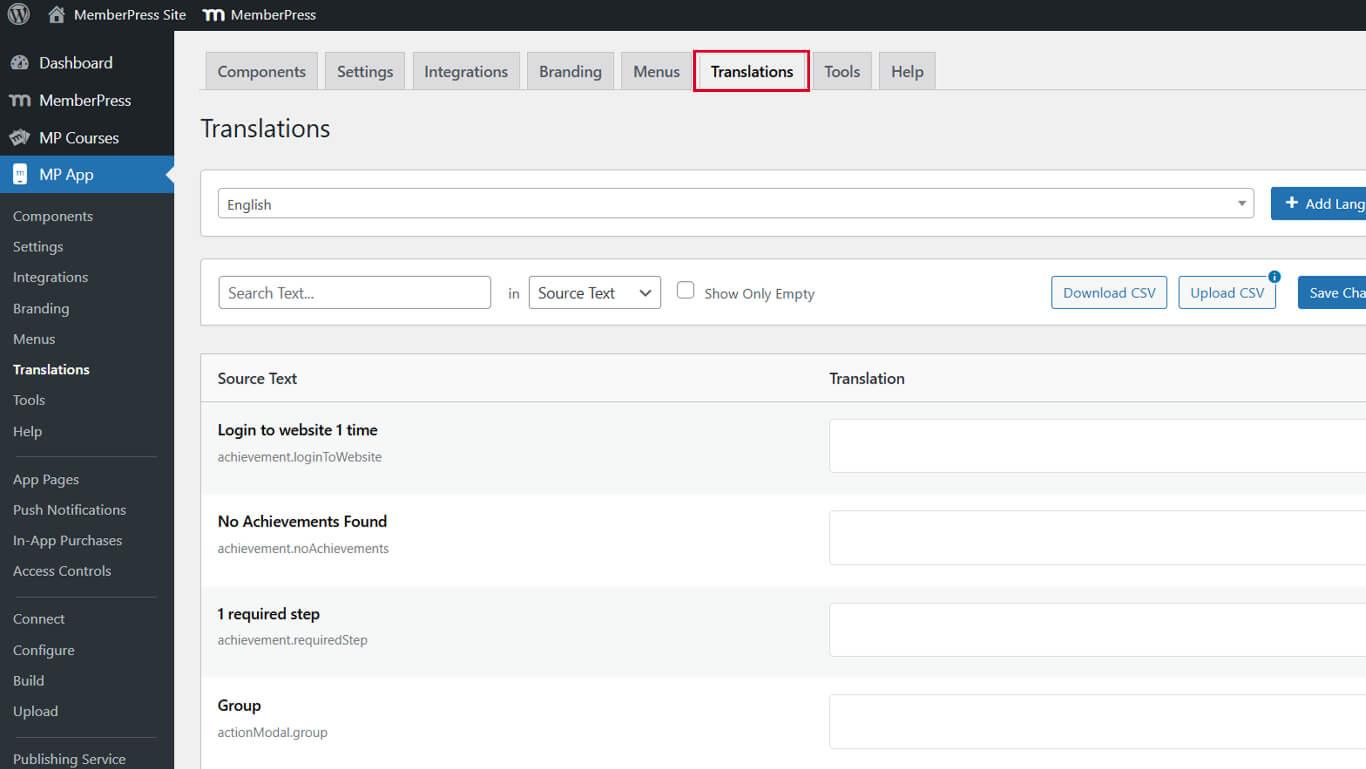
- Navigate to Dashboard > MP AppKit > Translations.
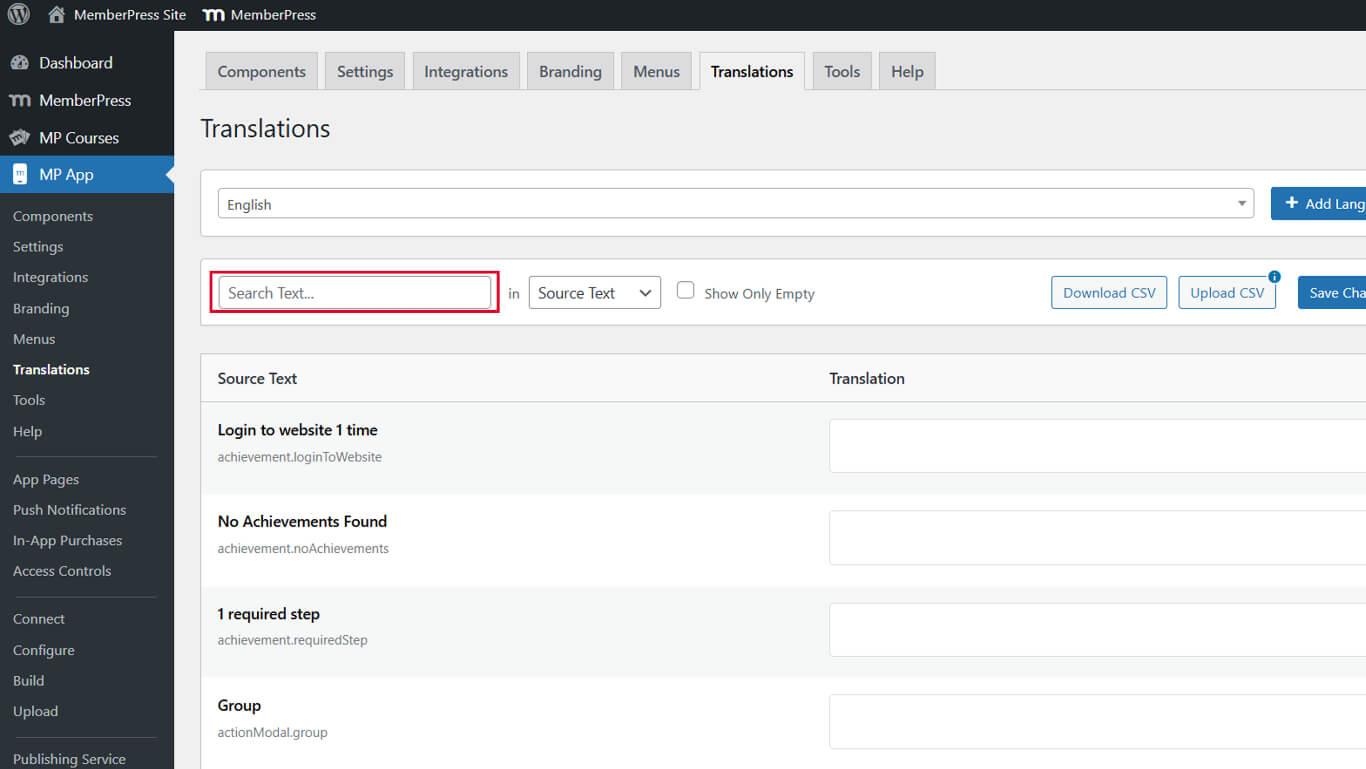
- Enter a search term in the search bar to find specific strings.
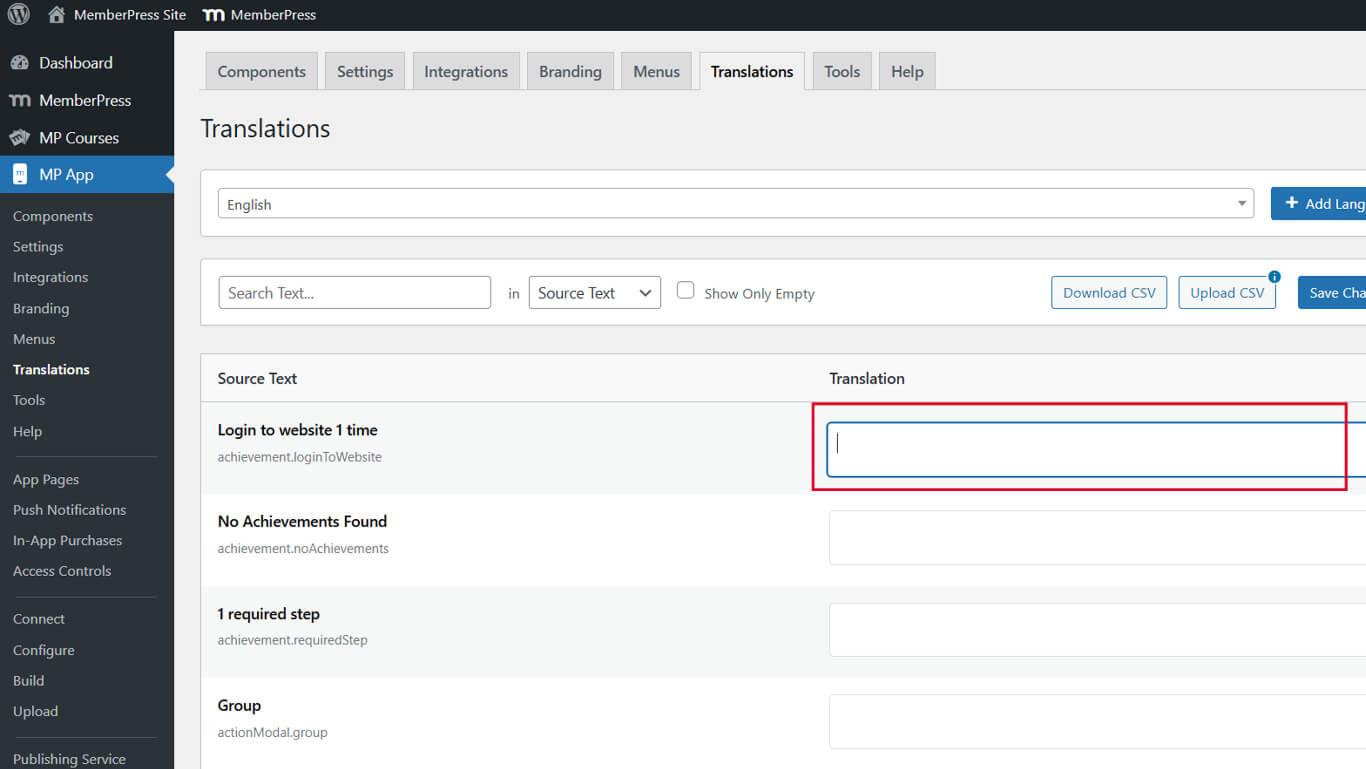
- Locate the string you wish to translate.
- Enter the RTL language translation text in the Translation field.
- Click Save Changes.
- Repeat steps 2-5 for all strings you wish to translate.
Common strings for translation include navigation labels, button text, and interface messages.
Switching Site Language to RTL
The WordPress site language setting controls the global RTL layout behavior.
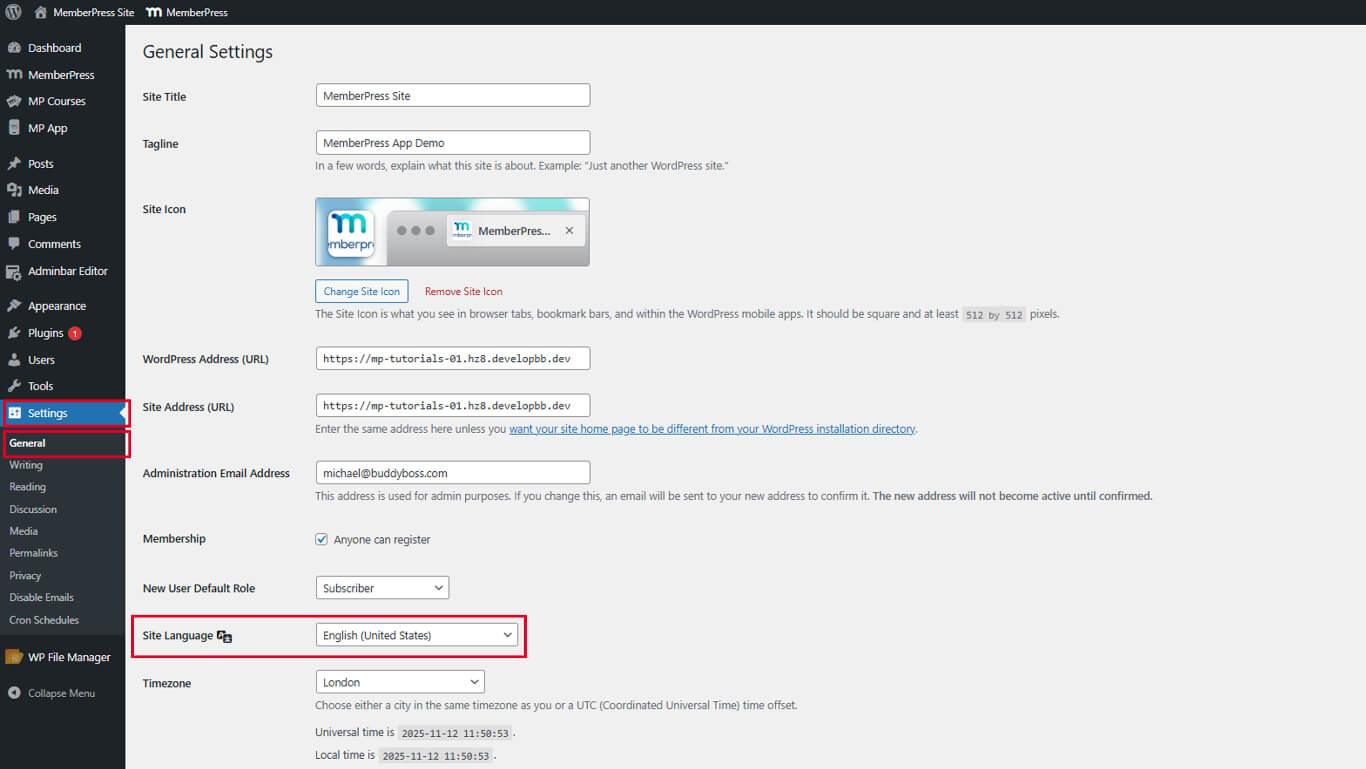
- Navigate to WordPress Dashboard > Settings > General.
- Locate the Site Language dropdown.
- Select an RTL language option from the dropdown list.
- Click Save Changes.
The WordPress admin panel and site theme will switch to RTL layout after saving.
Verifying RTL Layout in the Mobile App
- Force-close and reopen the MemberPress iOS/Android app on your mobile device.
- Check that the tab bar and header icons appear in right-to-left order.
- Open any translated screen (e.g., Members) and verify that text and menus are RTL.
- Navigate through the app to confirm back arrows, animations, and content flow match RTL direction.










