

MemberPress Android Release Apps enable production-ready build preparation for Google Play submission, real-world testing, and accurate in-app purchase validation. Release Apps compile site configuration, branding, menus, and customizations into Android App Bundle files using cloud-based build servers.
This document explains how to create Android Release App builds, upload them to Google Play testing tracks, invite testers, and manage build updates.
Understanding Release vs Test Apps
Release Apps and Test Apps serve different purposes in the development and distribution lifecycle.
Release Apps are required for Google Play Store submission and verifying actual subscription pricing, durations, and purchase flows. Test Apps serve daily quality assurance and rapid development previews while Release Apps enable genuine in-app purchase transactions and official distribution testing. Proper Release App configuration ensures accurate pre-publication testing and smooth Google Play submission processes.
Test App Characteristics
Test Apps provide rapid deployment for development and quality assurance activities.
Daily quality assurance enables quick testing cycles without app store submission delays. Test Apps install via QR code without requiring Google Play distribution.
Stakeholder demonstrations showcase app features and functionality for approval processes. Direct installation simplifies sharing with non-technical reviewers.
Custom code previews validate GitHub-connected customizations before production deployment. Development teams test code changes without formal release procedures.
Simulated purchases use placeholder pricing without processing real transactions. The test environment enables purchase flow verification without financial implications.
Release App Characteristics
Release Apps provide production-grade builds for official distribution and testing.
Google Play submission requires Release App AAB files for store publication. Only Release Apps meet Google's distribution requirements for public availability.
Real-world testing validates app functionality in production-equivalent environments. Testing tracks enable controlled Release Apps distribution before public launch.
Actual pricing display shows real subscription costs and terms to testers. Price verification ensures accurate member expectations before public release.
Genuine purchase transactions process real in-app purchase payments through Google Play billing. Transaction testing confirms proper payment processing and receipt validation.
AAB file format has met Google Play requirements since August 2021. Android App Bundle format enables optimized app delivery and reduced download sizes.
Creating Android Release App Build
Release App build generation creates production-ready AAB files for Google Play distribution.
- Navigate to Dashboard > MP AppKit > Build.
- Click the Request Build button.
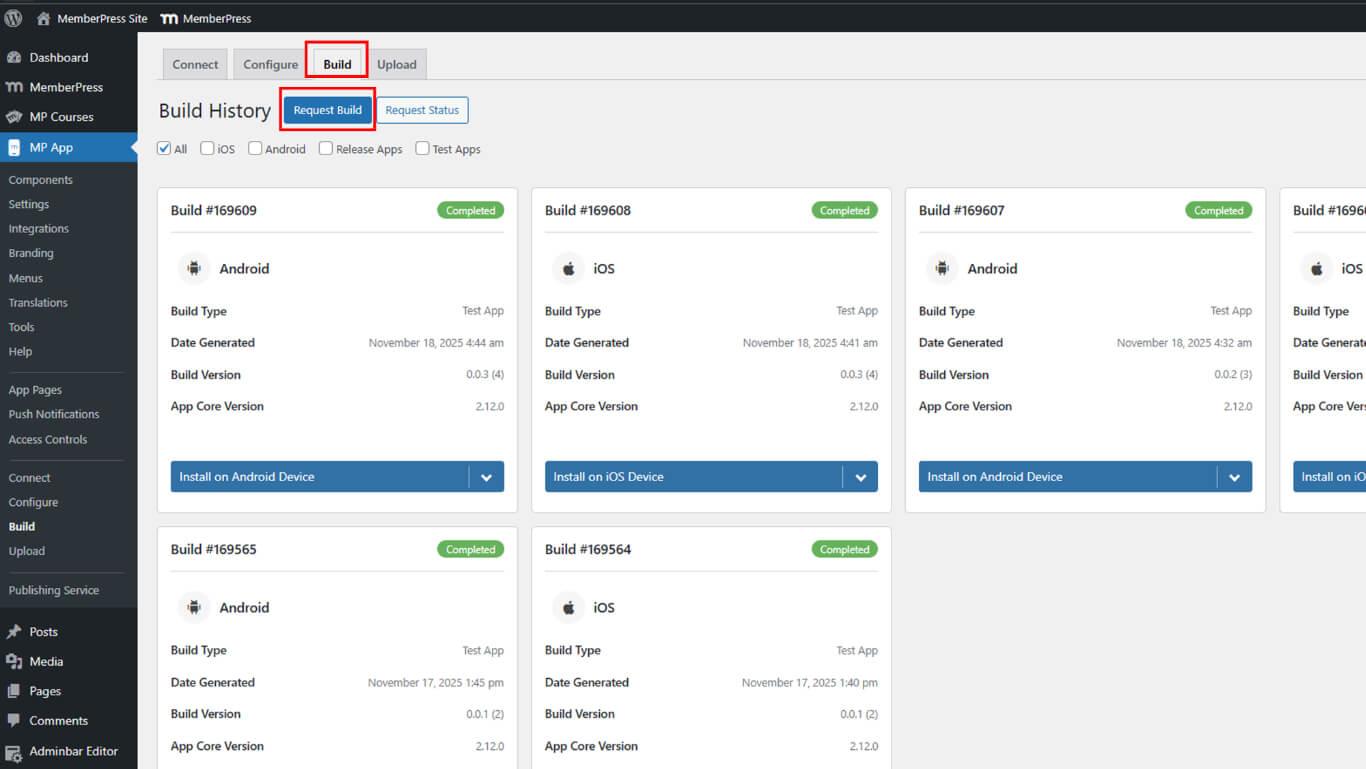
- Select Android as the platform from the available options.
- Select Release App as the build type.
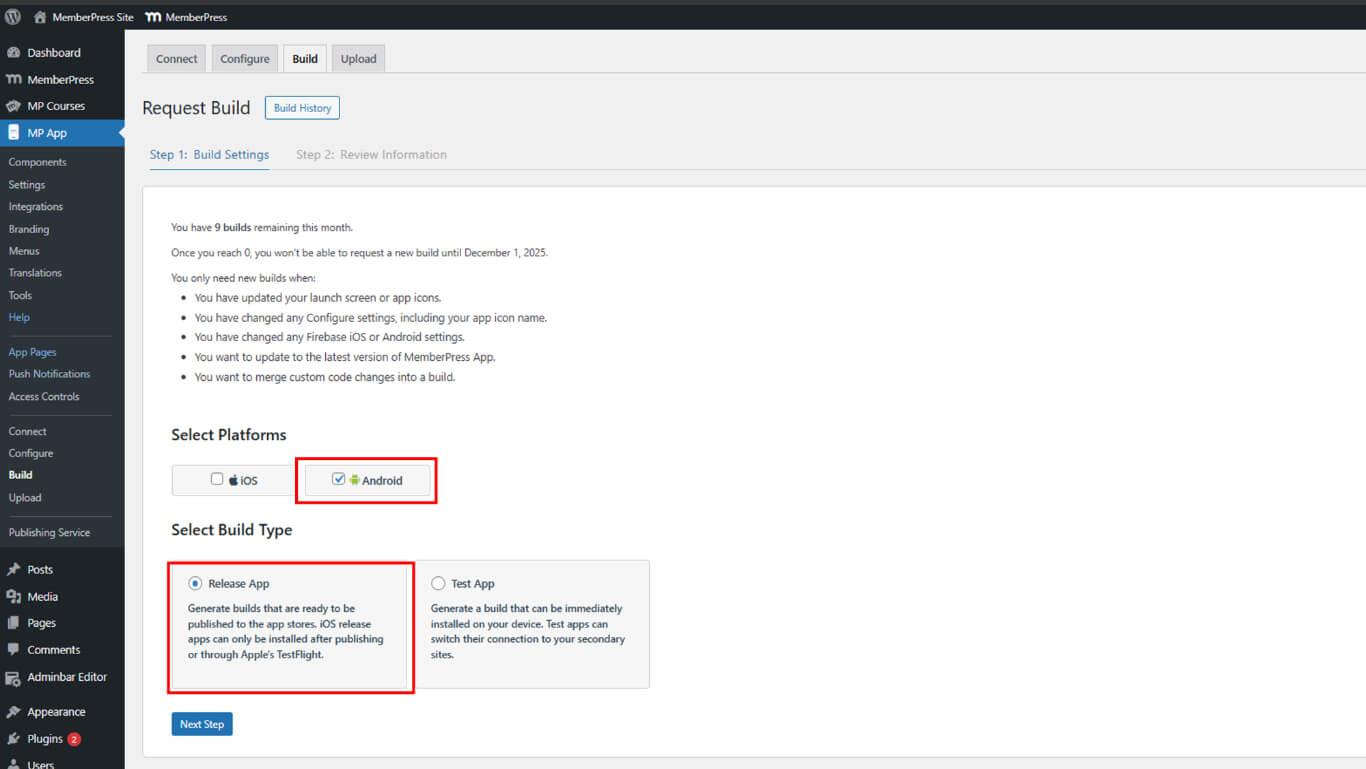
- Click Next Step to proceed to build configuration.
- Click Send Build Request to submit the build request.
- Wait for build completion in the build queue.
- Navigate to the Build History section.
- Locate the completed release build in the history list.
- Click Install on the Android device.
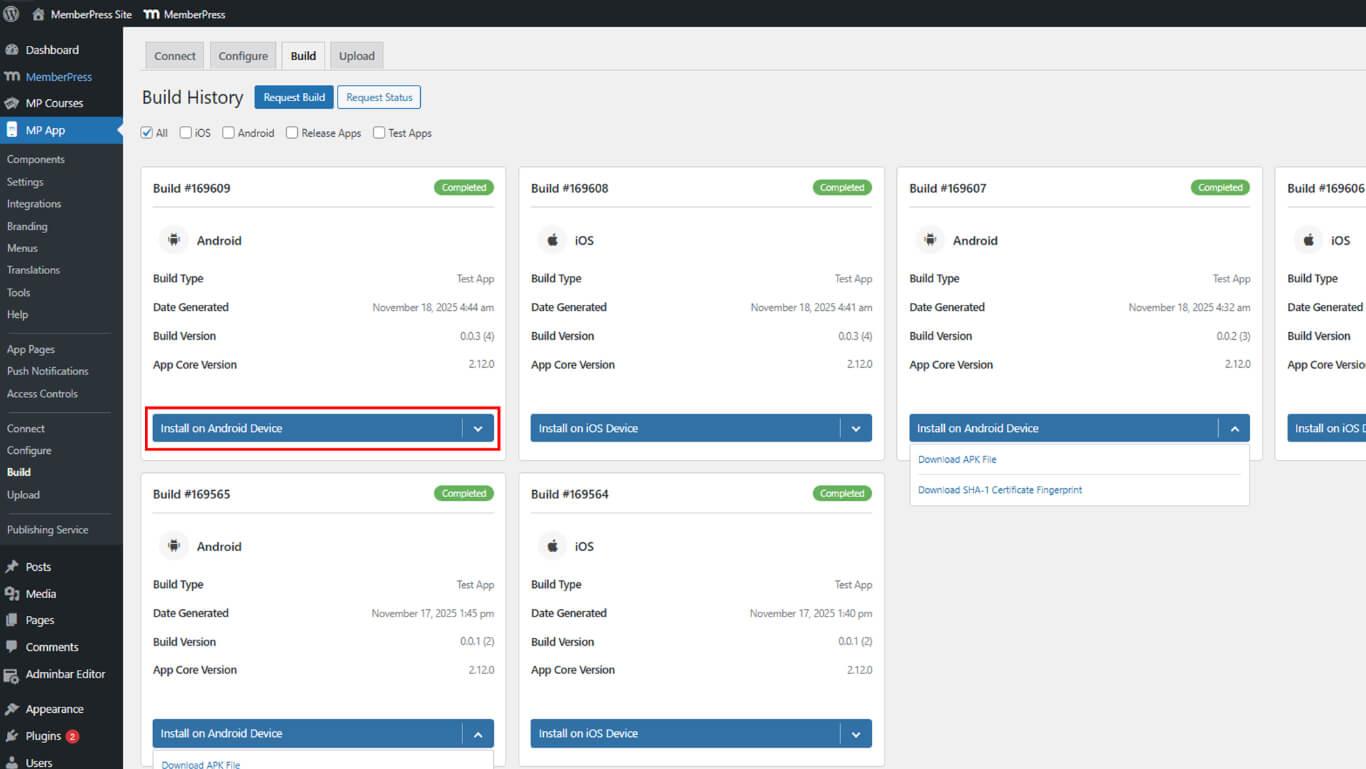
- Download AAB File next to the finished release build.
- Save the AAB file to a secure location on the device.
Uploading AAB to Google Play Testing Track
Testing track upload enables controlled release testing before public distribution.
- Log in to Google Play Console at play.google.com/console.
- Navigate to All apps and select the app from the list.
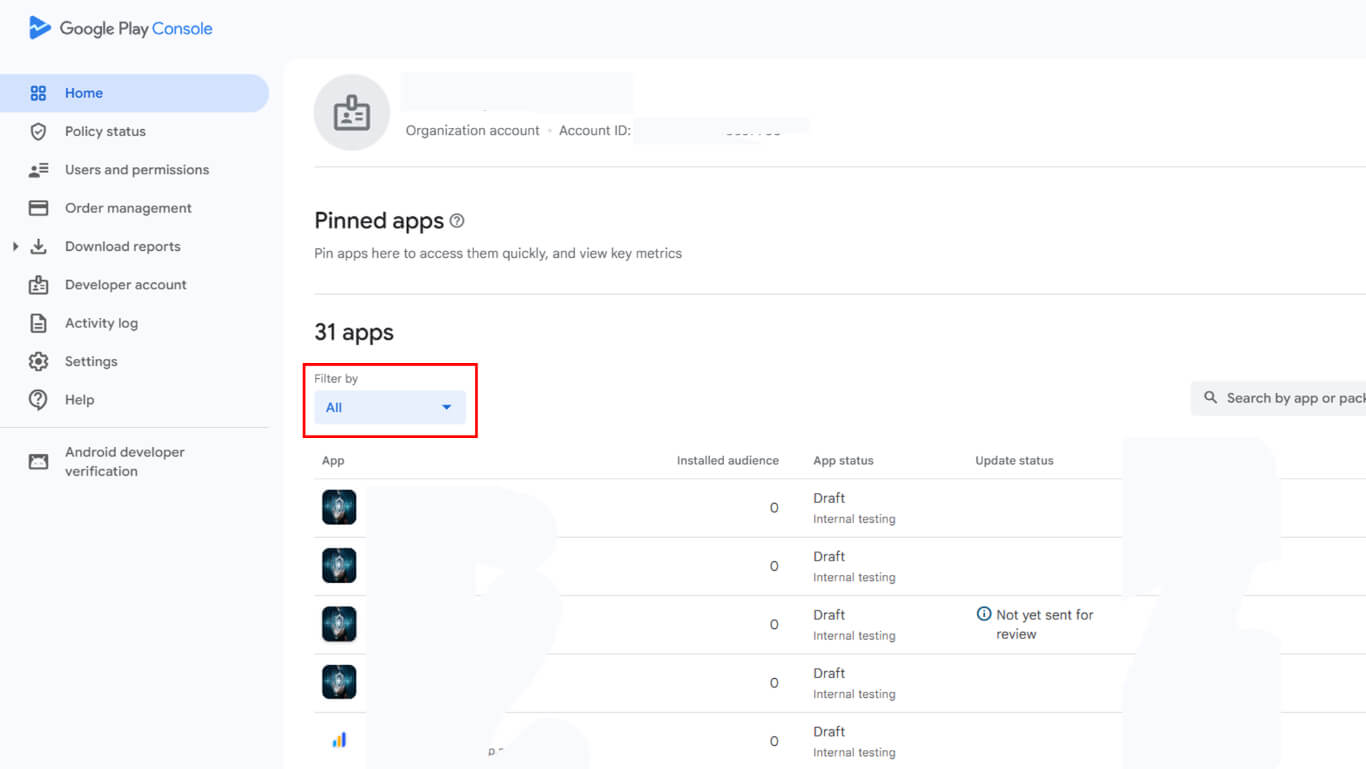
- Navigate to Test and Release > Production to verify country and region settings.
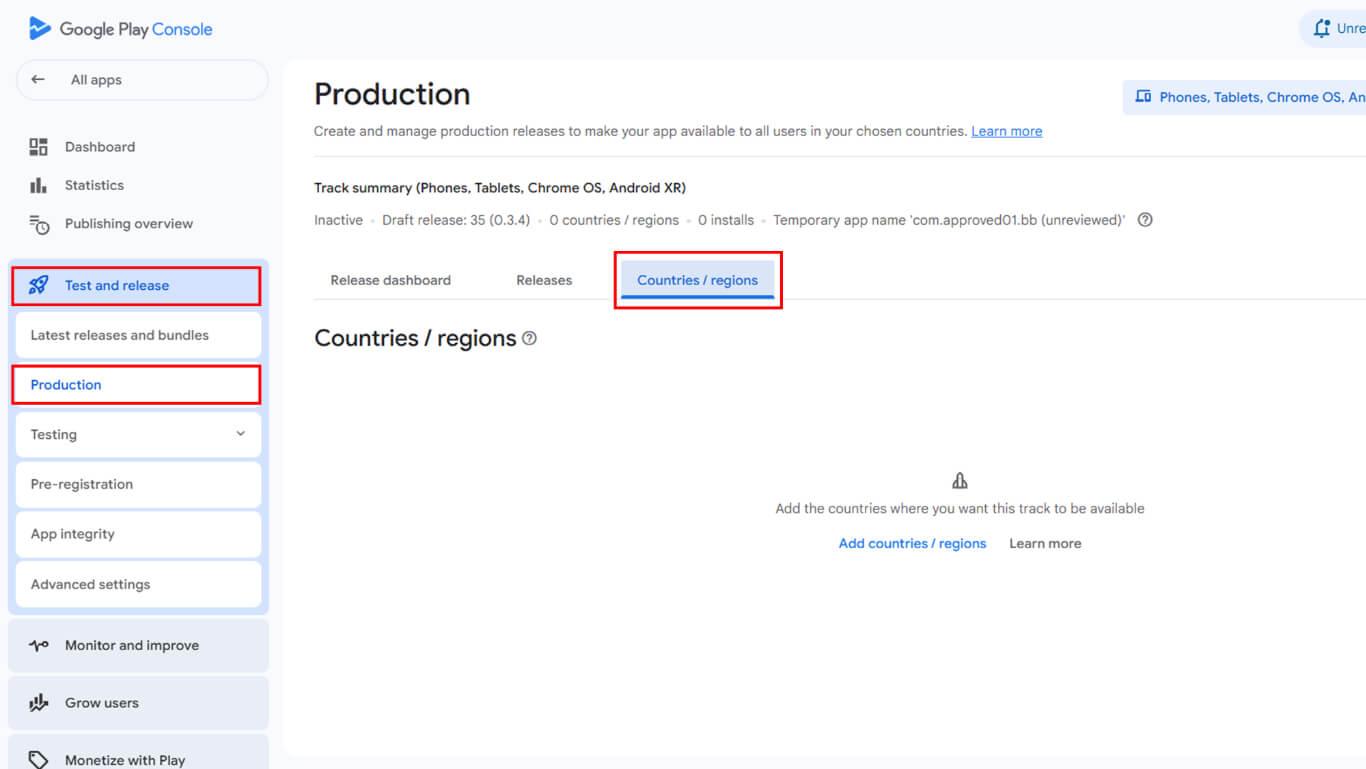
- Confirm target countries and regions are configured correctly.
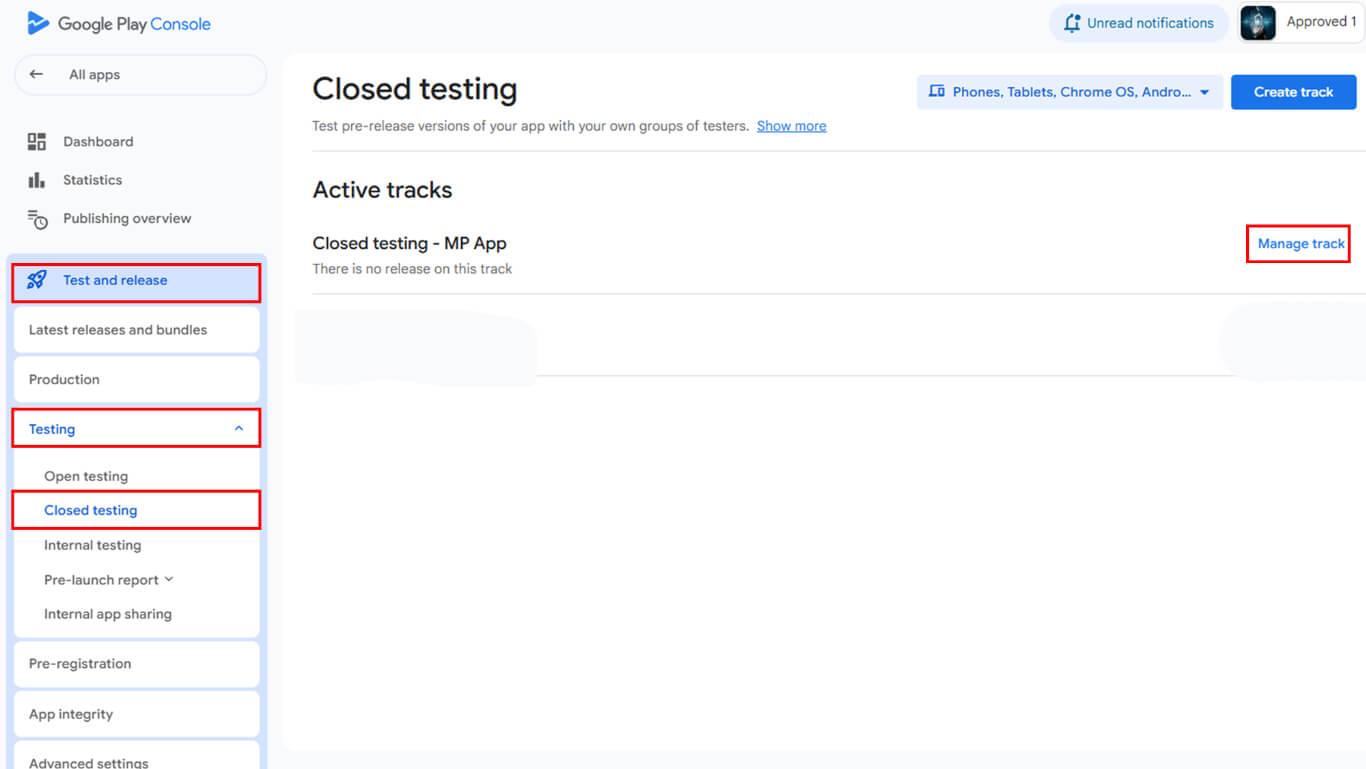
- Navigate to Release > Testing in the sidebar.
- Select the Closed testing track for in-app purchase quality assurance.
- Click Manage track next to the desired testing track name.
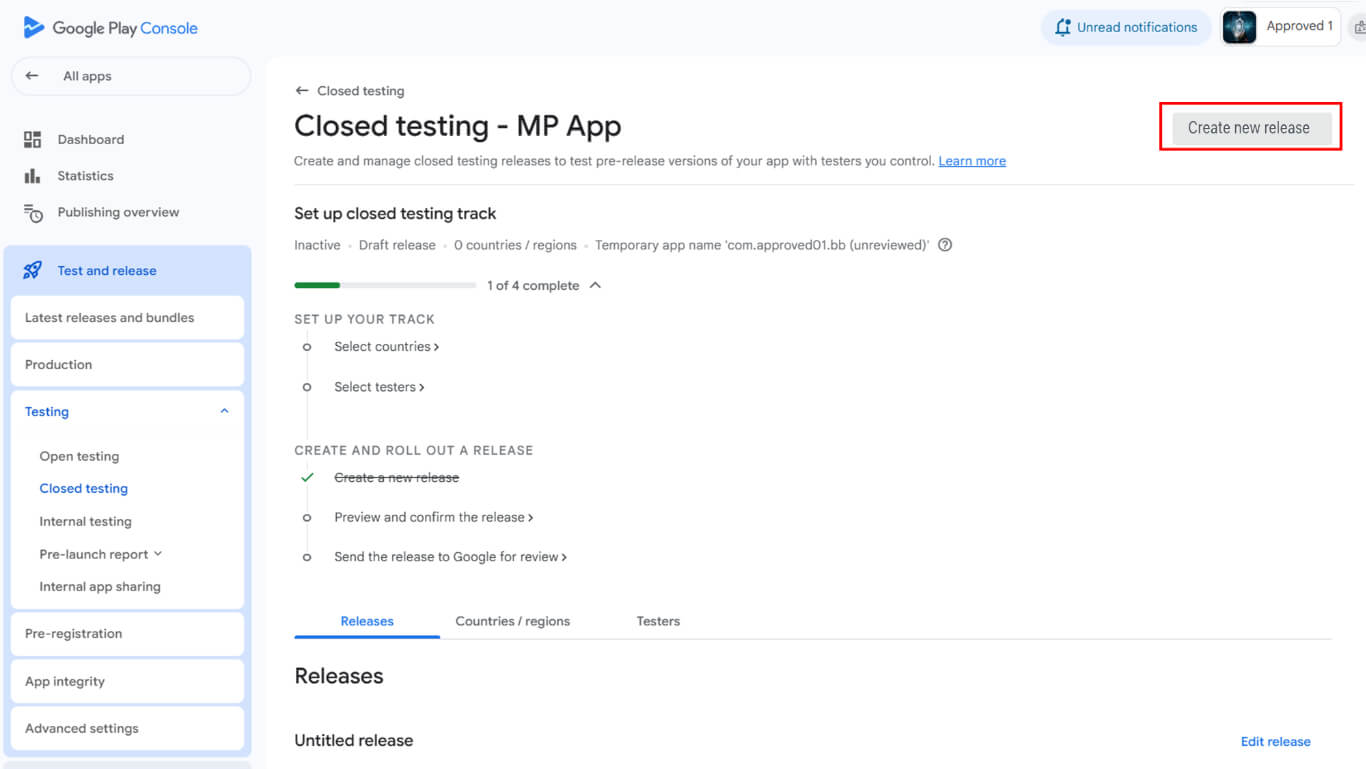
- Click Create new release to begin release creation.
- Locate the App bundles and APKs section.
- Click Upload to select the downloaded AAB file.
- Navigate to the Release details section after the upload completes.
- Leave the auto-filled release name unchanged.
- Paste release notes in the Release notes field.
- Click Save to store the release configuration.
- Click the Review release to proceed to the review screen.
- Click Start rollout to [track name] to publish to the testing track.
- Wait for Google approval of the testing track release.
Inviting Testers to Testing Track
The tester invitation enables specific users to access and install testing track releases.
- Navigate to Release > Testing > Closed testing in Google Play Console.
- Click the Testers tab.
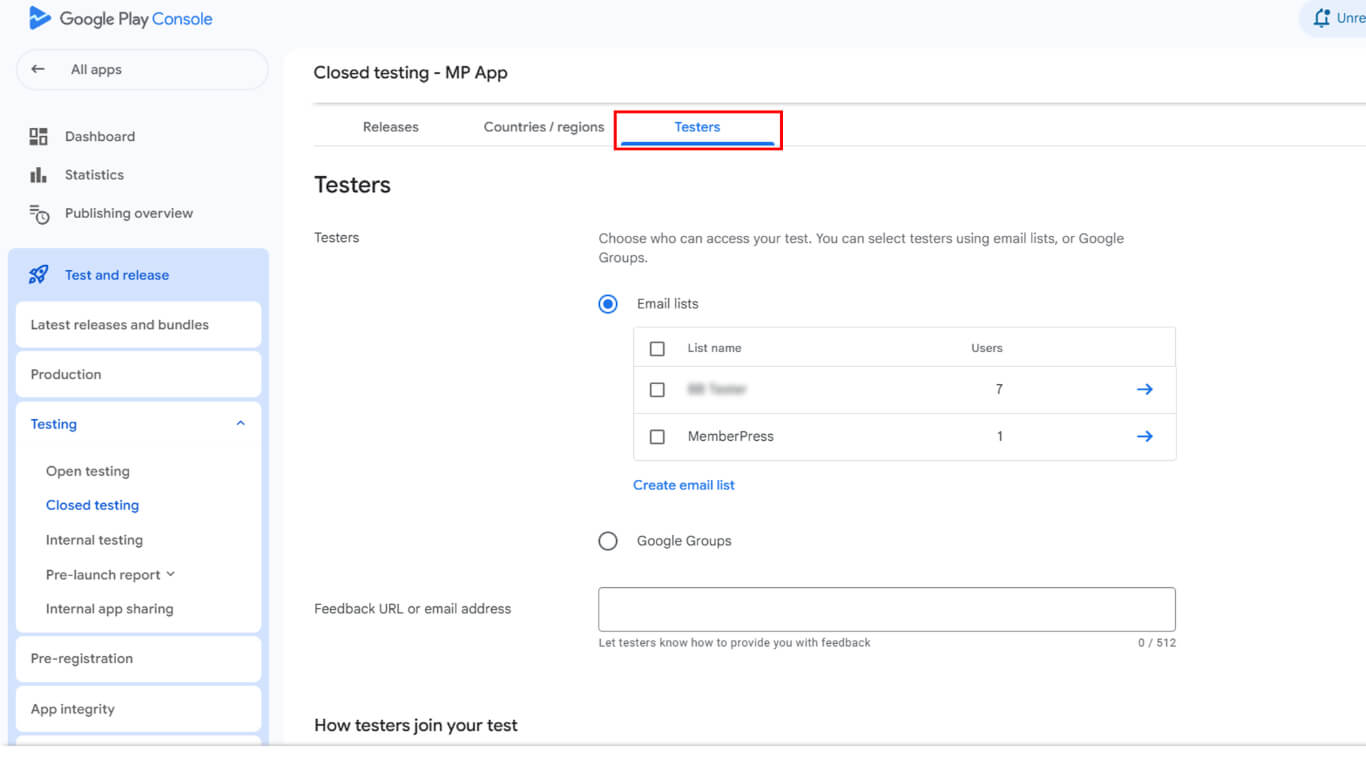
- Locate the Email lists section.
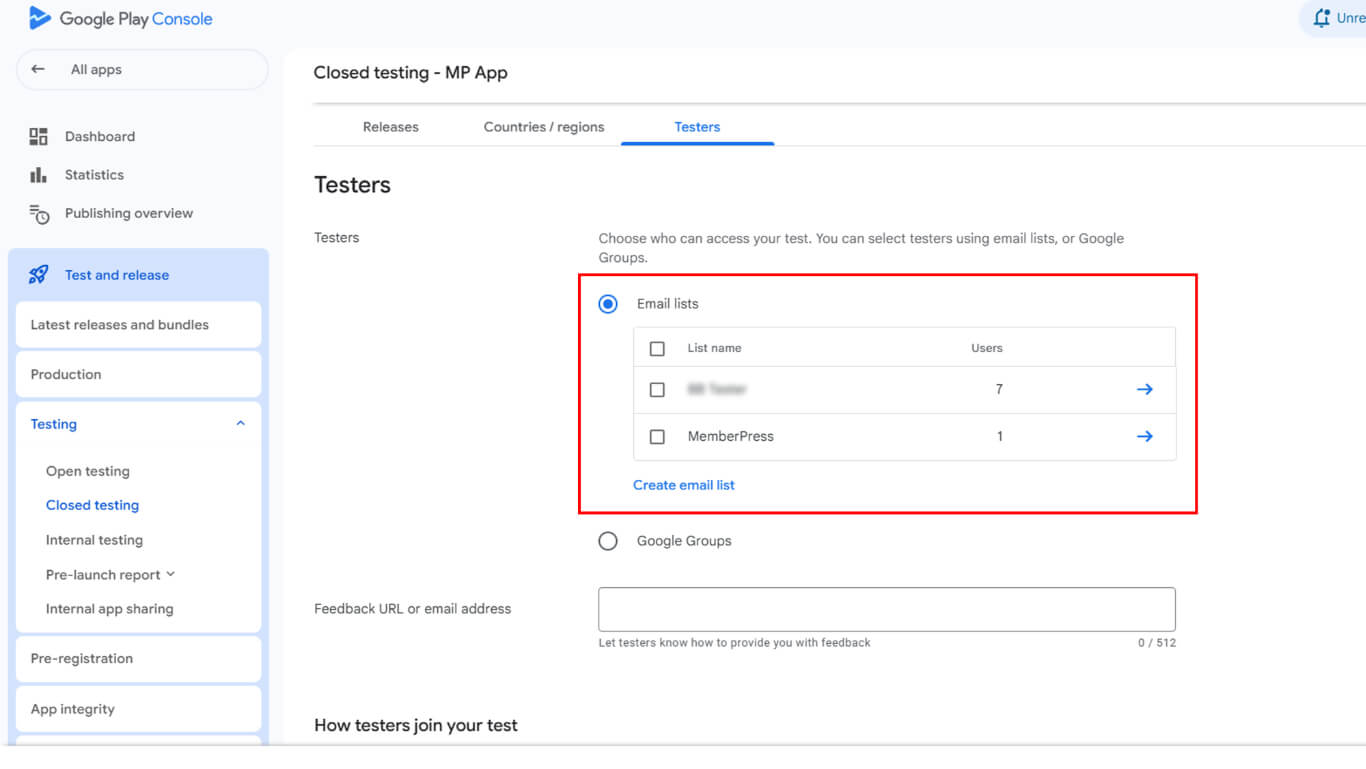
- Select an existing email list or click Create email list for a new list.
- Add tester email addresses matching their Google Play account emails.
- Click Save Changes to store the tester list configuration.
- Scroll to How testers join your test section.
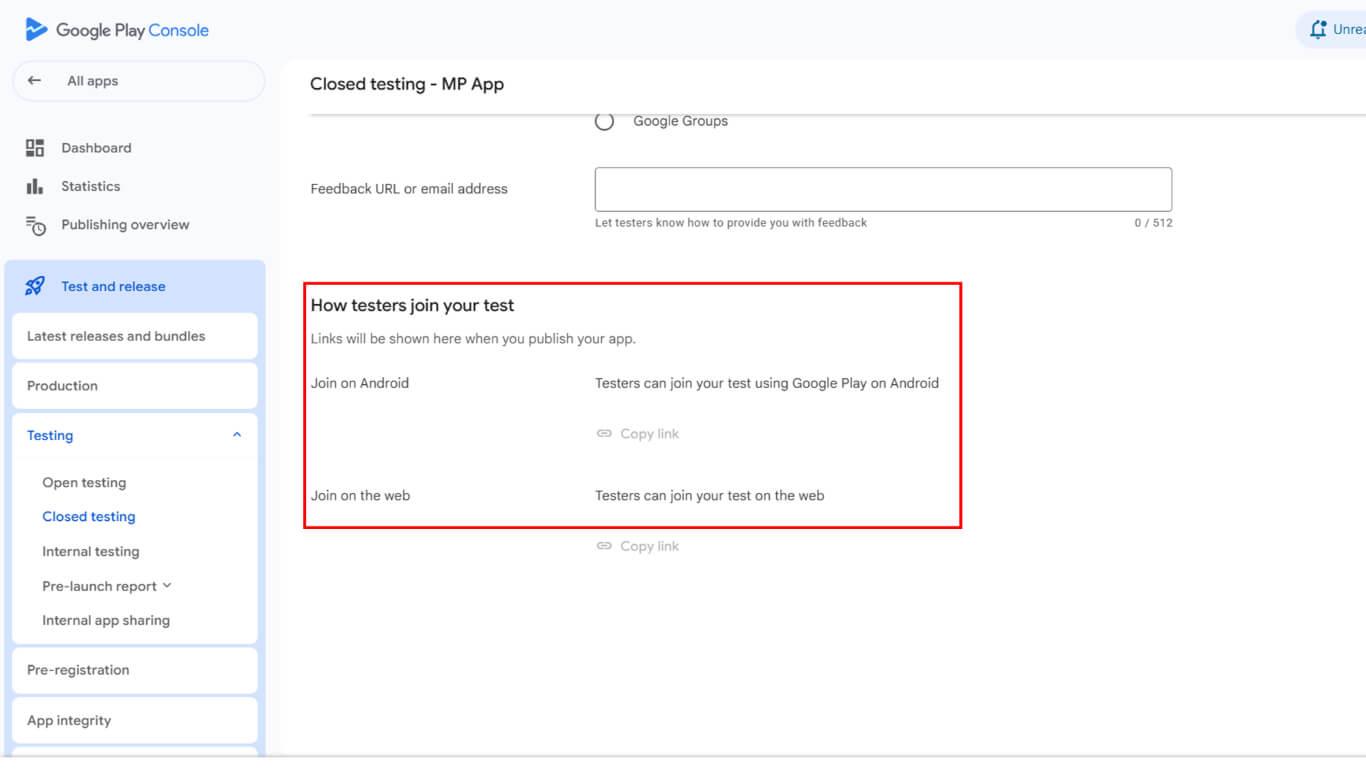
- Copy the join link displayed in the section.
- Share the join link with invited testers via secure communication.
Configuring License Testing
License testing configuration restricts app access to authorized testers during testing periods.
- Go to the Google Play Console dashboard.
- Navigate to Settings > License testing in the Google Play Console sidebar.
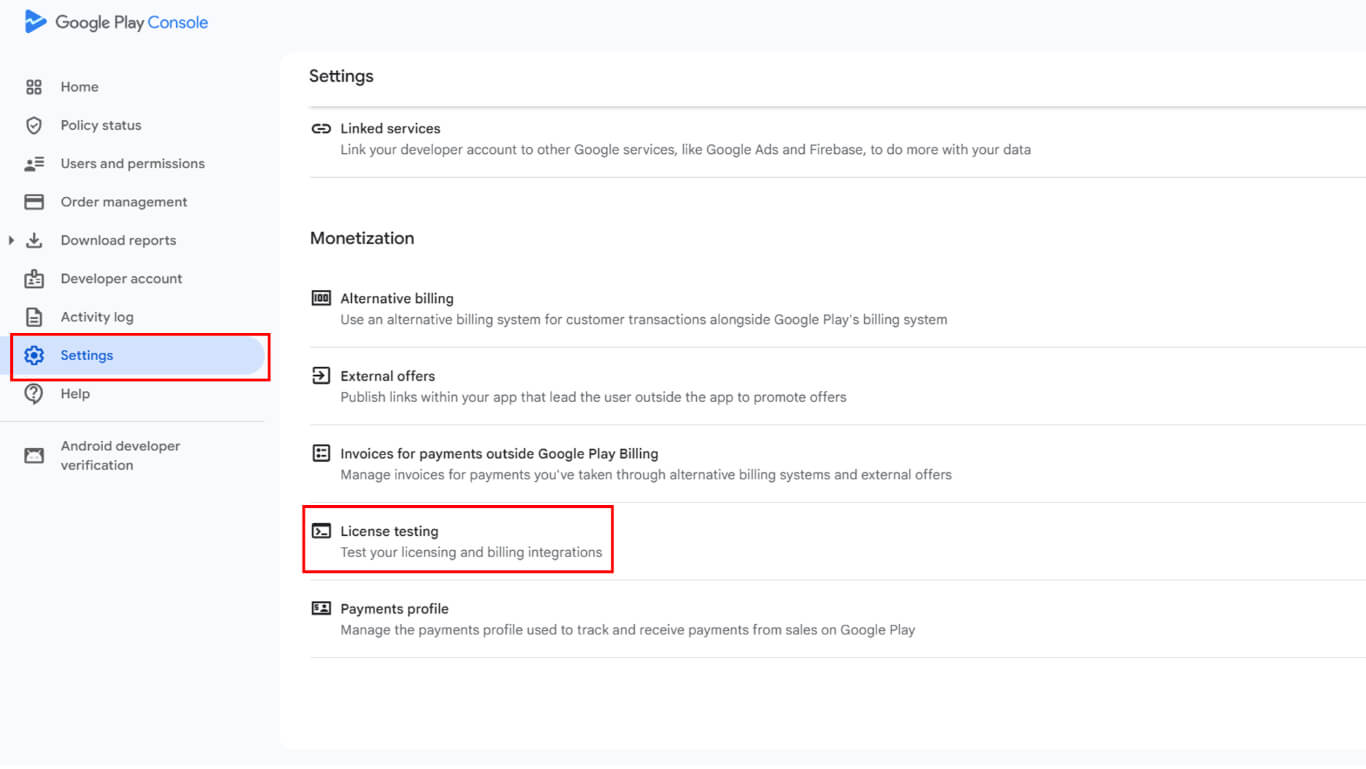
- Add the same tester email addresses from the testing track configuration.
- Verify email addresses match Google Play account emails exactly.
- Click Save Changes to finalize license testing configuration.
License testing ensures only authorized testers can install and access Release App builds during testing phases. Testers can now install Release Apps with full in-app purchase functionality enabled.
Updating Testing Track with New Builds
Testing track updates, deploy new Release App versions to existing testers.
- Navigate to Dashboard > MP AppKit > Build in WordPress.
- Click Request Build to create a new release version.
- Select the Android platform and the Release App build type.
- Complete the build request and wait for completion.
- Download the new AAB file from Build History.
- Log in to Google Play Console at play.google.com/console.
- Navigate to Release > Testing > Closed testing.
- Click Manage track next to the testing track.
- Click Create new release to begin updating the release.
- Upload the new AAB file in the App bundles and APKs section.
- Complete release details with updated release notes.
- Click Start rollout to [track name] to publish update.
- Testers receive update notifications through their Play Store testing link.
Testing track updates follow the same approval process as initial releases with similar review timelines.
Understanding AAB File Requirements
AAB file format requirements ensure compatibility with Google Play distribution systems.
Mandatory format applies to all new app submissions since August 2021. Google Play no longer accepts APK uploads for new applications.
Legacy APK support continues for apps previously published with the APK format. Existing apps can continue updating with APK files without the AAB conversion requirement.
Optimized delivery provides smaller download sizes through dynamic feature modules. AAB format enables Google Play to generate optimized APKs for different device configurations.
Version code increments must occur with each new AAB upload. Identical or lower version codes prevent successful upload and testing track deployment.
Best Practices for Release App Testing
Effective Release App testing validates functionality before public distribution.
Test purchase flows thoroughly with real payment methods before public launch. Verify that all subscription tiers and one-time purchases process correctly.
Verify pricing accuracy across all regions and currency configurations. Confirm displayed prices match intended costs for all markets.
Monitor crash reports during testing and track deployment to identify stability issues. Address crashes before expanding distribution to larger audiences.
Collect tester feedback systematically through designated channels. Structured feedback collection improves issue identification and resolution.
Update testing tracks regularly as development progresses and fixes deploy. Frequent updates keep testers engaged and provide continuous validation.
Document test results for reference during public release decisions. Comprehensive testing documentation supports launch confidence and risk assessment.










