

Content Delivery Networks (CDNs) improve app performance by serving media files through globally distributed edge servers. This approach reduces server load and accelerates content delivery for users worldwide.
This document explains how to enable API CDN, configure CDN settings, and optimize media delivery within the MP App.
Understanding API CDN
API CDN routes media files such as images, documents, and videos through CDN servers rather than the WordPress hosting server. The first request uploads media to the CDN, and subsequent requests serve content from the CDN domain. This process reduces latency and improves load times for app users.
Prerequisites
Before configuring API CDN, ensure the following requirements are met:
- MemberPress AppKit plugin installed and activated;
- Active CDN service account (CloudFront, StackPath, BunnyCDN, or similar provider);
- CDN base URL obtained from the CDN service provider;
- WordPress admin access to manage plugin settings.
Enabling API Performance Component
The API Performance component must be activated before CDN configuration can begin.
- Navigate to Dashboard > MP AppKit > Components.
- Locate API Performance in the components list.
- Click Activate..
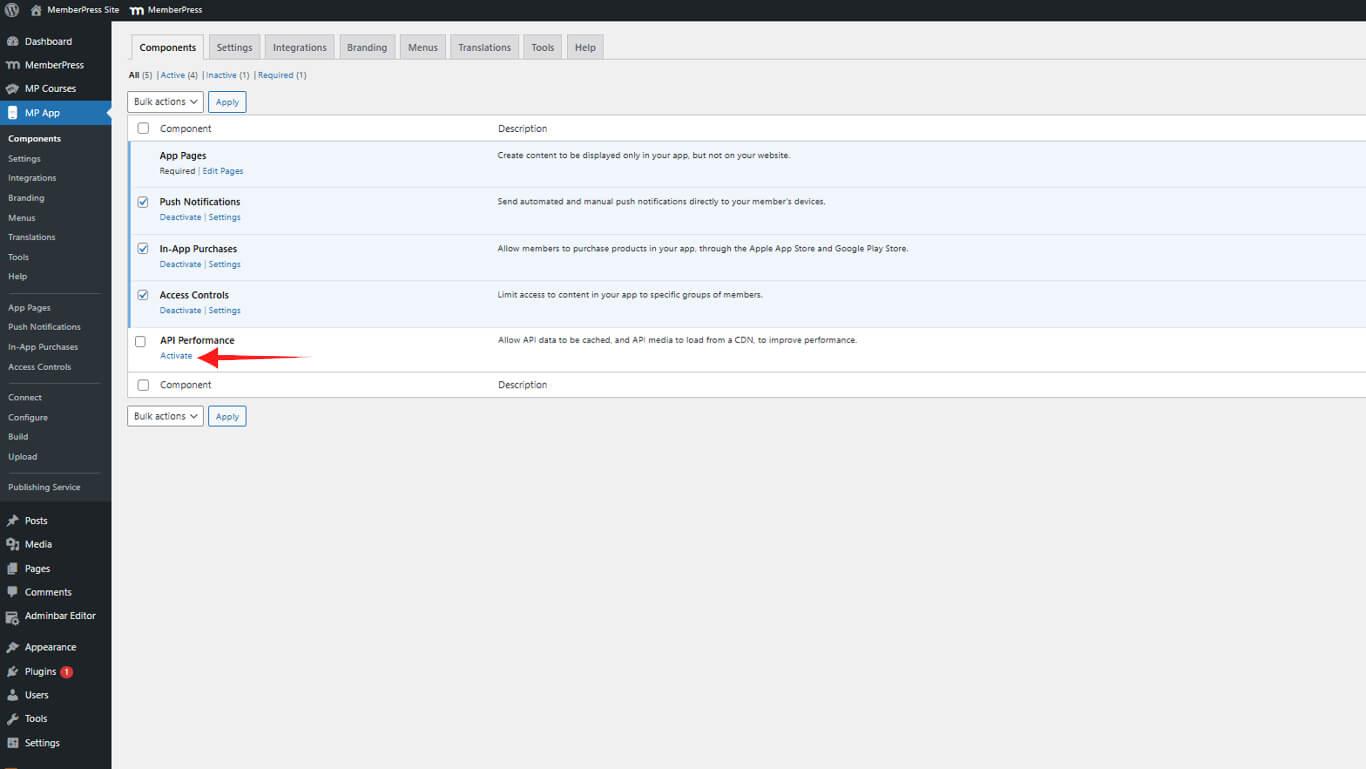
The API Performance component provides optimization features, including CDN integration and caching capabilities.
Configuring CDN Settings
CDN configuration requires the base URL provided by the CDN service provider.
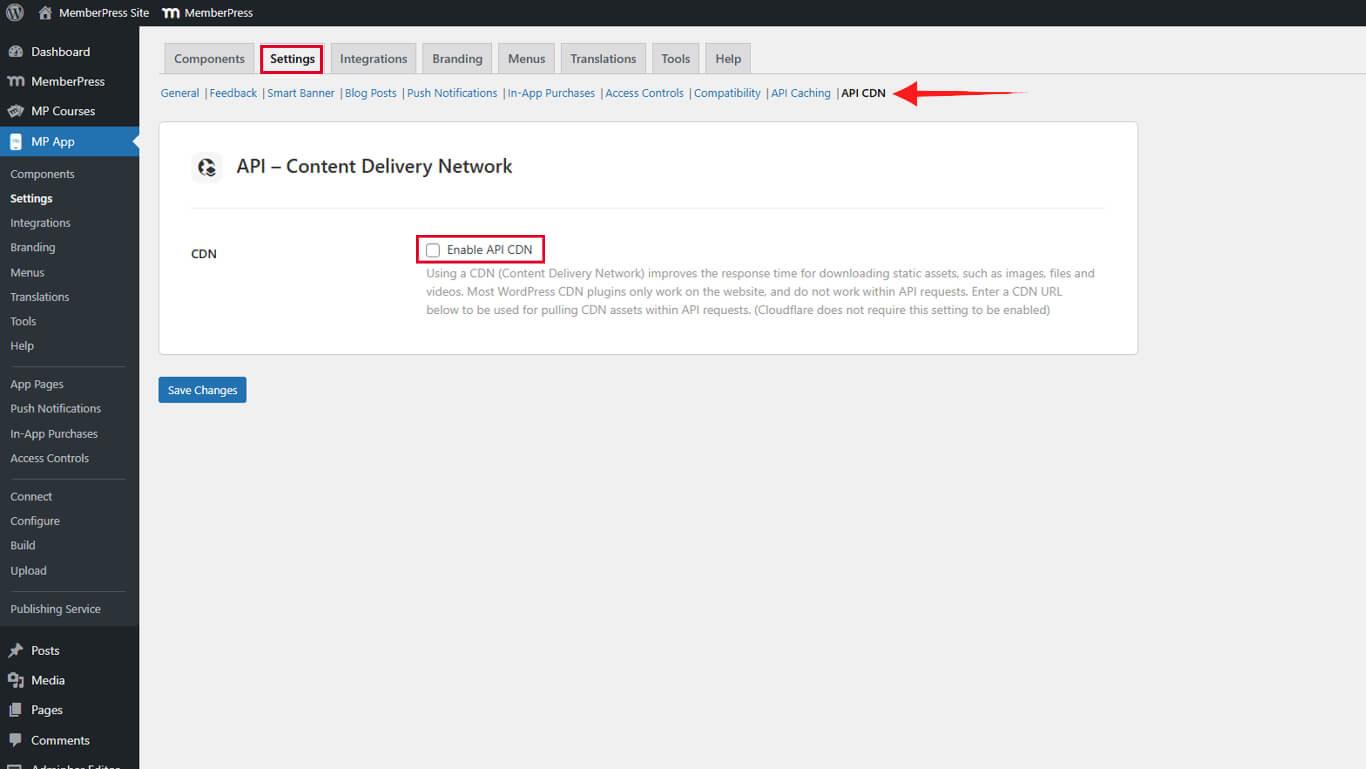
- Navigate to Dashboard > MP AppKit > Settings > API CDN.
- Check the Enable API CDN checkbox.
- Enter the CDN base URL in the CDN Base URL field without a trailing slash.
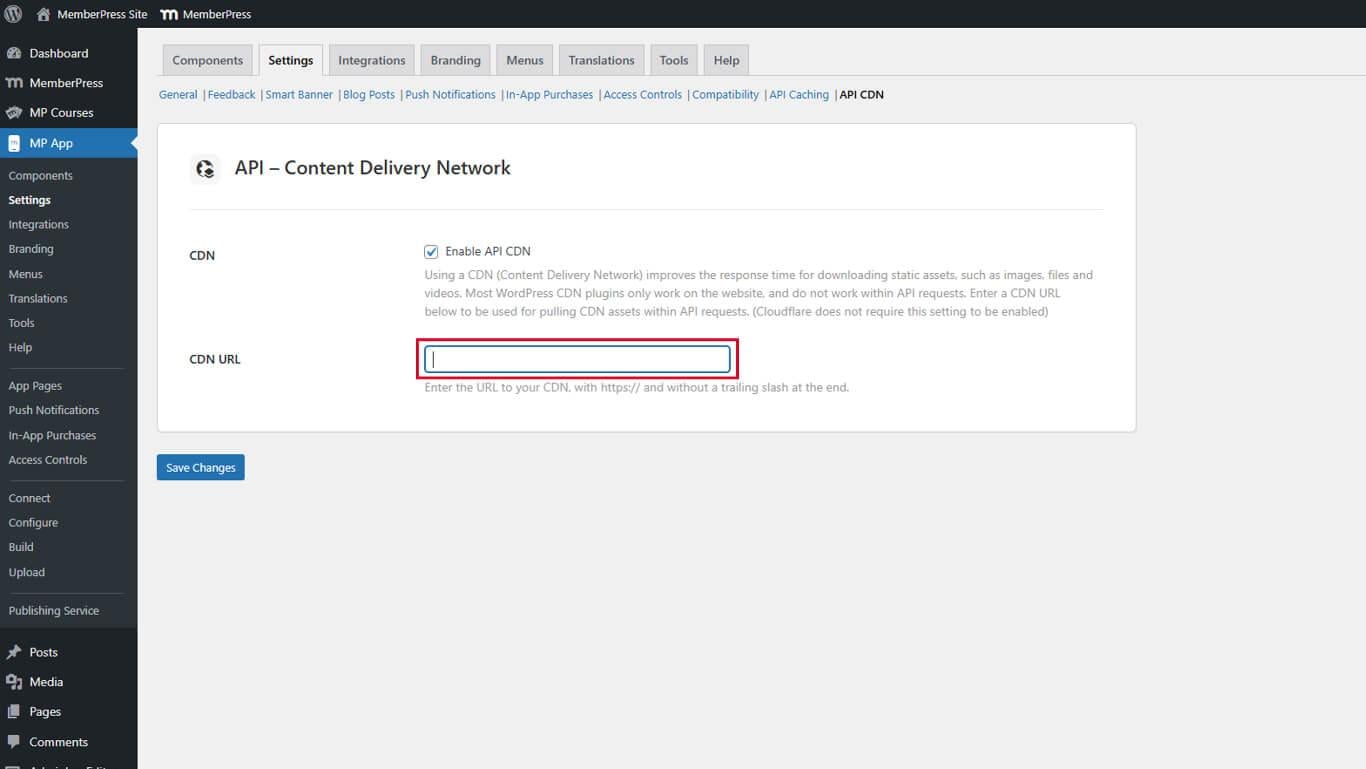
- Click Save Changes.
Example CDN base URLs:
- CloudFront: https://d123456789abcd.cloudfront.net;
- StackPath: https://cdn.example.stackpathcdn.com;
- BunnyCDN: https://example.b-cdn.net.
Understanding CDN Media Delivery
API CDN processes media requests through a two-stage delivery system that optimizes performance after initial setup.
First Request Process
When a user first requests media content, the following sequence occurs:
- The app sends a request to the WordPress site for the media file.
- The WordPress site retrieves the media from local storage.
- The media file uploads to the CDN automatically.
- The CDN returns the media to the user.
This initial request may experience standard loading times as media uploads to the CDN.
Subsequent Request Process
After the initial upload, future requests follow an optimized path:
- The app requests media directly from the CDN domain.
- The CDN serves the cached media from the nearest edge server.
- Users receive faster load times through proximity-based delivery.
The CDN caches media files according to the cache duration settings configured within the CDN service.
Optimizing Performance with API Caching
API Caching complements CDN functionality by reducing database queries and accelerating API response times. Combining both features maximizes app performance.
- Navigate to Dashboard > MP AppKit > Settings > API Caching.
- Configure cache settings based on content.
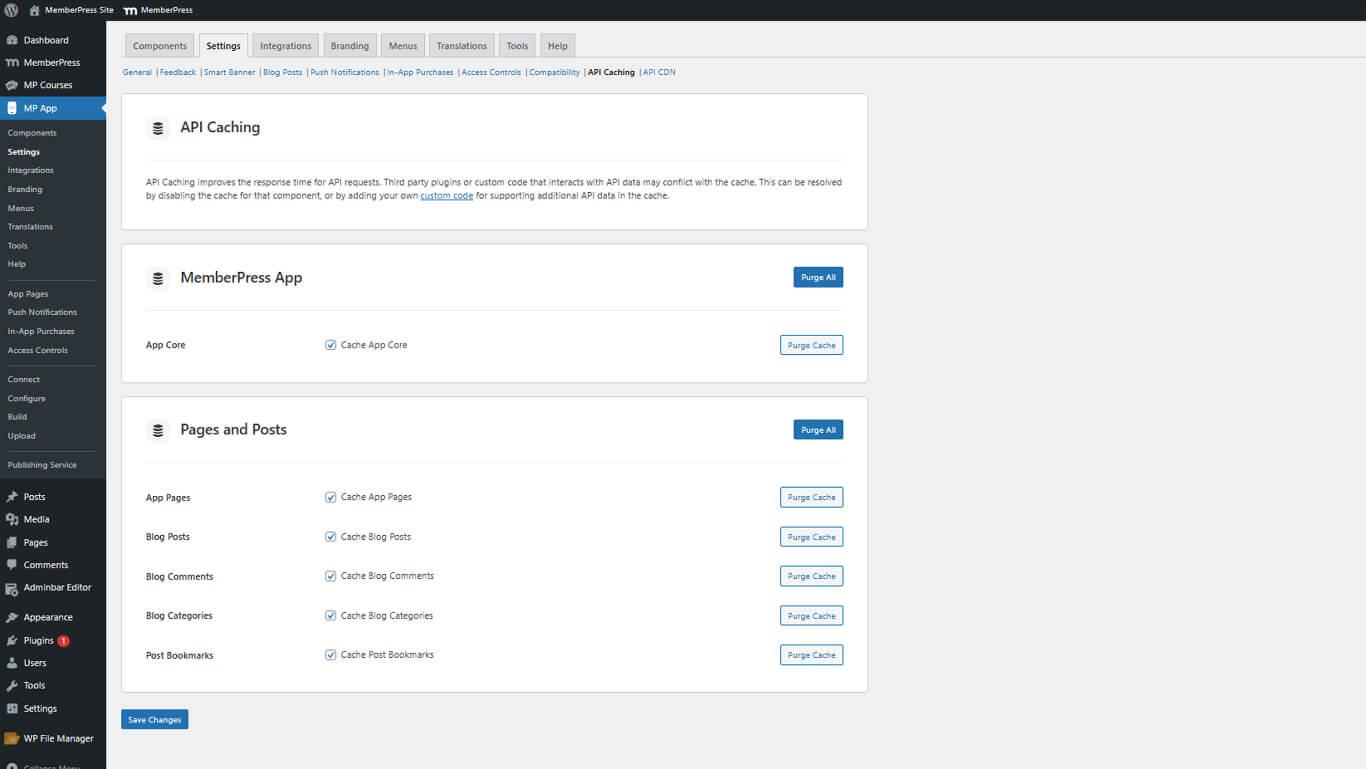
- Click Save Changes.
Caching settings should balance performance gains with content freshness requirements. Review the API caching configuration guide for optimization strategies.










