

MemberPress Android app updates ensure members have access to the latest features, bug fixes, and pricing updates. Regular updates maintain app functionality and compliance with Google Play Store requirements.
This document explains how to generate new Android release builds, download AAB files, submit updates to Google Play Console, and handle review feedback.
Understanding App Updates
App updates deliver improvements and fixes to existing installations through the Google Play Store. Updates maintain the same application identifier and signing key as the original publication. Version codes must increase with each update to enable proper update detection and installation.
Creating New Android Release Build
Release build generation creates the updated app package for Google Play submission.
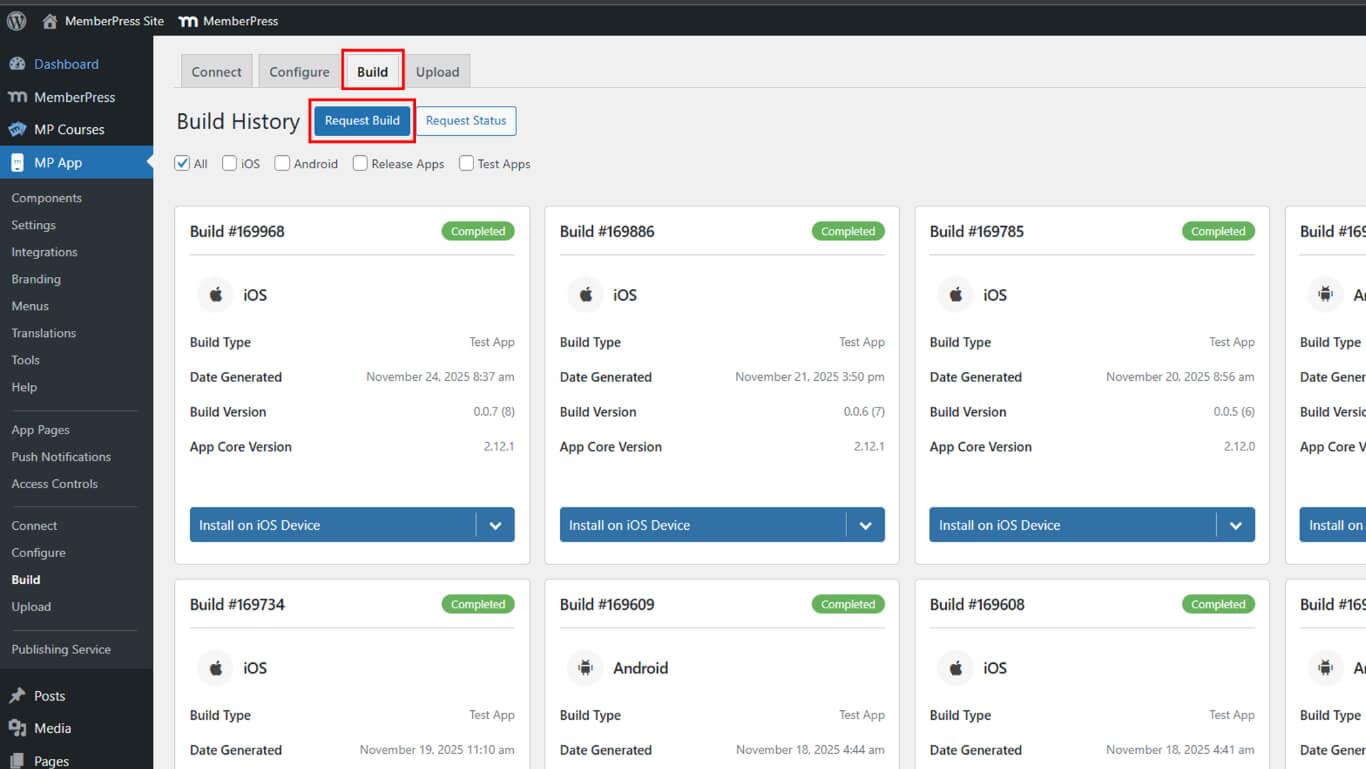
- Navigate to Dashboard > MP AppKit > Build.
- Click the Request Build button.
- Check the Android checkbox as the platform.
- Select Release App as the build type.
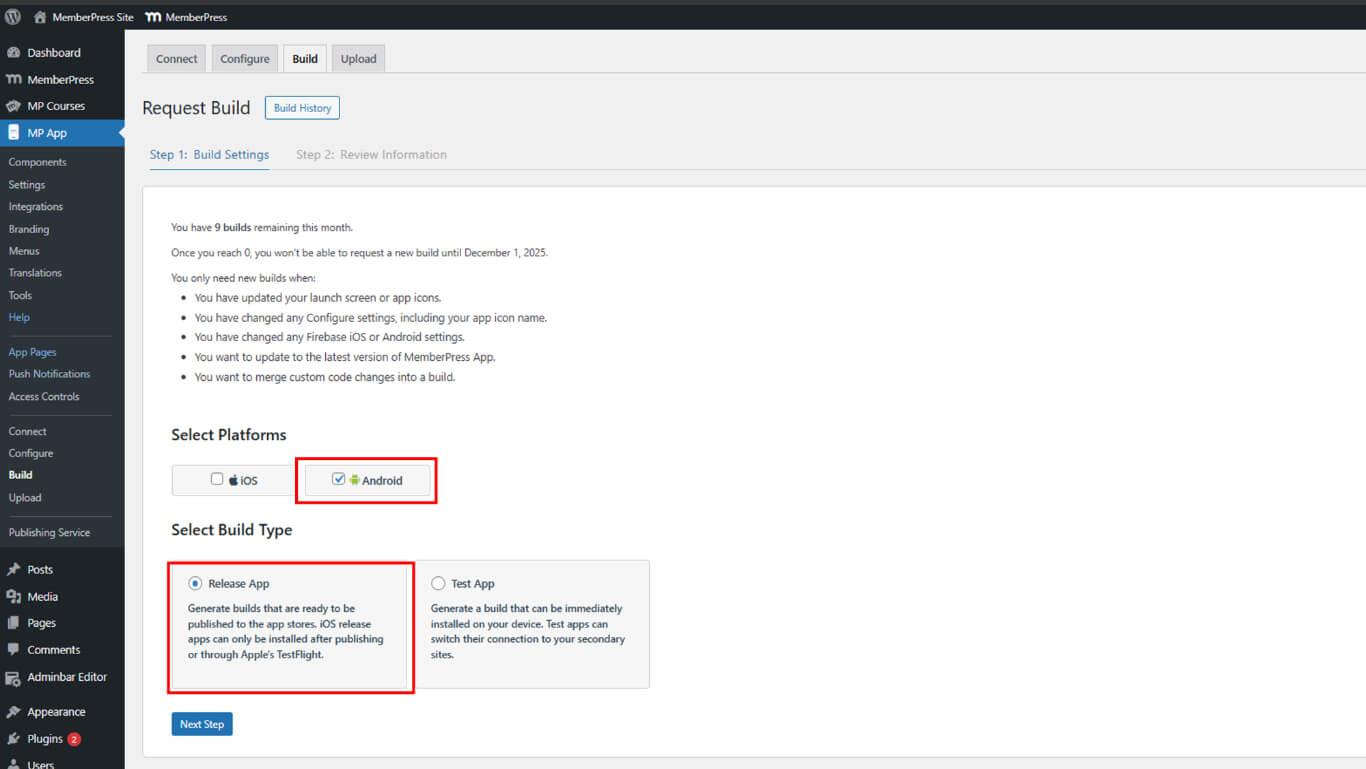
- Click Next Step to proceed to build configuration.
- Click Send Build Request to submit the build request.
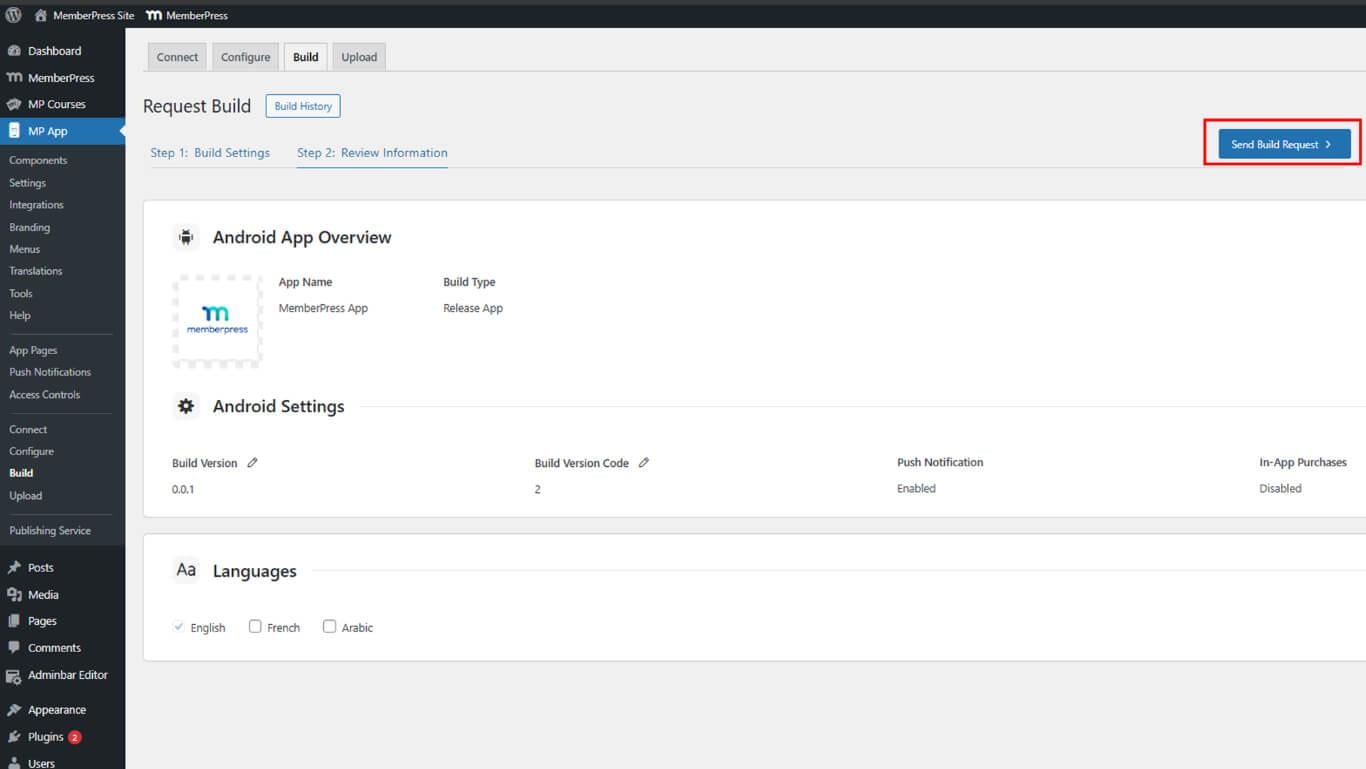
- Monitor the build progress under Build History.
- Wait for the build completion status.
Build completion typically occurs within 5-10 minutes after request submission.
Downloading AAB Build File
AAB file download prepares the updated app package for Google Play Console upload.
- Navigate to Dashboard > MP AppKit > Build > Build History after build completion.
- Locate the completed release build in the builds list.
- Click Download AAB File next to the release build.
- Save the AAB file to a secure location on the device.
Both download methods provide the same AAB file for submission.
Submitting Update to Google Play Console
Update submission sends the new app version to Google for review.
- Log in to Google Play Console at play.google.com/console.
- Navigate to All apps and select the app from the list.
- Click Test and Release > Production in the left sidebar.
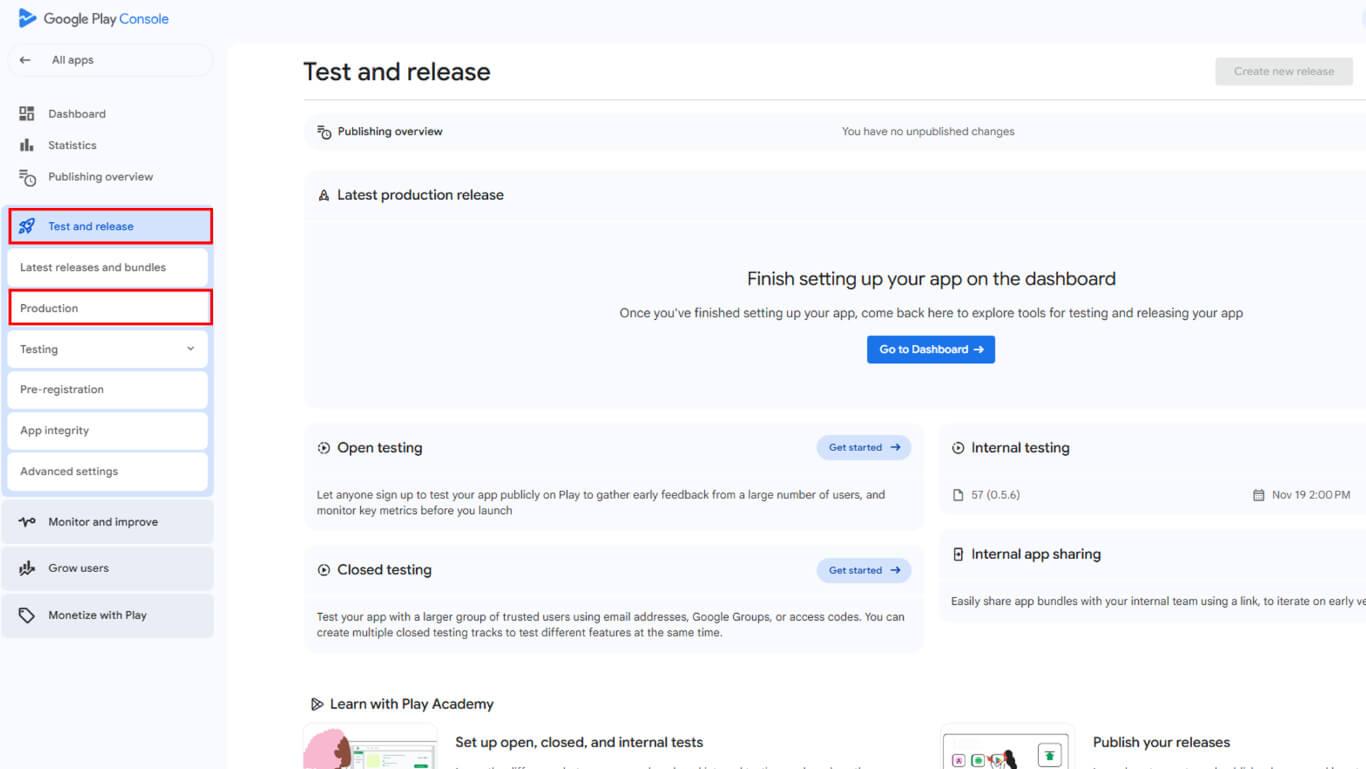
- Click Create new release for new update submission.
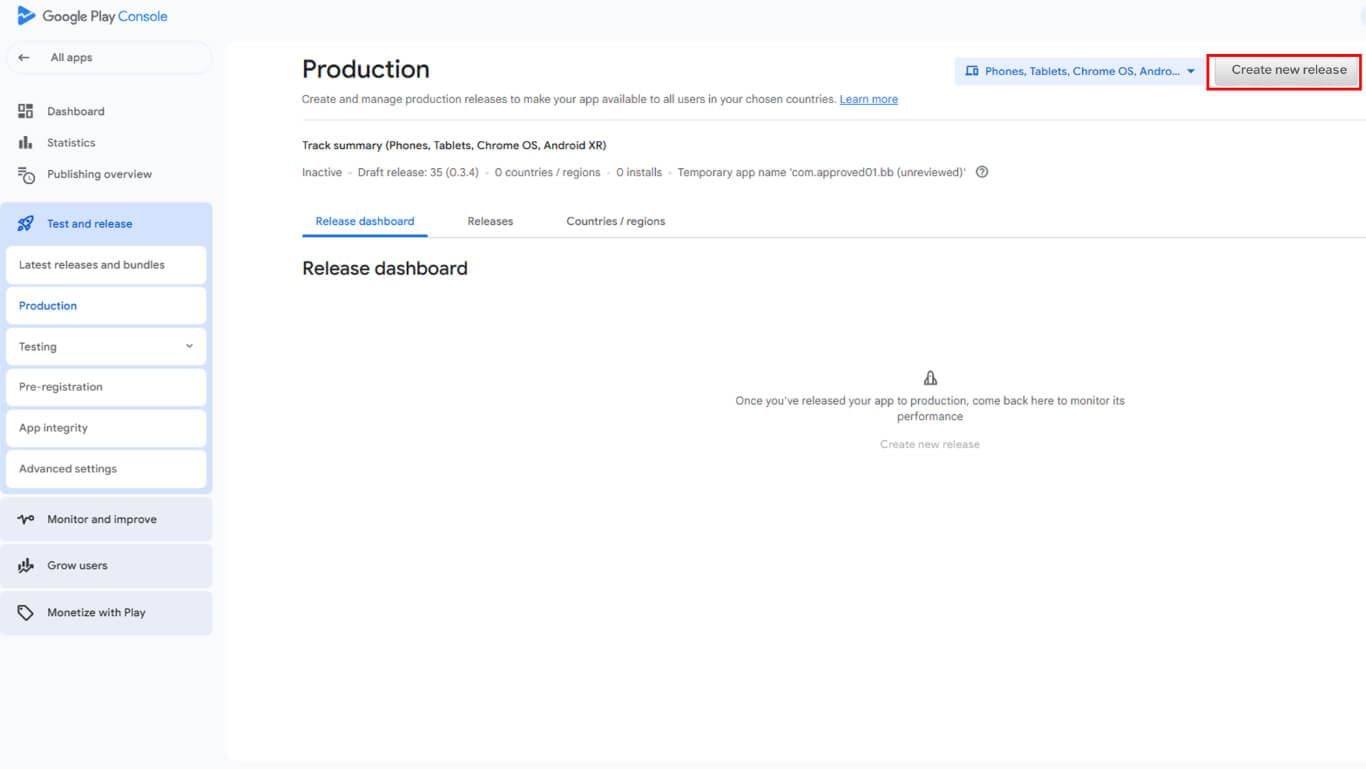
- Click Edit release if an existing draft release is present.
- Scroll to the App bundles and APKs section.
- Click Upload to open file selection.
- Select the downloaded AAB file from the device.
- Wait for upload completion and file processing.
- Enter a Release name in the release name field.
- Enter Release notes describing changes and improvements.
- Click Save to store the release as a draft.
- Click Review release to proceed to submission review.
Reviewing Update Configuration
Update review verifies version compatibility and release requirements.
- Review the release summary page for errors or warnings.
- Verify the version code is higher than previous releases.
- Address all required errors before submission.
- Optionally resolve warnings to improve update quality.
- Confirm that release notes accurately describe changes.
- Review countries and regions for update availability.
Submitting Update for Review
Update submission sends the release to Google's review team.
- Review all updated details on the review page.
- Verify no blocking errors remain in the configuration.
- Click Start rollout to Production to submit the update.
- Confirm submission in the confirmation dialog.
- Monitor submission status in Google Play Console.
Understanding Rejection Types
Google may reject update submissions for compliance or technical issues.
Metadata issues involve store listing content, privacy policy updates, or content rating changes. Metadata rejections require Play Console updates without new app builds.
App issues involve code problems, policy violations, or functionality defects. App issue rejections require code fixes, new builds, and complete resubmission.










