

Although MemberPress and the Amelia Booking plugin don't officially integrate, they work well together. Linking Amelia to MemberPress lets you manage who can book events and appointments based on user roles and memberships.
This document explains how to connect MemberPress with Amelia, so only authorized members can make bookings. MemberPress can assign an additional role to subscribers of specific memberships. Furthermore, MemberPress rules ensure that only those with the role can access the booking page.
This document contains the following topics:
- Configuring MemberPress Memberships
- Configuring Amelia Events & Shortcodes
- Restricting Access (MemberPress Rules)
- Adding Amelia Front-end Panels to MemberPress Account Page
Configuring MemberPress Memberships
MemberPress memberships can assign an additional user role and access to booking pages. Create membership levels for Amelia.
To create a membership in MemberPress, follow the steps below:
- Navigate to Dashboard > MemberPress > Memberships.
- Click the Add New Membership button.
- Create a new membership (e.g., “Premium Member”).
- While creating the membership, scroll down to Membership Options > Advanced tab, and check the User Roles for this Membership option.
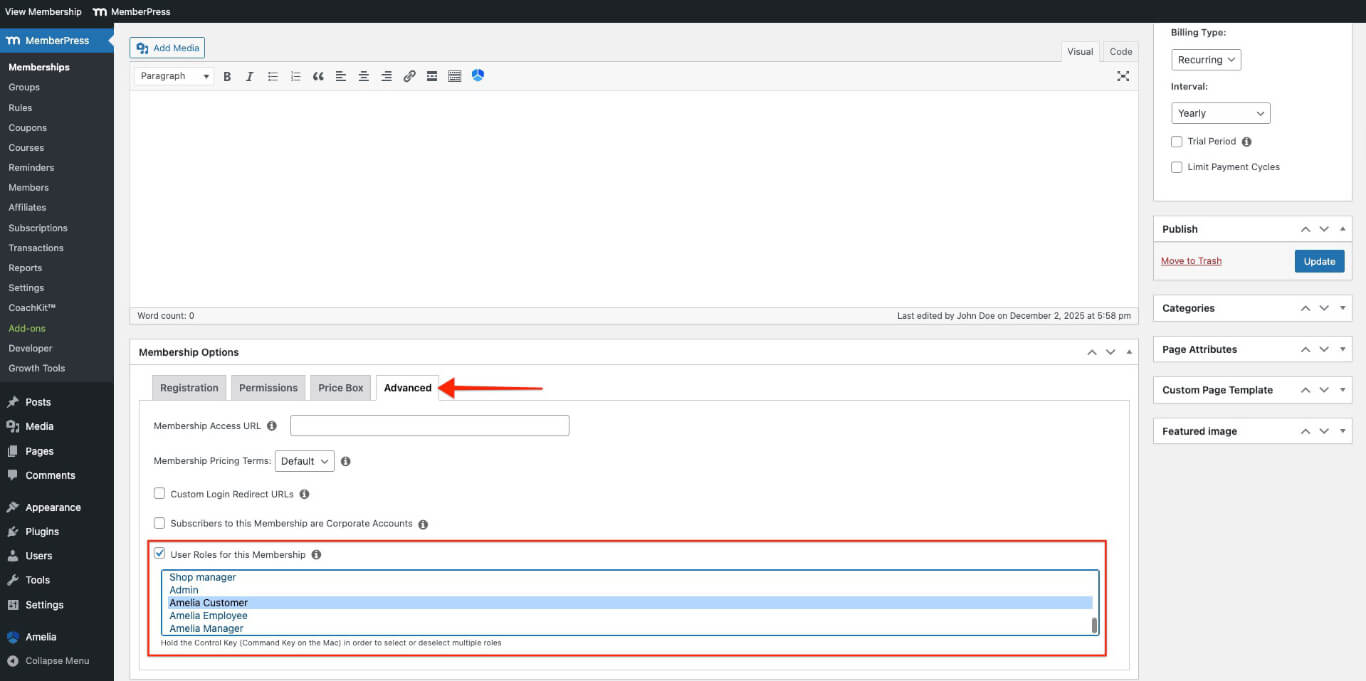
- Select the Amelia Customer role for customers or the Amelia Employee role for staff.
- Click the Publish button to save the membership.
Repeat these steps to add more membership levels for different user roles.
Configuring Amelia Events
Amelia offers shortcodes that show booking forms on pages or posts. Set up the plugin and add booking features where needed.
Creating an Amelia Event
- Navigate to Dashboard > Amelia > Events.
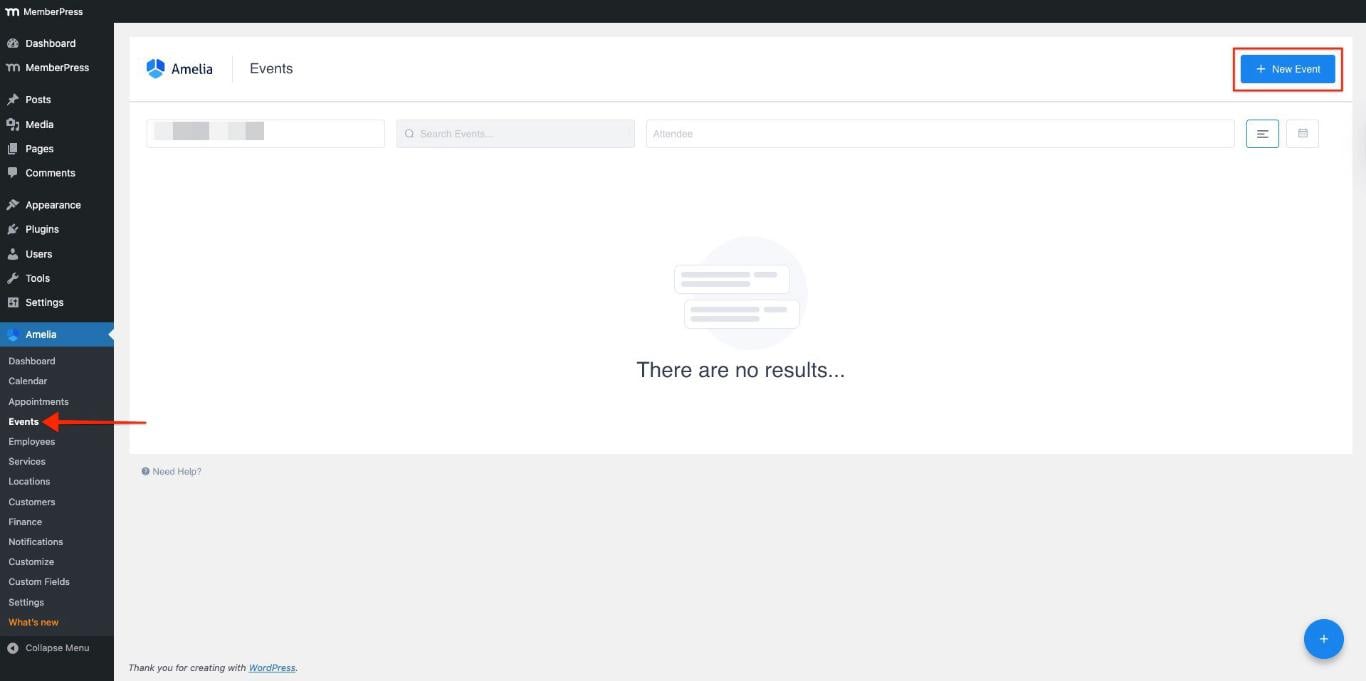
- Click the + New Event button to create event(s).
- Enter the event details, such as Name, Date, and Time.

- These options are enabled by default. You can disable them to select custom dates:
- Booking opens immediately;
- Booking closes when event starts.
- Add pricing and the maximum number of allowed members for the event.
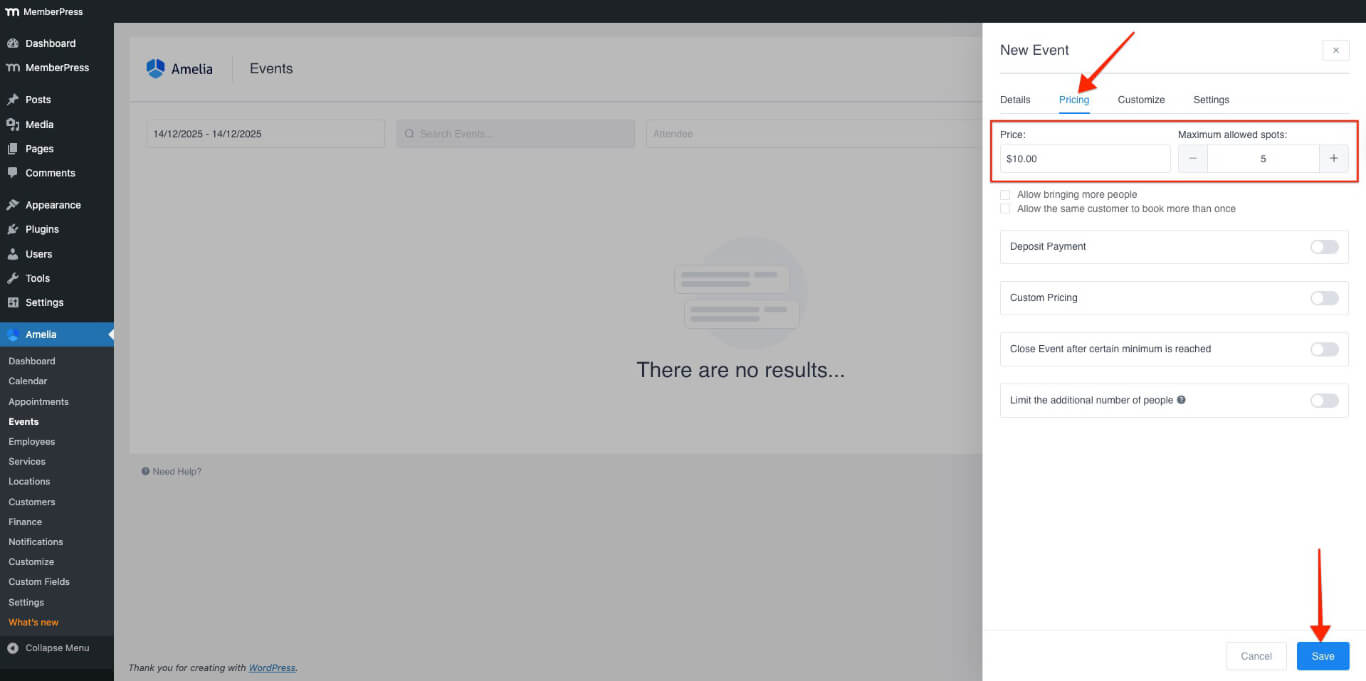
- Click the Save button.
Adding Event Shortcode to a Page
- Navigate to an existing page or create a new page.
- In the page editor, click the Amelia icon button (if using the Classic Editor) or add an Amelia – Event List block (if using the Block Editor).
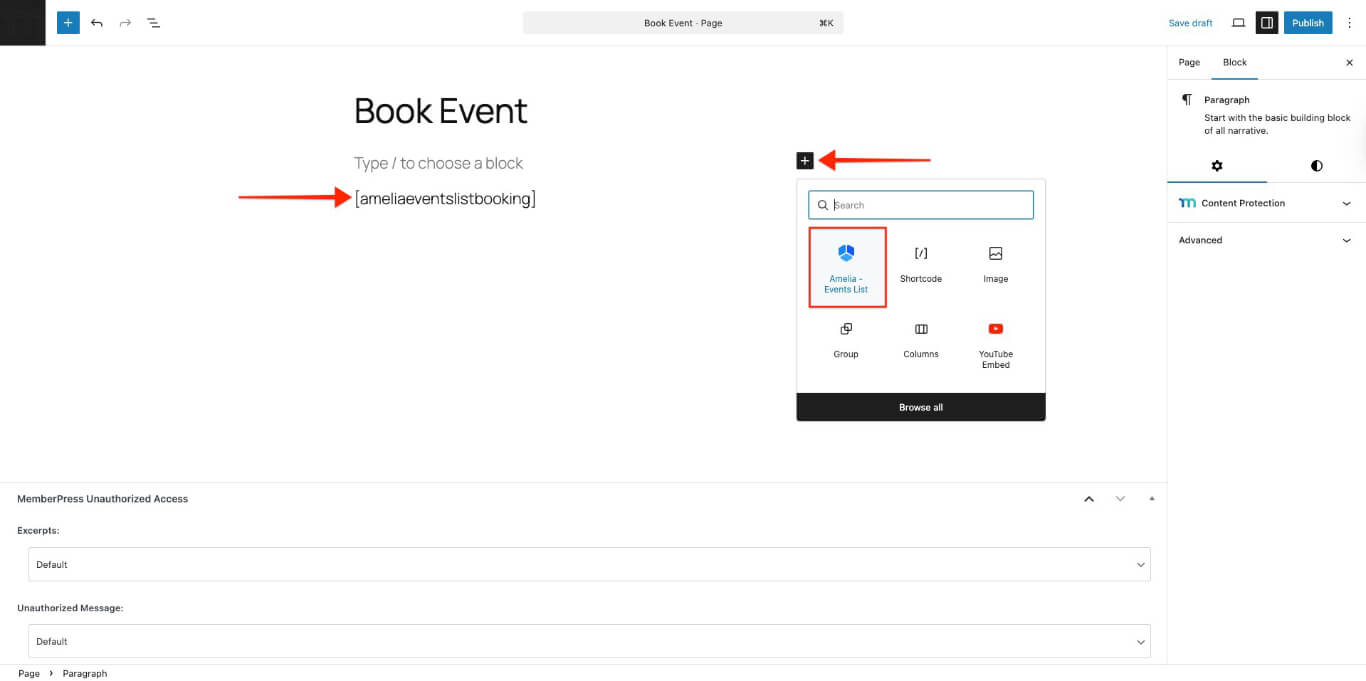
- The shortcode will be automatically inserted into the page.
- For manual insertion, copy and paste the Amelia event list booking shortcode in the page editor:
[ameliaeventslistbooking]- Click Publish to make the page live.
The following section explains how you can protect this page using MemberPress Rules.
Restricting Access To Booking Pages Using MemberPress Rules
MemberPress Rules control which content members can see. Use Rules to protect pages with Amelia booking forms.
Create a Protection Rule
- Navigate to Dashboard > MemberPress > Rules.
- Click the Add New button.
- In the Protected Content dropdown, select the A Single Page option.
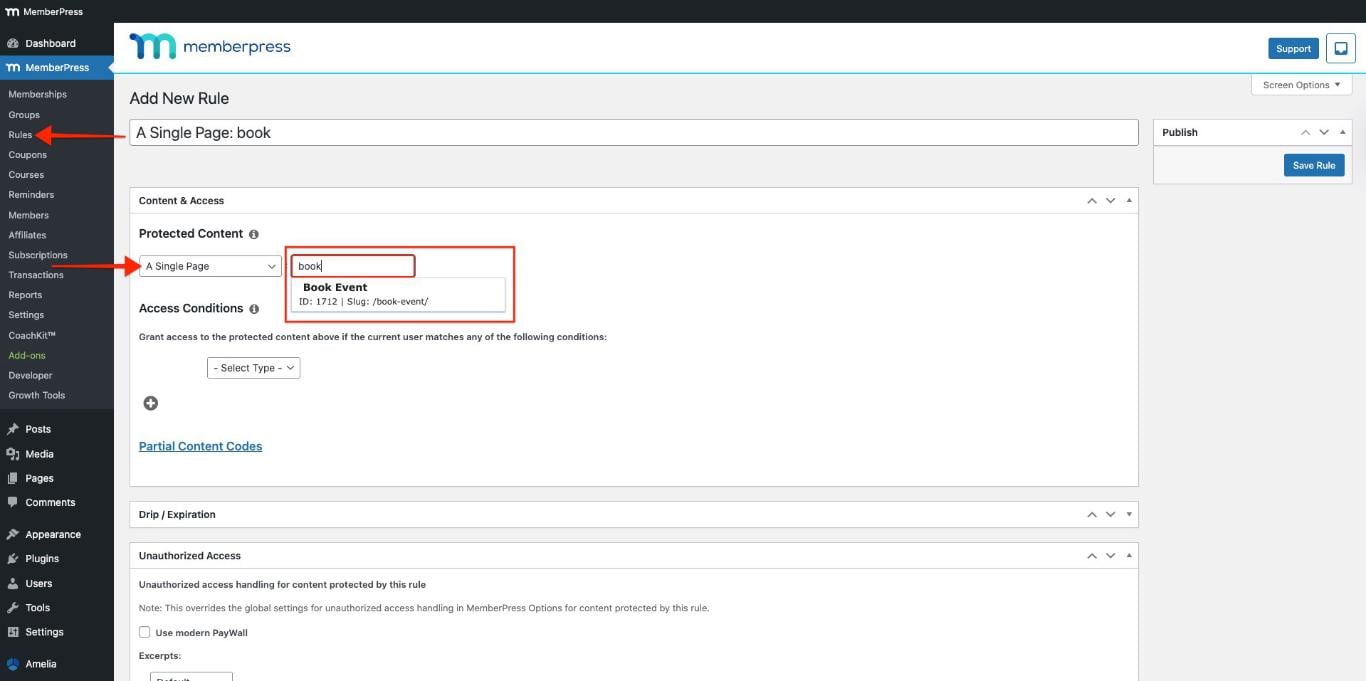
- Type the page name in the Begin Typing Title field and choose the page from the dropdown menu.
- In the Access Conditions section:
- Choose Membership from the first dropdown and Amelia Customer from the second dropdown;
- Select the membership that should have access to the booking page.
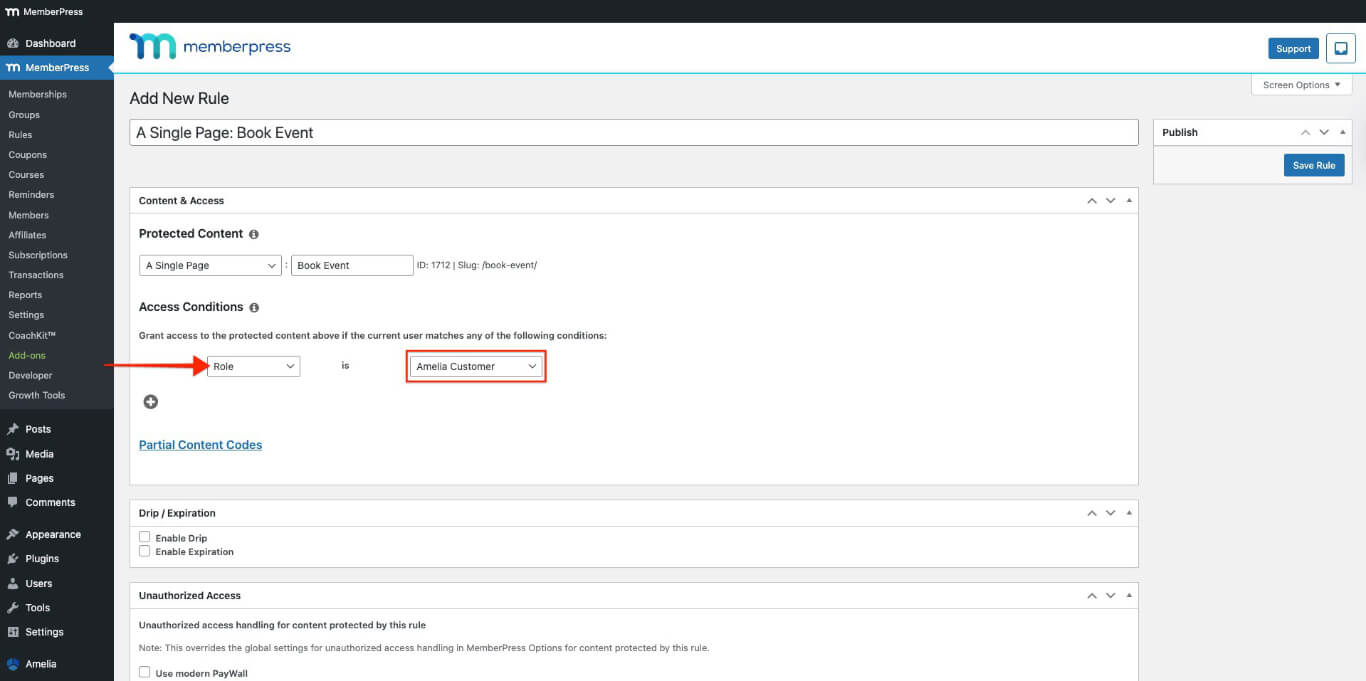
- Scroll down to the Unauthorized Access section.
- In the Unauthorized Message dropdown, select the Custom option.
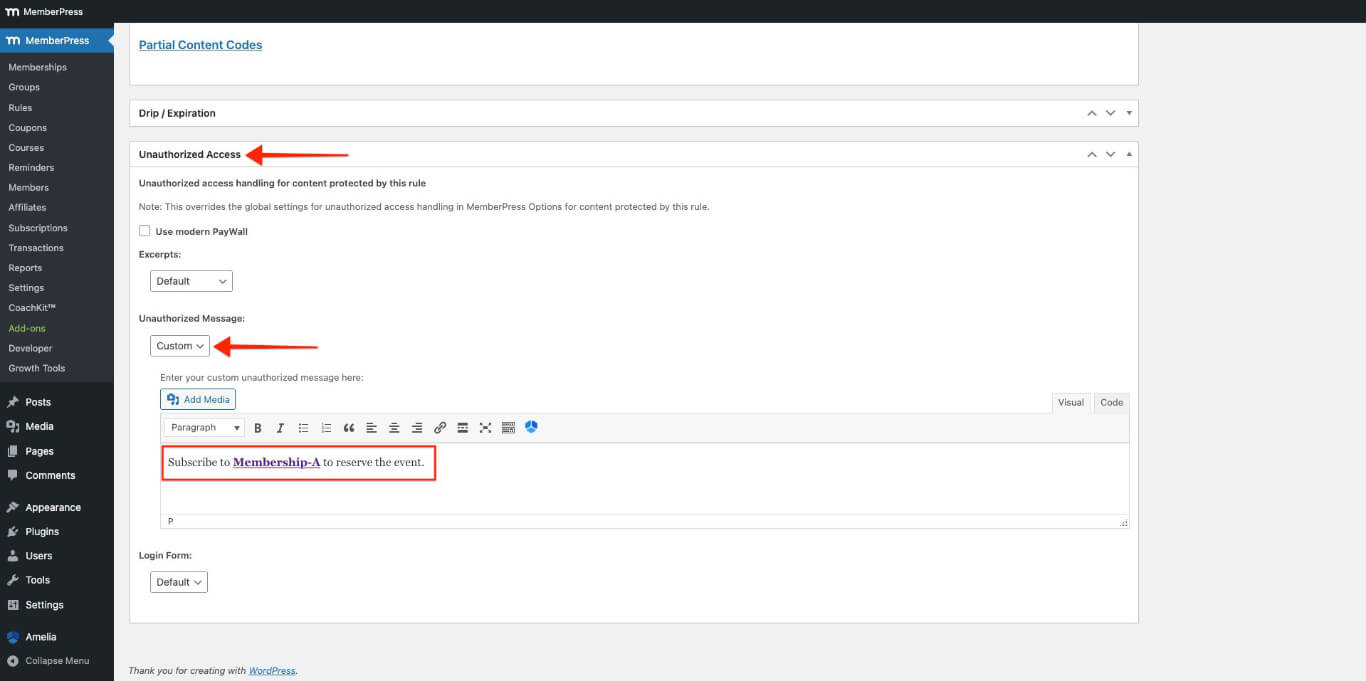
- Enter your custom message for unauthorized users who access this page.
- Click the Save Rule button on the top right.
Signing up for the Membership and Booking the Event
- Go to Dashboard > MemberPress > Memberships.
- Open the membership in your browser’s Incognito (private) Window.
- Enter the required details to sign up as a test user, then select either Offline Payment Method or Stripe. You can use Stripe Test Card Numbers to sign up.
- Visit the event booking page with the shortcode.

- Click the Read more button to review the event.
- Click the Book event button.
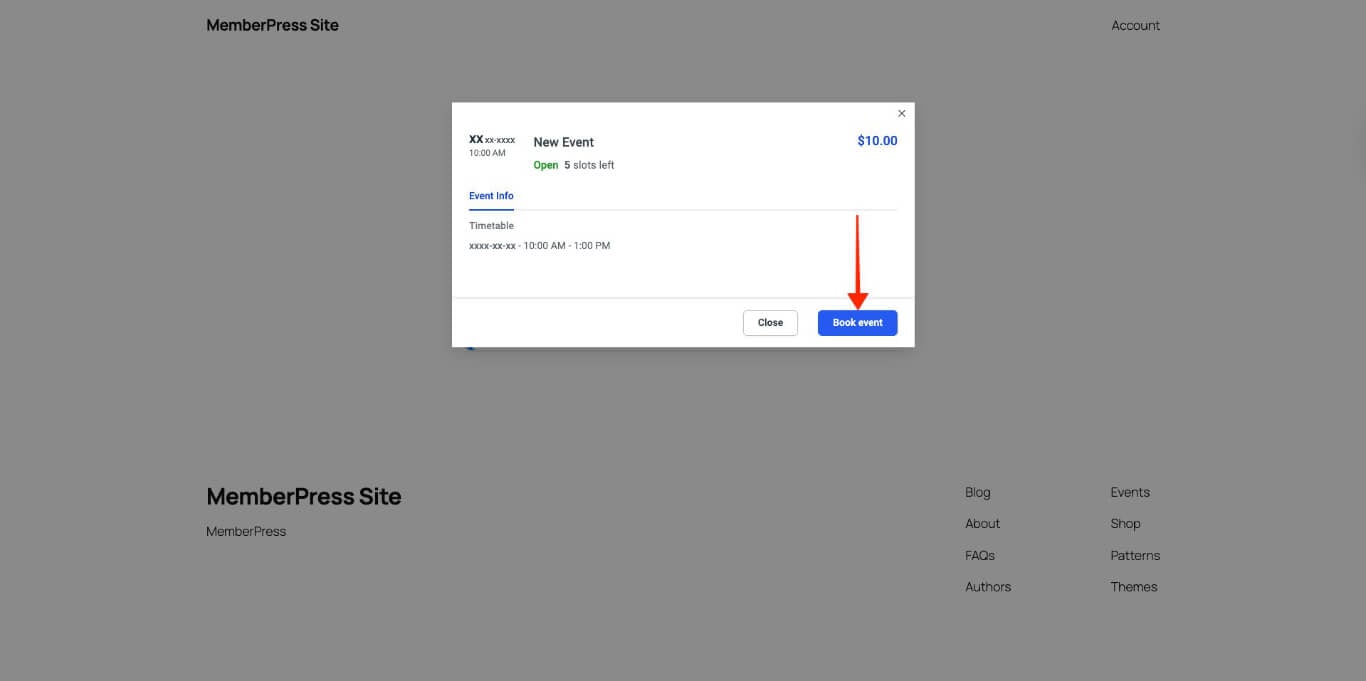
- Enter all required information, then click the Continue button.
- Click the Book event button.

- Click the Finish button or the Customer Panel button.
Testing the Booking Pages
Testing makes sure that the MemberPress Rules block access to Amelia booking pages.
Create several test accounts with different membership levels.
- Open your site in a browser’s Incognito (private) Window.
- Log in with a test account that has the necessary membership.
- Go to the booking page and check that the Amelia booking form is visible and works.
- Log out and log in with a test account that doesn't have the membership.
- Go to the booking page and check whether the unauthorized access message appears instead of the booking form.
If access restrictions aren't working, check the MemberPress Rules to ensure the correct membership levels and pages are chosen.
Adding Amelia Front-end Panels to MemberPress Account Page
You can add Amelia customer and employee panels to MemberPress Account Navigation Tabs as custom tabs. This enables members to manage appointments and events directly from their MemberPress account page.
Before adding Amelia panels to the account page, ensure the MemberPress Account Navigation Tabs add-on is installed and enabled.
Furthermore, ensure that you have the premium version of the Amelia plugin to access the Amelia Front-end Panel features.
Understanding Amelia Panel Shortcodes
Amelia provides two front-end panel shortcodes for embedding customer and employee portals.
Amelia Customer Panel Shortcodes
The Customer Panel displays members' appointments and events. Use the following shortcode variations based on content requirements.
This shortcode displays both appointments and events in the Amelia Customer Panel:
[ameliacustomerpanel appointments=1 events=1]You can show either appointments or events in the customer panel using these options:
- Removing events=1 will display appointments only:
[ameliacustomerpanel appointments=1]- Removing appointments=1 will display events only:
[ameliacustomerpanel events=1]Amelia Employee Panel Shortcodes
The Employee Panel displays staff members' appointments and events. Use the following shortcode variations based on content requirements:
This shortcode displays both appointments and events in the Amelia Employee Panel:
[ameliaemployeepanel appointments=1 events=1]You can show either appointments or events in the employee panel using these options:
- Removing events=1 will display appointments only:
[ameliaemployeepanel appointments=1]- Removing appointments=1 will display events only:
[ameliaemployeepanel events=1]Adding Amelia Panels as Account Page Tabs
Follow these steps to add Amelia panels to the MemberPress account page:
- Navigate to Dashboard > MemberPress > Account.
- Enable Account Nav Tabs and add a new Nav Tab.

- Paste the Amelia Front-end Customer Panel shortcode for events.
[ameliacustomerpanel events=1]- Click the Update Options button.
- Create another tab for the Employee Panel, following steps 1-4 above.
The new tabs will appear on the MemberPress Account page.
Enabling the Employee and Customer Panels
Follow these steps to enable Amelia's Employee panel and Customer panel.
Enable the Employee Panel
- Go to the MemberPress Account page.
- Click the Employee Panel tab created in the previous section from the left sidebar.
- Copy the URL from the browser's URL bar.
- Navigate to the Dashboard > Amelia > Settings.
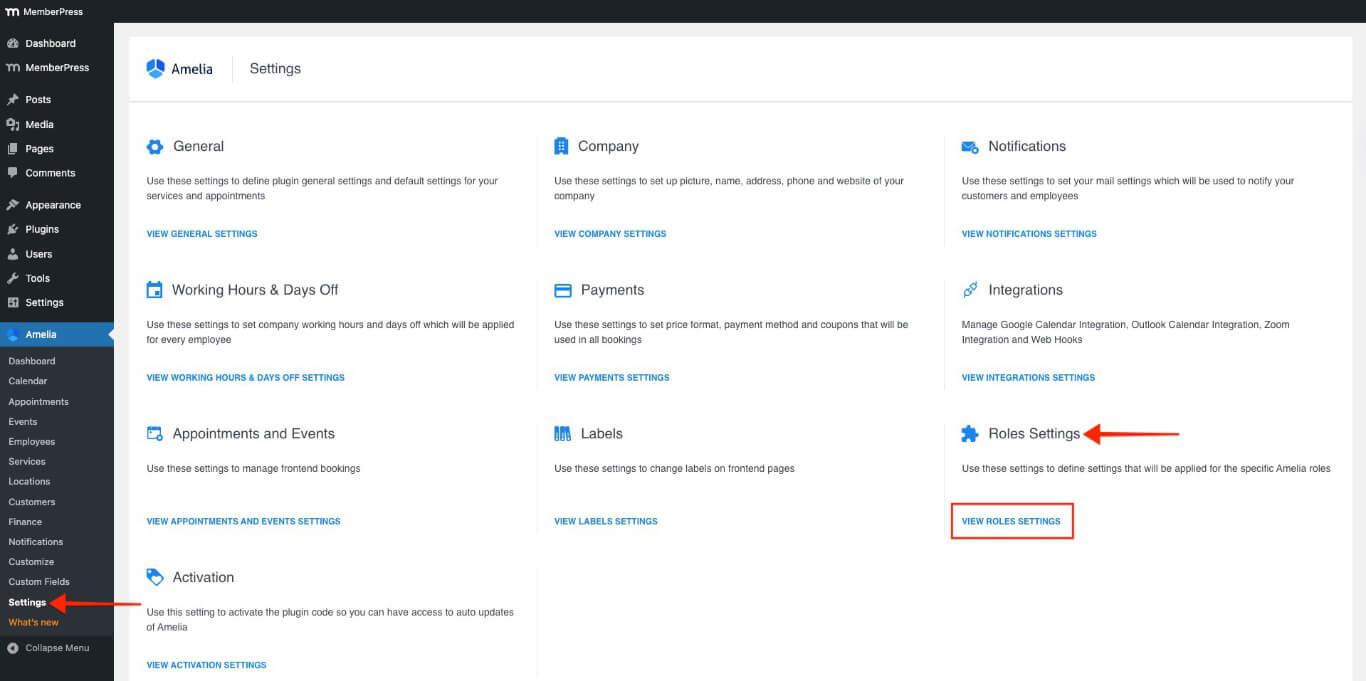
- Under the Roles Settings section, click the View Roles Settings button.
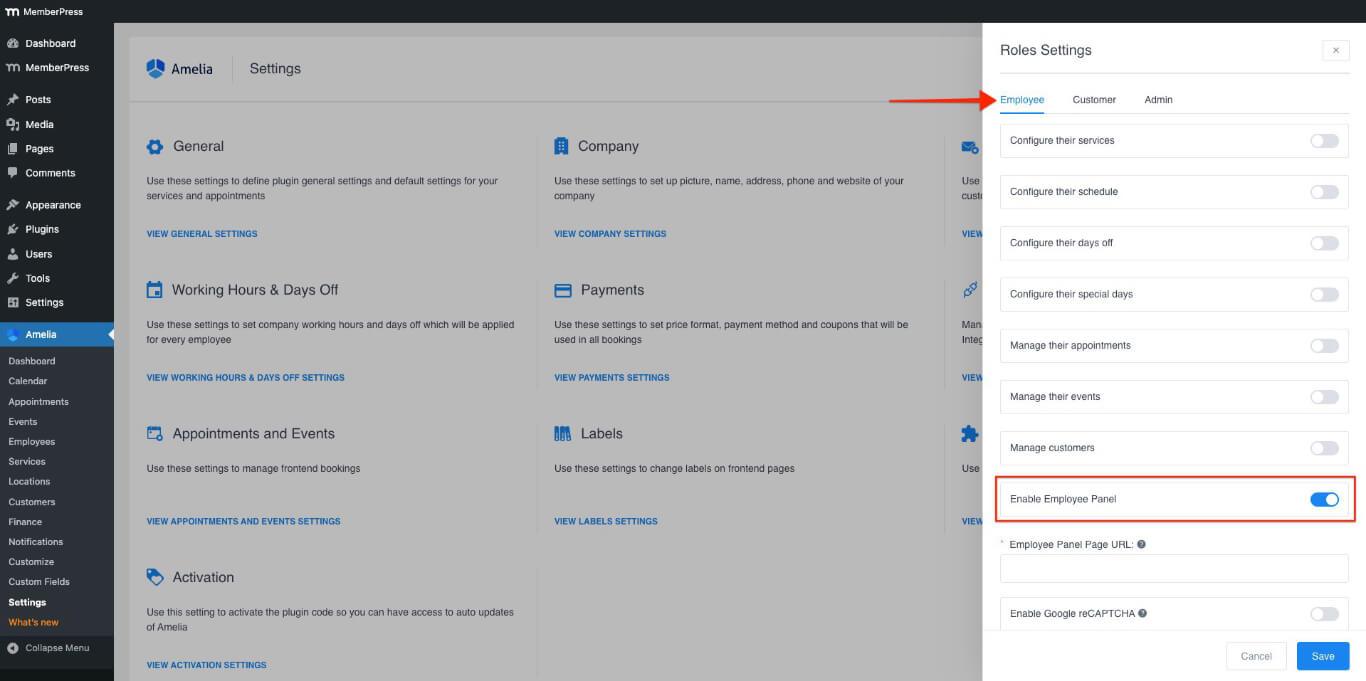
- From the Employee tab, toggle the Enable Employee Panel option ON. The Employee Panel Page URL field will appear.
- In the Employee Panel Page URL field, paste the URL for the Employee Panel tab.
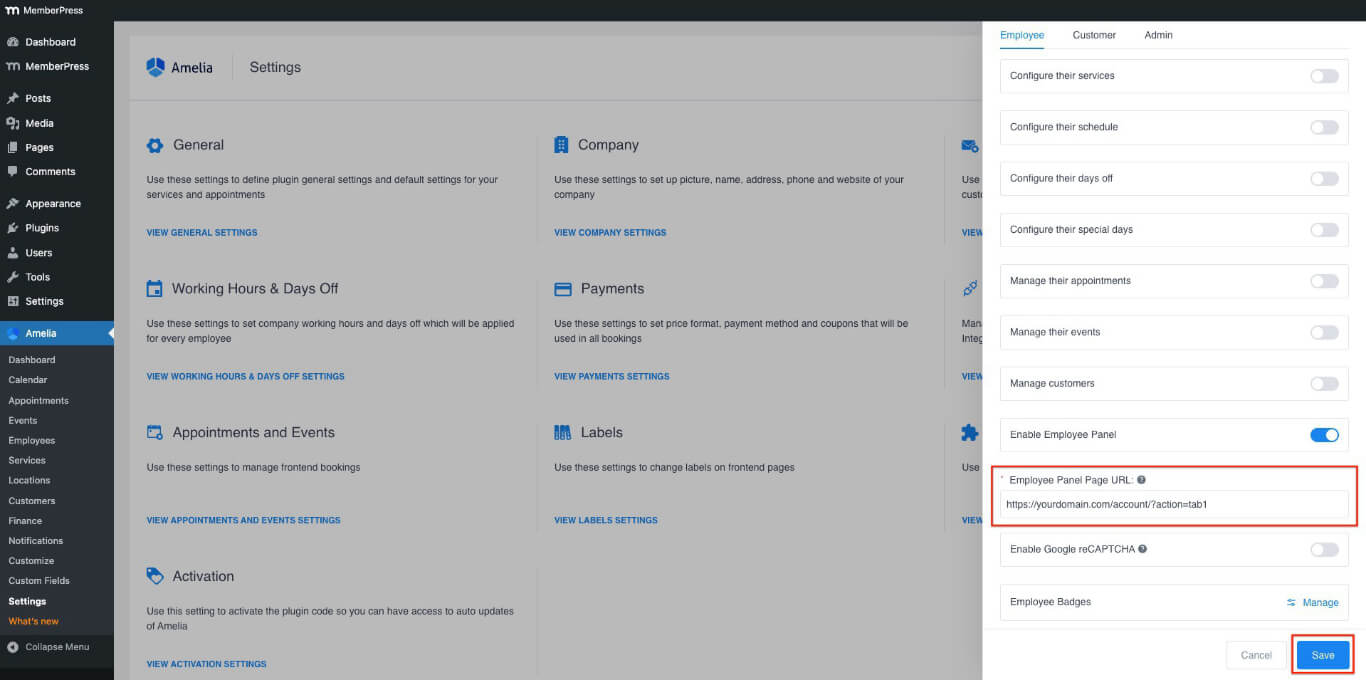
- Click the Save button.
Enable the Customer Panel
- Go to the MemberPress Account page.
- Click the Customer Panel tab created in the previous section from the left sidebar.
- Copy the URL from the browser's URL bar.
- Navigate to the Dashboard > Amelia > Settings.
- Under the Roles Settings section, click the View Roles Settings button.
- From the Customers tab, toggle the Enable Customer Panel option ON. The Customer Panel Page URL field will appear.
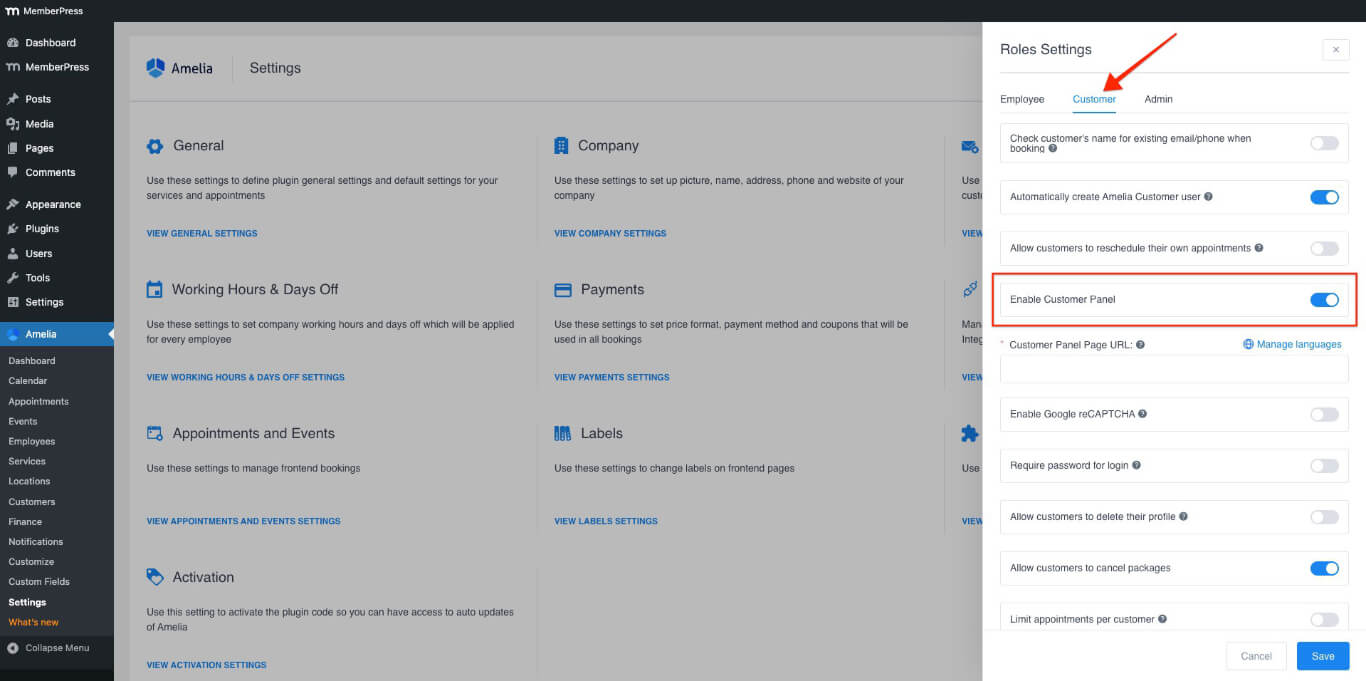
- In the Customer Panel Page URL field, paste the URL for the Customer Panel tab.
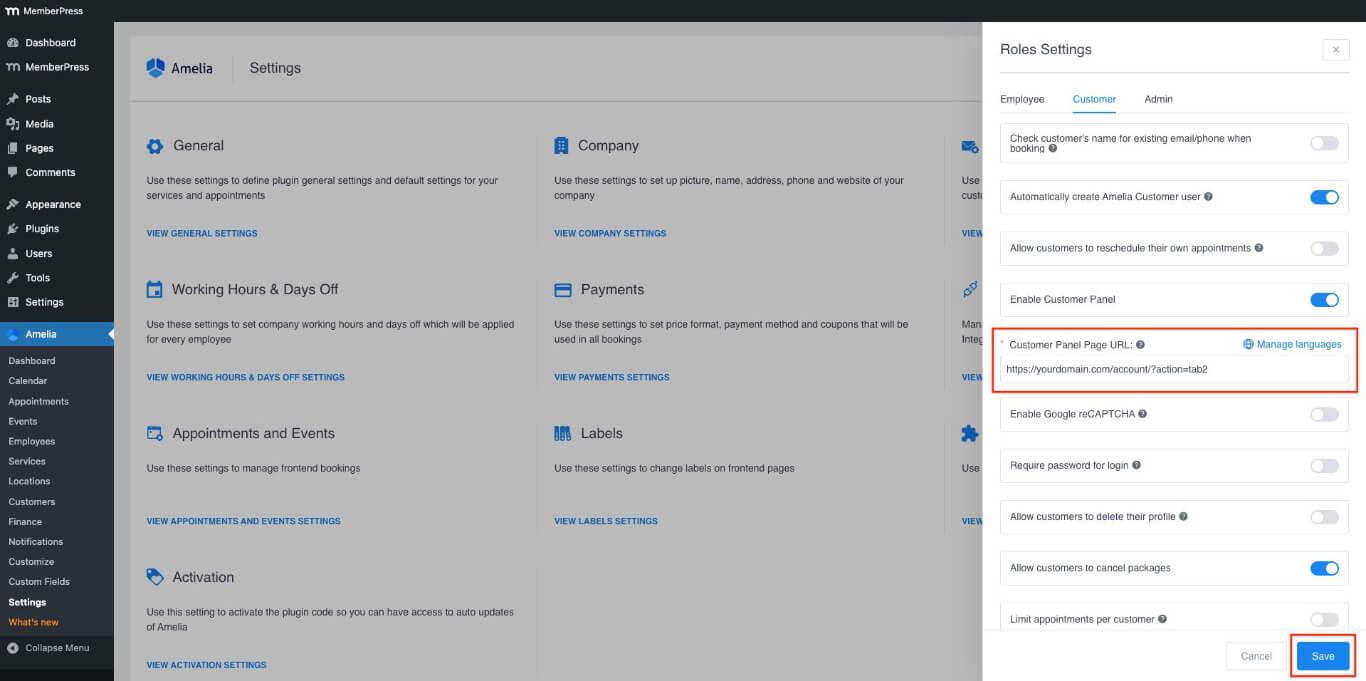
- Click the Save button.
Testing the Amelia Front-end Panel
After adding Amelia panels to the account page, verify the integration by following these steps:
- Open your site in a browser’s Incognito (private) Window.
- Log in with a test account that has the necessary membership and event/appointment booking.
- Navigate to the Account page on the front end.
- Click the Customer Panel tab from the left sidebar.
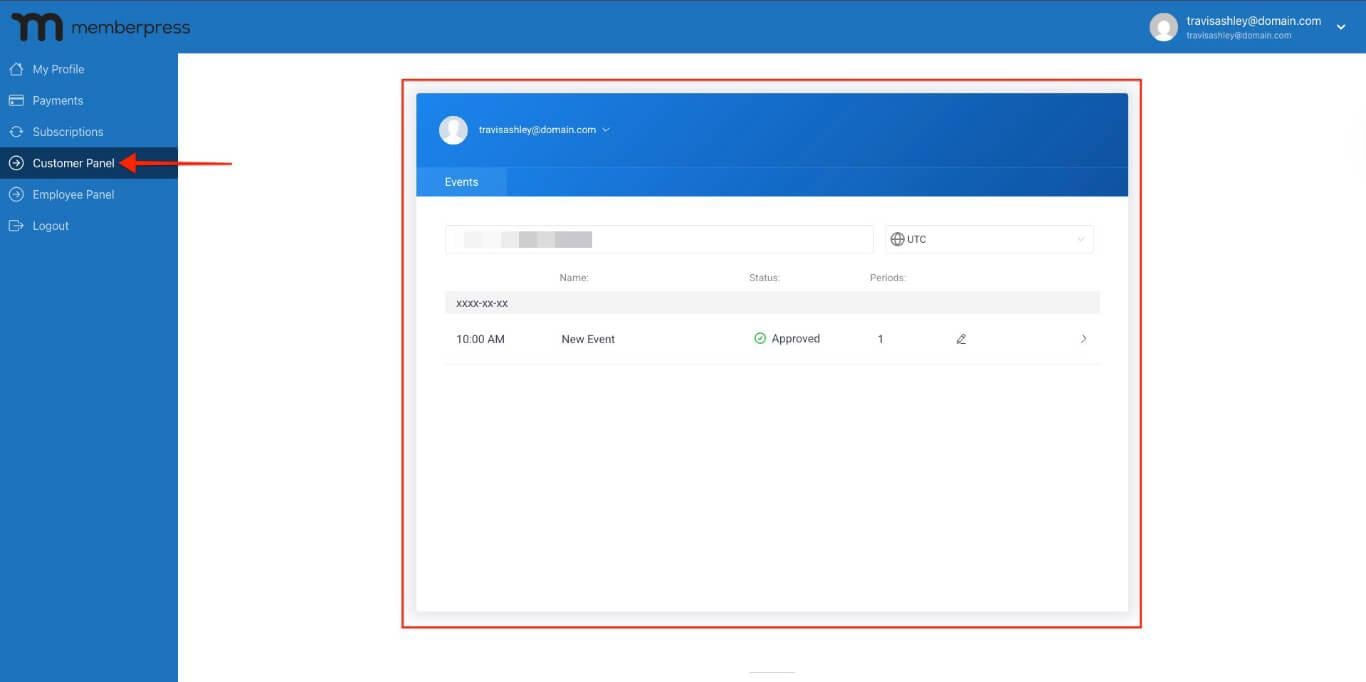
- Verify that appointments and events display correctly based on the shortcode configuration.
Restricting the Tab Visibility
You can manage which members see custom tabs with MemberPress rules. For example, you can hide the Employee Panel tab from the users with the Amelia Customer role. To configure visibility settings, create a new MemberPress Rule to protect the tabs.










