

MemberPress iOS Test Build installation enables rapid testing and development preview without App Store submission. Test builds include site configuration, branding, menus, and custom code from GitHub repositories.
This document explains how to register iOS test devices, request Test Build generation, and install builds via QR code.
Understanding iOS Test Build Installation
MemberPress iOS Test Build installation requires device registration before build installation. Apple restricts Test Build installation to registered devices identified by unique device identifiers. Device registration and Test Build generation occur through the WordPress interface without Xcode or manual compilation requirements.
Device registration records device unique identifiers enabling Test Build provisioning. Registered devices receive provisioning profiles authorizing Test Build installation.
Test Build generation compiles the app with registered device identifiers included. Builds containing device provisioning enable installation on authorized devices only.
QR code installation simplifies distribution to registered devices. Direct installation bypasses App Store submission and TestFlight requirements.
Configuration inclusion incorporates all site settings, branding, and menu configurations. Test builds reflect the current WordPress configuration at build generation time.
Custom code integration includes GitHub-connected customizations and modifications. Test builds compile custom code changes for validation before production deployment.
Registering iOS Test Devices
Device registration enables Test Build installation on specific iOS devices.
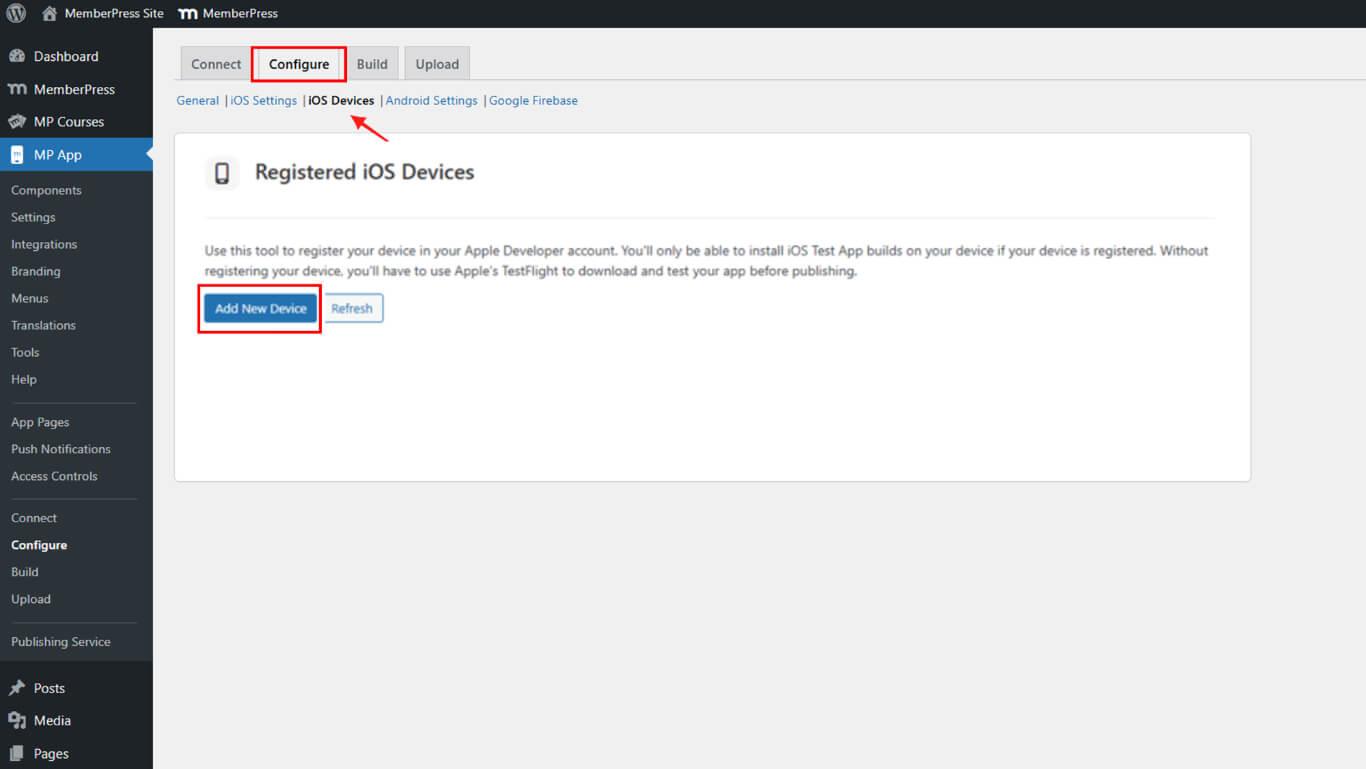
- Navigate to Dashboard > MP AppKit > Configure > iOS Devices.
- Click the Add New Device button.
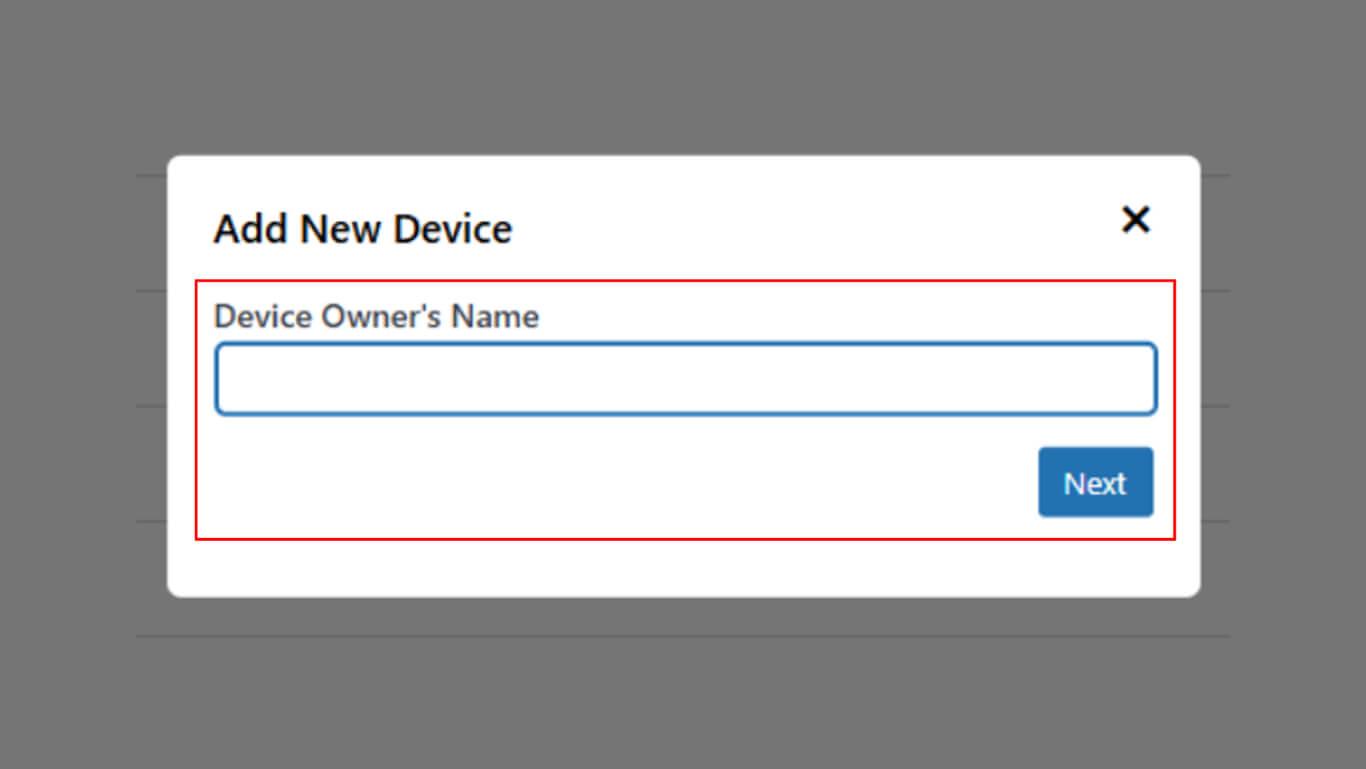
- Enter a descriptive name in the Device Name field.
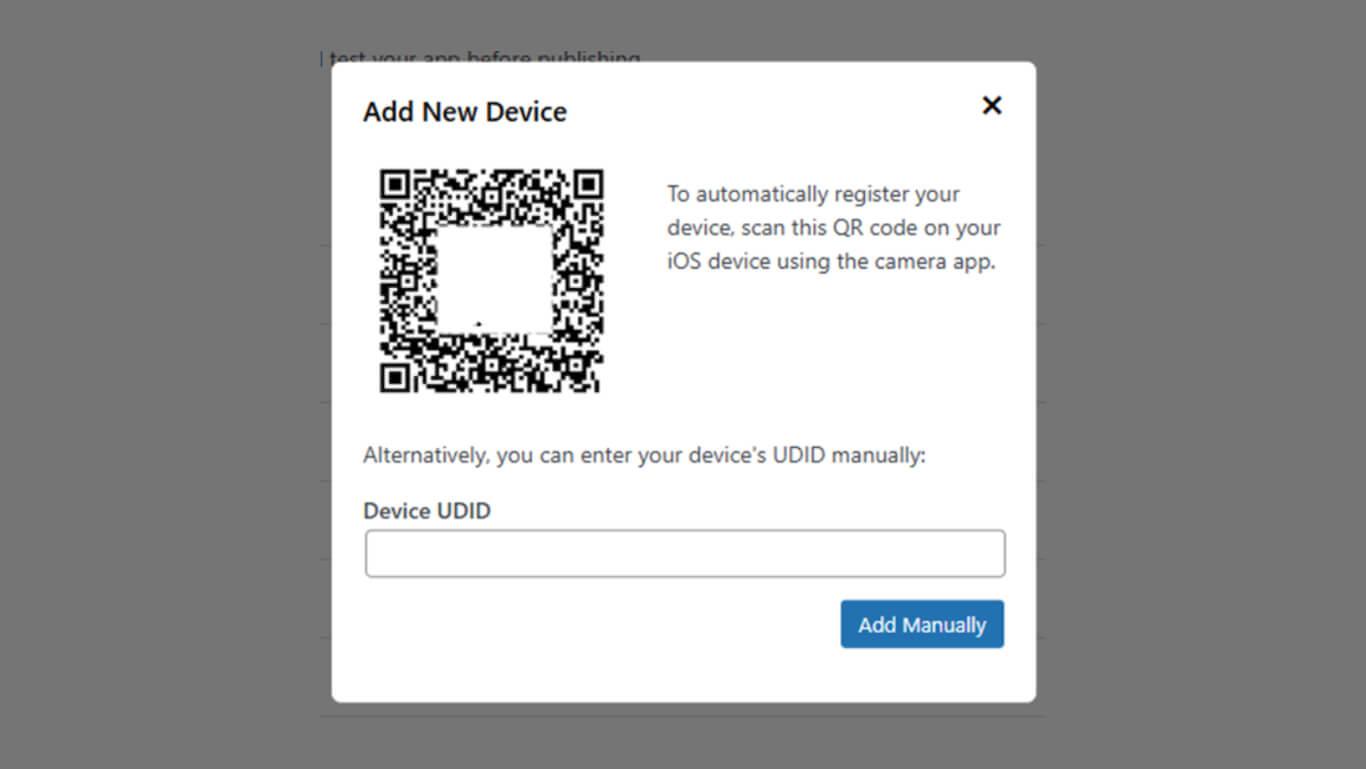
- Open the Camera app on iPhone.
- Scan the displayed QR code with the iPhone camera.
- Tap the notification or link appearing after scanning.
- The browser opens, displaying the provisioning profile installation page.
- Tap Install to install the provisioning profile.
- Follow on-screen prompts to complete profile installation.
- Return to the WordPress browser window.
- Click Refresh to update the device list.
- Verify the device appears in the registered devices list.
Understanding Device Registration Requirements
Device registration follows specific Apple requirements and limitations.
Unique device identifier distinguishes individual devices from others. UDID registration enables Apple to authorize specific device installations.
100 device limit restricts the total registered devices per developer account annually. Limit resets yearly, allowing new device registrations.
Provisioning profile requirement authorizes Test Build installation on devices. Profile installation must be completed before Test Build installation attempts.
New build requirement applies when adding devices to existing registrations. Previously generated Test Builds do not include newly registered devices.
Requesting iOS Test Build
Test Build generation creates an installable app package including registered device provisioning.
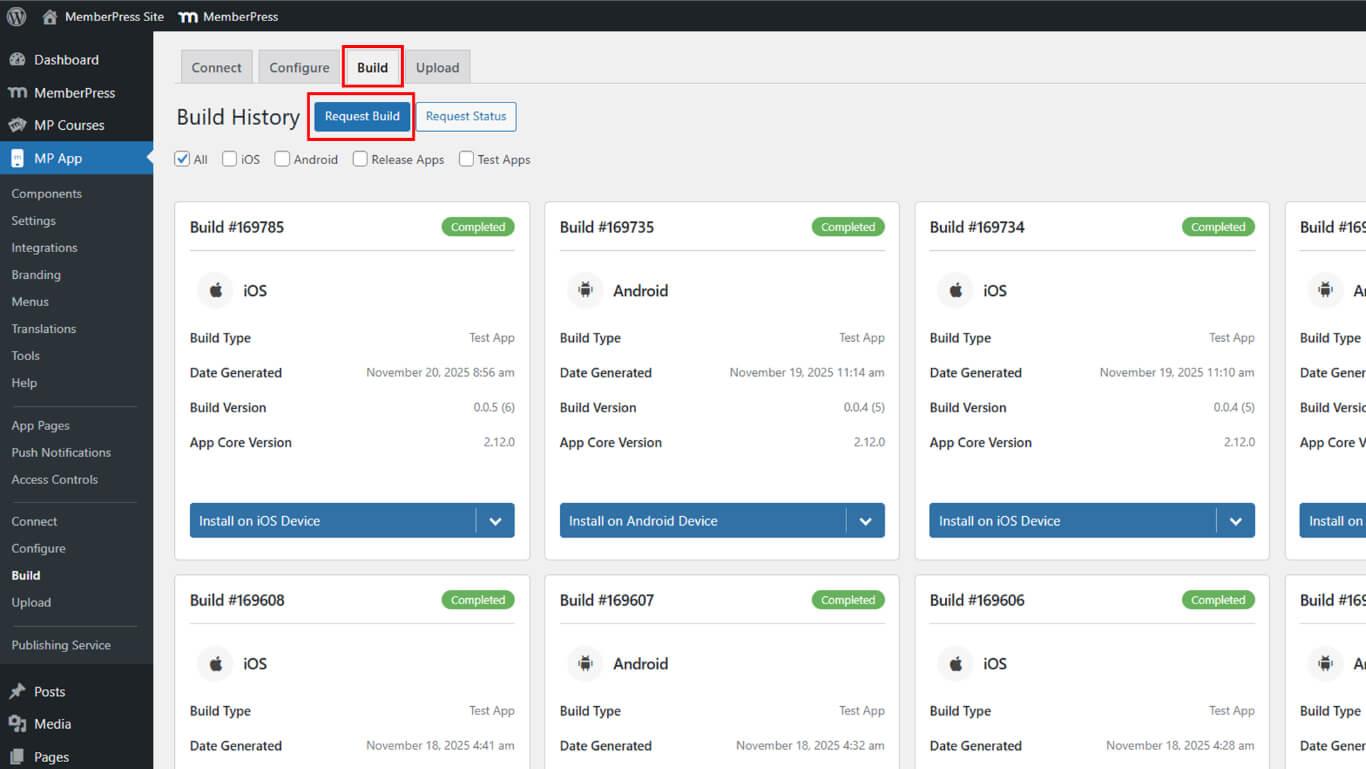
- Navigate to Dashboard > MP AppKit > Build.
- Click the Request Build button.
- Select iOS as the platform from available options.
- Select Test App as the build type.
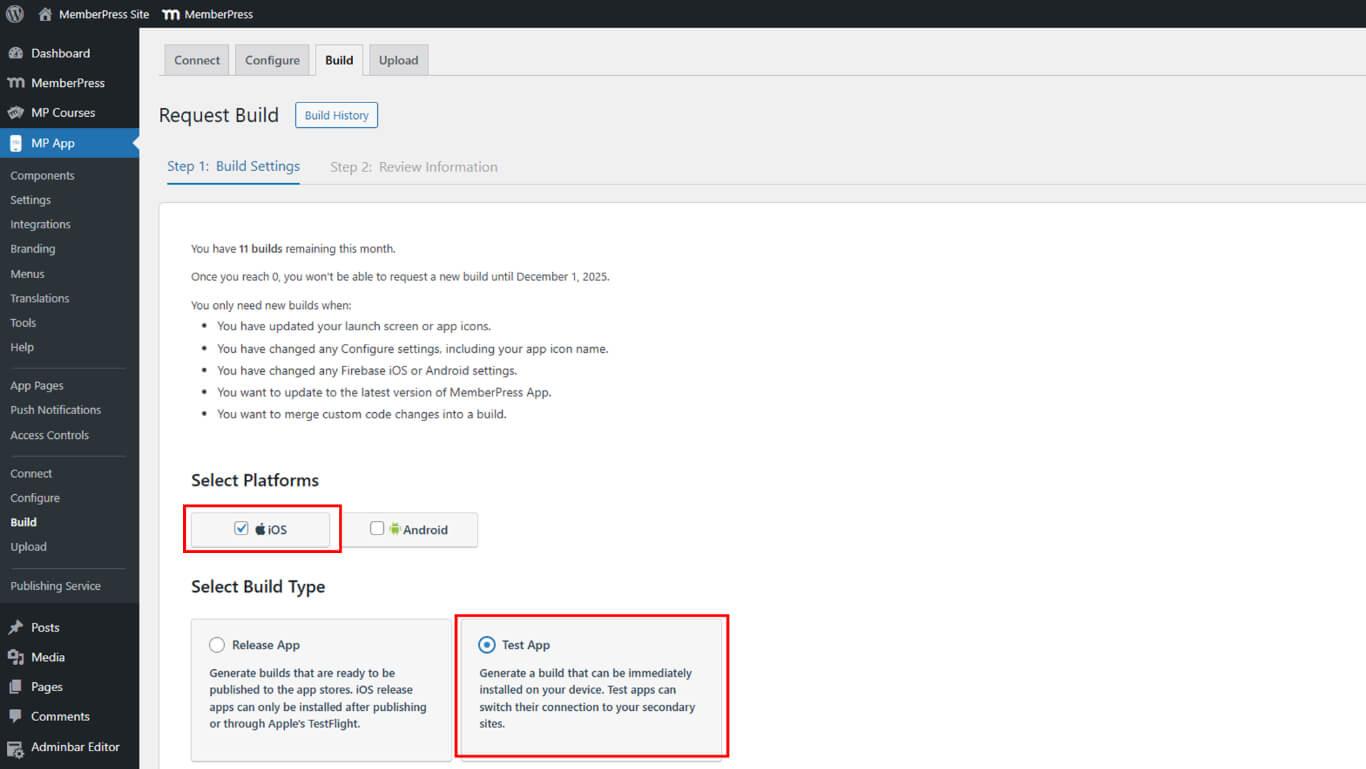
- Click Next to proceed to build configuration review.
- Review all build settings displayed on the confirmation screen.
- Click Send Build Request to submit the build request.
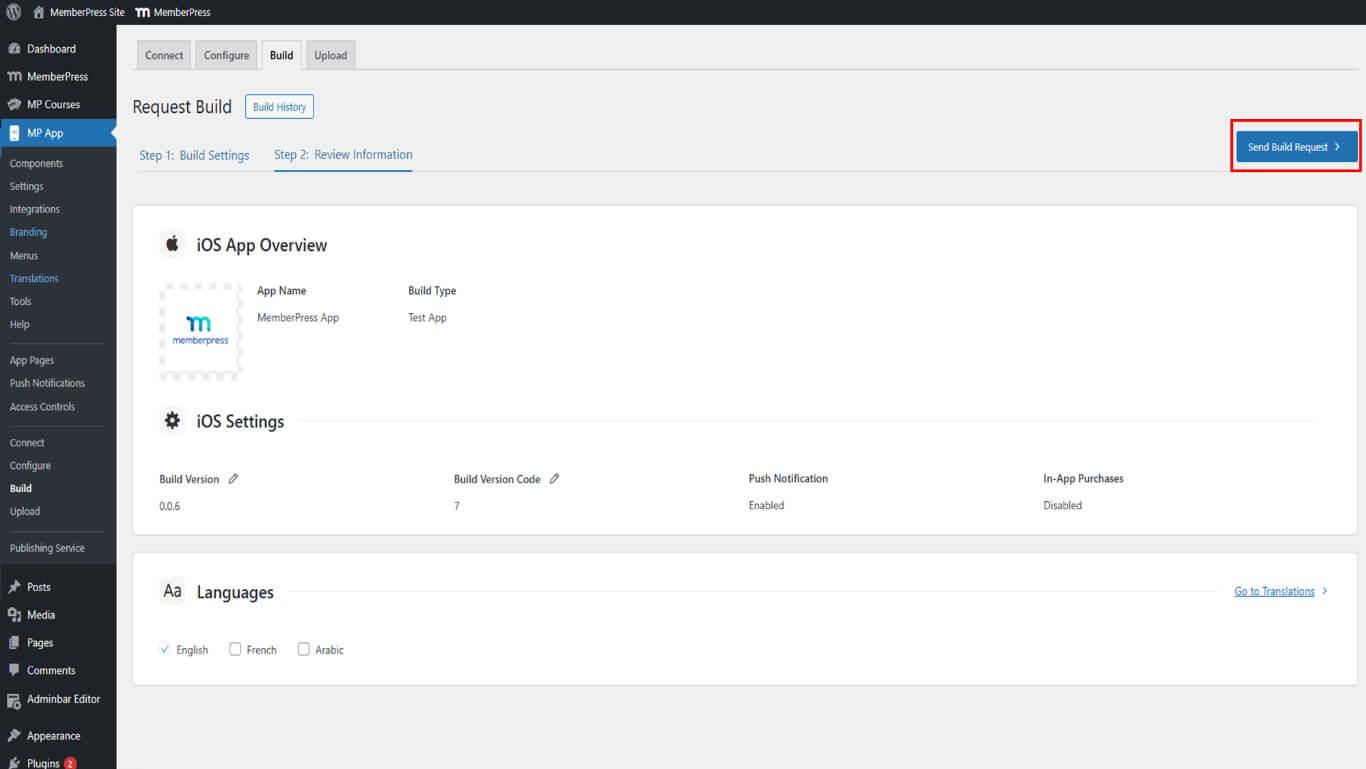
- Wait 15-60 minutes for build completion in the build queue.
- Click Recheck Status Now to refresh the build status if needed.
Checking Build Status
Build status monitoring tracks generation progress through completion stages.
- Navigate to Dashboard > MP AppKit > Build.
- Review the builds list displaying all requested builds.
- Locate the desired iOS Test Build in the list.
- Review build card information:
- Build Number identifying specific build;
- Build Status showing Queued, In Progress, or Completed;
- Platform displaying iOS for iOS builds;
- Build Type indicating Test App or Release App;
- Date and Time showing when the build was requested;
- Install Test App button appearing when build completes.
- Click Recheck Status Now to refresh the status display if needed.
Build cards provide comprehensive build information for identification and status verification.
Installing iOS Test App
Test App installation occurs through QR code scanning and direct download.
- Navigate to Dashboard > MP AppKit > Build after build completion.
- Locate the completed iOS Test Build in the builds list.
- Verify the build status shows Completed.
- Click Install Test App button on the build card.
- QR code displays in the interface for scanning.
- Open the Camera app on iPhone.
- Point the camera at the displayed QR code.
- Tap the notification or link that appears after scanning.
- Browser opens and redirects to the download page.
- Tap Download Application on the download page.
- Wait for profile download to complete.
- Tap Install when the download completes.
- Grant installation permissions if prompted by the device.
- Tap Open after installation completes to launch the app.
The installation process requires device to be registered before Test Build generation. Unregistered devices cannot install Test Builds even with QR code access.
Within the Test App:
- Use the site switcher to access any connected WordPress site
- To test custom GitHub code, push your changes and request a new Test Build
Understanding iOS Installation Requirements
Successful Test Build installation depends on proper device registration and provisioning.
Device registration must complete before Test Build generation. Devices added after build generation cannot install that specific build.
Provisioning profile must install successfully on the device. Profile installation authorizes Test Build installation from non-App Store sources.
Network connectivity enables profile and app download from build servers. A WiFi or mobile data connection must be active during the installation process.
iOS version compatibility requires a device running the minimum supported iOS version. Outdated iOS versions may prevent Test Build installation.
Understanding Android Test Build Differences
Android Test Builds follow different installation requirements than iOS builds.
No device registration required for Android Test Build installation. Android Test Apps install without pre-registration requirements.
Direct QR installation enables immediate installation after scanning. No provisioning profiles or device identifiers needed for Android.
Simplified distribution reduces setup complexity for Android testing. Android Test Apps are installed similarly to standard Android application packages.










