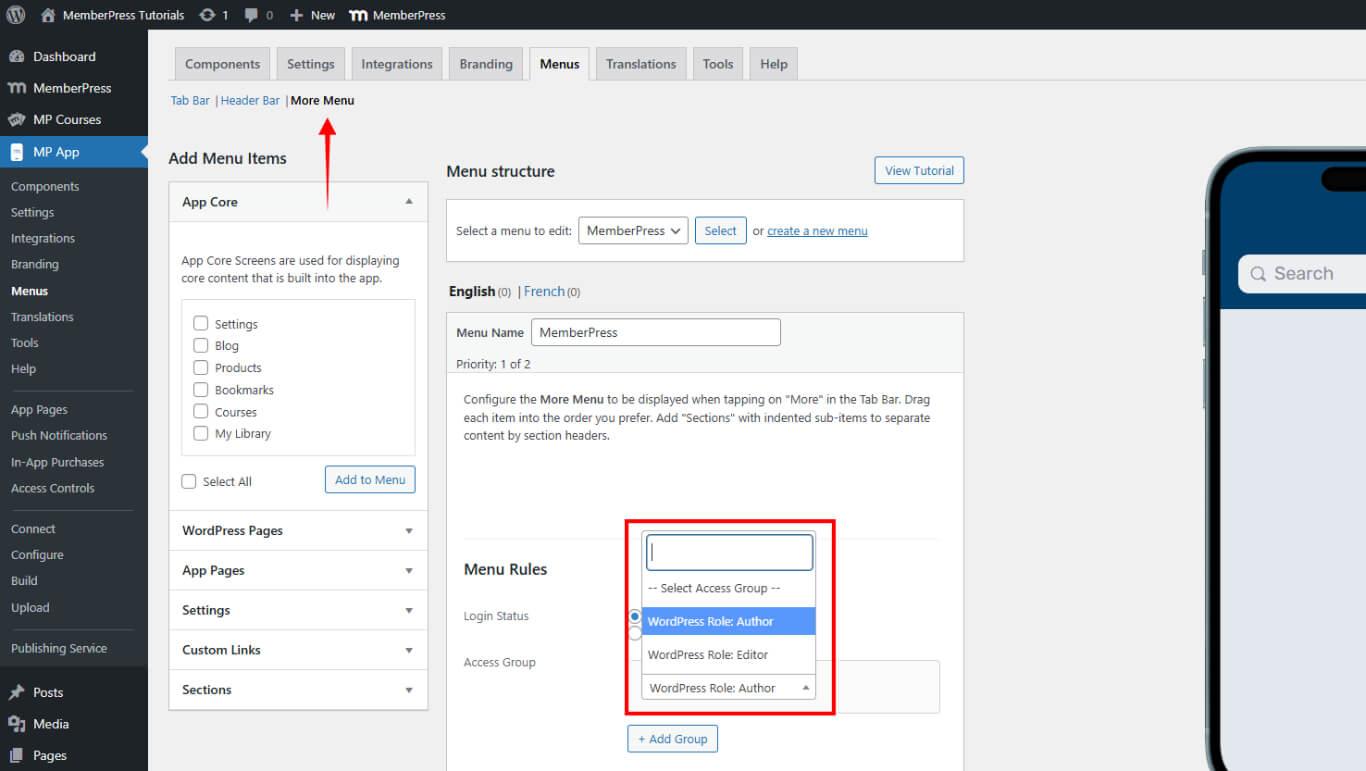
Access Controls restrict specific app content to designated members. This feature allows content visibility to be managed based on membership plans, user profiles, or custom conditions.
This document explains how to enable Access Controls, configure restriction messages, create access groups and rules, and customize menu visibility for different user segments.
What Are Access Controls?
Access Controls define which members can view specific app areas. Content such as app pages, blog posts, and navigation menus can be restricted based on membership levels or defined conditions. This functionality enables tailored user experiences for different member groups.
Enabling Access Controls
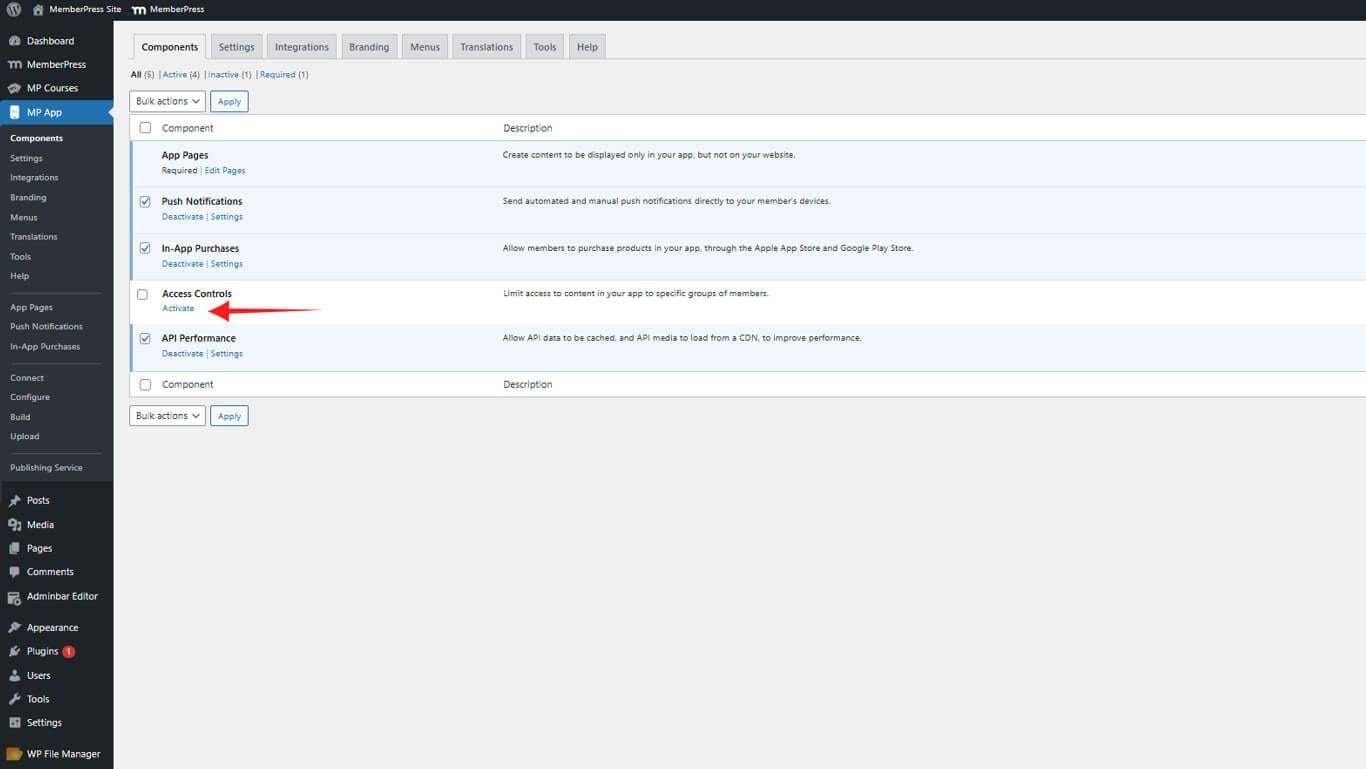
To start managing access within your app, you must first enable the Access Controls component.
- Navigate to your Dashboard > MP AppKit > Components.
- Locate Access Controls in the components list.
- Click Activate.
Configuring the Default Restriction Message
The default restriction message displays when users attempt to access locked content. This message can be customized to provide context or guidance.
- Navigate to Dashboard > MP AppKit > Settings > Access Controls.
- Locate the Default Restricted Message Content field.
- Enter the message text to display when users lack access permissions.
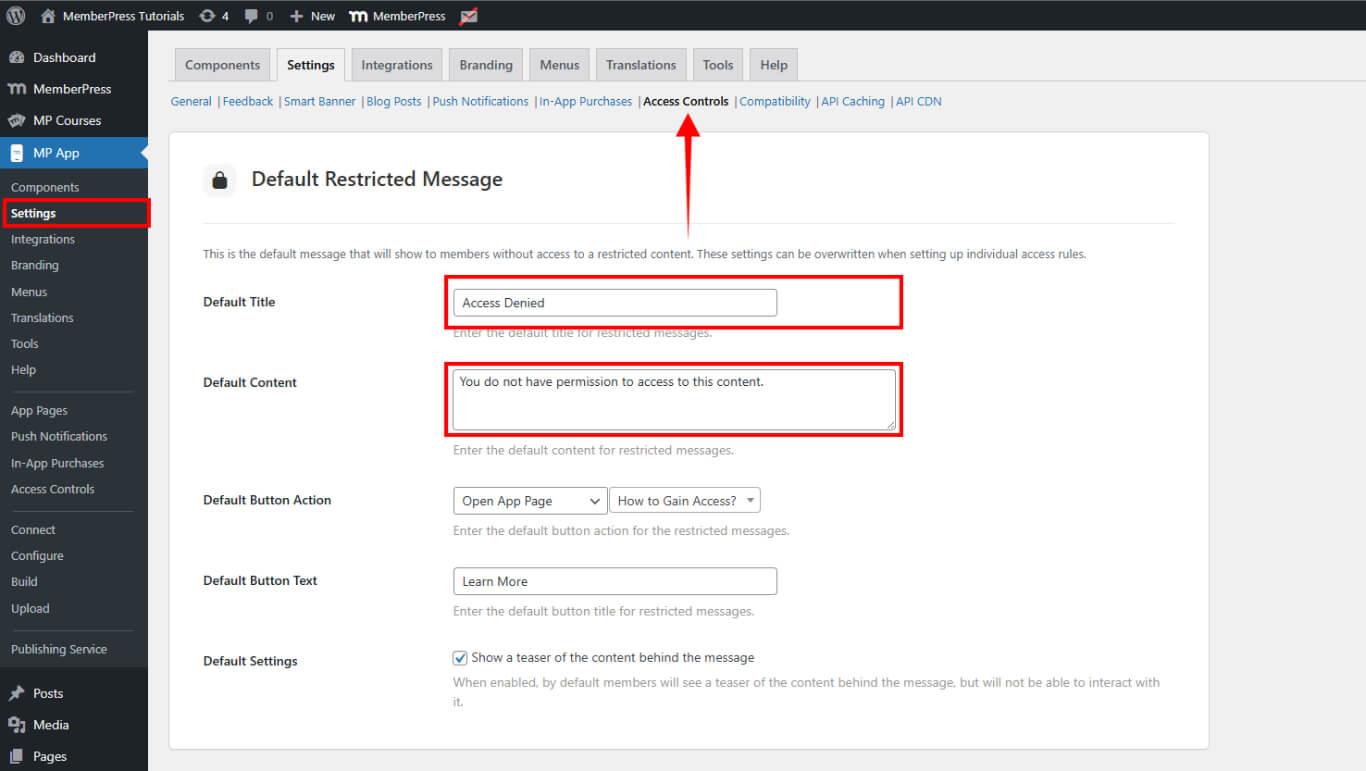
- Click Save Changes to apply your settings.
Creating Access Groups
Access Groups organize members into categories for content restriction purposes. These groups can be assigned to specific content types to control visibility.
Adding a New Access Group
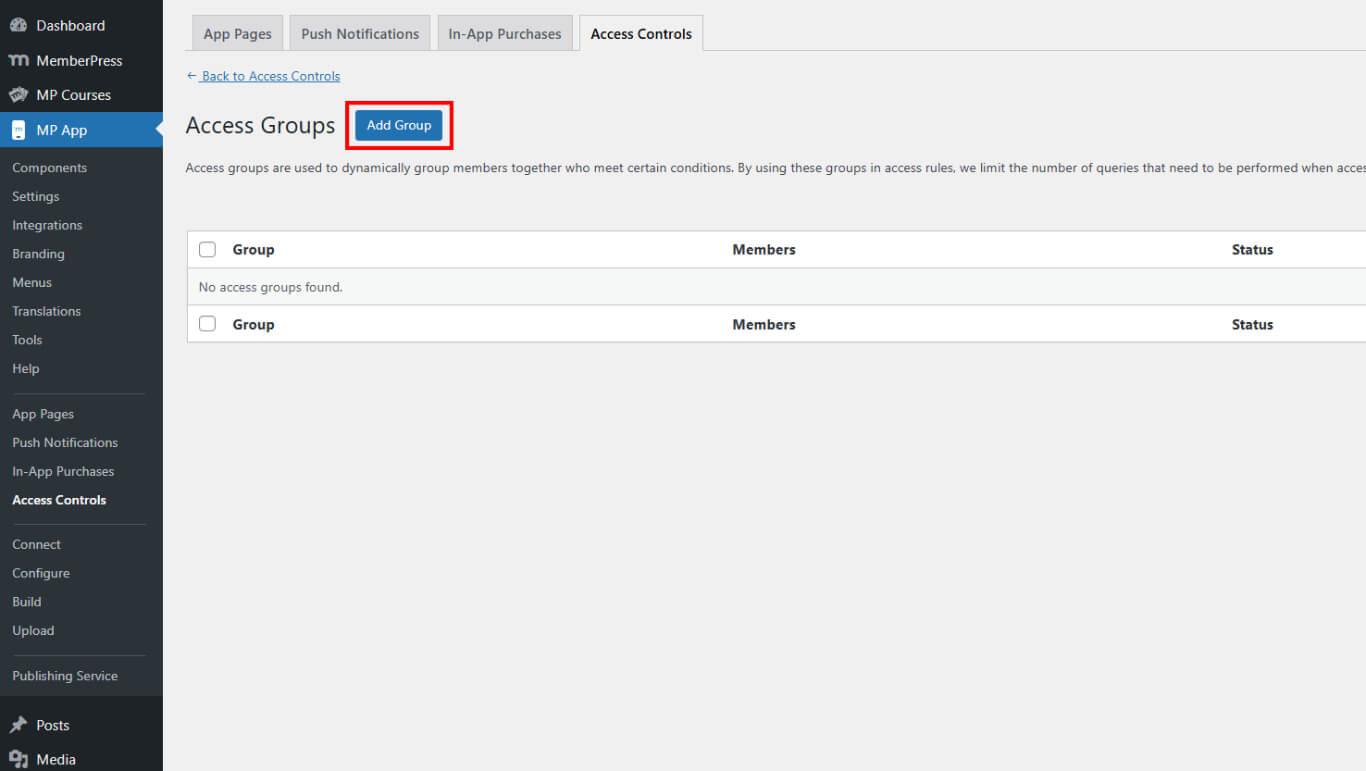
- Go to Dashboard> MP AppKit > Access Controls > Access Groups.
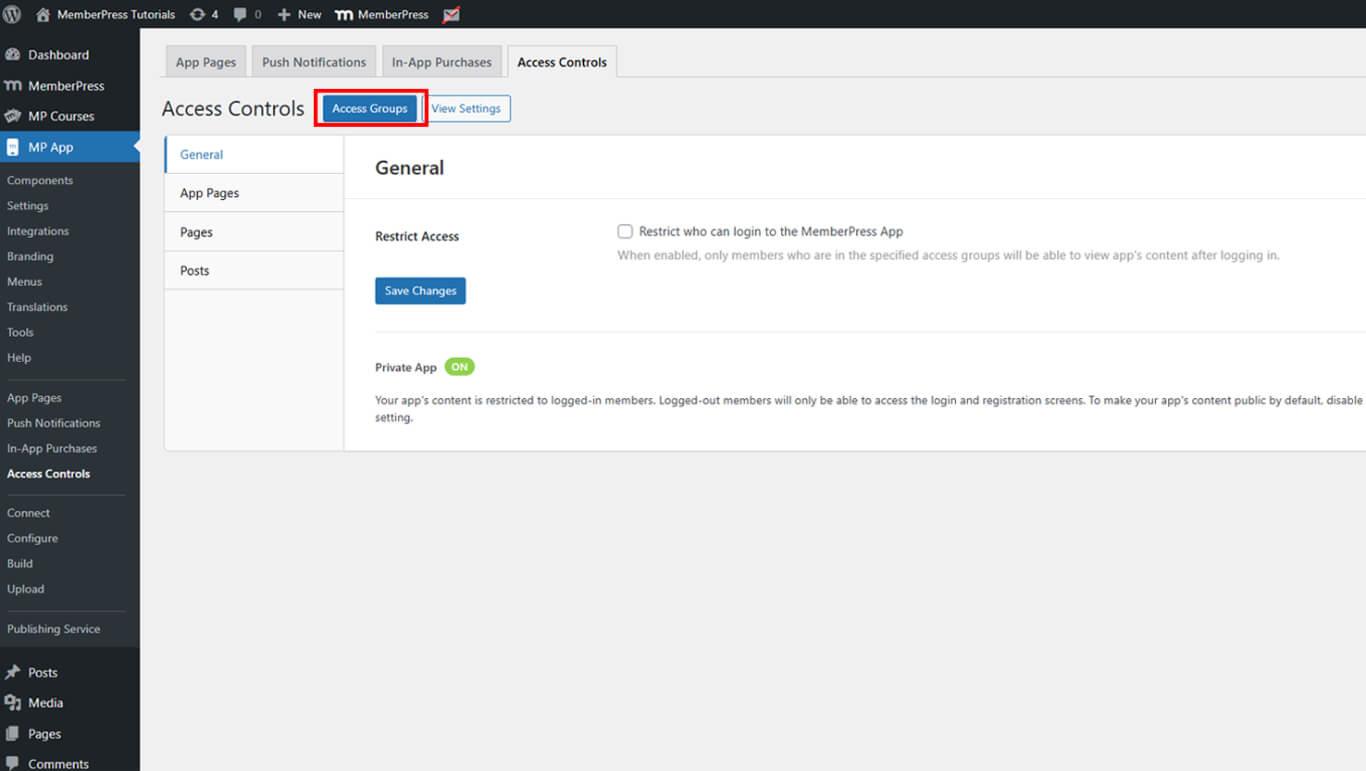
- Click Add Group.
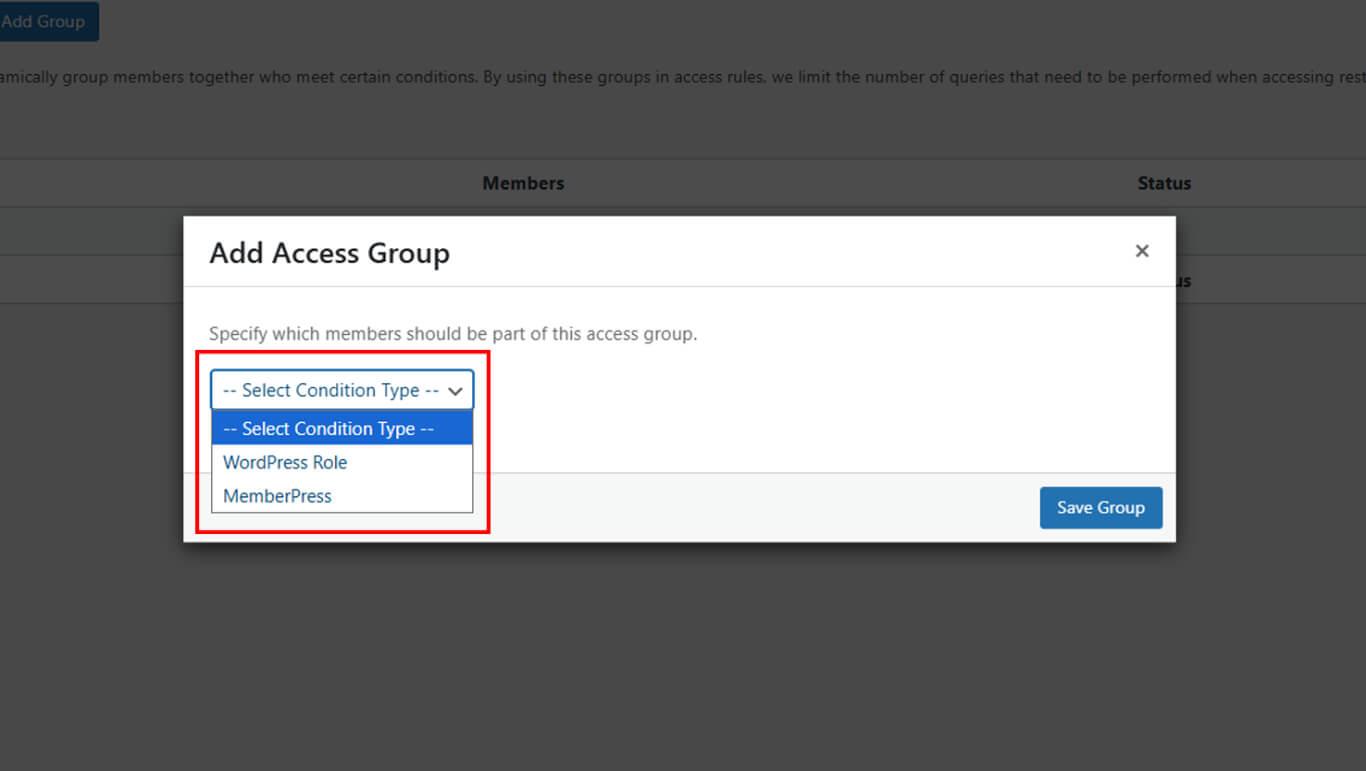
- Select which membership plans or WordPress roles should belong to this access group from the available options.
Setting Access Control
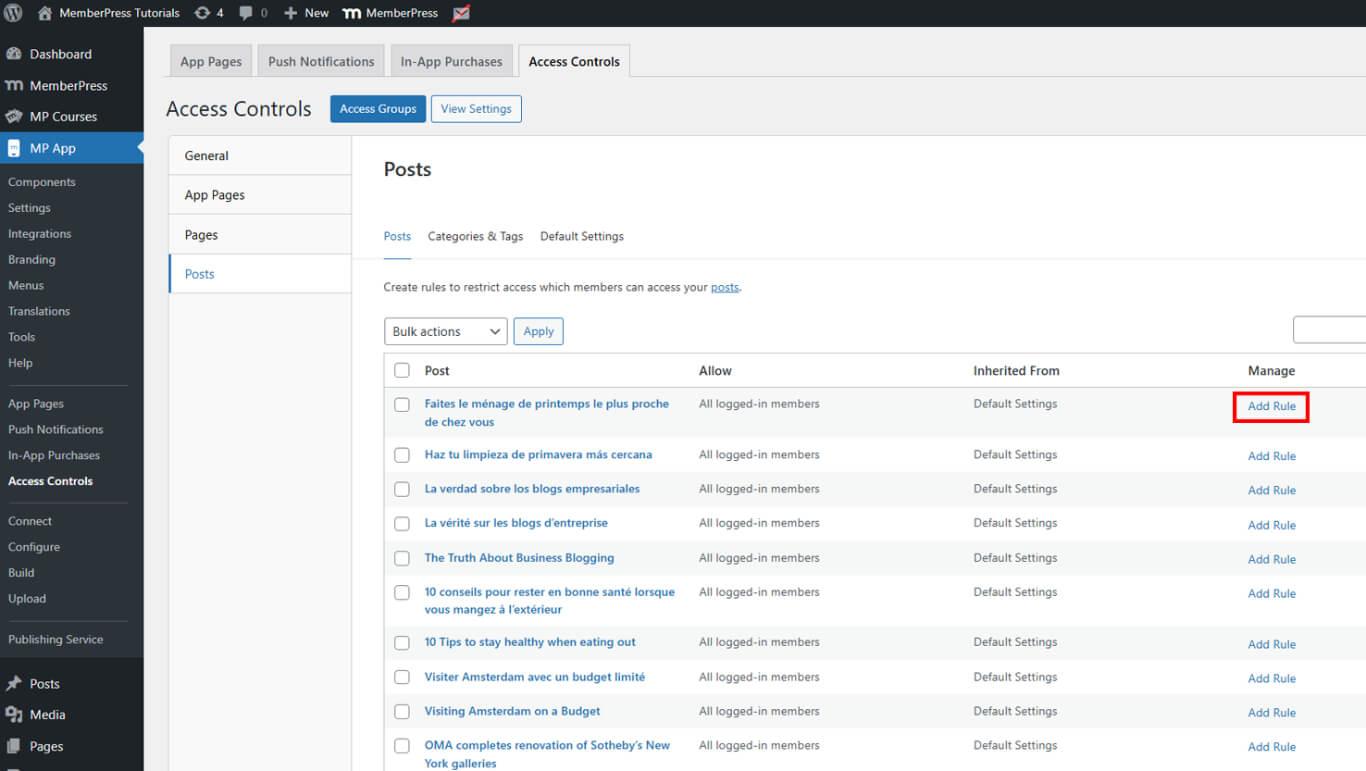
- Navigate to Dashboard > MP AppKit > Access Controls > Rules.
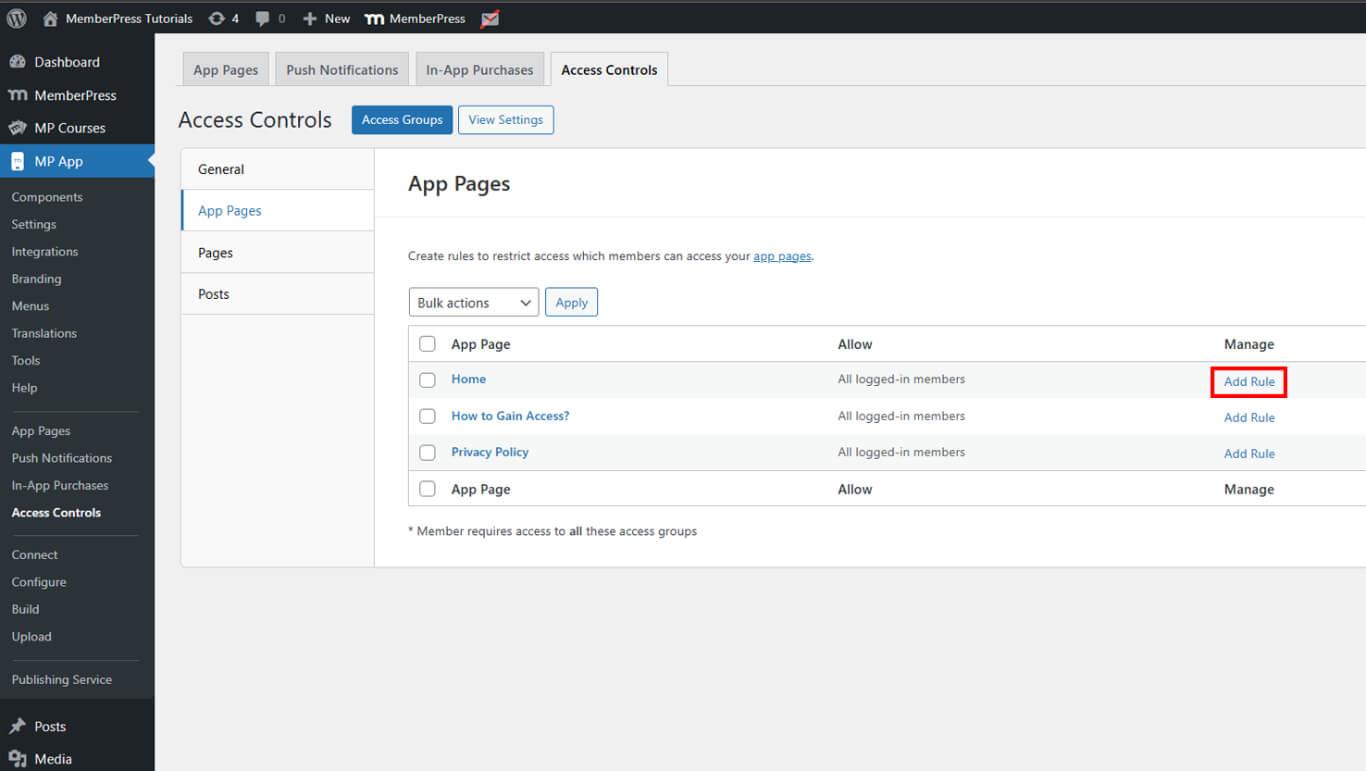
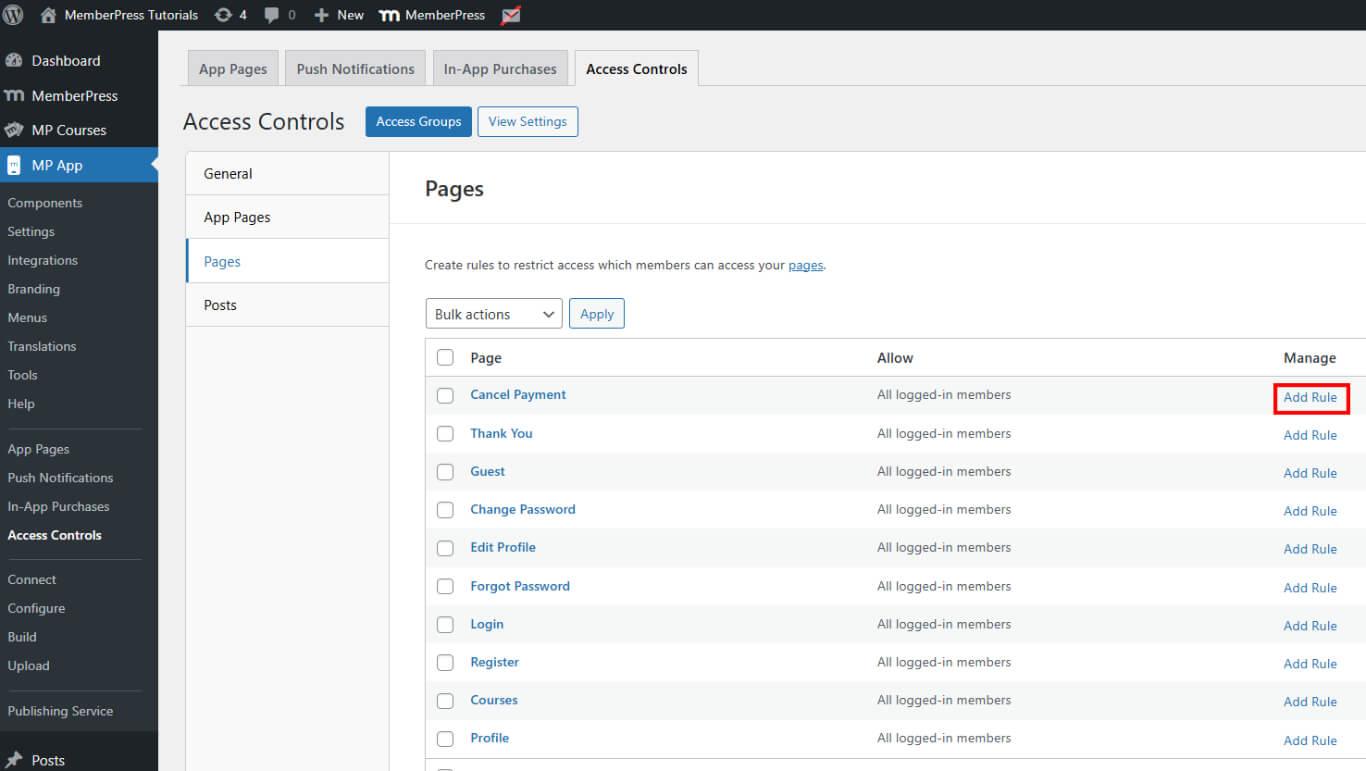
- Click Add Rule.
- Select the content type to restrict:
- App Pages for custom app pages;
- WordPress Pages for standard WordPress pages;
- Posts for blog posts and custom post types.
Configuring Rule Conditions
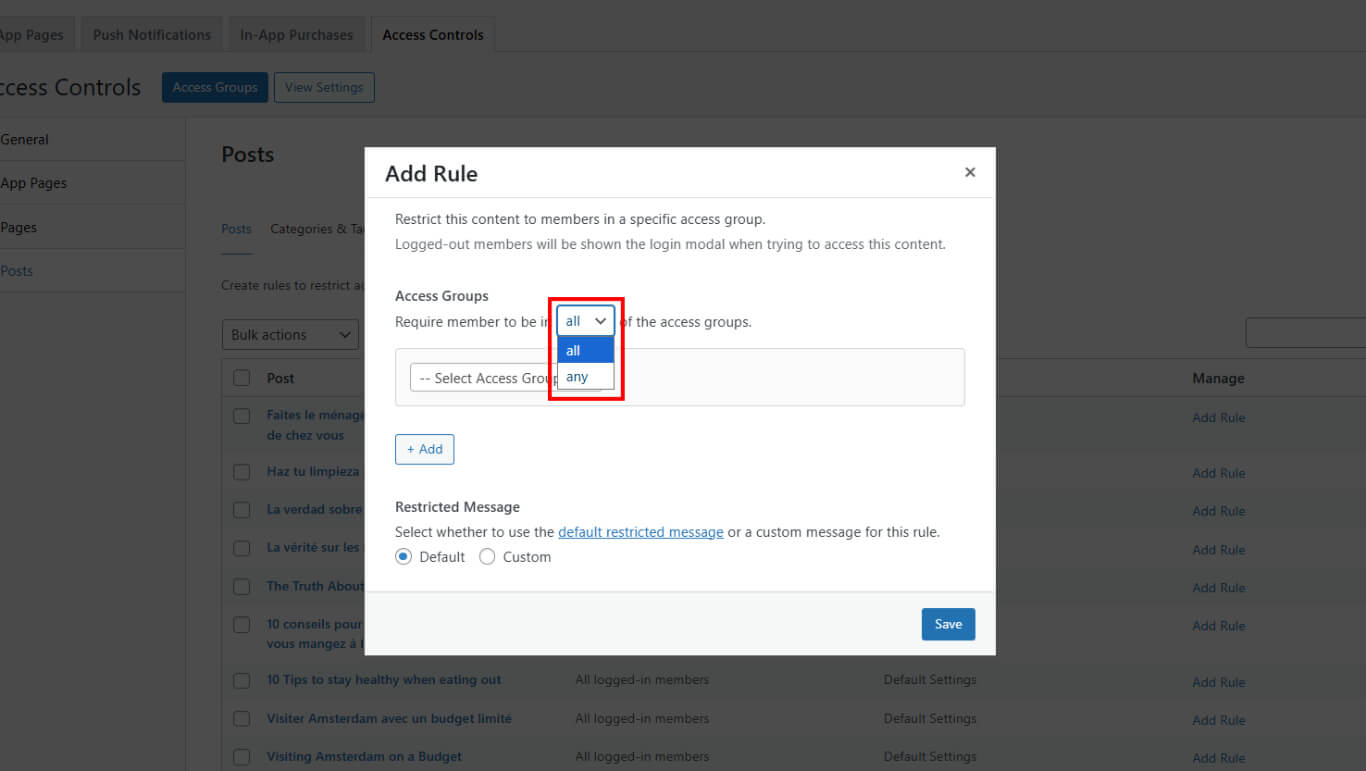
- Specify whether members must belong to all selected Access Groups or any of them to gain access.
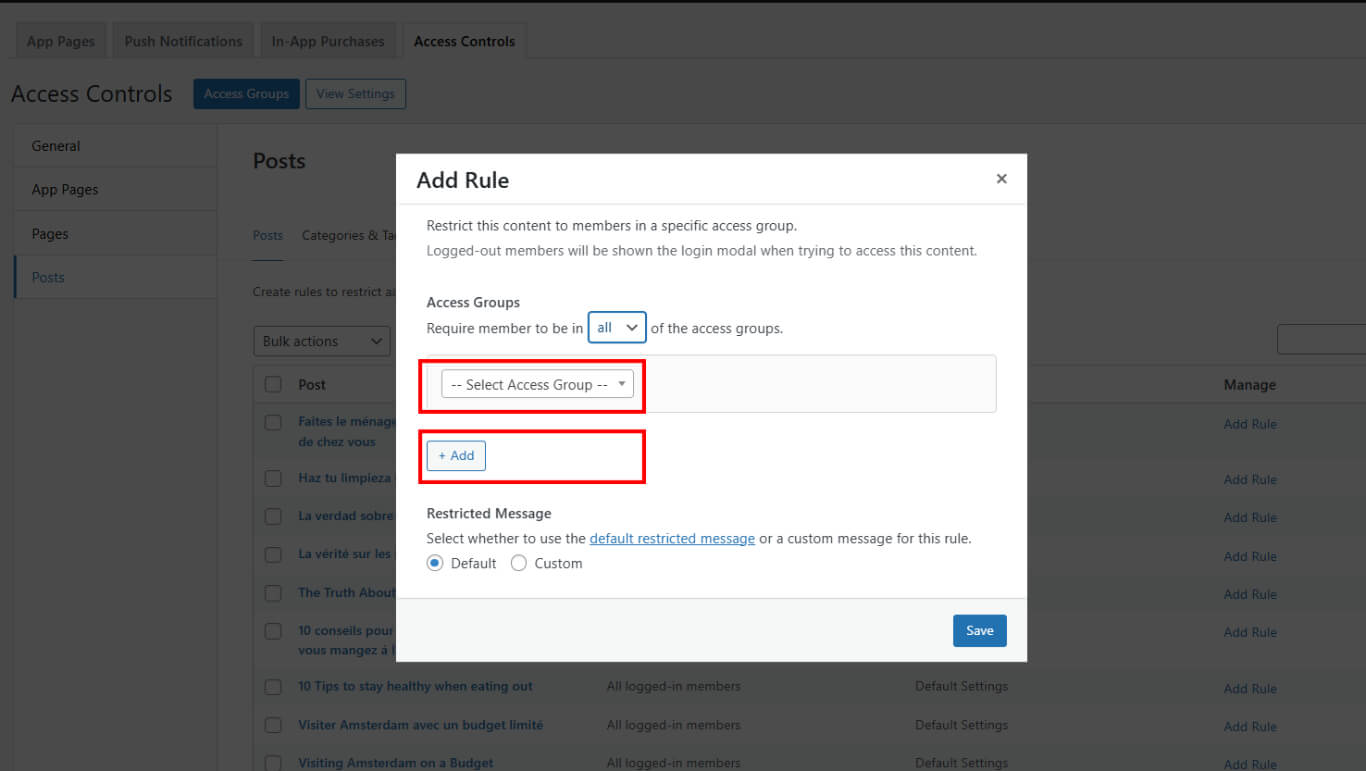
- Select or add the Access Groups that users must belong to to view the content.
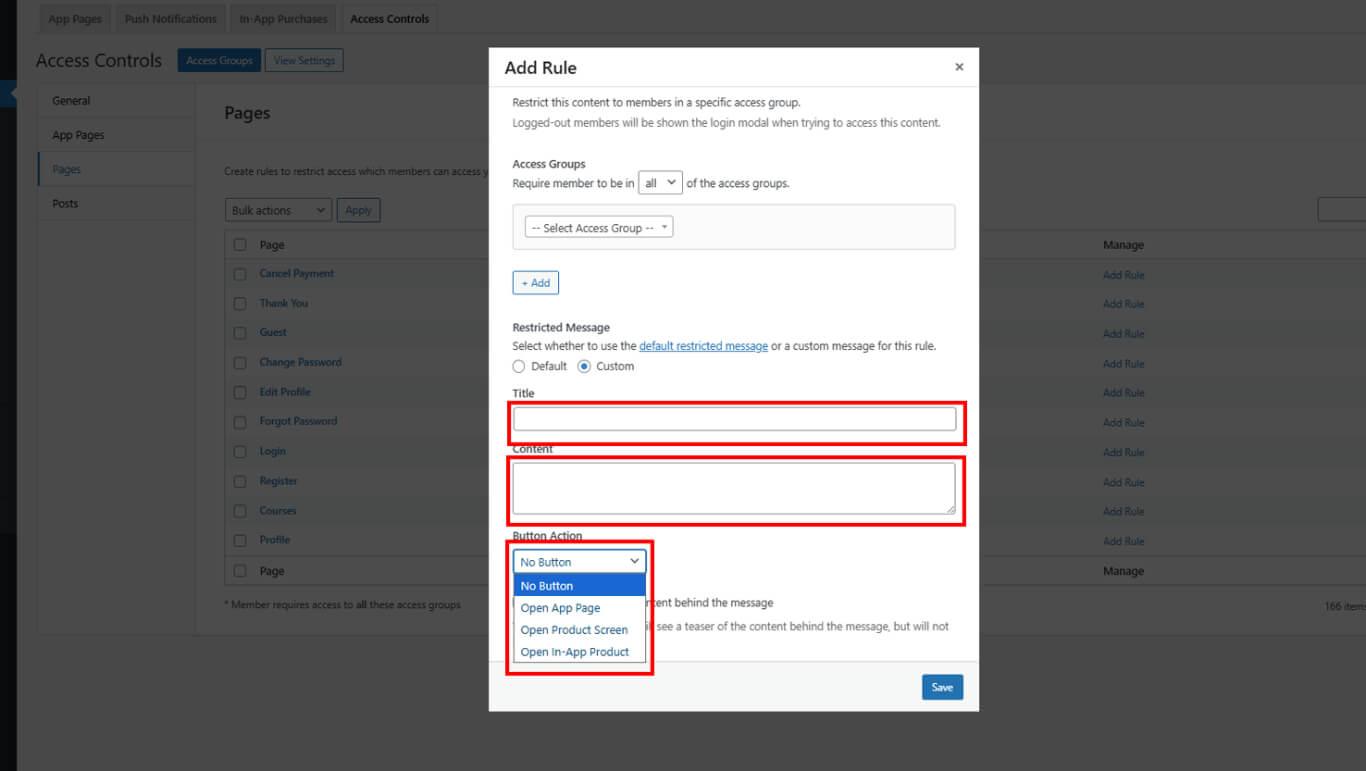
- Specify whether to display the default restricted message or create a custom message:
- Select Use Default Message to apply the global restriction message;
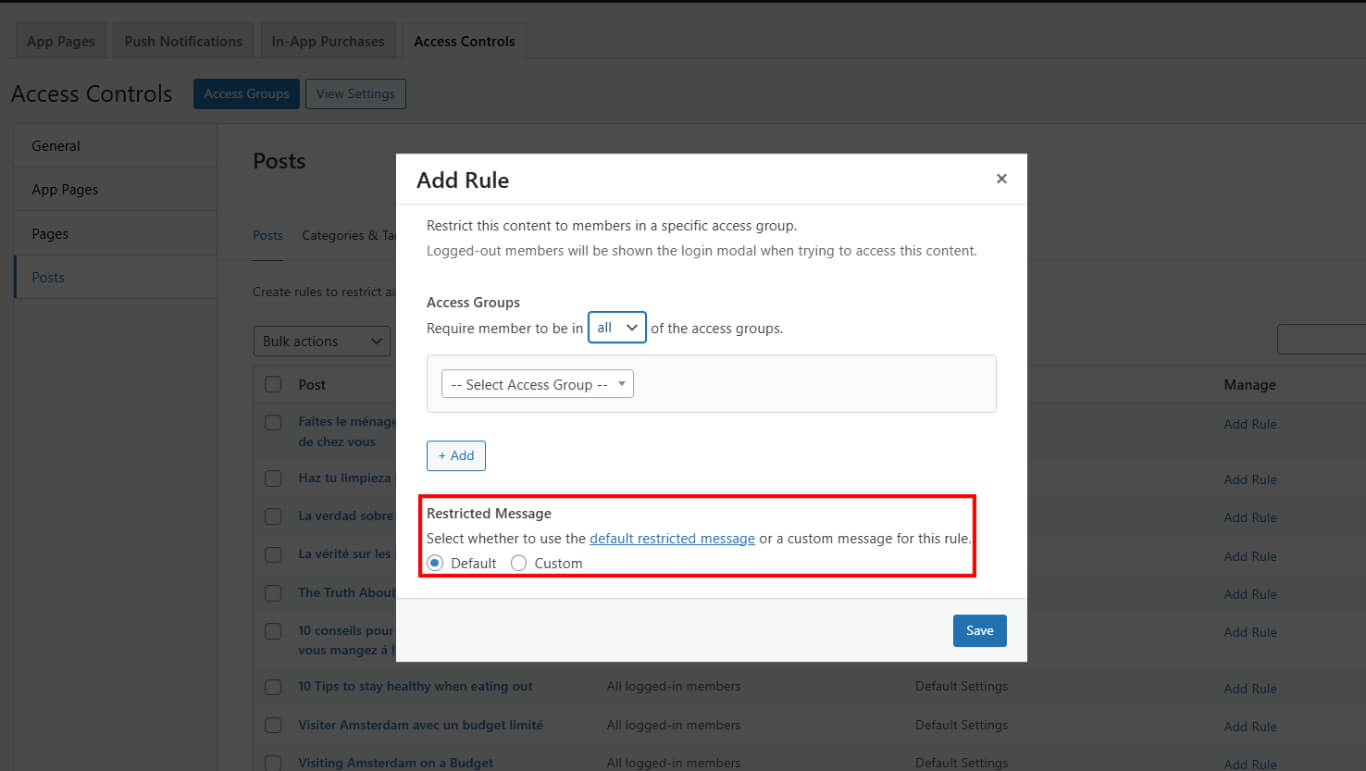
- Select Custom Message and enter specific text for this rule.
Controlling Menu Visibility
Menu visibility can be controlled based on user access levels. This feature creates personalized navigation experiences within the app.
Locating Menu Access Controls
- Navigate to Dashboard > MP AppKit > Menus.
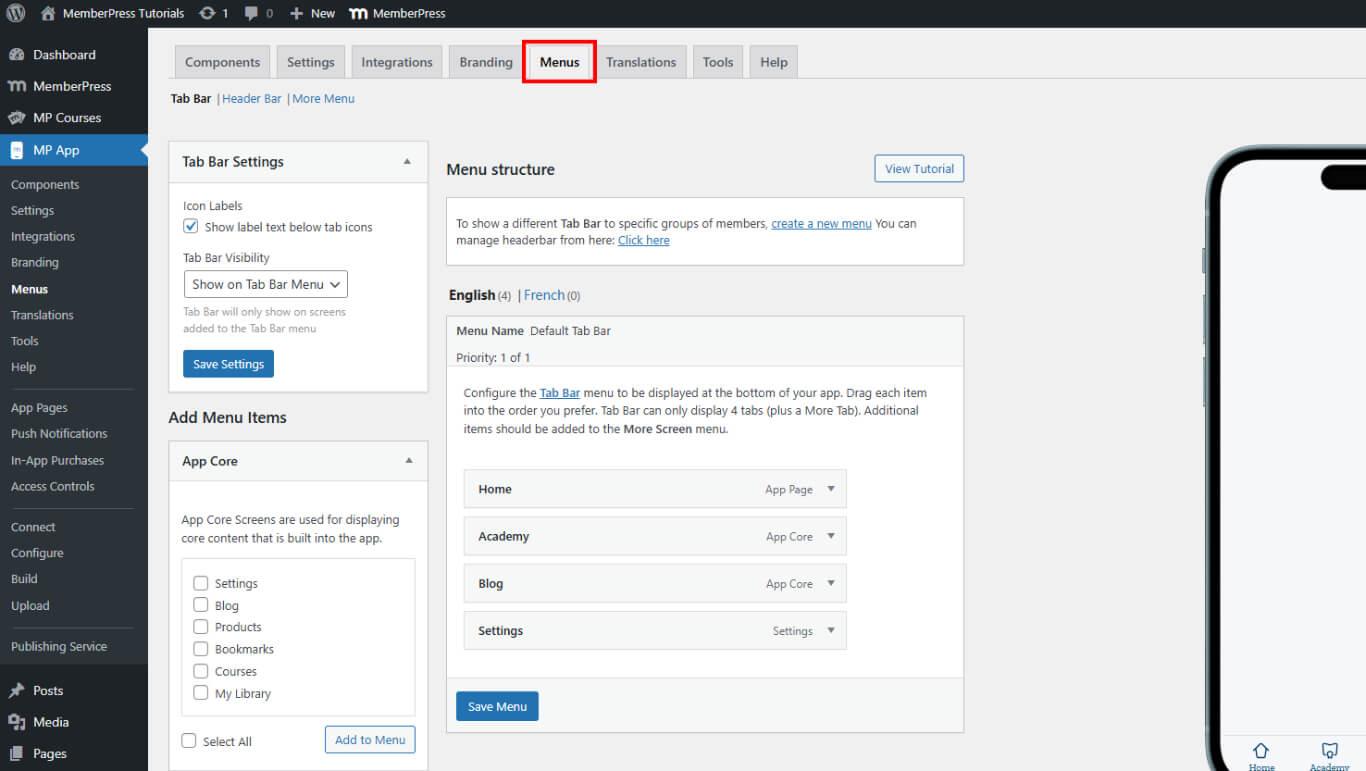
- Select the menu to configure:
- Tab Bar for primary navigation;
- More Menus for secondary navigation options;
Creating Group-Specific Menus
- Create separate menus for each user group under Dashboard > MP AppKit > Menus.
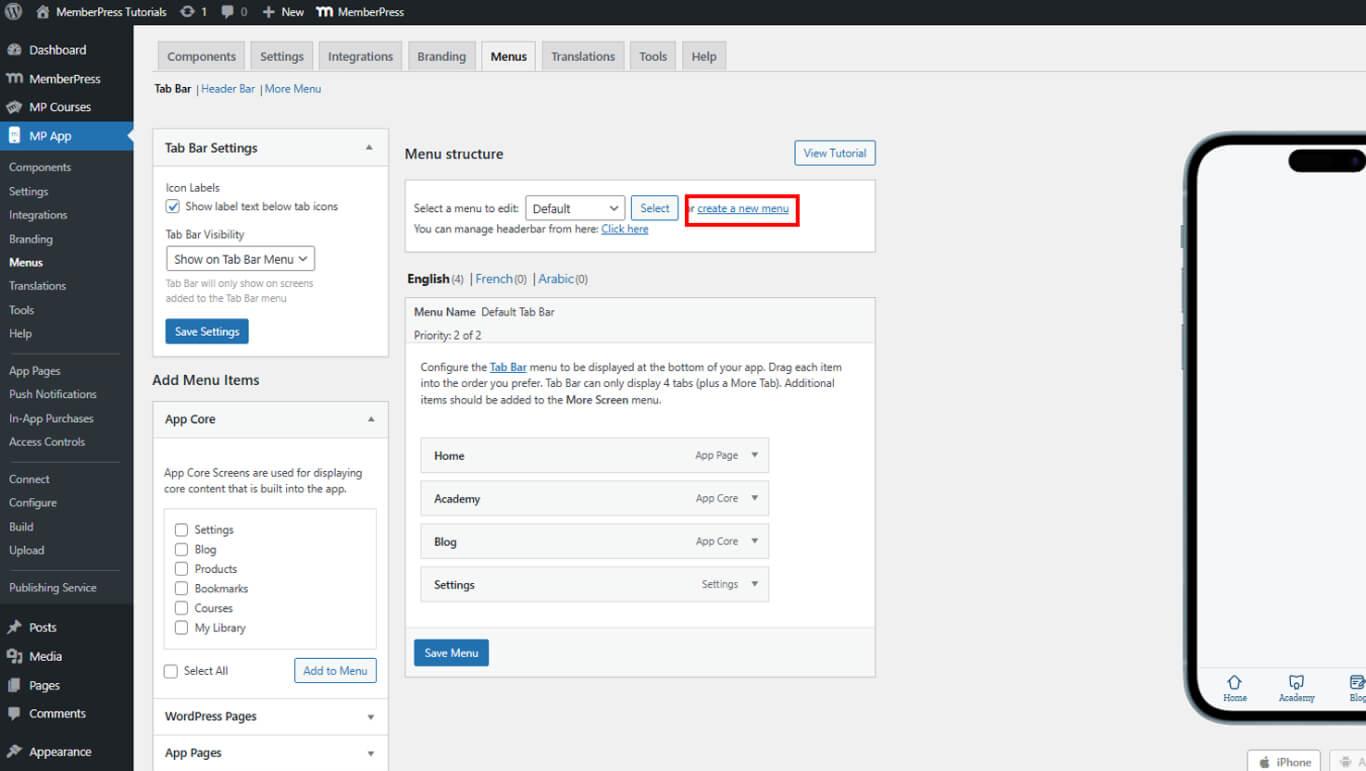
- Select the Tab Bar or More Menu.
- Click Create a New Menu.
- Add a Menu name.
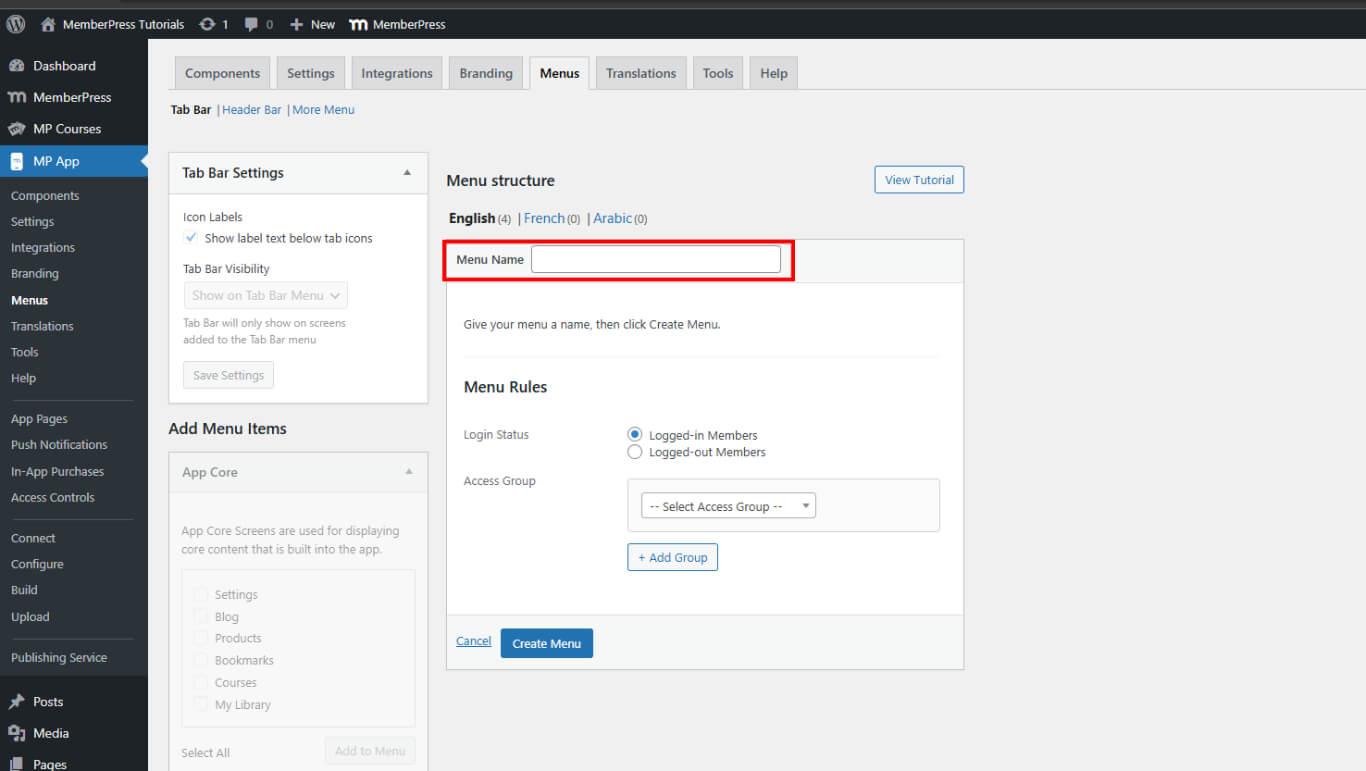
- Apply Access Controls to the menu.
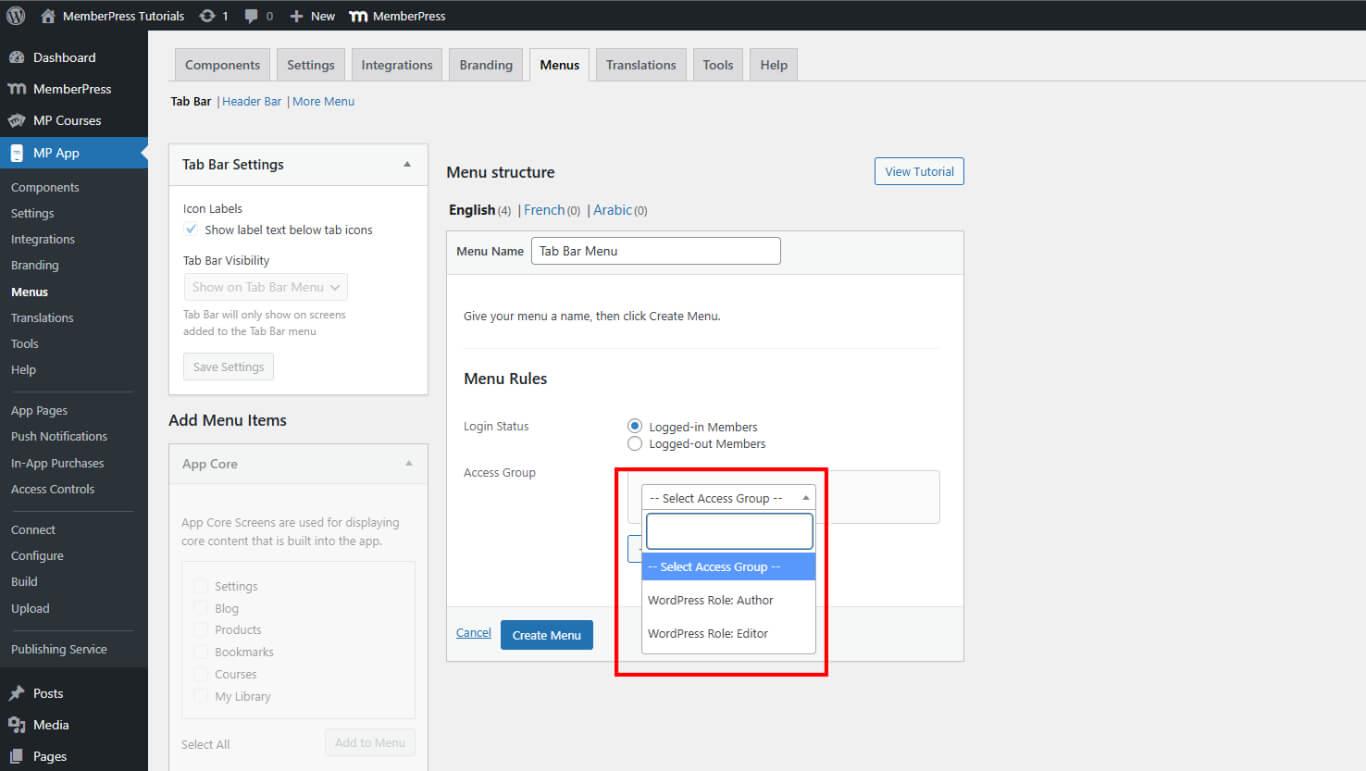
Configuring Menu Access Controls
- Navigate to your Dashboard > MP AppKit > Menus.
- Set the Access Group for:
- Tab Bar
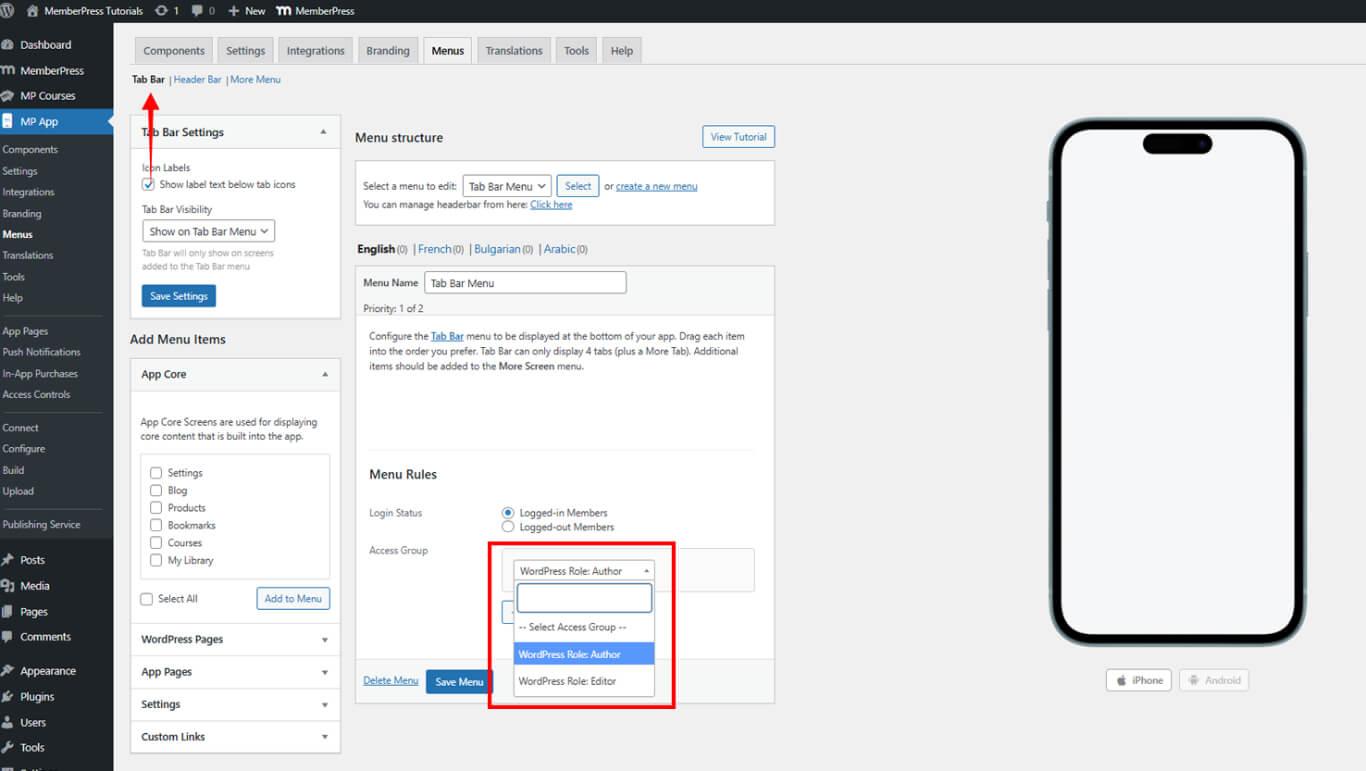
- More Menus