

The Require Purchase setting restricts entire app access behind a single paywall. Access Controls provides granular, rule-based restrictions using membership plans and custom logic.
This document explains how to migrate from Require Purchase to Access Controls using Access Groups and access rules.
Understanding the Migration Process
Require Purchase functionality applies a single access restriction to the entire app. Access Controls replaces this approach with flexible, condition-based restrictions. Migration involves documenting existing Require Purchase settings, enabling Access Controls, creating equivalent Access Groups, and configuring access rules that replicate previous functionality.
Documenting Current Require Purchase Settings
Require Purchase settings to be documented before migration begins. The toggle disappears after Access Controls activation.
- Navigate to Dashboard > MP AppKit > Settings > In-App Purchases.
- Note your Require Purchase setting.
- Once Access Controls is enabled, this toggle will disappear, and its logic must be rebuilt manually using Access Groups.
Accurate documentation ensures equivalent access restrictions after migration completes.
Enabling Access Controls Component
Access Controls activation begins the migration process.
- Navigate to Dashboard > MP AppKit > Components.
- Locate Access Controls in the components list.
- Check the Activate Access Controls checkbox.
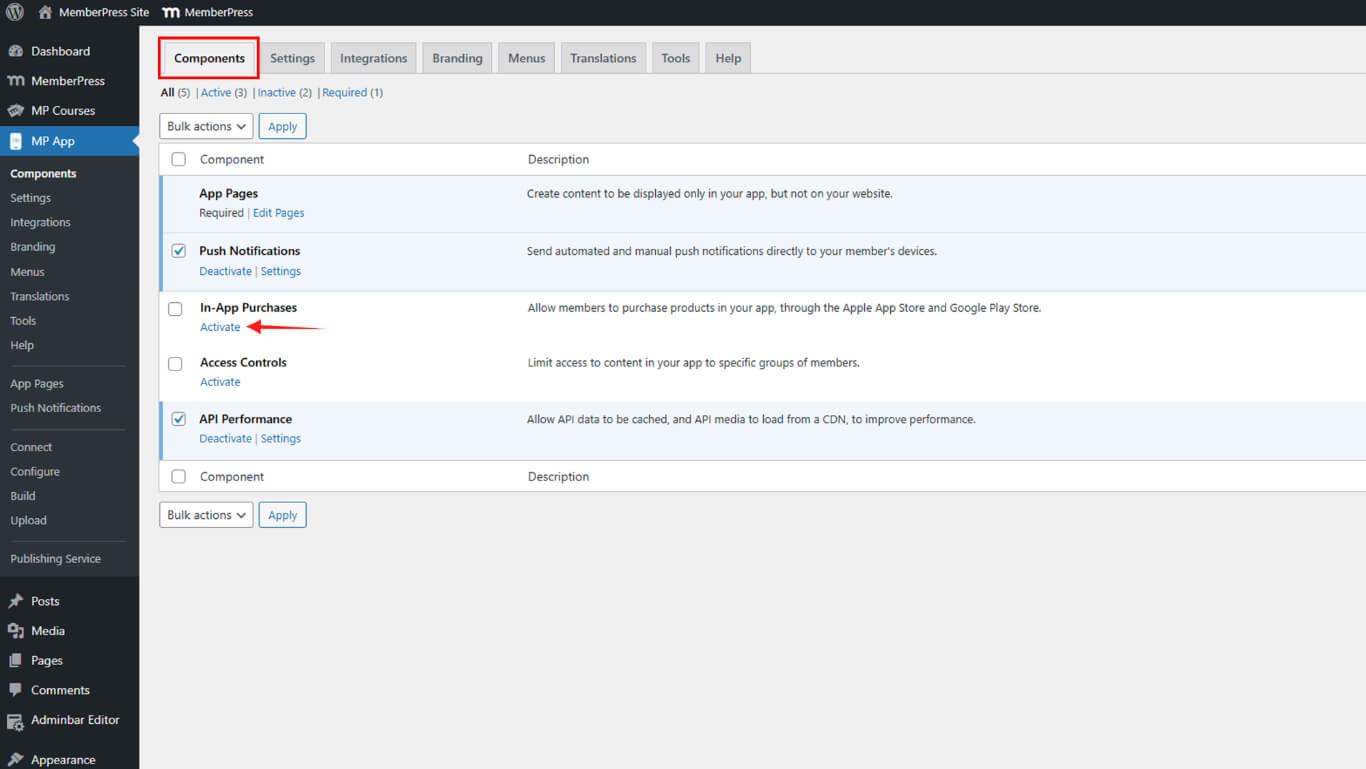
- Click Save Changes.
Understanding Migration Impact
Access Controls activation removes the Require Purchase toggle from settings. Previous paywall logic must be recreated manually using Access Groups and rules. This change provides more flexibility but requires configuration effort.
Creating Equivalent Access Groups
Access Groups replicate the membership or product requirements from the Require Purchase settings.
- Navigate to Dashboard > MP AppKit > Access Controls > Access Groups.
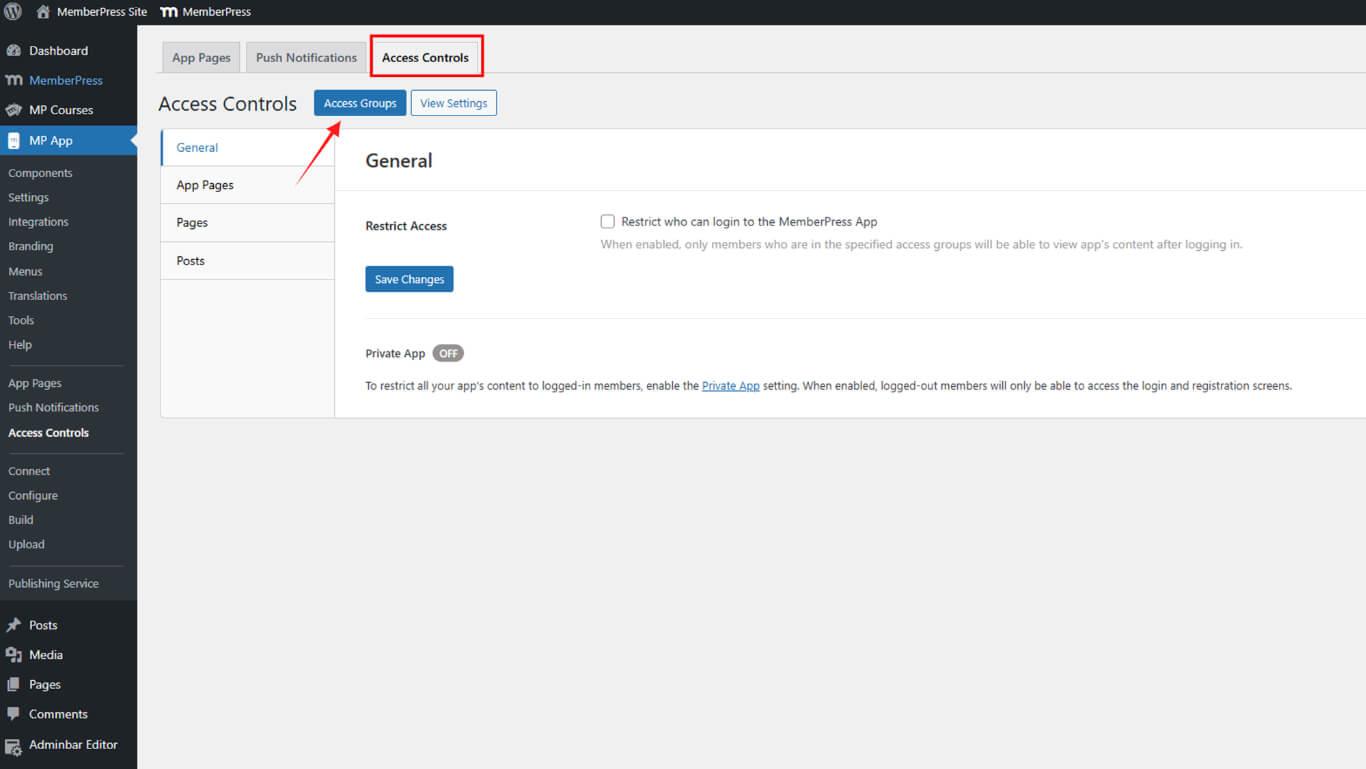
- Click Add Group.
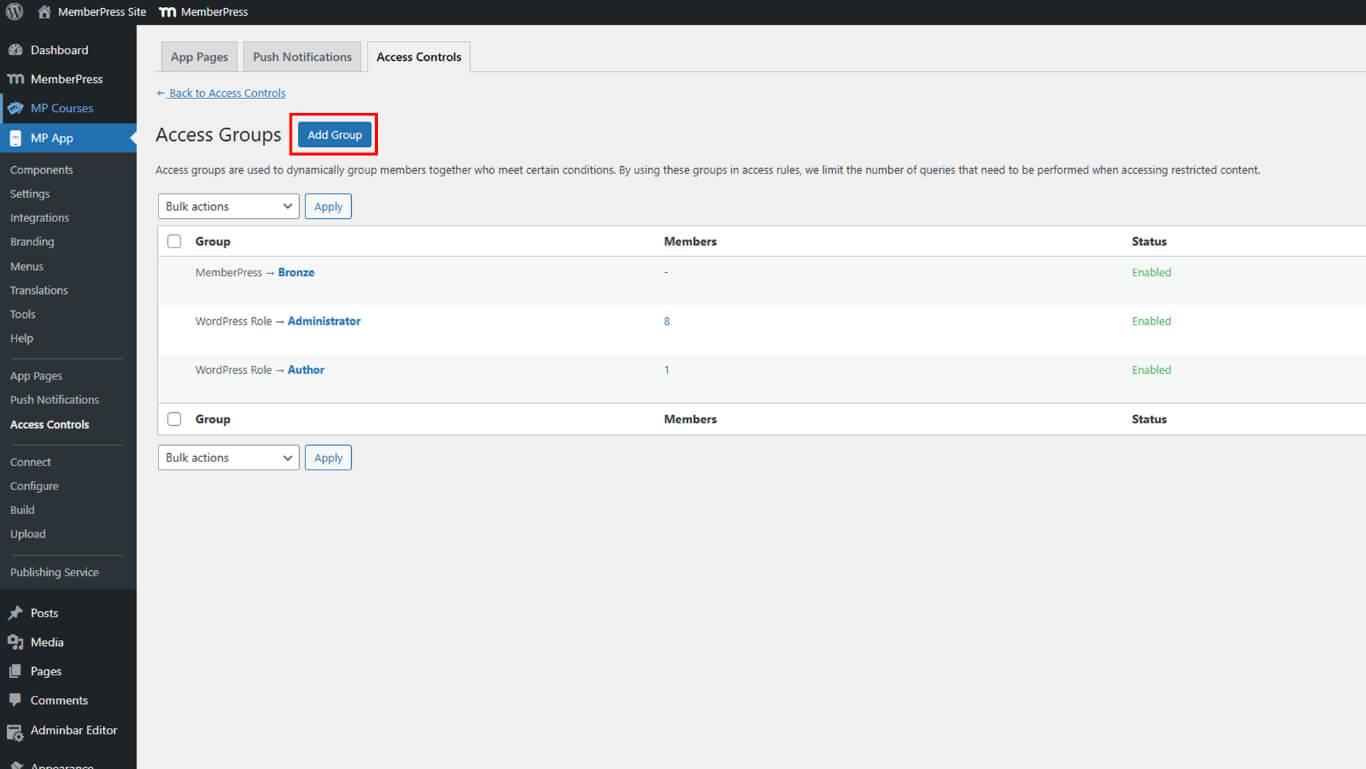
- Enter a descriptive name in the Group Name field.
- Select the Condition Type matching the previous requirements:
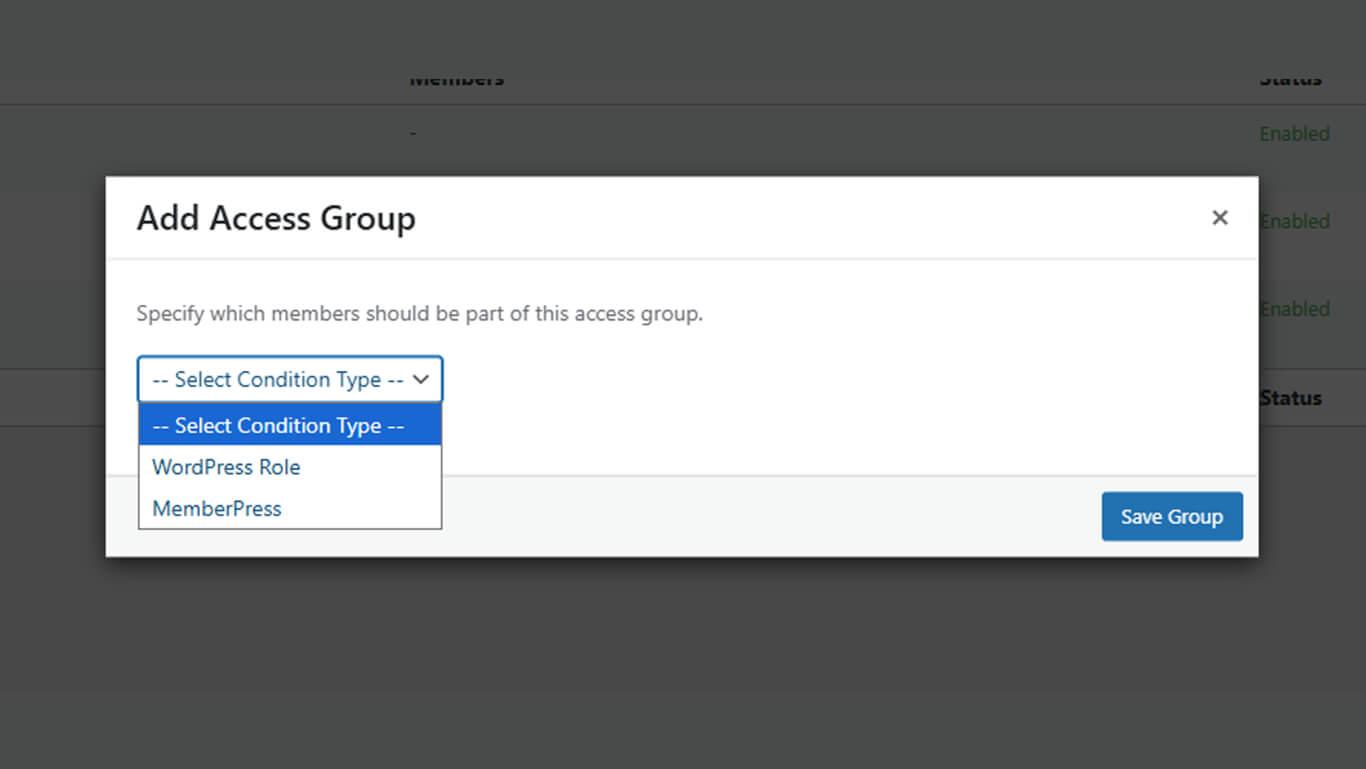
- Membership Plan for membership-based restrictions;
- User Role if role-based access was required.
- Select the specific membership plan or role from the secondary dropdown.
- Click Save Group.
- Repeat steps 2-6 for each membership plan or condition previously required.
Each Access Group represents one membership plan or condition from the original Require Purchase configuration.
Configuring General App Access Restrictions
General access restrictions replicate the app-wide paywall from Require Purchase settings.
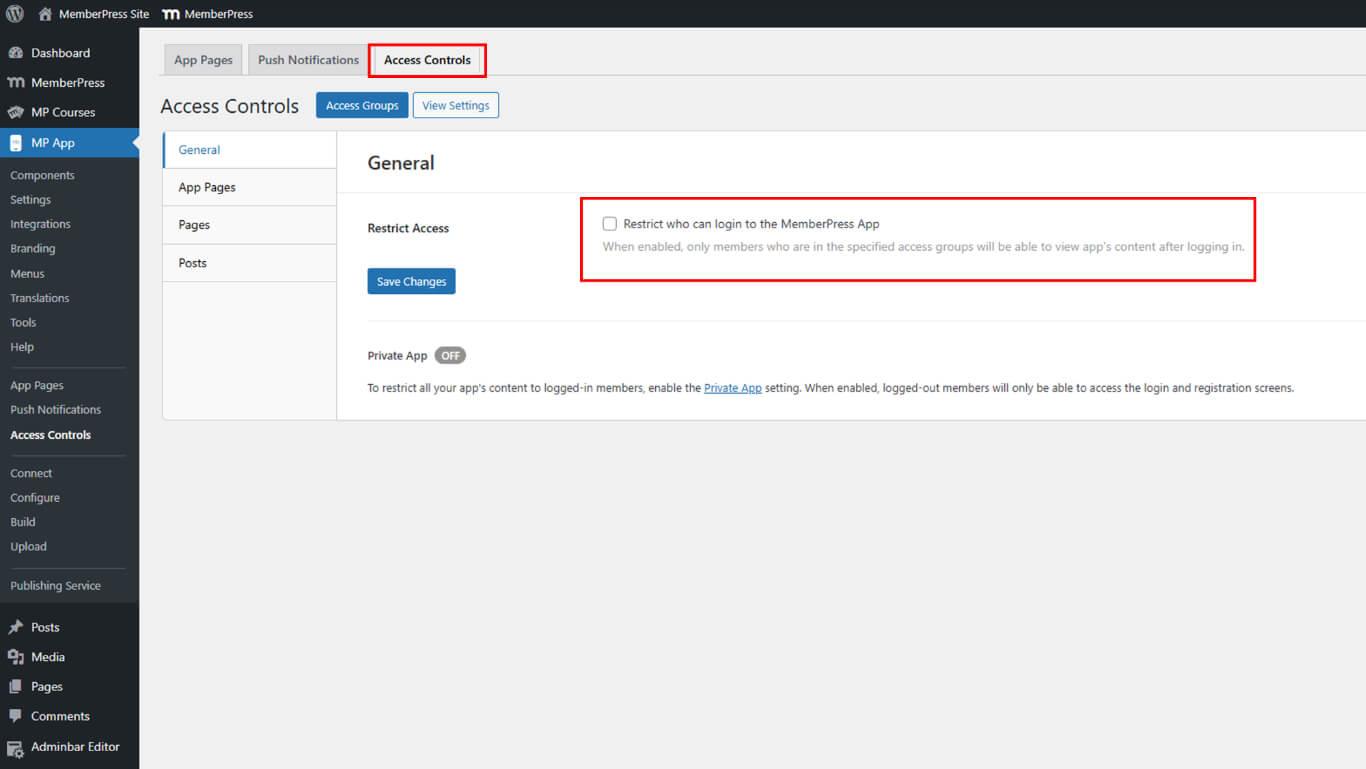
- Navigate to Dashboard > MP AppKit > Access Controls > General.
- Check the Restrict Access checkbox to require login.
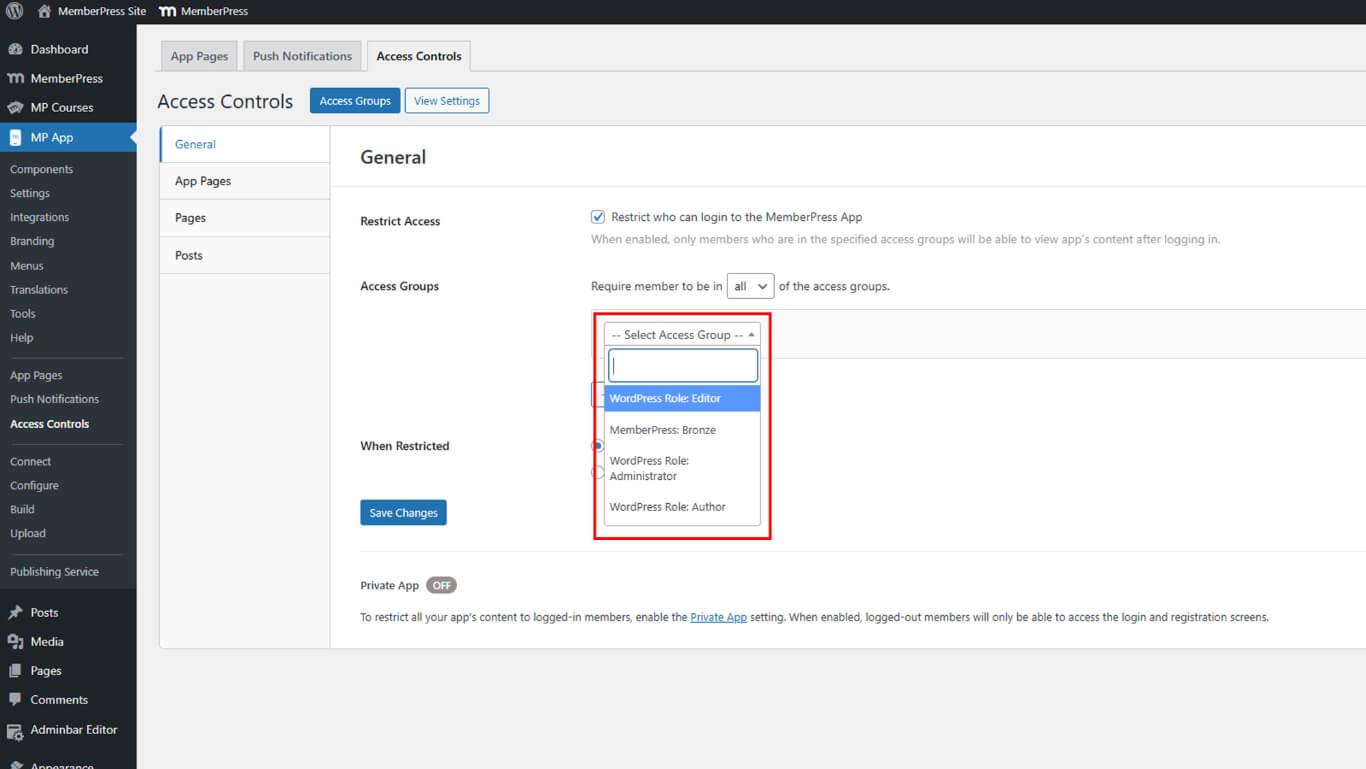
- Under Access Groups, select all groups created in the previous section.
- Choose a Restricted Action for unauthorized users:
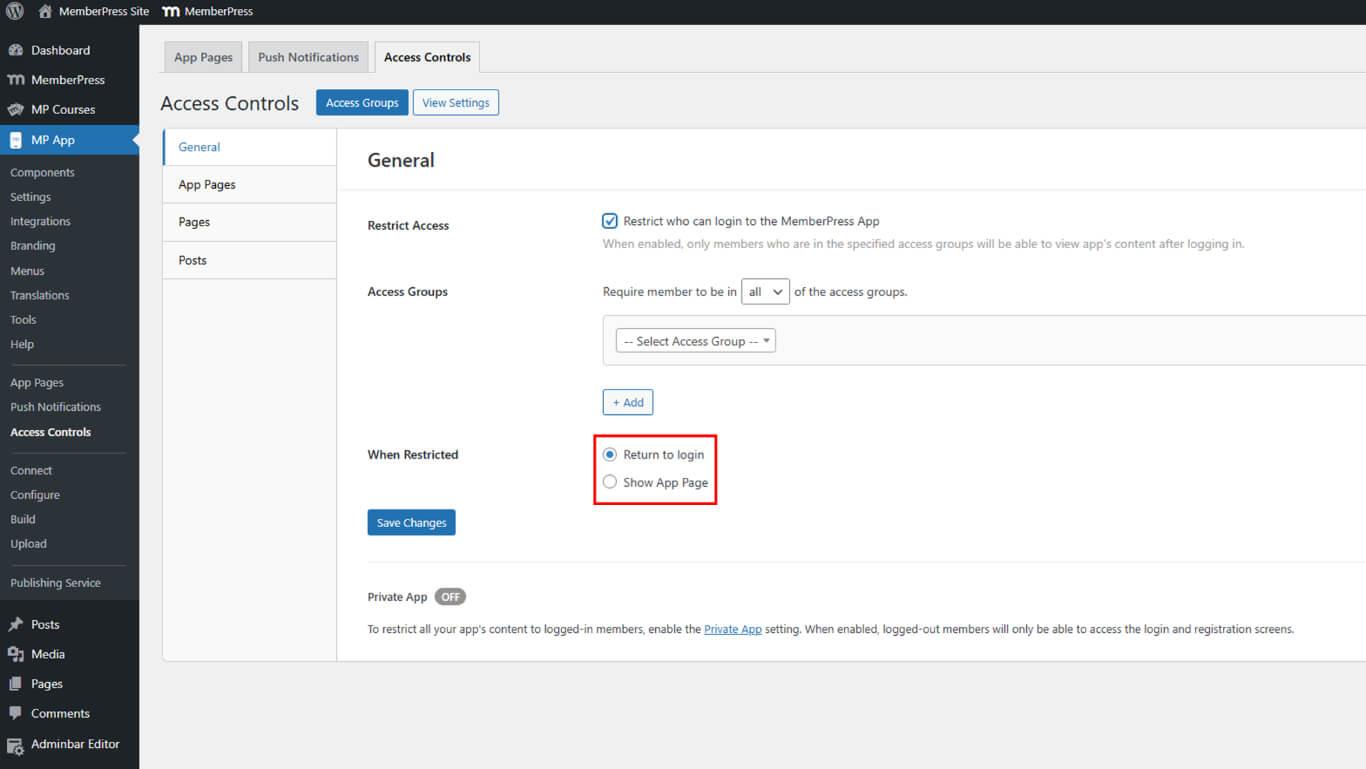
- Return to Login;
- Show App Page
- Click Save Changes.
These settings replicate the app-wide restrictions from the original Require Purchase configuration.
Selecting Appropriate Restricted Actions
The Restricted Action should match the original Require Purchase behavior.
Show Product Screen replicates paywall behavior by displaying membership options. This action matches the most common Require Purchase configuration, where users see available plans.
Return to Login redirects unauthenticated users to login screens. This action suits scenarios where a purchase happens outside the app, with login required after purchase completion.
Open App Page directs users to custom messaging or information. This action provides maximum flexibility for explaining access requirements or guiding users through purchase processes.
Enabling Private App Mode
Private App mode hides the app entirely from logged-out users, providing maximum access restriction.
- Navigate to Dashboard > MP AppKit > Settings > General > Privacy.
- Check the Private App checkbox.
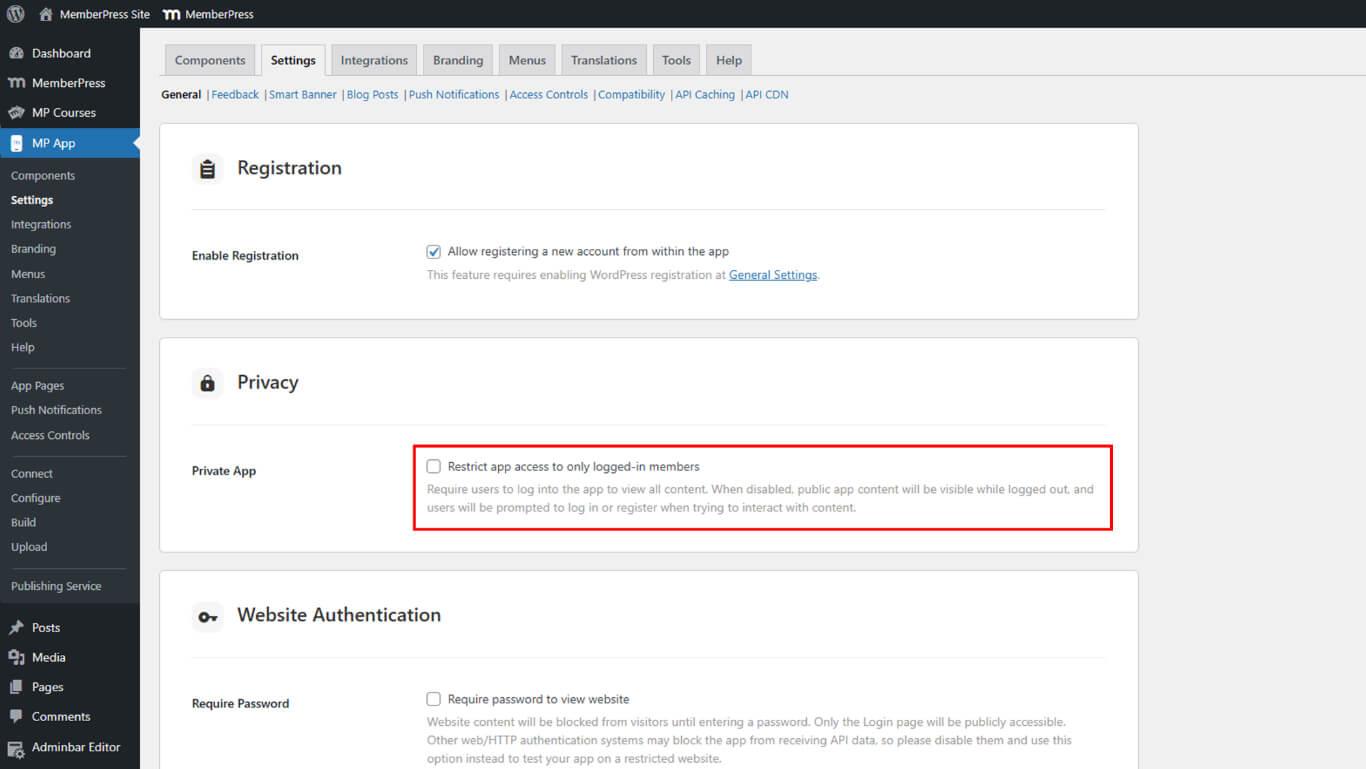
- Click Save Changes.
Private App mode complements Access Controls by preventing app discovery before authentication. This setting enhances security for member-only apps.










