

Text translations customize app language and labels to match community language needs or brand voice preferences. The translations panel allows updates to default labels and interface text.
This document explains how to find, edit, and verify text translations in the app.
Understanding Text Translation
Text translation modifies interface labels, messages, and content throughout the app. Translations can change language or reword text to match the brand voice. Translation changes apply globally across all app screens where the original text appears.
Translations Panel
Translation configuration is available in the Translations panel at Dashboard > MP AppKit > Translations.
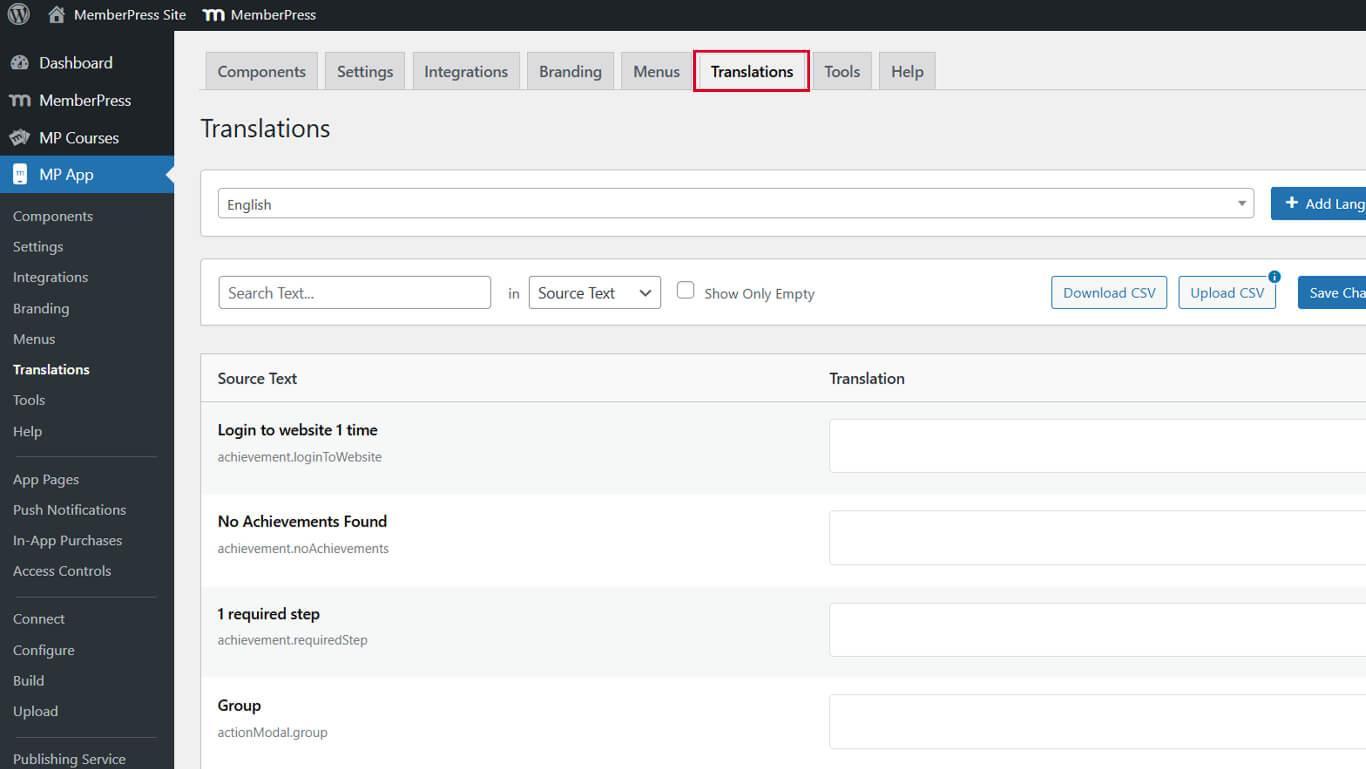
Here, you can use the search tool to find available text strings and add or modify translations.
Searching for Text Strings
Text search identifies specific strings that require translation or customization.
- Navigate to Dashboard > MP AppKit > Translations.
- Enter a word or phrase in the search bar at the top.
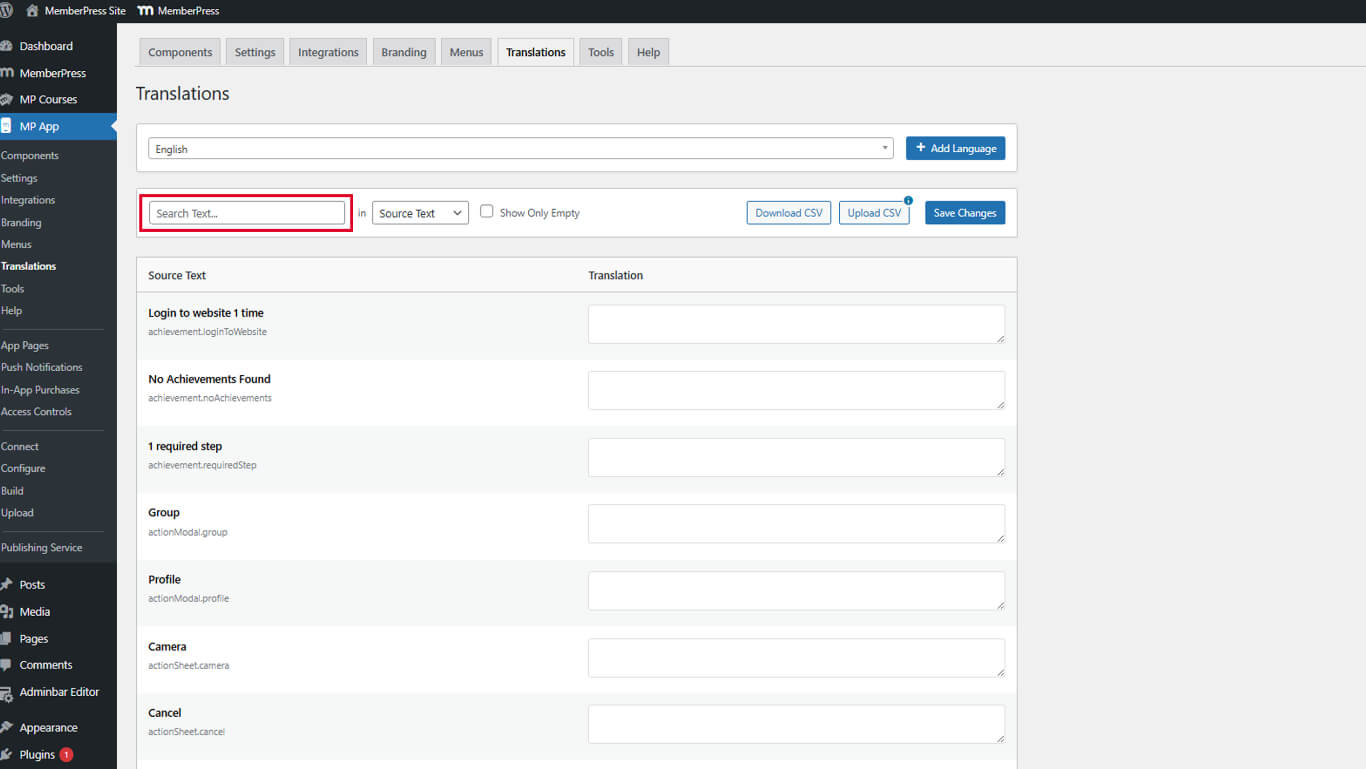
- Review the filtered list of strings containing the search term.
- Identify relevant strings requiring translation or modification.
Search results display all instances where the term appears throughout the app.
Adding Translations
Translation fields accept custom text in any language or modified wording.
- Navigate to Dashboard > MP AppKit > Translations.
- Locate the string you wish to translate.
- Click into the translation field beside the original text.
- Enter the translation or any custom text.
- Click Save Changes to apply the translation.
- Repeat steps 2-5 for any strings you wish to translate.
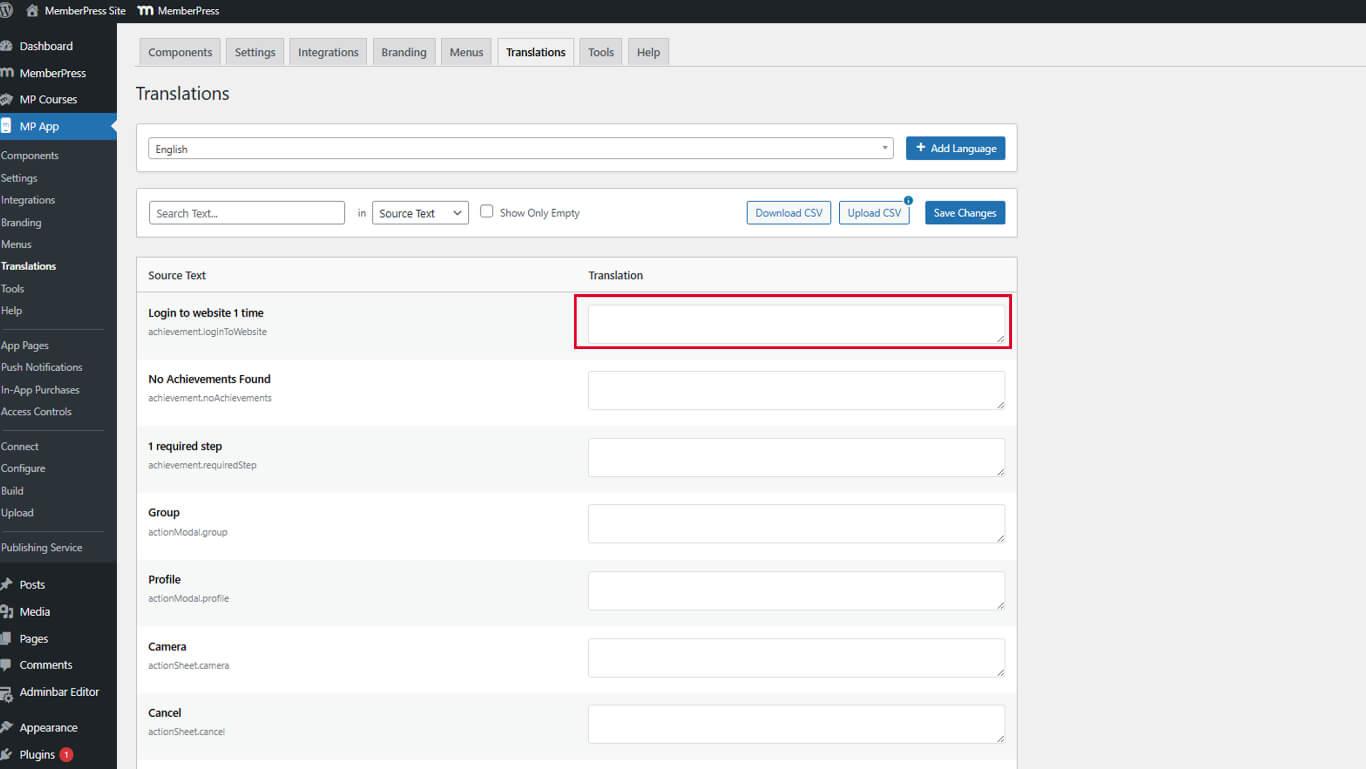
Translations can change language or adjust wording to match the brand voice.
Verifying Translations in the Mobile App
Translation verification confirms proper display across app screens.
- Open the MemberPress iOS/Android app on a mobile device.
- Navigate to screens where translated text should appear.
- Verify the custom translation displays instead of the original text.
- Check that the translated text fits properly within interface elements.
- Test multiple screens to confirm consistent translation application.
Translations apply immediately after saving and reopening the app.










