

iOS build uploads to App Store Connect enable TestFlight distribution and App Store submission preparation. The built-in uploader pushes compiled Release App builds directly to App Store Connect from WordPress.
This document explains how to configure Apple credentials, upload Release App builds, and manage build submissions.
Understanding iOS Build Upload
iOS build upload streamlines distribution by eliminating manual IPA file transfers. The WordPress uploader authenticates with Apple developer accounts and pushes builds directly to App Store Connect. Upload configuration requires Apple account credentials and app-specific password authentication for secure access.
Direct upload functionality eliminates manual file transfer steps through external tools. WordPress interface manages the complete upload process without additional software requirements.
Release App requirement restricts uploads to production-ready builds only. Test App builds cannot be uploaded to App Store Connect through this interface.
Version validation ensures uploaded builds have higher version codes than existing submissions. Duplicate or lower version codes prevent successful upload completion.
TestFlight integration makes uploaded builds immediately available for TestFlight distribution. Builds appear in App Store Connect within 15 minutes of successful upload.
Configuring Upload Authentication
Upload configuration establishes a secure connection between WordPress and the Apple developer account.
- Navigate to Dashboard > MP AppKit > Configure > iOS Settings.
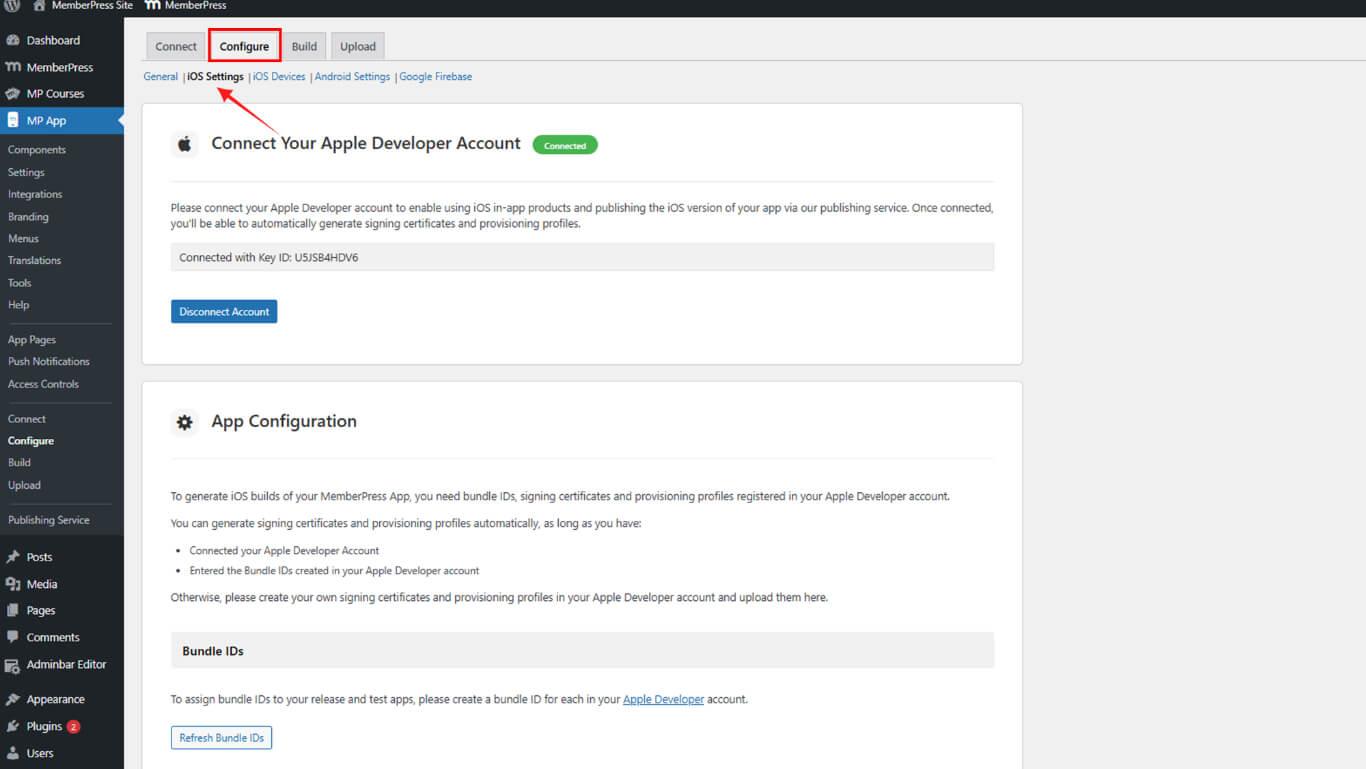
- Scroll to the Upload Configuration section.
- Locate the Apple Account ID dropdown.
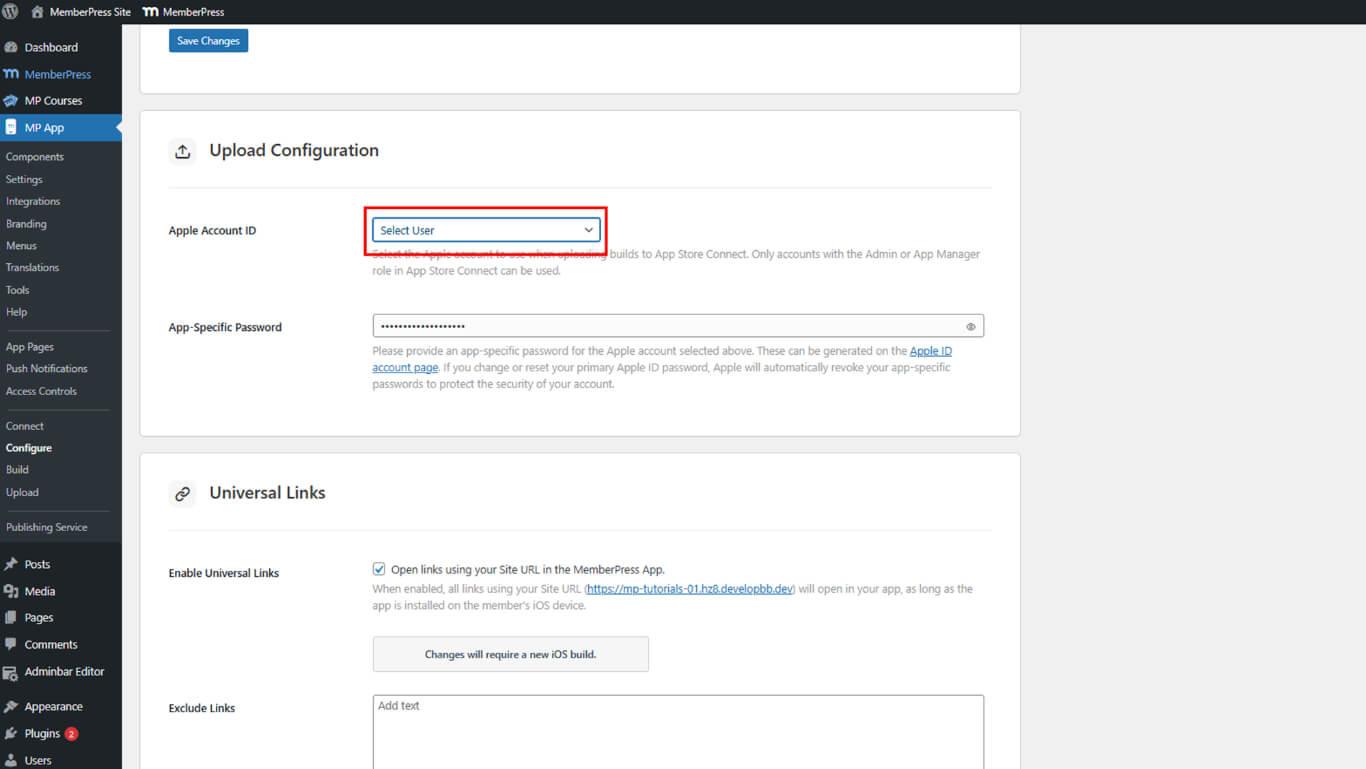
- Select the developer account for upload authentication from the available accounts.
- Proceed to app-specific password generation.
Apple Account ID selection determines which developer account receives uploaded builds.
Generating App-Specific Password
App-specific password creation enables secure authentication without exposing the main Apple ID password.
- Navigate to appleid.apple.com in a web browser.
- Sign in with Apple ID credentials.
- Navigate to the Security section.
- Click the App-Specific Passwords option.
- Click Generate Password to create a new password.
- Enter a descriptive label in the label field, such as “MP App”.
- Click Create to generate the password.
- Re-enter the main Apple ID password if prompted for verification.
- Copy the generated app-specific password displayed on screen.
- Return to Dashboard > MP App > Configure > iOS Settings in WordPress.
- Paste the copied password into the App-Specific Password field.
- Click Save Changes to store the authentication configuration.
Understanding App-Specific Password Requirements
App-specific passwords follow specific usage and security requirements.
One-time display shows passwords only during initial generation. Passwords cannot be retrieved after closing the generation interface.
Expiration handling requires new password generation when authentication errors occur. Expired or revoked passwords must be replaced with newly generated passwords.
Security isolation protects the main Apple ID password from exposure. App-specific passwords provide a limited access scope, reducing security risks.
Revocation capability enables password deletion without affecting Apple ID access. Compromised passwords can be revoked and replaced immediately.
Uploading Release App Build
Build upload transfers compiled Release App to App Store Connect for distribution.
- Navigate to Dashboard > MP App > Upload > Apple Store Connect.
- Review available Release App builds in the builds list.
- Verify the desired build has a Complete status.
- Select the Release App build for upload from the list.
- Confirm the build version and code are higher than the existing App Store Connect uploads.
- Click Upload Build to begin the upload process.
- Wait for upload processing to complete.
- Monitor upload progress through interface status indicators.
- Verify that the successful upload completion message displays.
- Navigate to App Store Connect to confirm the build appears in TestFlight.
Builds typically appear in App Store Connect within 15 minutes of successful upload completion.
Understanding Upload Requirements
Successful build uploads depend on specific version and build requirements.
Release App exclusivity restricts uploads to production-ready builds only. Test App builds cannot be uploaded through this interface to App Store Connect.
Version increment requirement mandates higher version codes than previous uploads. Each new upload must have a version code exceeding all existing App Store Connect builds.
Build code uniqueness prevents duplicate build identifier uploads. Identical build codes to existing uploads cause upload failures and rejection.
Authentication validity requires the current app-specific password for upload authorization. Expired or revoked passwords cause authentication failures during upload attempts.
Verifying Upload Success
Upload verification confirms successful build transfer to App Store Connect.
- Wait up to 15 minutes after upload completion.
- Navigate to App Store Connect at appstoreconnect.apple.com.
- Sign in with Apple ID credentials.
- Click My Apps in the navigation.
- Select the app from the apps list.
- Click TestFlight in the sidebar.
- Verify the uploaded build appears in the builds list.
- Check that the build version and build code match the uploaded build.
- Confirm the build status shows processing or available for testing.
Successful upload confirmation enables TestFlight distribution and App Store version assignment.
Troubleshooting Upload Issues
Upload failures require specific troubleshooting approaches based on error type.
Authentication Errors
Authentication failures indicate credential or password problems.
- Verify the app-specific password is current and not expired.
- Generate a new app-specific password at appleid.apple.com.
- Update the App-Specific Password field with a new password.
- Click Save Changes to store the new password.
- Retry build upload with updated credentials.
Version Code Errors
Version code conflicts indicate duplicate or lower version numbers.
- Navigate to App Store Connect to identify the highest existing version code.
- Navigate to Dashboard > MP AppKit > Build in WordPress.
- Request a new build with a version code higher than the existing uploads.
- Wait for the new build completion.
- Retry upload with the new build version.
Upload Timeout Errors
Timeout errors indicate network connectivity or server processing problems.
- Verify that a stable internet connection is available.
- Check if the WordPress server can communicate with Apple servers.
- Wait several minutes before retrying the upload.
- Retry upload with the same build after the waiting period.
- Contact the hosting provider if timeouts persist.










