

Blog posts engage audiences, showcase expertise, and increase member retention within mobile applications. MemberPress AppKit allows you to display blog content optimized for mobile devices.
This document explains how to add the Blog page to app menus, create blog posts, and optimize content for mobile display.
Understanding Blog Functionality
The Blog feature displays WordPress posts within the app interface. Members access blog content through dedicated navigation items in the Tab Bar or More Menu. Posts created in WordPress automatically appear in the app Blog section. Featured images and content formatting enhance mobile reading experiences.
Review the Creating Multiple Menu Versions documentation for advanced menu configuration options.
Adding the Blog Page to Mobile App Navigation
The Blog page must be added to the app navigation before members can access blog content.
Adding Blog Menu Item to Tab Bar
- Navigate to Dashboard > MP AppKit > Menus > Tab Bar.
- Locate the App Core section in the available items panel.
- Find Blog in the App Core list.
- Check the checkbox next to Blog.
- Click Add to Menu.
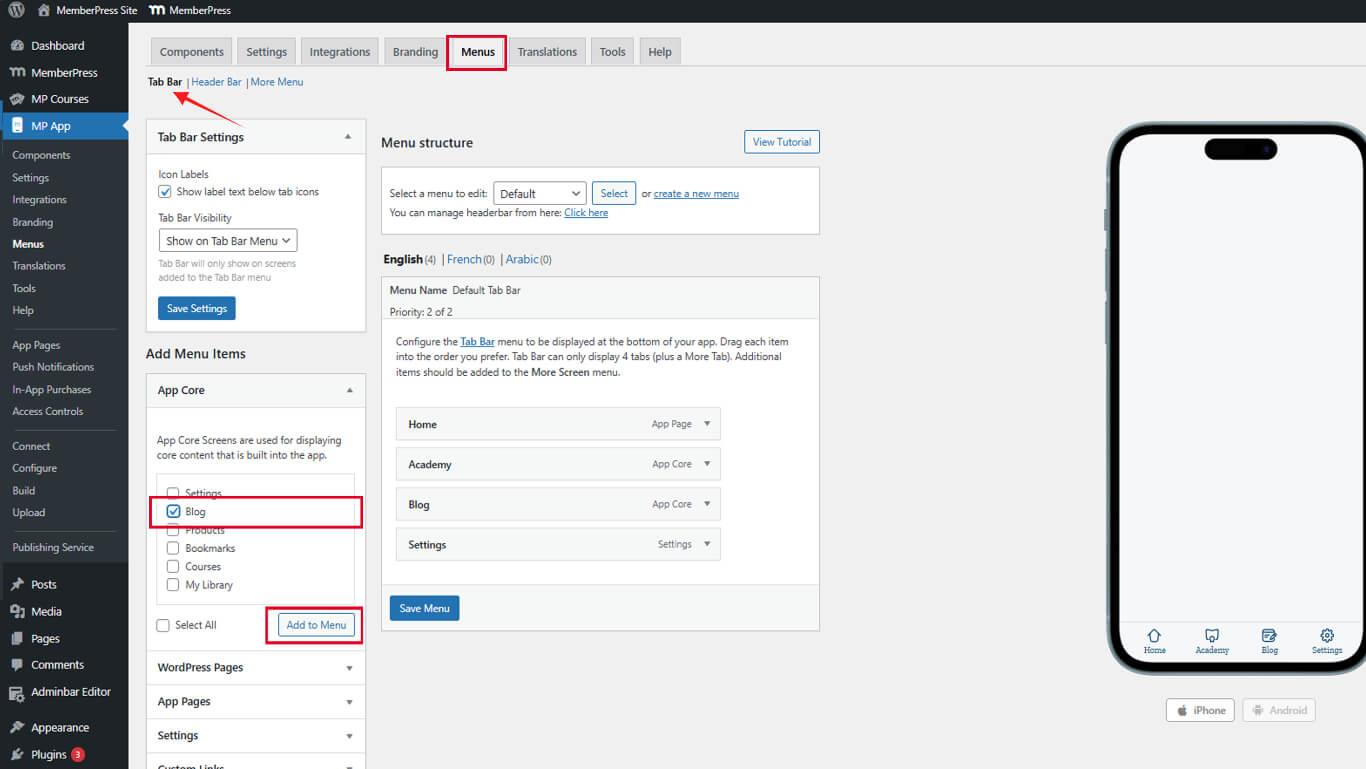
- Drag the Blog item to the desired position in the menu order.
- Click the Save Menu.
The Blog tab appears in the mobile (iOS/Android) app Tab Bar after saving.
Adding Blog Menu Item to More Menu
- Navigate to Dashboard > MP AppKit > Menus > More Menu.
- Locate the App Core section in the available items panel.
- Find Blog in the App Core list.
- Check the checkbox next to Blog.
- Click Add to Menu.
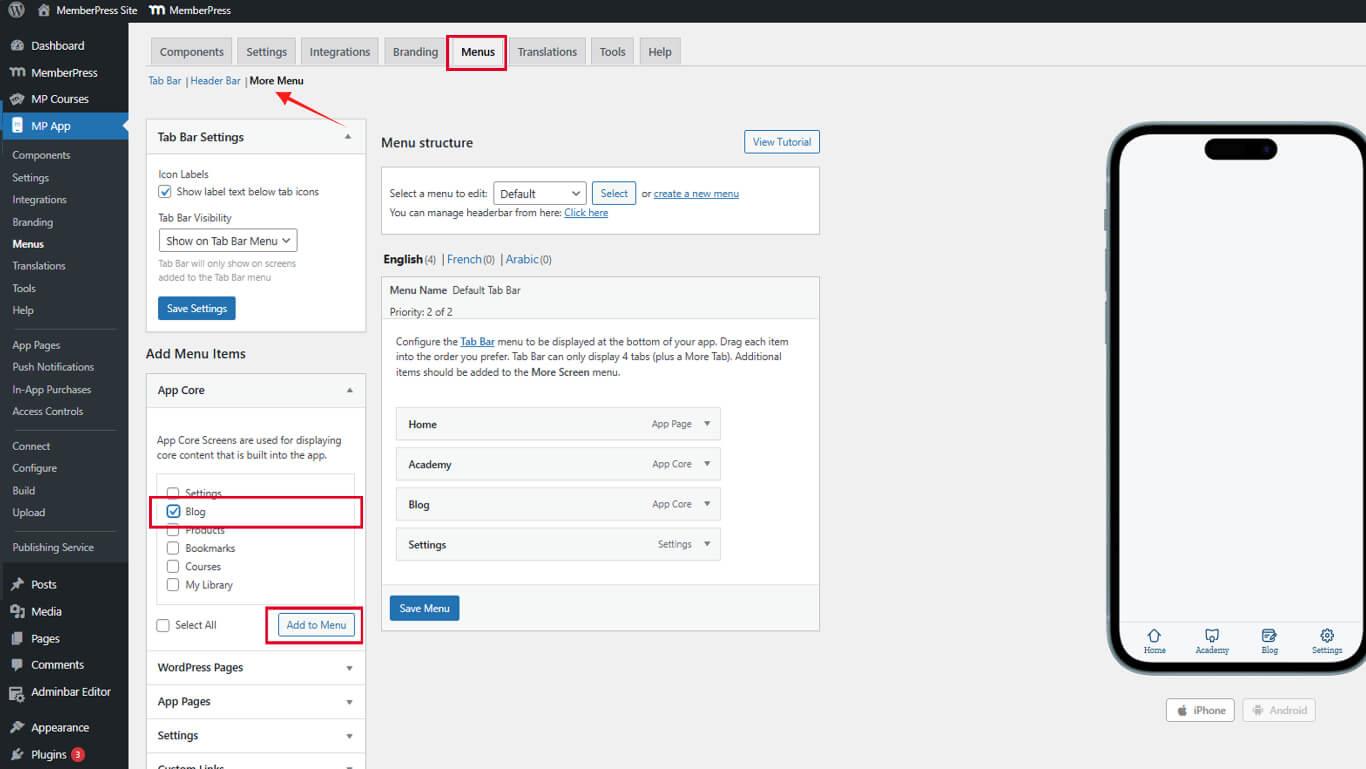
- Drag the Blog item to the desired position in the menu order.
- Click the Save Menu.
The Blog option appears in the More Menu after saving.
Creating Blog Posts
WordPress posts automatically appear in the app Blog section after publication.
- Navigate to Dashboard > Posts > Add New.
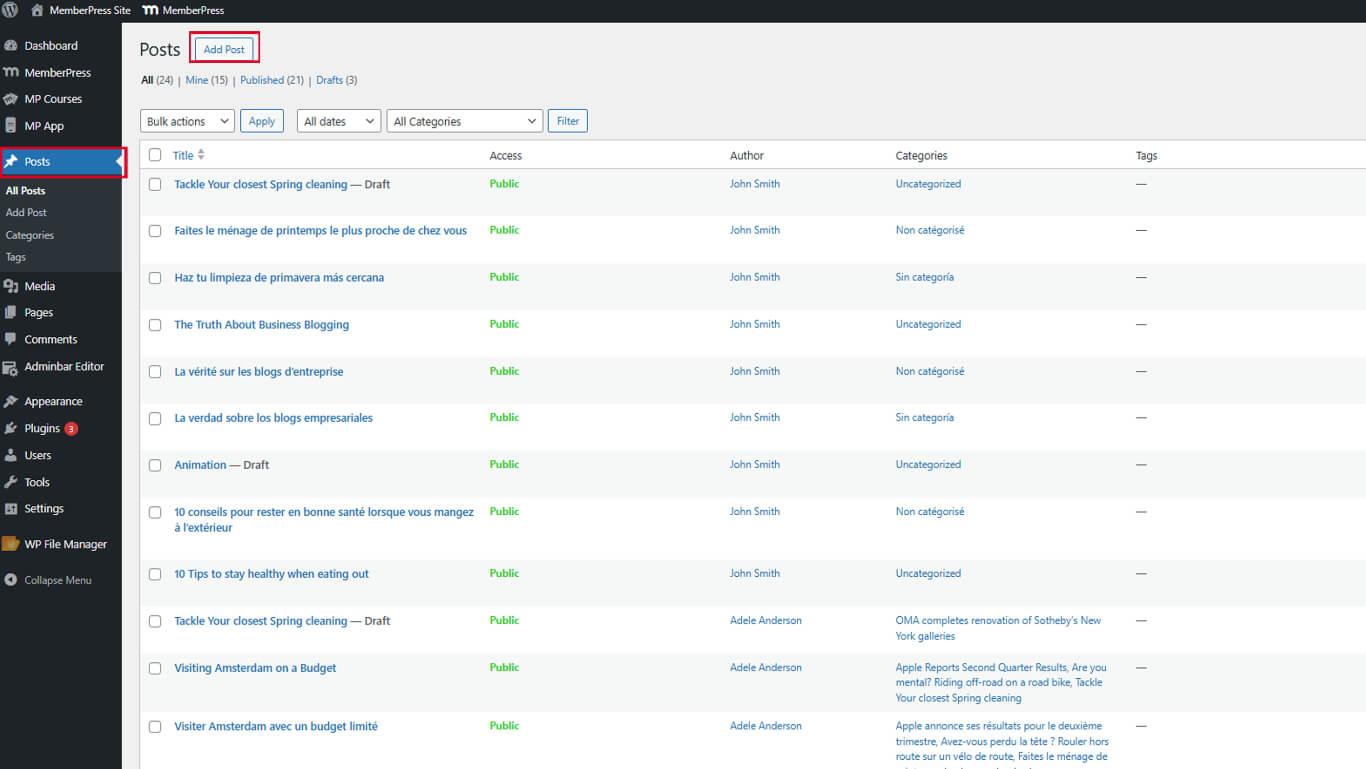
- Enter a descriptive title in the Title field.
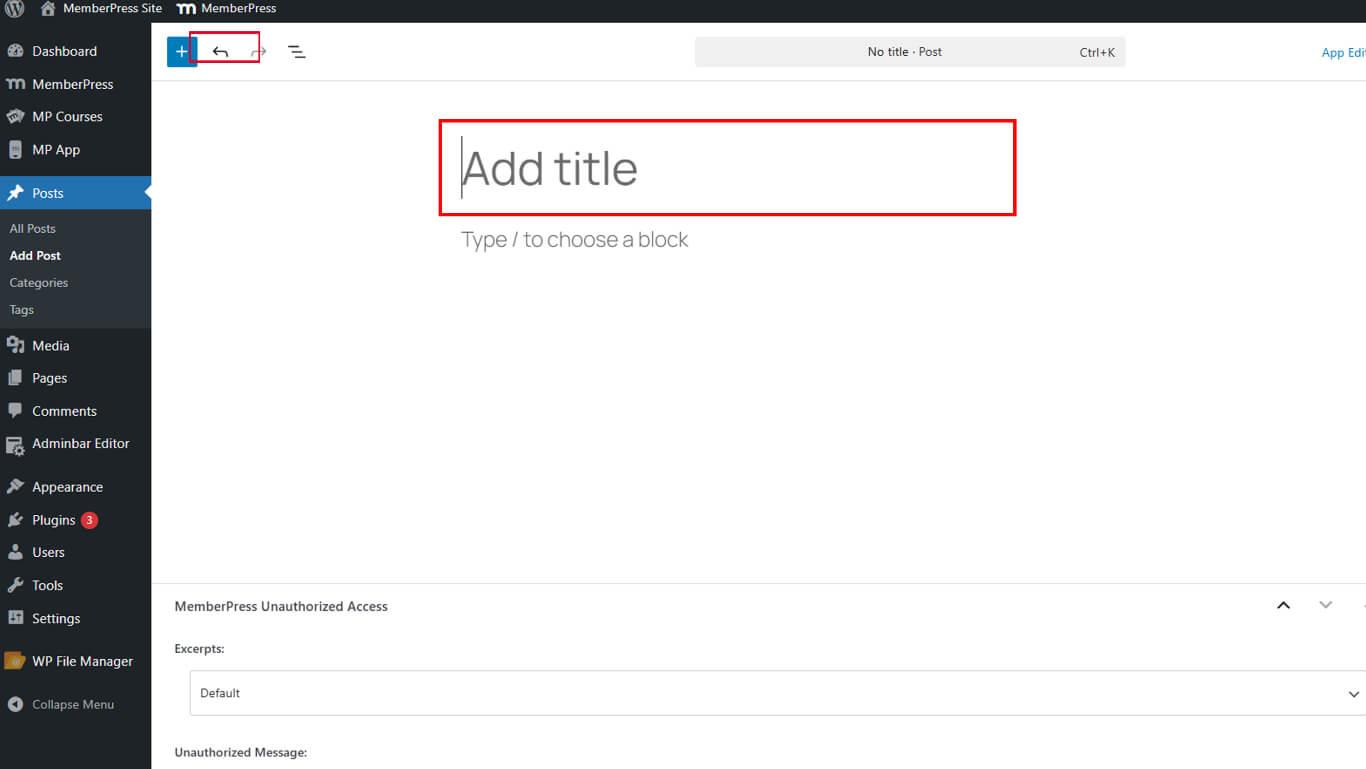
- Write post content in the block editor.
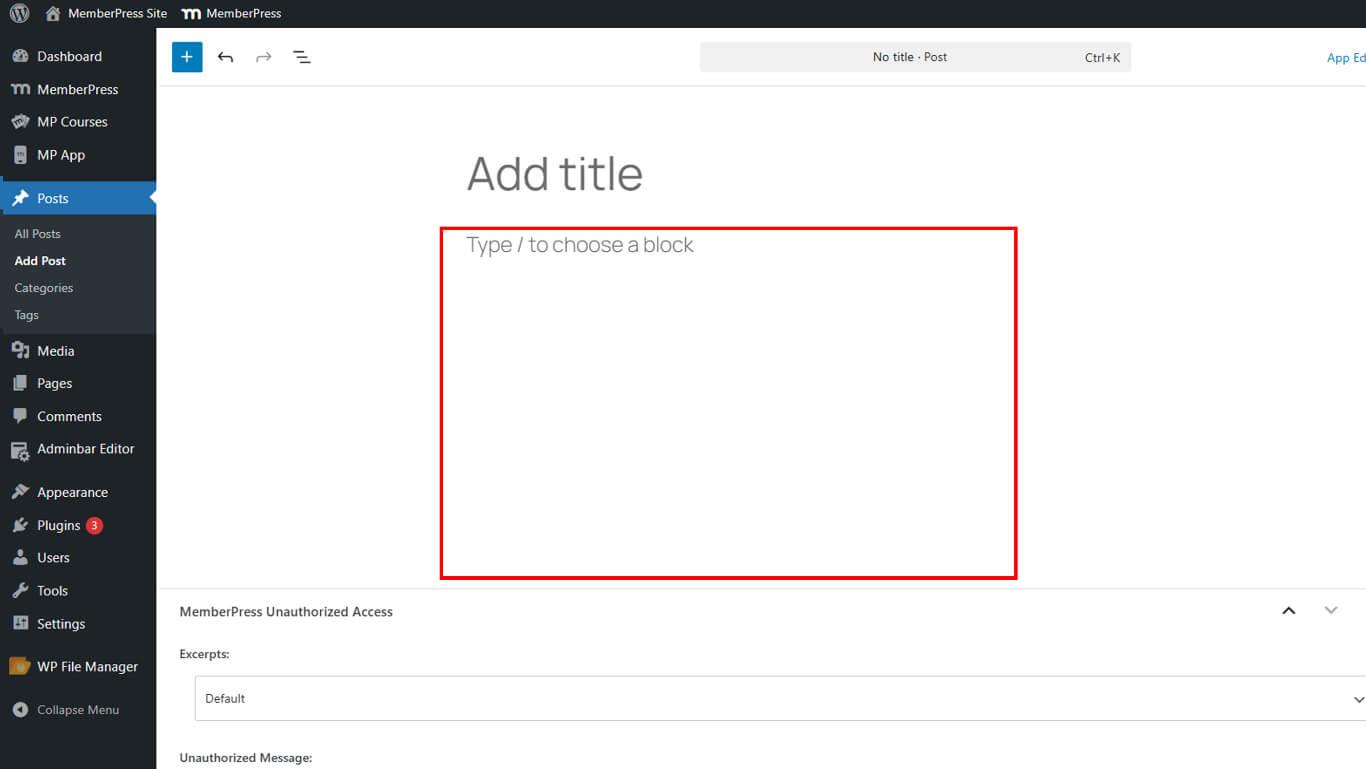
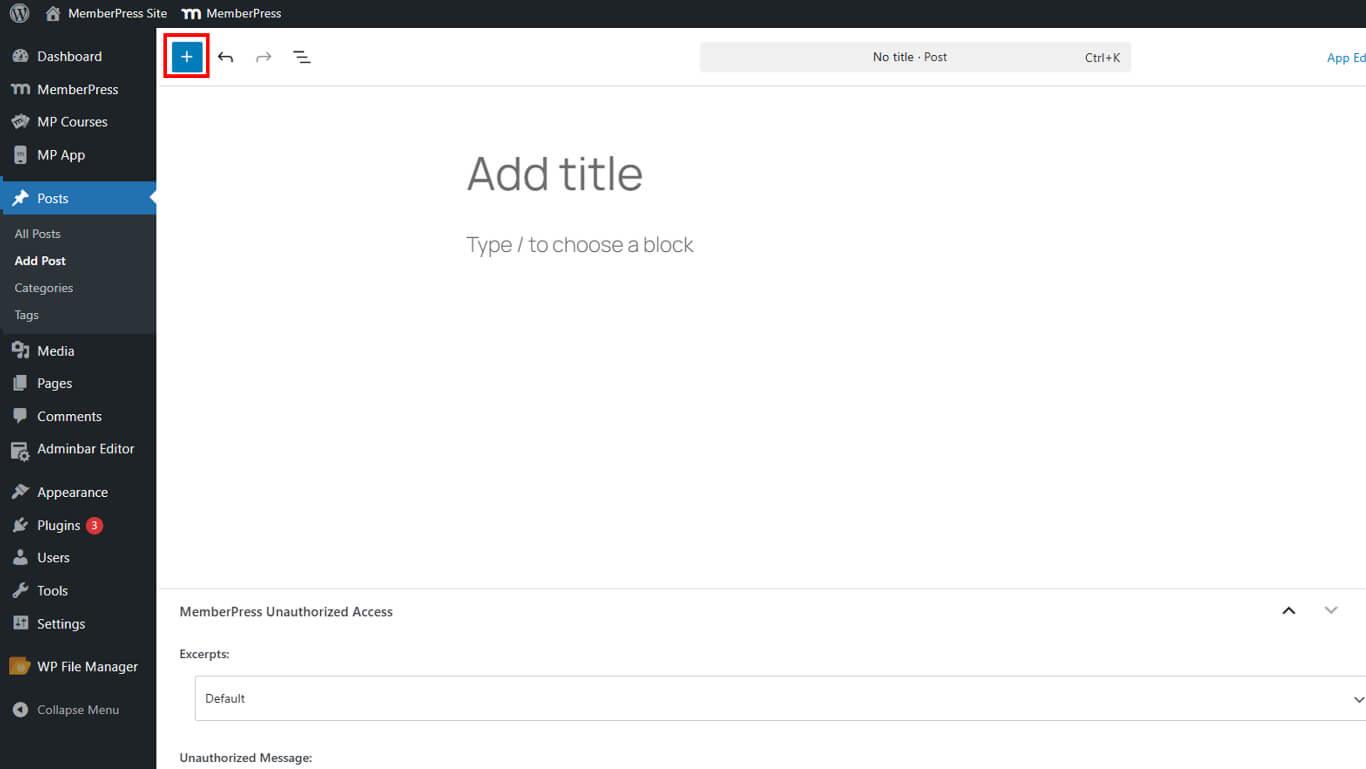
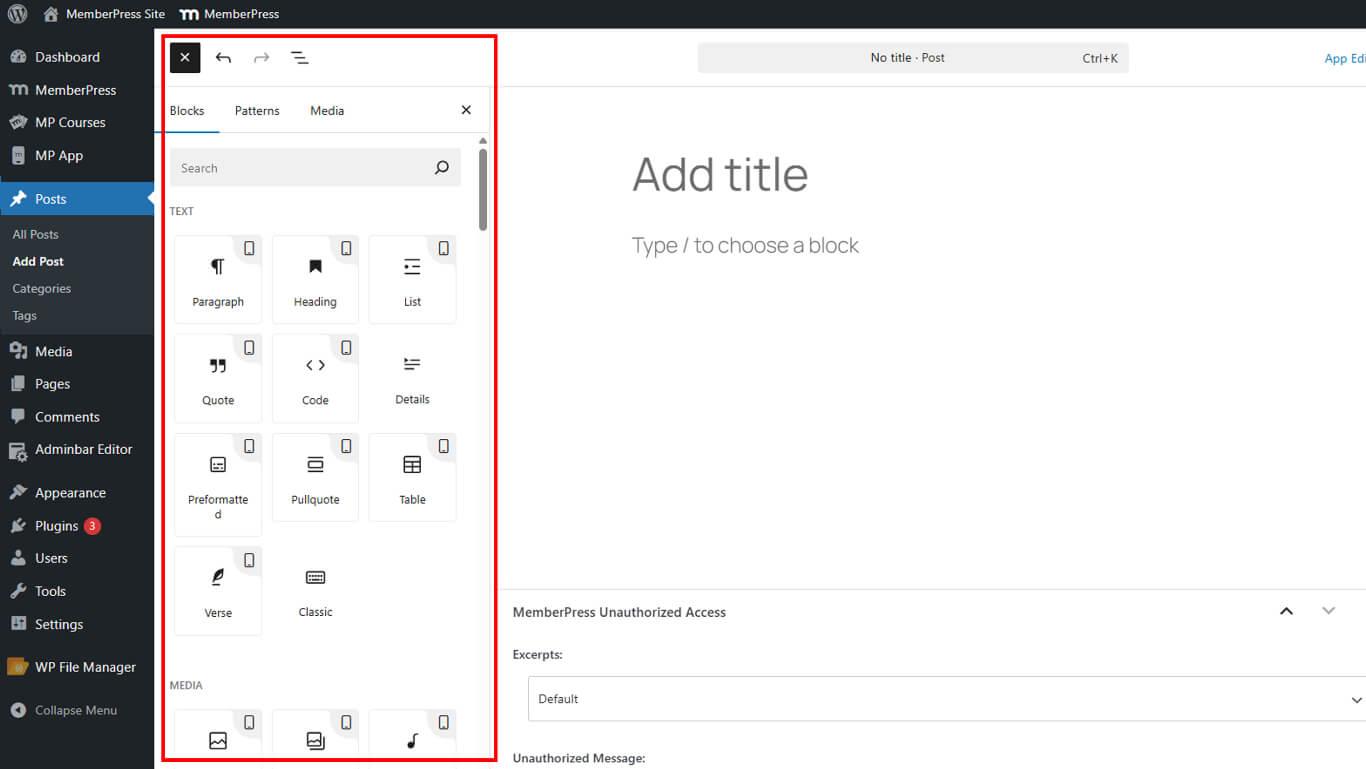
- Use Gutenberg blocks to format text, add images, and structure content.
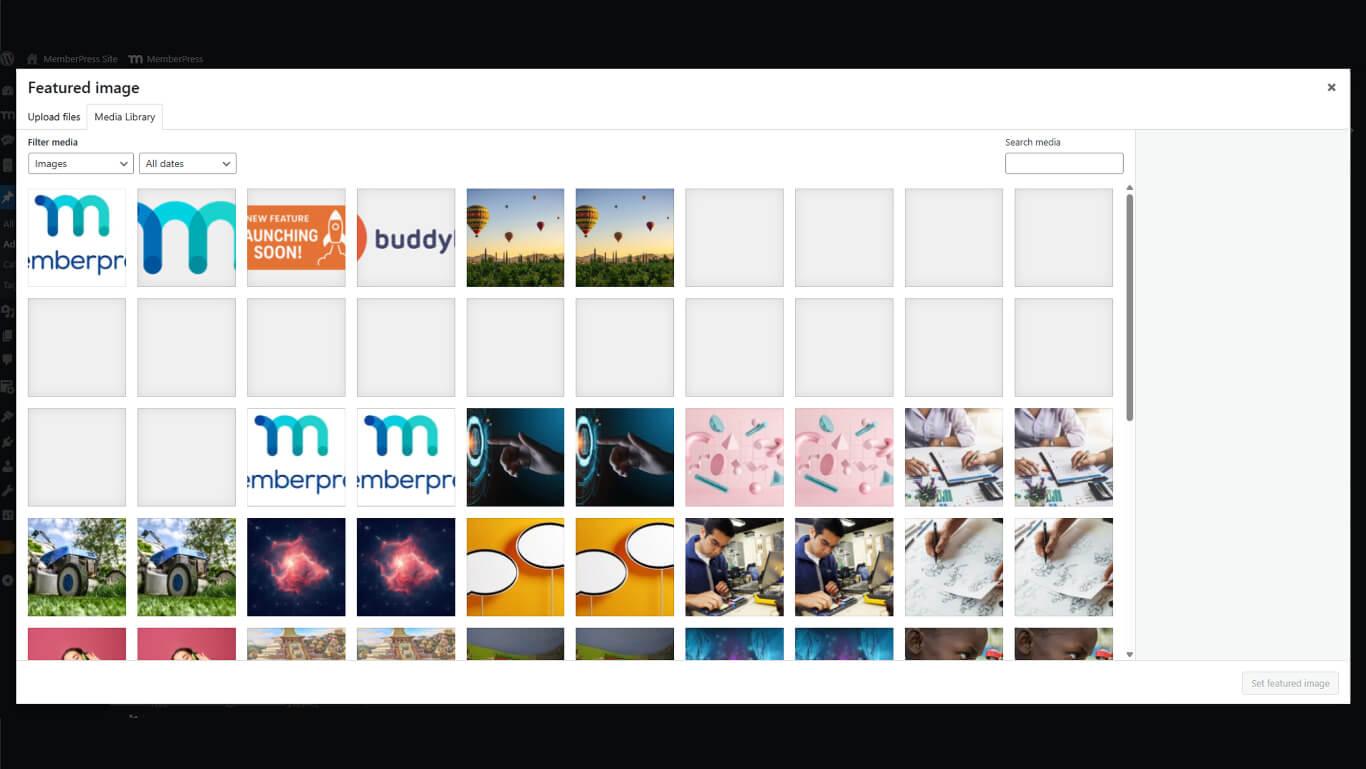
- Click Set Featured Image in the right sidebar.
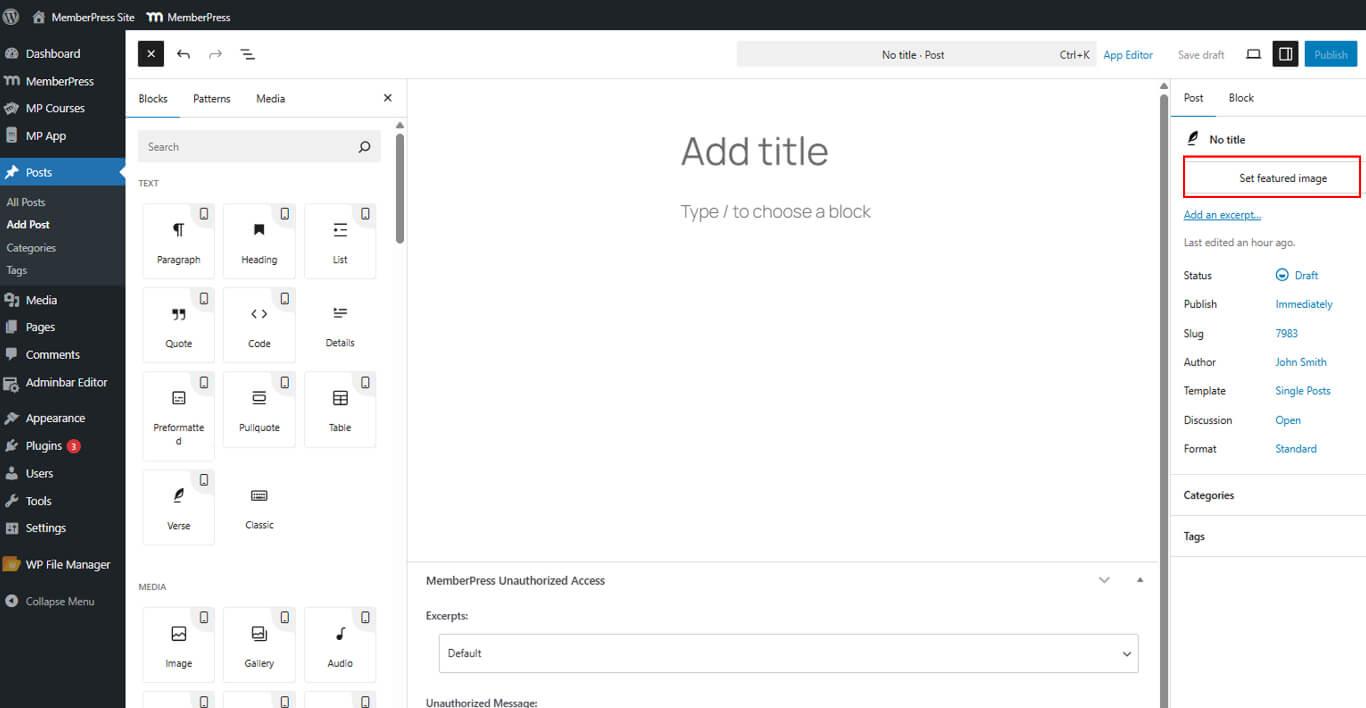
- Upload or select an image to represent the post in blog listings.
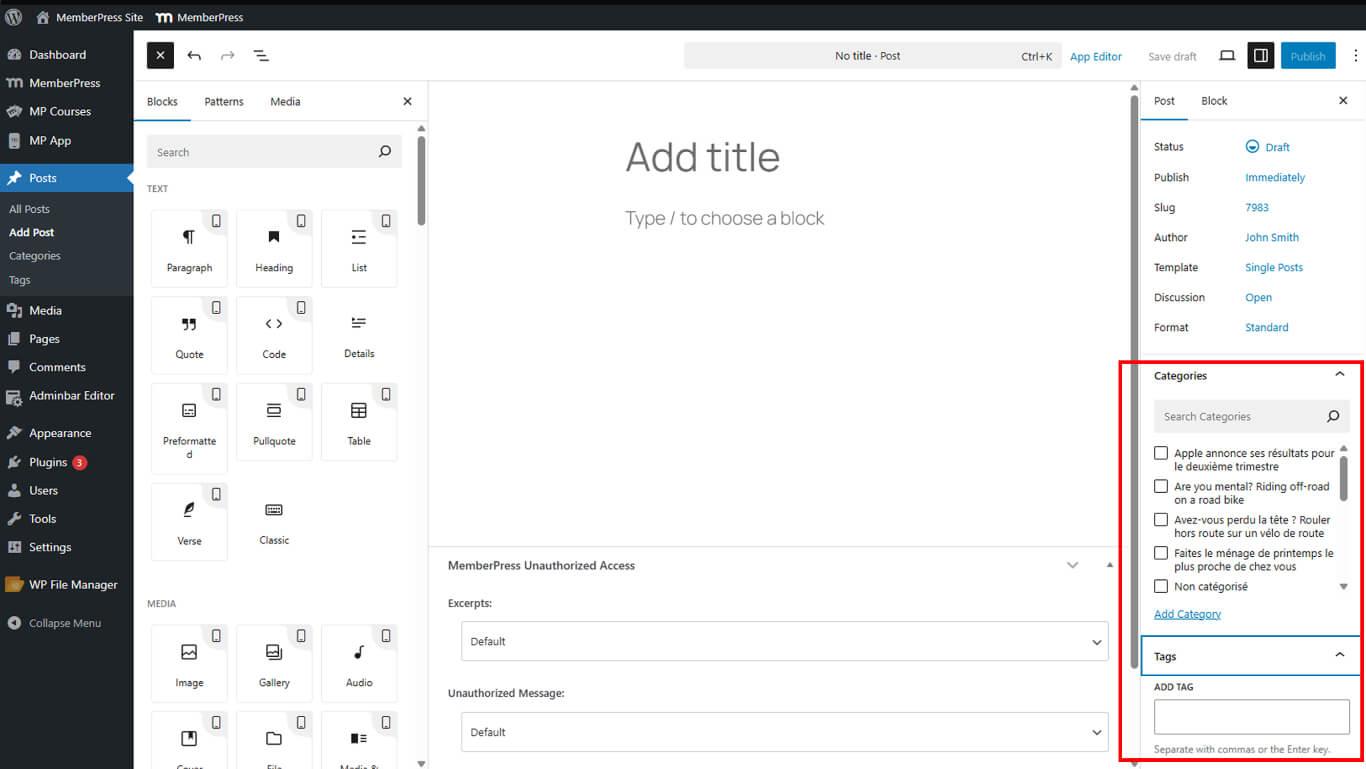
- Configure post categories and tags if desired.
- Click Publish when the content is complete.
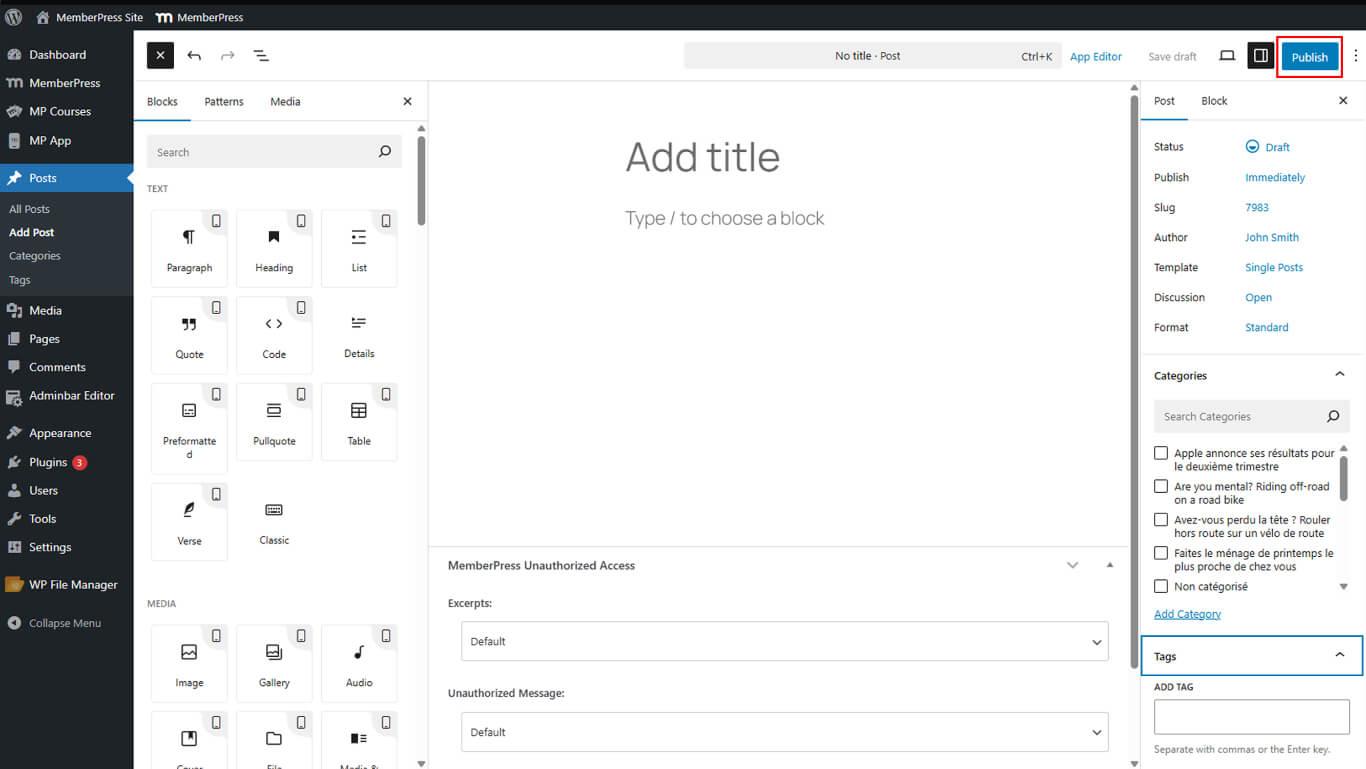
Published posts appear immediately in the app Blog section without additional configuration.
Optimizing Blog Posts for Mobile App
- If your post contains unsupported blocks, a warning will appear at the top of the editor.
- To provide an optimized mobile version, switch to the App Editor tab and add alternate content.
Once published, the post will automatically appear inside the Blog tab in your MemberPress iOS/Android app.










