

MemberPress Android App testing lets you test your app with selected users before a public release. New individual Google Developer accounts created after November 13, 2023, must complete closed testing requirements before production access.
This document explains how to create closed testing tracks, add testers, manage releases, and apply for production access.
Understanding Closed Testing Requirements
Google Play Store requires closed testing completion for new individual developer accounts registered after November 13, 2023. Closed testing involves at least 12 testers using the app for a minimum of 14 consecutive days. Production track access unlocks only after successful closed testing completion and approval.
Organization developer accounts are exempt from closed testing requirements. Developer accounts registered before November 13, 2023, are also exempt from mandatory closed testing. Individual accounts created after the requirement date must complete closed testing before production publishing.
Creating Closed Testing Track
Closed testing track creation establishes the testing environment for pre-release app distribution.
- Log in to Google Play Console at play.google.com/console.
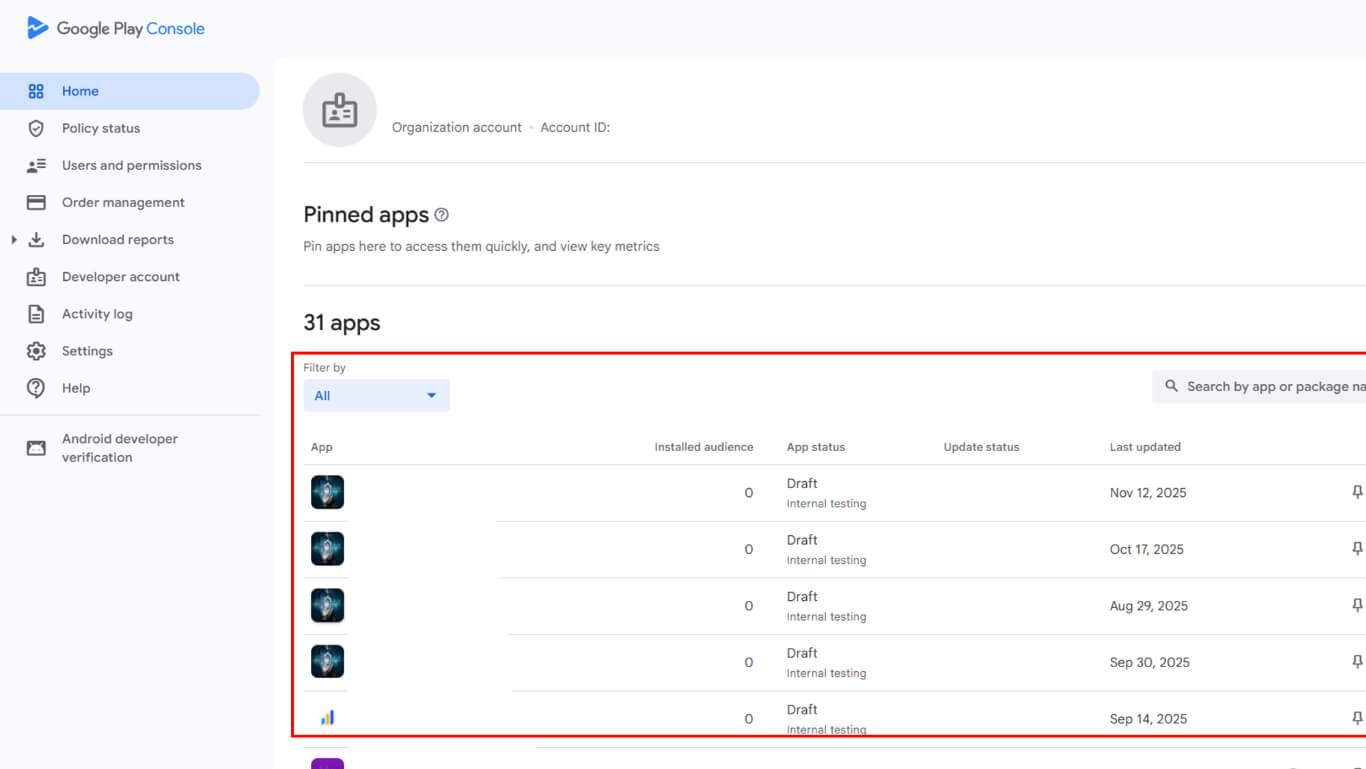
- Select the app from the apps list.
- Navigate to Release > Testing > Closed Testing in the left sidebar.
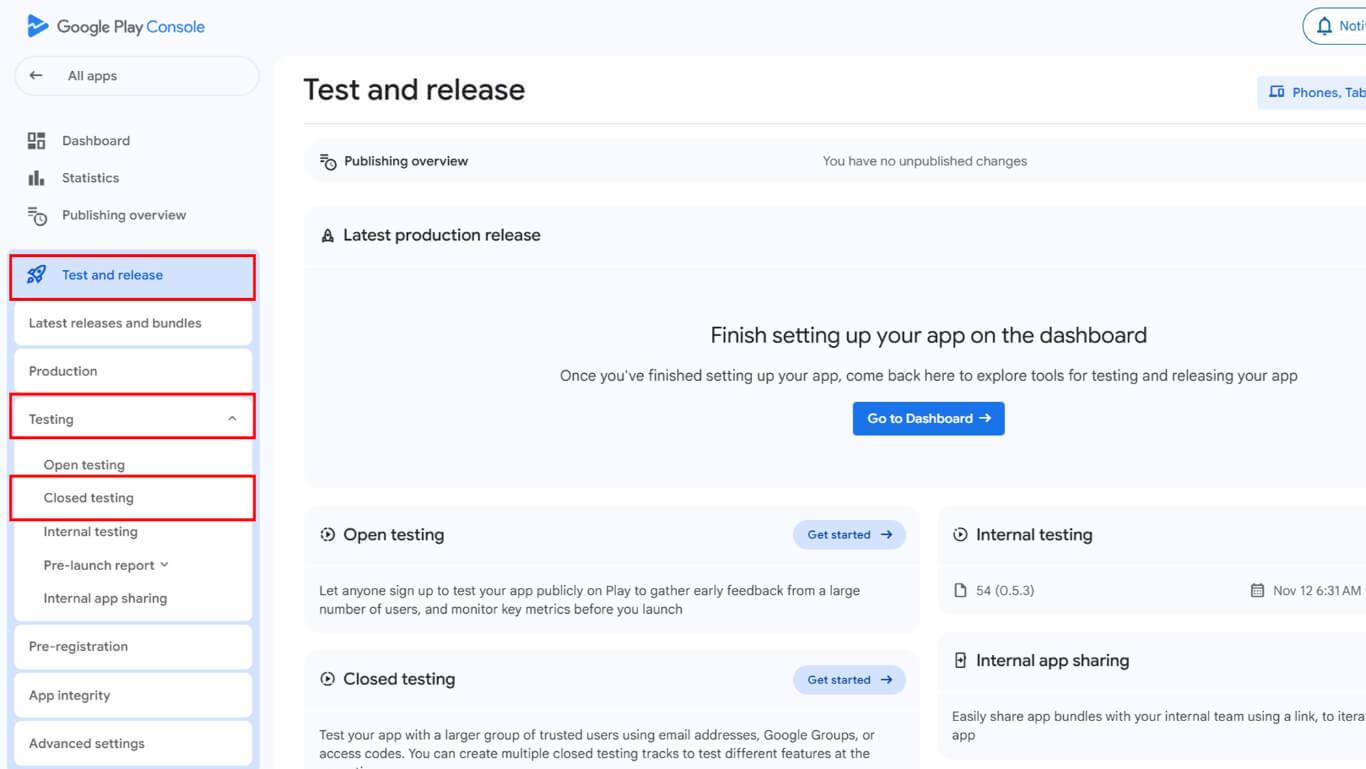
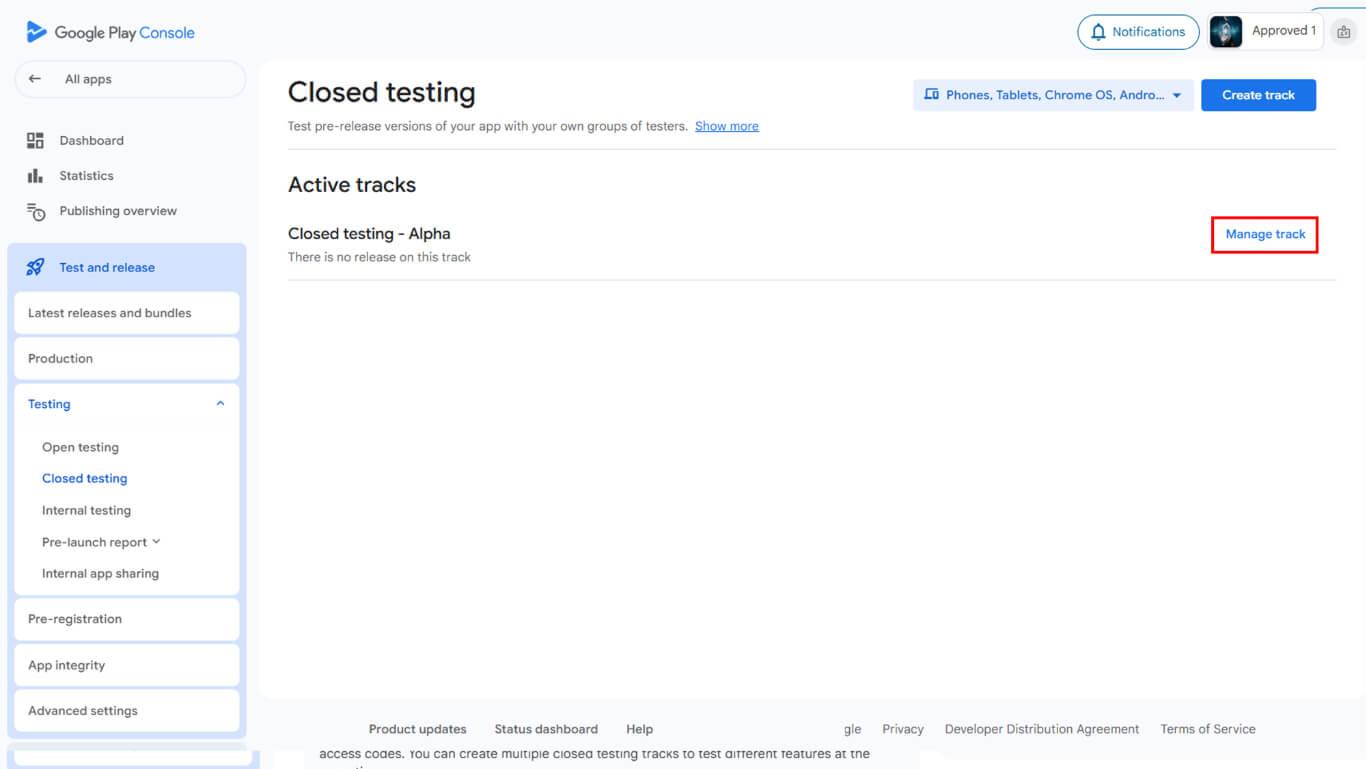
- Review available active testing tracks.
- Click Manage Track if an existing track is available.
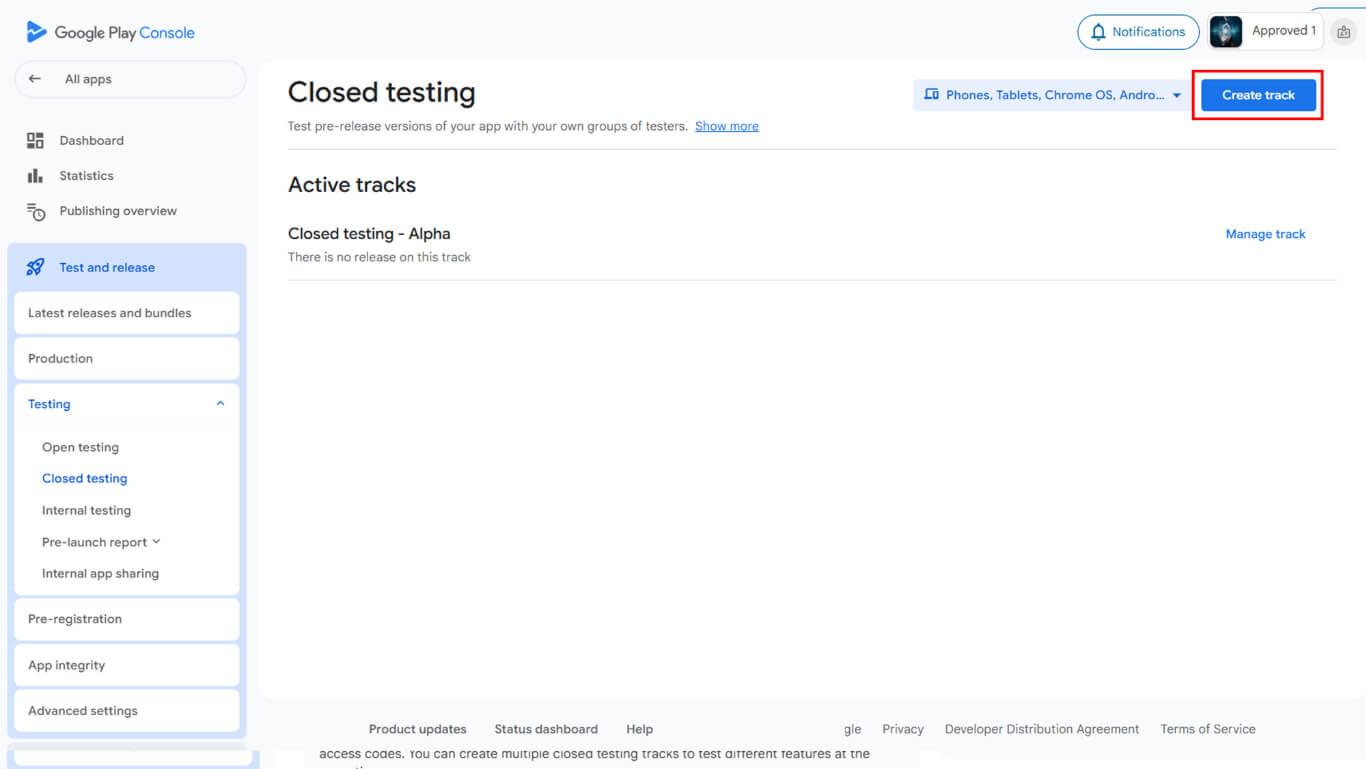
- Click Create Track if creating a new testing track.
- Enter a descriptive name in the Track Name field.
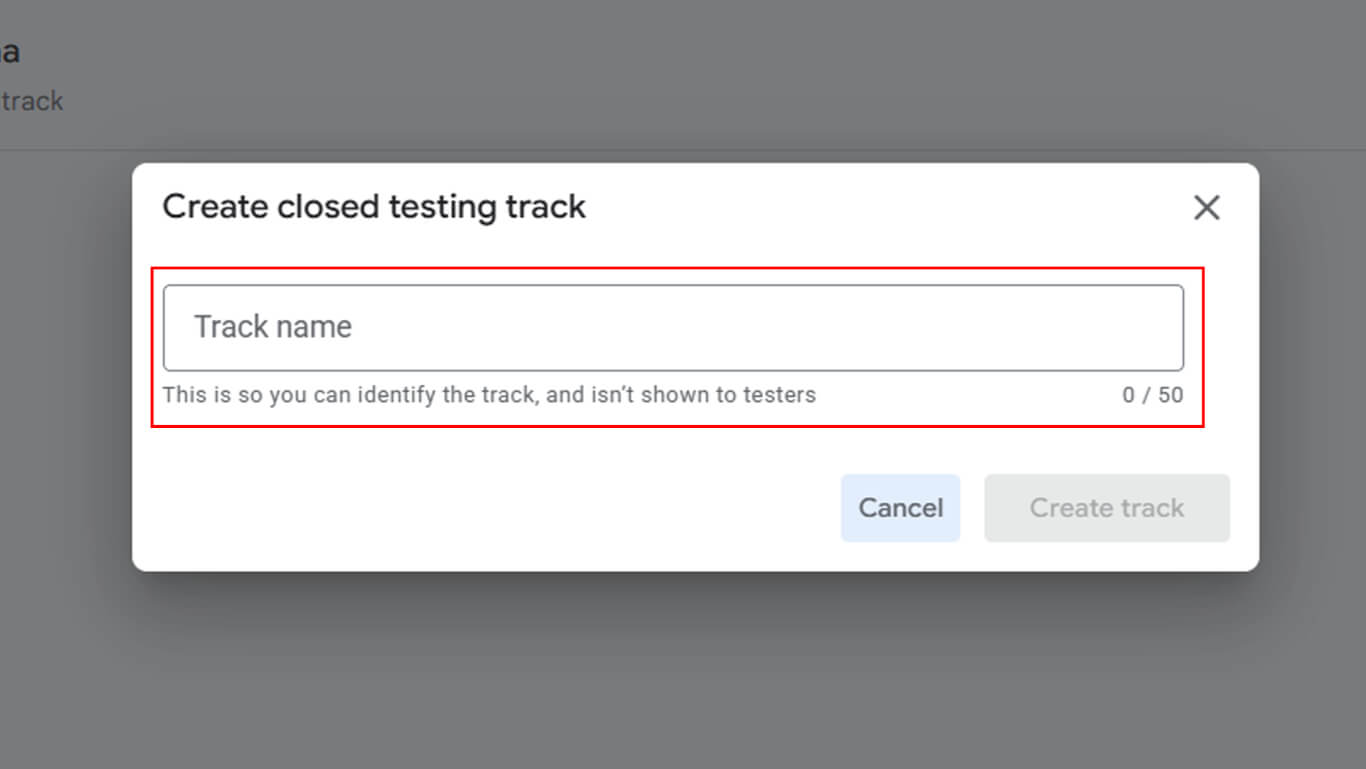
- Click Create Track to finalize track creation.
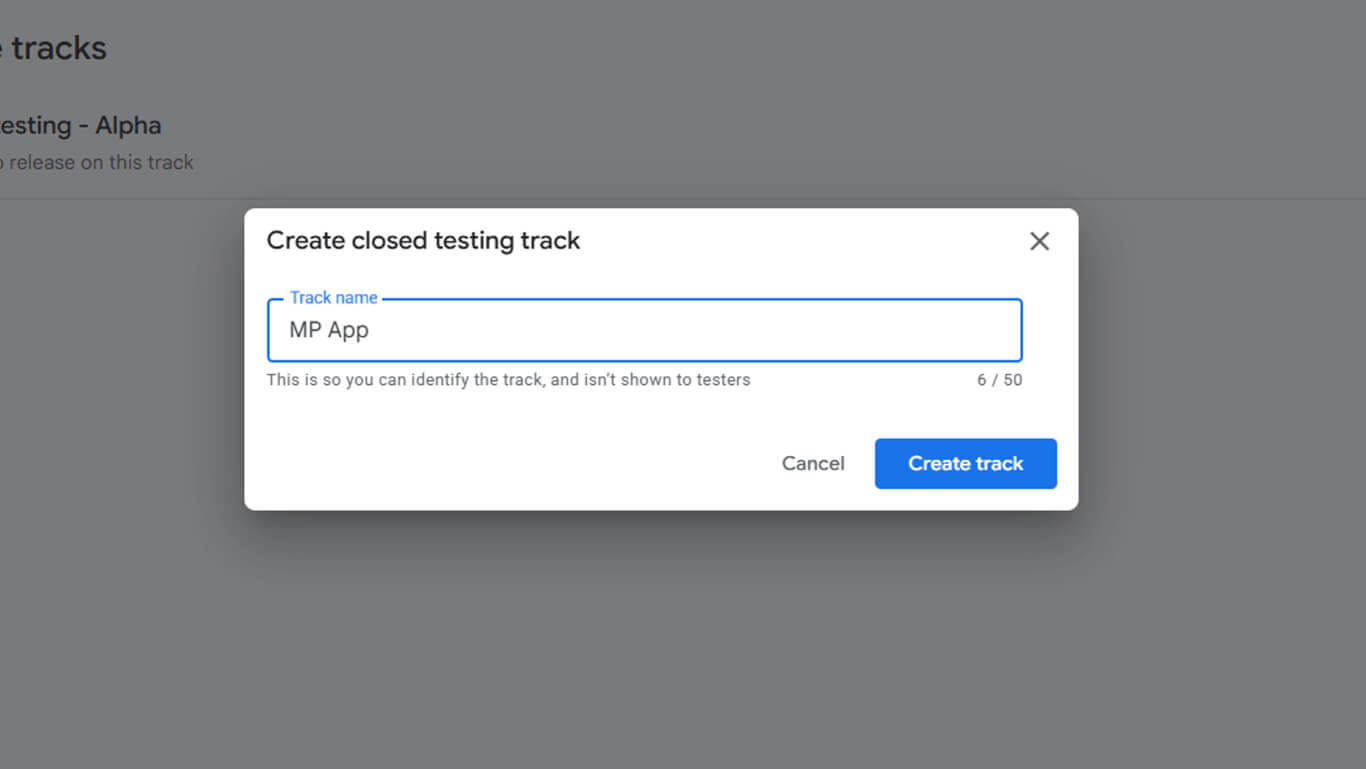
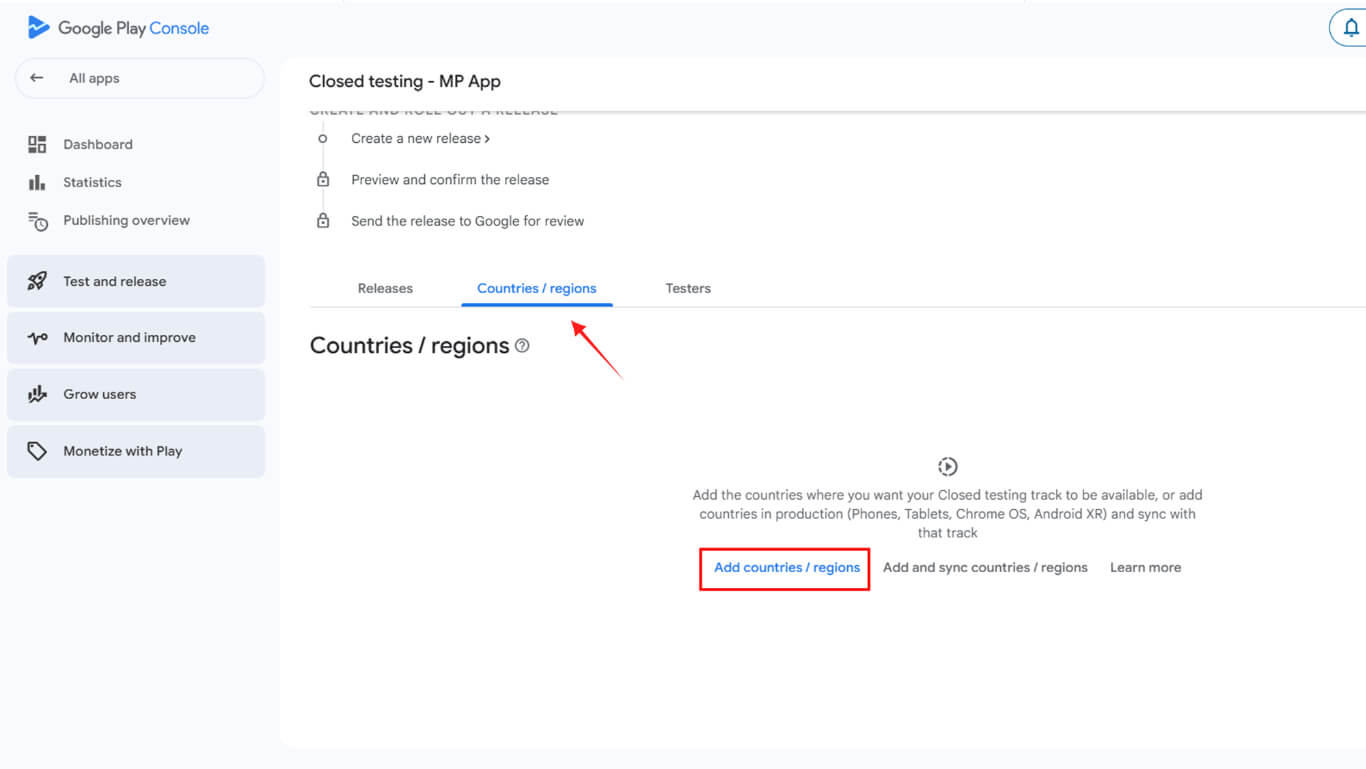
- Navigate to the Countries/Regions tab.
- Click Add Countries/Regions.
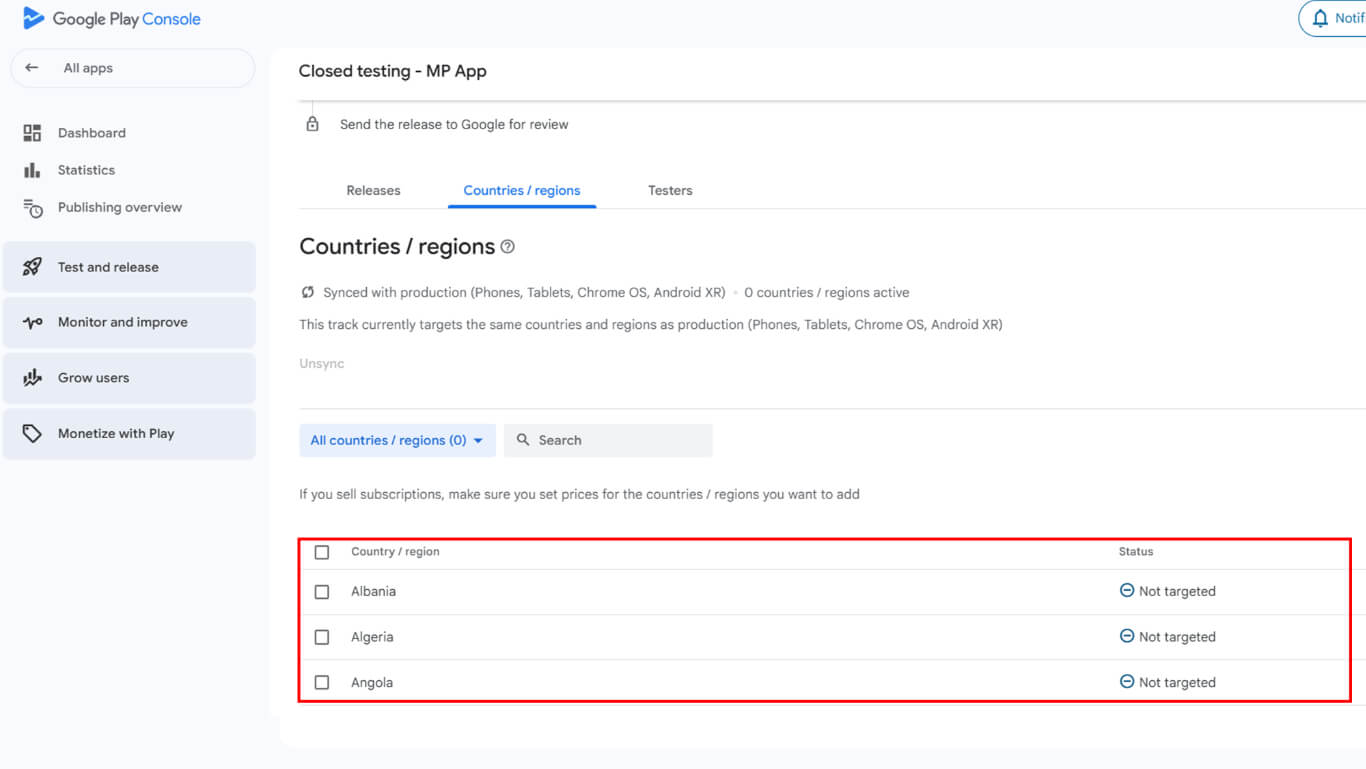
- Select countries where the app should be available for testing.
- Check the box to select all countries for global testing availability.
Adding Testers to Closed Test
Tester addition enables specific users to access and test the app.
- Navigate to the Testers tab in the closed testing track.
- Review existing email lists
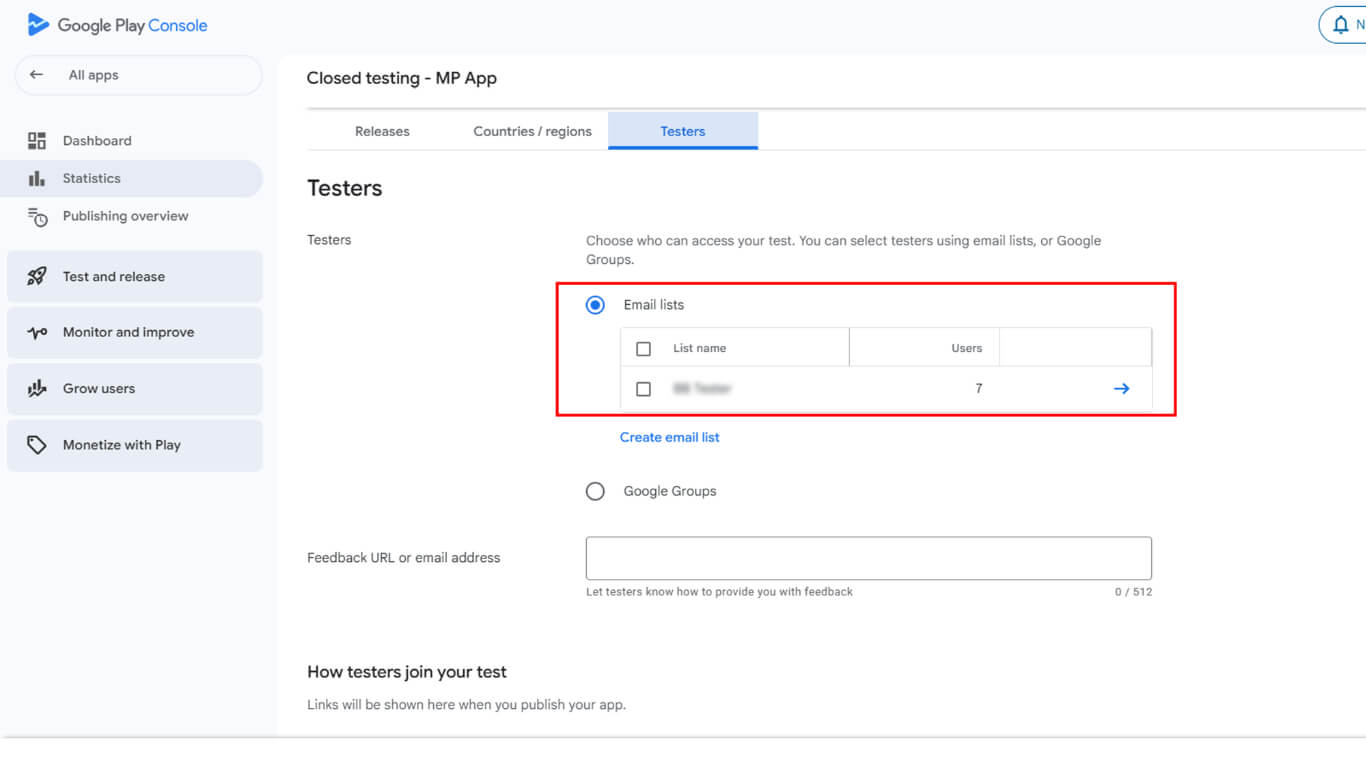
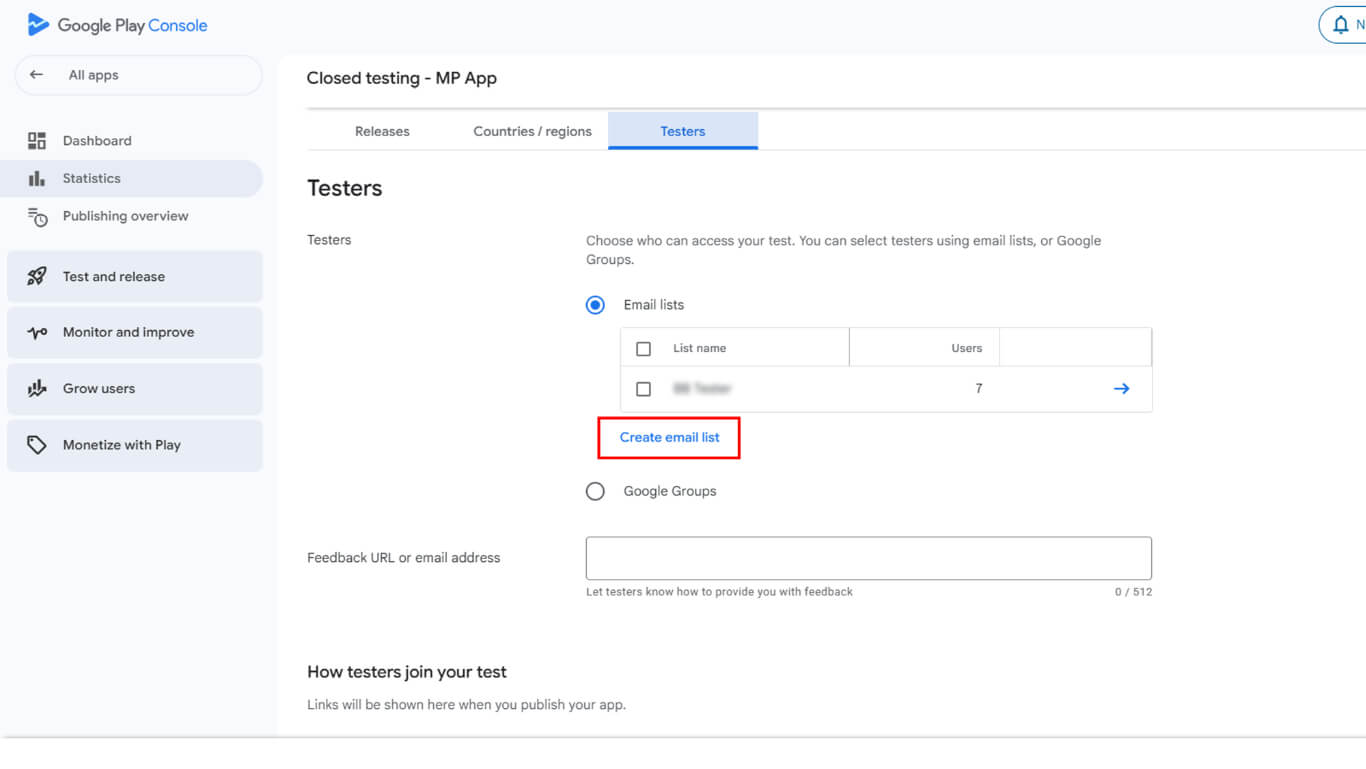
- Or click Create Email List.
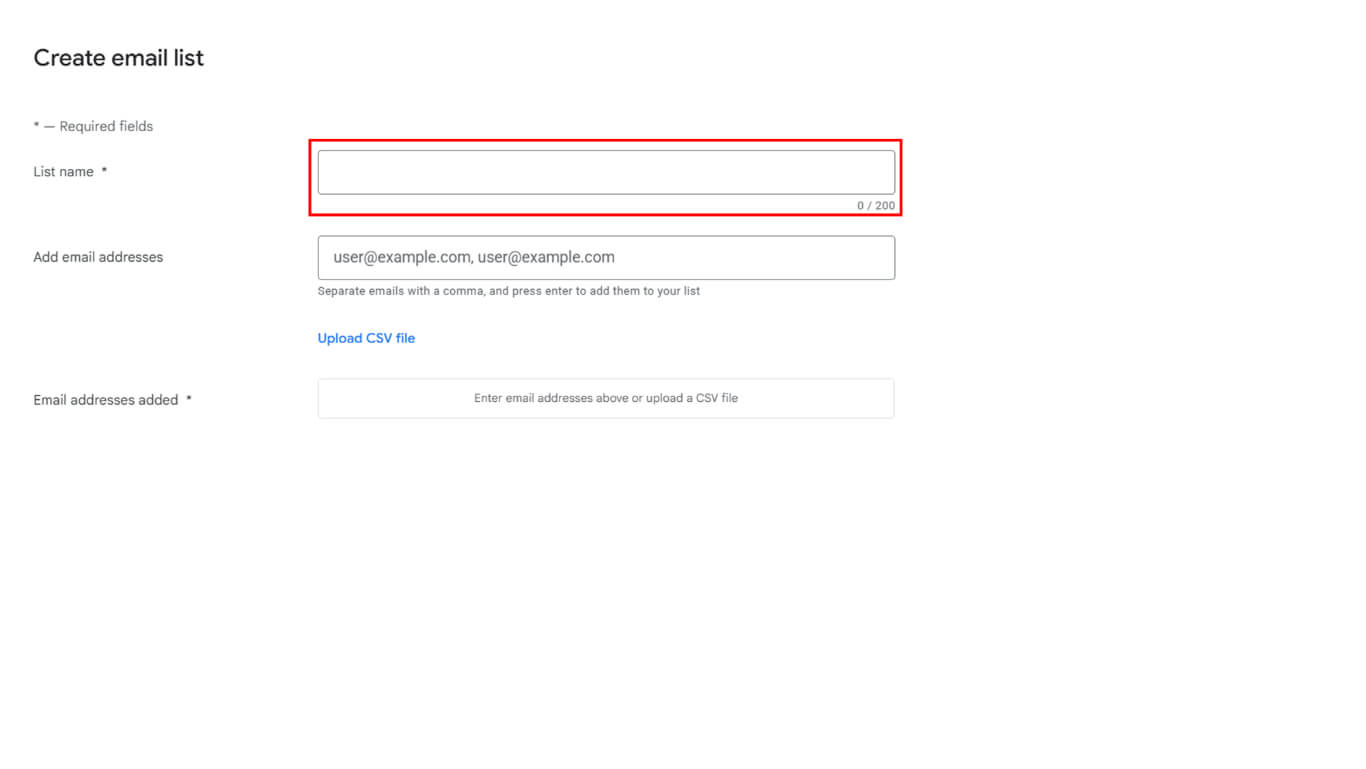
- Enter a descriptive name in the List Name field.
- Add at least 12 email addresses to the tester list, or upload a CSV list.
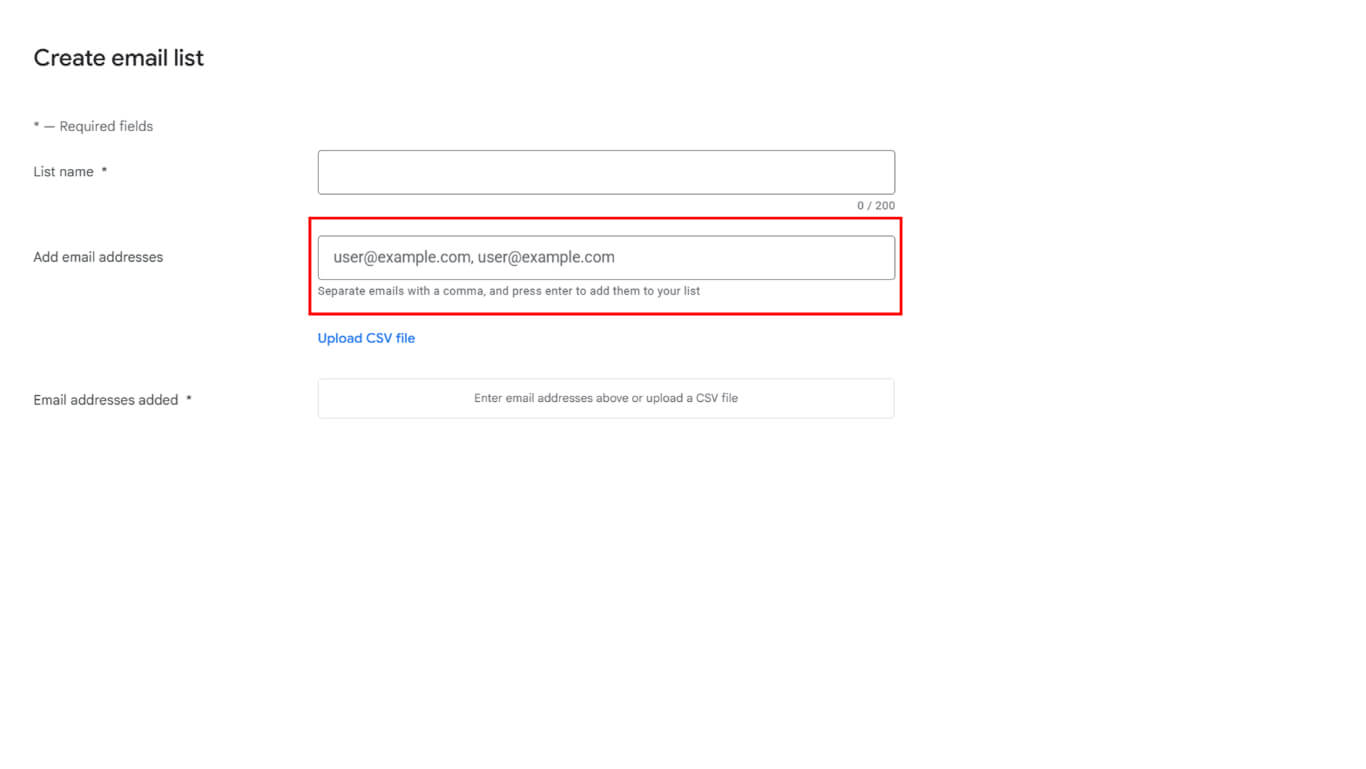
- Click Save Changes to store the email list.
- Click Create to finalize the list creation.
- Enter a Feedback URL or email address for tester feedback submission.
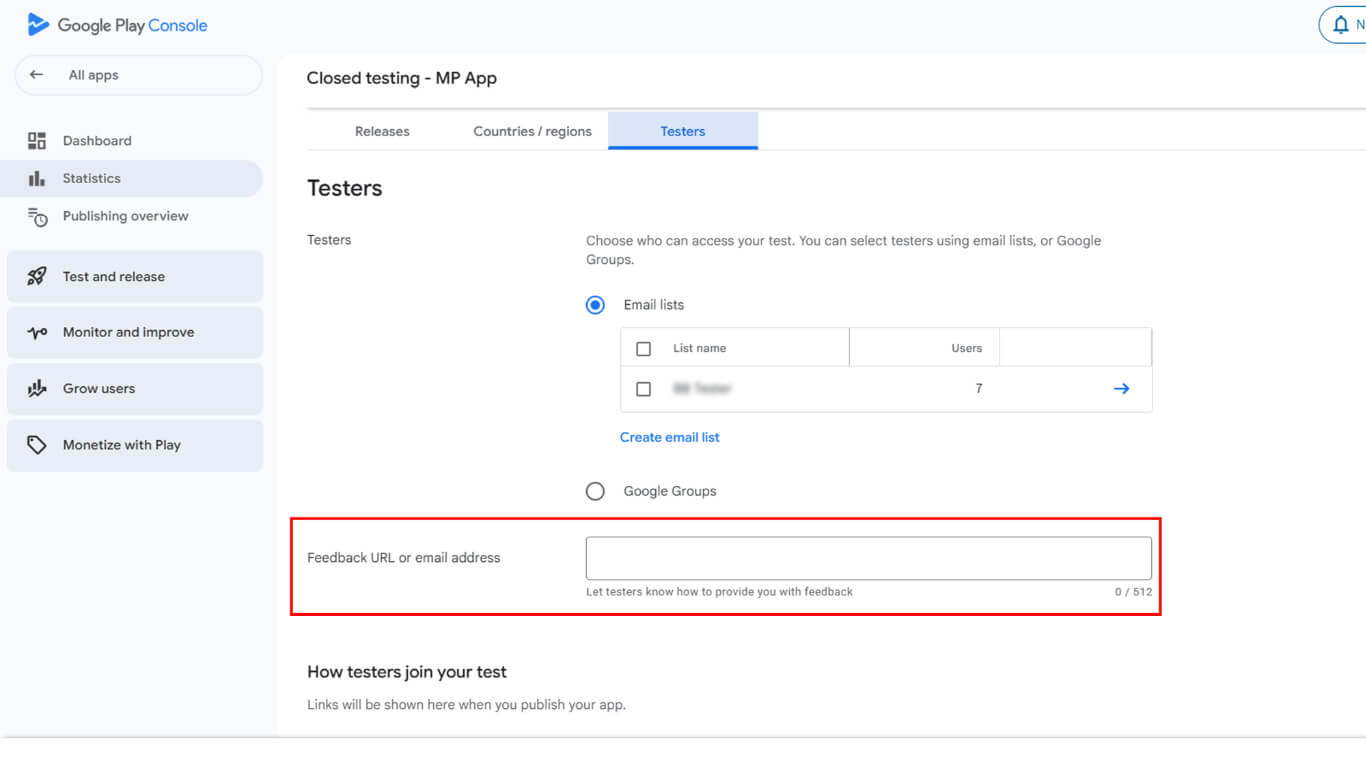
- Click Save to store feedback information.
- Click Go to Overview when prompted.
Creating New Release for Closed Testing
Release creation prepares the app build for tester distribution.
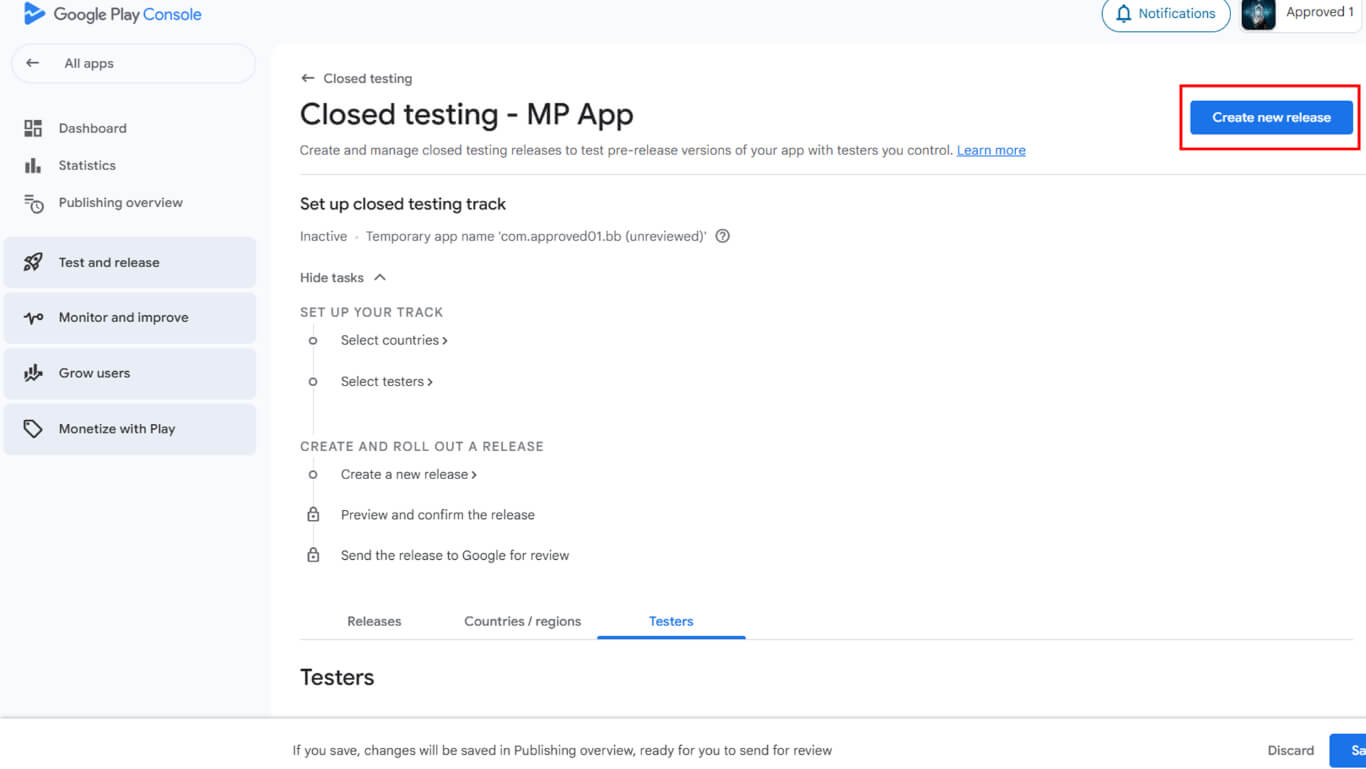
- Navigate to the closed testing track in Google Play Console.
- Click the Create New Release button.
- Scroll to the App Bundles section.
- Click Upload to select the AAB file from the device.
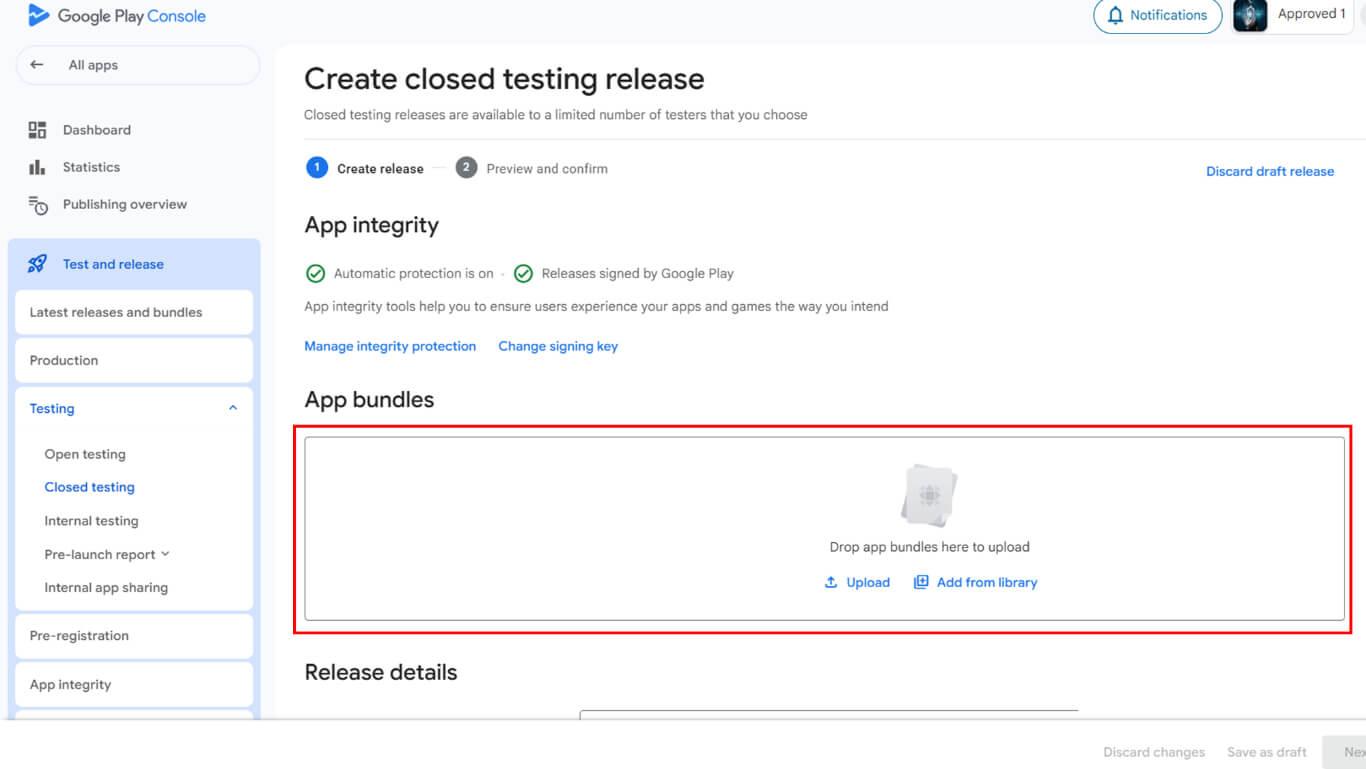
- Alternatively, select an existing AAB from the library.
- Click Add to Release after selecting the build.
- Navigate to the Release Details section.
- Verify the auto-filled version number is correct.
- Enter Release Notes describing changes or features.
- Click Next to proceed to review.
- Click Save to store release information.
- Click Go to Overview in the confirmation pop-up.
- Click Send Changes for Review to submit for approval.
- Confirm submission in the confirmation dialog.
Configuring License Testing
License testing restricts app access to authorized testers during the testing period.
- Navigate to All Apps in the Google Play Console left sidebar.
- Click Settings > License Testing in the navigation.
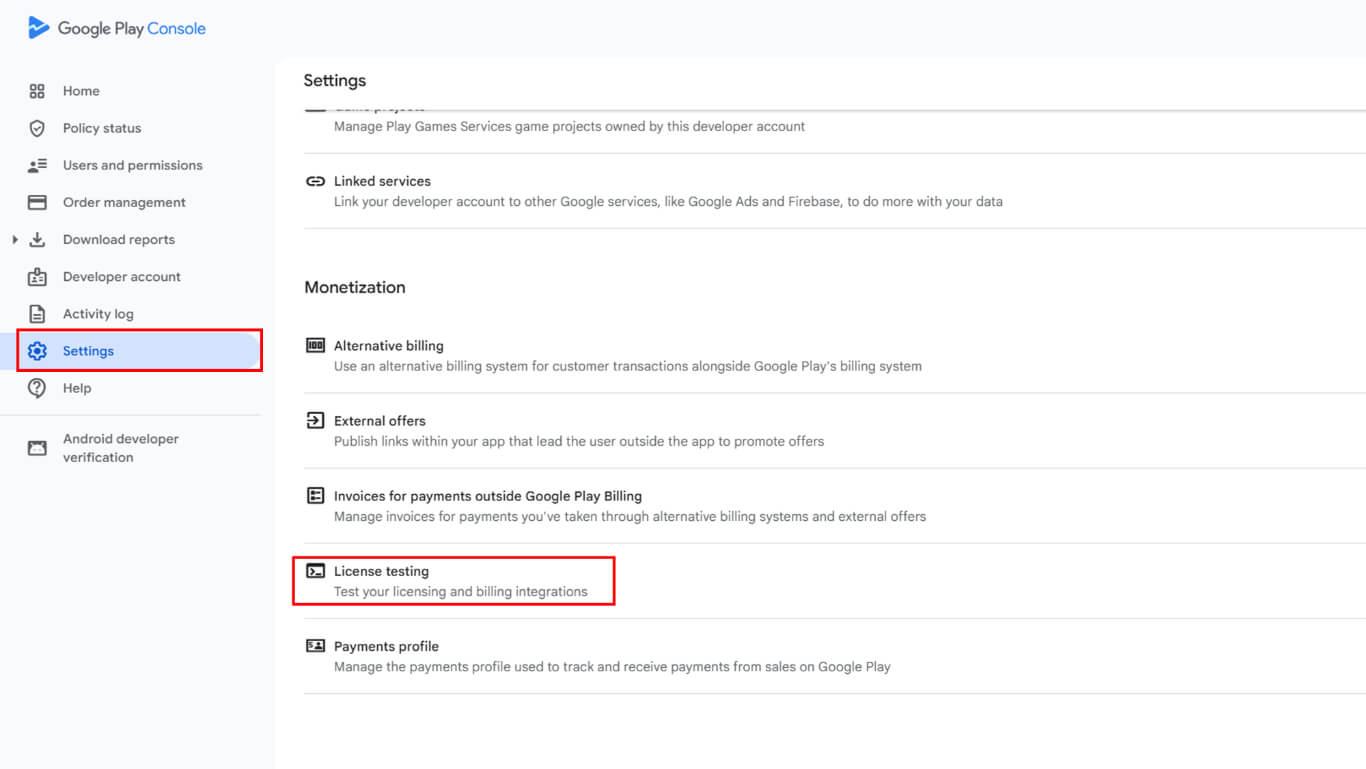
- Select tester email lists from available options.
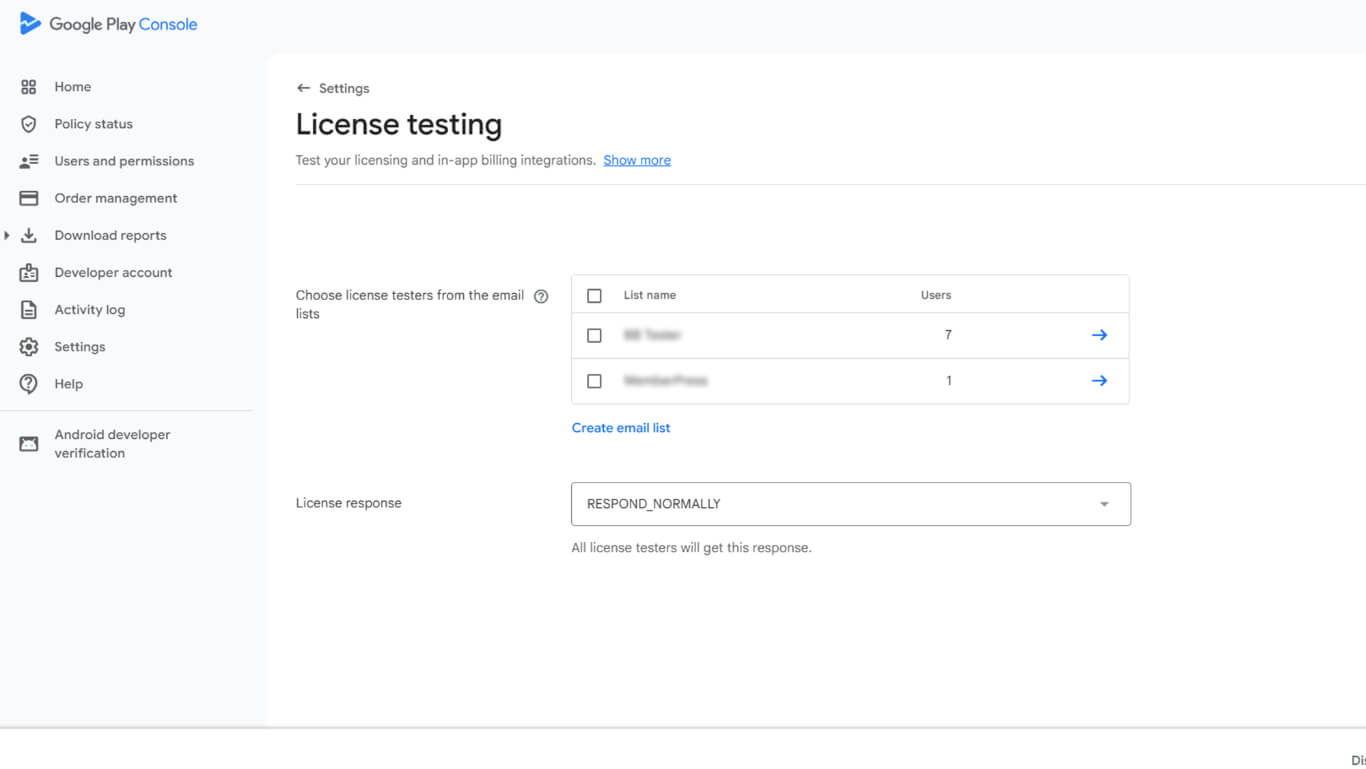
- Click Save Changes to finalize license testing configuration.
License testing ensures only authorized testers can install and access the app during the closed testing phase.
Running 14-Day Closed Testing Period
Testing period execution collects feedback and validates app functionality before production.
- Wait for Google approval confirmation of the closed test release.
- Copy the test link from the closed testing track overview.
- Share the test link with all 12 or more testers via email.
- Verify testers opt in to the closed test through the link.
- Monitor tester engagement throughout the 14-day minimum period.
- Collect feedback from testers through the designated feedback channel.
- Review feedback to identify improvements before production release.
- Ensure at least 12 testers actively use the app for 14 consecutive days.
Applying for Production Access
Production access application requests unlock the production track for public app release.
- Navigate to the app dashboard in Google Play Console after completing testing requirements.
- Click the Apply for Production button.
- Review the production access application questionnaire.
- Answer questions about the closed test process and results.
- Provide details about app or game functionality and features.
- Confirm production readiness and quality standards.
- Click Submit to send the application for Google review.
- Wait for Google's review decision on production access.
Google typically reviews production access applications within 7 days or less. Production tab unlocks after approval, enabling public release preparation.
Publishing After Production Access
Production release preparation follows production access approval.
- Navigate to the Production track in Google Play Console after approval.
- Click Create New Release in the production track.
- Upload the final app build AAB file.
- Complete release details, including version information and release notes.
- Save the production release configuration.
- Navigate to Dashboard > MP AppKit > Publishing Service > Google Play Store in WordPress.
- Click Submit to create a publishing request.
- The Publishing Team manages app submission to the Google Play Store.
- Monitor email for updates from the Publishing Team on submission status.
Publishing Team handles the final app submission and communication with the Google Play Store review team.










