

The Share App Link feature encourages users to promote your mobile app within their networks, boosting installs, engagement, and organic growth.
This guide explains how you can configure the Share App Link feature in MemberPress AppKit, and customize the preview content. Also, it shows how members can share your app link directly from their MemberPress iOS/Android app.
Understanding Share App Link Feature
Share App Link feature requirements define configurations for enabling member-driven app promotion and distribution capabilities.
App sharing enablement: activates the in-app share button, providing members access to distribution tools. Share functionality transforms members into app advocates, promoting within personal networks.
Preview content customization: controls how shared links appear across social platforms and messaging applications. Compelling preview content improves click-through rates and conversion from shared links.
Platform-specific configuration: enables sharing for iOS and Android separately based on the distribution strategy. Platform toggles provide flexibility for staged rollouts or platform-specific campaigns.
Fallback link provision: ensures desktop and unsupported device users reach the appropriate destination. Fallback URLs maintain user experience when native app links cannot open.
Shareable link generation: creates unique URLs optimized for social sharing and member distribution. Generated links track engagement and facilitate app discovery through organic sharing.
Enabling App Sharing
App sharing enablement activates share functionality within the mobile application settings interface.
- In WordPress, go to Dashboard > MP AppKit > Settings > Feedback.
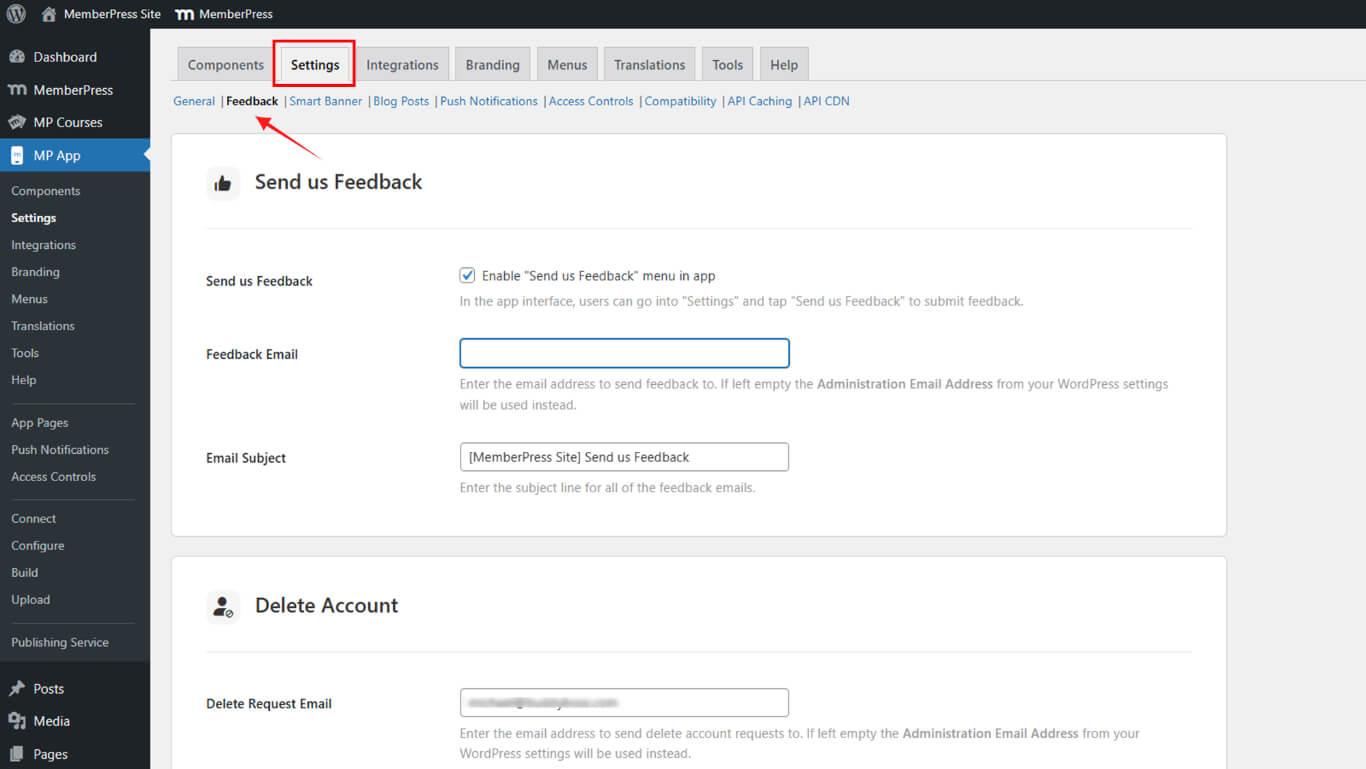
- Scroll to Share App Link.
- Check App Sharing to activate the in-app share button.
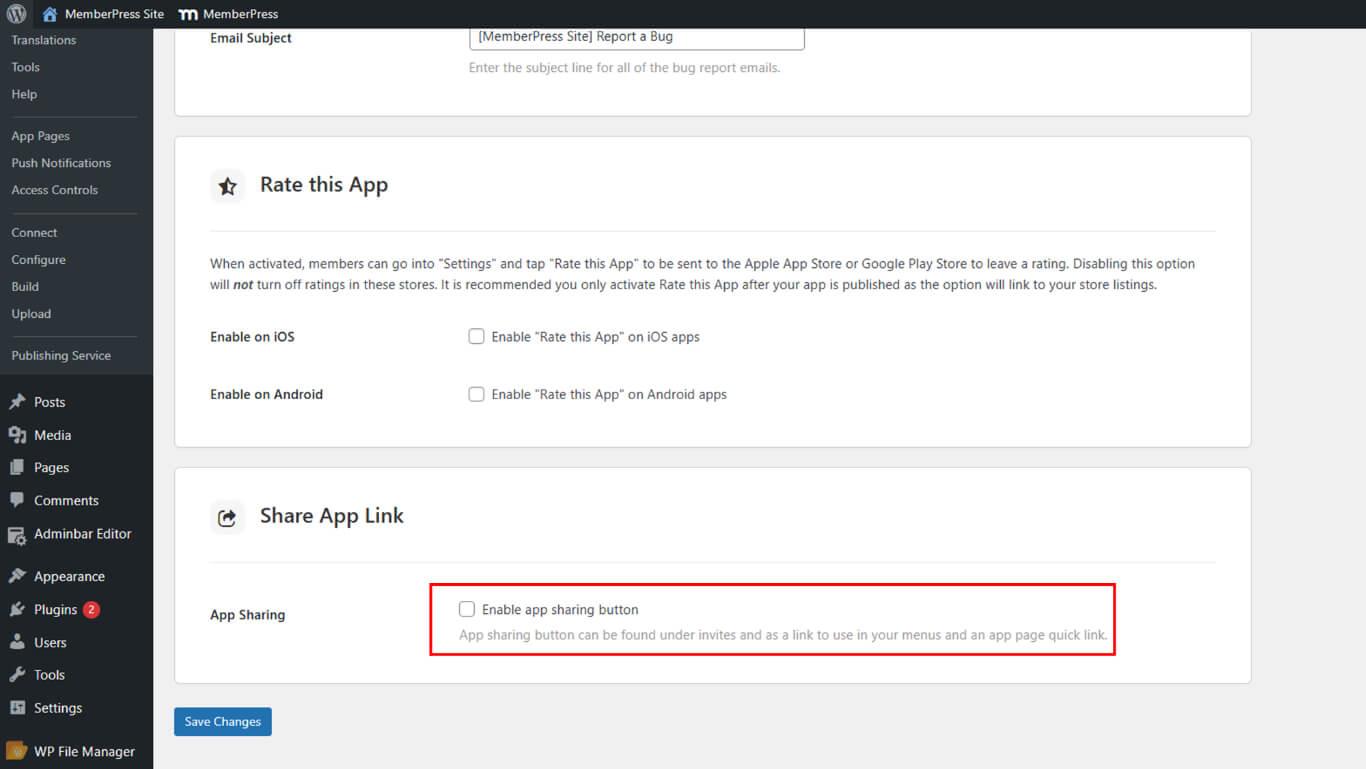
Customizing Preview Content
Preview content customization controls the visual and textual appearance of shared app links across platforms.
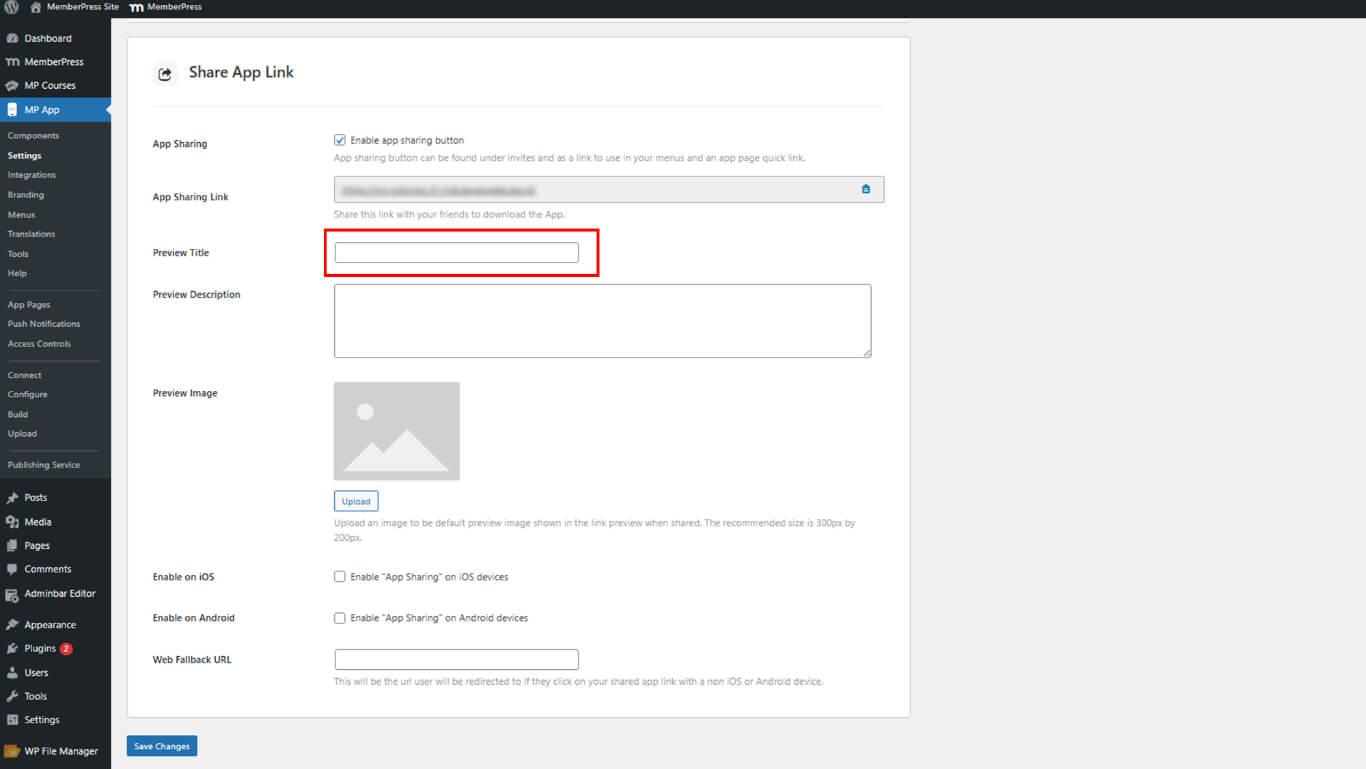
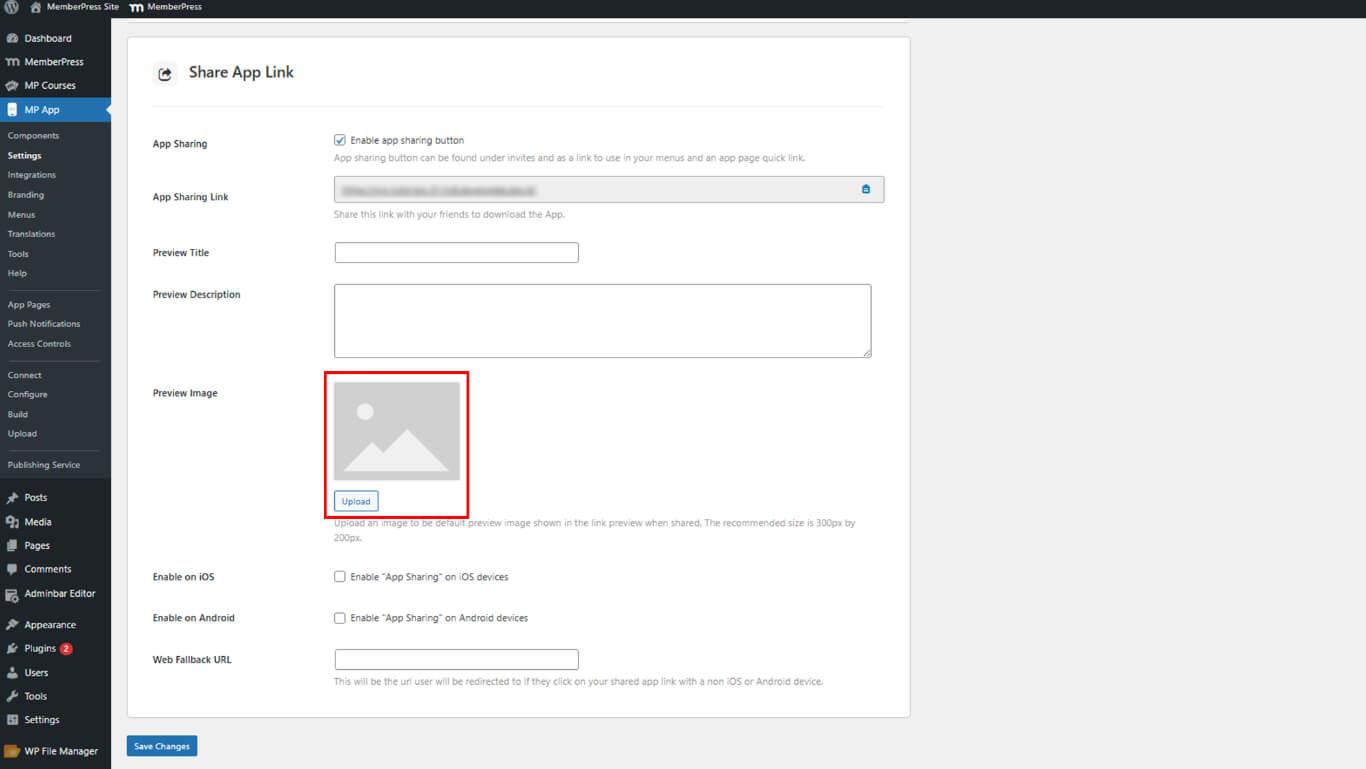
- Enter a Preview Title in the title field.
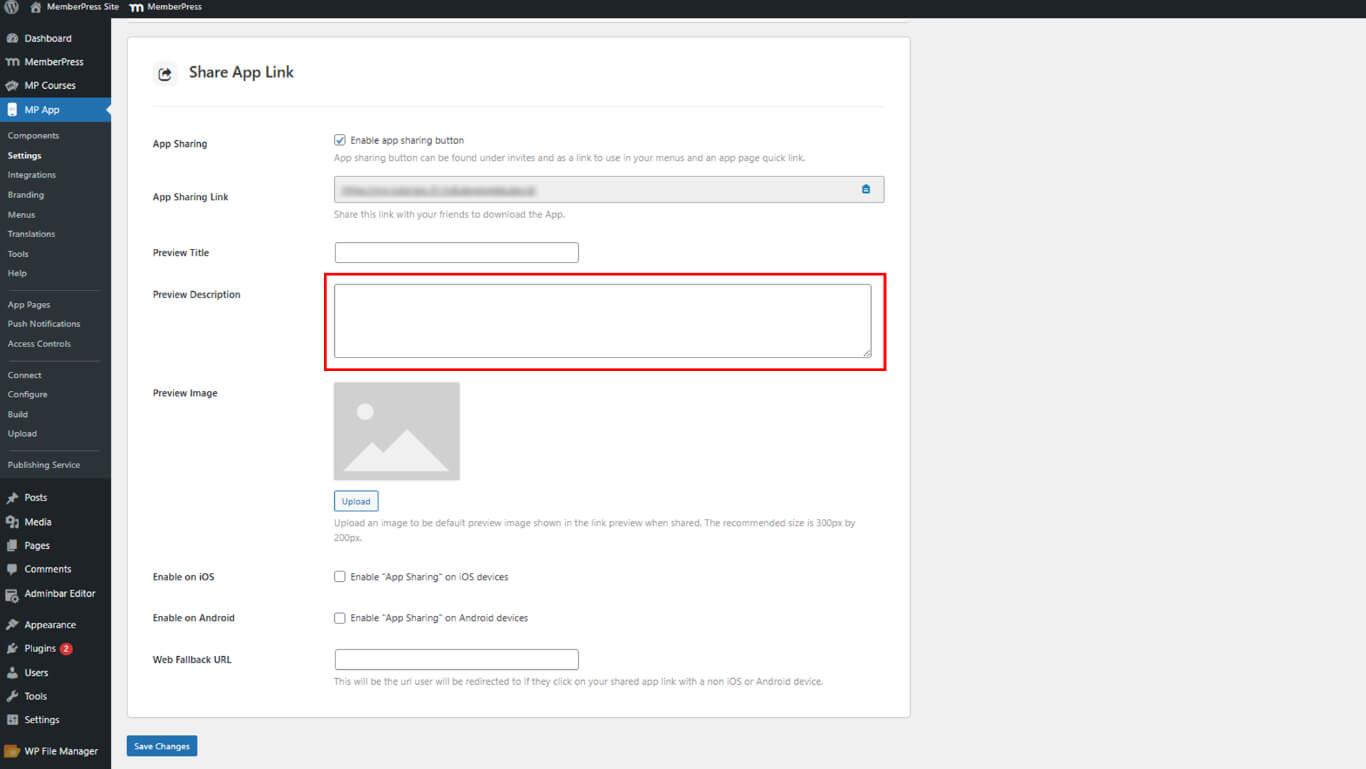
- Add a compelling Preview Description in the description field.
- Click Upload next to Preview Image and select an image.
Enabling Platforms and Adding Fallback
Platform enablement and fallback configuration ensure proper link handling across devices and operating systems.
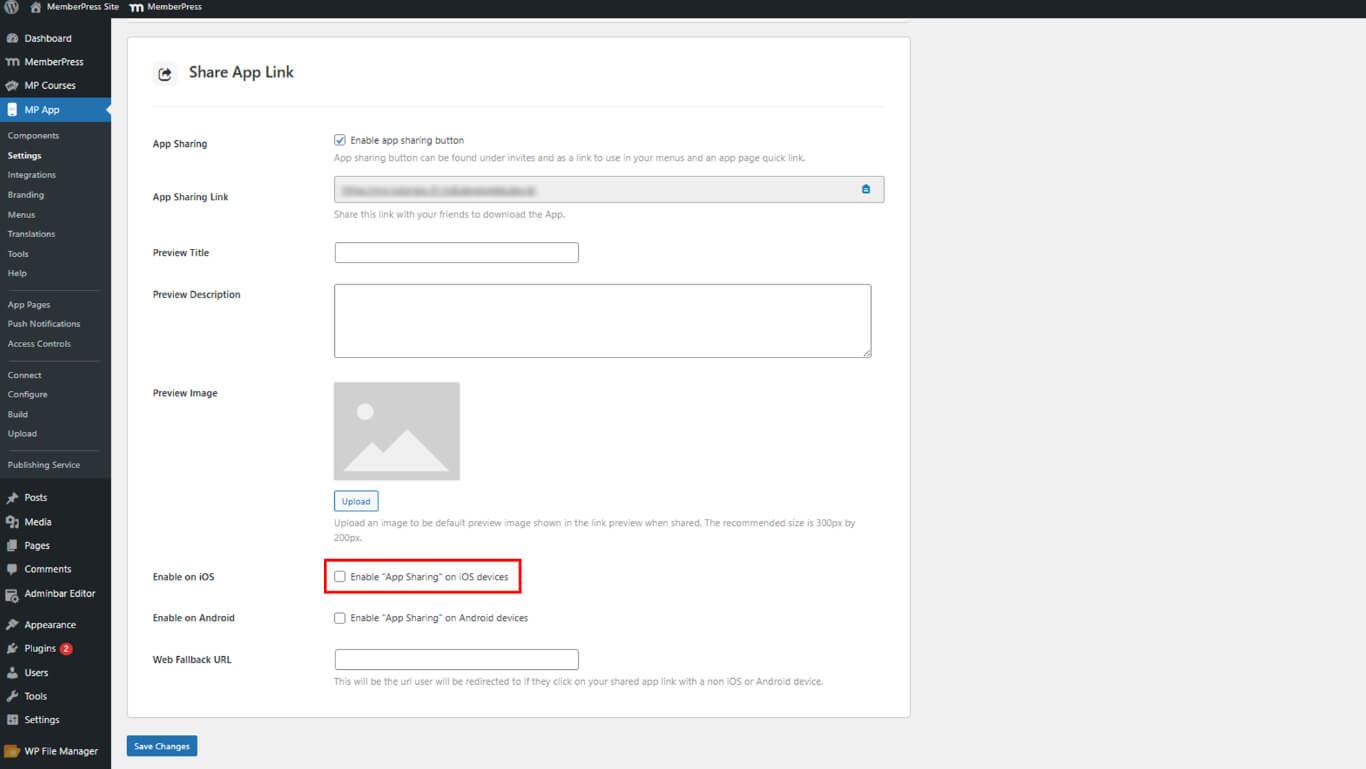
- Check Enable on iOS for Apple sharing support.
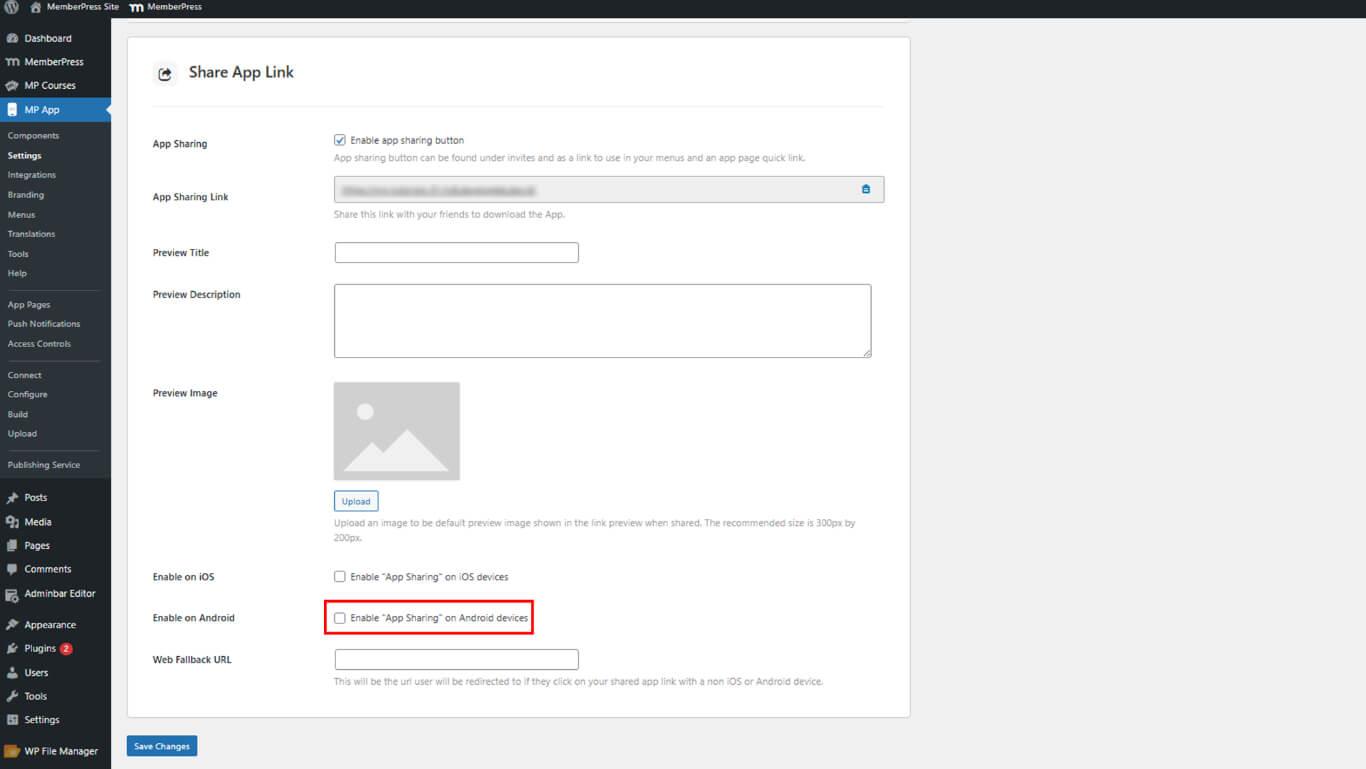
- Check Enable on Android for Google Play sharing.
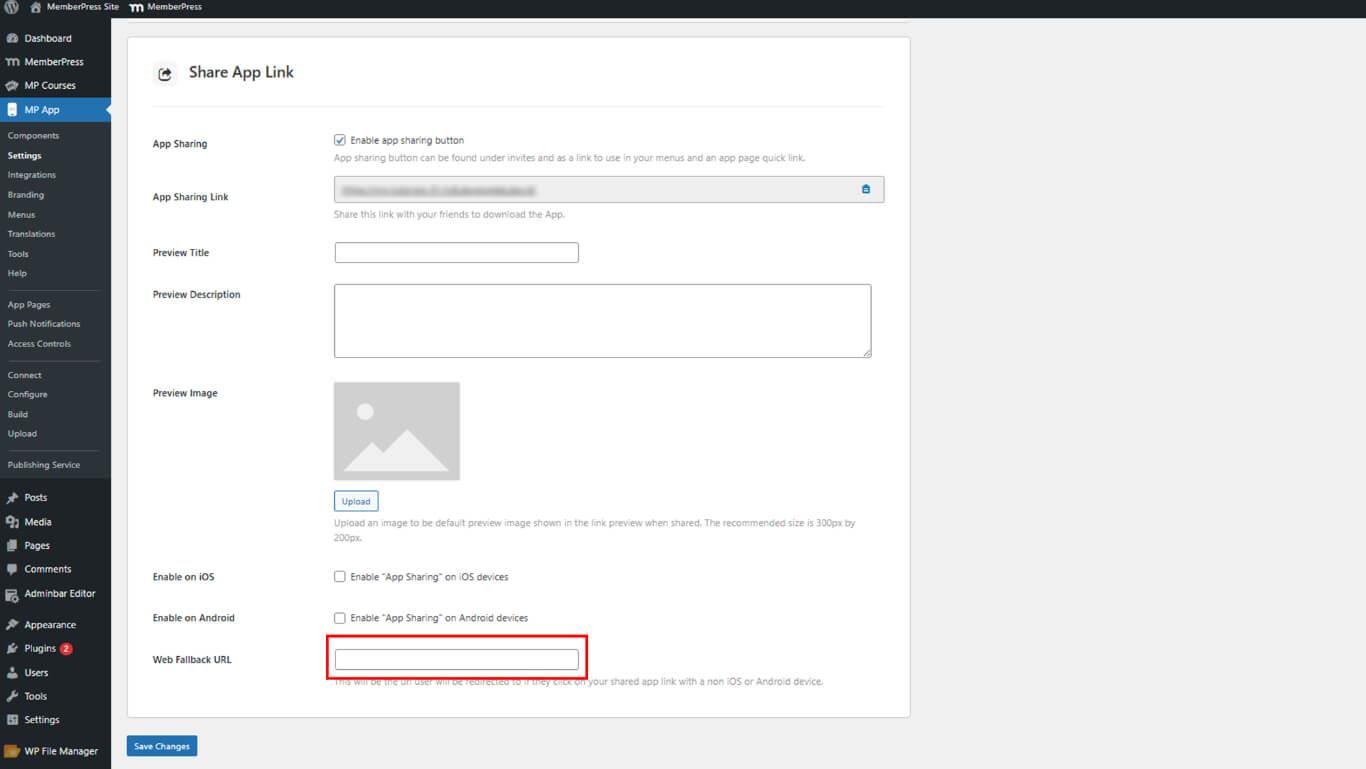
- In Fallback Link, paste a backup URL for desktop or unsupported devices.
Retrieving App Share URL
App share URL retrieval provides a shareable link for website integration and marketing campaigns.
- At the top of the Share App Link settings, locate the App Sharing Link.
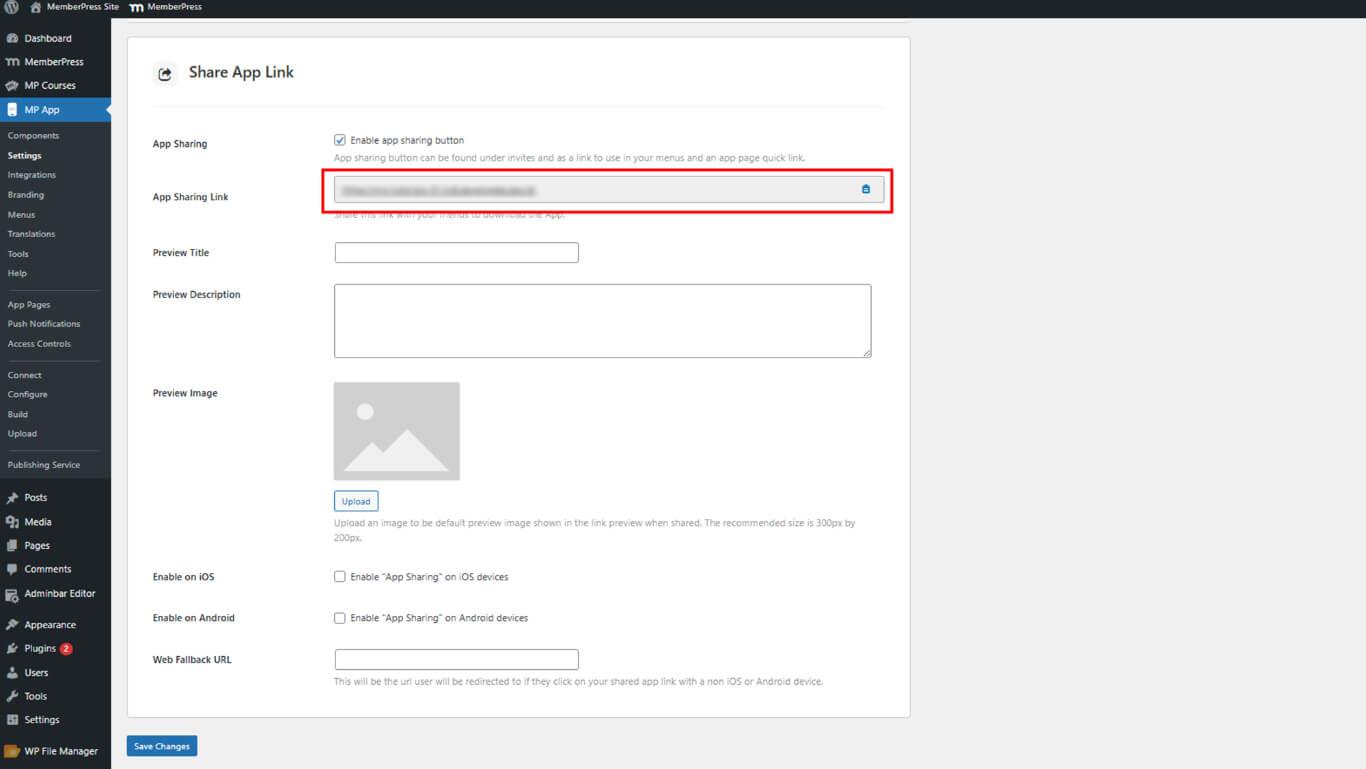
- Copy the displayed URL.
- Use the URL on website buttons, Quick Links, or navigation menus.
Sharing App from Mobile Application
Member-initiated sharing occurs through mobile application settings, enabling direct distribution.
- Open the MemberPress (iOS/Android) app on a mobile device.
- Go to More > Settings > Share this App.
- Tap the share option to open the share modal.
- Select a channel to send the app link (e.g., Contacts, Facebook, LinkedIn).










