

The Smart Banner feature prompts mobile visitors to download or open your MemberPress iOS/Android app directly from your website. When a visitor accesses your site on a mobile browser, they see a banner with options to download the app or open it if already installed.
This guide walks you through setting up the Smart Banner for iOS and Android platforms.
Understanding Smart Banner Feature
Smart Banner feature requirements define configurations for prompting mobile website visitors to access the native mobile application.
Mobile visitor detection identifies users accessing the website from mobile devices, enabling targeted banner display. Banner appears only to mobile users without desktop visitor interruption.
Download prompting encourages app installation for visitors without the app installed on their device. Download links direct users to the appropriate app store for the platform.
App opening capability launches the installed app directly from the website for existing users. Deep linking maintains session continuity between web and app experiences.
Platform-specific configuration enables a separate banner setup for iOS and Android devices. Independent platform configuration accommodates different app store requirements.
Application ID requirements use store identifiers to link banners to correct app listings. Proper ID configuration ensures users reach intended application downloads.
Retrieving App Store IDs
App store ID retrieval provides the necessary identifiers for Smart Banner configuration and platform linking.
Obtaining Apple App ID
Apple App ID retrieval extracts the numeric identifier from the App Store listing URL.
- Visit your app listing on the Apple App Store.
- Copy the numeric App ID after id= in the URL (e.g., 1558004735).
Obtaining Google Application ID
Google Application ID retrieval extracts the package identifier from the Play Store listing URL.
- Visit your app listing on the Google Play Store.
- Copy the value after id= in the URL (e.g., com.ball.ribbon).
Save both IDs for use in the configuration steps below.
Configuring Apple Smart Banner
Apple Smart Banner configuration establishes iOS device banner display with proper App Store linking.
- Go to Dashboard > MP AppKit > Configure > iOS Settings.
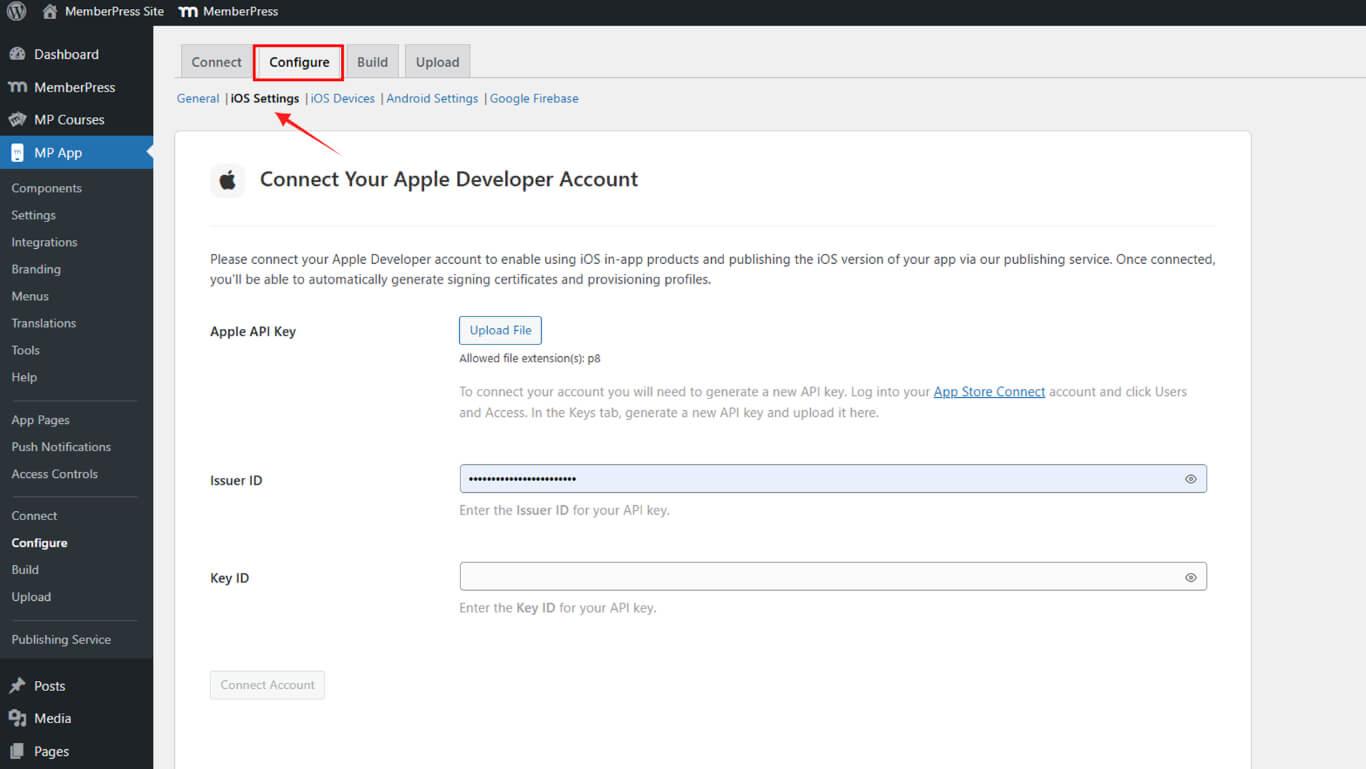
- Scroll to App Information.
- Paste your Apple App ID into the designated field.
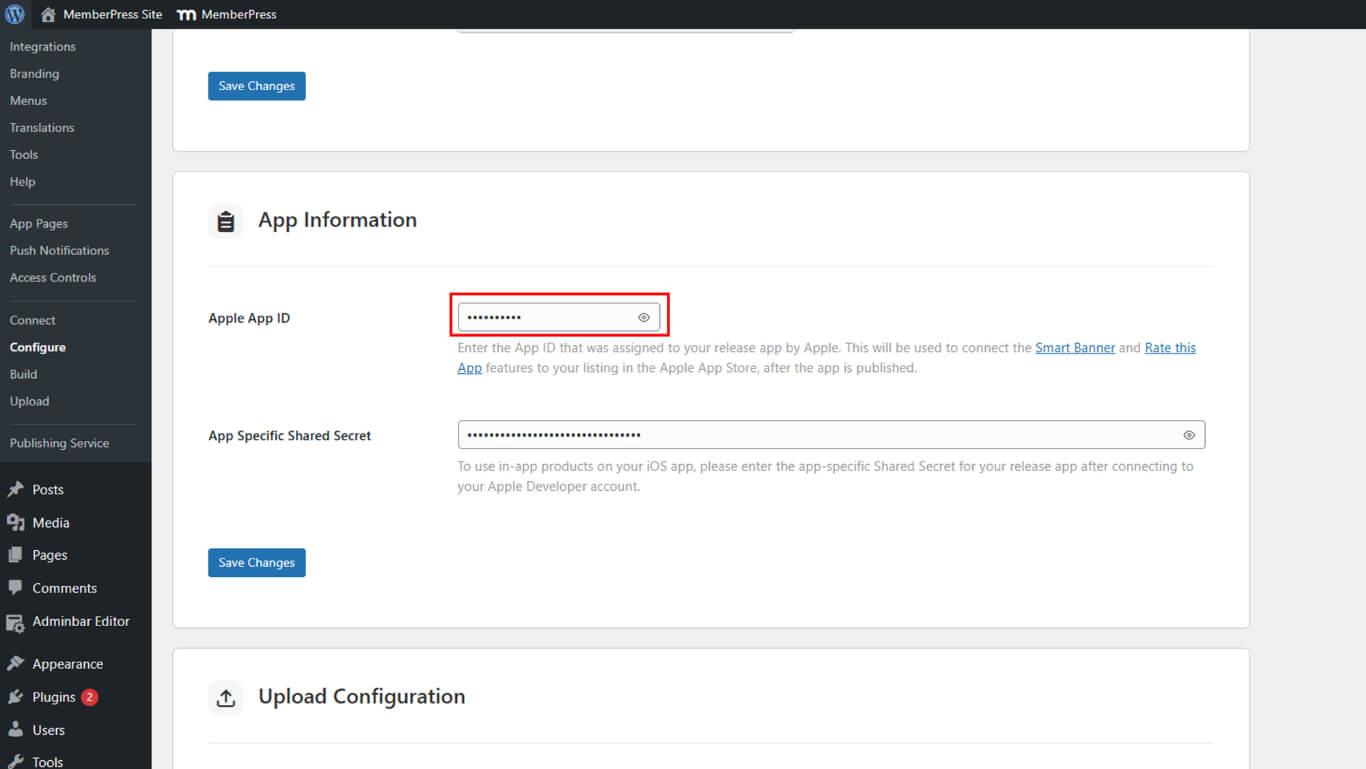
- Click Save Changes.
Configuring Android Smart Banner
Android Smart Banner configuration establishes Android device banner display with proper Play Store linking.
- Go to Dashboard > MP AppKit > Configure > Android Settings.
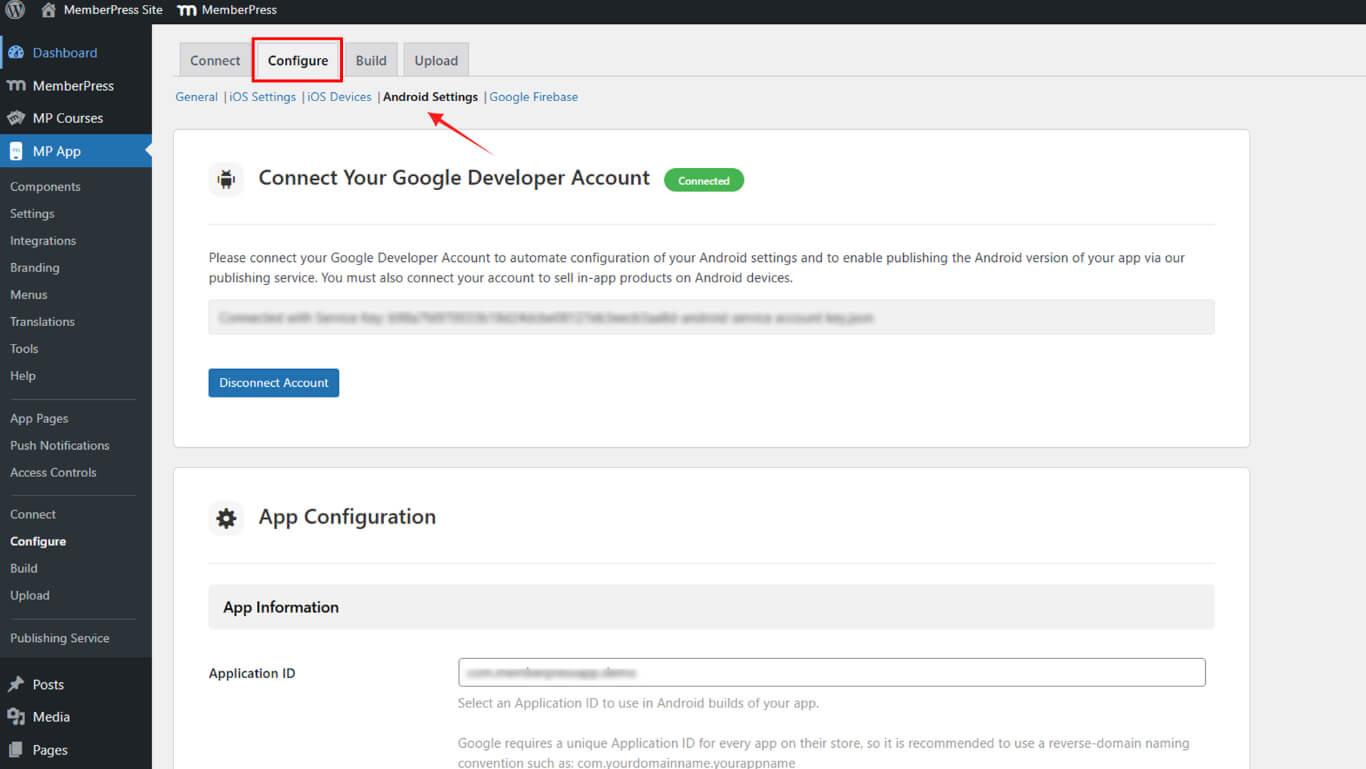
- Confirm your Application ID is listed under App Configuration.
- Ensure the box I have registered this Application ID in Google Developer Account is checked.
- Click Save Changes.
Enabling Smart Banner
Smart Banner enablement activates banner display for mobile website visitors on configured platforms.
- Go to Dashboard > MP AppKit > Settings > Smart Banner.
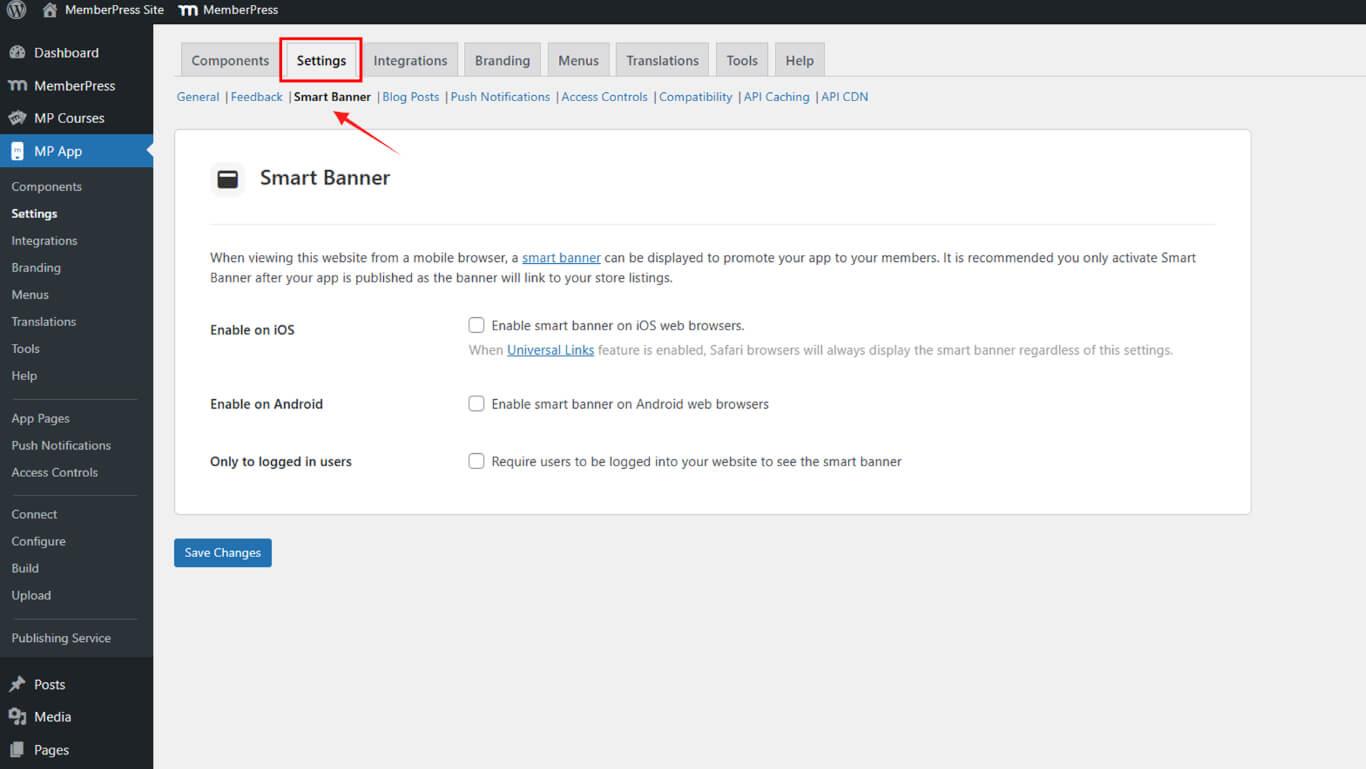
- Check Enable on iOS and/or Enable on Android.
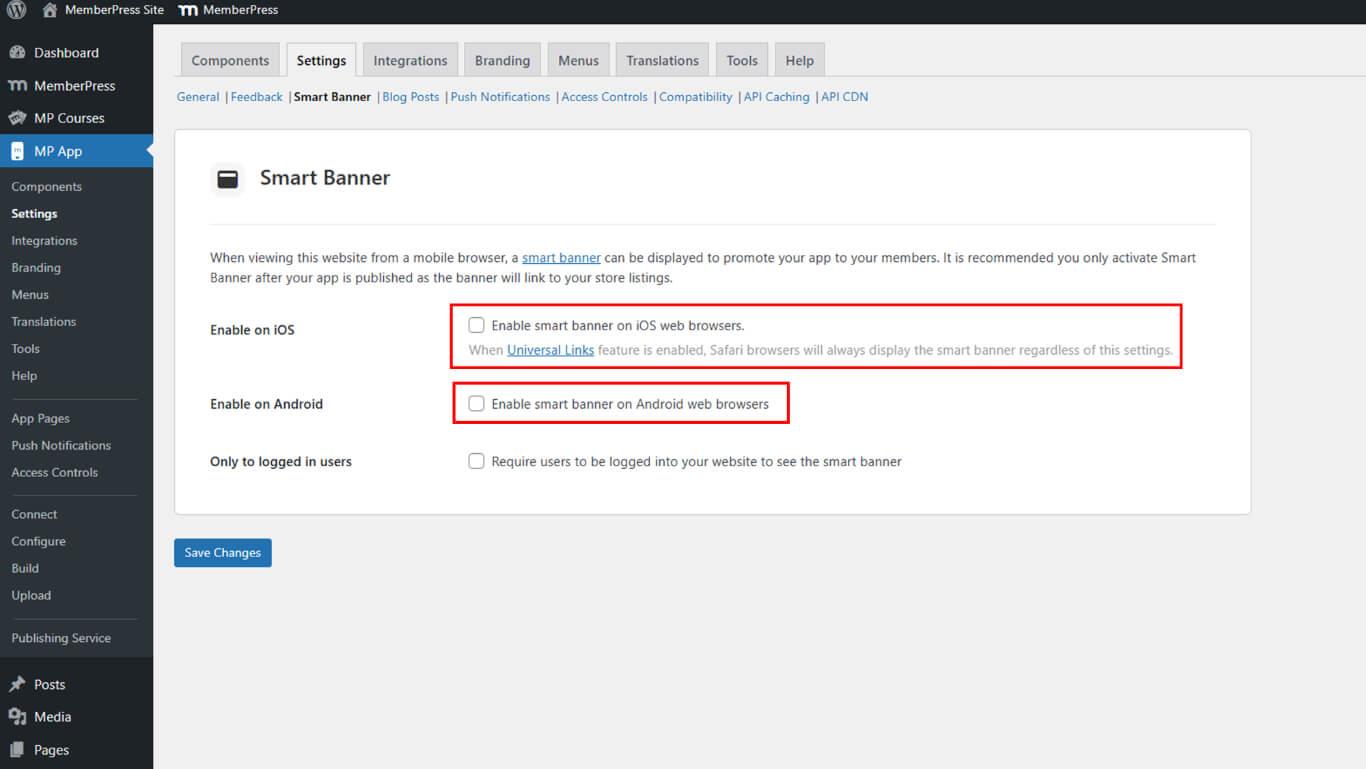
- Click Save Changes.










