

MemberPress coupons allow membership site owners to offer discounts to members. Coupons can apply percentage or fixed-amount discounts to one-time payments or recurring subscriptions.
This document explains how to create a coupon and configure its settings.
Creating a Coupon
Follow these steps to create a new coupon:
- Navigate to Dashboard > MemberPress > Coupons.
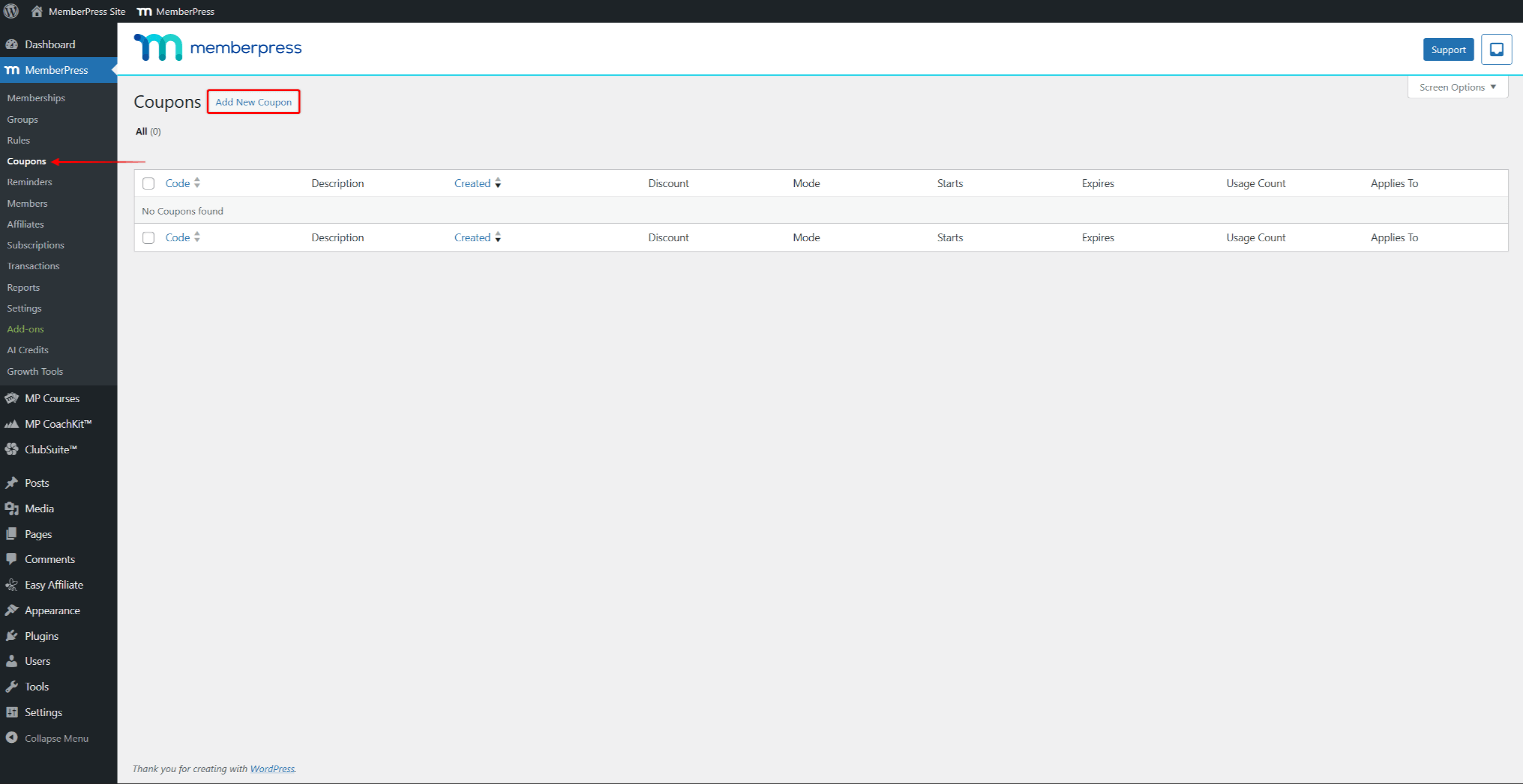
- Click the Add New Coupon button at the top of the page.
- Update a coupon code if needed.
- Under the Coupon Options panel, configure the coupon settings.
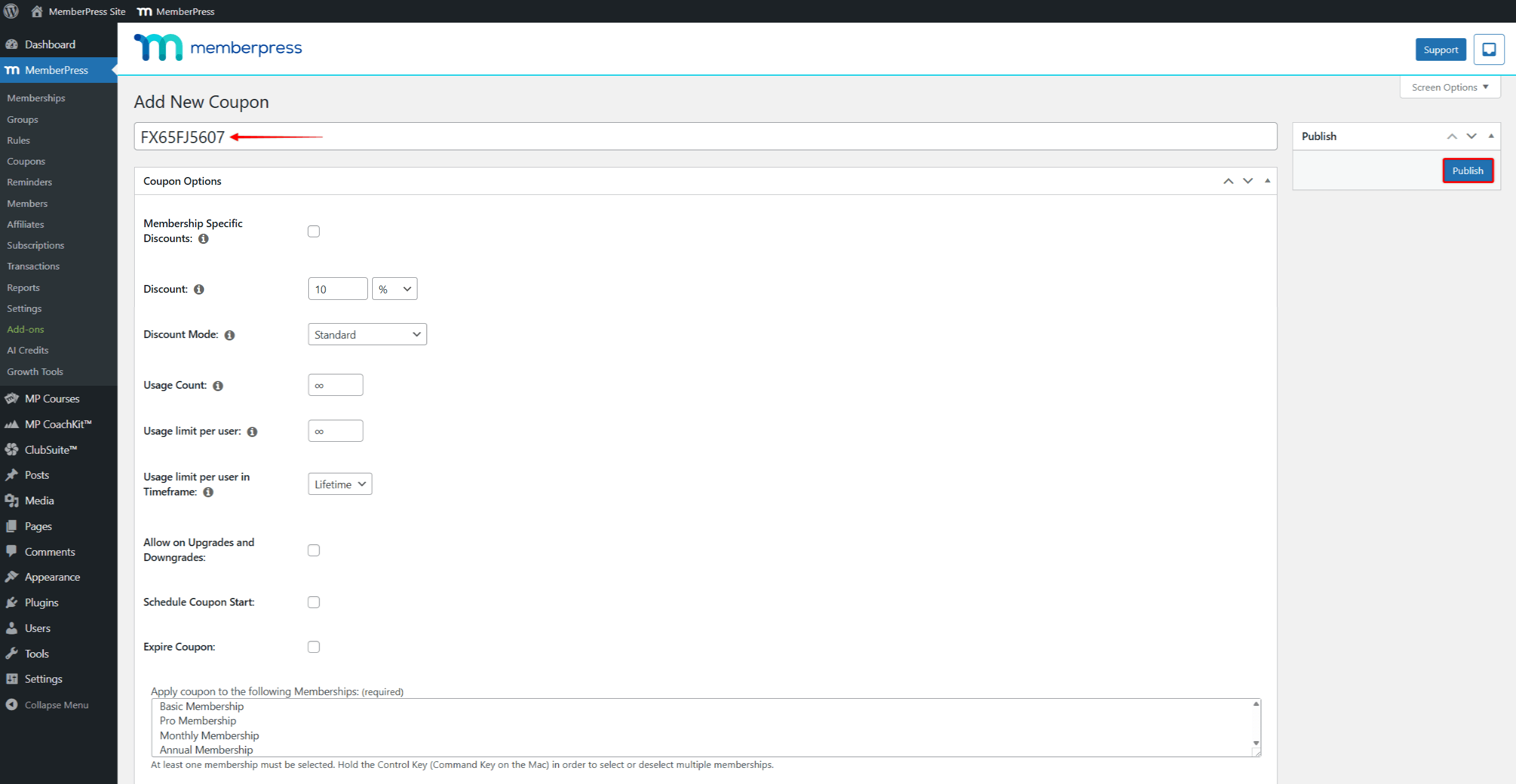
- Click the Publish button to save the coupon.
Coupon Settings
MemberPress coupons provide flexible discount options for memberships. You can configure the discount amount, usage limits, validity dates, and applicable memberships to align with promotional requirements.
Coupon Code
The Coupon Code field contains a randomly generated code by default. Still, you can change it to any specific code if needed (e.g., WELCOME10 for a signup discount of 10%).
To change the coupon code, click the code field and type any text you need.
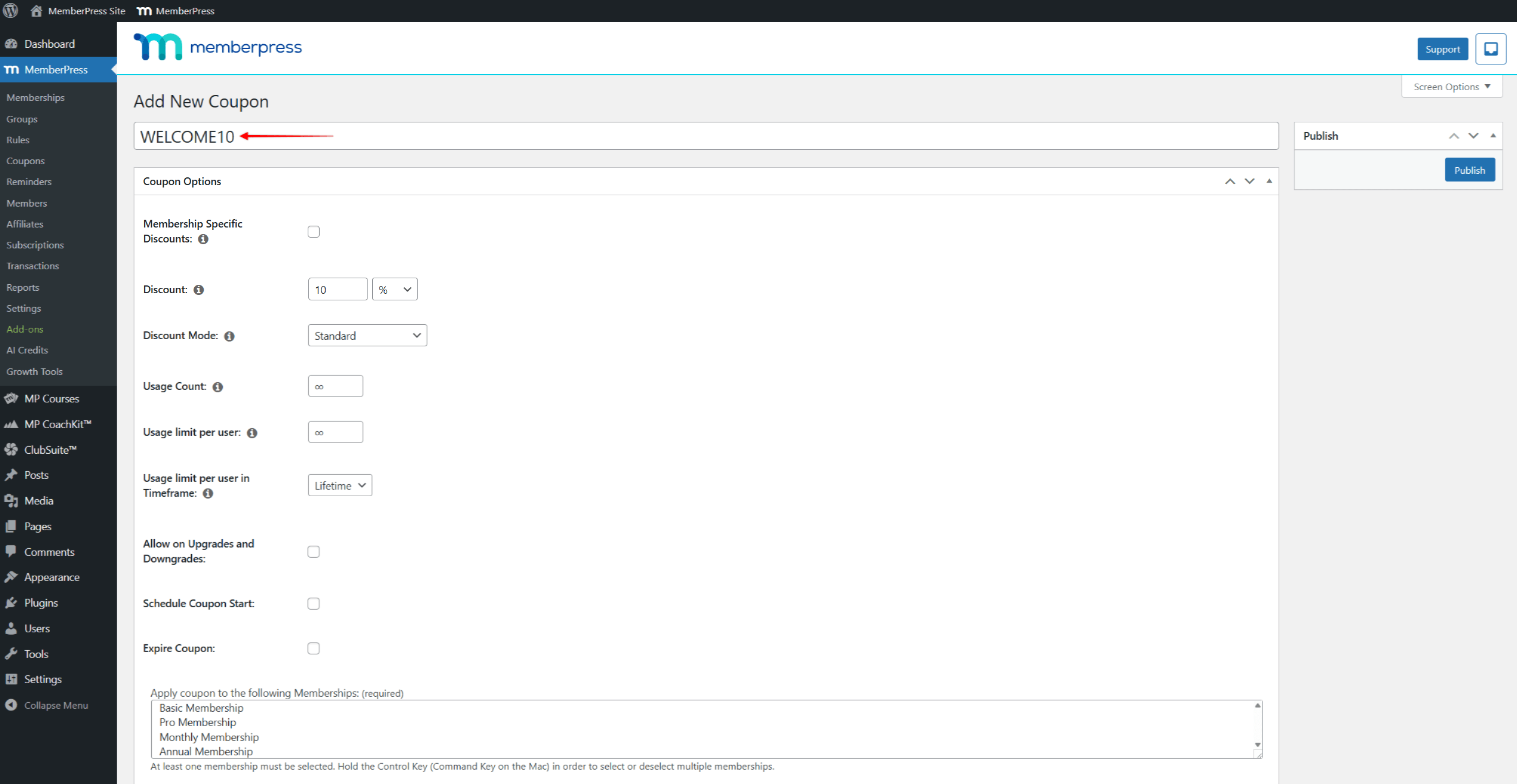
Coupon codes should only contain letters, numbers, hyphens, or underscores. Spaces and special characters are not allowed. Furthermore, keep in mind that MemberPress coupons are not case-sensitive.
Discount Amount
The Discount field sets the discount value. Here, you need to enter a number and select either the percentage (%) or the default currency.
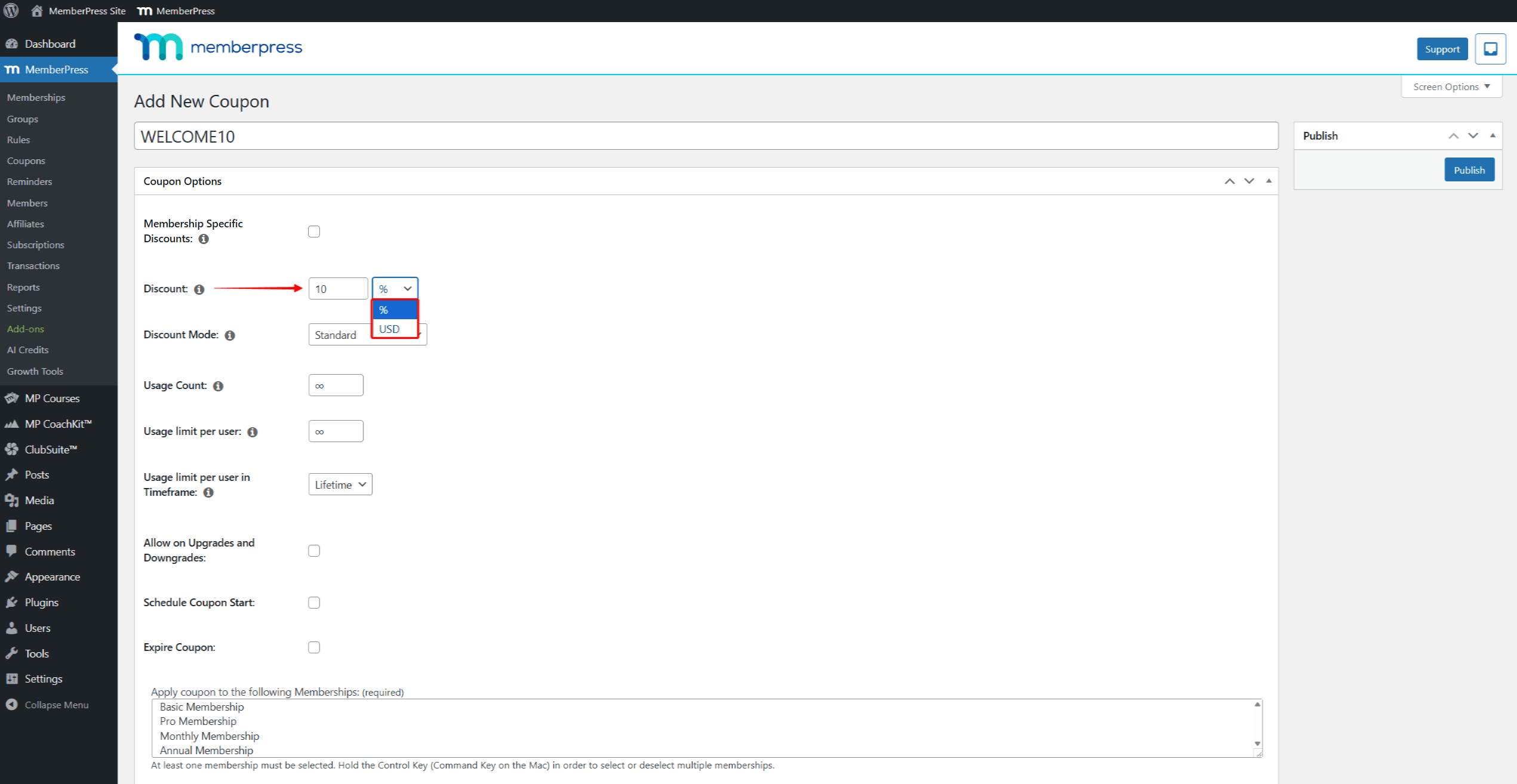
Thus, you can set the discount as a percentage or as a fixed amount deducted from the membership price.
Discount Mode
MemberPress offers three discount modes:
- Standard – The discount applies to every payment for the subscription's lifetime;
- First Payment – This mode works the same as the Standard mode, with an additional special discount on the first payment. Thus, an additional First Payment Discount field is available.
- Trial Period Override – This mode overrides the membership's trial period settings with custom trial days and amounts.
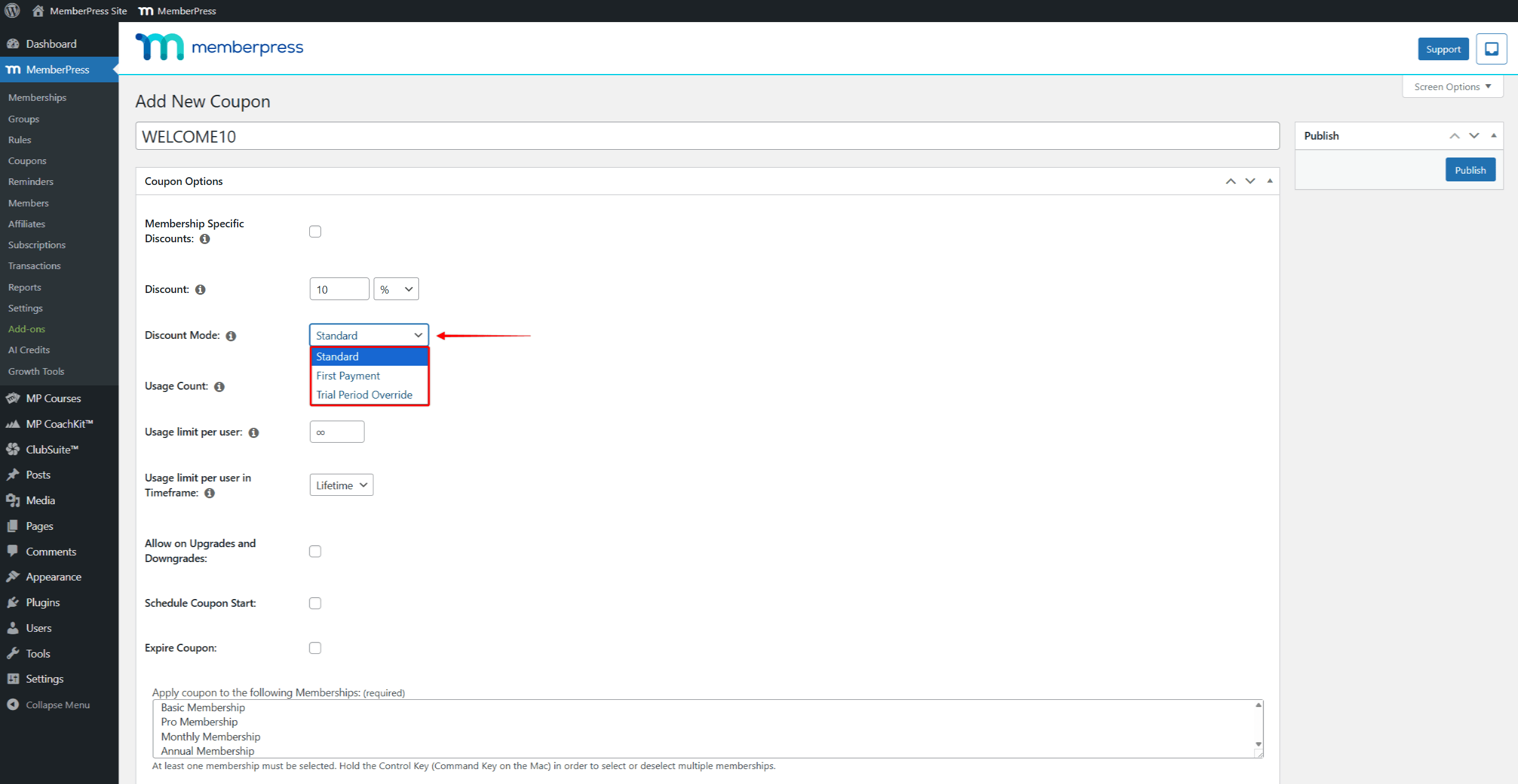
Thus, in Standard mode, the discount applies to each billing cycle for recurring subscriptions. For one-time payments, it applies only to that single payment.
With the Trial Period Override and the First Payment modes, you can apply multiple discount settings. The Trial Period Override allows you to add a trial or modify the existing trial duration or amount. Thus, you can add a custom free or paid trial period to memberships (e.g. first 90 days for 1 USD).
On the contrary, with the First Payment mode, you can discount the first payment amount, but not the duration. Hence, you can add a different discount for the first billing cycle and a Standard discount for the rest. Also, you can discount only the first payment. To do this, add the discount amount to the First Payment Discount field, and leave the main Discount field set to zero.
Membership-Specific Discount Coupons
The Membership Specific Discounts option allows applying different discount amounts and discount modes to each membership using the same coupon. This feature is useful for promotional campaigns where one coupon code should apply varying discounts across different membership levels.
For example, the “WELCOME10” coupon could apply a 10% first payment discount to the Basic Membership. The same coupon could also apply a permanent 10% discount on all payments for the Pro Membership.
Enabling Membership-Specific Discounts
Follow these steps to create a coupon with membership-specific discounts:
- Navigate to Dashboard > MemberPress > Coupons.
- Click the Add New Coupon button, or edit an existing coupon.
- Under the Coupon Options panel, check the Membership Specific Discounts option.
- Select the memberships where this coupon should apply in the “Apply coupon to the following Memberships” field. Hold the Control key (Command key on Mac) while clicking to select multiple memberships.
- Configure the discount settings for each selected membership in the Discount Settings boxes that appear at the bottom of the page.
- Click the Publish or Update button to save the coupon.
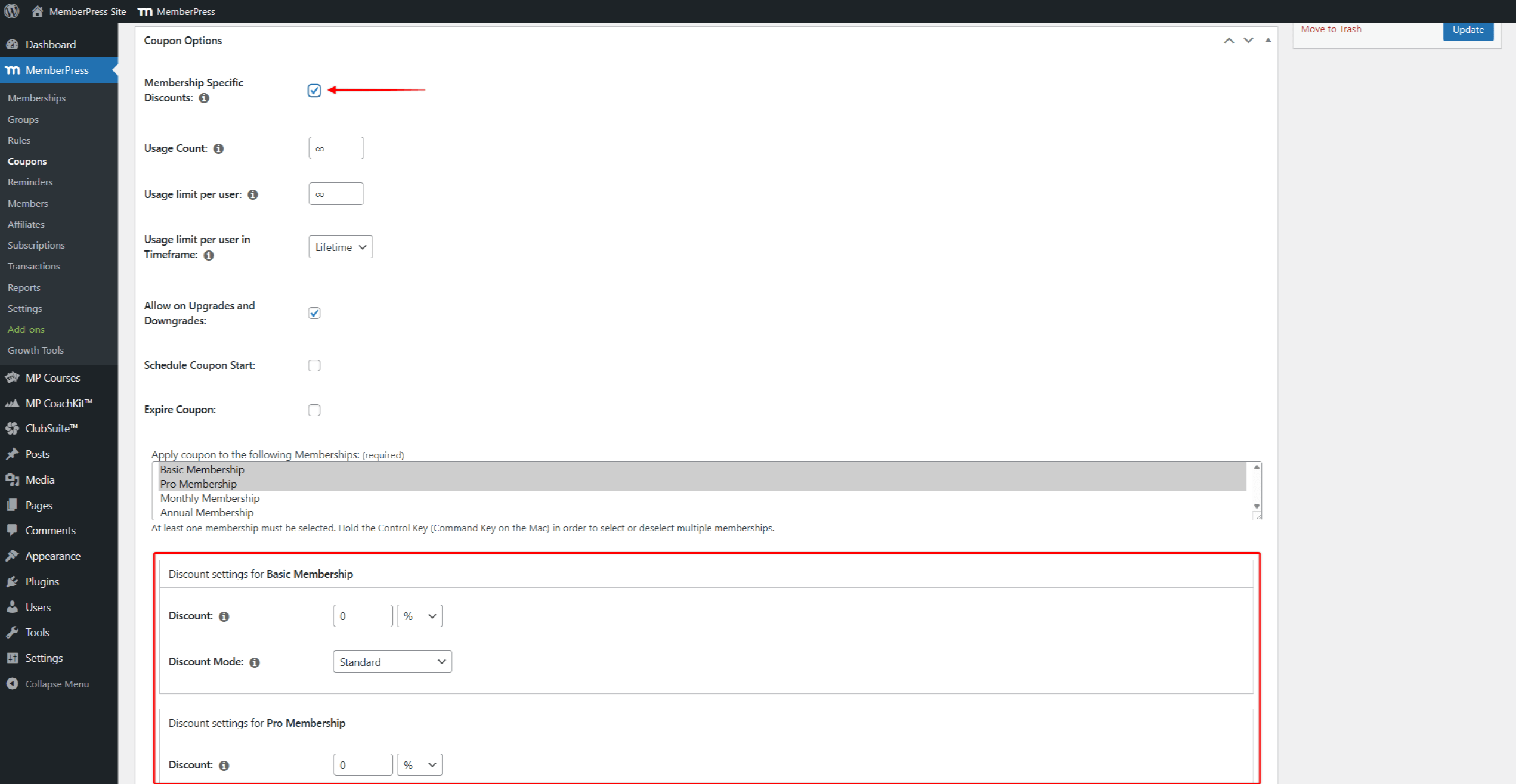
Configuring Individual Membership Discounts
When Membership Specific Discounts is enabled, a separate Discount Settings box appears for each selected membership. Each box contains:
- Discount – Sets the discount value for that specific membership. Enter a number and select either percentage (%) or the default currency;
- Discount Mode – Choose between Standard, First Payment, or Trial Period Override modes. This setting works the same as the standard Discount Mode but applies only to that membership.
The main Discount and Discount Mode fields are hidden when this option is enabled. All discount configurations must be done within the individual membership settings boxes.
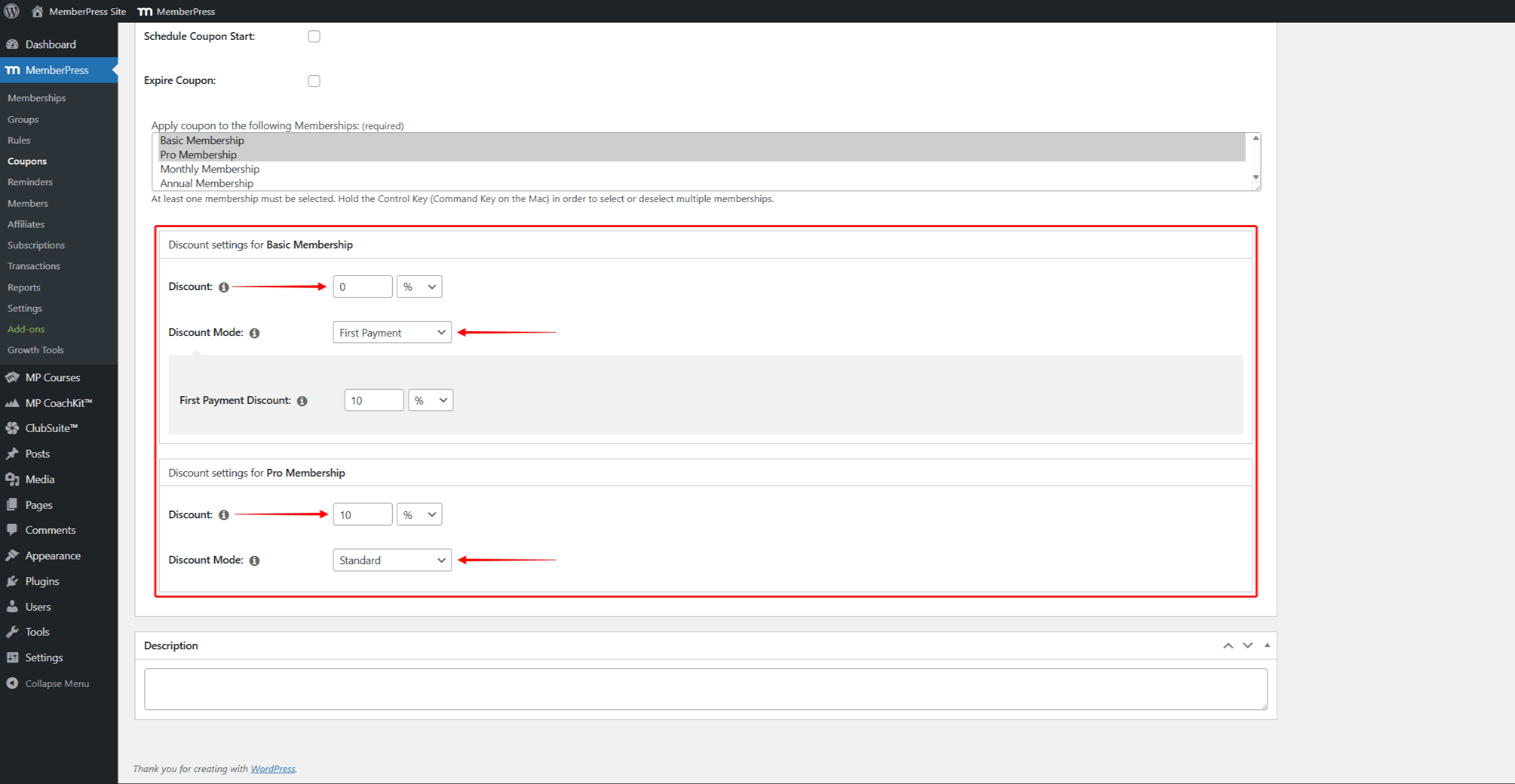
Usage Limits
Usage Count sets how many times the coupon can be used in total. The default is unlimited.
Usage Limit Per User defines how many times a single member can use the coupon.
This feature can be combined with Usage Limit Per User in Timeframe. Hence, the usage limit can be set to monthly (e.g., once per month), yearly, or lifetime.
Upgrade and Downgrade Option
Enable Allow on Upgrade and Downgrade to let members use this coupon when changing their membership plan.
Coupon Start and Expiry
Schedule Coupon Start sets a future activation date. Members cannot use the coupon before this date. Coupons activate at 00:00:01 AM on the selected date.
Expire Coupon sets when the coupon stops working. Coupons expire at 11:59:59 PM on the selected date.
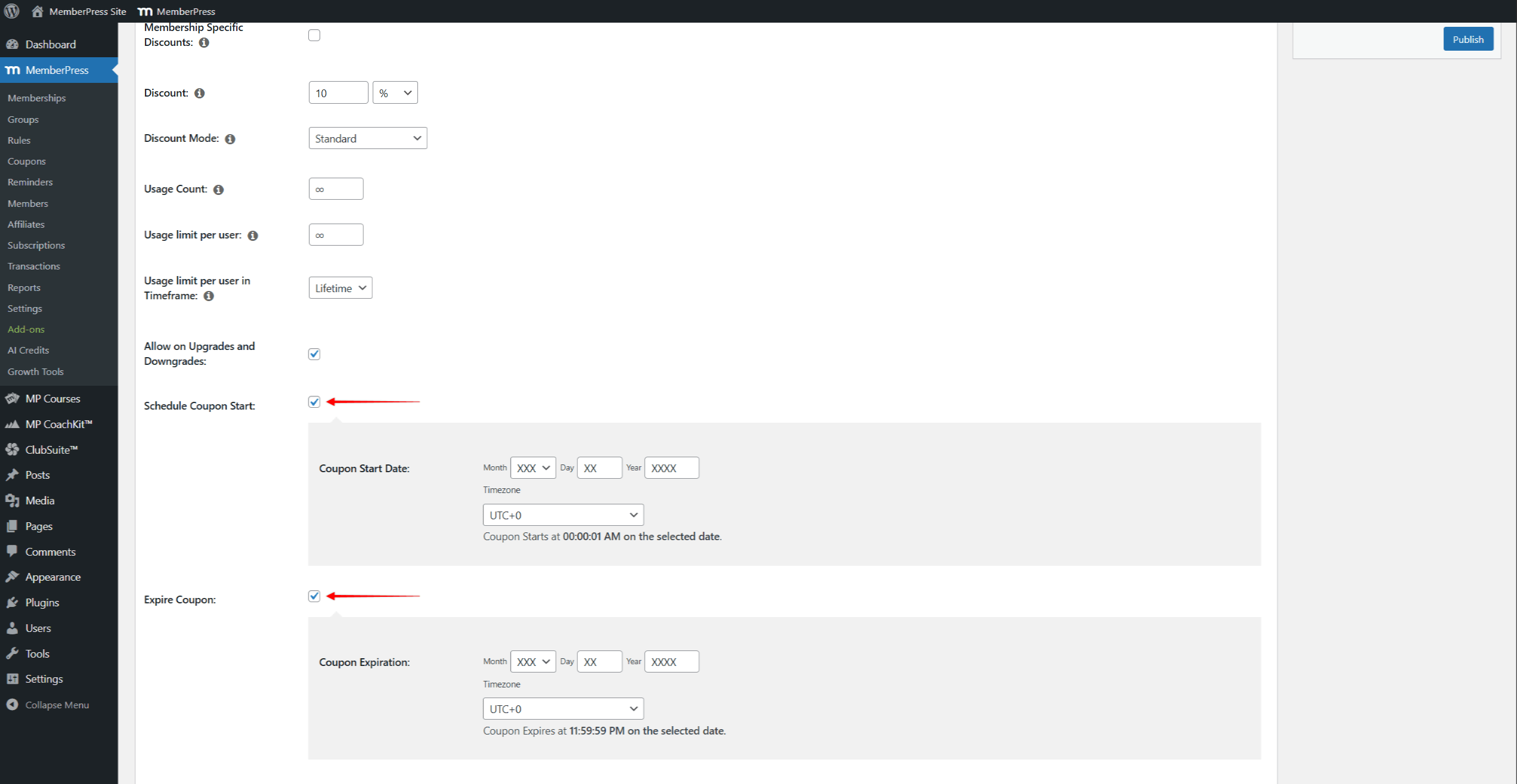
Both the start and expire coupon settings allow Timezone selection.
Membership Selection
The Apply Coupon to the Following Memberships section lists all published memberships. At least one membership must be selected for the coupon to work.
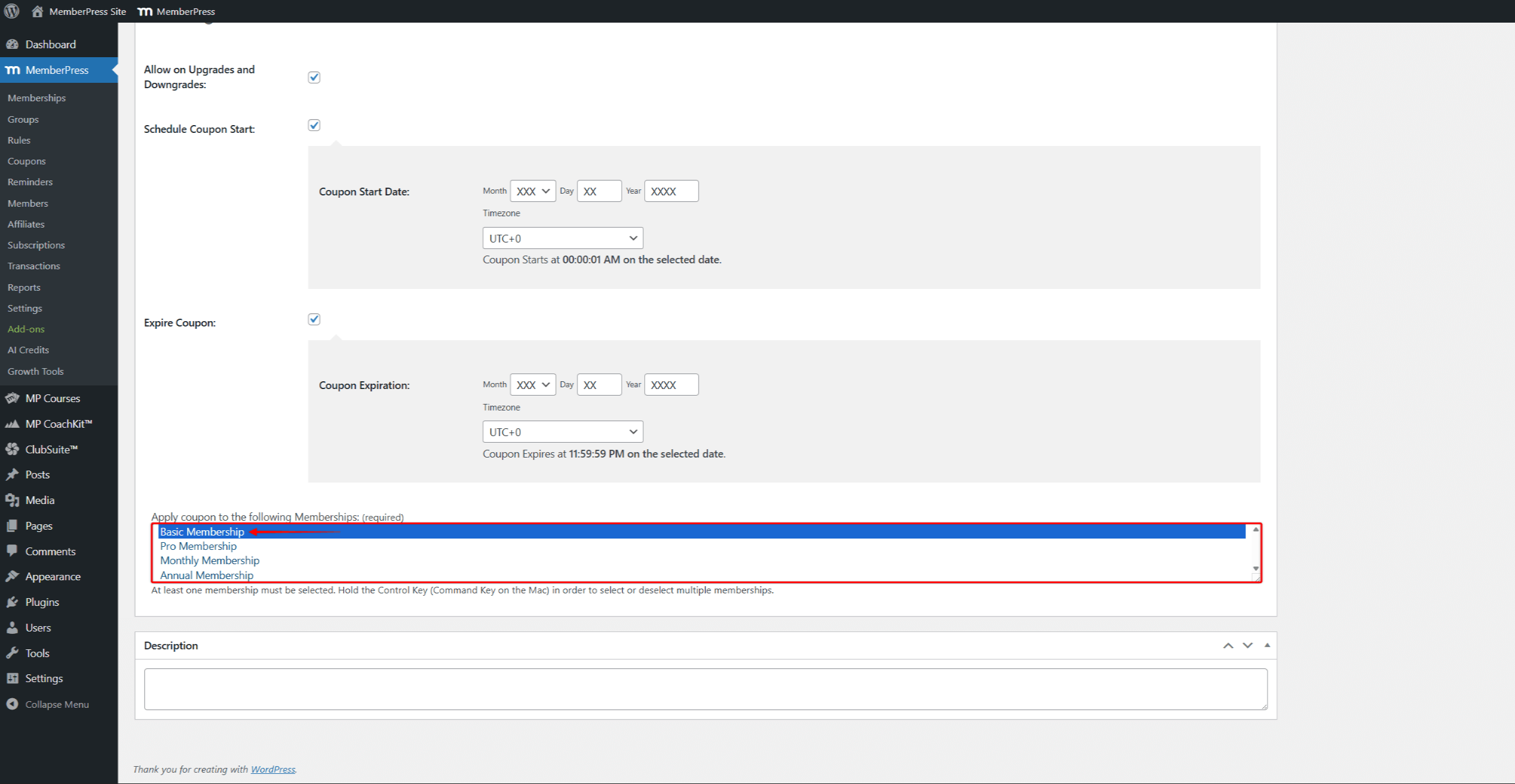
Not selecting any membership makes the coupon invalid, and members will not be able to use it at checkout.
Associate Affiliate
This option appears on the right-hand side only when Easy Affiliate is active.
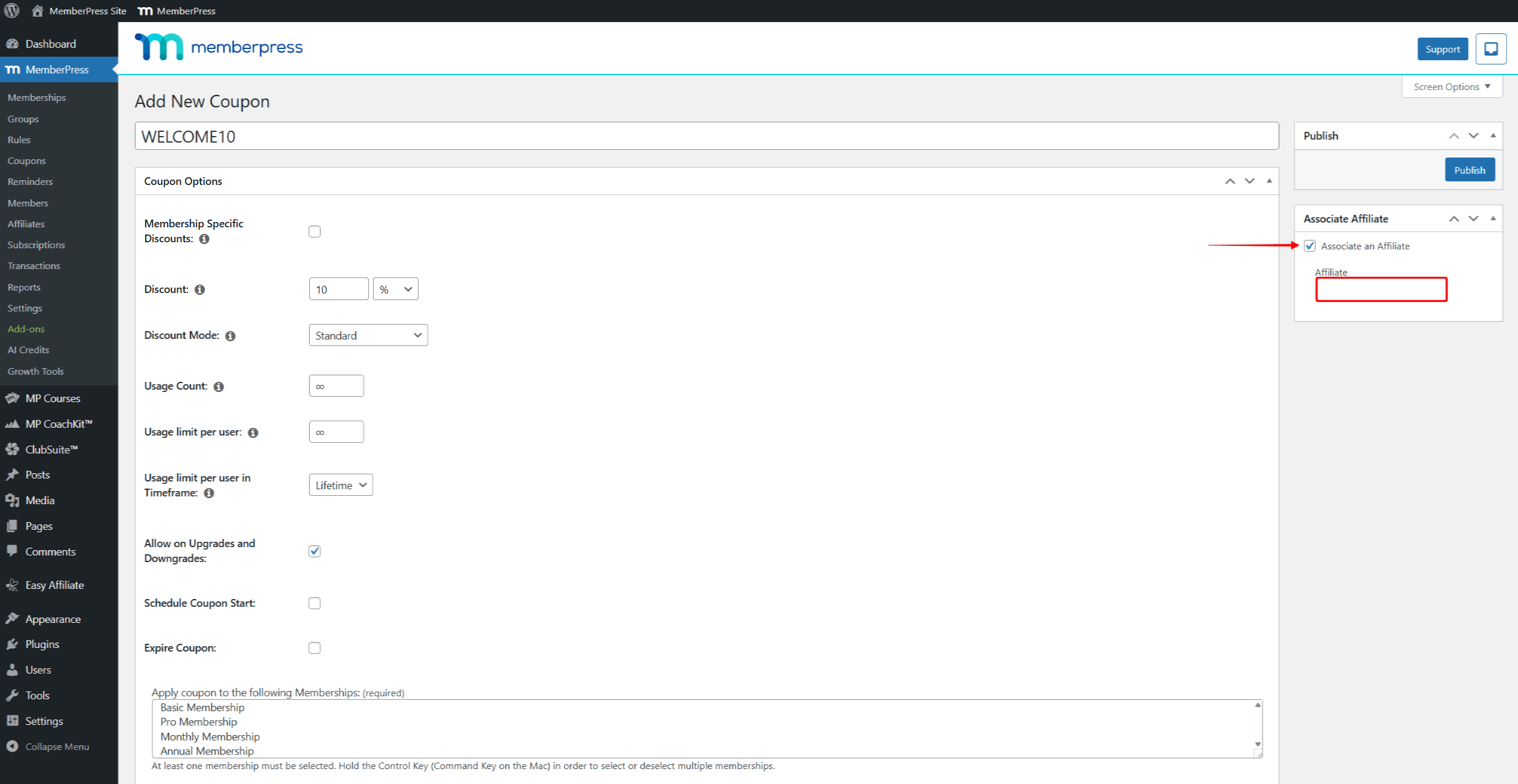
Enable the Associate an Affiliate checkbox and enter an affiliate username. As a result, that affiliate will receive a commission on every sale on which this coupon is used.
Description
The Description field is optional and only visible to admins. Members do not see this text.
This field lets you add a reference or special instructions to each coupon.
Displaying the Coupon Field
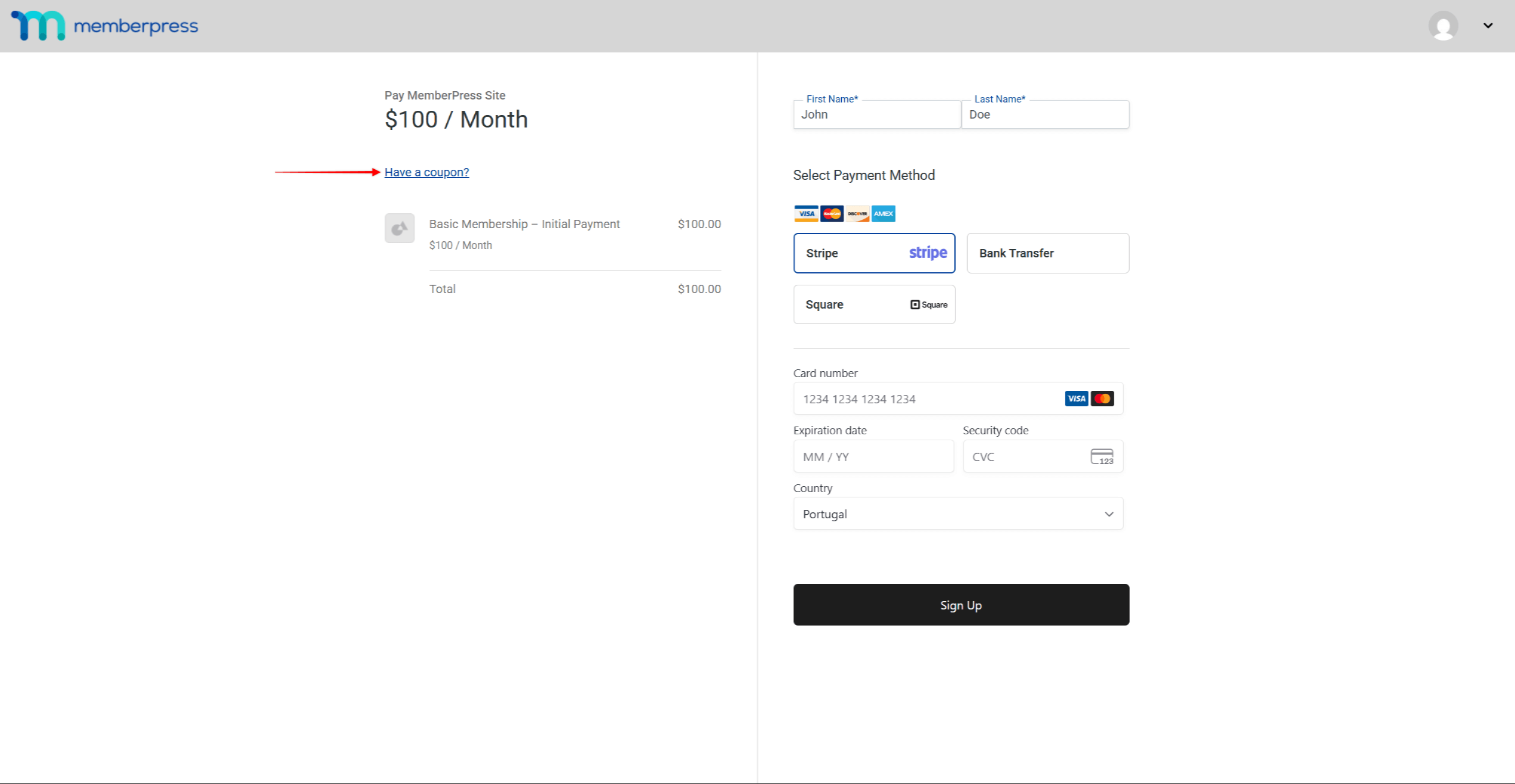
The coupon field is hidden by default on registration pages. Members need to click the “Have a Coupon” link at the bottom of the registration form to open this field.
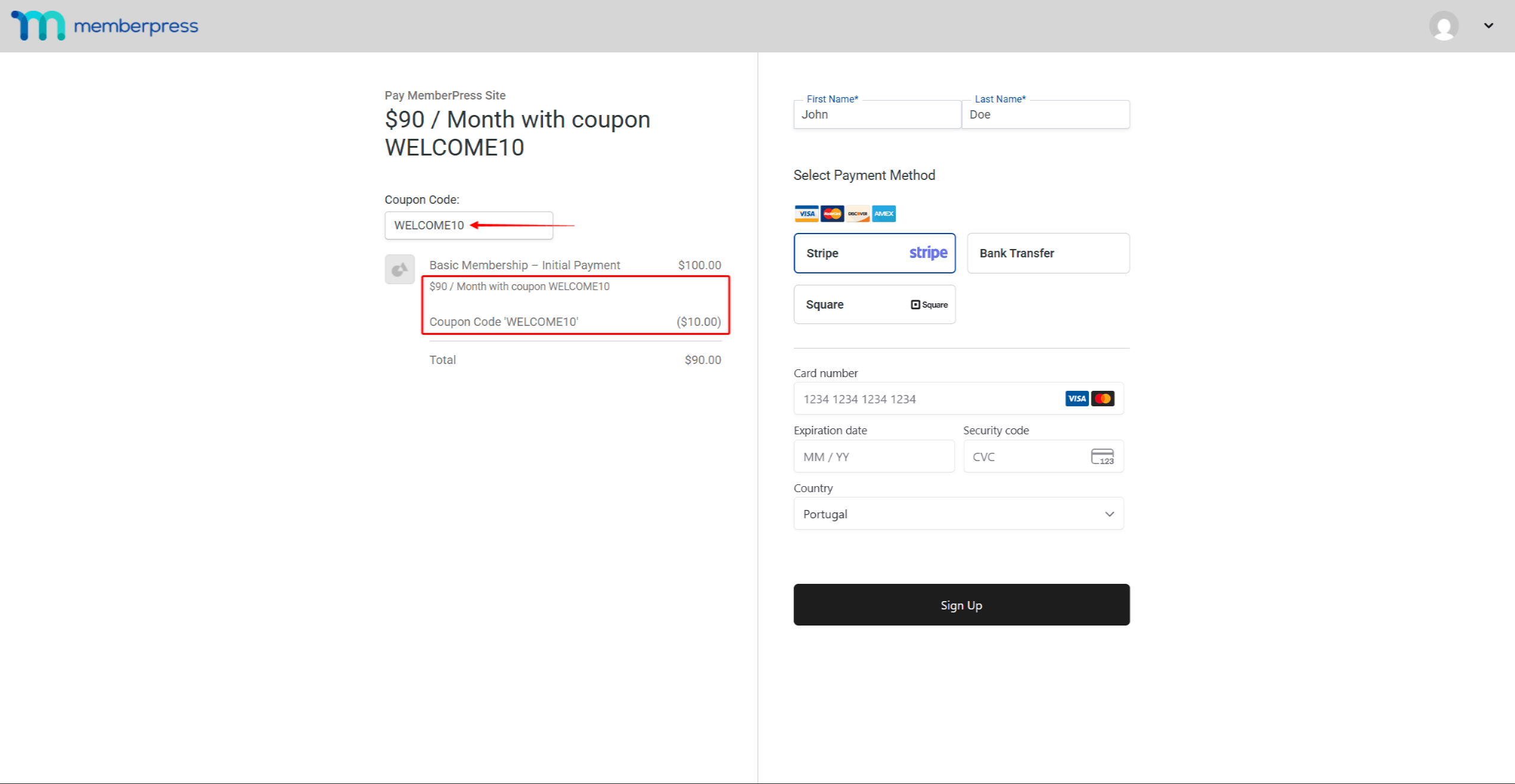
Once the field is open, members can add the coupon code to it. This will apply a discount to the purchase, and also leave a coupon reference for both members and admins.
If needed, you can force the coupon field to open automatically on the Registration form by adding a custom code.
Auto-Populating Coupons
Furthermore, you can automatically apply a coupon to the specific membership using the URL parameters.
In addition, you can apply a specific coupon to all memberships by adding a custom code.










