

The Report a Bug feature allows members to submit detailed bug reports. Members can submit reports that include a description, media attachments, and device information directly from the MemberPress iOS/Android app.
This guide walks you through enabling the Report a Bug feature in the MemberPress AppKit. Furthermore, it explains how users can submit reports for quicker issue tracking and resolution.
Understanding the Report a Bug Feature
The Report a Bug feature requirements define configurations for enabling member-submitted bug report collection and delivery to administrators.
Bug reporting enablement activates the in-app report submission interface, providing members with a direct issue communication channel. The reporting feature transforms members into active quality assurance contributors.
Email delivery configuration directs submitted reports to the designated recipient address for review and response. Proper email setup ensures bug reports reach responsible administrators promptly.
Media attachment support allows members to include images or videos documenting issues or problems. Visual bug reports provide context, improving issue understanding and reproduction.
Device information inclusion automatically appends technical details to bug submissions, aiding troubleshooting and debugging. Platform, version, and device data help diagnose reported problems efficiently.
Custom subject configuration enables bug report email organization and filtering in the recipient's inbox. Subject customization improves report management and prioritization workflows.
Enabling Bug Reporting
Bug reporting enablement activates report submission functionality within the mobile application settings interface.
- In your WordPress Dashboard, go to Dashboard > MP AppKit > Settings > Feedback.
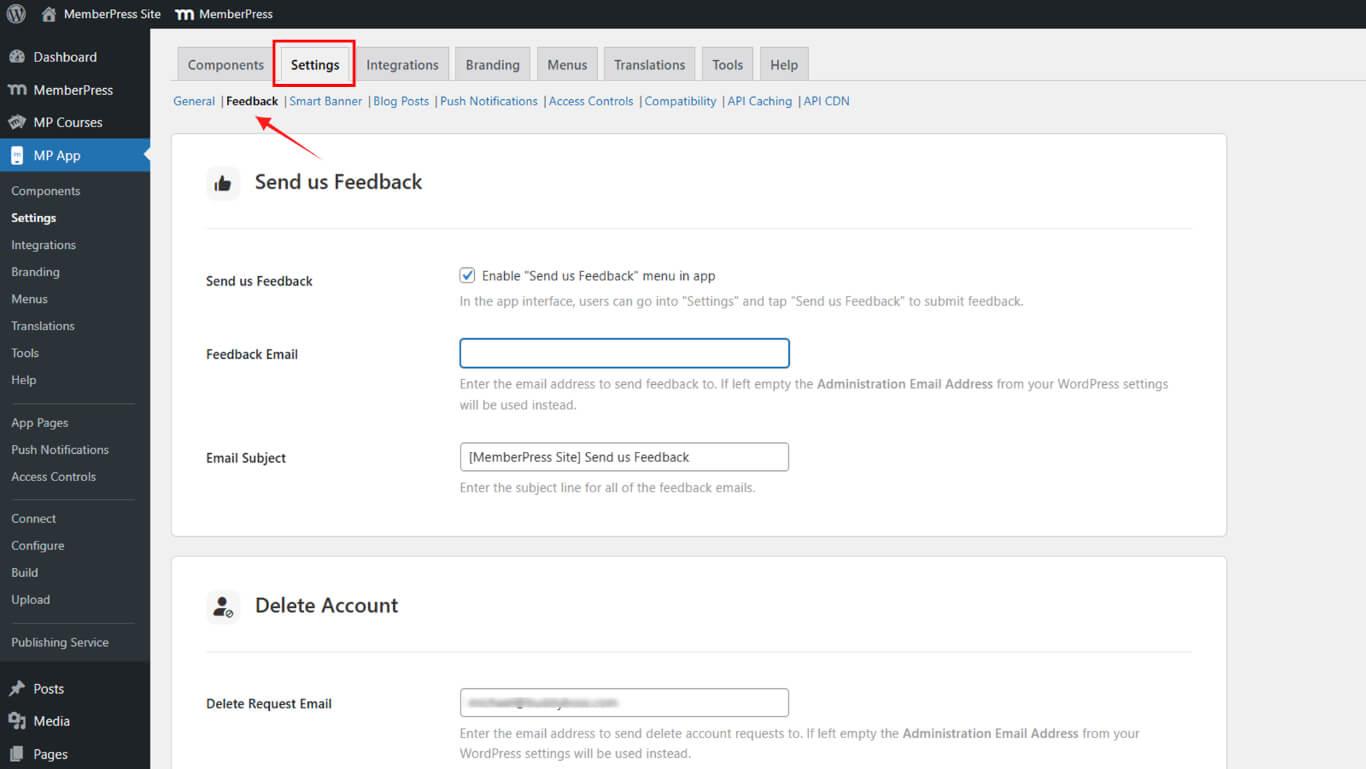
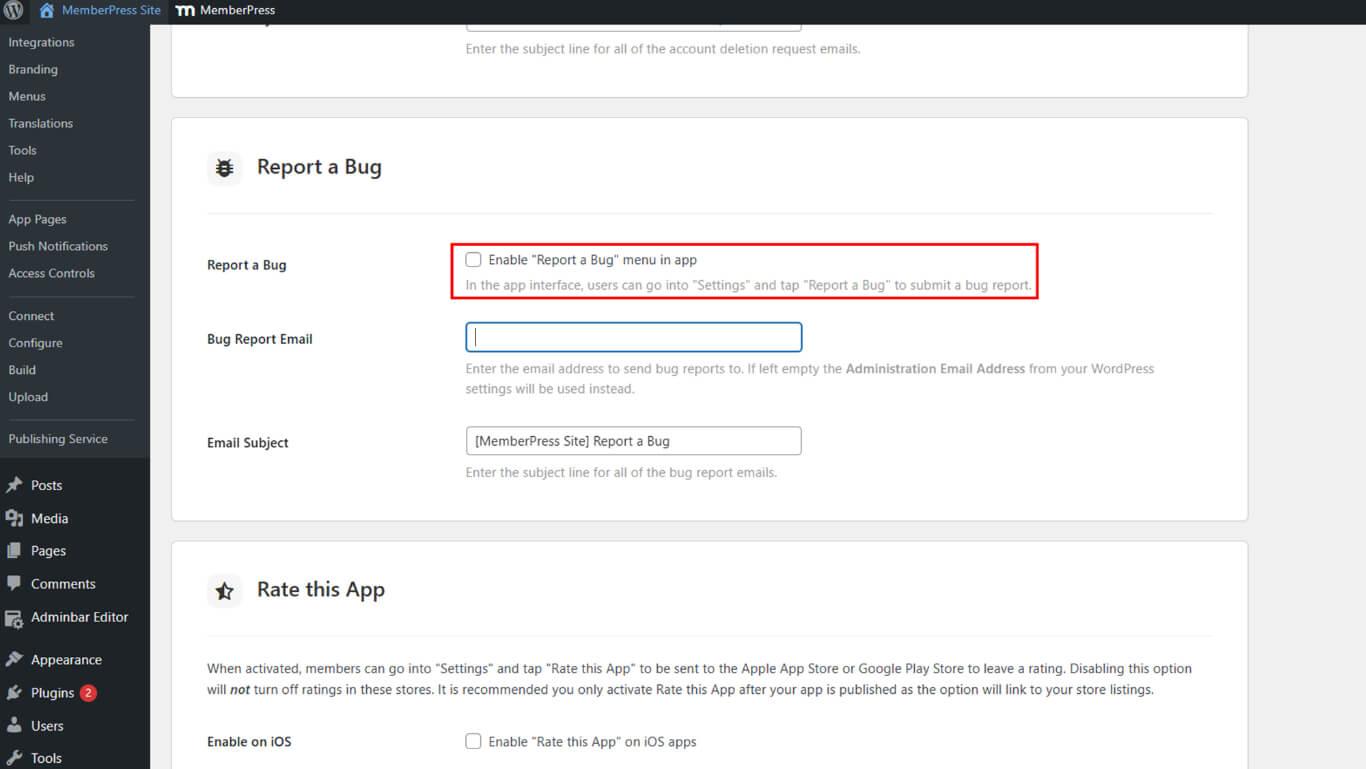
- Locate the Report a bug section.
- Check the Report a Bug box to activate the feature in the app.
Setting Bug Report Email
Email configuration directs bug reports to the appropriate recipient for review and issue resolution.
- In the Bug Report Email field, enter the email address where bug reports should be sent.
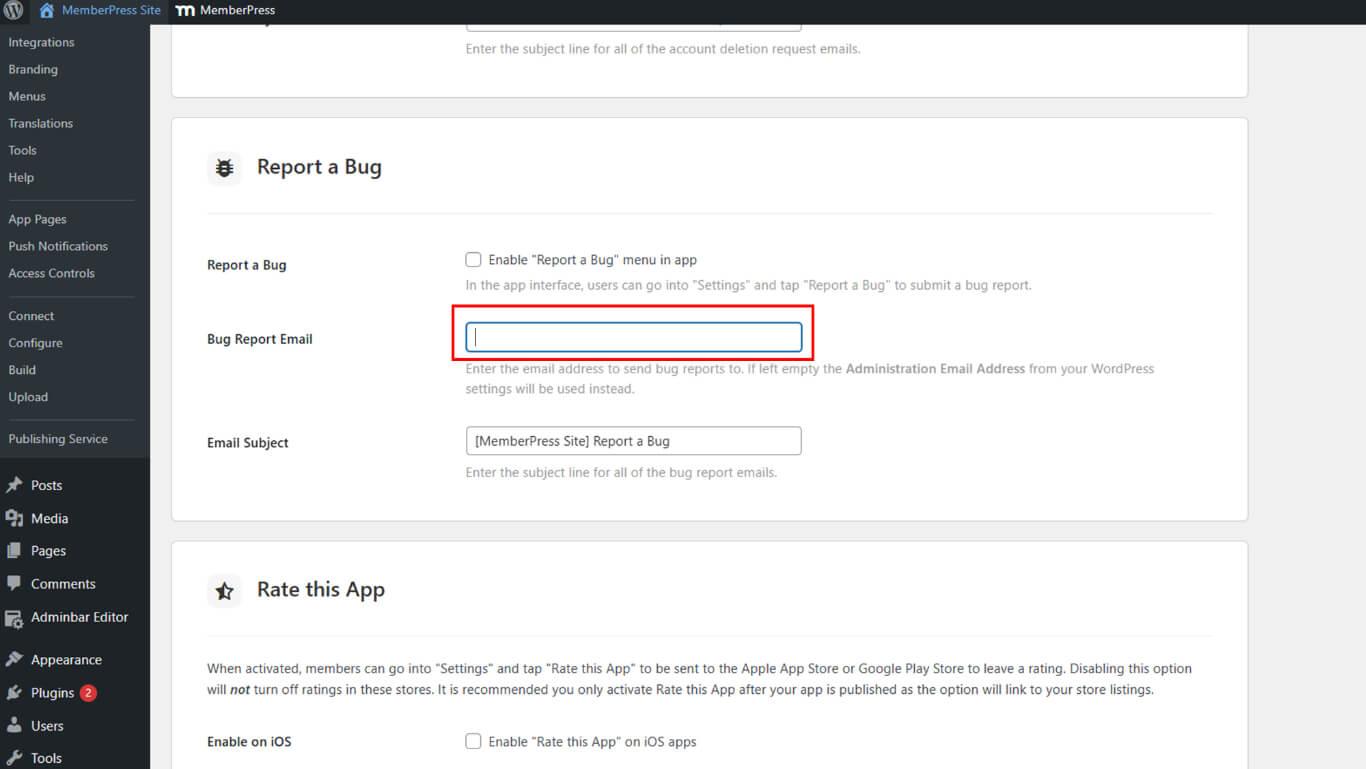
- Optionally add a default subject line in the Email Subject field.
- Click Save Changes.
Submitting Bug Report from MemberPress iOS/Android App
Members can submit bug reports through the mobile application, allowing them to communicate directly with the support team.
- Open the MemberPress (iOS/Android) app on a mobile device.
- Tap Settings > Report a Bug.
- Enter the bug description.
- Optionally tap Upload Image or Video to attach screenshots or videos.
- Tap Send to submit.
Bug reports sent to your inbox will include:
- Message content
- Apple ID or Google Account
- Platform (iOS or Android)
- MemberPress (iOS/Android) app Version
- OS Version
- Device Model
- User's Email Address










