

MemberPress Android app preparation for the Google Play Store requires compliance with Google's Developer Program Policies. Configuration steps ensure proper app functionality and reduce rejection risk during review.
This document explains how to prepare the app in MemberPress AppKit, configure Google Play Console settings, and complete all required declarations before submission.
Understanding Google Play Requirements
Google Play Store submission requires specific configurations and policy compliance before review approval. Apps must include privacy policies, content ratings, data safety declarations, and proper account management features. In-app purchase configuration, account deletion options, and legal agreements are mandatory for submission. Proper preparation reduces rejection risk and accelerates approval timelines.
Setting Up In-App Purchases
In-app purchase configuration enables monetization through Google Play billing when applicable.
- Navigate to Dashboard > MP AppKit > Components.
- Toggle In-App Purchases to On if selling content through the app.
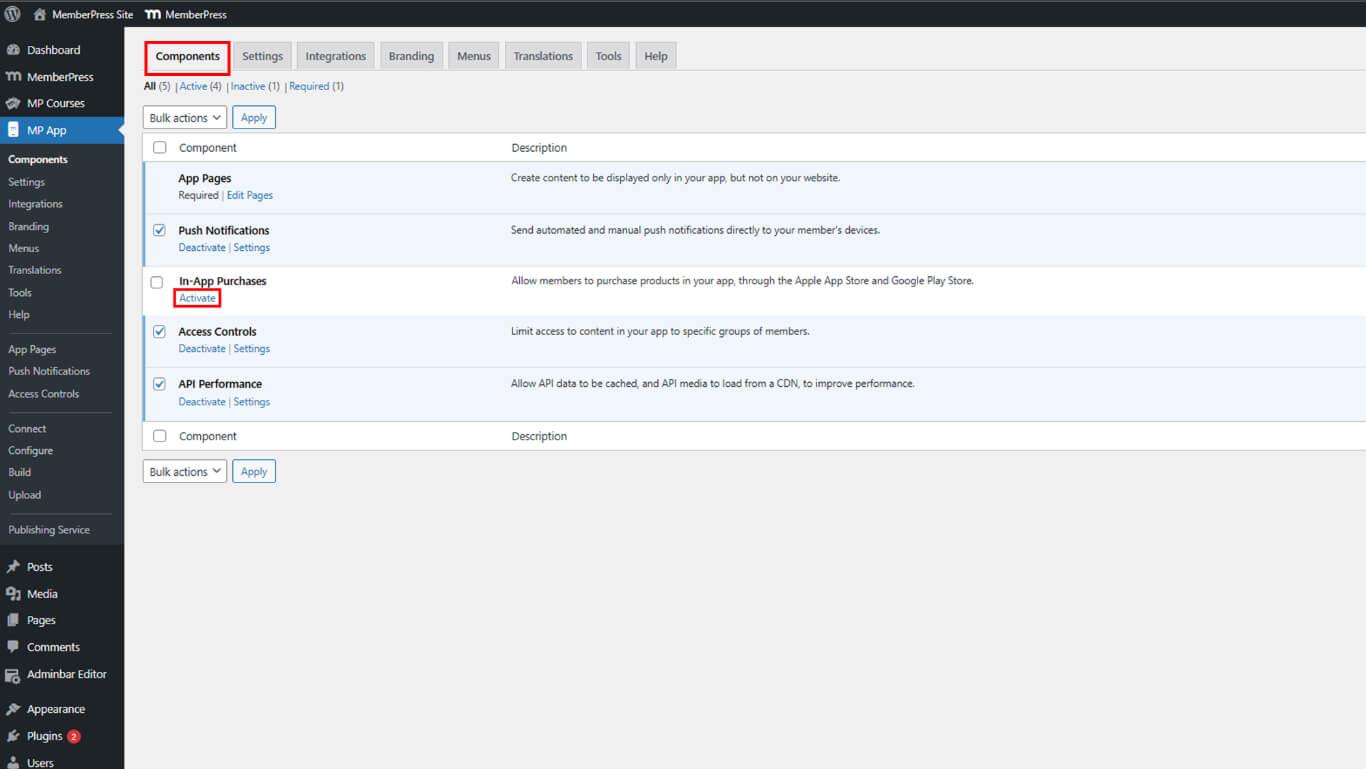
- Click Save Changes.
- Configure in-app products following the in-app purchases documentation.
Generating Android Release Build
Release build generation creates the app package for Google Play submission.
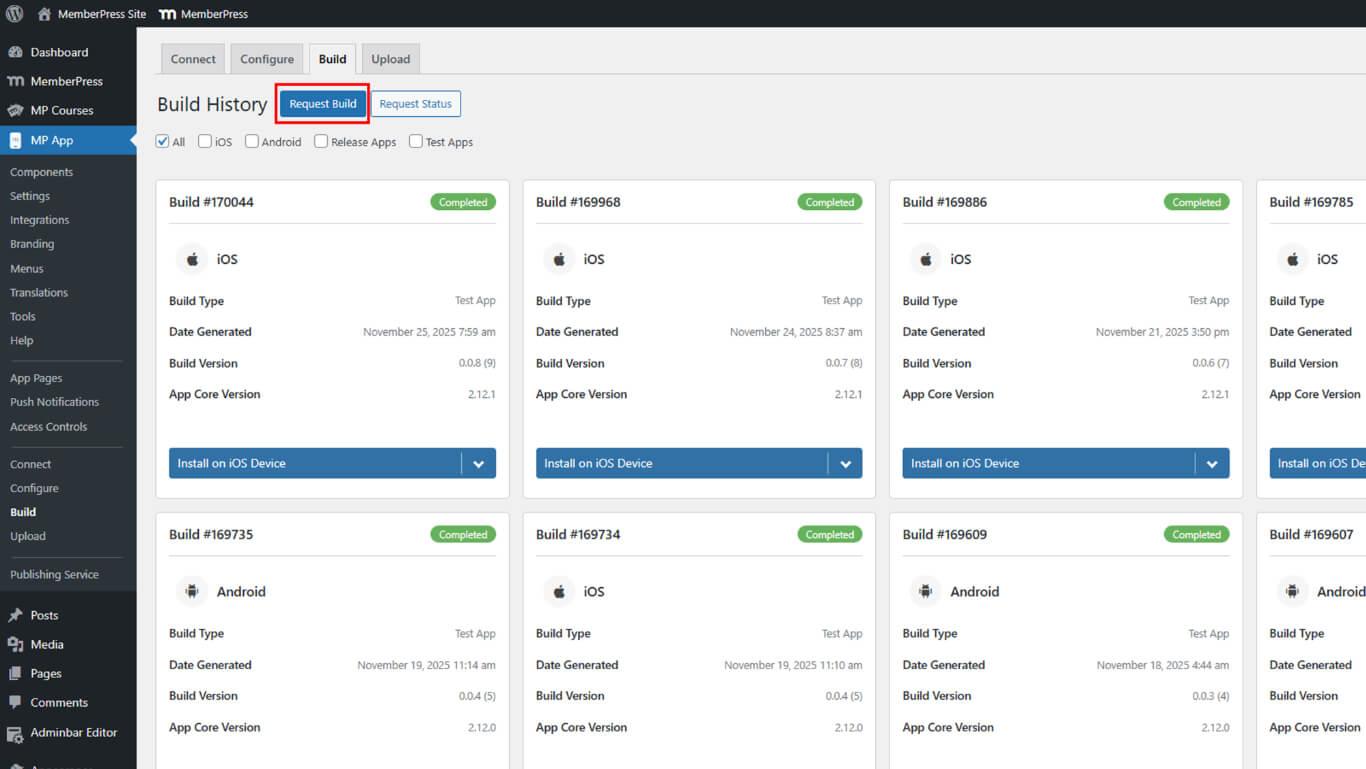
- Navigate to Dashboard > MP AppKit > Build.
- Click the Request Build button.
- Check the Android checkbox as the platform.
- Select Release App as the build type.
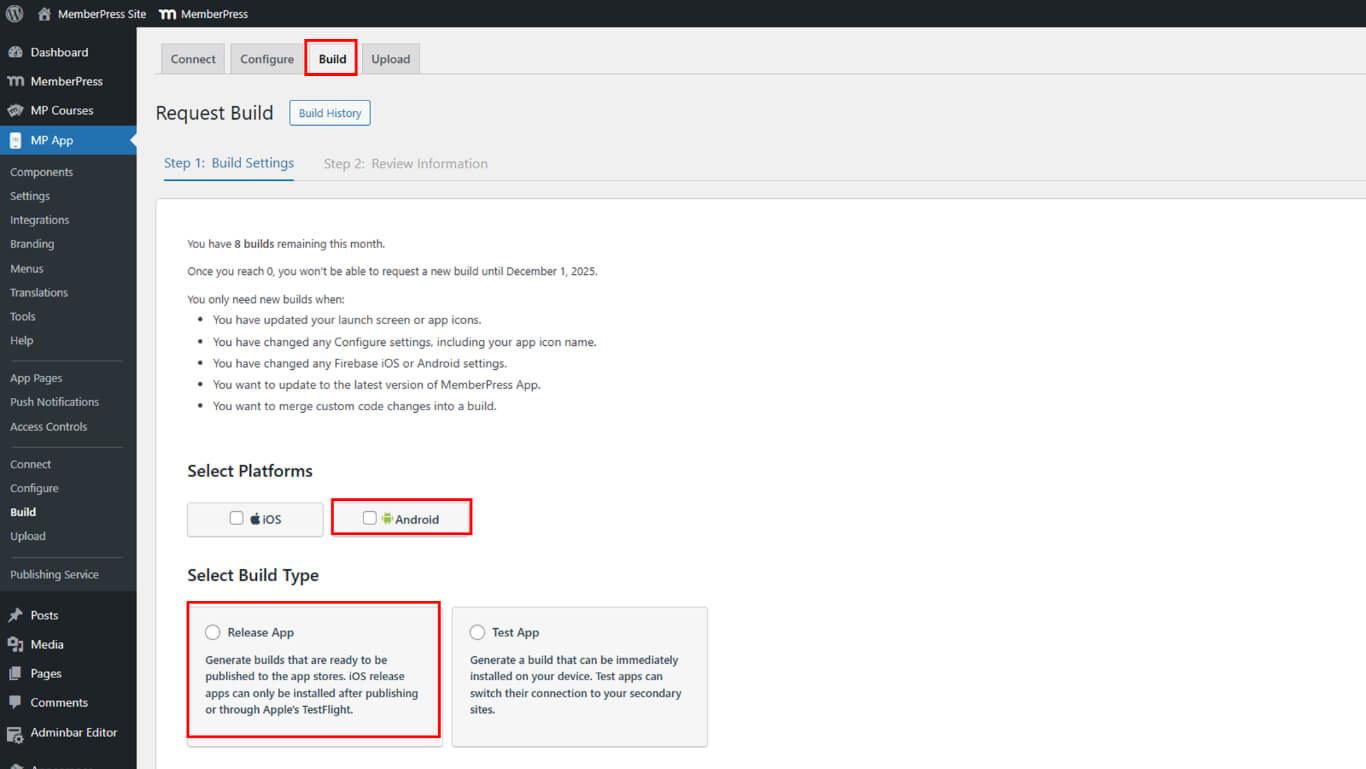
- Click Next to proceed to the build configuration.
- Click Send Build Request to submit the build request.
- Monitor the build progress under Build History.
- Wait for the build completion status.
Build completion typically occurs within 5-10 minutes after request submission.
Registering Application ID
Application ID registration reserves the identifier in the Google Play Console.
- Navigate to Dashboard > MP AppKit > Configure > Android Settings after build completion.
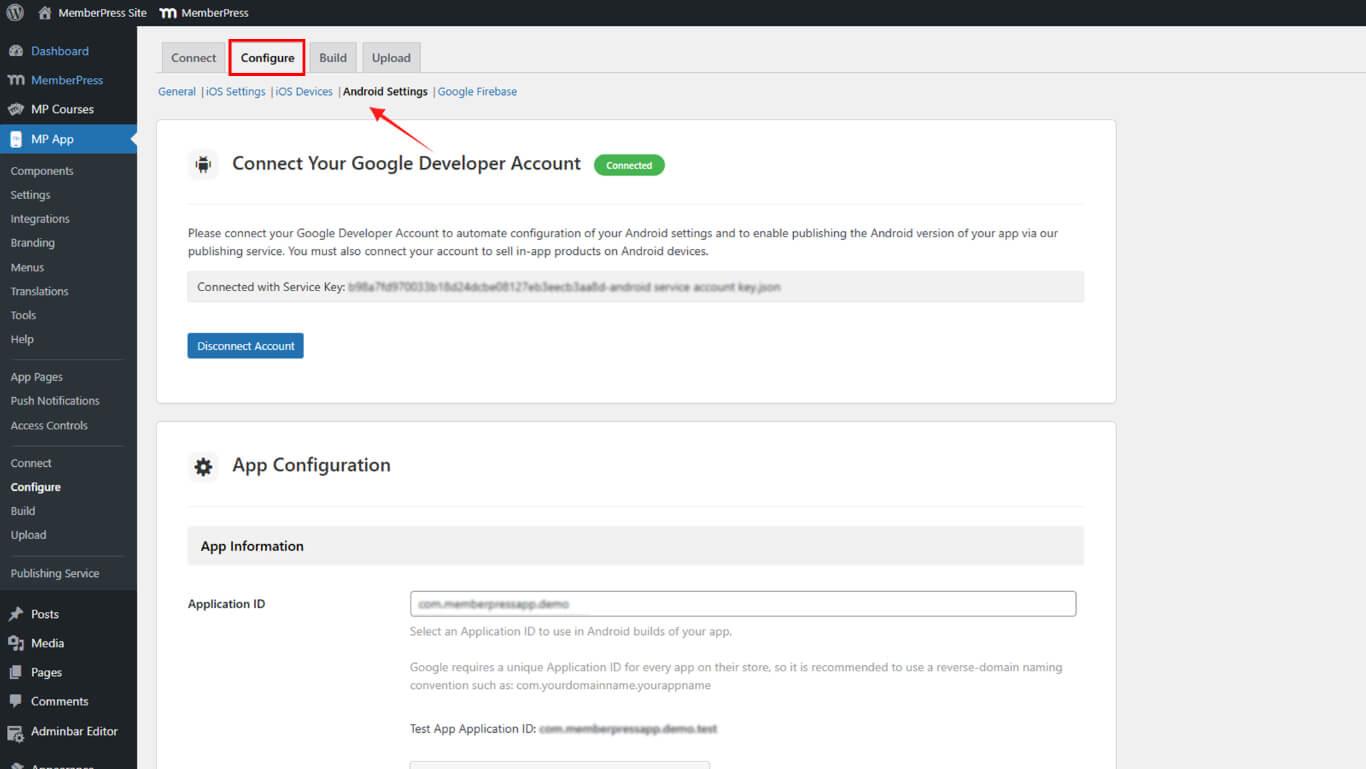
- Locate the Application ID field.
- Review the configured Application ID.
- Download the AAB file from Build History.
- Log in to Google Play Console at play.google.com/console.
- Navigate to Test and Release > Production.
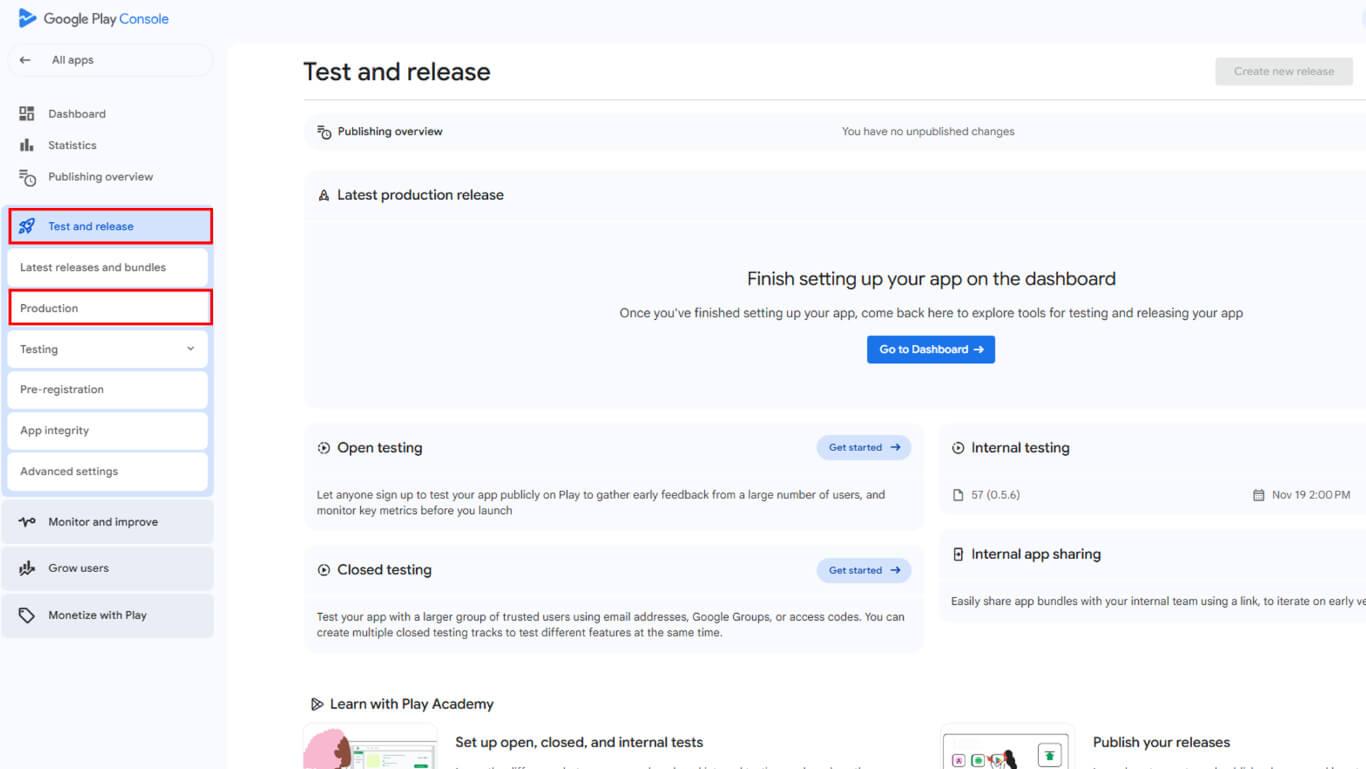
- Click Create new release to begin release creation.
- Upload the AAB file to register the Application ID.
- Click Save to finalize Application ID registration.
Application ID registration prevents identifier conflicts with other apps on the Google Play Store.
Inviting Publishing Team
Publishing Team invitation enables professional review and submission assistance.
- Log in to Google Play Console at play.google.com/console with your Developer Account.
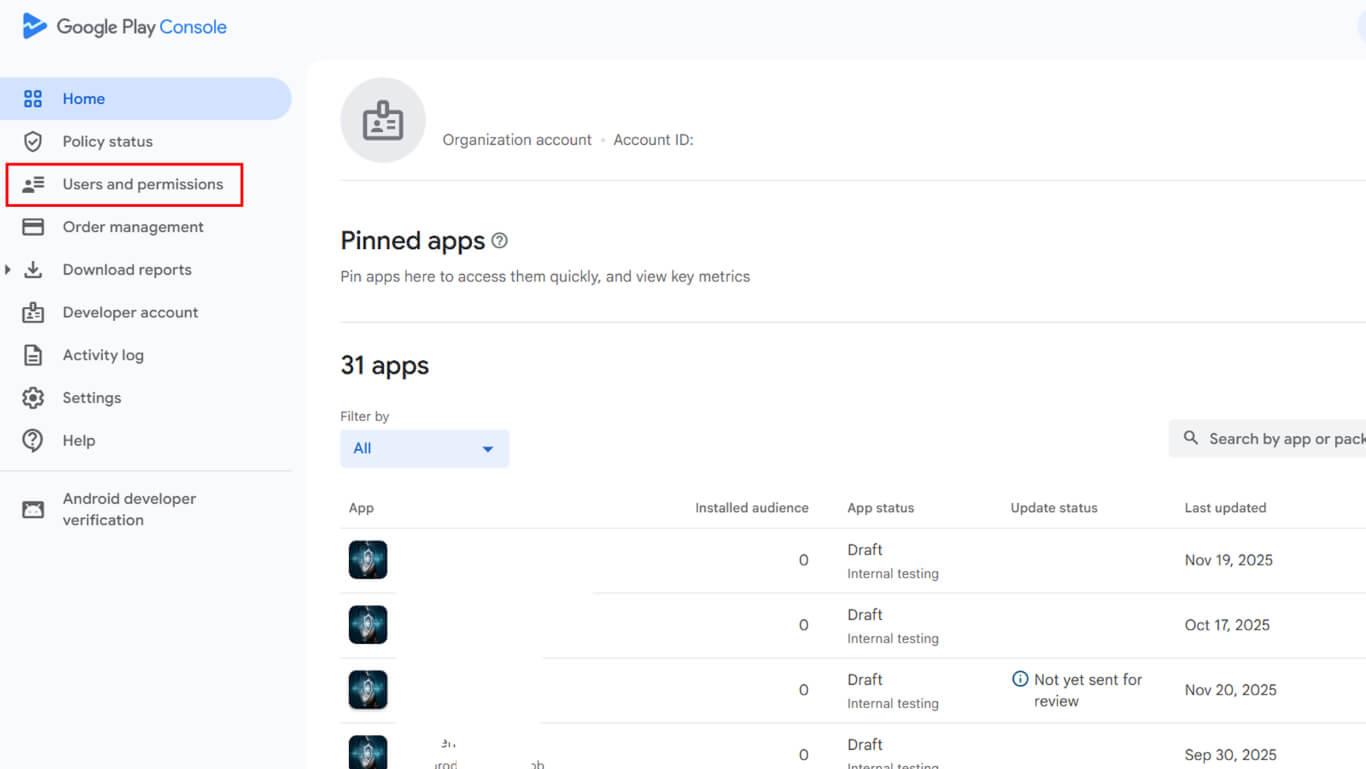
- Navigate to Users and Permissions in the sidebar.
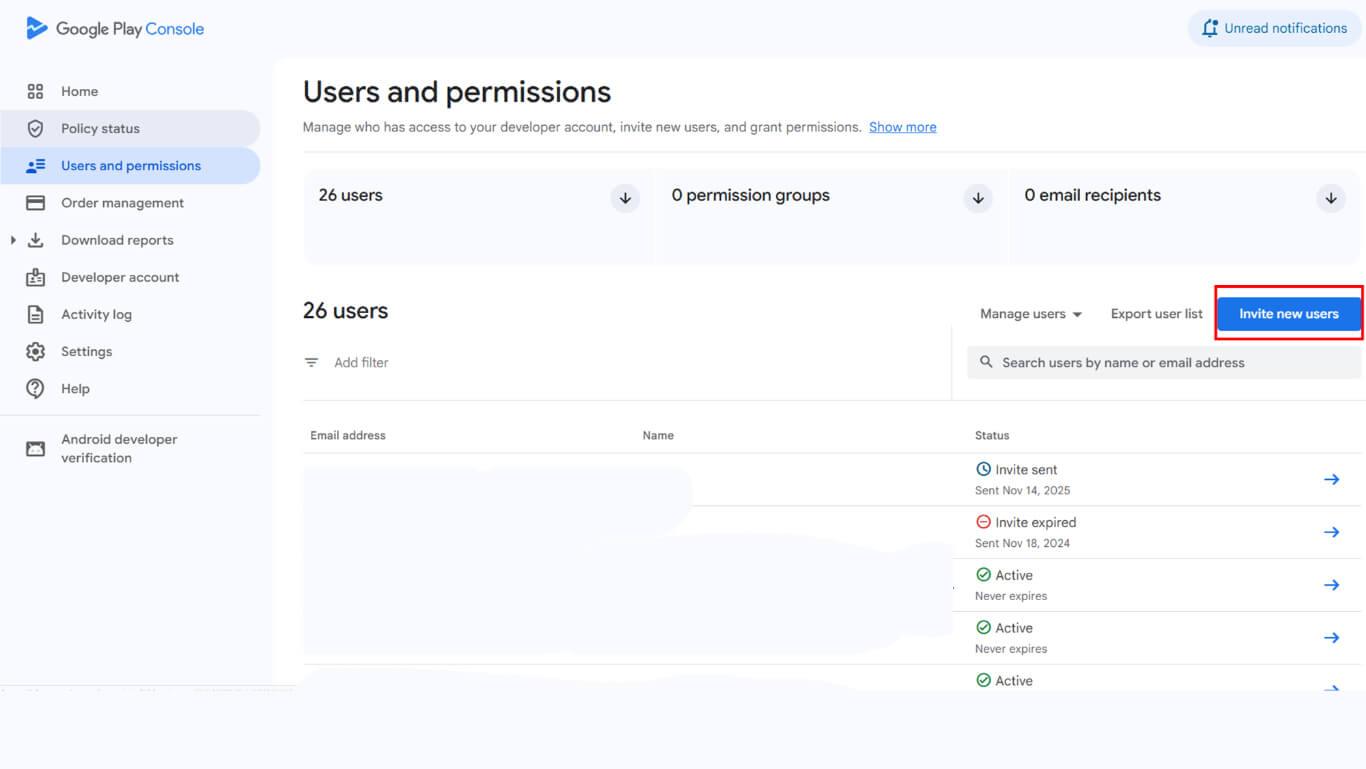
- Click the Invite New Users button.
- Enter appsup@memberpress.com in the email address field.
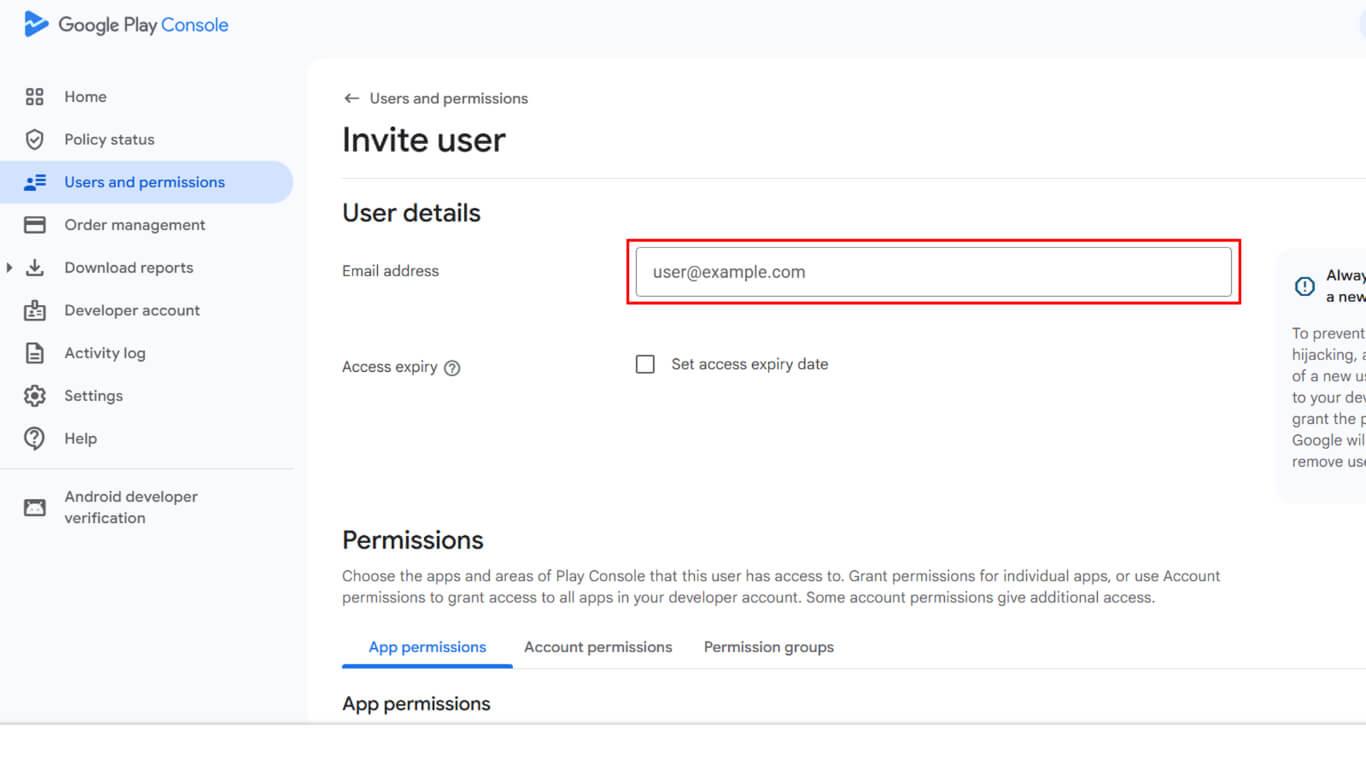
- Verify the Access Expired checkbox is unchecked.
- Navigate to the Add App section.
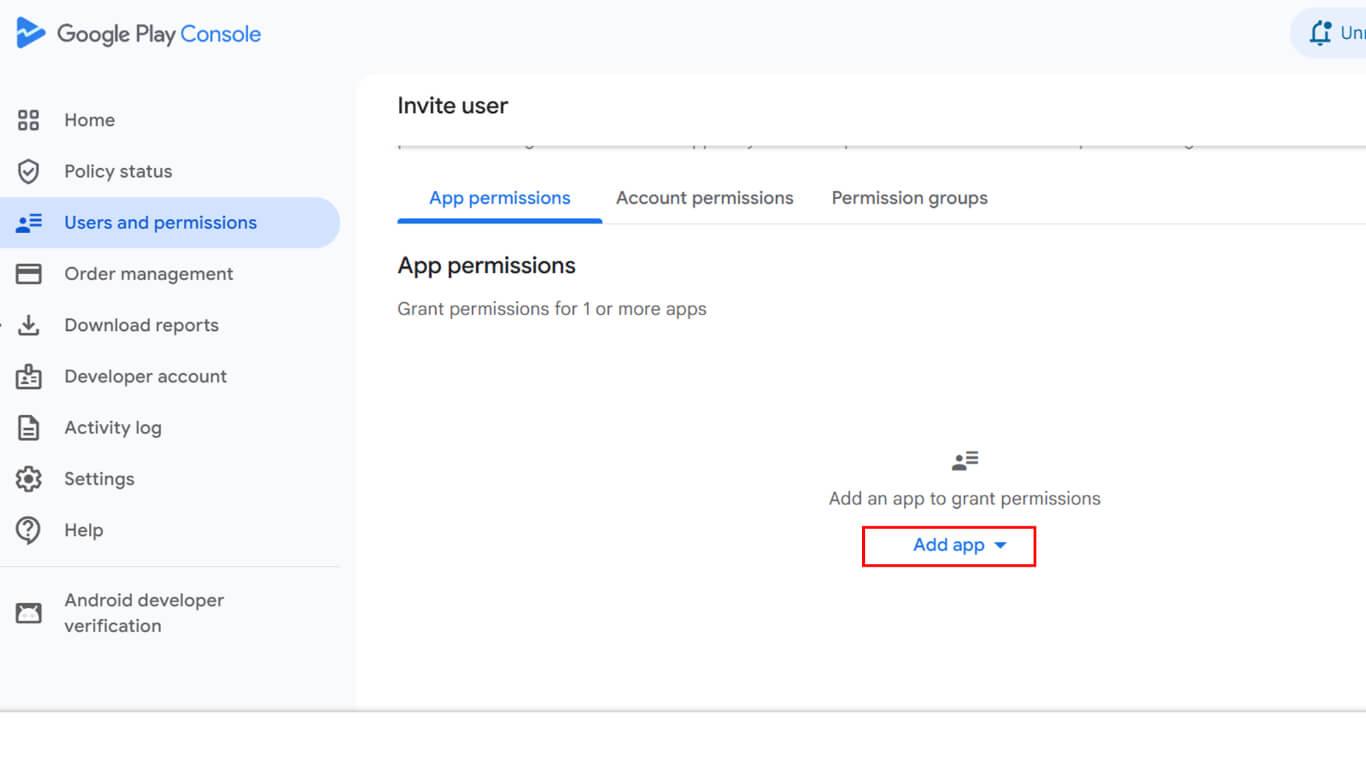
- Select the app from the available apps list.
- Select Admin permissions for the Publishing Team.
- Click Invite User to send the invitation.
Configuring App Content
In Google Console Dashboard > Monitor and Improve > Policy and Programs > App Content:
- Privacy Policy – Enter a valid public URL and click Save.
- App Access – If login is required, provide test credentials and instructions for reviewers; otherwise, select Full access.
- Ads – Declare whether your app contains ads.
- Content Rating – Complete the questionnaire and submit.
- Target Audience – Select the correct age group.
- News App – Indicate if your app qualifies.
- Data Safety – Declare how you collect, share, and protect user data.
- Government Apps – Mark as applicable or not.
- Financial Features – Declare any financial services.
- Health Apps – Declare any health-related features.
- Child Safety Standards – Provide a public link if required.
- Advertising ID – For MemberPress Apps, select Yes.
Configuring Store Listing
Store listing configuration provides app information and assets displayed to potential users in the Google Play Store.
- App Name – Keep it clear and symbol-free.
- Short & Full Description – Summarize features clearly.
- App Icon – 512×512 px, PNG/JPG.
- Feature Graphic – 1024×500 px, PNG/JPG.
- Screenshots – 2–8 per device type, 16:9 or 9:16 ratio, PNG/JPG. Include tablet screenshots if applicable.
Configuring Country & Region Availability
Regional availability configuration determines where the app appears in Google Play Store listings.










