

Communities often require active moderation to maintain quality discussions and member engagement. Thus, properly moderating your MemberPressCircles is essential to keeping your communities welcoming, valuable, and relevant.
This document explains how to use Circle management tools, handle member violations, review reported content, and configure moderation settings.
Understanding Moderation Roles
Once you create MemberPress Circles on your website, moderating them is often a key to growing thriving communities. Furthermore, it helps prevent misuse, bullying, the spread of false information, and, in general, ensures that rules are respected.
Circle moderation operates through distinct roles with specific capabilities for managing community content and members.
- Administrators have complete control over all Circles on the website. They can access all moderation tools, promote members to moderators, and configure Circle-wide moderation settings. Administrators serve as the default moderators for all Circles they create.
- Circle Moderators are members promoted by administrators to help manage specific Circles. Moderators can delete posts and comments, remove members, and, based on Circle settings, optionally ban or unban members. Their abilities depend on permissions configured by the administrator.
- Regular Members can report inappropriate content but cannot take moderation actions. They participate in accordance with Circle permissions while helping maintain community standards through the reporting system.
Accessing Circle Management Tools
Administrators access Circle management features through multiple entry points in the WordPress dashboard.
Viewing Circle as Administrator
Access enhanced management options when viewing Circles while logged in as Administrator. To access a Circle from your backend, follow these steps:
- Navigate to Dashboard > ClubSuite™ > Circles.
- Find the circle you wish to access in the list, and hover over its name to see additional options.
- Click View or Members under the Circle name.
When accessing the Circle as an administrator, you will have additional options available:
- Additional member filtering options for user management;
- Additional information about the members;
- Action menus for managing members;
- Moderation tab for reviewing reported content;
- Action menus for managing individual posts and comments.
Managing Circle Members
The Members tab provides comprehensive member management capabilities:
- Click the Members tab on any Circle page when logged in as an administrator.
- View the complete list of Circle members with their roles and join dates.
- Use filter tabs to display All, Members, Moderators, Muted, or Banned users. You can also click a member's name to view their profile.
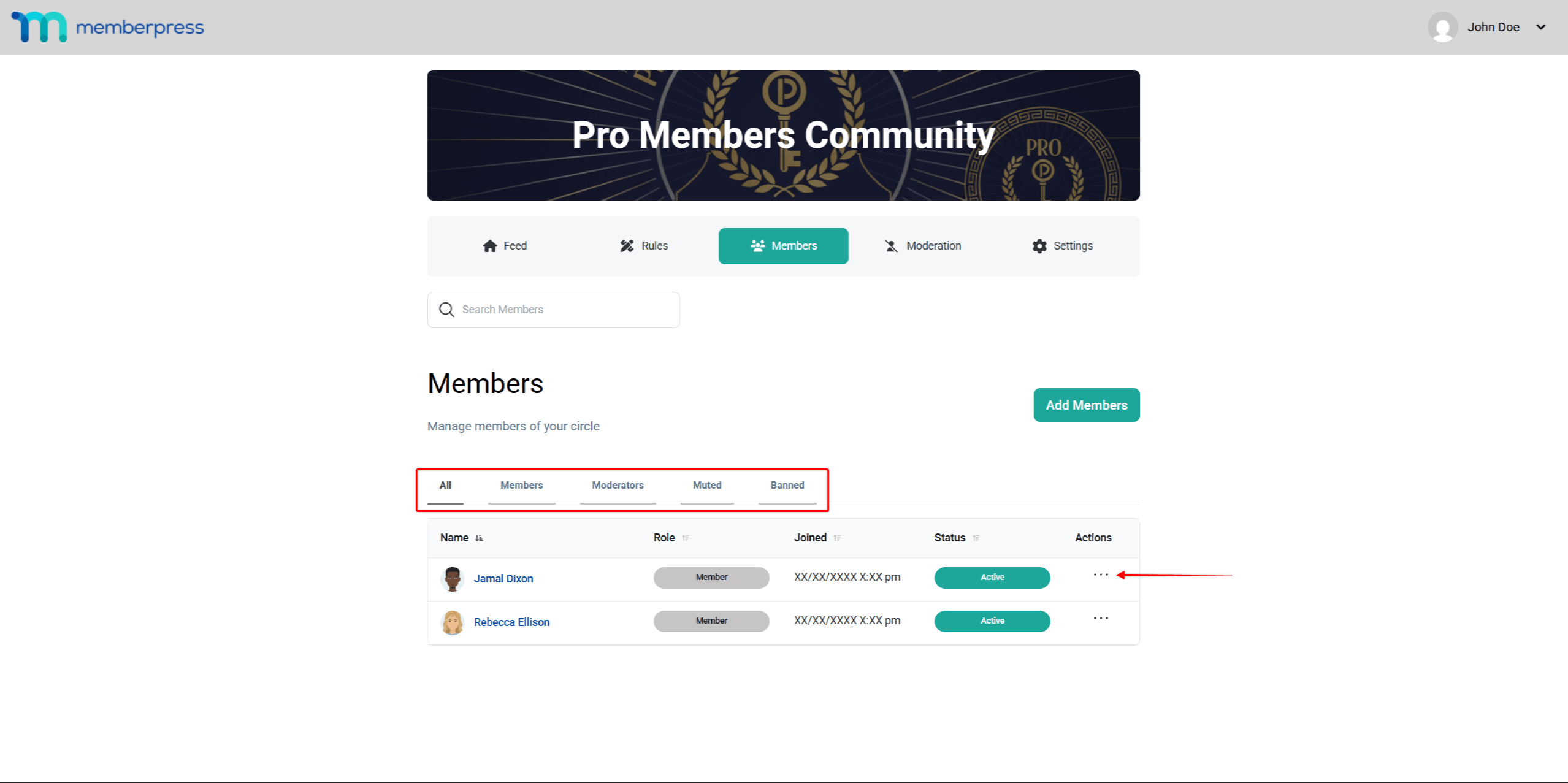
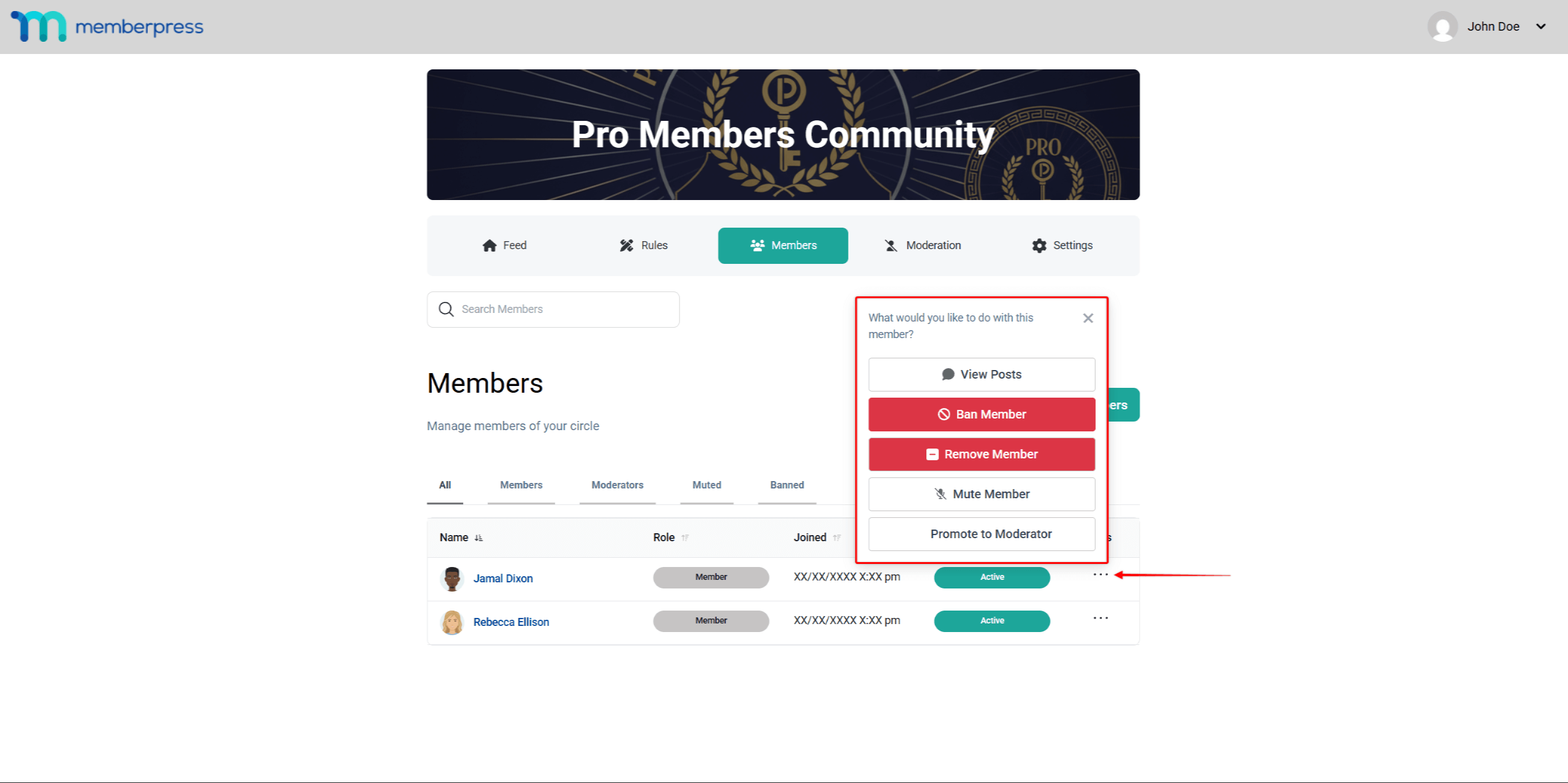
- To manage users, open the action menu (three dots) next to each member to access management options.
The member list displays essential information, including role status, join date and time, current status, and available actions for each member.
Adding Members Manually
Administrators can directly add members to Circles:
- Navigate to the Members tab in your Circle.
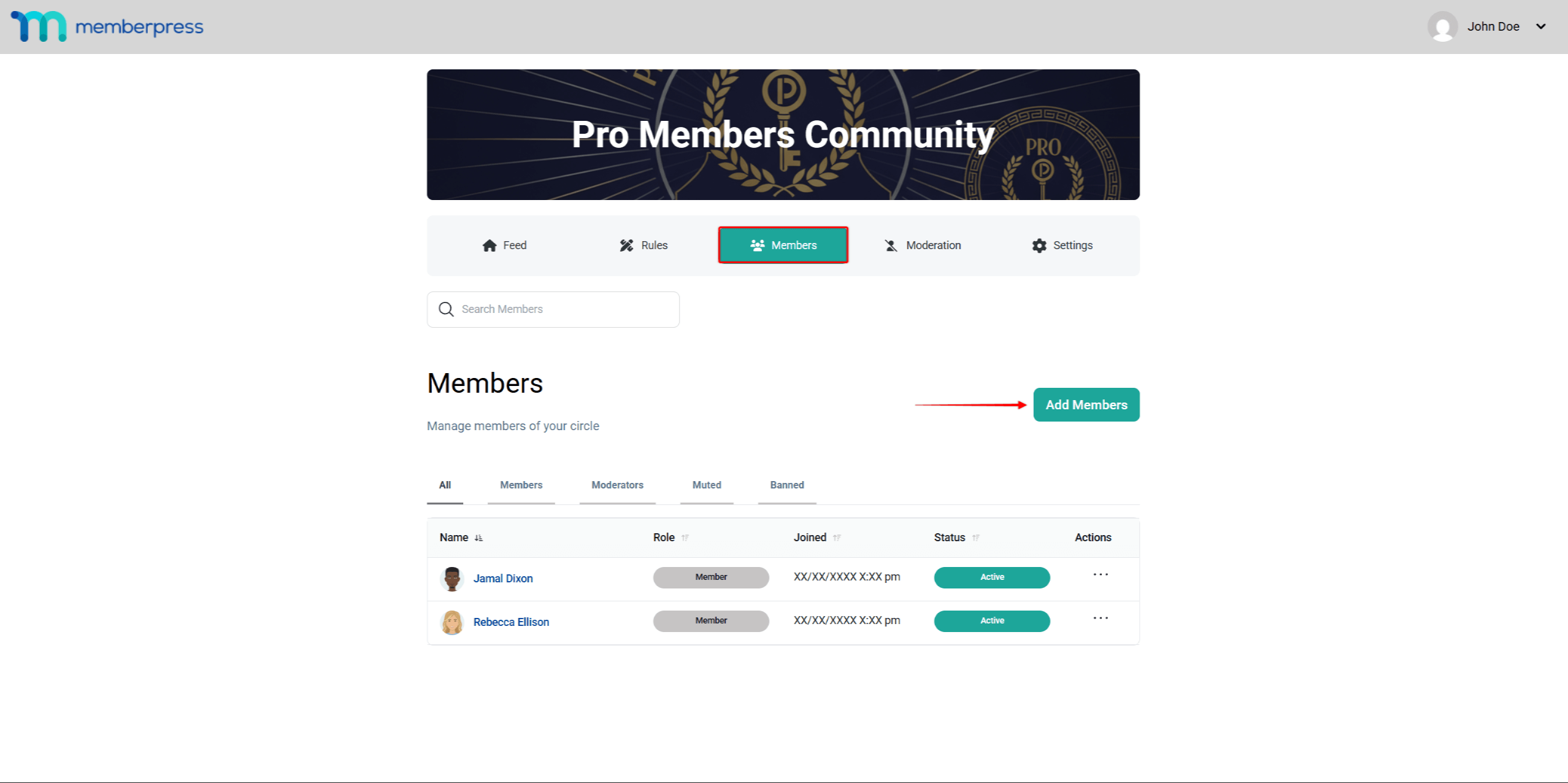
- Click the Add Members button.
- Search for members by name or username.
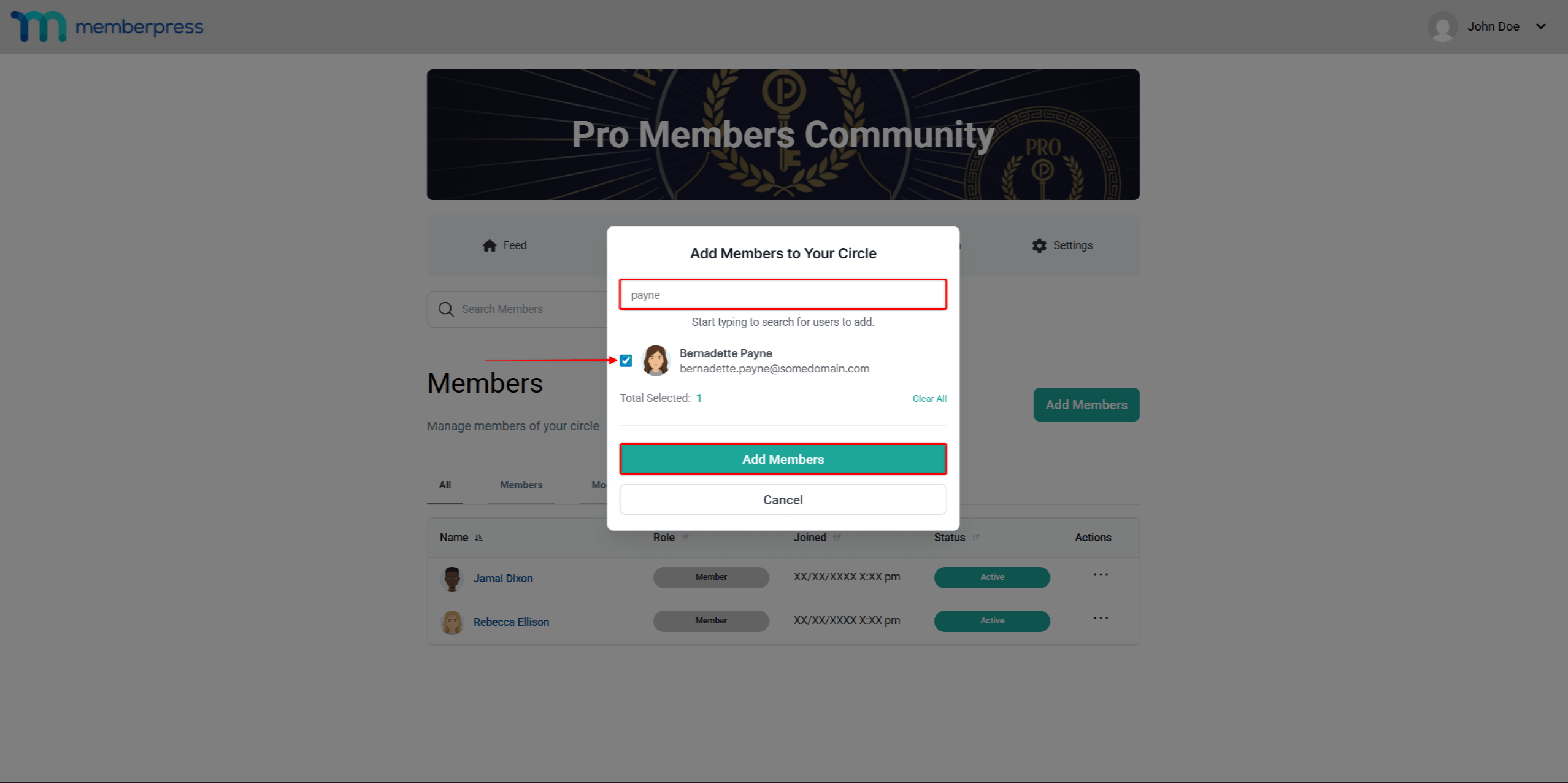
- Select member(s) from the search results.
- Click the Add Members button to add them to the Circle.
Manually adding members bypasses any membership requirements and gains immediate Circle access.
Managing Member Engagement
Administrators and moderators have various tools to control member engagement and address violations.
Moderating Member Violations
When members violate Circle guidelines, administrators and moderators can take appropriate actions based on violation severity:
- Navigate to the Circle's Members tab.
- Locate the member requiring moderation action.
- Click the three dots next to their name.
- Choose the appropriate action from the menu:
- Remove Member: Member loses Circle access but can rejoin later;
- Ban Member: Permanent removal with no ability to rejoin;
- Mute Member: Temporary restriction on posting and commenting.
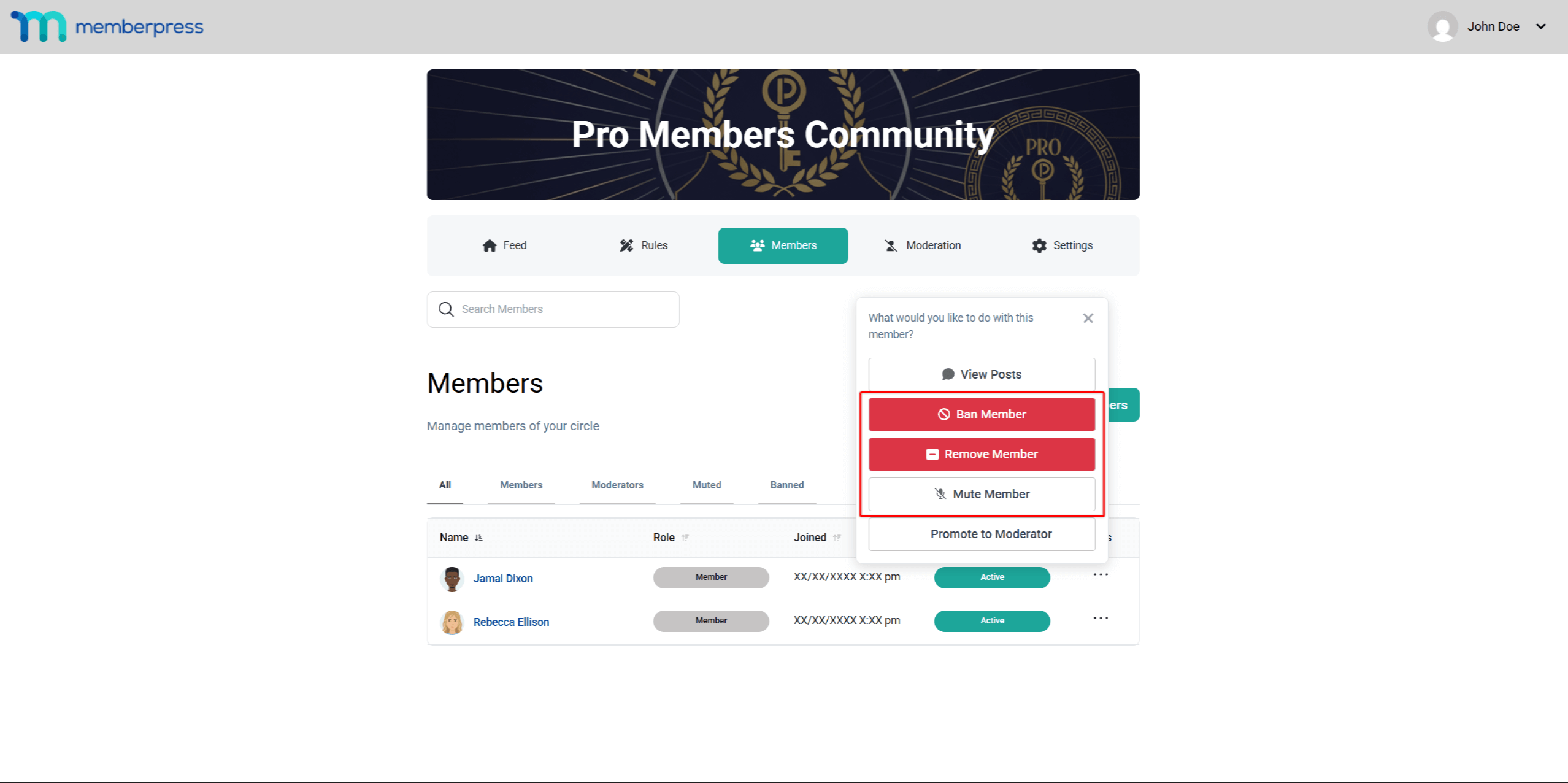
- Complete the action based on your selection:
- For Remove: Confirm removal when prompted;
- For Ban: Confirm the ban decision;
- For Mute: Set the duration and click Confirm Mute.
Action Effects:
- Removed members lose immediate access but can rejoin public Circles or when meeting requirements again.
- Banned members cannot access or rejoin the Circle. Their posts and comments become hidden to other members, appearing with a “Hidden” label only to administrators.
- Muted members can view Circle content but cannot post or comment until the mute period expires. They see a customizable message explaining their restricted status.
Only administrators and moderators with appropriate permissions can unban members or remove mutes before expiration.
Promoting and Managing Moderators
Delegating moderation responsibilities helps manage active Circles effectively.
Promoting Members to Moderators
Transform trusted members into Circle moderators:
- Navigate to the Circle's Members tab.
- Locate the member you wish to promote.
- Click the action menu (three dots) next to their name.
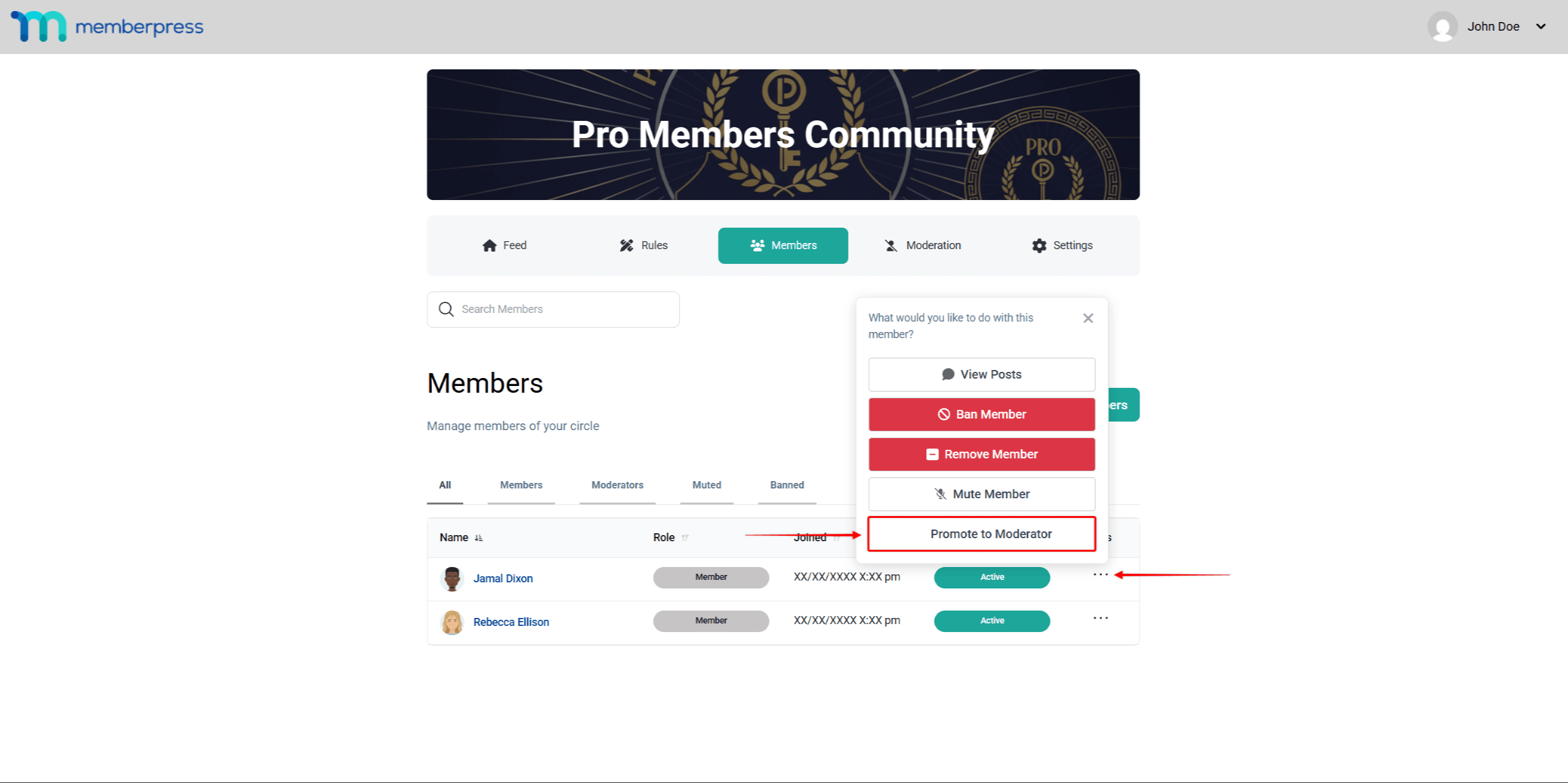
- Select Promote to Moderator. The member's role will be changed to Moderator immediately.
Moderators can delete posts and comments, remove members from the Circle, and, depending on settings, ban or unban members.
Configuring Moderator Permissions
Control what moderators can do within your Circle:
- Navigate to Dashboard > ClubSuite™ > Circles.
- Click Edit next to your Circle.
- Scroll to Settings > Permission Settings.
- Toggle Moderators can Ban Members on or off.
- Toggle Moderators can Un-Ban Members on or off.
- Update the Circle to save changes.
These settings apply to all moderators in the Circle. Consider allowing only post/comment removal if you prefer to handle bans personally.
Content Moderation
The content moderation system helps maintain Circle quality through member reporting and administrative review.
Member Reporting Process
When members encounter inappropriate content, they can report it for review:
- Members click the three-dots icon next to any post or comment.
- Select Report from the menu.
- Enter an explanation for the report.
- Submit the report for moderation review.
Reports go to a centralized moderation queue accessible to administrators and Circle moderators. The content remains visible pending review.
Reviewing Reported Content
Administrators can review reports in two locations: the Dashboard or the circle itself.
Global Moderation Panel
- Navigate to Dashboard > ClubSuite™ > Moderation. Here, you'll be able to view all reported content across all Circles. You can also filter reports by specific Circles if needed.
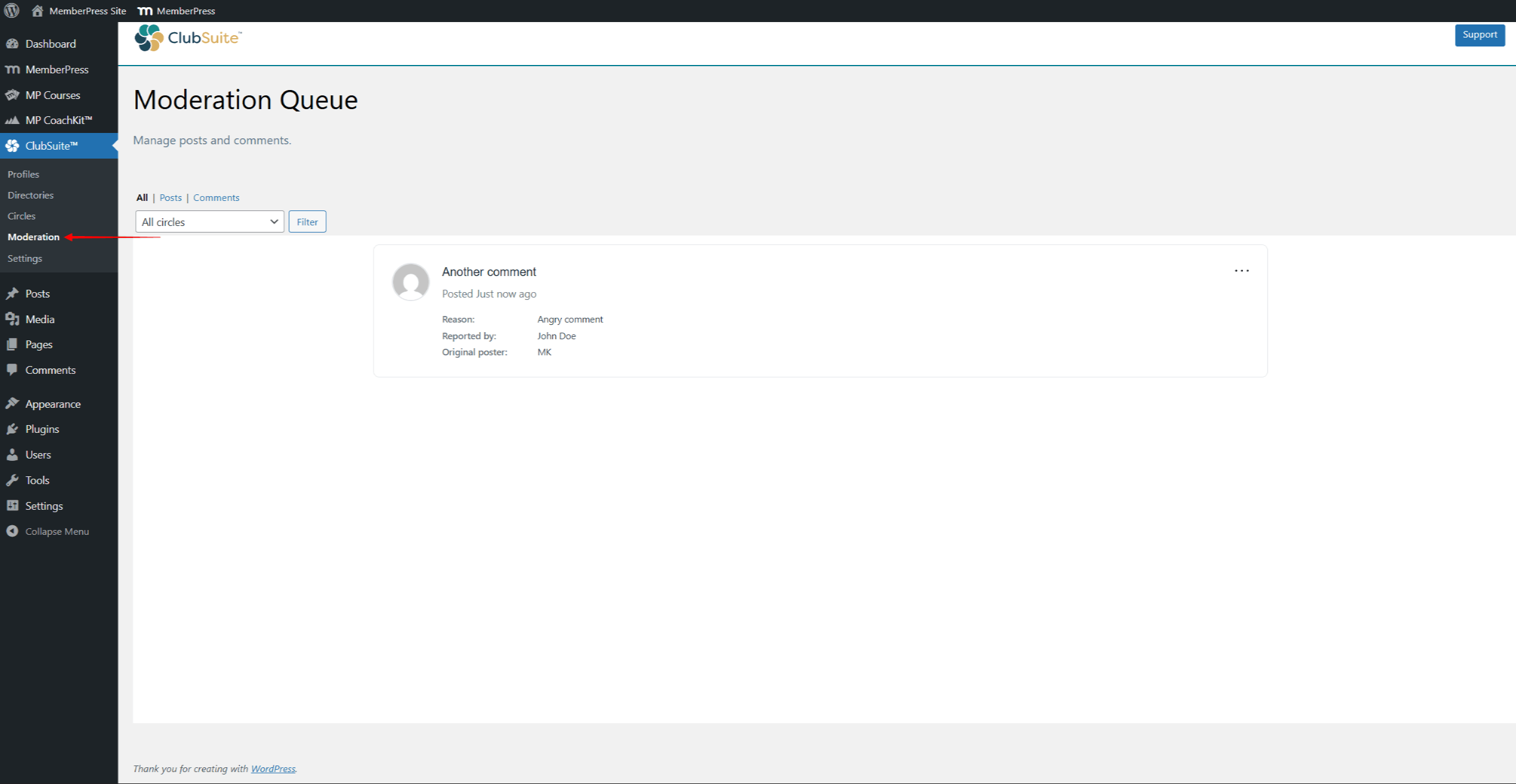
- Find the report you wish to review. Each report will show the reasons for reporting, the post content, and the original poster.
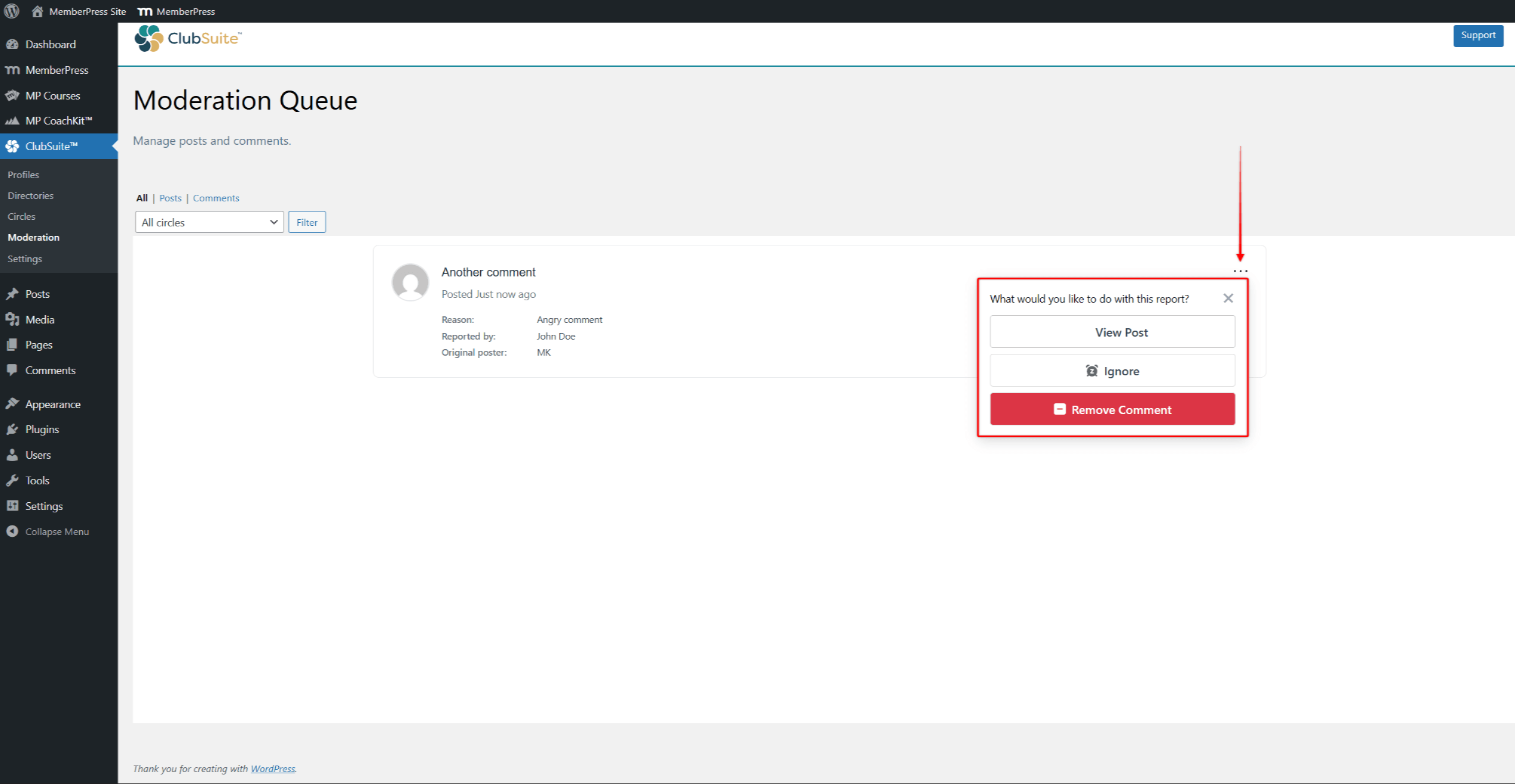
- Click the three-dot option for the report, and choose the action as needed:
- View Post: Examine the full content and context.
- Ignore: Dismiss the report without action, removing it from the queue.
- Remove Comment: Delete the reported content from the Circle.
Choose actions based on violation severity and Circle guidelines. Removed content disappears immediately, while ignored reports are cleared from the moderation queue.
Circle-Specific Moderation
- Access a Circle as an administrator or moderator.
- Click the Moderation tab.
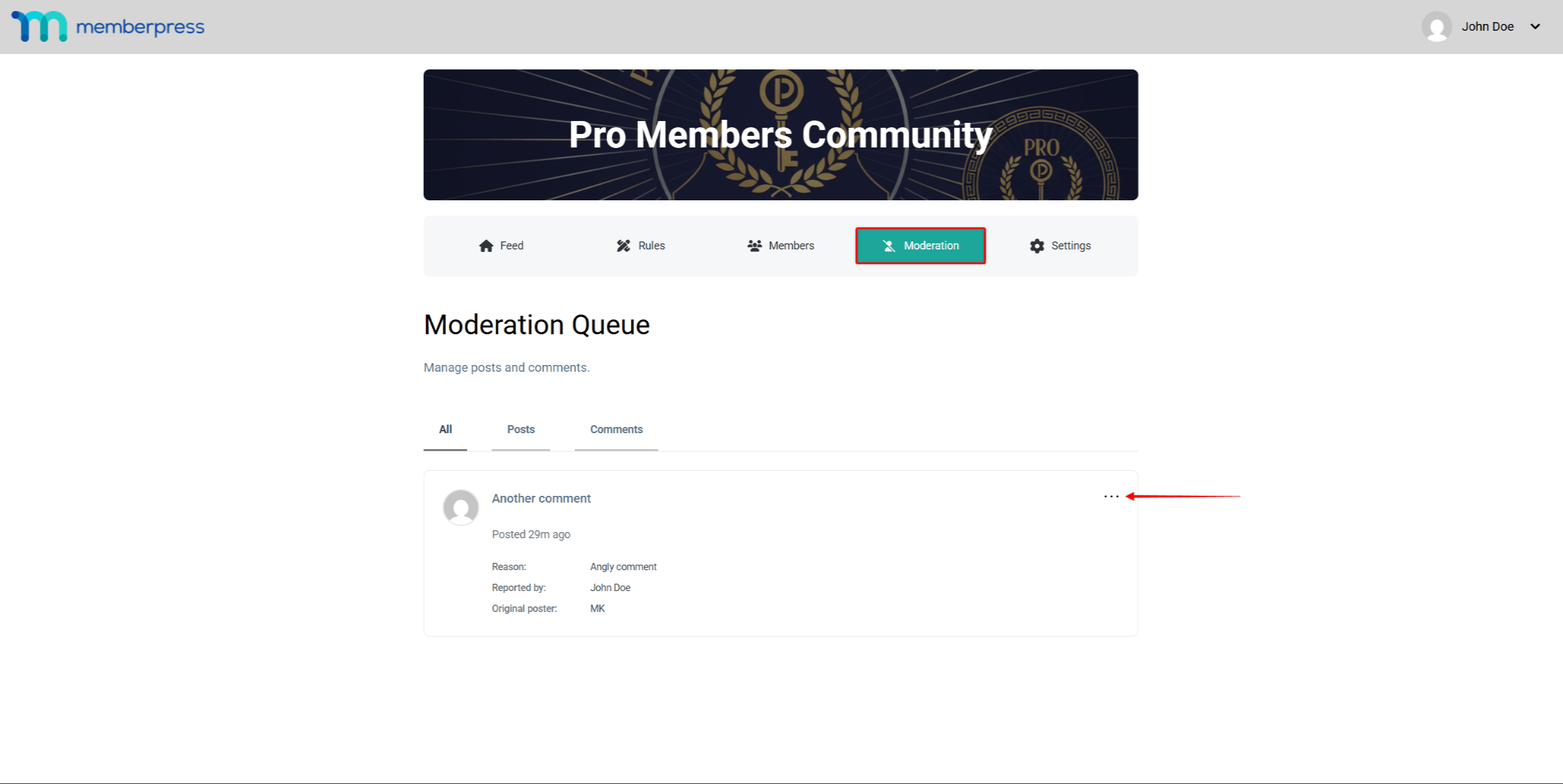
- Review reports specific to that Circle. Access the action options by clicking the three-dot icon, as in the global panel.
- Choose the action for the report.










