

Your MemberPress (iOS/Android) app mirrors your public website, so visitors can view content without logging in. Enabling private app access ensures that only authenticated users can view or interact with any content. This setting improves security, boosts registrations, and keeps your community restricted to approved members.
This guide walks you through enabling the Private app access feature of your MemberPress AppKit.
Understanding Private App Access Feature
Private app access feature requirements define configurations for restricting content visibility and interaction to authenticated members only.
Access restriction enablement prevents unauthenticated users from viewing or interacting with any app content. Restriction transforms public app into members-only environment, improving content security.
Security enhancement protects sensitive content from unauthorized access through an authentication requirement. Enhanced security ensures only approved members have access to community resources.
Registration encouragement removes the guest access option, increasing motivation for account creation and authentication. The login requirement converts casual visitors into registered members.
Community protection maintains an exclusive environment for approved members, reducing spam and unauthorized participation. Restricted access preserves community integrity and member experience quality.
Login enforcement displays the authentication screen immediately upon app launch, preventing content preview. Forced authentication ensures compliance with access restrictions from the first interaction.
Enabling Private App Access
Private app access enablement activates authentication requirements for all content viewing and interaction within the mobile application.
- In your WordPress Dashboard, go to Dashboard > MP AppKit > Configure > General.
- Scroll to the Privacy section.
- Check the box: Restrict App Access to Only Logged In Members.
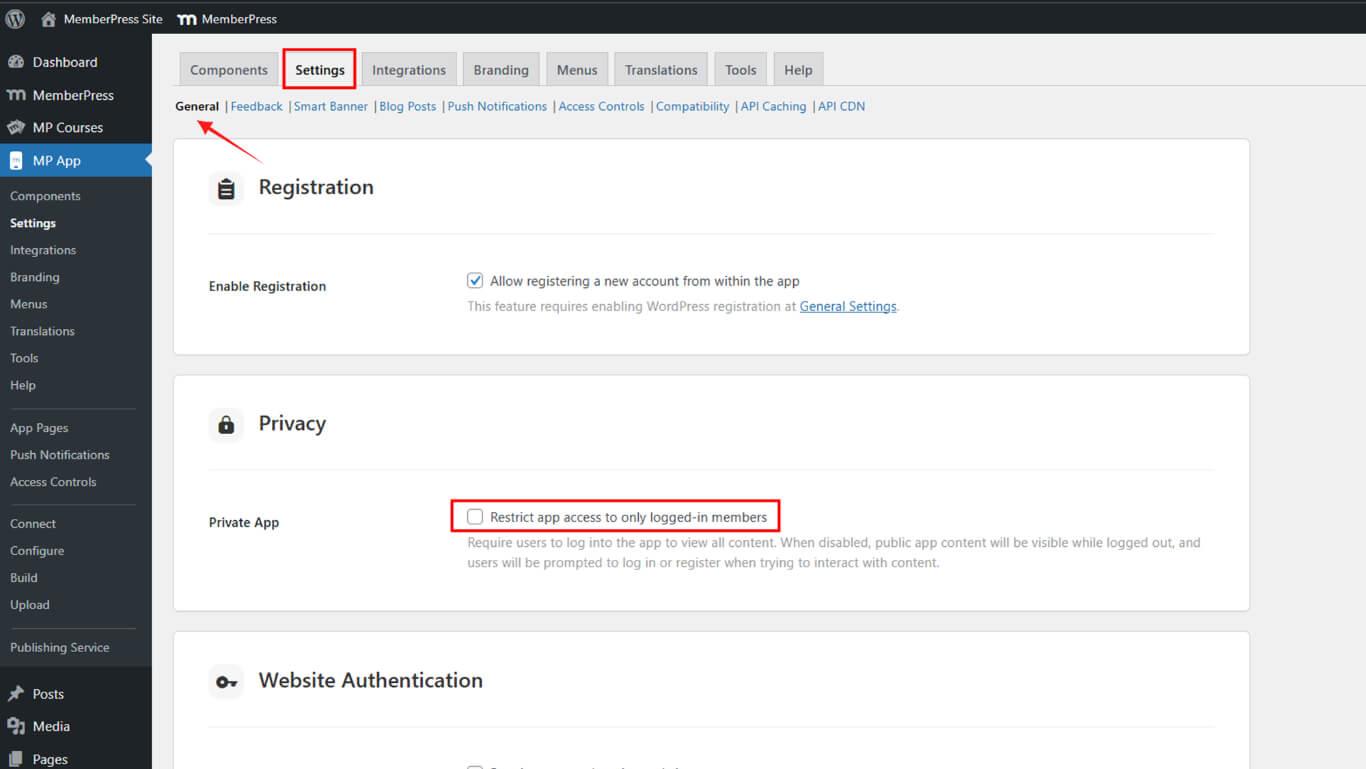
- Click Save Changes.
Verifying Private App Behavior
Private app behavior verification confirms that the authentication requirement works correctly, preventing unauthenticated access to content.
- Force-quit the MemberPress iOS/Android app on your mobile device.
- Relaunch the app to verify that you land on the Login screen.
- Verify the “Continue Without Logging In” option is hidden.
- Try to tap any content.
You should be prompted to log in before accessing any content.










