

The MemberPress Course Quizzes add-on stores all your quiz questions in one shared library. Every question you create in any quiz becomes available for reuse on your whole website.
This document explains how to manage your question library on the Questions screen. It covers reusing questions across quizzes, tagging, archiving, and deleting questions. It also explains the one-time backfill needed after updating the add-ons.
These features require the latest versions of the MemberPress Courses and Course Quizzes add-ons. When updating, always update the MemberPress Courses add-on first.
The Questions Screen
The Questions screen lists every quiz question on your website. To access it, navigate to Dashboard > MP Courses > Questions.
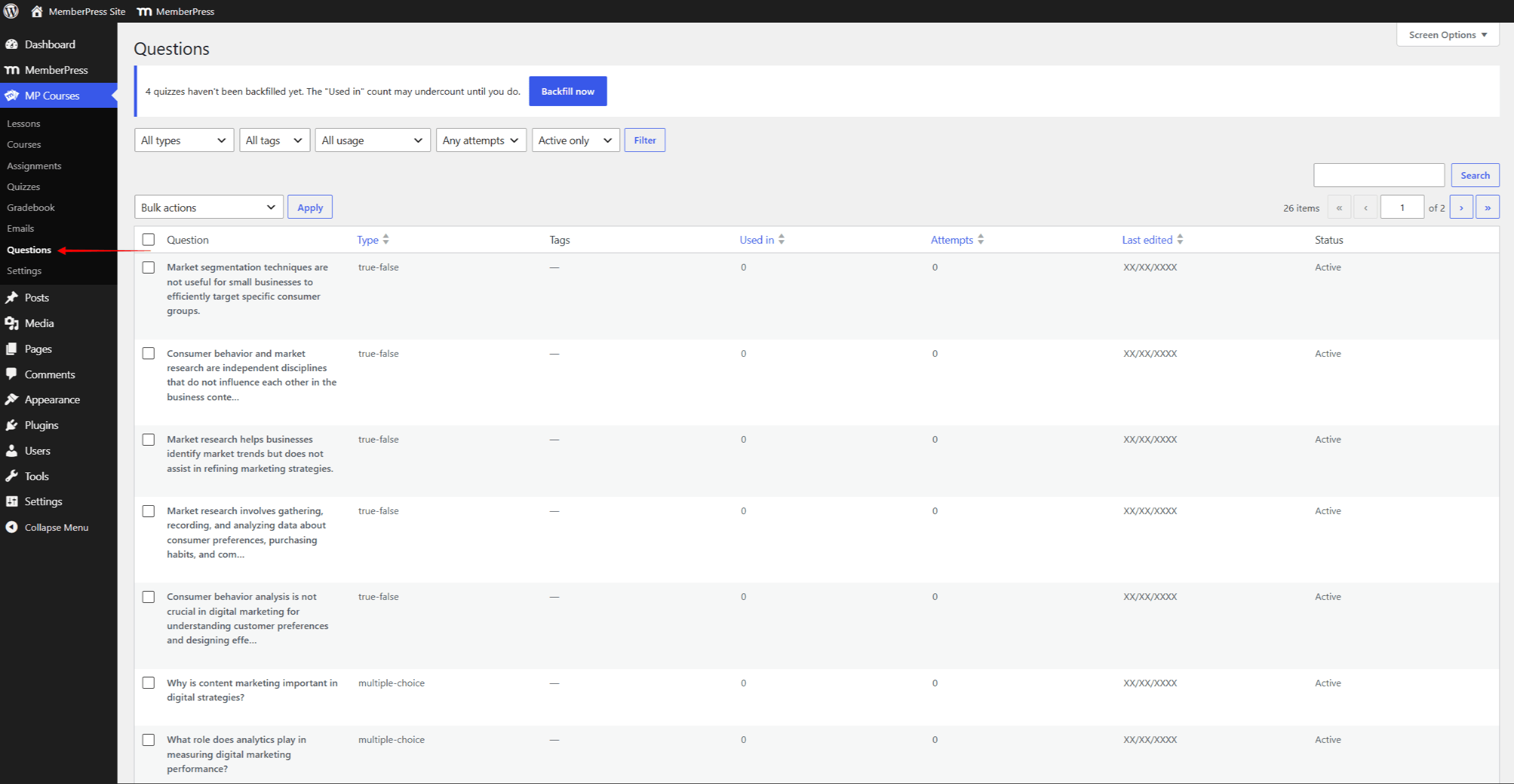
The list shows the following columns for each question:
- Question: the question text;
- Type: the question type (e.g., Multiple Choice, Essay);
- Tags: all tags assigned to the question;
- Used in: the number of quizzes where the question is directly placed;
- Attempts: the number of submitted quiz attempts containing the question;
- Last edited: the date of the question’s last change;
- Status: whether the question is active or archived.
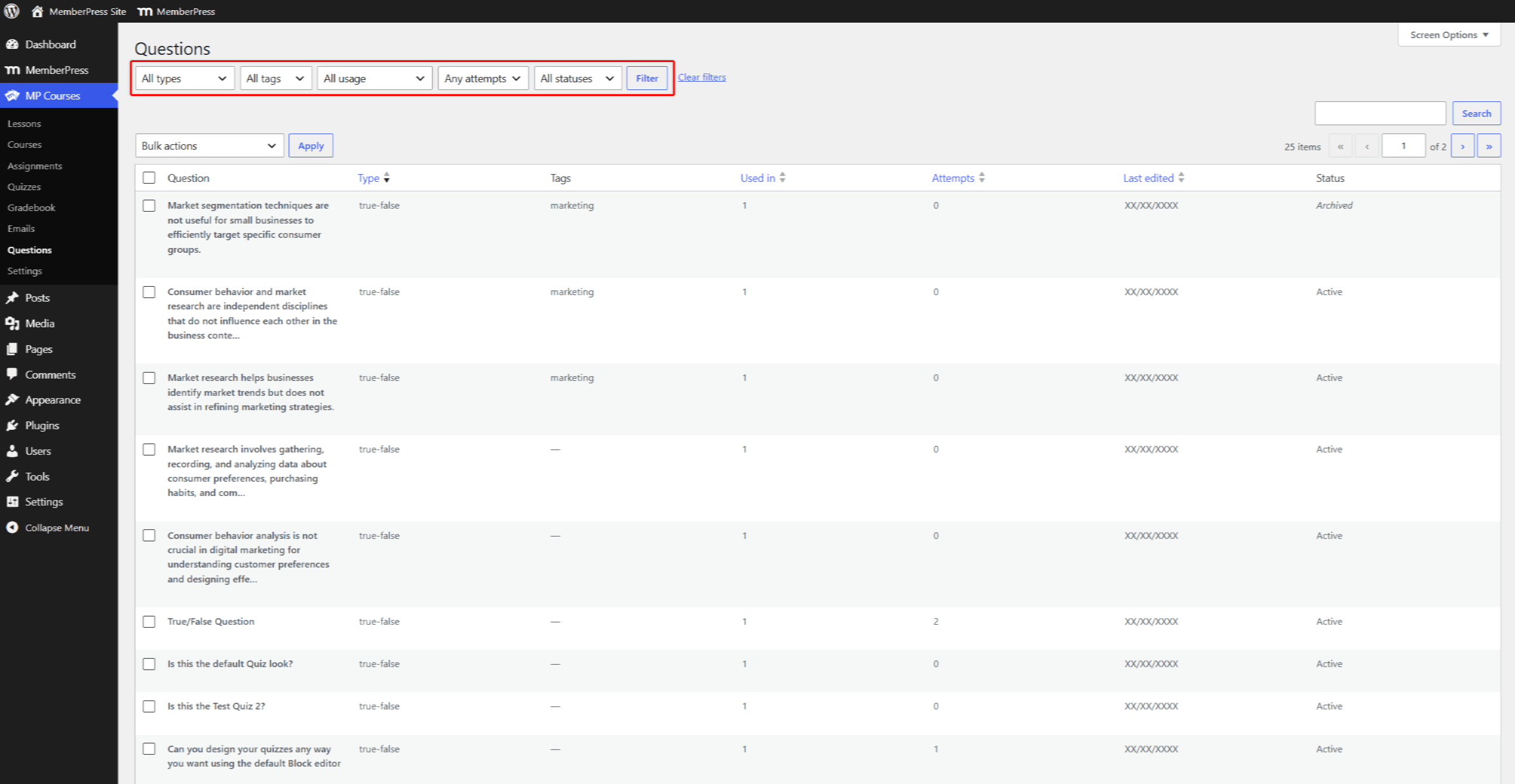
You can sort the list by clicking the Type, Used in, Attempts, and Last edited column headings. Also, the screen provides a search field and filters. The filters allow you to narrow the list by question type, tag, usage, attempts, and status.
To edit a question, hover over it and click the “Edit in quiz” link. This opens the quiz containing the question in the quiz editor. Questions that aren’t placed in any quiz don’t provide an edit link.
You can still edit these questions by adding them to any quiz. Attach the question to a quiz, edit it, and save the quiz. Then, remove the question’s block from the quiz and save the quiz again. Your changes will be preserved.
Tagging Questions
Tags sort your question library into groups, such as by topic or level. The Question Bank block uses tags to build its random question pools.
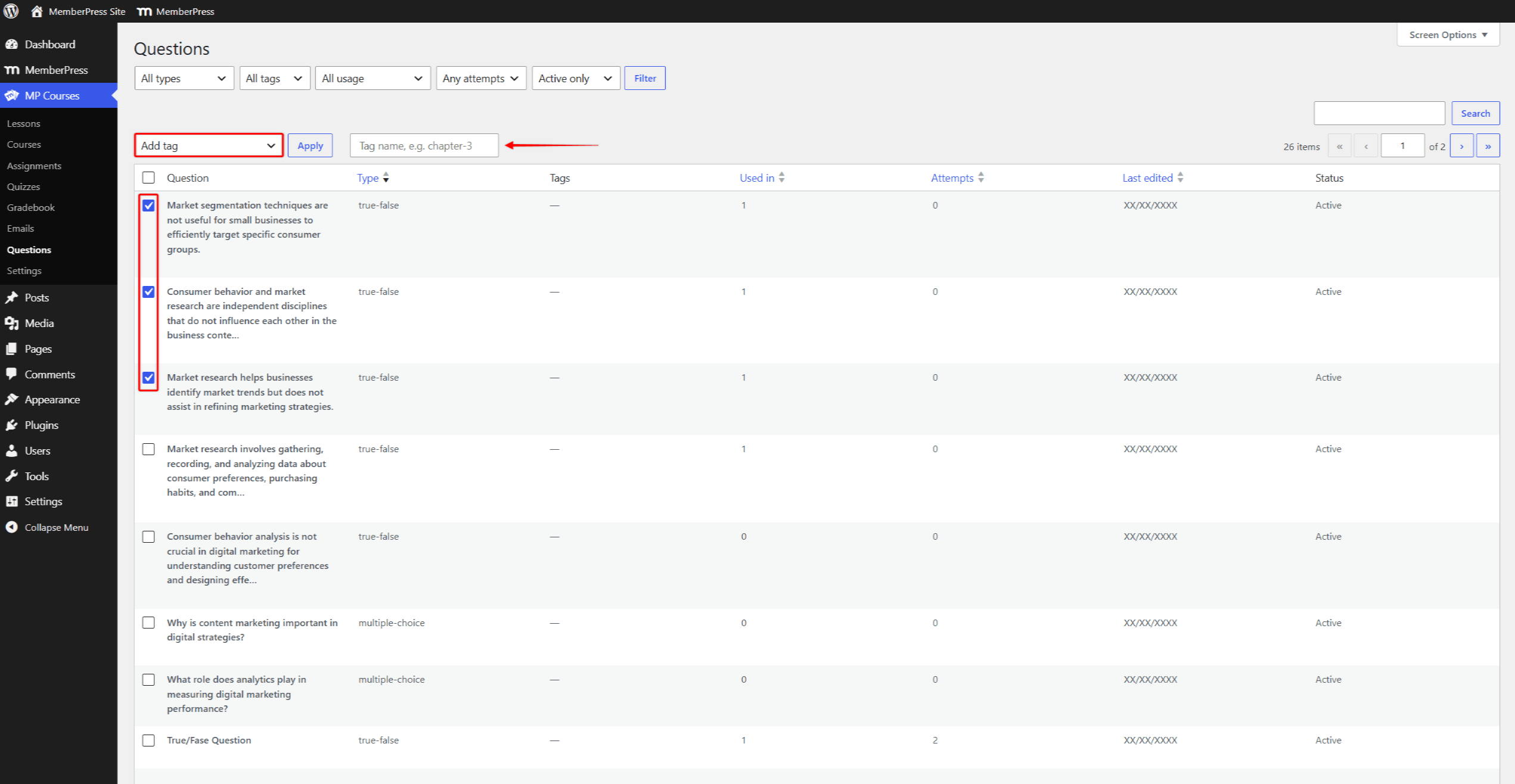
You can tag each question individually in its block settings within the quiz editor. Alternatively, tag multiple questions at once on the Questions screen:
- Navigate to Dashboard > MP Courses > Questions.
- Select the checkboxes next to the questions you want to tag.
- Open the Bulk actions dropdown and choose the “Add tag” option. This will show the tag field next to the dropdown.
- Enter the tag name in the field, and click the Apply button. The tag will be added to all selected questions.
Reusing Questions Across Quizzes
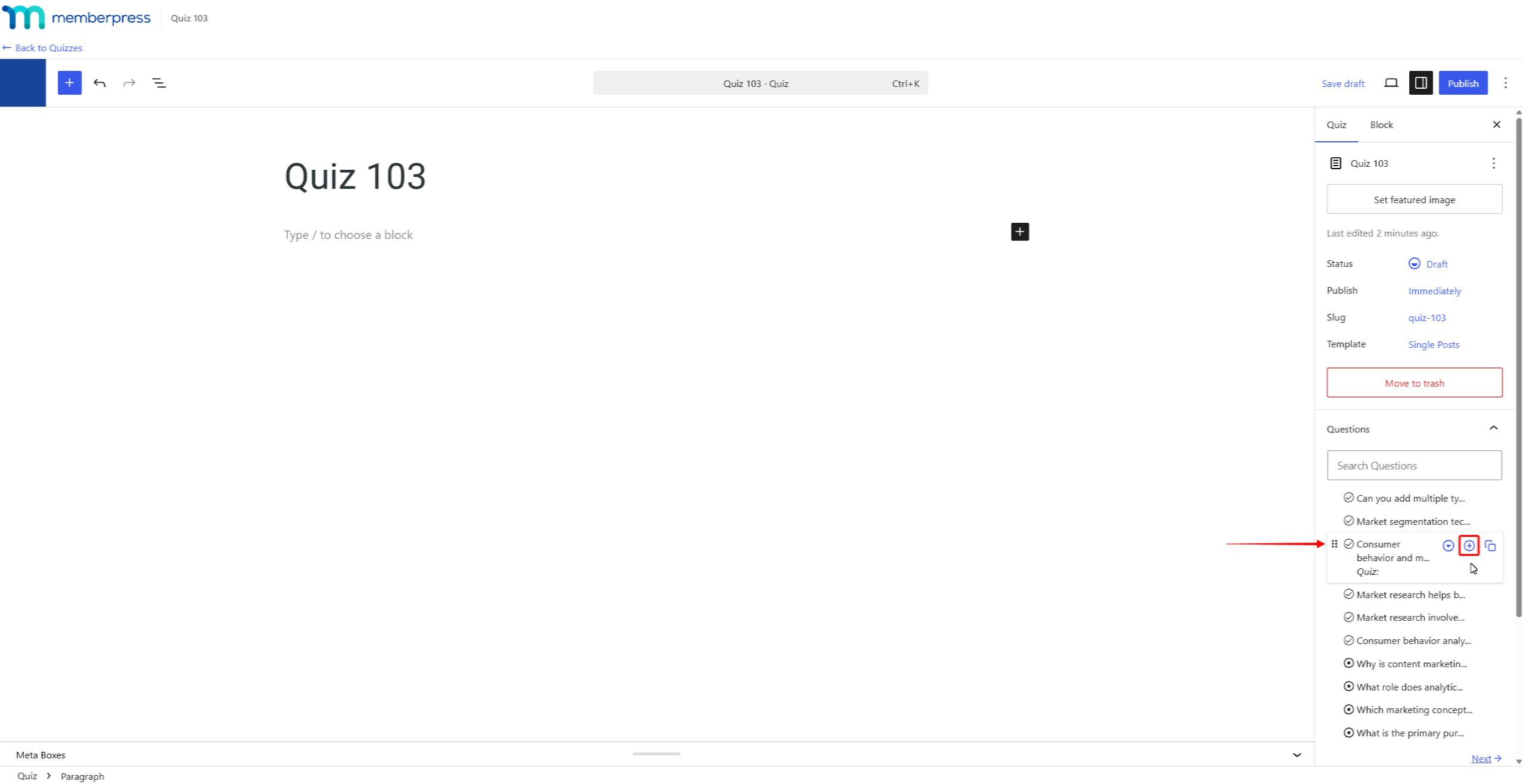
You can reuse any existing question when creating or editing quizzes. The quiz editor provides the Questions panel in the right-side sidebar. This panel lists all questions on your website, with a search field and page navigation.
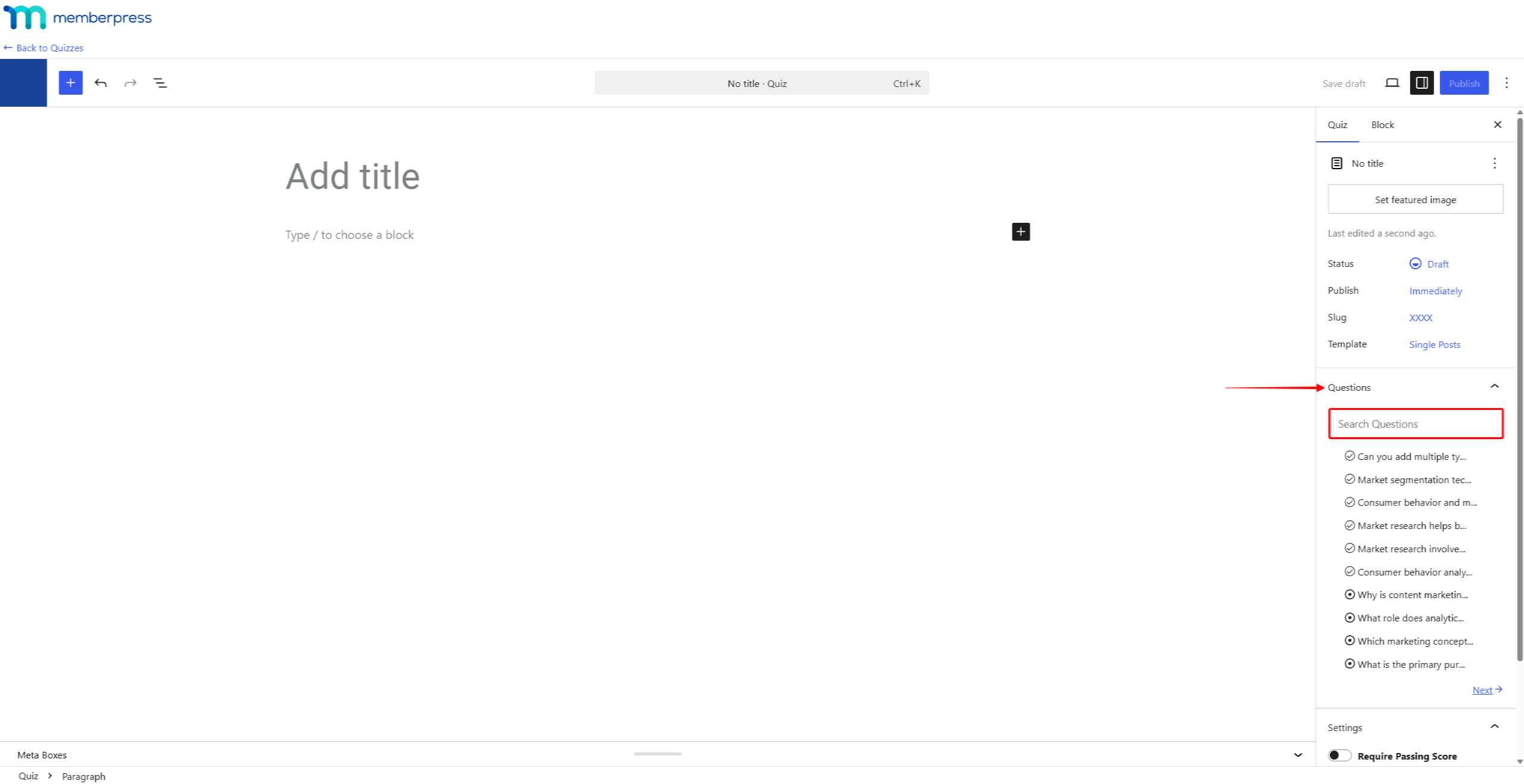
Hovering over a question in the panel shows three icons. The first icon expands the question to show its full text. Clicking it again collapses the question. The other two icons add the question to the quiz you’re editing:
- “Attach” (the plus icon): adds the existing question to the quiz. The question stays shared between all quizzes it’s attached to;
- “Duplicate” (the copy icon): creates an independent copy of the question and adds the copy to the quiz.
Questions that aren’t used in any quiz also show the “Delete” option (the trash icon). This option removes the question from your website for good.
Editing an attached question applies your changes to every quiz it’s attached to. The quiz editor shows a notice on every attached question, indicating the number of connected quizzes. In contrast, editing a duplicated question changes only that copy.
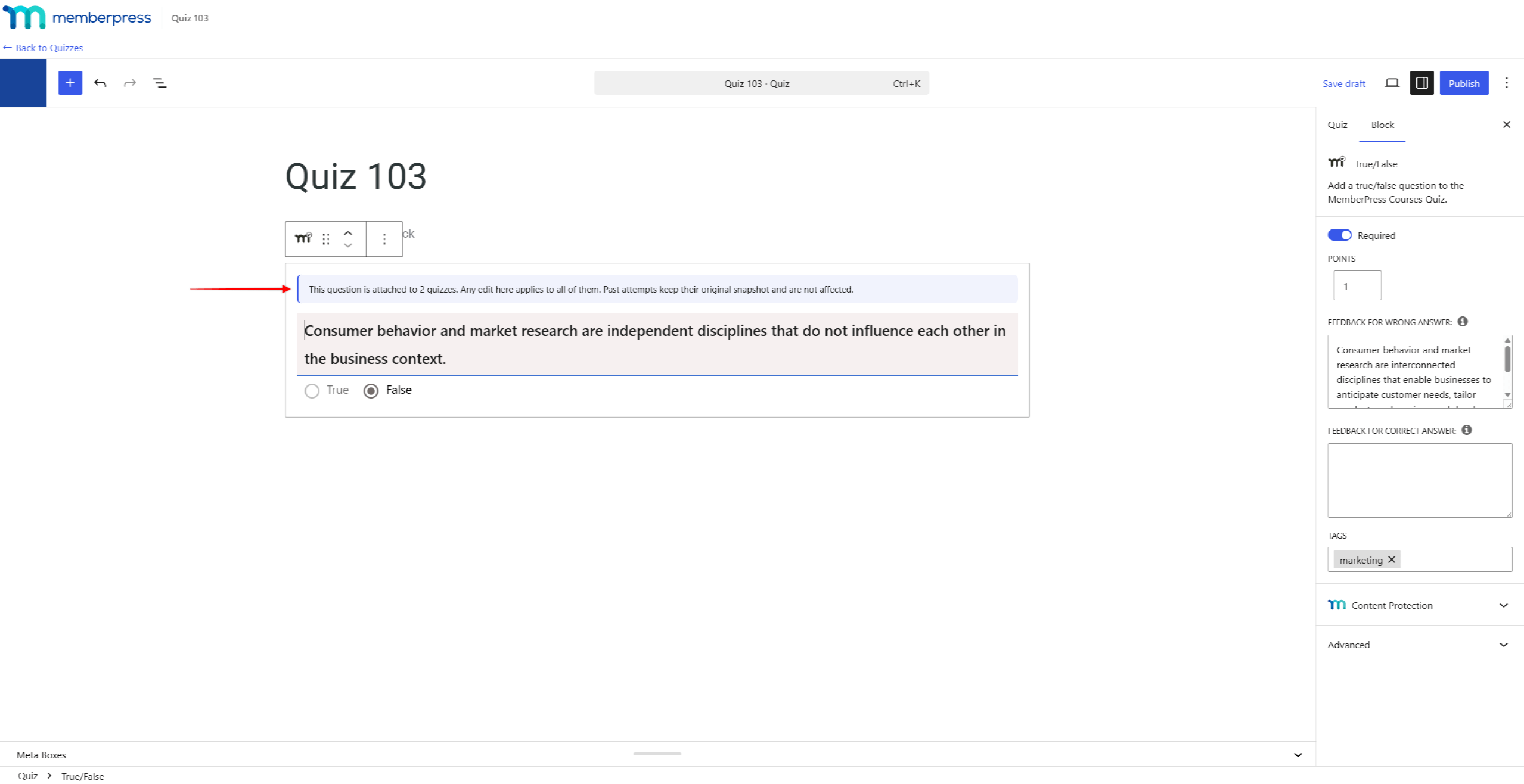
Editing shared questions never affects your students’ submitted attempts. Past attempts always display the questions as they appeared at submission. This also applies when grading submitted attempts in the Gradebook.
Archiving and Deleting Questions
Over time, some questions become outdated. You can retire these questions by archiving them, or permanently delete unused questions.
Archiving Questions
Archiving takes a question out of future use. Archived questions are removed from the Questions panel in the quiz editor and from all Question Bank pools. Thus, they can’t be attached to new quizzes or pulled into new attempts.
To archive a question, hover over it on the Questions screen and click the Archive link. To restore an archived question, use the Unarchive link. Both actions are also available as bulk actions.
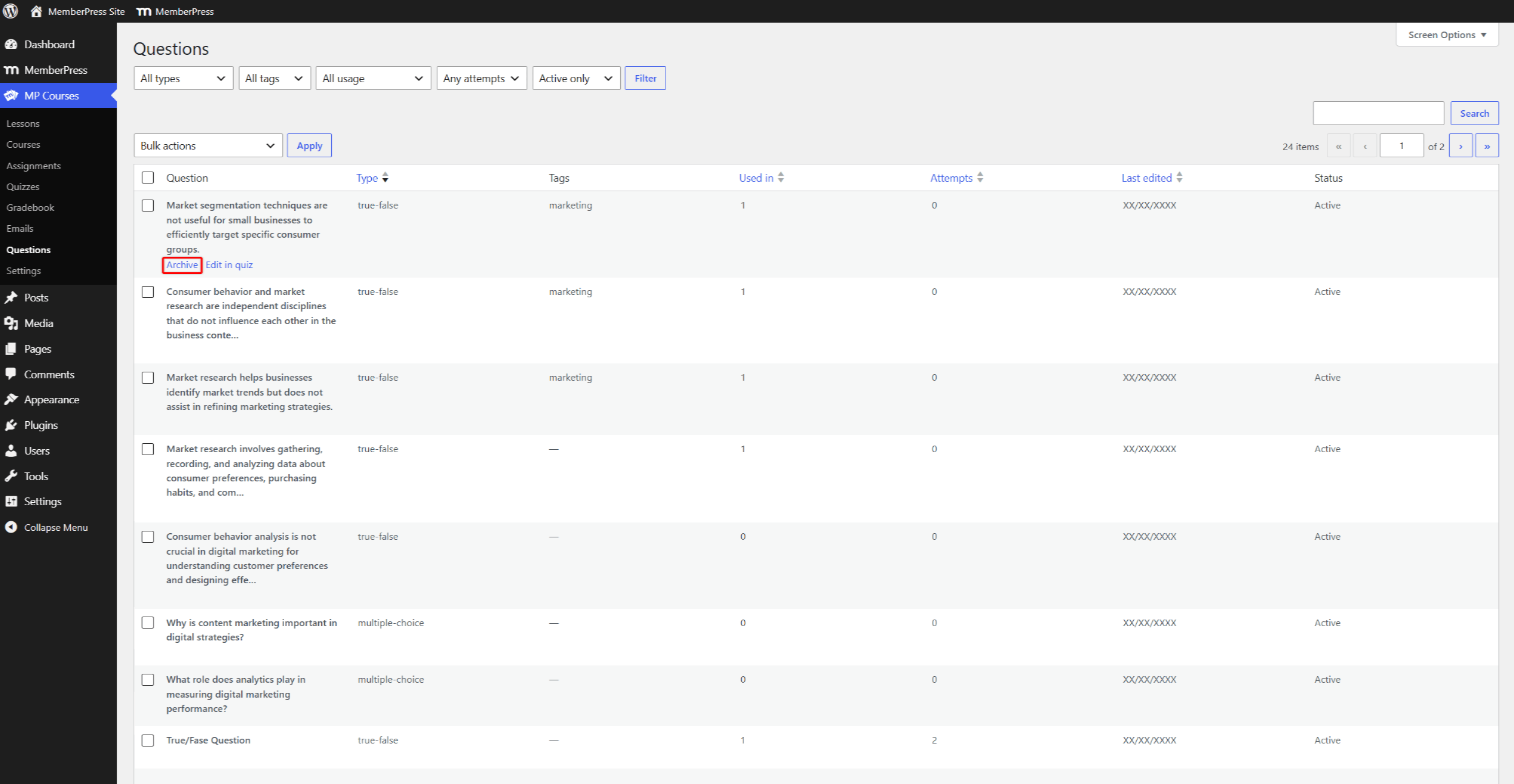
By default, the Questions screen shows only active questions. To find archived questions, set the Status filter to the “Archived only” or “All statuses” option.
Deleting Questions
Deleting removes a question from your website for good. To protect your data, MemberPress allows deleting only questions that are not in use. A question can be deleted only if it isn’t placed in any quiz and has no submitted attempts.
To delete an unused question, hover over it and click the Delete link. Questions in use don’t show this link, and can only be archived.
The “Delete permanently (safe only)” bulk action deletes all selected unused questions at once. Selected questions that are still in use will be skipped and reported in a notice.
Question Backfill After Updating
After updating to the add-on versions with the shared question library, existing quizzes require a one-time backfill. The backfill links your existing questions to the new library. It doesn’t move or delete any quiz content or attempts.
Until a quiz is backfilled, its questions may show a lower Used in count. The Questions screen will display a notice with the number of pending quizzes:
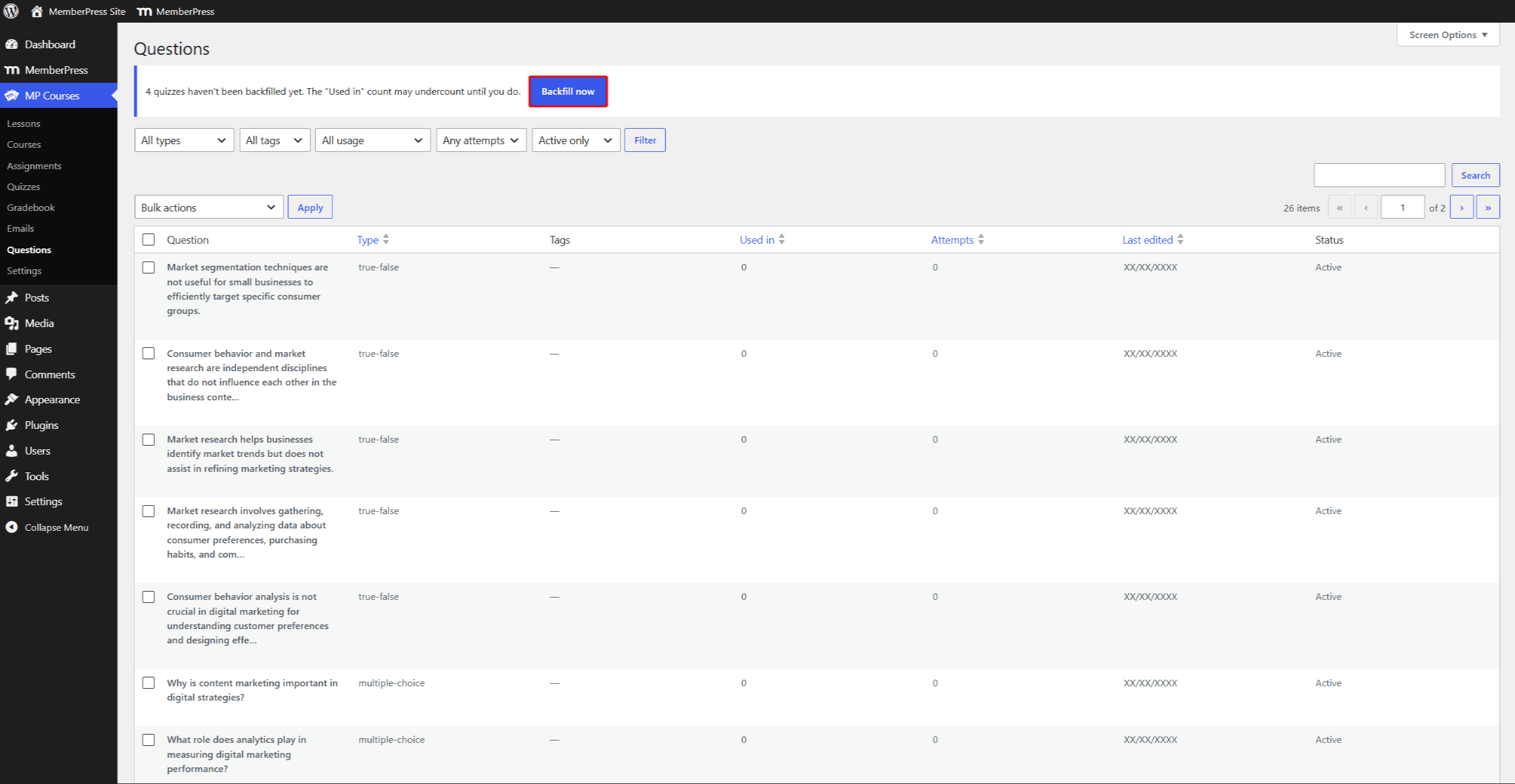
- Navigate to Dashboard > MP Courses > Questions.
- Click the “Backfill now” button in the notice.
- Keep the page open while the backfill runs. The notice will briefly show the backfill progress.
- Once completed, the notice will disappear. On sites with many quizzes, the backfill may take longer to complete.
Individual quizzes are also backfilled automatically when you open or save them in the quiz editor.
Duplicate Questions in the Library
After the update, the Questions screen may list several copies of the same question. In earlier add-on versions, reusing a question always created a copy. All these existing copies are preserved as separate questions.
You can clean up the library by archiving or deleting the copies you don’t need. Copies that were never used in a submitted attempt can be safely deleted. Going forward, use the “Attach” option to reuse questions without creating copies.
Useful Blog Post
For a rundown of the benefits of using the MemberPress Quizzes question bank, read our realted blog post: MemberPress Question Bank: A Smarter Way to Build and Manage Quizzes.










