

The MemberPress AI Course Generator is an AI-powered course builder. It integrates directly into MemberPress Courses. The add-on generates complete course structures through a chat with an AI agent. This includes sections, lessons, quizzes, and draft content. The AI Course Generator also includes the AI Lesson Assistant and the AI Quiz Builder.
This document will show how to create courses using the MemberPress AI Course Creator.
Prerequisites
The AI Course Generator add-on requires the following to function:
- MemberPress plugin installed and activated;
- MemberPress Courses add-on installed and activated;
- AI Course Generator add-on installed and activated;
- AI credits available on the account.
For quiz generation, the MemberPress Courses Quizzes add-on must also be installed and activated.
Video Tutorial
AI Course Generator Modes
The MemberPress AI Course Generator can generate courses, lessons, quizzes, and their content. It can also improve or expand existing content.
The AI Course Generator add-on has three modes:
- AI Course Creator – used to create entire courses. This includes a course, curriculum with lessons, and initial content;
- AI Lesson Assistant – used to generate new content. It can also improve existing course or lesson content;
- AI Quiz Builder – this mode generates quizzes.
Creating New Courses With AI Course Creator
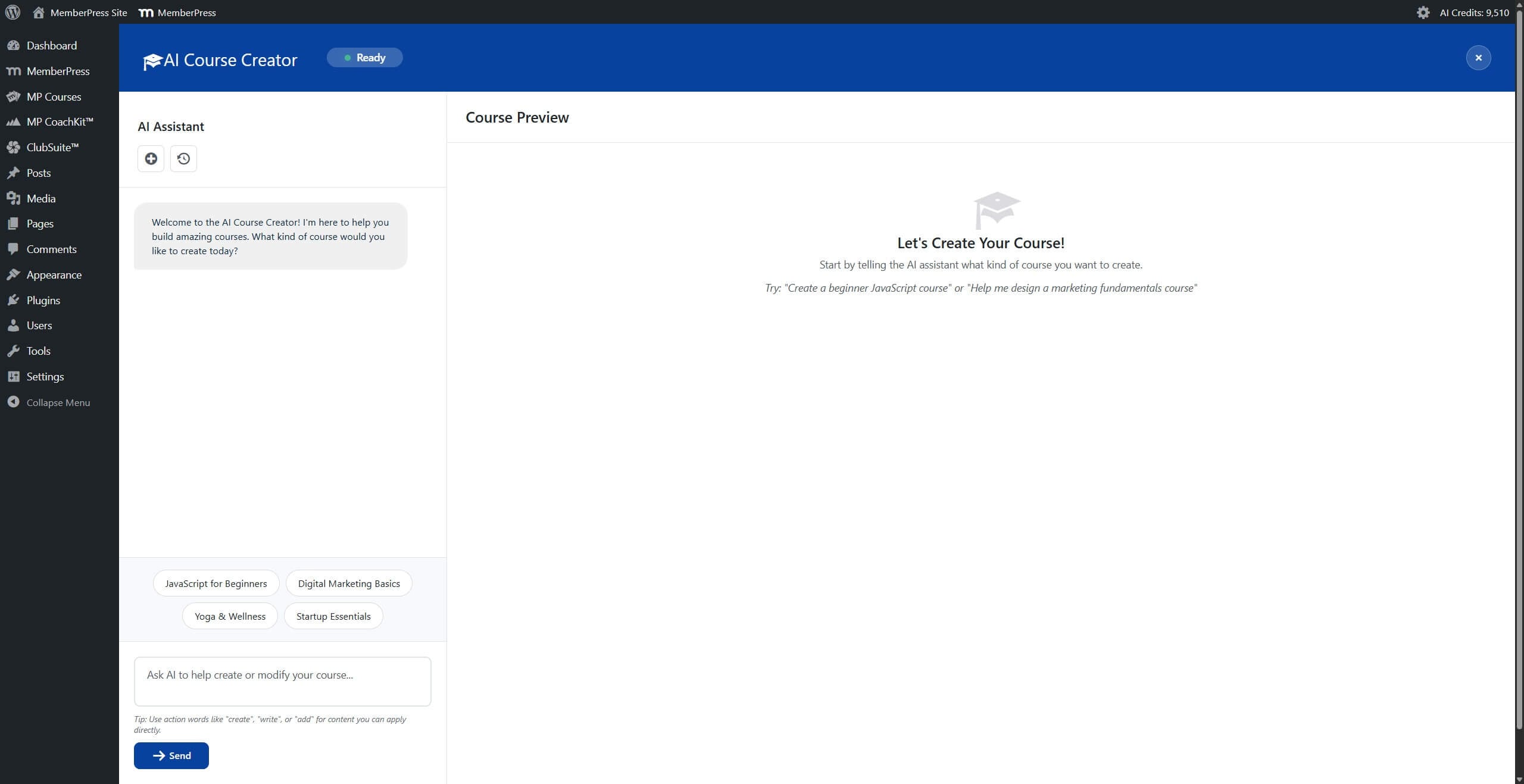
The AI Course Creator uses a two-panel layout for course creation. The left panel contains a chat interface where the AI assistant asks questions and receives responses. The right panel displays a live preview of the course structure that updates as the conversation progresses.
The AI Course Creator conversation begins with a main prompt explaining what kind of course should be created. The prompt could include details such as the main topic, target audience, teaching methodologies, specific learning outcomes, and expected course duration.
Once requirements are gathered, the AI generates a complete course structure. This includes the course title, sections, lessons within each section, estimated durations, learning objectives, and draft content.
The generated content can be modified through additional prompting in the chat interface. Manual editing options are also available for fine-tuning the course structure.
Generating a Course Structure
To create a new course with the AI Course Creator:
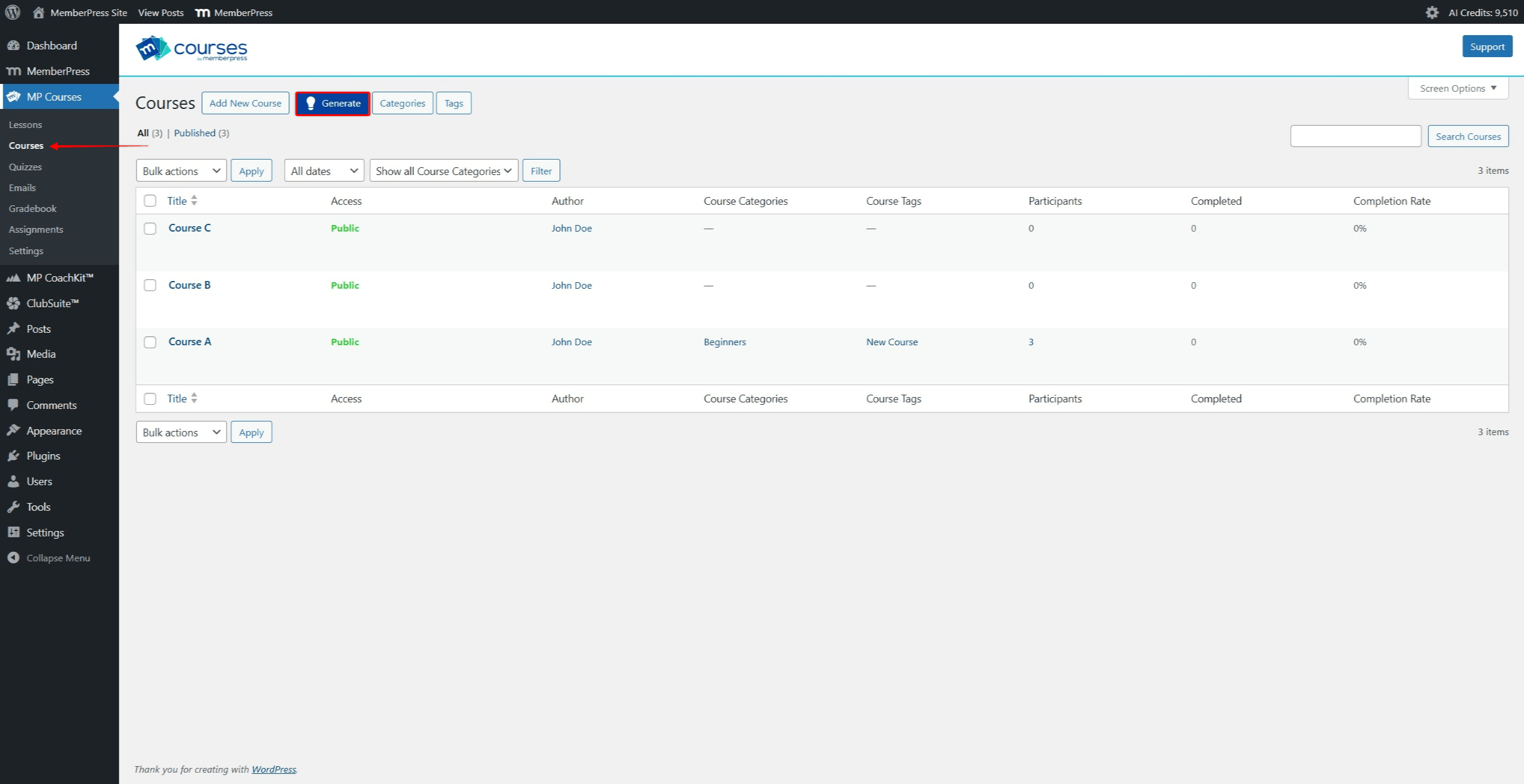
- Navigate to Dashboard > MP Courses > Courses.
- Click the Generate button at the top of the Courses page. This button is located next to the Add New Course button.
- The AI Course Creator interface opens with a two-panel layout.
- In the chat field, type a prompt describing the course to create. Include details such as the main topic, additional specific focus areas, target audience, and course duration or number of lessons.
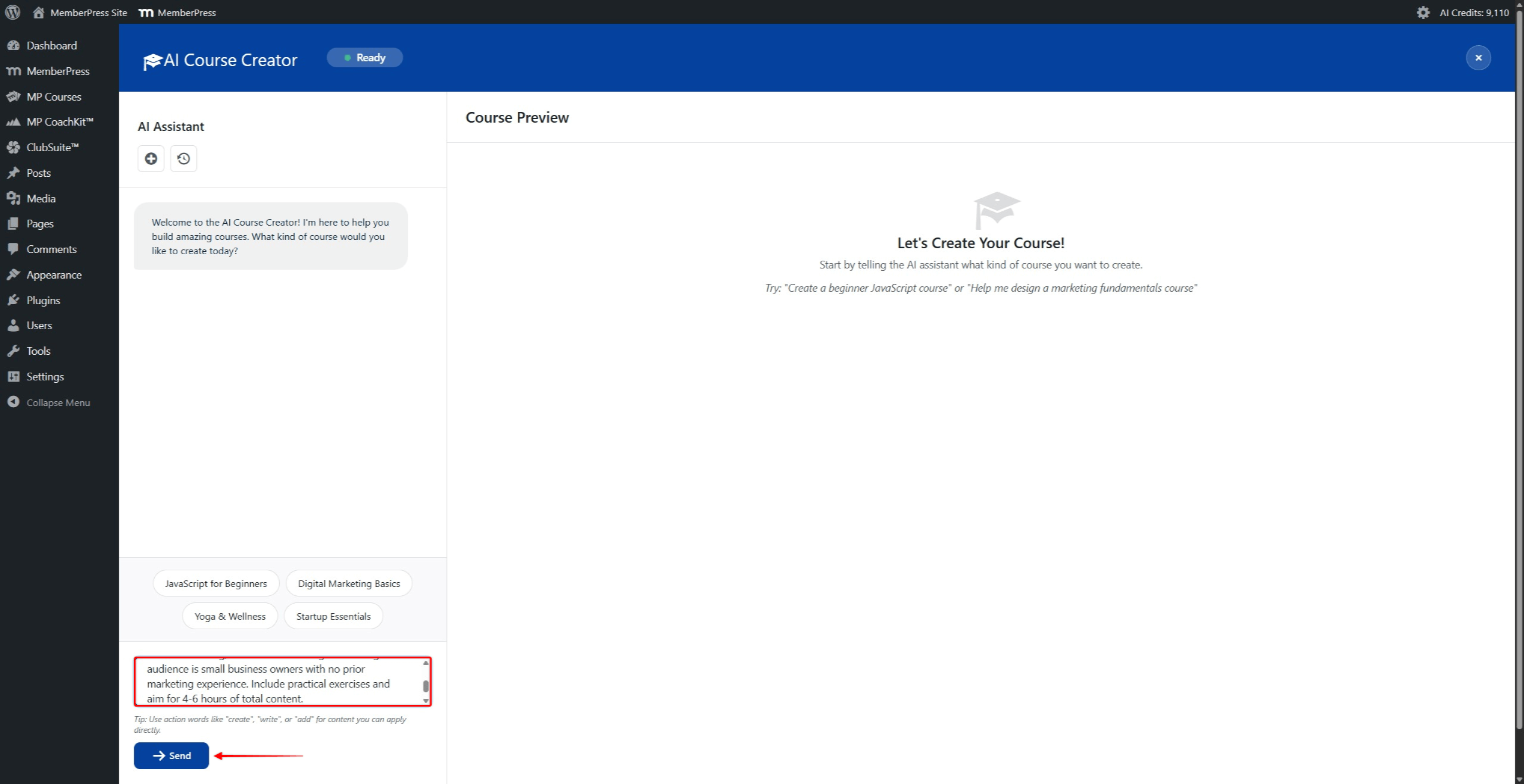
- Click the Send button to submit the prompt.
- Wait for the AI to generate the course structure. The Course Preview panel updates to display the generated course.
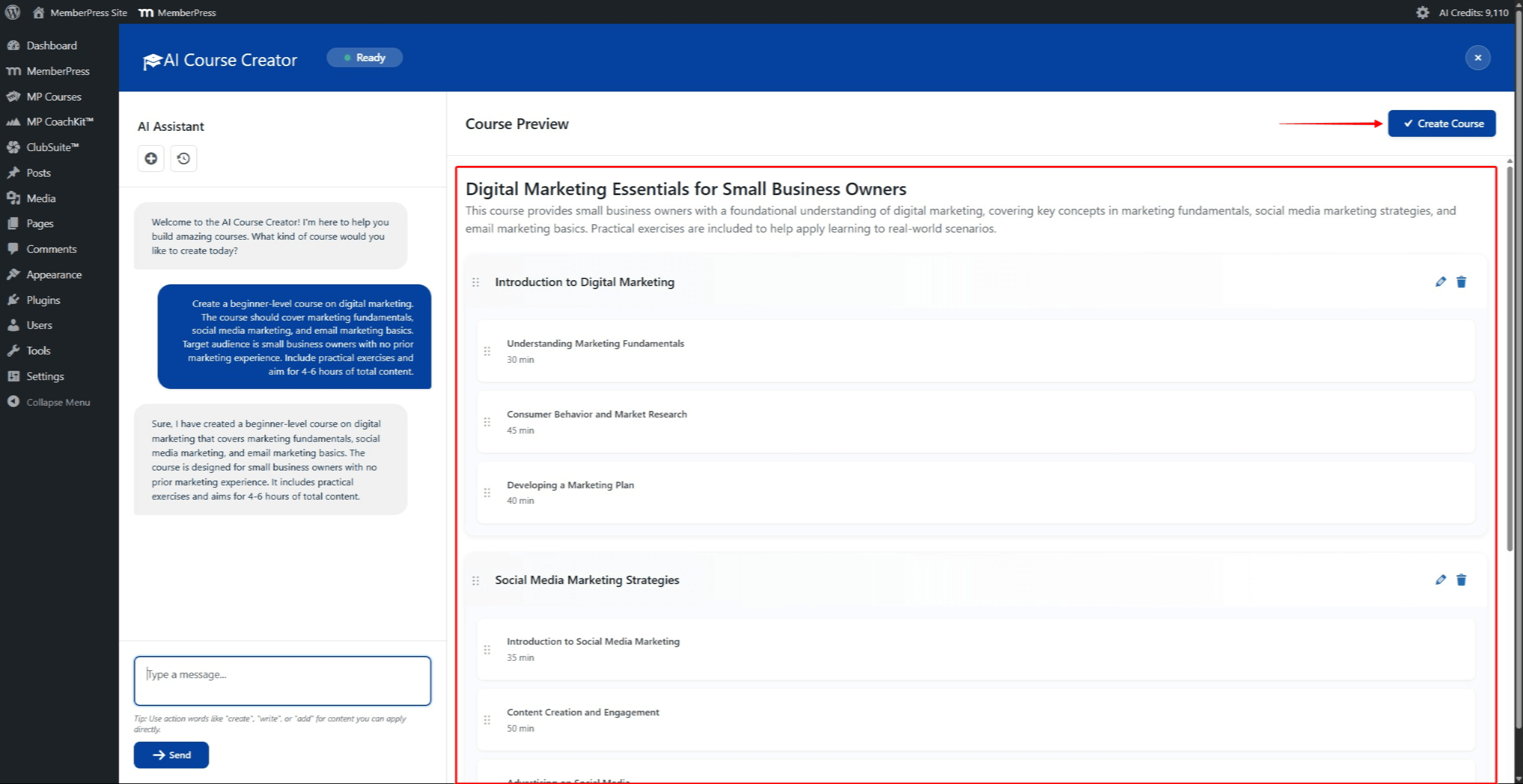
- Review the generated course structure. The structure can be modified through additional chat prompts or manual editing.
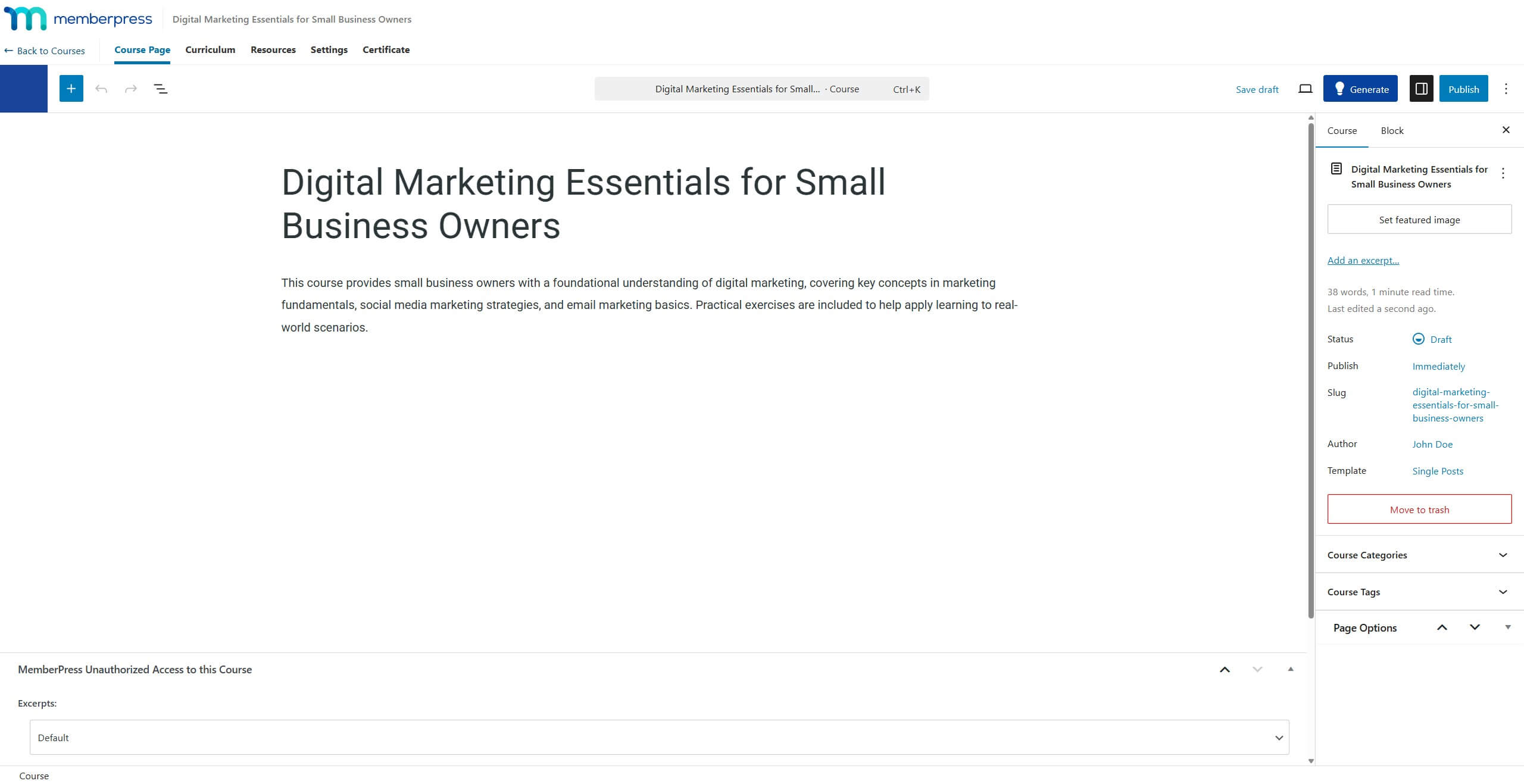
- Click the Create Course button in the top-right corner of the Course Preview panel to save the course.
Editing the Generated Course Structure
The generated course structure can be modified before saving. Several editing options are available directly in the Course Preview panel.
Reordering Sections and Lessons
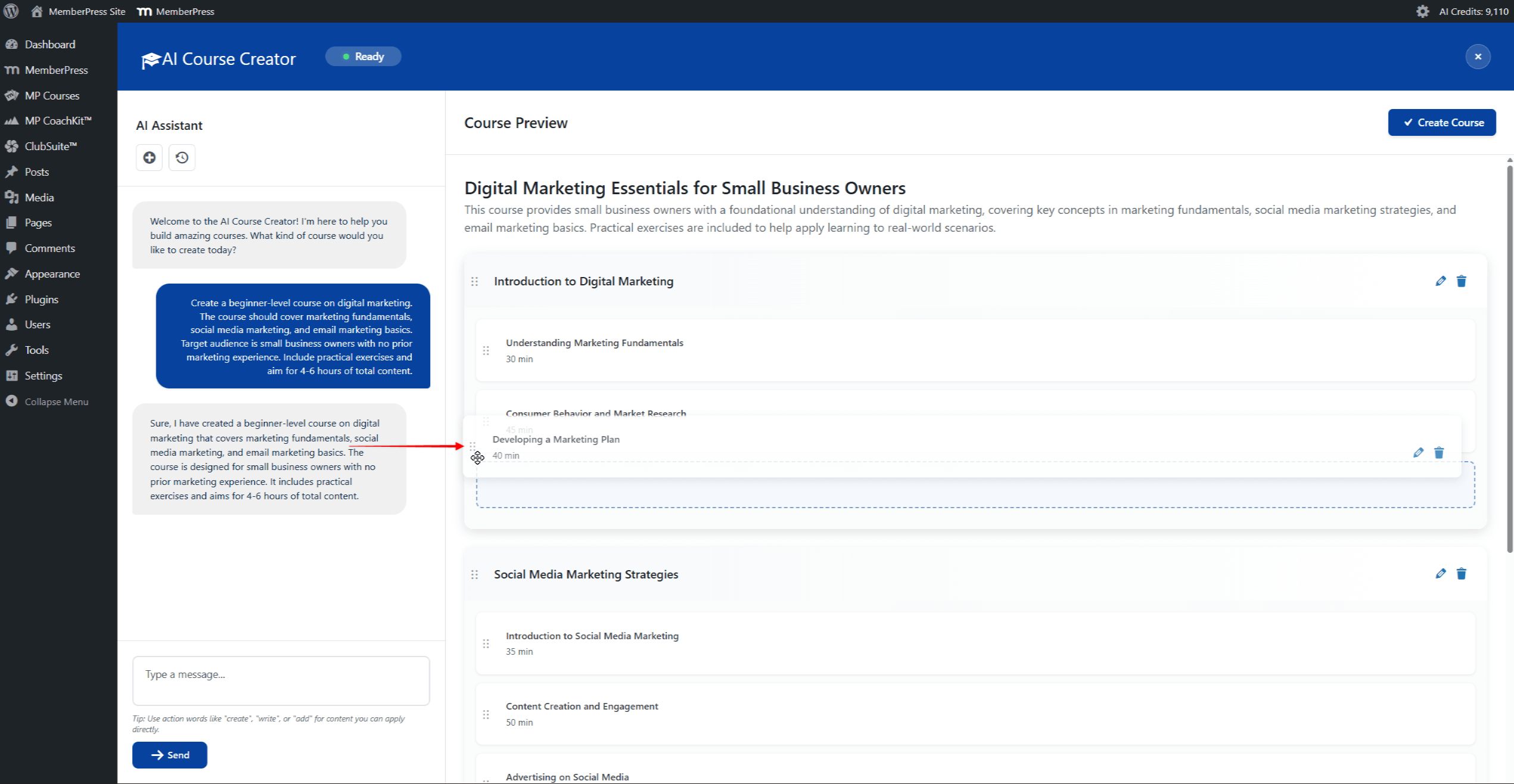
Sections and lessons can be reordered using drag-and-drop functionality. Click and hold on a section or lesson, then drag it to the desired position. Additional lessons and sections can also be requested through the chat panel.
Renaming and Deleting Sections and Lessons
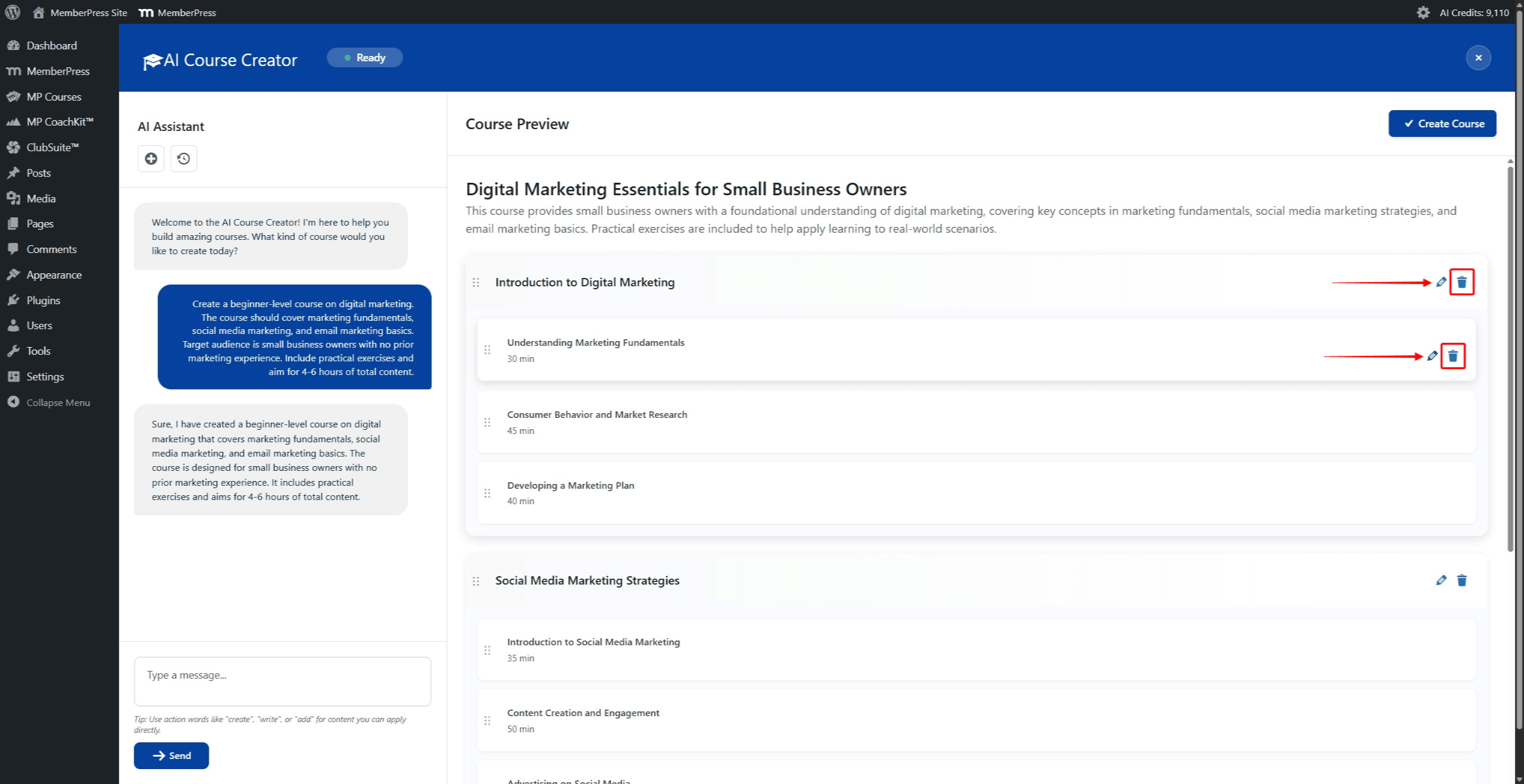
Each section and lesson displays editing icons on the right side when hovered over:
- Click the pencil icon to rename a section or edit a lesson;
- Click the trash bin icon to delete a section or lesson.
Generating Lesson Content
Lesson content can be generated directly within the AI Course Creator. This allows populating lessons with AI-generated content before saving the course.
To generate content for a lesson:
- In the Course Preview panel, click the pencil icon next to a lesson.
- A popup window opens displaying the lesson title and content options. The popup includes three tabs: Preview, Edit, and Quiz.
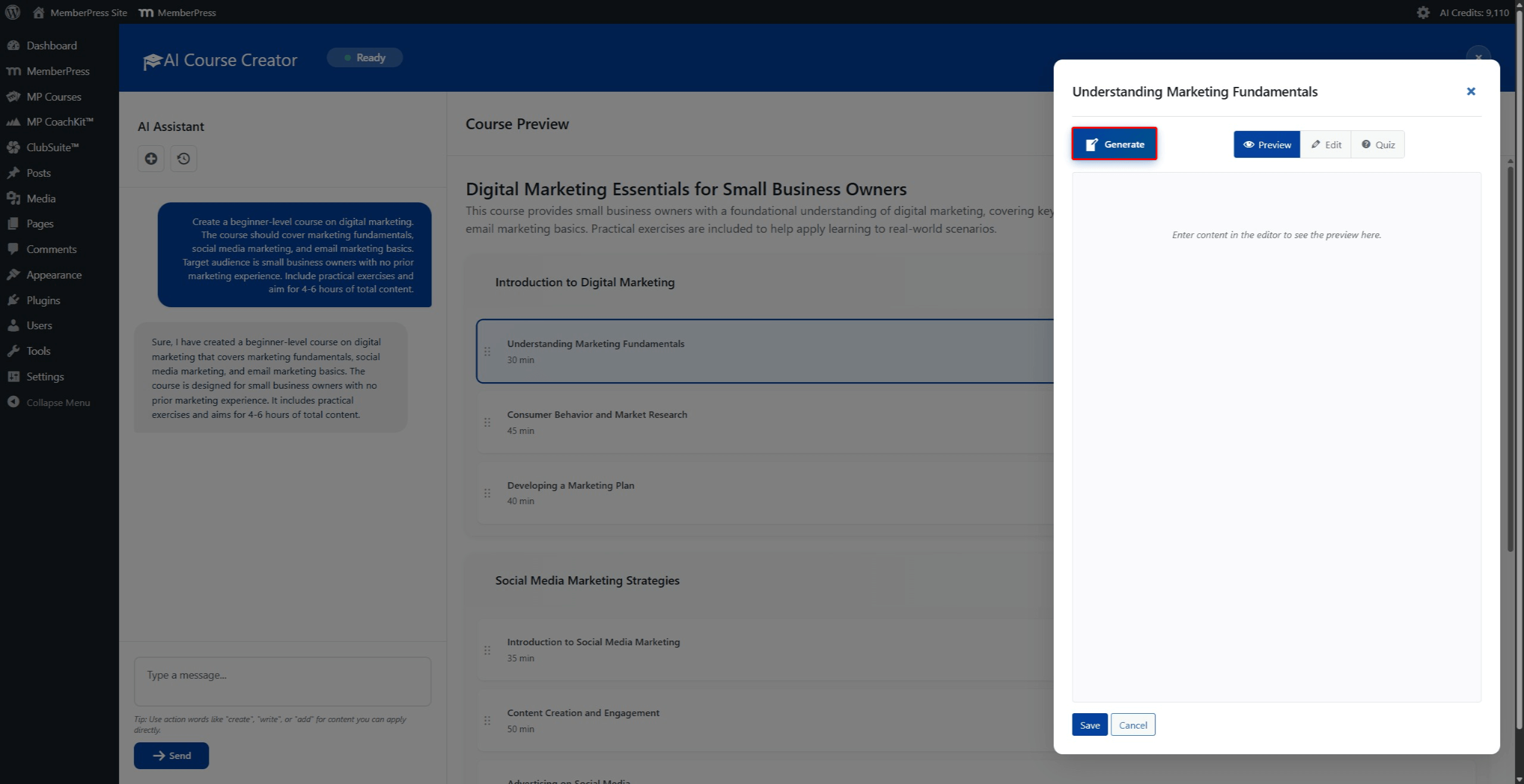
- Click the Generate button in the popup to generate lesson content using AI.
- Wait for the AI to generate the content. The generated content appears in the preview area.
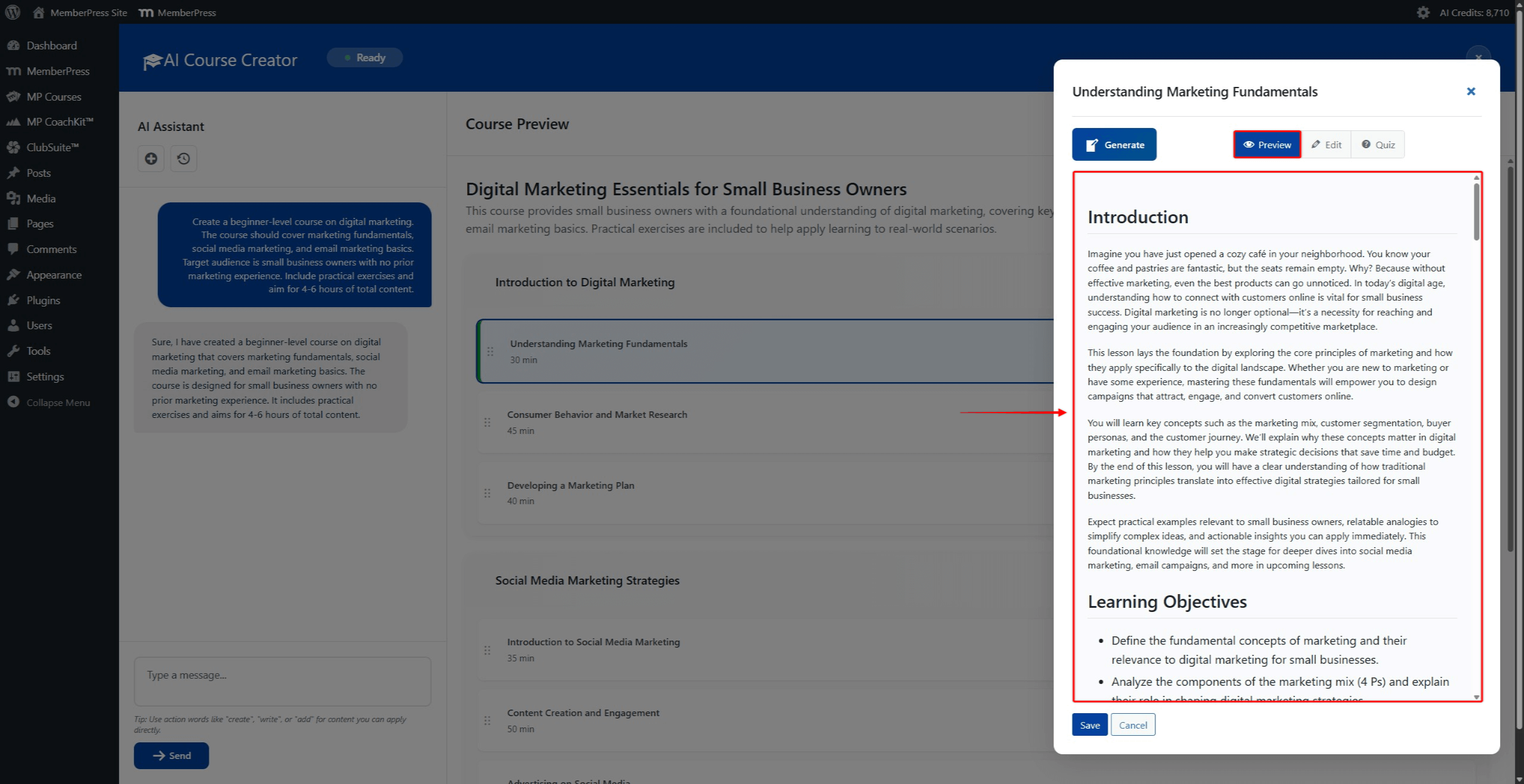
- Review the generated content in the Preview tab.
- Click the Edit tab to view and modify the content in HTML format.
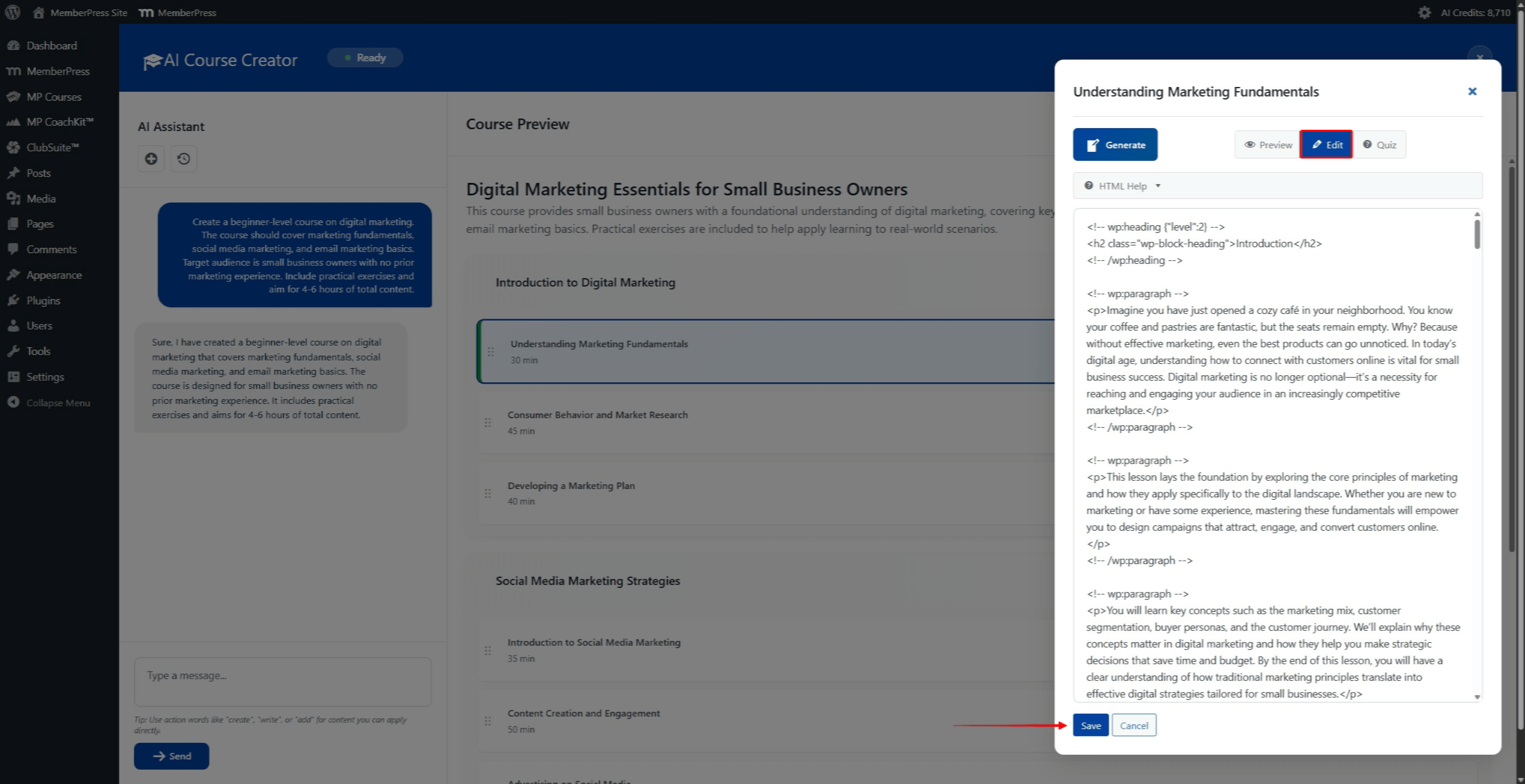
- Click the Save button to save the lesson content. Click Cancel to discard changes.
These steps can be repeated for any lesson within the generated curriculum. The Course Preview panel displays content summaries for lessons that have generated content.
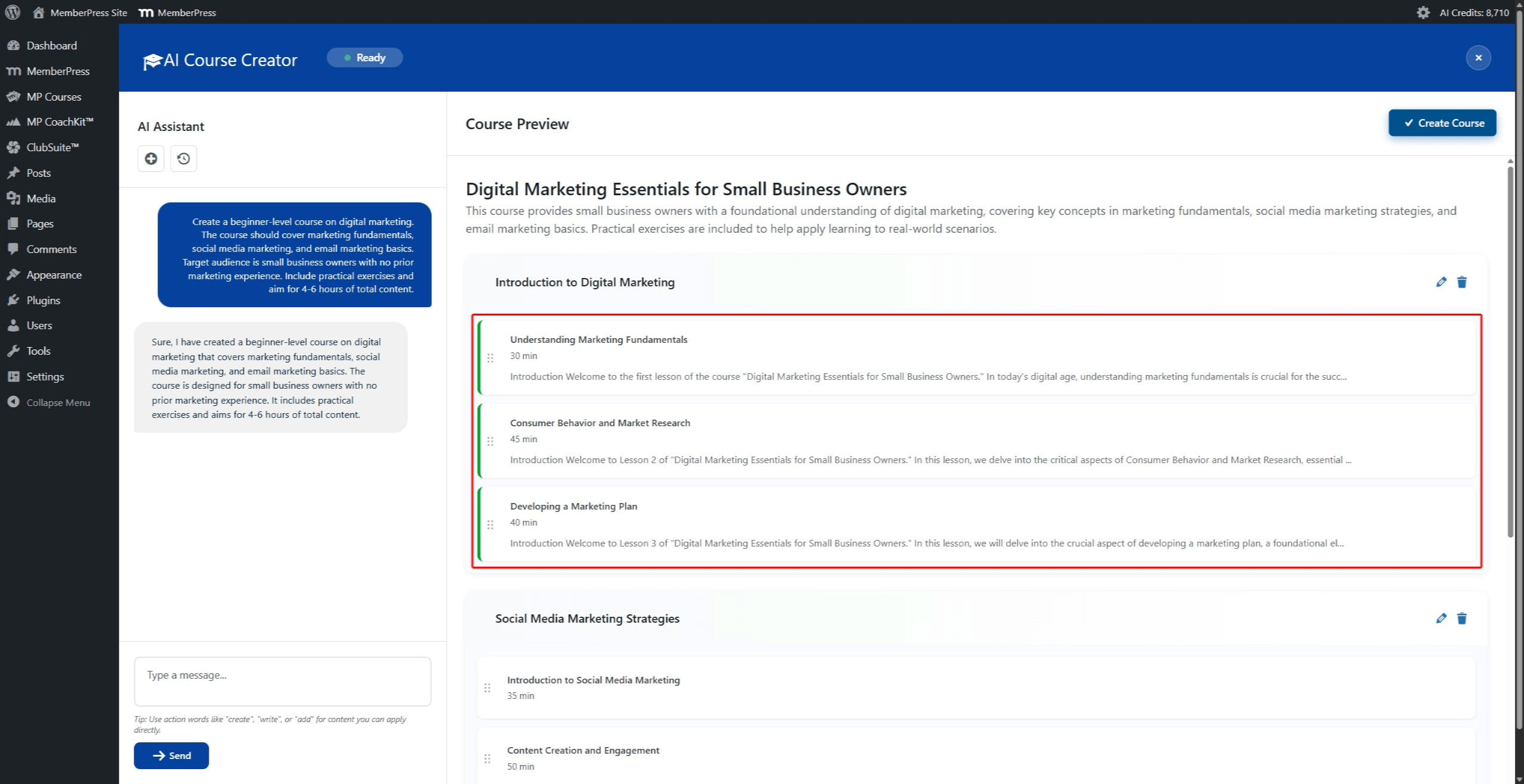
Lesson content can also be generated or modified later using the AI Lesson Assistant. Navigate to Dashboard > MP Courses > Lessons and edit any lesson to access the AI Lesson Assistant.
Generating Lesson Quizzes
The lesson popup also includes a Quiz tab. This tab allows generating a short quiz based on the lesson content. The quiz is generated using the content from the Preview tab.
This feature provides a quick way to add quiz questions while building the course curriculum. However, it has some limitations compared to the full AI Quiz Builder:
- Only 5 quiz questions can be generated per lesson;
- Only the Multiple Choice question type is supported;
- The quiz is based only on the specific lesson content and cannot include questions from multiple lessons.
For more comprehensive quiz creation with multiple question types and lessons, use the AI Quiz Builder after creating the course.
To generate a lesson quiz:
- In the lesson popup, click the Quiz tab.
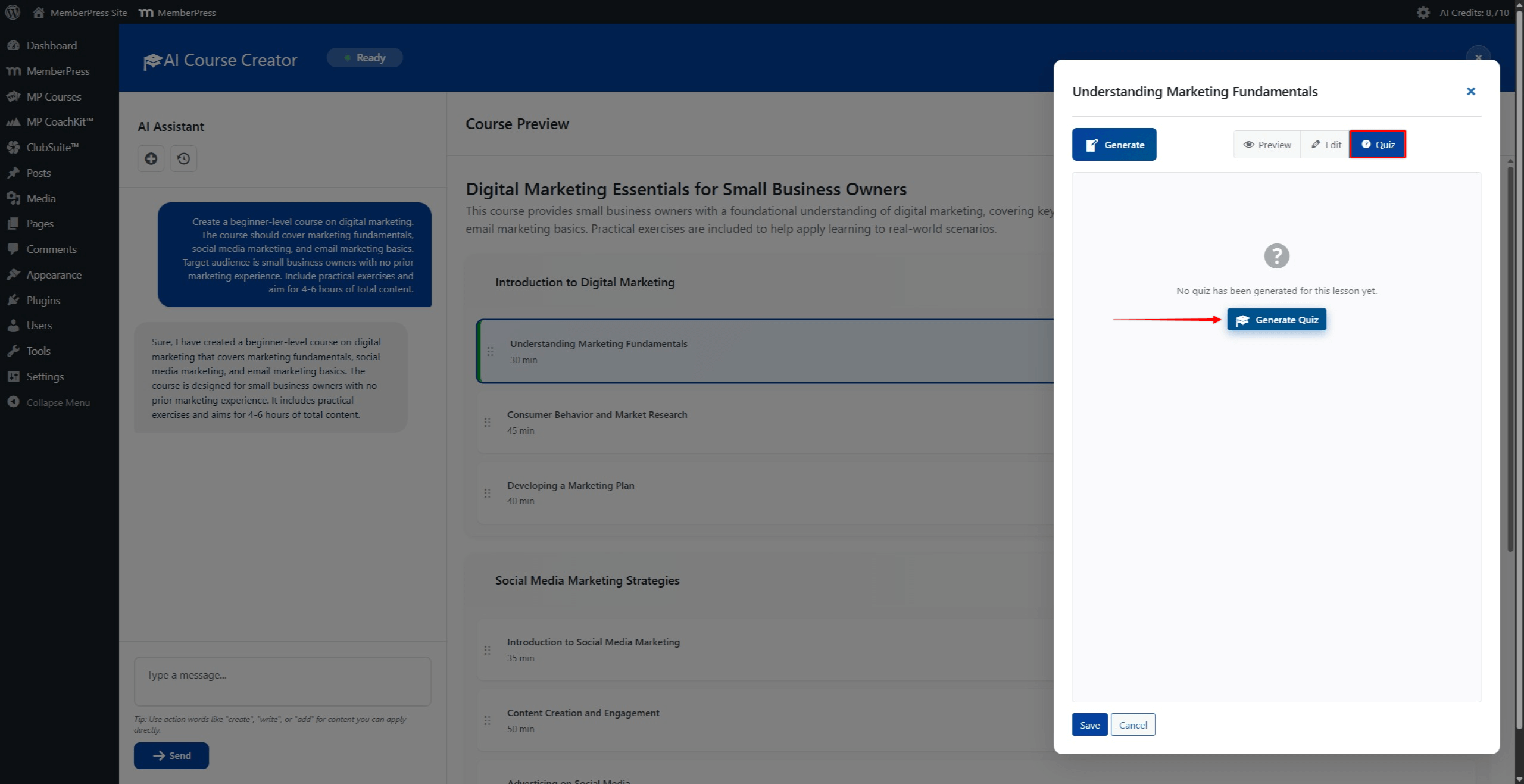
- Click the Generate Quiz button to generate 5 multiple-choice questions.
- Wait for the AI to generate the quiz questions.
- Review the generated questions in the Quiz tab.
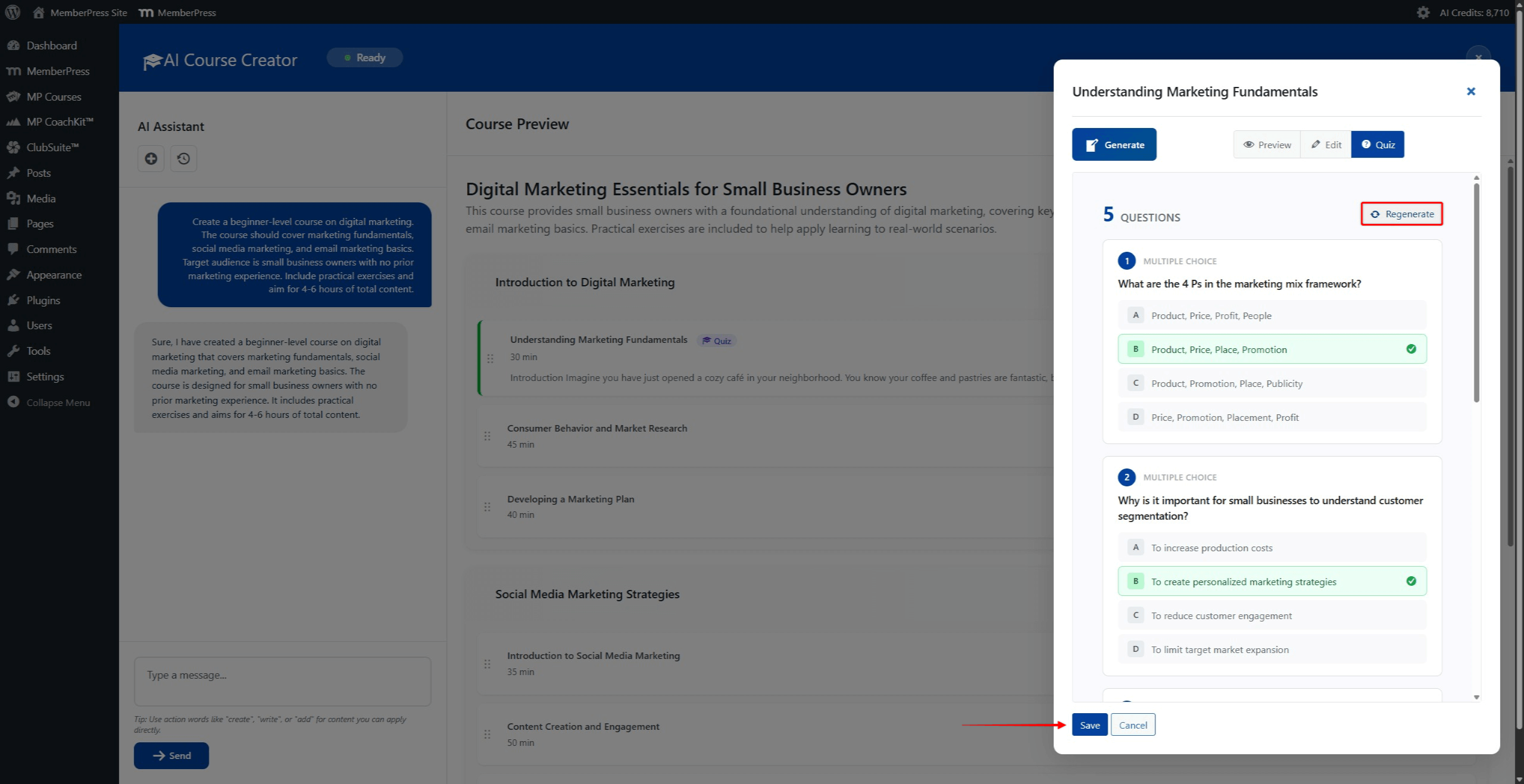
- If the questions are not satisfactory, click the Regenerate button to generate a new set of 5 questions.
- Click the Save button to save both the lesson content and quiz.
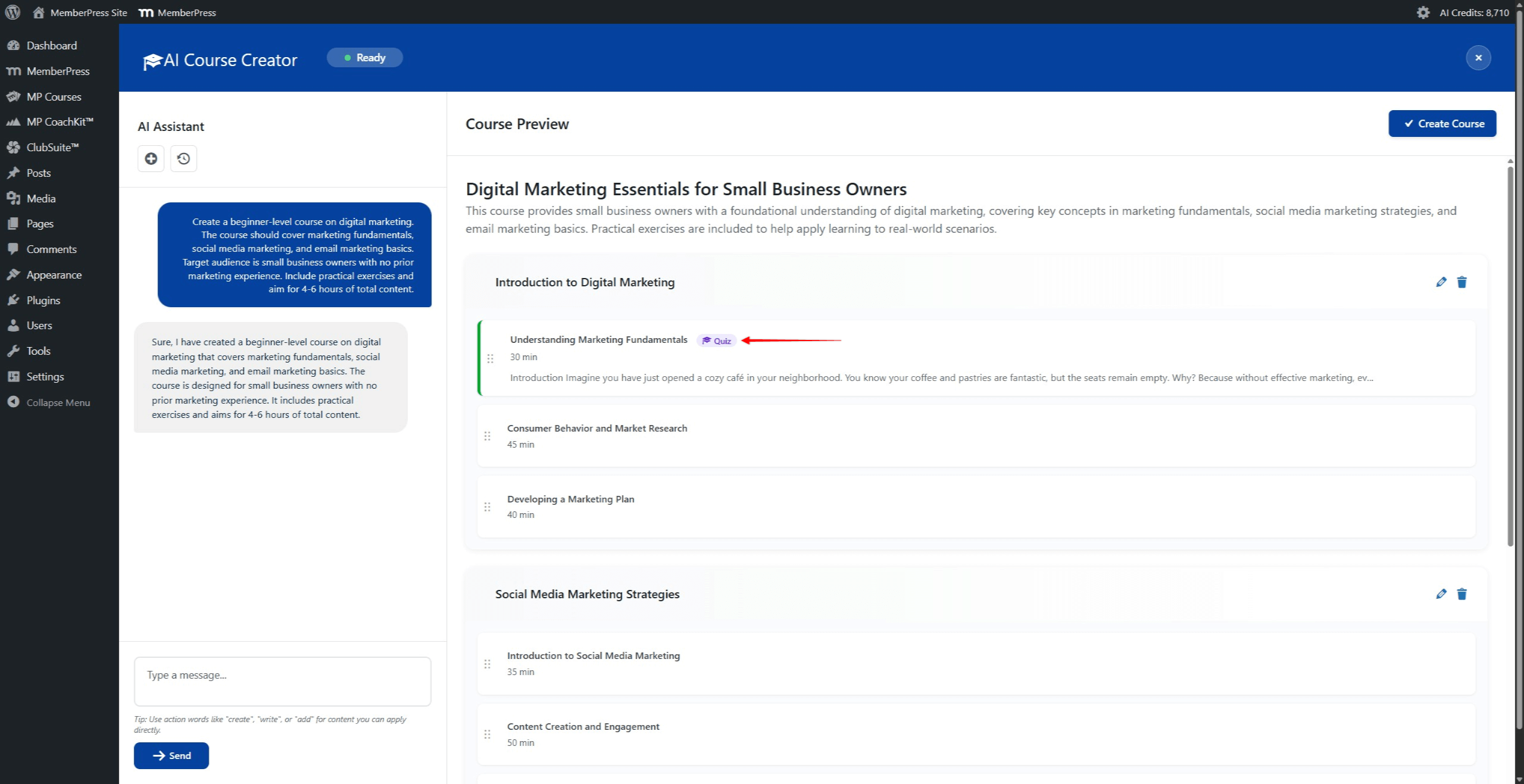
After saving, lessons with generated quizzes display a “Quiz” badge next to the lesson title in the Course Preview panel.
Course Compatibility
All AI-generated courses are fully compatible with existing MemberPress features. These include:
- Access rules for content protection;
- Content protection settings;
- ReadyLaunch templates for course design.
AI Credits System
AI Course Generator features consume AI credits. Credits are used based on the complexity of each action. The following actions require credits:
- Course outline generation;
- Lesson content creation;
- Content regeneration;
- Quiz question generation.
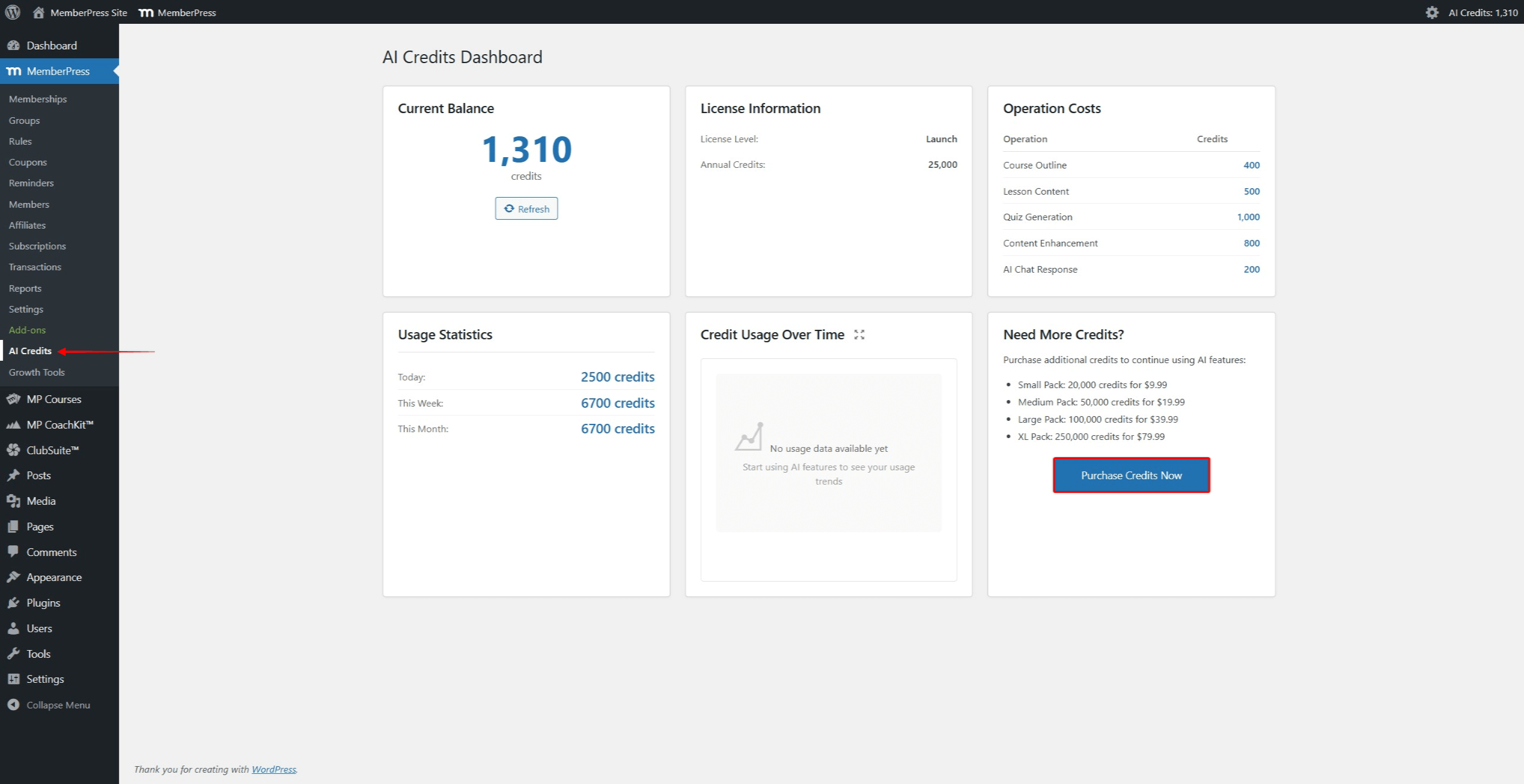
Viewing AI Credit Balance
The current credit balance can be viewed at Dashboard > MemberPress > AI Credits. This dashboard provides options to:
- Purchase additional credits;
- View usage history.
To purchase additional credits, click the “Purchase Credits Now” button on the AI Credits page.
Summary
The MemberPress AI Course Generator simplifies course creation through AI assistance. The add-on generates complete course structures, lesson content, and quiz questions.
Key features include:
- AI Course Creator mode for creating entire courses with curriculum;
- AI Lesson Assistant for generating and improving lesson content;
- AI Quiz Builder for creating quiz questions based on lesson content;
- Credits-based system for managing AI usage.
The AI Course Generator is built on MemberPress Courses and supports MemberPress Courses Quizzes.










