

The External Link Handling feature lets you control how external URLs open in your MemberPress (iOS/Android) app, whether from blog posts, content, or custom menus. You can choose to open links in an in-app browser, the device's default browser, or let users choose their preference.
This guide walks you through configuring link handling settings in MemberPress AppKit and how users can manage their preferences in-app.
Understanding the External Link Handling Feature
External link handling requirements define how URLs outside the application open when members tap links within app content.
In-app browser option: opens external links within the built-in browser, maintaining app session continuity. Members remain within the application environment while accessing external content.
External browser option: launches links in the device's native browser, like Safari or Chrome. External browser opening provides full browser capabilities and a familiar interface.
Member choice option: prompts users to select preferred browser type for each link interaction. User preference saves for future link taps, maintaining a consistent experience.
Configuration flexibility: enables administrators to enforce specific behavior or delegate choice to members. Different strategies suit different content types and user experience goals.
Preference persistence: remembers the member browser selection across app sessions when the choice option is enabled. Saved preferences reduce repeated prompting and improve navigation efficiency.
Configuring Link Handling Options
Link handling configuration establishes the default behavior for external URL opening throughout the application.
Accessing Compatibility Settings
Compatibility settings access enables link handling configuration and behavior control options.
- In WordPress, go to Dashboard > MP AppKit > Settings > Compatibility.
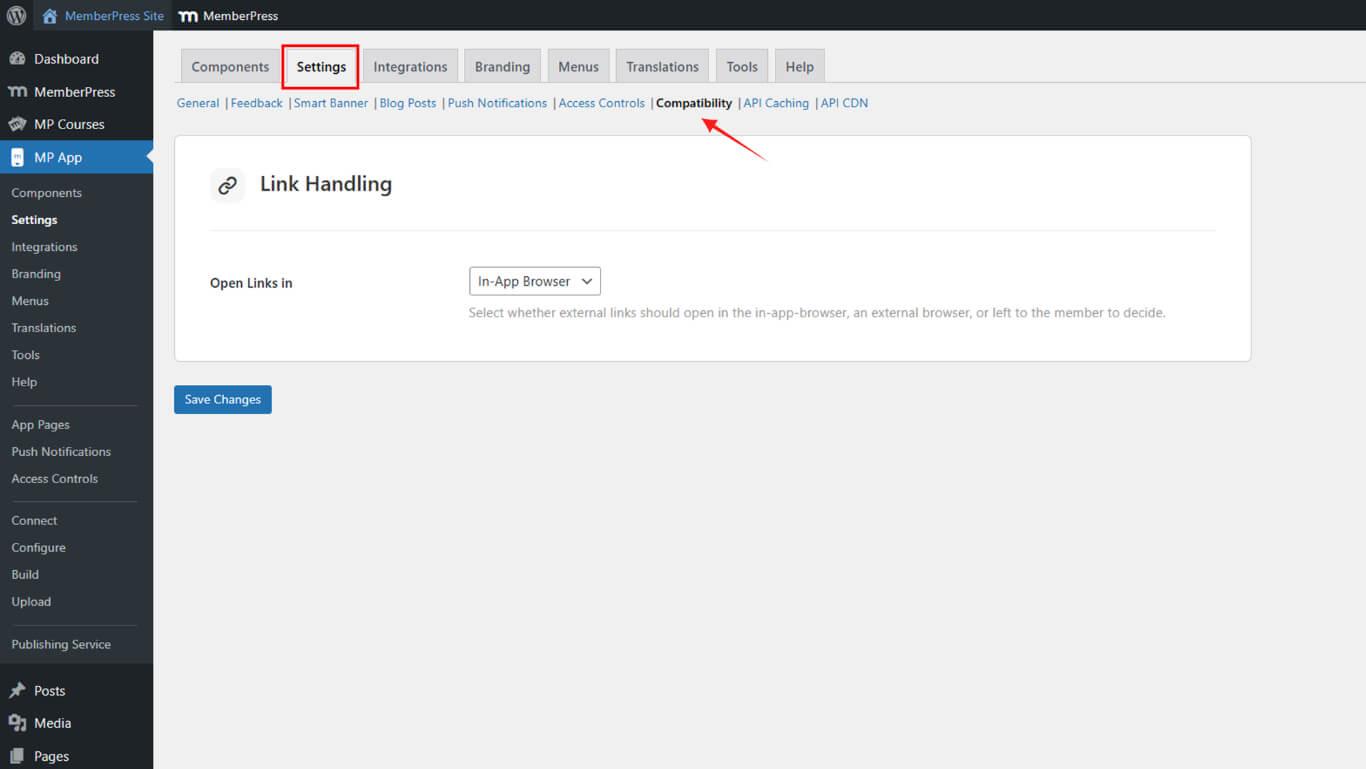
- Locate the Link Handling dropdown.
Using In-App Browser
In-app browser configuration opens external links within the application's built-in browser, maintaining session continuity.
- Select In-App Browser from the dropdown.
- Click Save Changes.
- Hard-quit and relaunch the MemberPress (iOS/Android) app.
- Tap an external link to verify it opens within the app's built-in browser.
Using External Browser
External browser configuration launches links in the device's native browser application outside the app environment.
- Go to Compatibility > Link Handling.
- Select External Browser.
- Click Save Changes, then restart the app.
- Tap any link to verify it opens in your device's native browser (Safari or Chrome).
Letting Members Choose
Member choice configuration prompts users to select the preferred browser type for external link opening.
- In the Link Handling dropdown, select Ask Member.
- Click Save Changes.
- Hard-quit and reopen the app.
- Tap an external link to see a prompt asking users to choose between In-App or External Browser.
The user's choice is saved for future link taps.
Changing Browser Preference In-App
In-app preference modification enables members to update browser selection without administrator intervention.
- In the MemberPress App, go to More > Settings > Web Browser.
- Toggle between In-App Browser and External Browser.
This option only appears if Ask Member is selected in the plugin settings.










