

Getting your Android app into Google's ecosystem starts with setting it up in the Google Play Console.
This guide walks you through creating a new app listing, naming your app, choosing its default language, defining its type and pricing, and agreeing to Google's policies so you're ready for publishing and testing in the next steps.
Understanding App Listing Requirements
App listing requirements define necessary configurations for Google Play Store presence and distribution eligibility.
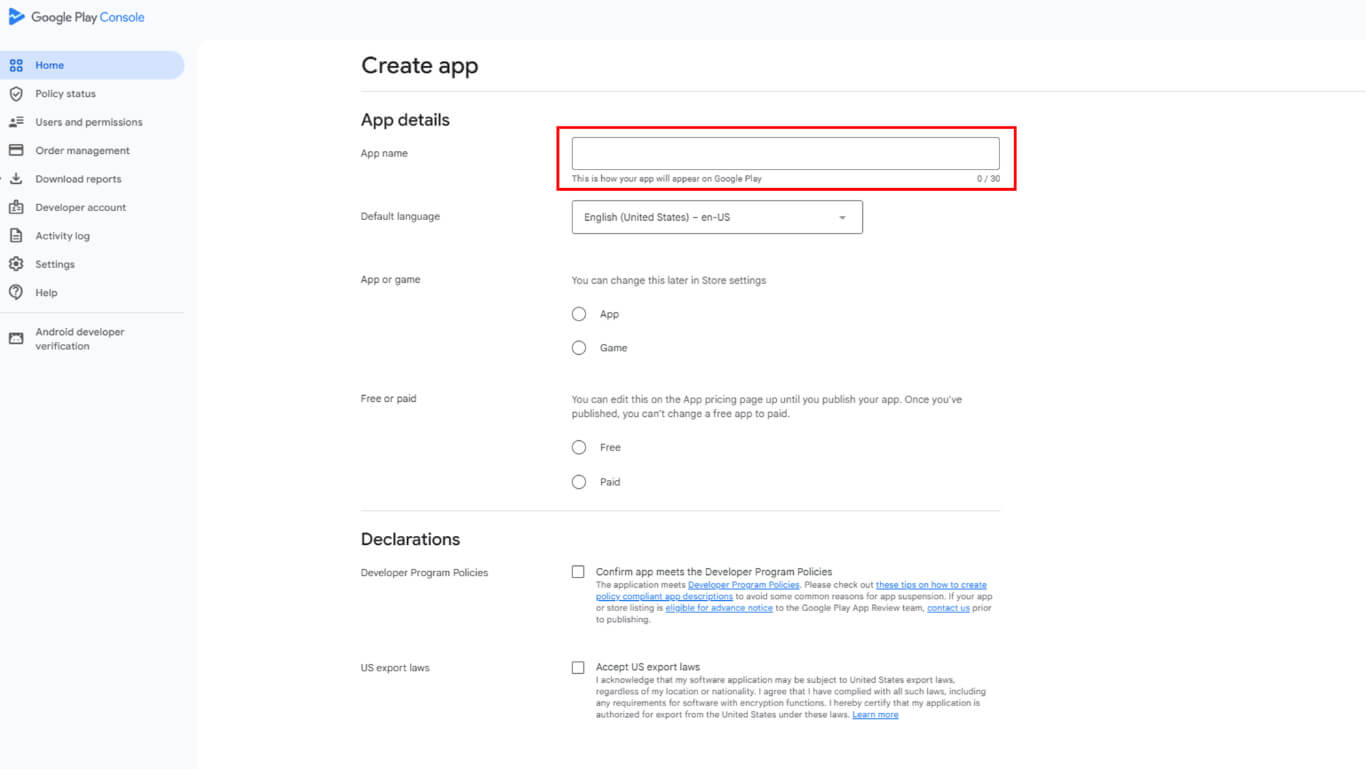
App name selection establishes brand identity and search discoverability in the Google Play Store. App name appears in store listings and on user devices after installation.
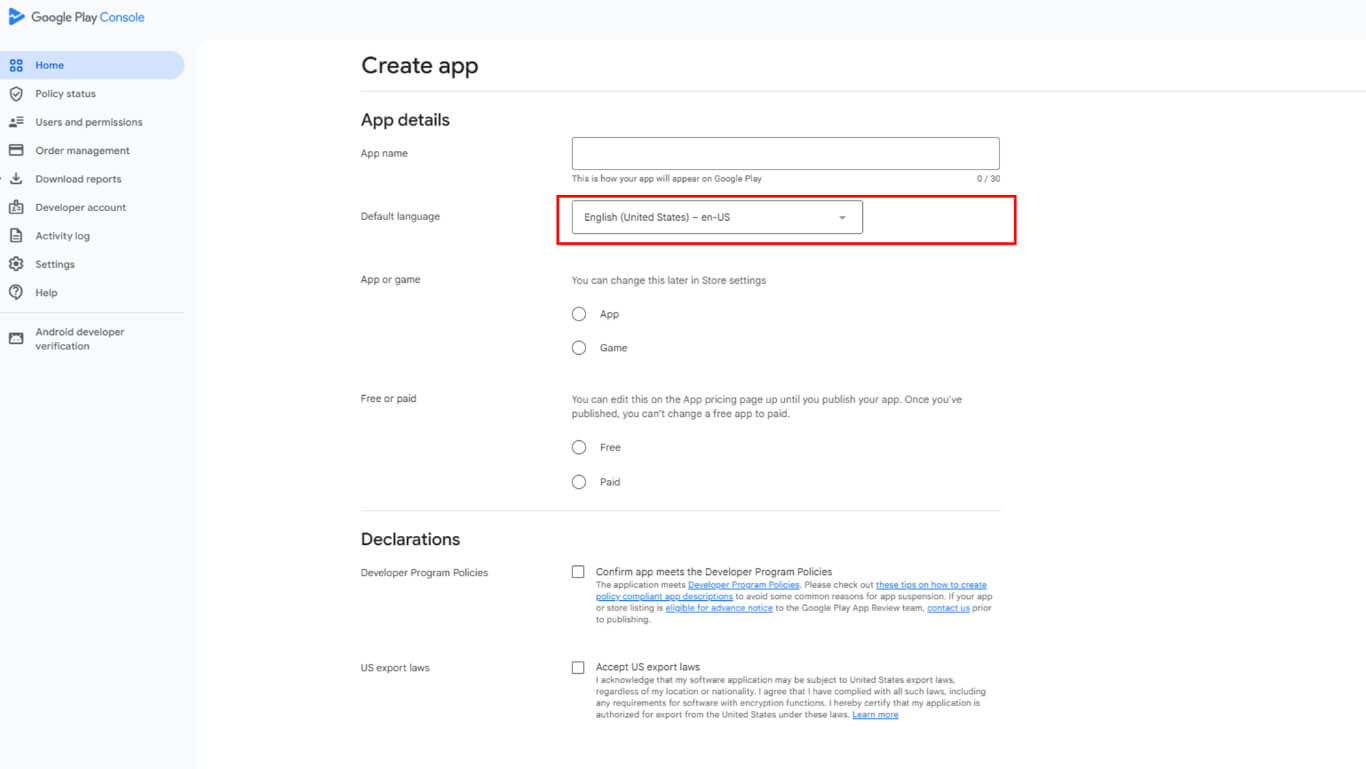
Default language configuration determines the primary language for store listing content and communications. Language selection affects initial market targeting and localization strategy.
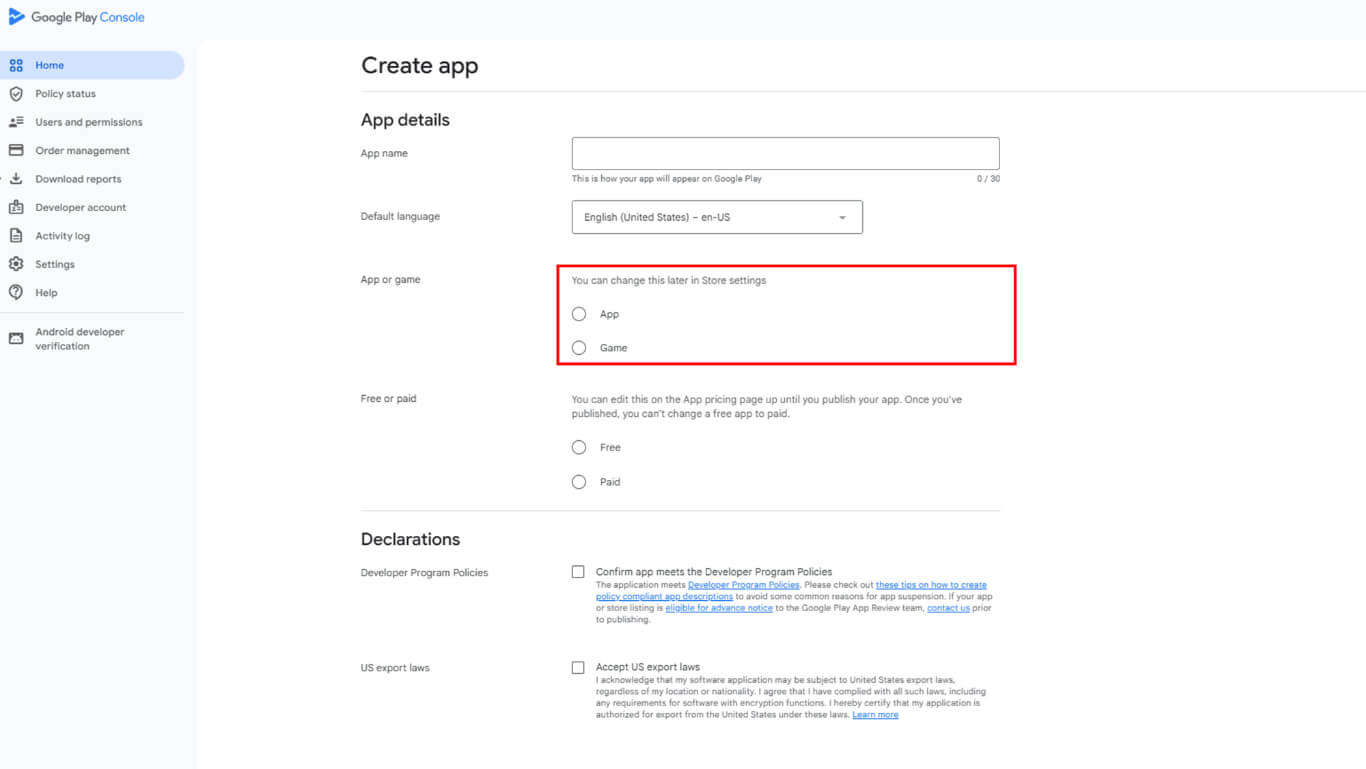
App type specification categorizes the application as an App or Game for proper store organization. Type selection influences search filtering and category placement in the store.
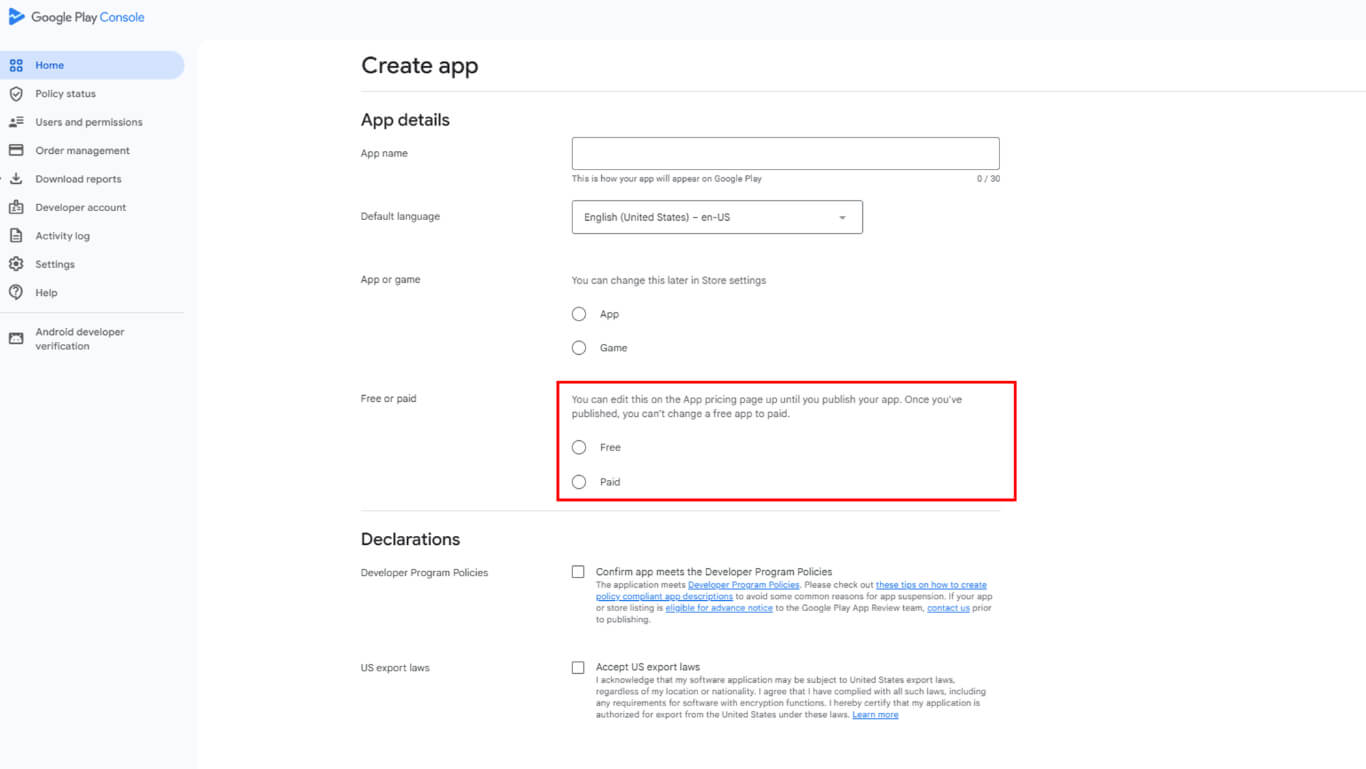
Pricing determination sets the initial monetization strategy as Free or Paid distribution. Pricing can be modified before publication, but requires careful consideration of the revenue model.
Policy compliance acknowledgment confirms understanding of Google Play distribution requirements and export regulations. Agreement acceptance is mandatory for app publication eligibility.
Navigating to Console
Console navigation accesses the Google Play Developer account dashboard for app management operations.
- Go to play.google.com/console/developers.
- Sign in with the Google account you used to register as a Google Play developer.
Starting New App
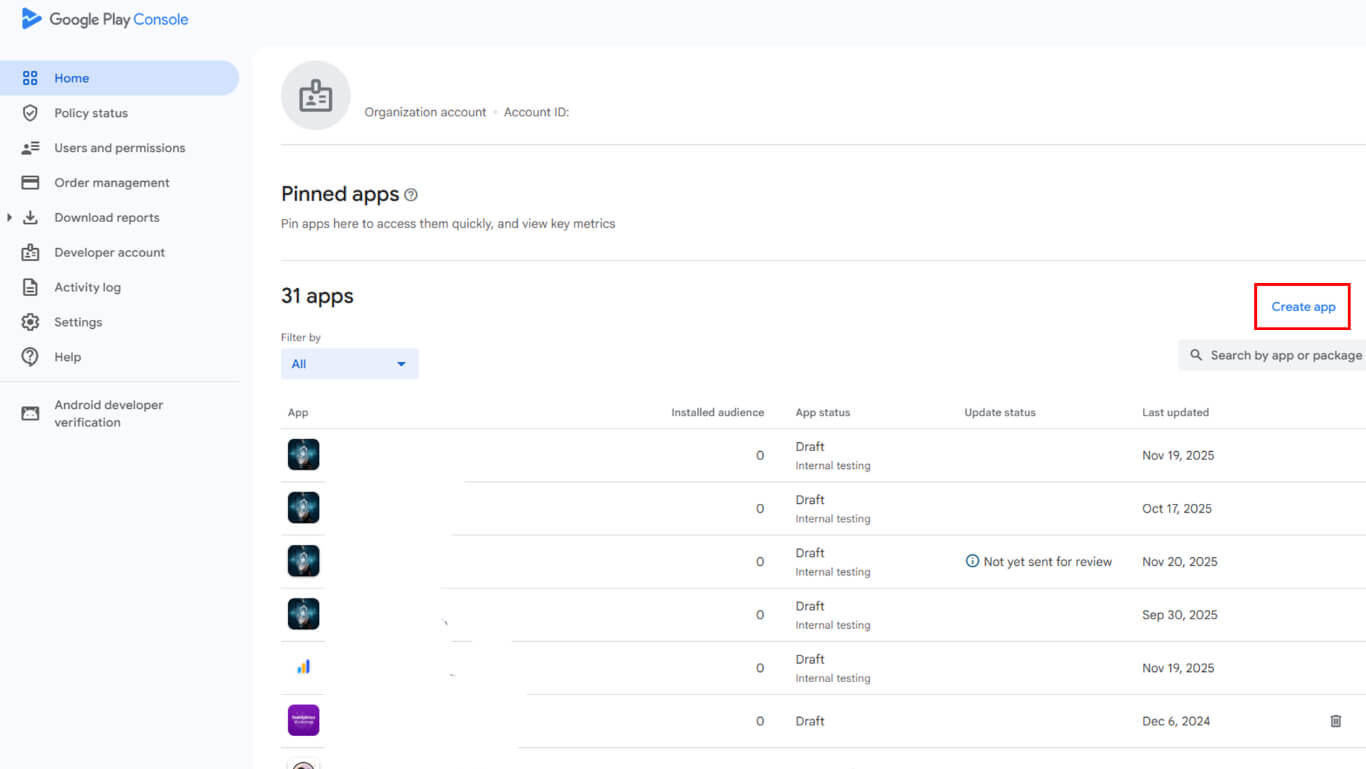
New app creation initiates the listing configuration process in Google Play Console.
- On your Dashboard, click Create app in the top-right corner.
Naming Your App
App naming establishes the application identifier and display name for Google Play Store listings.
- Enter your App name.
- Choose your app's Default language (e.g., English (United States)).
Specifying App Type & Pricing
App type and pricing specification define the application category and monetization approach for distribution.
- Under What type of app is this?, select App (not Game).
- Under Pricing, choose Free or Paid.
Agreeing to Google's Policies
Policy agreement confirms compliance with Google Play distribution requirements and legal obligations.
- Check Developer Program Policies.
- Check US export laws.
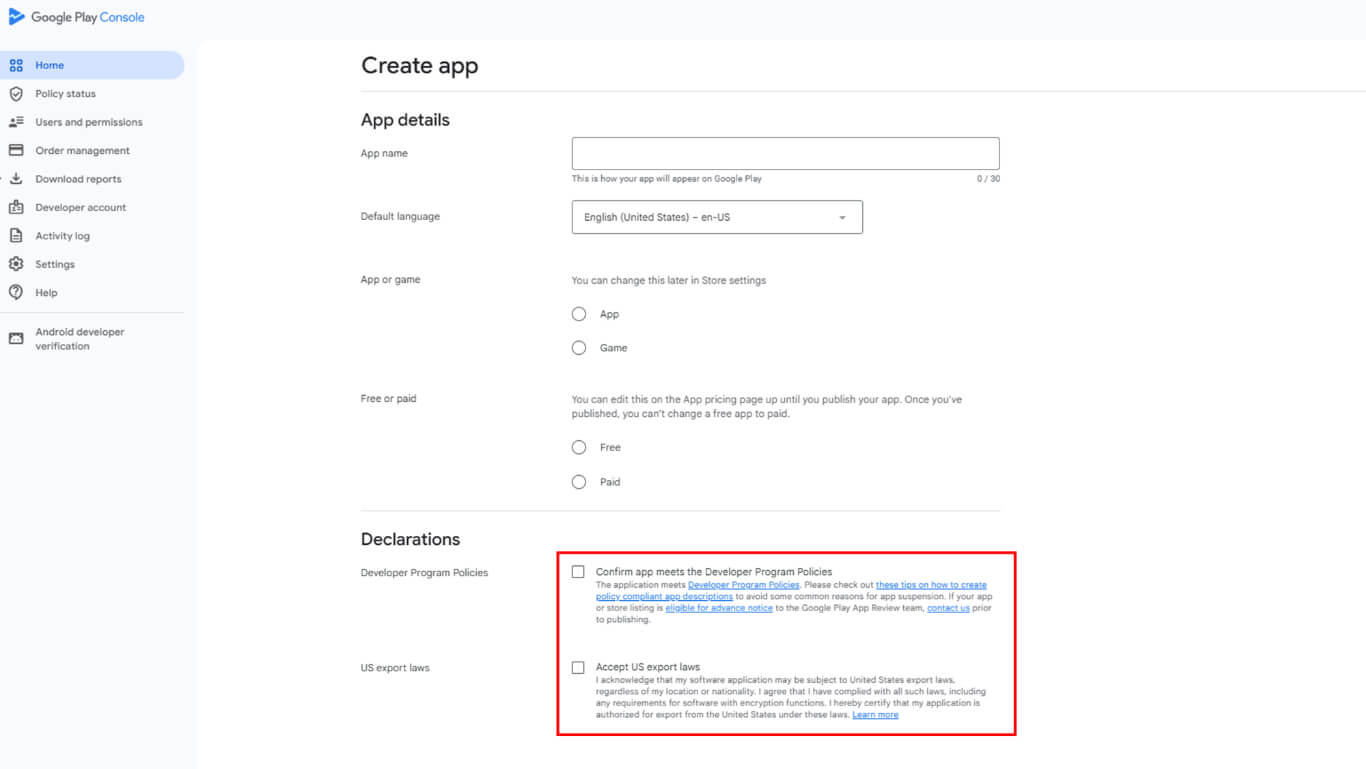
- Click Create app.










