

The Courses app block highlights selected courses on app pages using a swipeable carousel layout. This block lets members quickly access featured courses or browse the full course index on the connected WordPress site.
This document explains how to add, configure, and manage the Courses block in MemberPress AppKit.
Understanding the Courses App Block
The Courses app block displays courses in a horizontal, swipeable carousel within the app. Members can tap an individual course to view its details or select See All to open the complete courses index from the WordPress site. The block can be customized to display filtered or manually selected courses based on specific criteria.
Accessing App Pages
You can add and configure the Course block within the App Pages editor.
- Navigate to Dashboard > MP AppKit > App Pages.
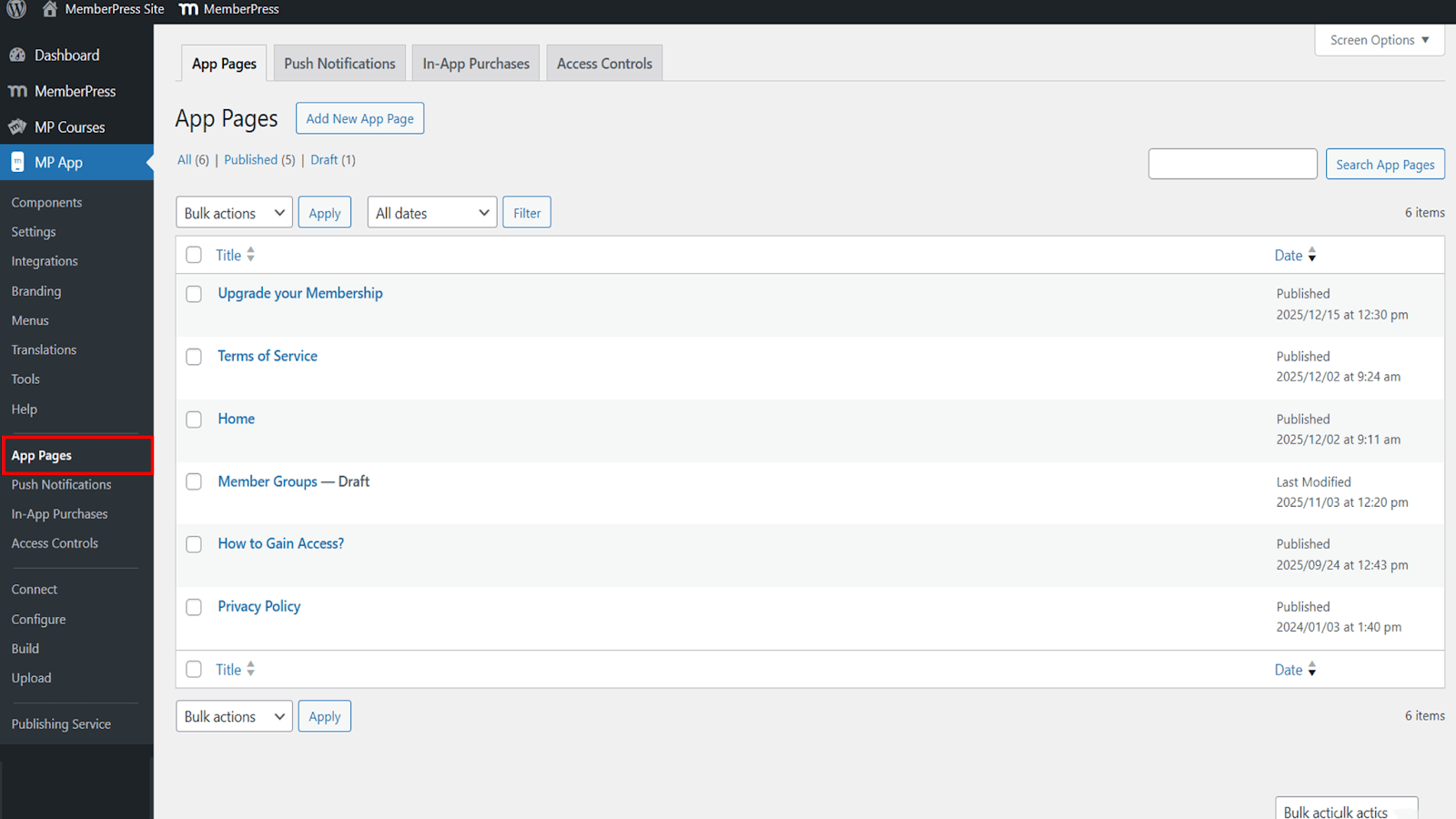
- Open an existing page, such as the homepage, or create a new page for editing.
Adding the Courses Block
The Courses block is available within the MemberPress AppKit block library.
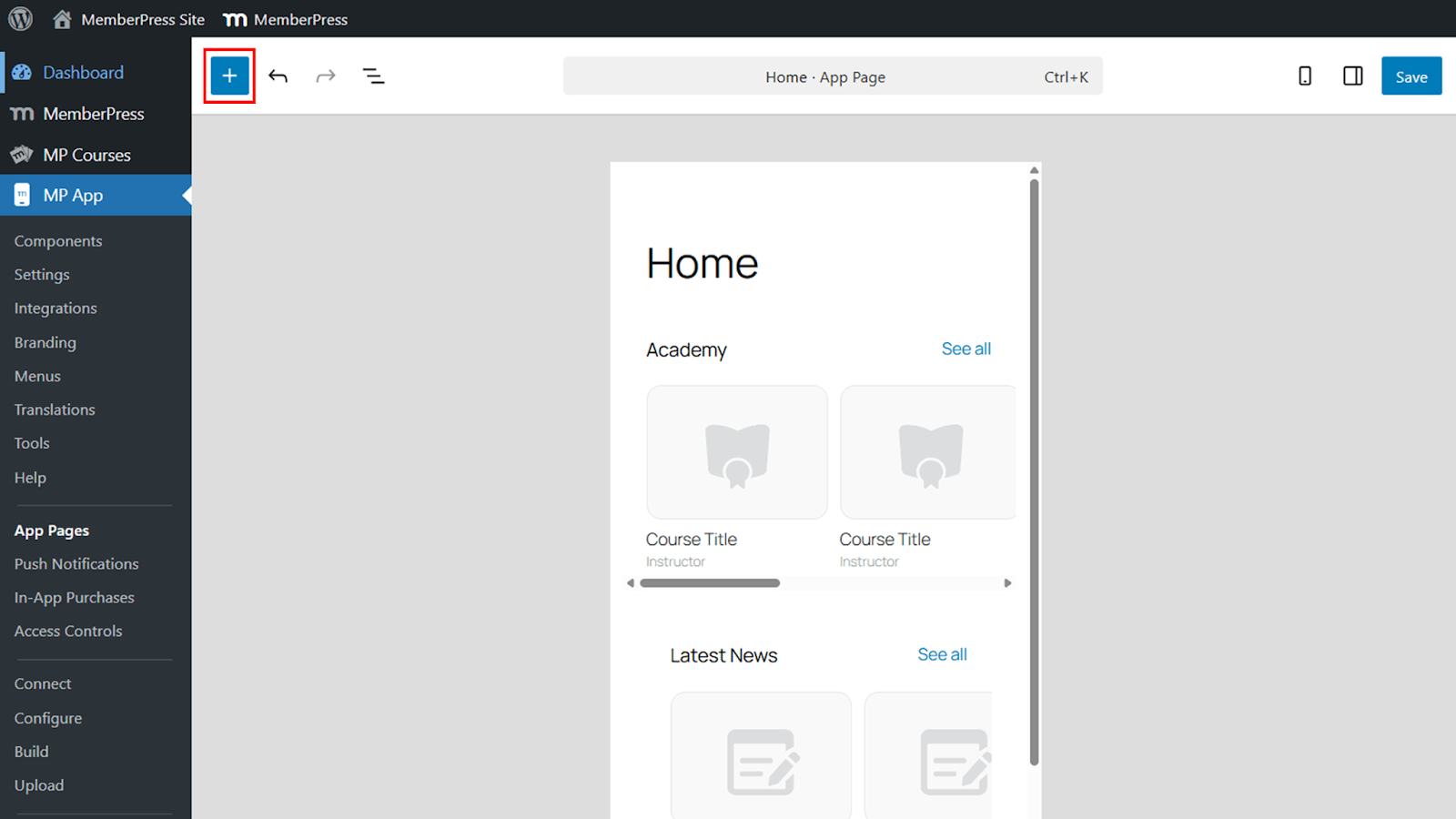
- Click the + icon.
- Select the Courses block from the MemberPress App Blocks section.
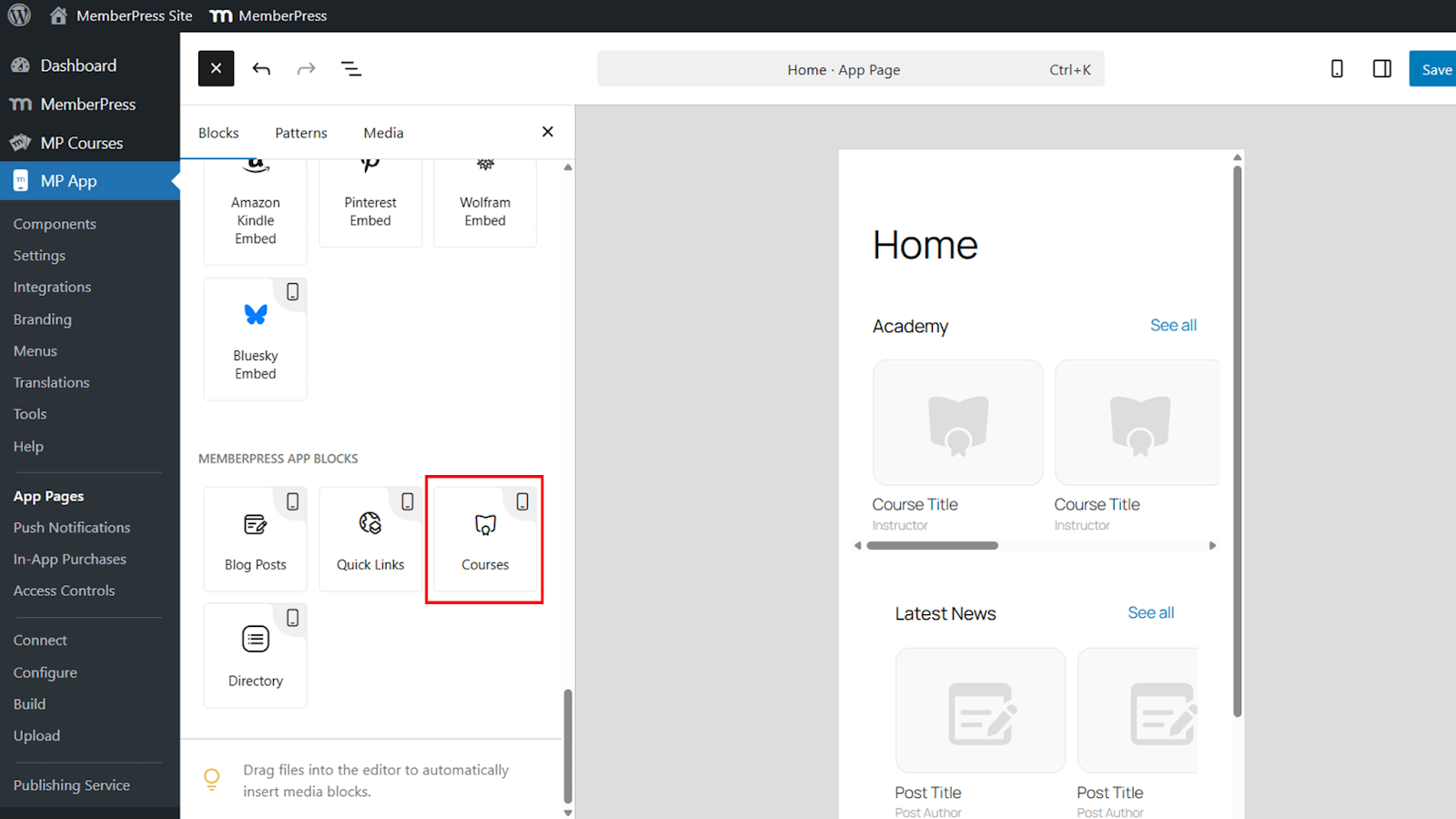
- Move the block to the desired position on the page.
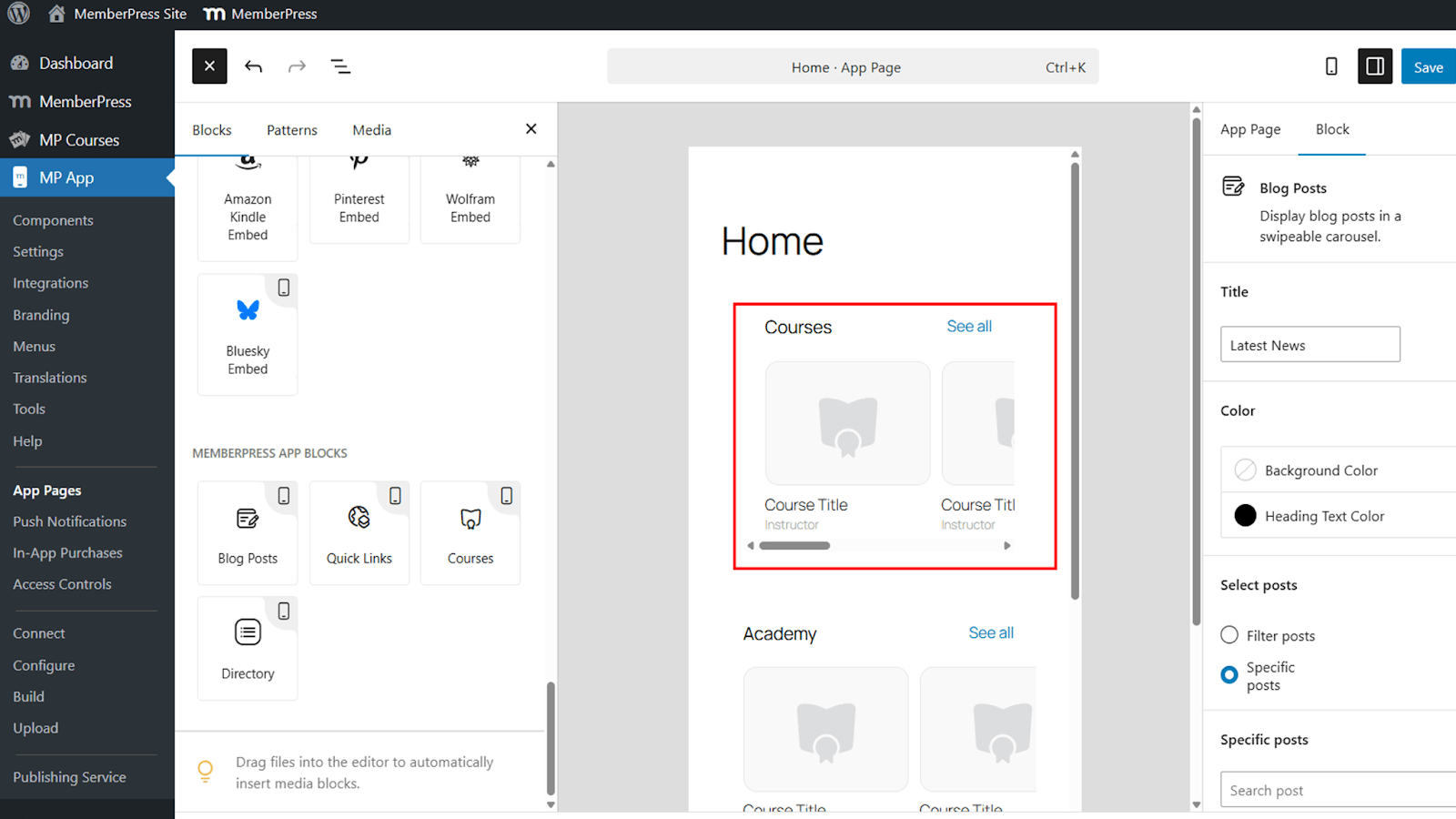
A real-time preview displays how the block will appear inside the app.
Configuring the Courses Block
The Courses block provides multiple configuration options to control appearance and content.
Title
- Locate the Title field.
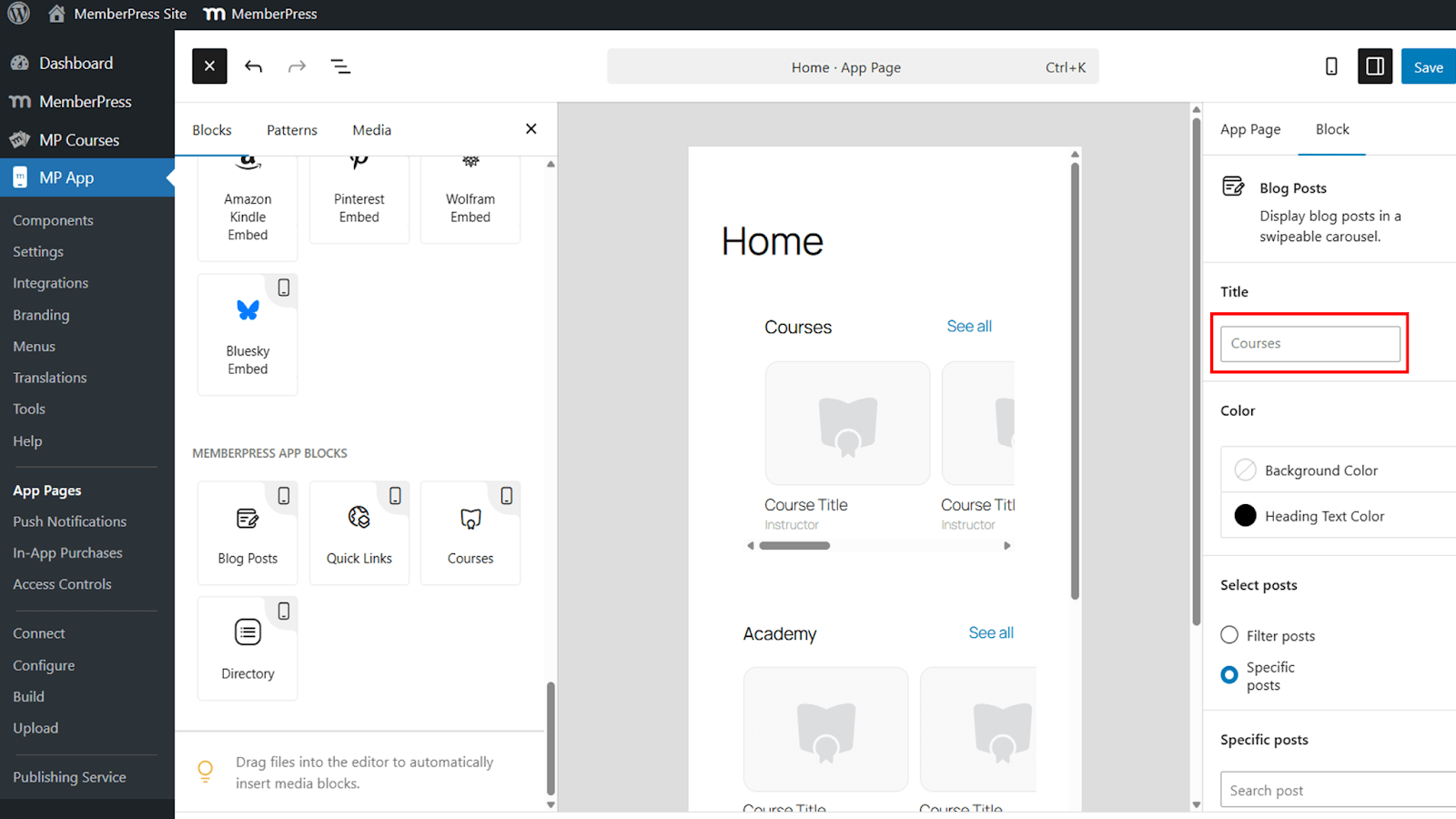
- Rename the block title from the default Courses to match branding or context, such as Academy.
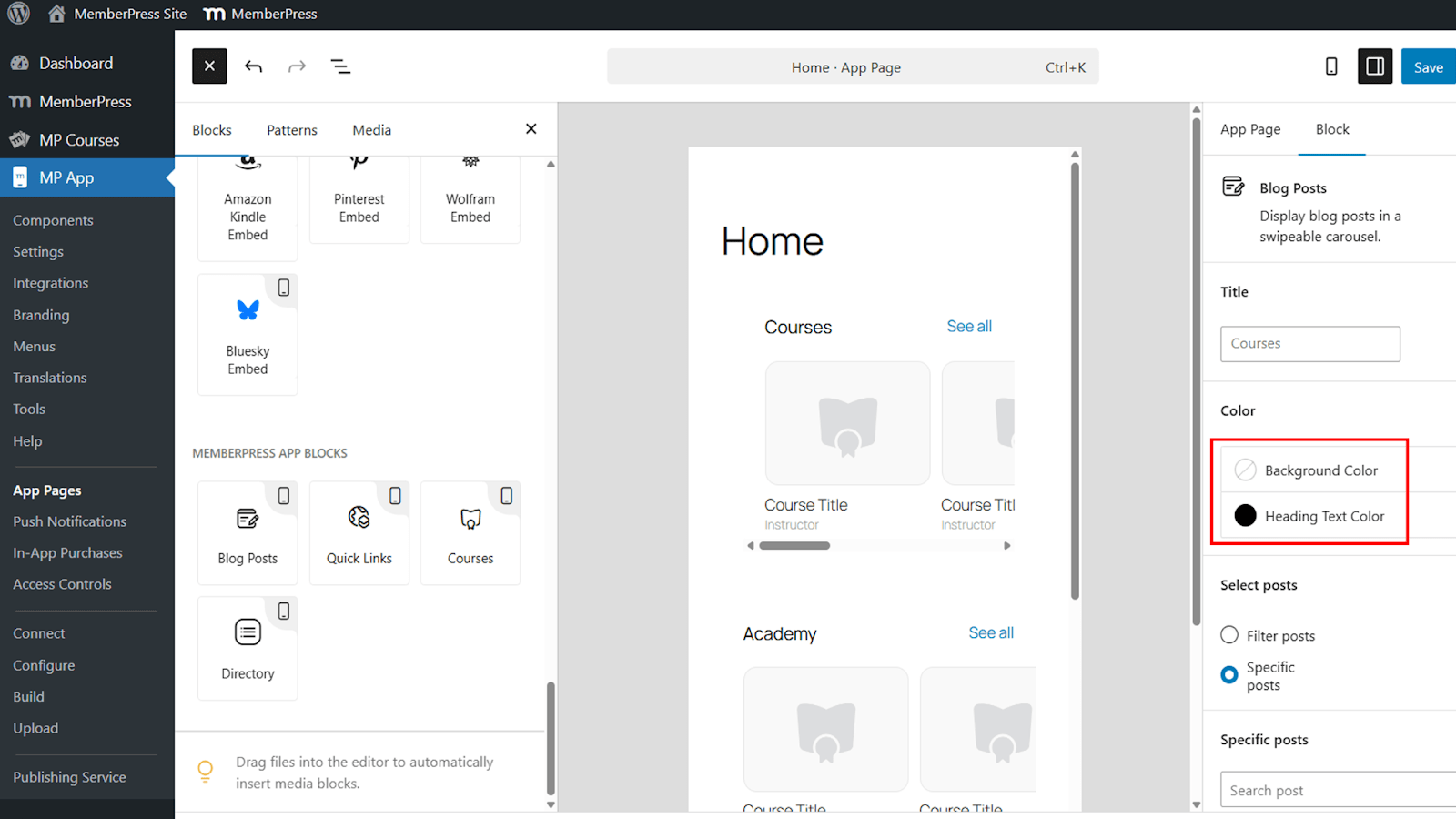
Background and Heading Color
- Assign a background color to the block or leave it transparent to blend with the page design.
Content Display Options
- Choose whether to display courses using filters or specific courses.
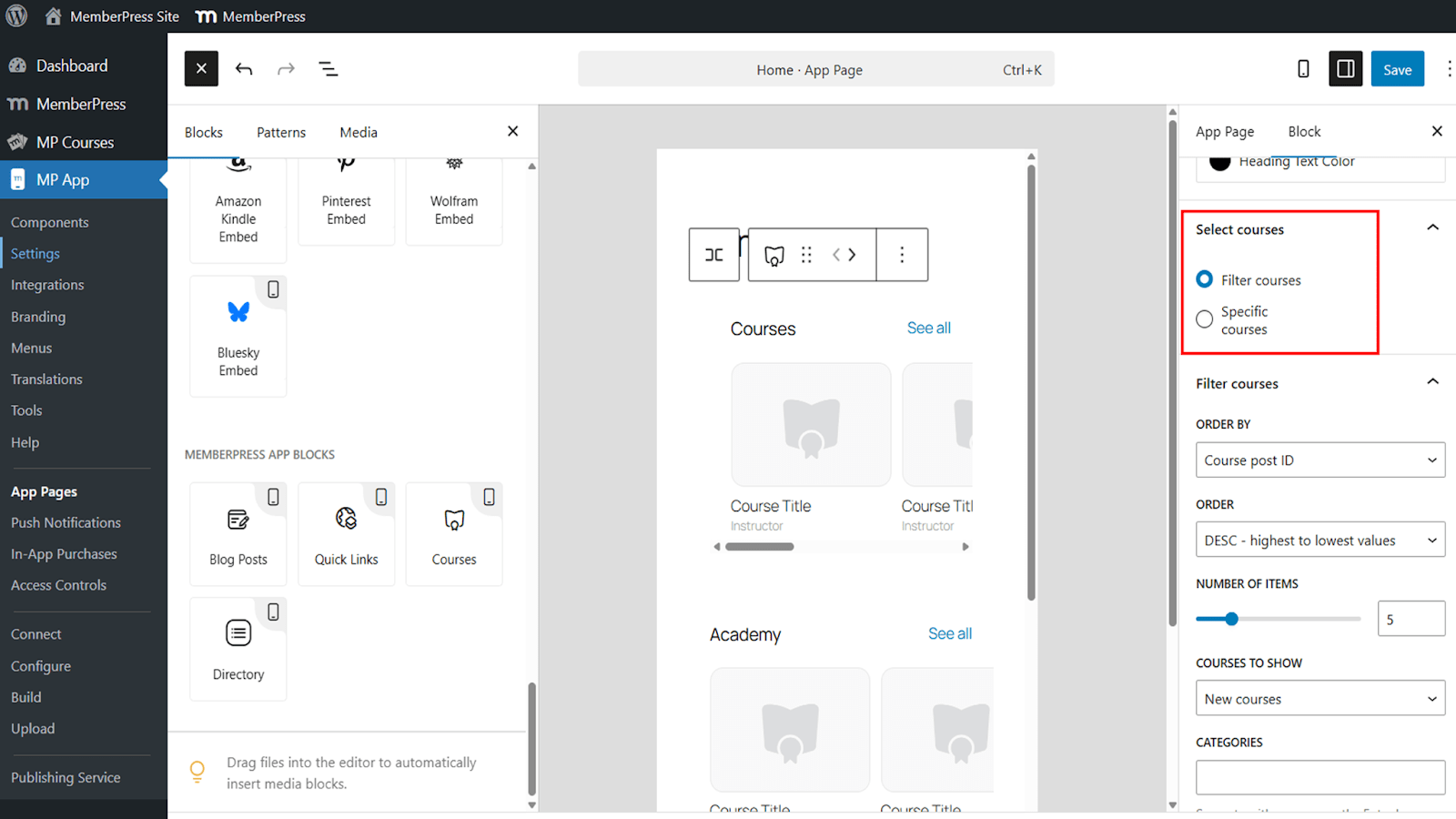
Using Filters to Display Courses
Filters allow dynamic control over which courses appear in the carousel.
- Sort courses by course ID, title, or publish date.
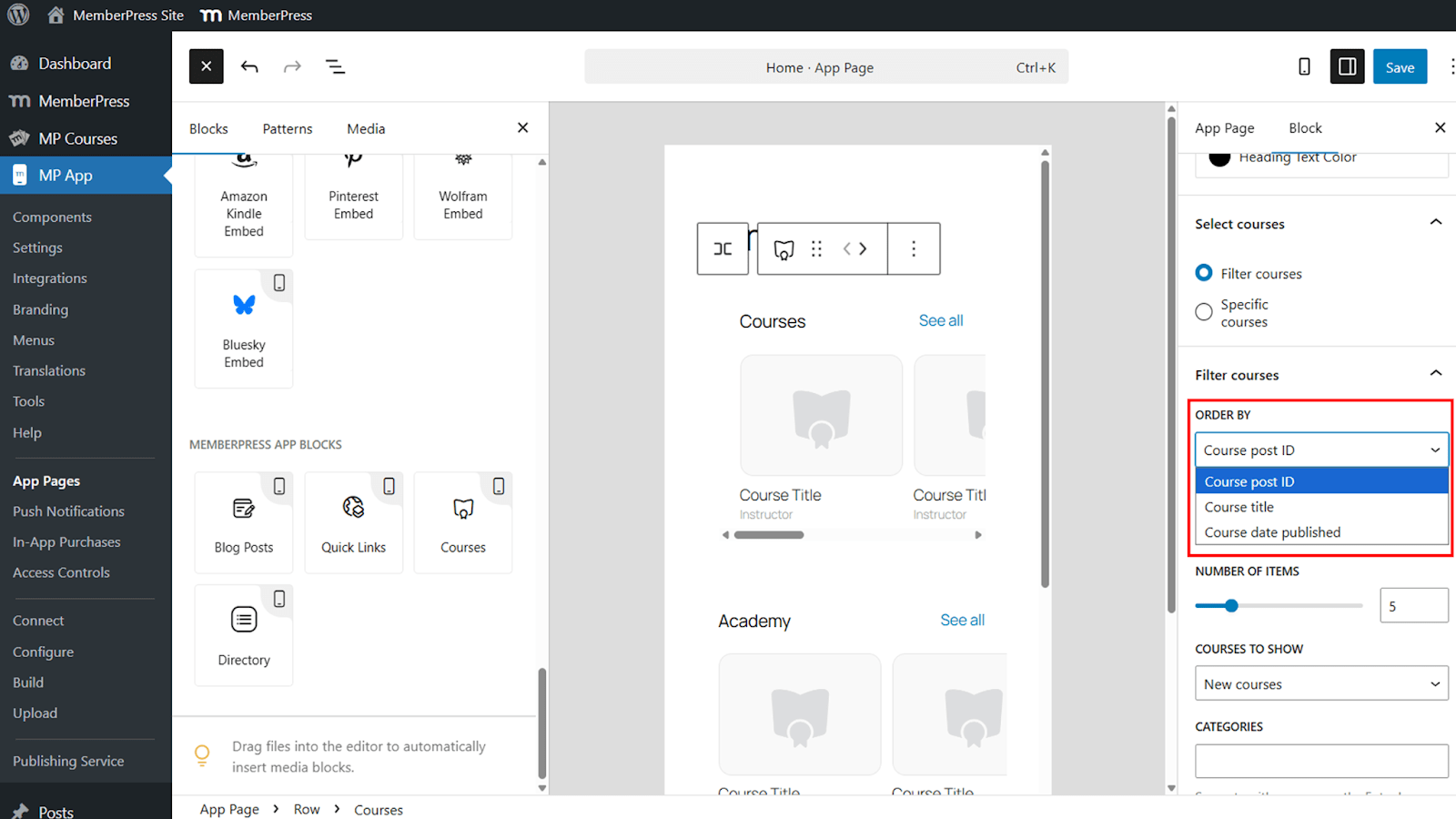
- Choose ascending or descending order.
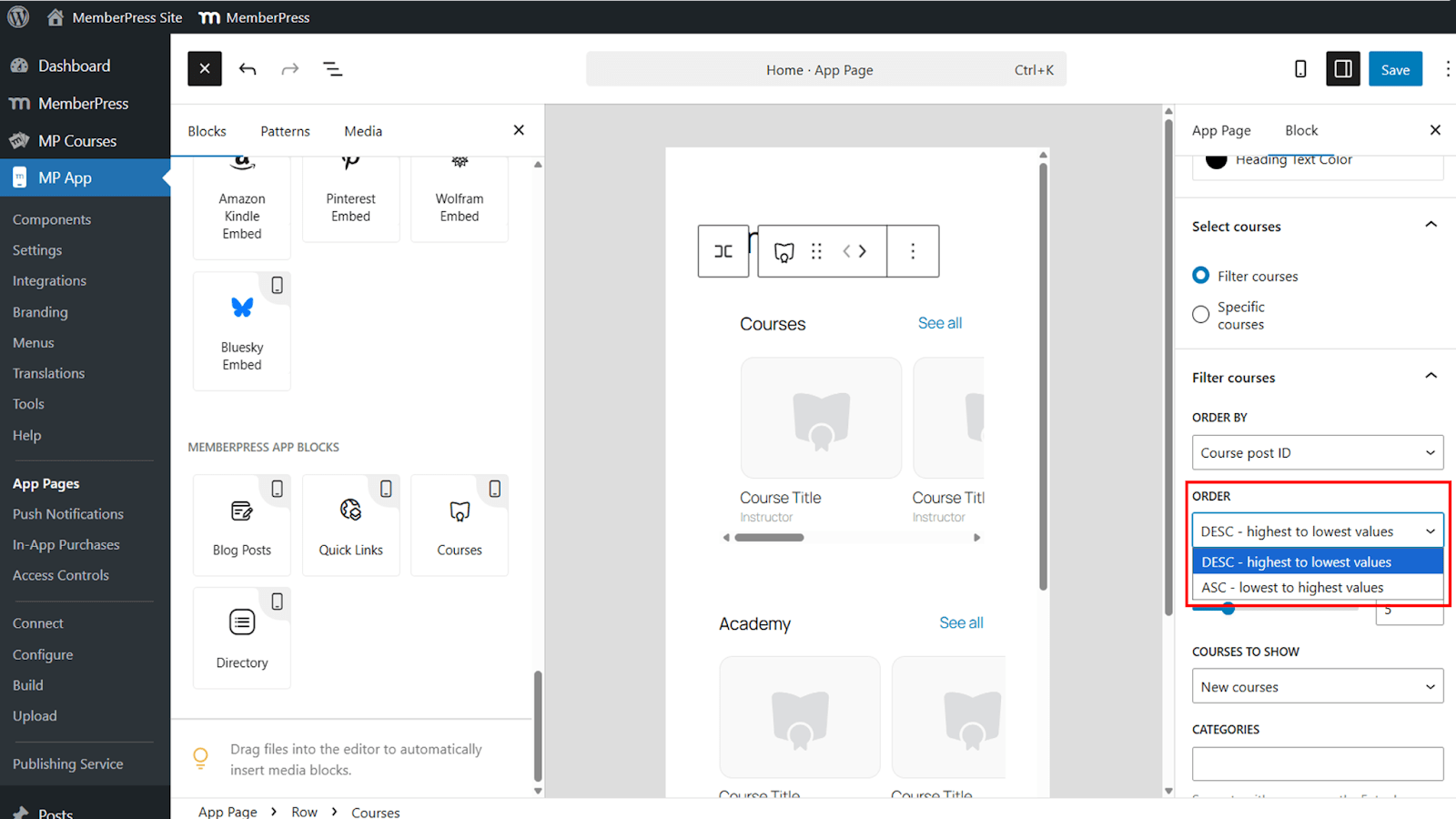
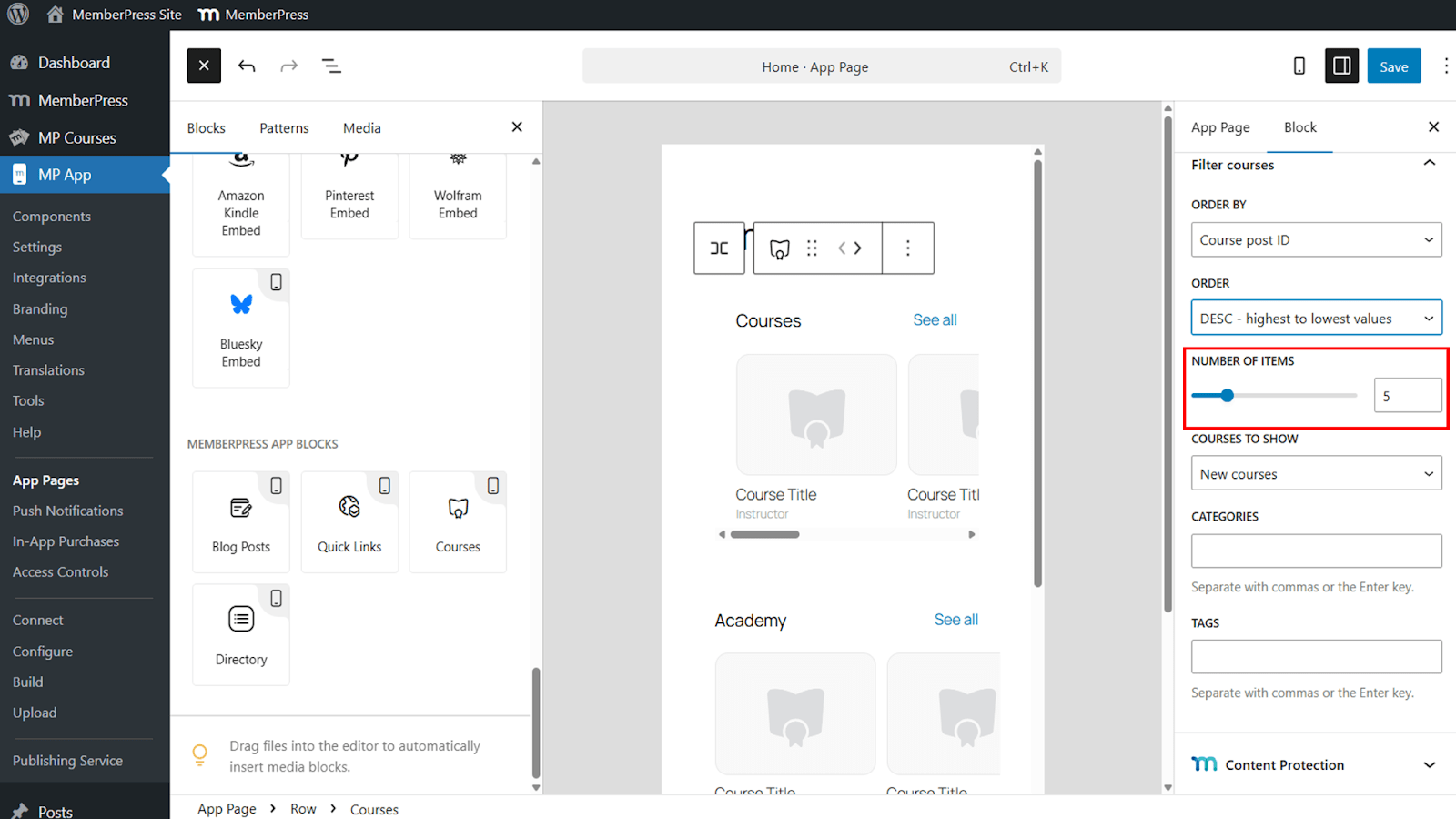
- Set the number of courses displayed in the carousel.
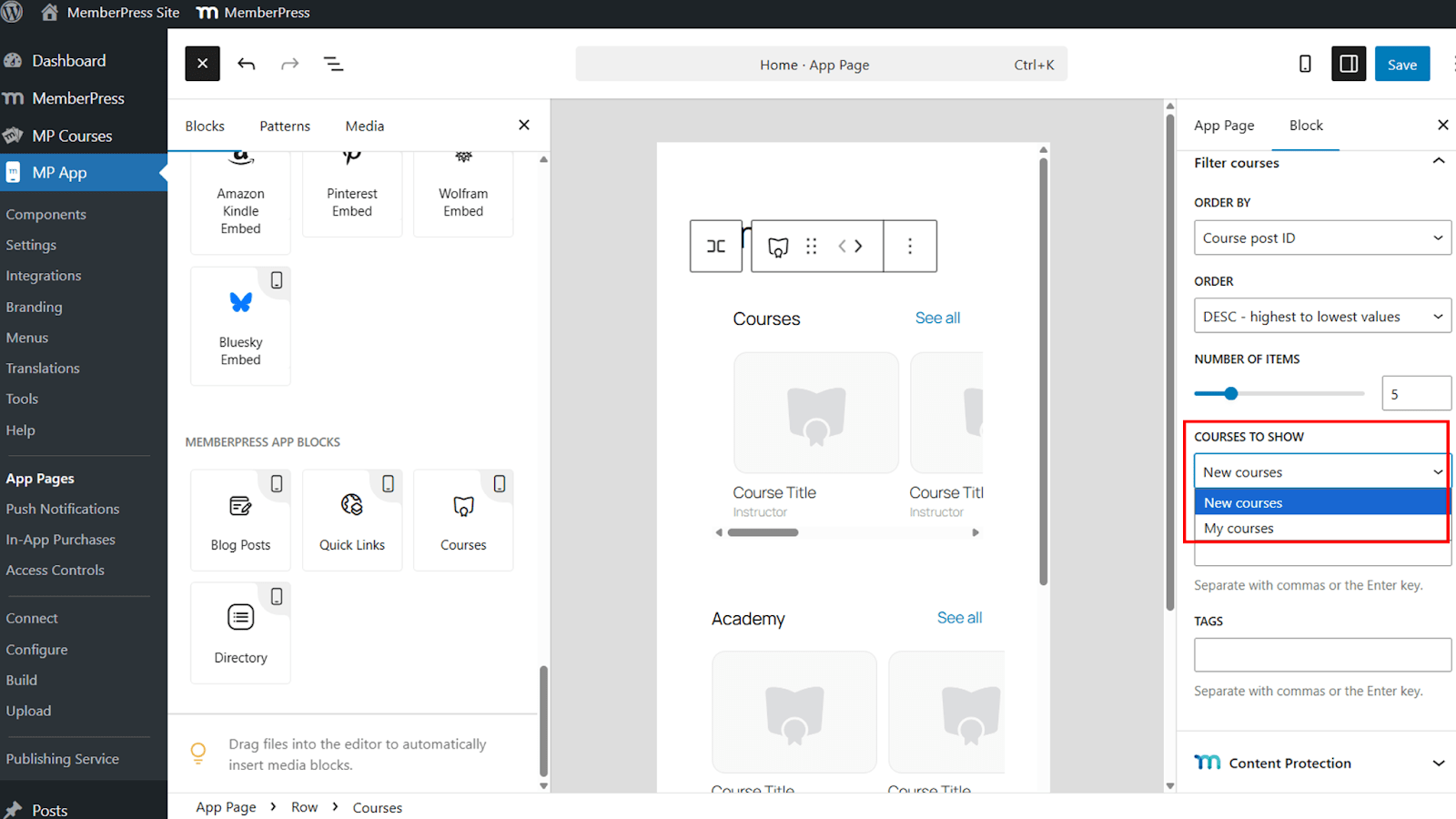
- Display New Courses or My Courses based on the logged-in member.
- Filter courses using categories and tags.
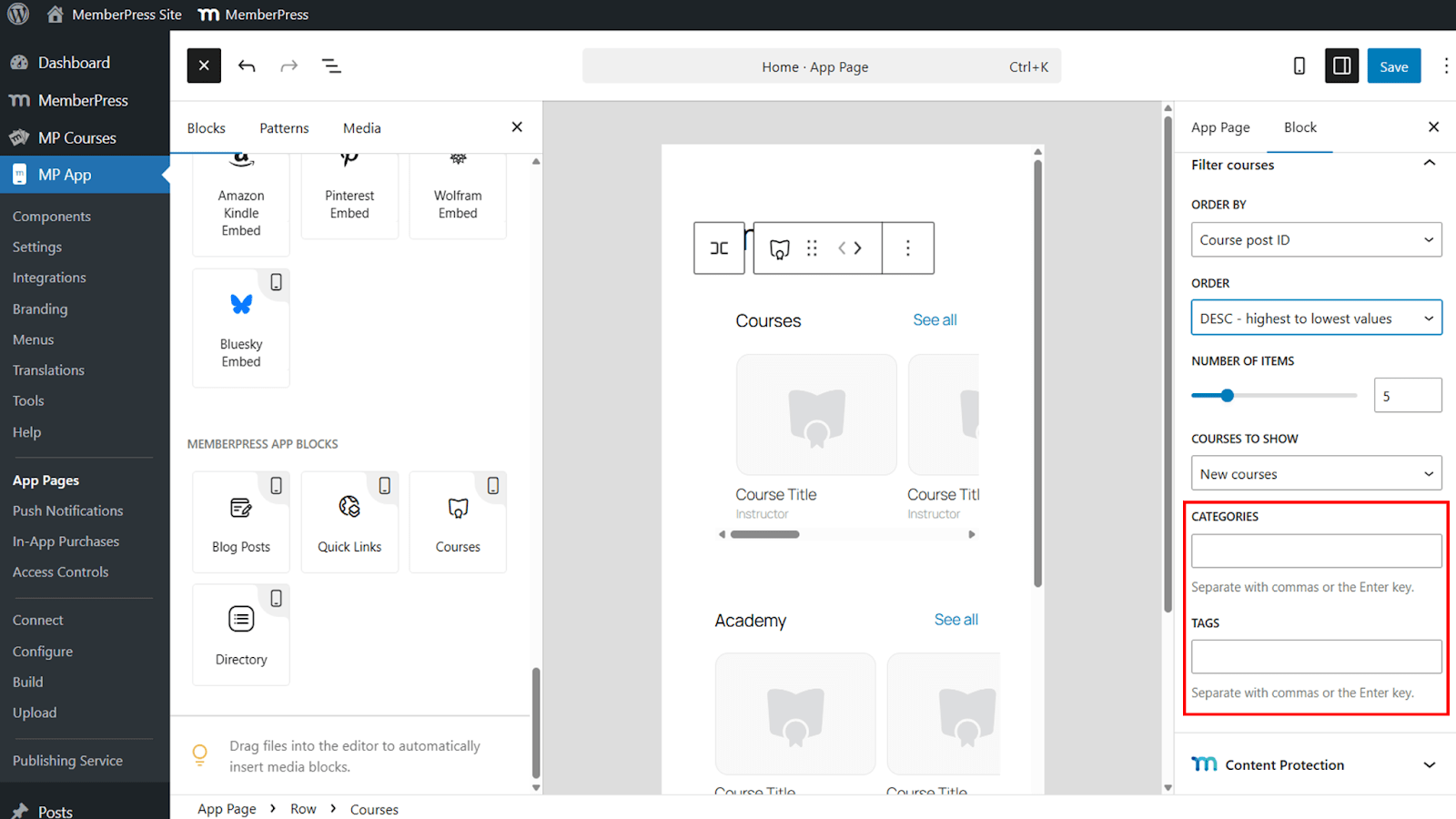
Filters are useful for highlighting specific groups of courses and provide fine-grain control over course visibility in the MemberPress iOS/Android app.
Selecting Specific Courses
Specific course selection allows manual control over displayed content.
- Switch from filtered courses to Specific Courses.
- Select individual courses to feature in the block.
This option is ideal for highlighting featured or promotional courses.
Saving and Verifying the Block
Once the configuration is complete, save the changes to publish the block.
- Click Save to apply the block settings.
- Open the MemberPress iOS/Android app on a mobile device.
- Navigate to the page containing the Courses block.
- Verify the carousel displays the correct courses.
- Tap a course or See All to confirm proper navigation.
Multiple Courses blocks can be added to the same page, each with its own title and filters, allowing content segmentation across the app.










