

MemberPress AppKit allows membership site owners to create native iOS and Android mobile apps. These apps show membership content and let members view protected items from their phones and tablets.
This document provides an overview of the complete MemberPress AppKit setup process. It outlines each phase and explains the requirements. Users will learn the steps needed to publish working mobile apps for both platforms.
What MemberPress AppKit Does
MemberPress AppKit turns a MemberPress-powered website into a mobile app. The app links to the existing website and shows content to members based on their membership. It shows protected posts, pages, and courses while using existing MemberPress access rules.
The app pulls content directly from the website. Any content updates on the website show in the app right away.
Choosing a Registration Path
MemberPress AppKit supports two approaches for member registration. This decision must be made before starting the setup process.
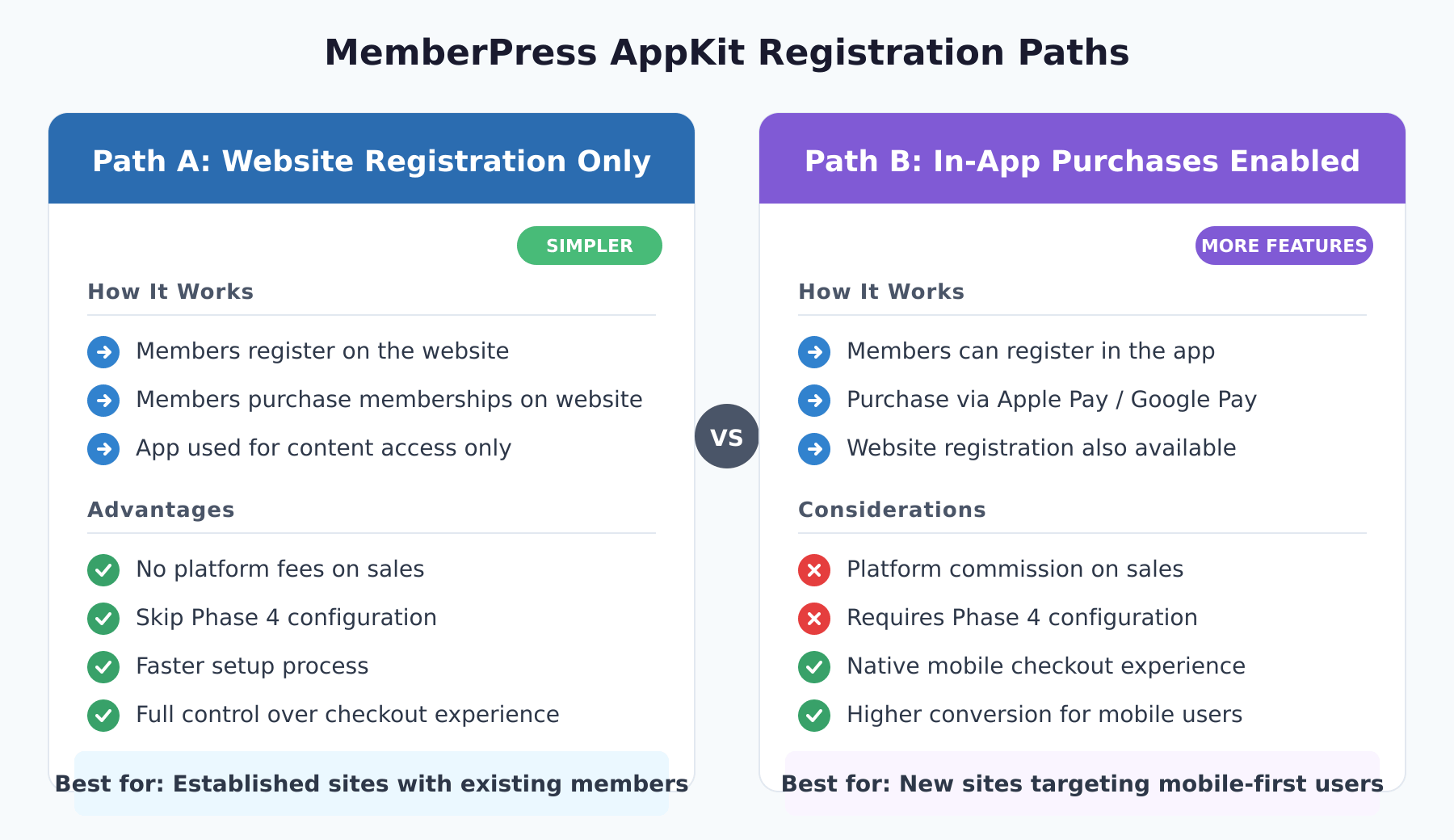
Path A: Website Registration Only
Members register and purchase memberships only through the website. The app functions as a content access tool for existing members. This path offers simpler setup with no platform fees on membership sales. Phase 4 (In-App Purchases) can be skipped entirely.
Path B: In-App Purchases Enabled
Members can register and buy memberships right in the app using Apple Pay or Google Pay. This path needs more setup in both app stores. Apple and Google charge a fee on in-app purchases. Requiring in-app purchases during registration makes sure new members pick a membership plan.
Process Overview
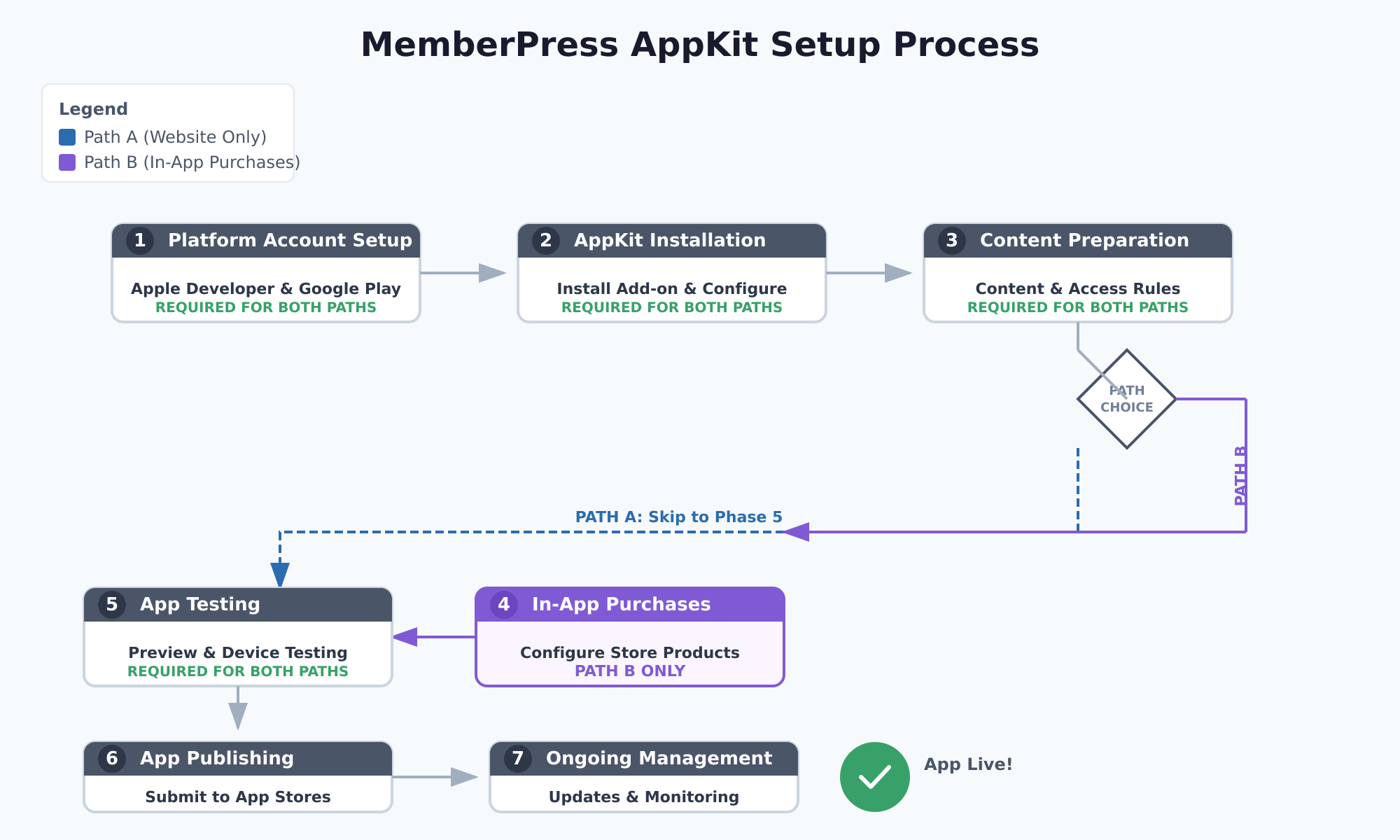
The complete MemberPress AppKit setup has seven phases. Each phase must be done in order to avoid problems and setup errors.
| Phase | Description | Path A | Path B |
|---|---|---|---|
| Phase 1 | Platform Account Setup | Required | Required |
| Phase 2 | AppKit Installation and Configuration | Required | Required |
| Phase 3 | Content and Access Rules Preparation | Required | Required |
| Phase 4 | In-App Purchases Configuration | Skip | Required |
| Phase 5 | App Testing | Required | Required |
| Phase 6 | App Building and Publishing | Required | Required |
| Phase 7 | Ongoing App Management | Required | Required |
Phase 1: Platform Account Setup
This phase sets up the required developer accounts for publishing apps. Both platforms need paid developer accounts with identity checks.
Apple Developer Account Setup
Publishing an iOS app needs joining the Apple Developer Program ($99/year). This gives access to App Store Connect for app uploads. The Apple Developer account setup guide covers the steps in detail.
To join the Apple Developer Program:
- Navigate to the Apple Developer Program enrollment page.
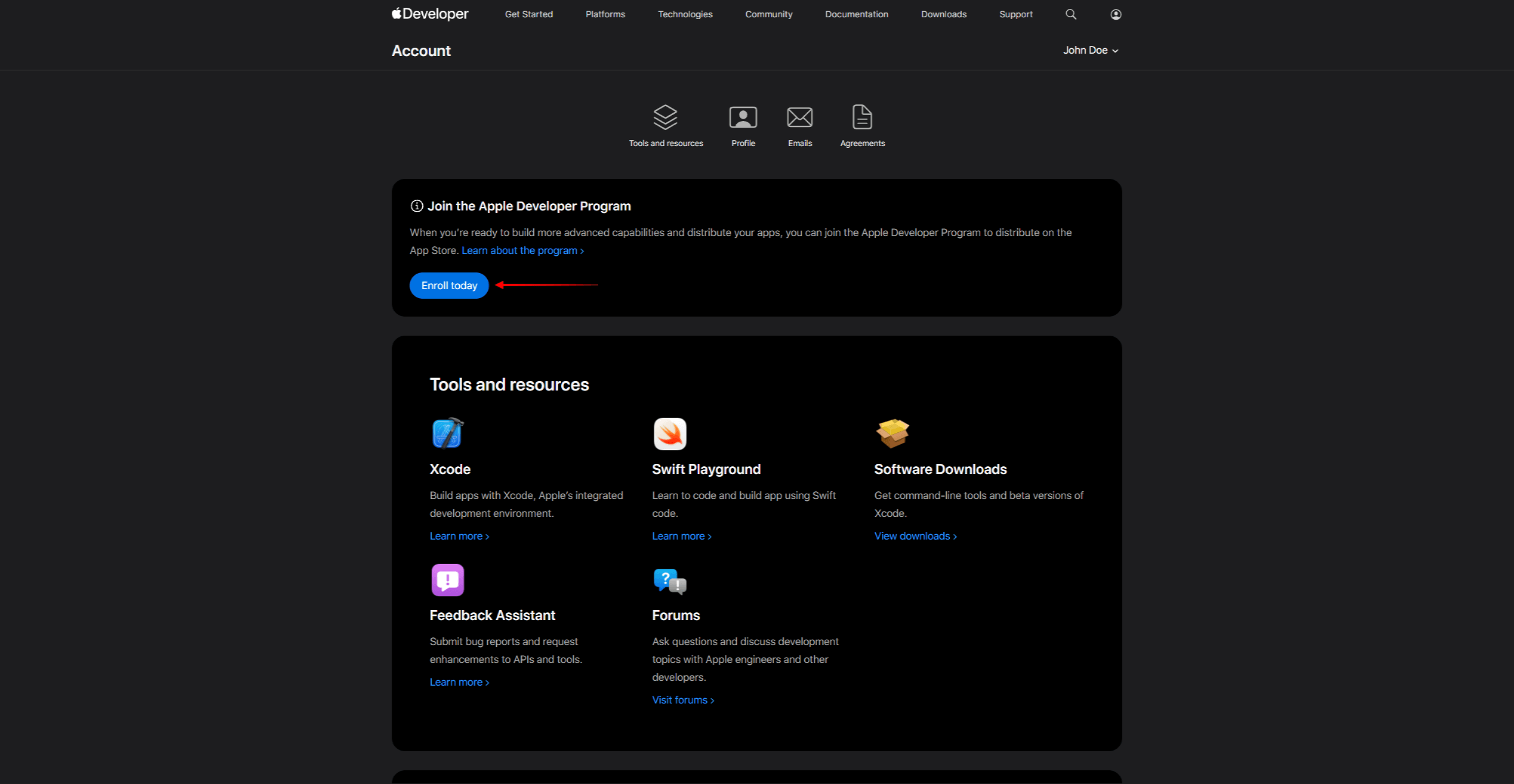
- Click Enroll and sign in with an Apple ID.
- Select the account type (Individual or Organization).
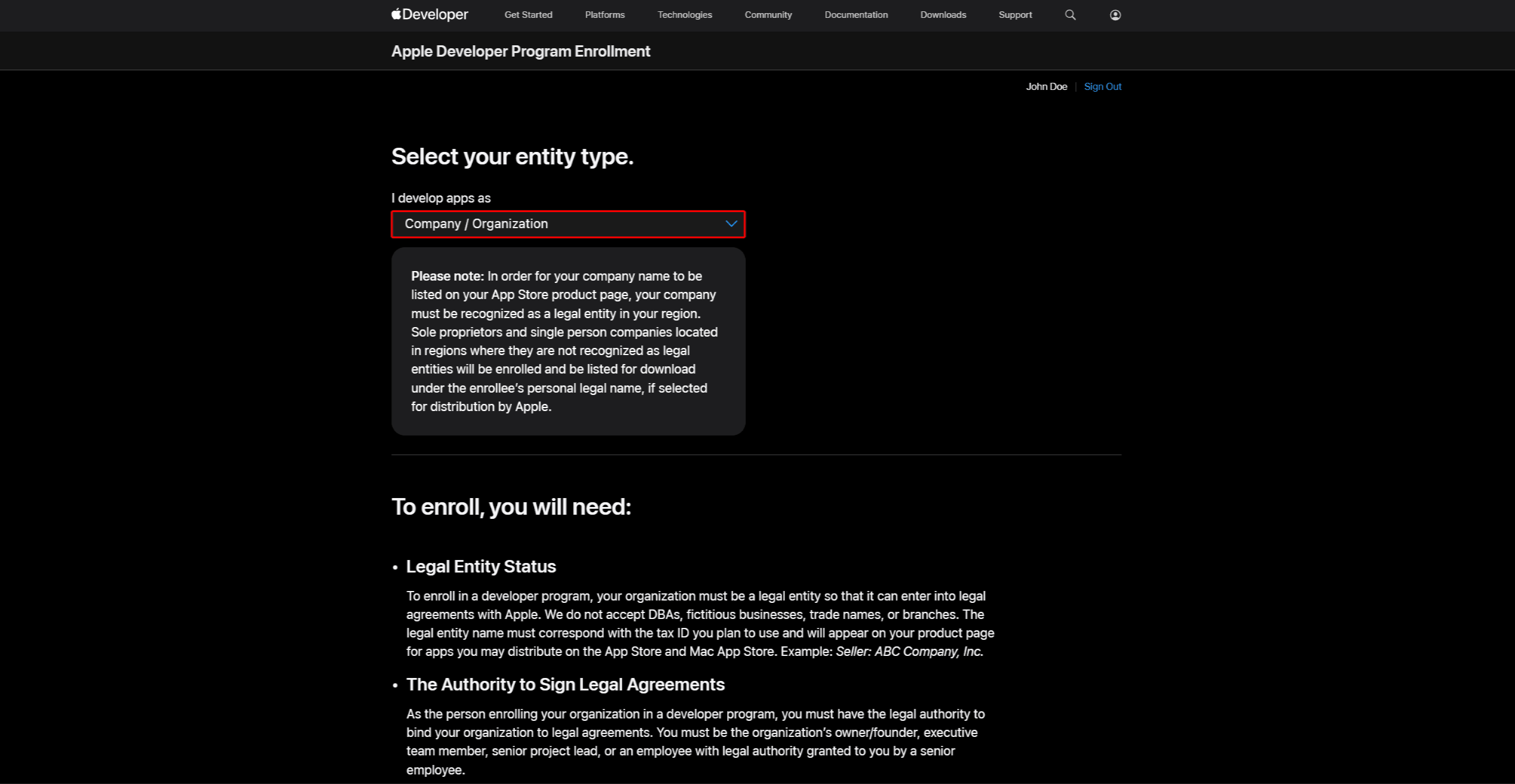
- Complete the identity check and pay the $99 annual fee.
- After approval, access App Store Connect.
- Register a Bundle ID in the Apple Developer account (format: reverse domain notation, e.g.,
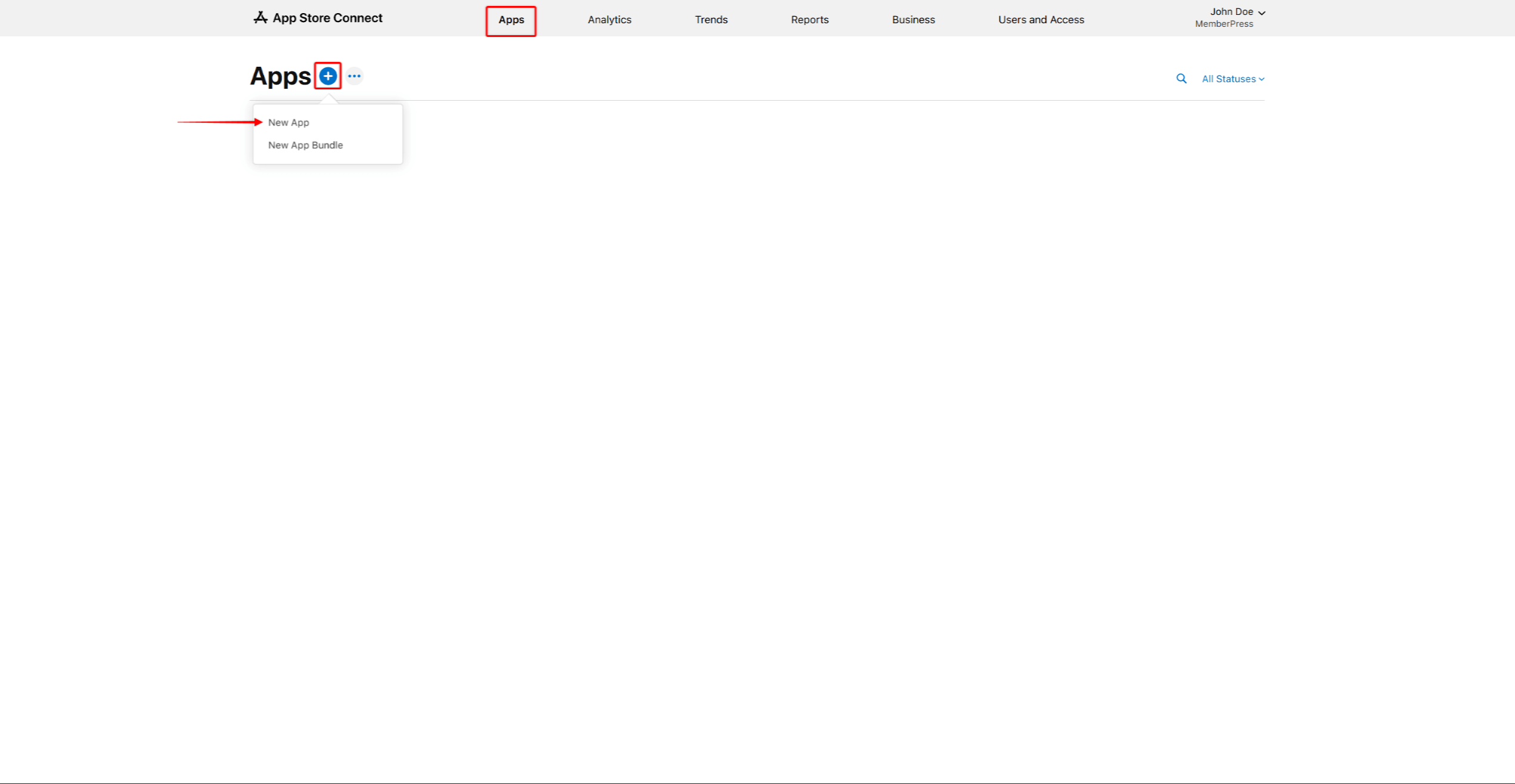
com.companyname.appname). - Create an app listing in App Store Connect, selecting the Bundle ID and adding an SKU for internal tracking.
- Make the needed certificates and profiles.
- Connect the Apple Developer account to AppKit.
Google Play Developer Account Setup
Publishing an Android app needs a Google Play Developer account ($25 one-time fee). This gives access to the Google Play Console for app uploads. The Google Play Developer account setup guide covers the steps in detail.
To create a Google Play Developer account:
- Navigate to the Google Play Console signup page.
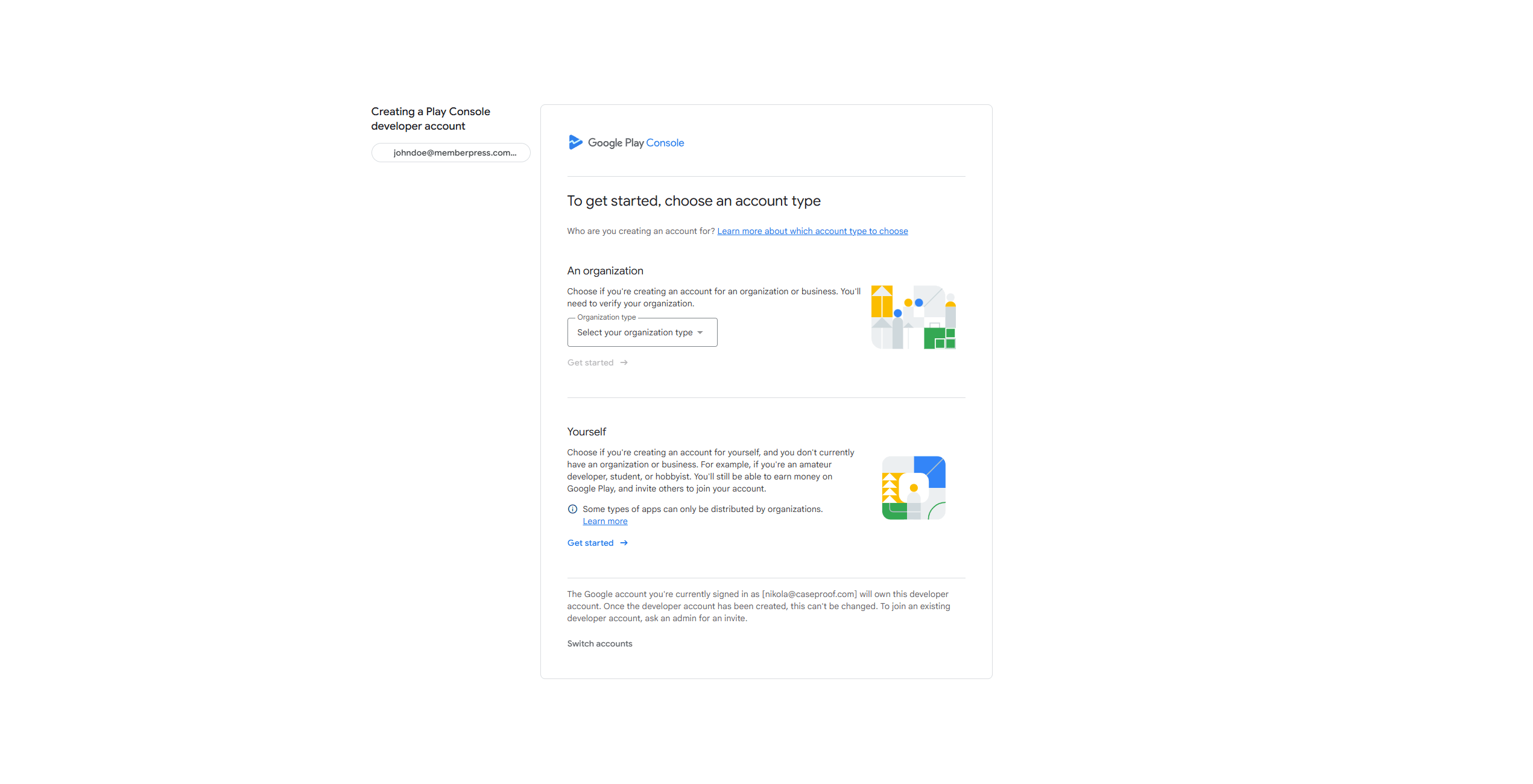
- Sign in with a Google account and accept the terms.
- Pay the $25 registration fee and complete the identity check.
- After the check is done, create an app listing placeholder.
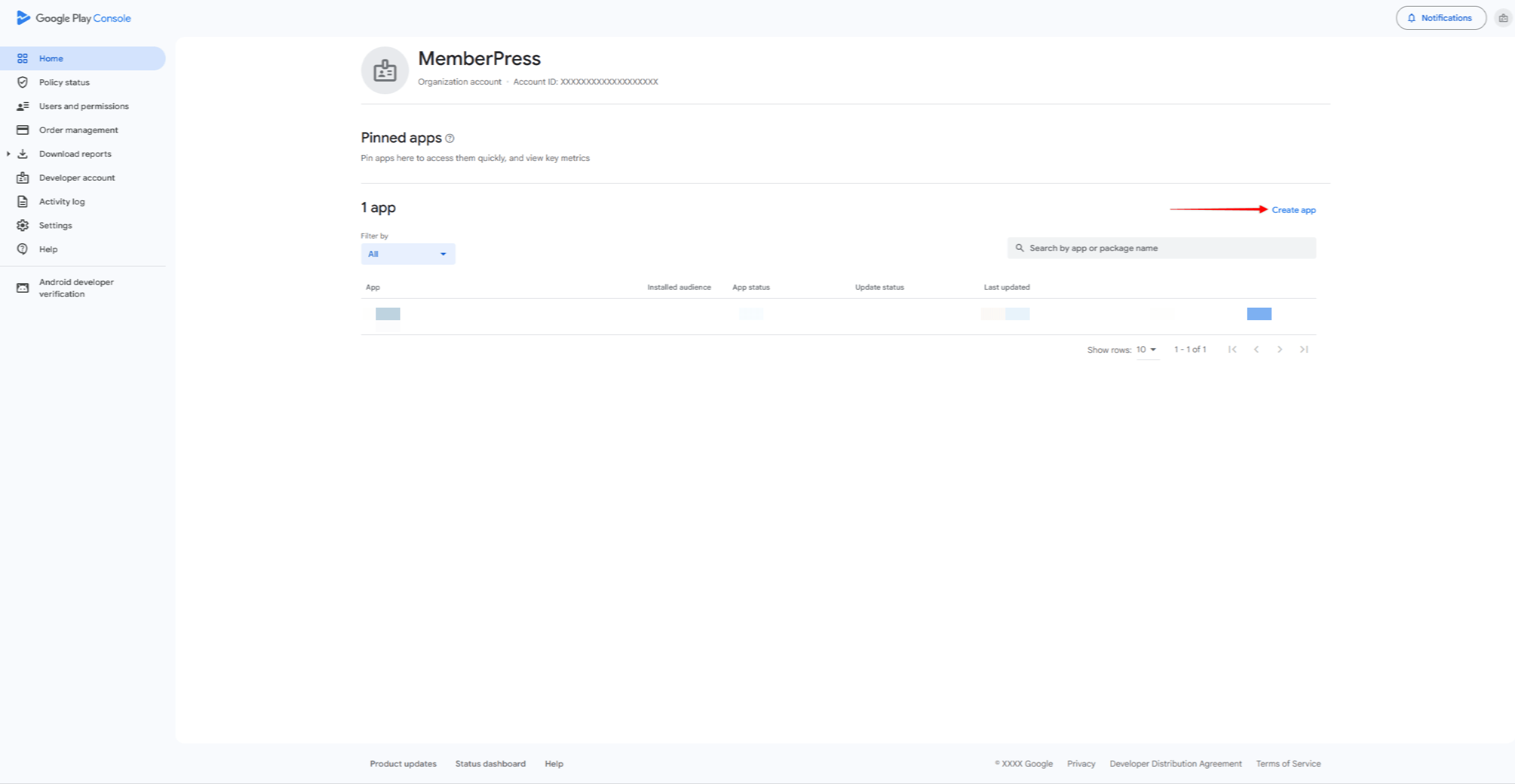
- Create an upload key for app signing.
- Connect the Google Developer account to AppKit.
Phase 2: AppKit Installation and Configuration
This phase installs the MemberPress AppKit add-on and sets up basic app settings. This includes branding, colors, typography, and login options.
Before starting, ensure an active MemberPress license (Launch, Growth, or Scale plan). The license key must be activated. An SSL certificate is required, REST API must be enabled, and compatible hosting is needed.
AppKit Installation
MemberPress AppKit is a separate add-on that requires its own yearly subscription. The AppKit connection guide shows how to install and activate it.
- Navigate to the MemberPress AppKit page and purchase the AppKit subscription.
- Download the AppKit plugin from Account > Downloads on the MemberPress website.
- Install the plugin via Dashboard > Plugins > Add New Plugin > Upload Plugin.
- Get the AppKit license key from Account > Downloads on the MemberPress website.
- Navigate to Dashboard > MP AppKit > Connect and enter the license key.
- Check that the green “Active” status shows to confirm the link works.
App Settings
The Settings page has nine sub-options for setting up app behavior.
- Navigate to Dashboard > MP AppKit > Settings.
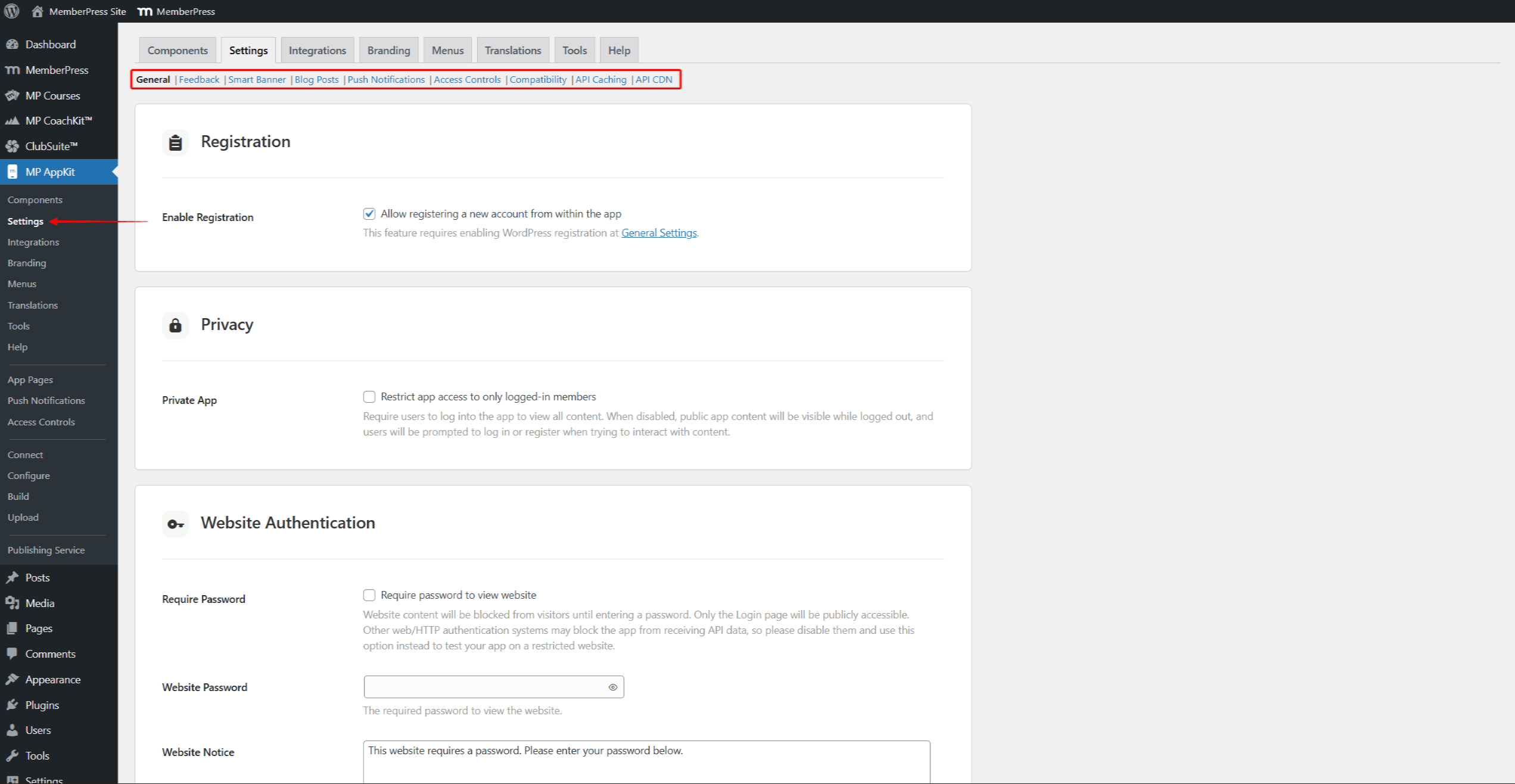
- Set up options as needed:
- General – signup, privacy, and login;
- Feedback – user feedback and app rating features;
- Smart Banner – website banner promoting the app;
- Blog Posts – bookmarking, sharing, and related posts;
- Push Notifications – notification types and automation;
- Access Controls – restricted content messaging;
- Compatibility – external link handling;
- API Caching – speed boost;
- API CDN – content delivery network.
- Click Save Changes after setting up each option.
AppKit Components
MemberPress AppKit has several parts that can be turned on or off based on your needs. The App Pages part is required and cannot be turned off.
- Navigate to Dashboard > MP AppKit > Components.
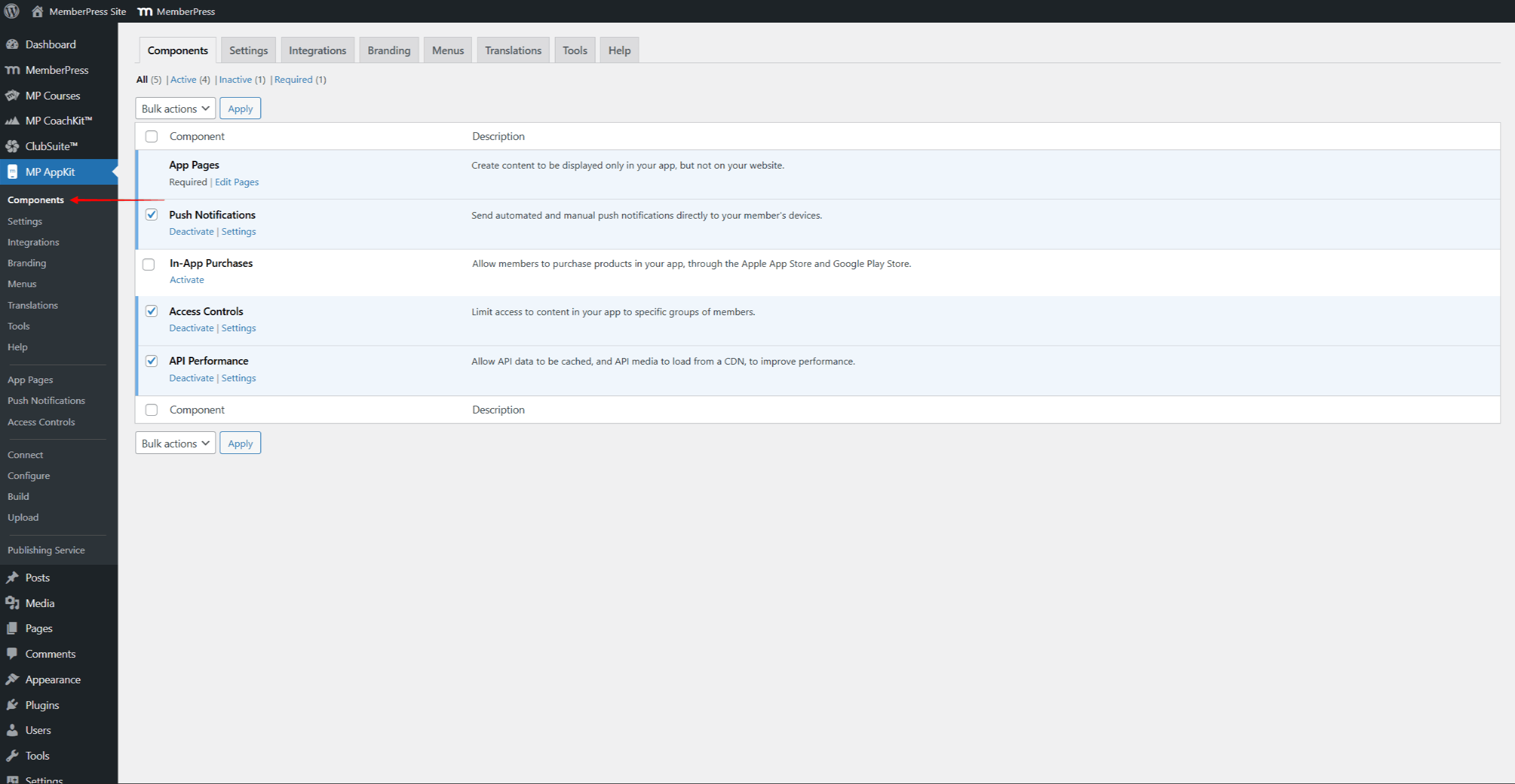
- Review the available components:
- Push Notifications – lets you send push messages to app users;
- In-App Purchases – lets users buy memberships in the app;
- Access Controls – controls who can see content based on membership;
- API Performance – turns on caching for faster loading.
- All components are enabled by default except In-App Purchases.
- Enable or disable components as needed and click Save Changes.
Platform Connection
The platform connection settings link AppKit to the app store listings. Each platform requires specific identifiers and certificates to build and publish apps.
- Navigate to Dashboard > MP AppKit > Configure, and click the iOS Settings menu.
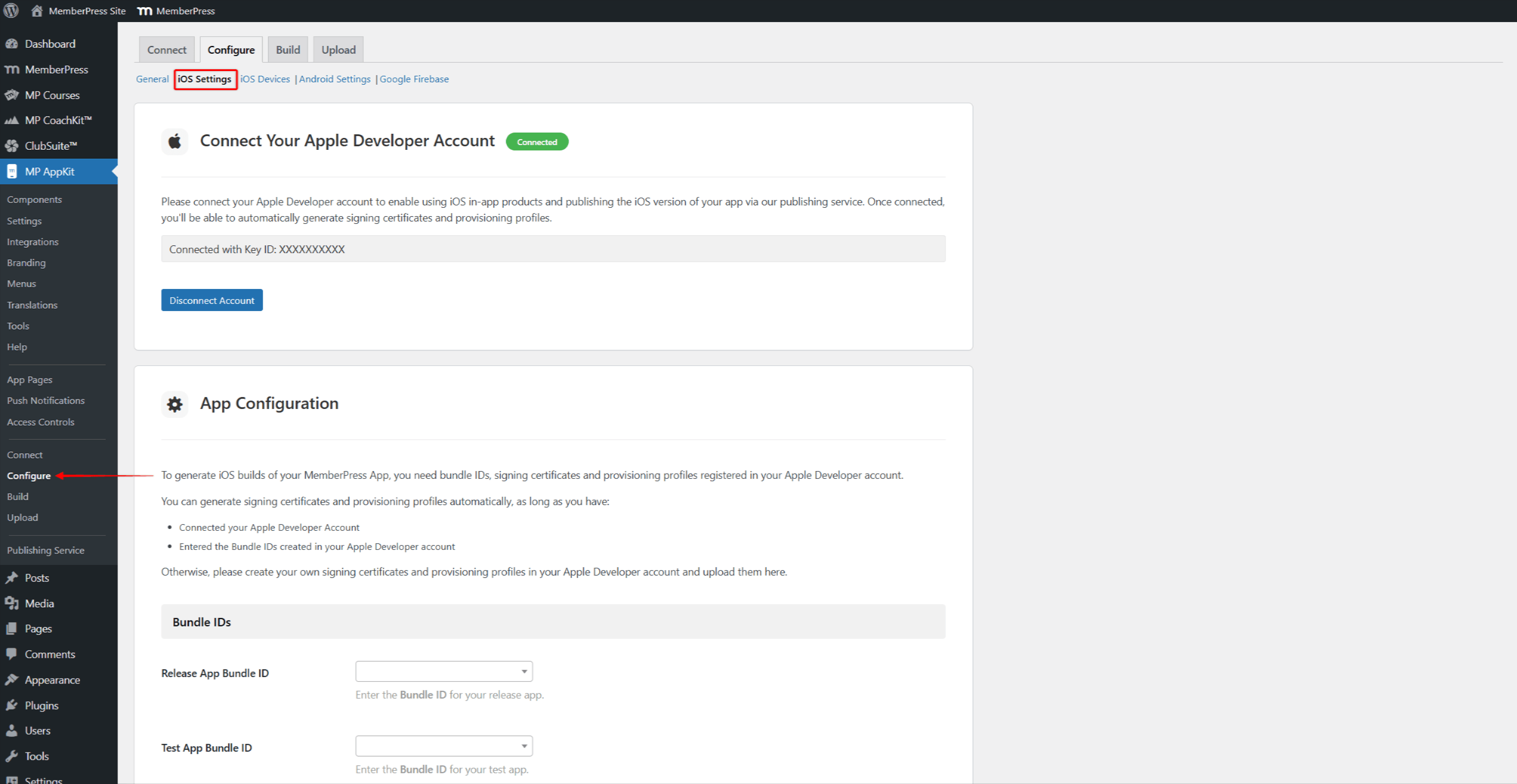
- Follow the iOS Settings configuration guide to set up Bundle IDs, Signing Certificates, Provisioning Profiles, and App Information.
- Enable Universal Links for deep linking.
- Click Save Changes.
- Next, connect the app you created in your Google Play Console. Click the Android Settings menu.
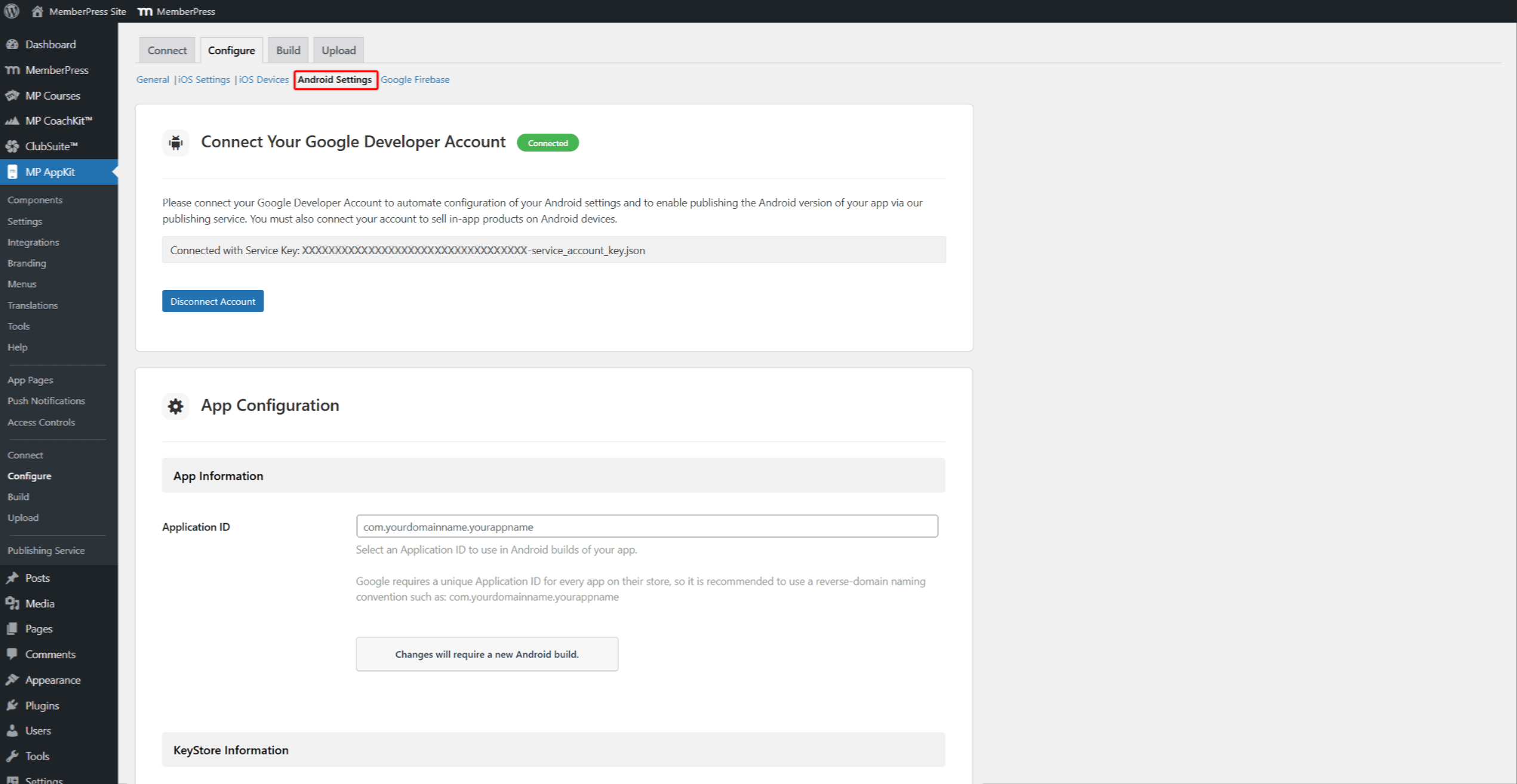
- Follow the Android Settings configuration guide to set up Application ID and KeyStore Information.
- Enable Android App Links for deep linking.
- Click Save Changes.
- Click the Google Firebase sub-menu and follow the Google Firebase setup guide to enable push notifications.
Phase 3: Content and Navigation Setup
This phase sets up app content and navigation menus. Posts and MemberPress Courses sync from the website on their own. App Pages show custom content only in the app. The app homepage setup sets the first screen users see. Text translations let you translate app text into other languages.
Before starting, ensure at least one membership exists and MemberPress rules are set up.
App Pages
App Pages are custom screens shown only in the mobile app. These pages are built using the Gutenberg editor with a width made for mobile screens.
- Navigate to Dashboard > MP AppKit > App Pages.
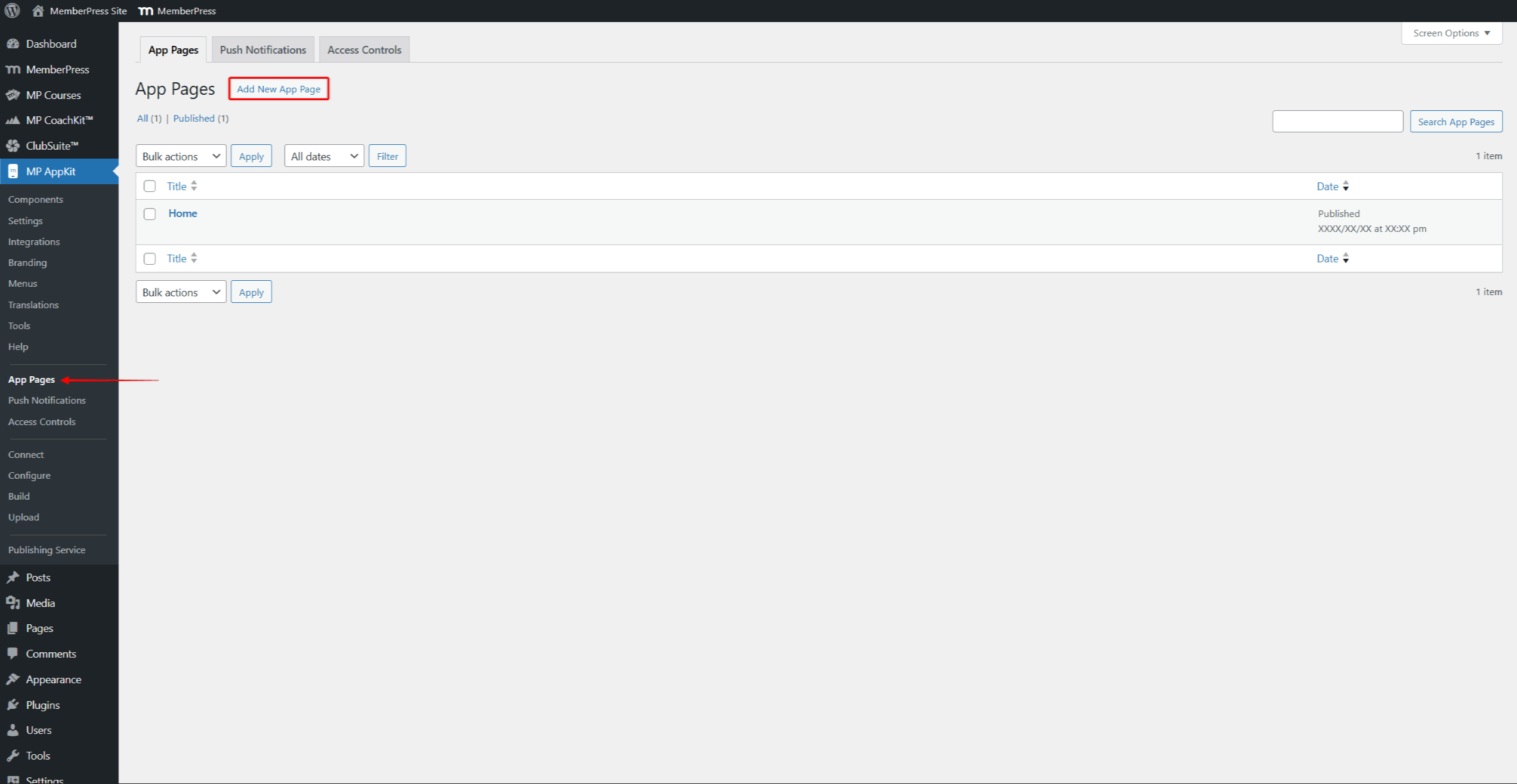
- Click Add New App Page to create a new page.
- Add content using Gutenberg blocks, including MemberPress AppKit blocks and the Courses block.
- Click Publish to save the page.
Menu Configuration
The Menus settings control app navigation. Three menu areas are available: Tab Bar (bottom navigation), Header Bar (top navigation), and More Menu (extra items). Custom menu icons and multiple menu versions offer more ways to set up navigation.
- Navigate to Dashboard > MP AppKit > Menus.
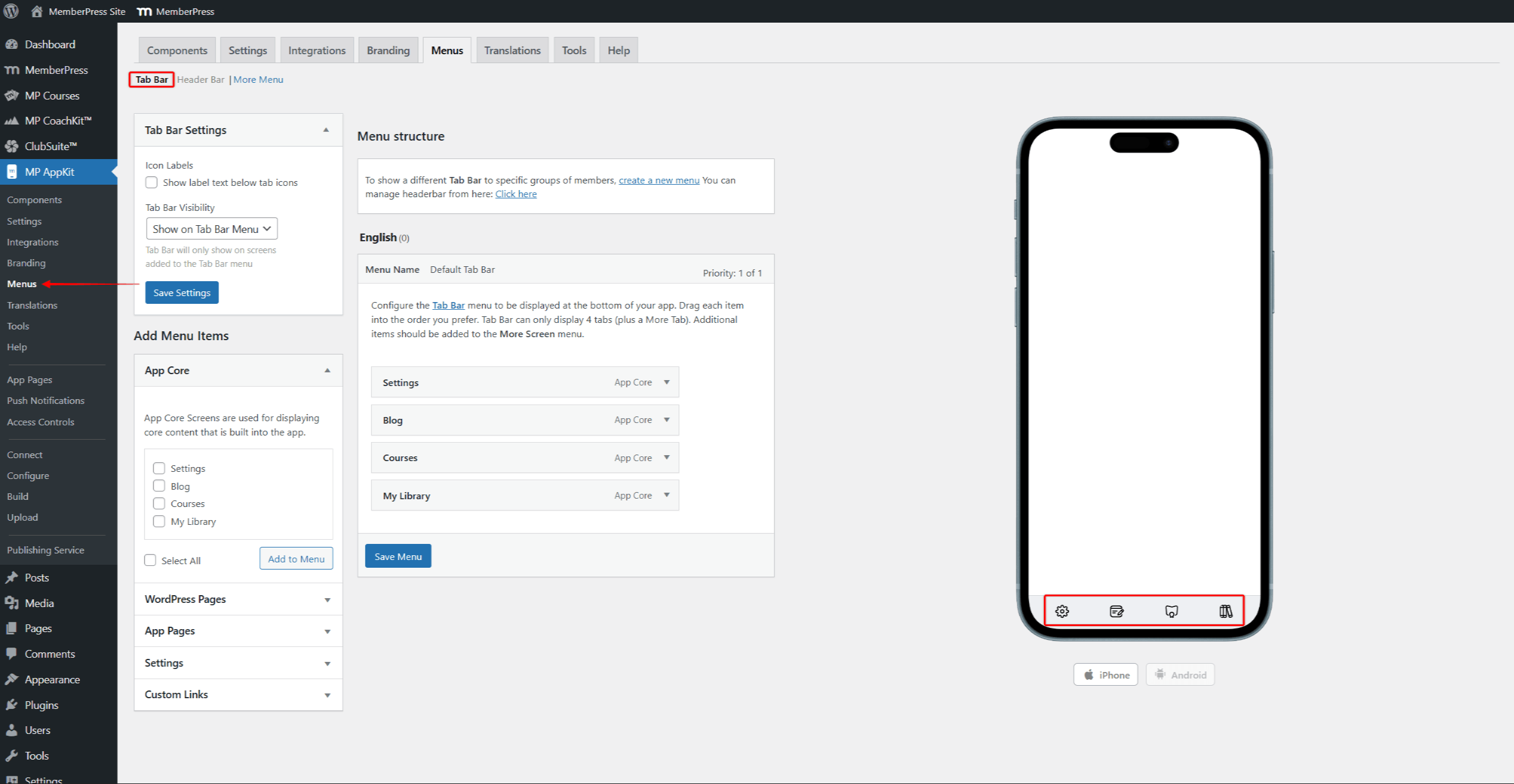
- Set up the Tab Bar with main navigation items (up to 4 tabs plus More).
- Set up the Header Bar with top navigation buttons.
- Set up the More Menu with extra navigation items.
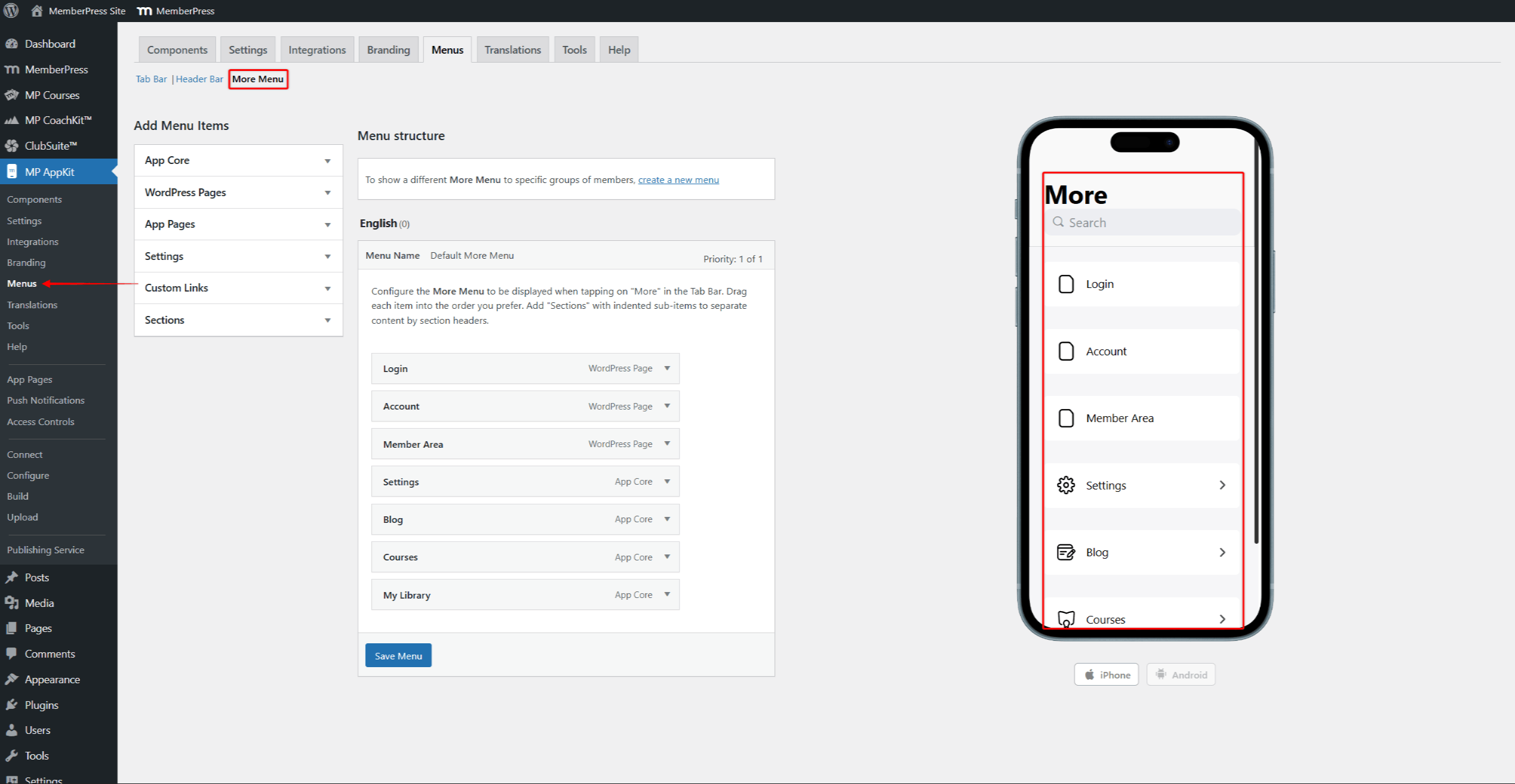
- Click Save Menu after setting up each menu.
Access Controls
The app uses access rules from MemberPress. The Access Controls page lets you add rules for specific content. Access groups help organize content access by membership level. The default restricted message shows when users try to view protected content.
- Navigate to Dashboard > MemberPress > Rules and review existing rules.
- Create additional rules if needed.
- Navigate to Dashboard > MP AppKit > Access Controls.
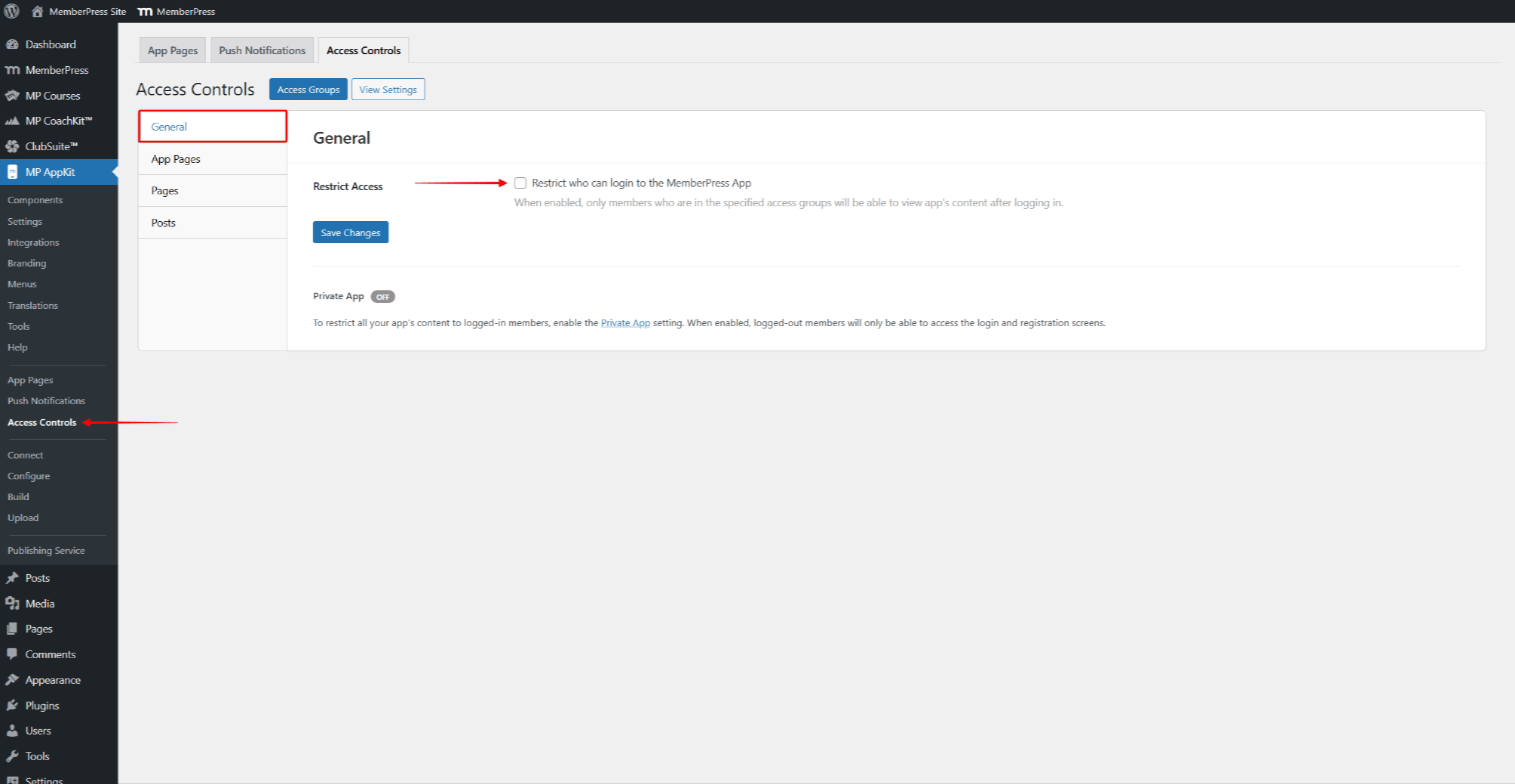
- On the General tab, find the Restrict Access section.
- Enable “Restrict who can login to the MemberPress App” to limit app access to specific access groups.
- To make the app fully private, enable the Private App setting at Dashboard > MP AppKit > Settings > General > Privacy.
- Click the App Pages, Pages, or Posts tab to add rules to specific content.
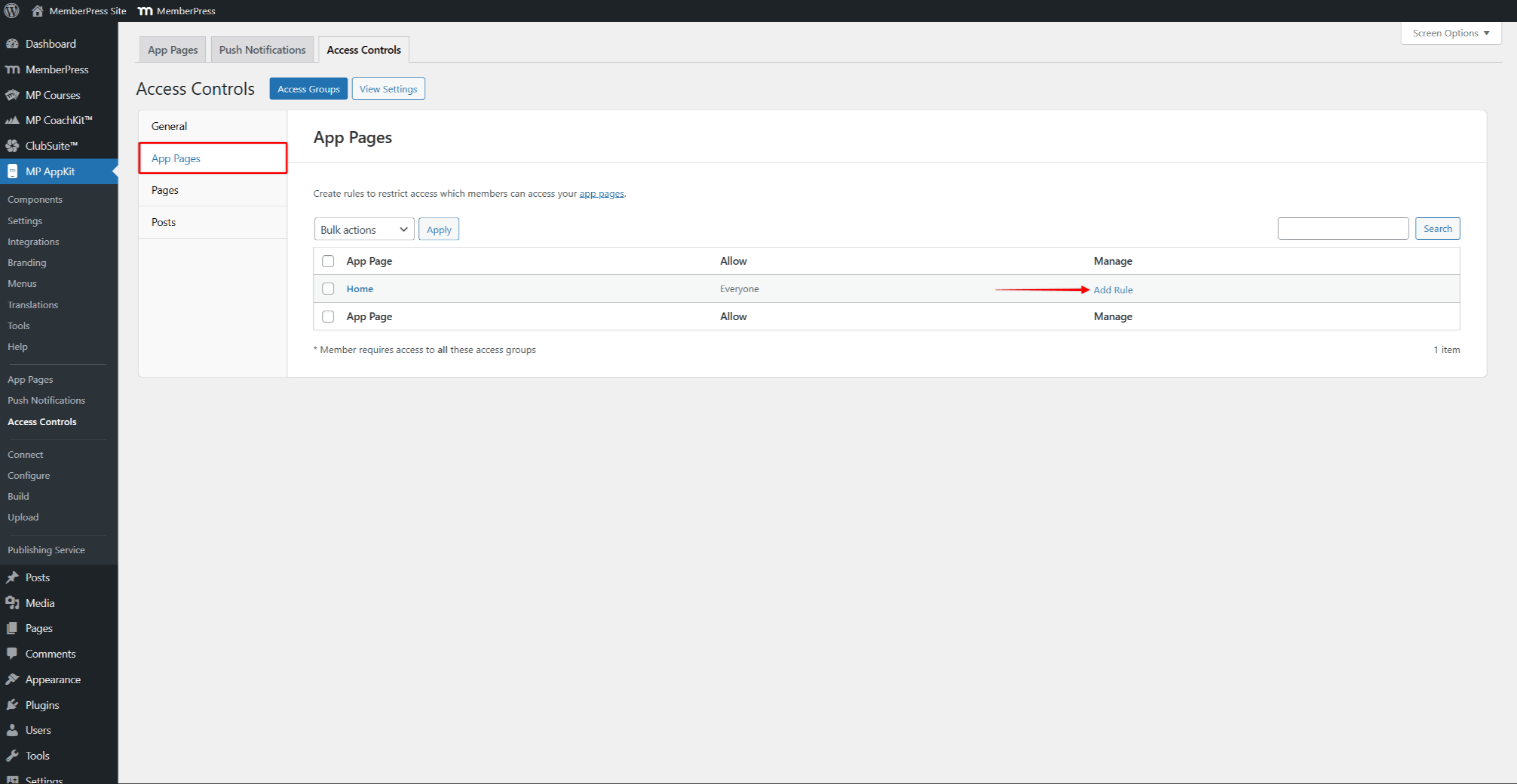
- On these pages, you can add item-specific rules. Click Add Rule next to any item to restrict that content to logged-in members or specific access groups.
- Click Save Changes.
Phase 4: In-App Purchases Configuration
This phase is required only for Path B users. Path A users should skip to Phase 5. The In-App Purchases setup guide shows all the setup steps.
Before starting this phase, ensure the In-App Purchases component is enabled at Dashboard > MP AppKit > Components.
Both app stores require in-app purchase products to be created before the app can sell memberships. Each MemberPress membership needs a matching product in both stores. Subscription groups organize related membership products for upgrade and downgrade options.
App Store Product Setup
- In App Store Connect, select the app and click Subscriptions in the sidebar.
- Create products matching each membership. Select Auto-Renewable Subscription for recurring memberships. The iOS In-App Products guide explains product setup and types.
- In Google Play Console, navigate to Monetize with Play.
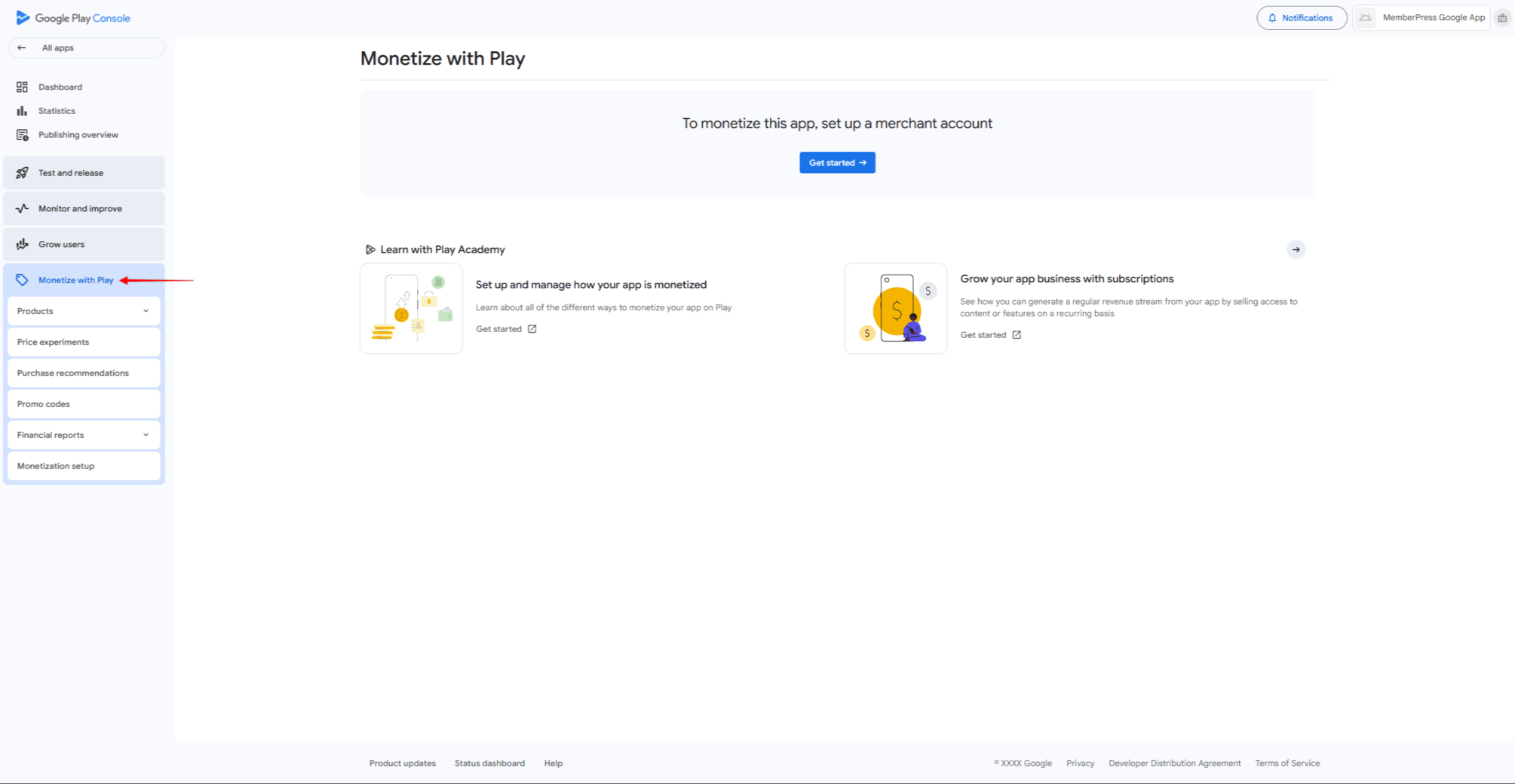
- After merchant account setup, navigate to Monetize > Products > Subscriptions.
- Create matching products using the same Product IDs for easier tracking. The Android In-App Purchases guide shows the setup steps.
Connecting Products to MemberPress
After creating products in both app stores, link them to MemberPress memberships:
- Navigate to Dashboard > MP AppKit > In-App Purchases > Products.
- Click Add New to create a product.
- Enter a Product Name, optional Tagline, Description, and Benefits.
- Check Display on Products Screen and select Paid as the Product Type.
- Under iOS Store, check Enable and click Sync with Apple to retrieve available products.
- Select the matching App Store Connect product from the list.
- Under Android Store, check Enable and click Sync with Google to retrieve available products.
- Select the matching Google Play product from the list.
- Under Integration Type, select Membership and choose the membership plan to link.
- Click Publish to save the product.
- Repeat for each membership that needs in-app purchase access.
Phase 5: App Testing
This phase tests how the app works before sending it in. Both Apple and Google reject apps with clear bugs or broken features.
Device Testing
Test App builds allow testing the app on real devices before submission. Test with many user accounts to check that access rules work right.
- Navigate to Dashboard > MP AppKit > Build and click Request Build.
- Select the platform (iOS or Android), then select Test App as the build type.
- After the build completes, it appears in the Build History list.
For iOS Test Apps, first register test devices at Dashboard > MP AppKit > Configure > iOS Devices. Then click the Install on iOS Device button to install via QR code or download the IPA file. The iOS test builds guide shows the full steps.
For Android Test Apps, click the Install on Android Device button to install via QR code or download the APK file. The Android test builds guide shows the full steps. Android Test Apps do not need device registration.
Path B users must also test in-app purchases using iOS sandbox accounts and Android license testers. Before App Store submission, select an iOS review version for Apple's review team.
Phase 6: App Building and Publishing
This phase creates final app builds and sends them to the app stores. Both platforms review apps before they go live. The app build generation guide covers building apps for both platforms.
Prepare app store listing assets (screenshots, descriptions) and ensure the privacy policy URL is reachable. The MemberPress App Publishing Service offers help with the submission process.
iOS App Submission
- Navigate to Dashboard > MP AppKit > Build and click Request Build.
- Select iOS as the platform, then Release App as the build type. The iOS release app generation guide shows the steps.
- After the build completes, click the Submit for Publishing button on the build card.
- Click Upload to App Store Connect to upload directly from AppKit. The uploading iOS builds guide shows the steps.
- In App Store Connect, complete App Information, upload screenshots, select the build, and click Submit for Review. The App Store publishing checklist lists all needed items.
Android App Submission
- Navigate to Dashboard > MP AppKit > Build and click Request Build.
- Select Android as the platform, then Release App as the build type. The Android release app generation guide shows the steps.
- After the build completes, click the Submit for Publishing button on the build card.
- Click Upload to Google Play Console to upload directly, or click Download AAB File for manual upload.
- In Google Play Console, navigate to Release > Testing > Closed Testing and upload the AAB file. For staged rollouts, use closed testing before production.
- Complete Store Listing, upload screenshots, complete Content Rating, and click Start Rollout. The Google Play publishing checklist lists all needed items.
Phase 7: Ongoing App Management
Published apps need regular care. Plan updates for bug fixes and to work with new OS versions. The iOS app update and Android app update guides show the steps for new versions. Maintenance mode lets you briefly limit app access during big updates.
Check App Store Reviews and Google Play Reviews, and reply to user feedback quickly. Track crash reports and watch API performance to keep the app running well.
Summary
MemberPress AppKit lets you build native mobile apps for membership sites through seven steps in order.
Before starting Phase 1:
- Check website needs (HTTPS, PHP 7.4+, WordPress 5.8+).
- Make sure an active MemberPress plan is in place (Launch, Growth, or Scale plan).
- Decide between Path A (website registration) or Path B (in-app purchases).
- Gather visual assets (app icon, splash screen, screenshots).
- Prepare credit card information for developer account fees.
Start Phase 1 by creating an Apple Developer account and a Google Play Developer account.










