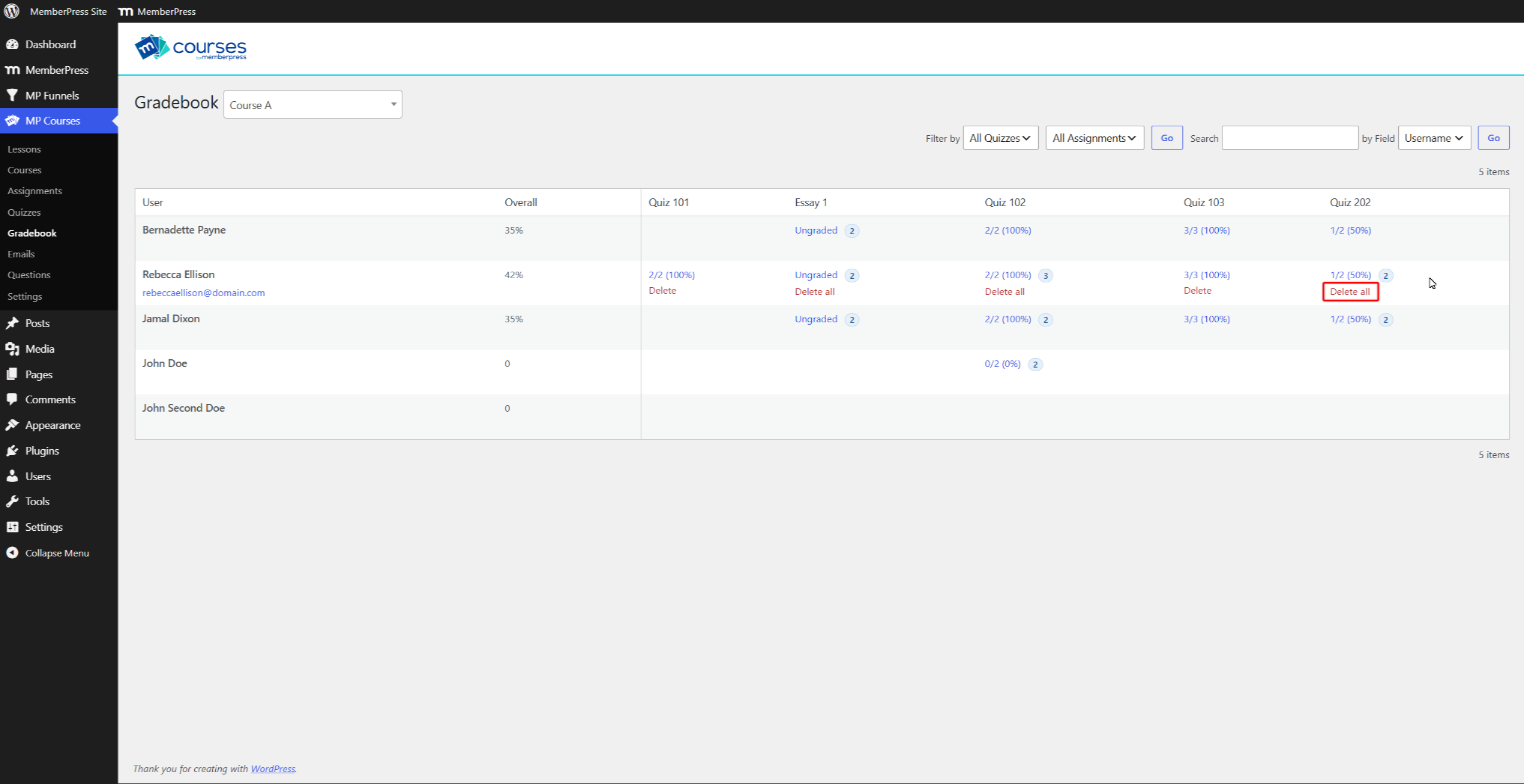
With the MemberPress Course Gradebook add-on, you can grade assignments and quizzes your students submitted.
This document provides details on the MemberPress Course Gradebook. It also shows you how to grade your students and review their attempt history.
Installing Gradebook
To add a Gradebook option to your MemberPress Courses, install and activate the Course Gradebook add-on.
Next, follow these steps to install and activate the MemberPress Course Gradebook add-on:
- Navigate to Dashboard > MemberPress > Add-ons.
- Browse add-ons for Course Gradebook add-on or search for “gradebook“ using the search tool.
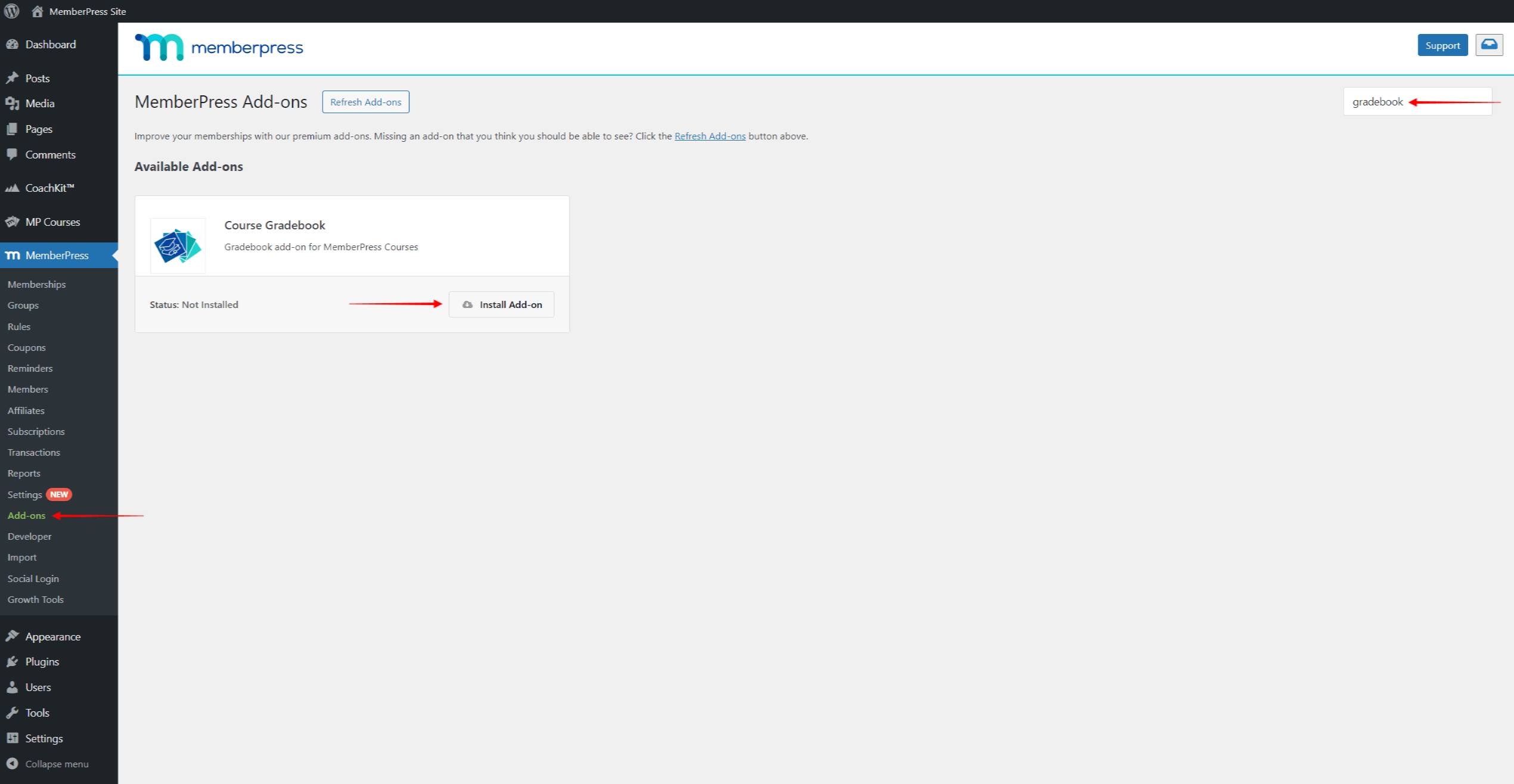
- Once you find the add-on, click the Install Add-on button. This will automatically install and activate the add-on.
How To Find the Course Gradebook?
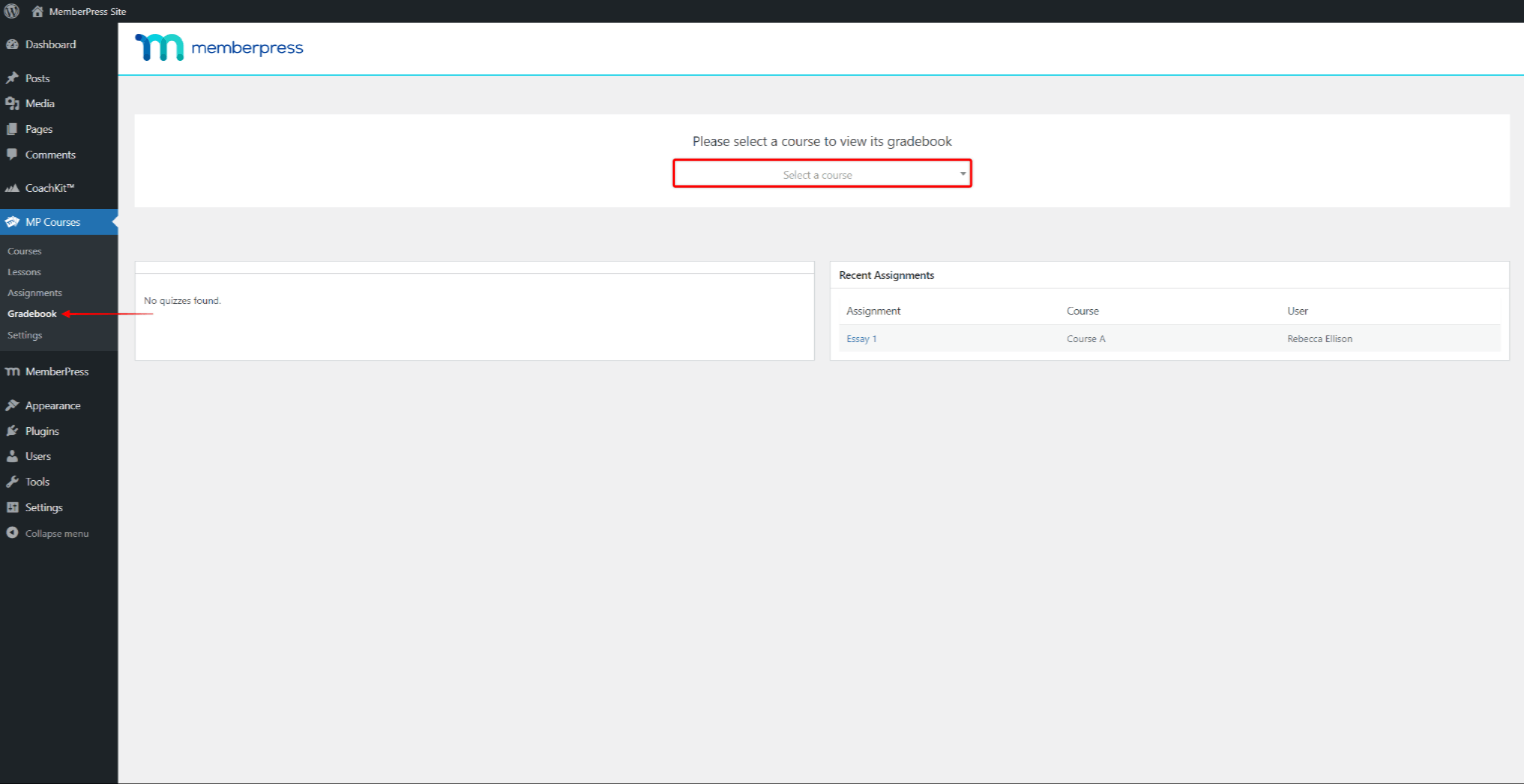
Every MemberPress course on your website will have a separate gradebook.
All assignments and quizzes within the course submitted by your students will be automatically added to the course’s gradebook.
Navigate to Dashboard > MP Courses > Gradebook, and select the course from the drop-down menu to access its gradebook.
Grading Assignments and Quizzes
When tracking students’ progress, you can use the course gradebooks to preview and grade students’ work. The Course Gradebook shows each student’s submitted quizzes and assignments, assigned grades, and overall score within each course.
The Gradebook also comes with filter and search options. Use them to narrow the list of students and their submitted work.
Quizzes with only auto-graded question types are graded for you. Quizzes are graded based on the number of correct answers the student submitted out of the total number of questions. This is the base grade for the submitted quizzes.
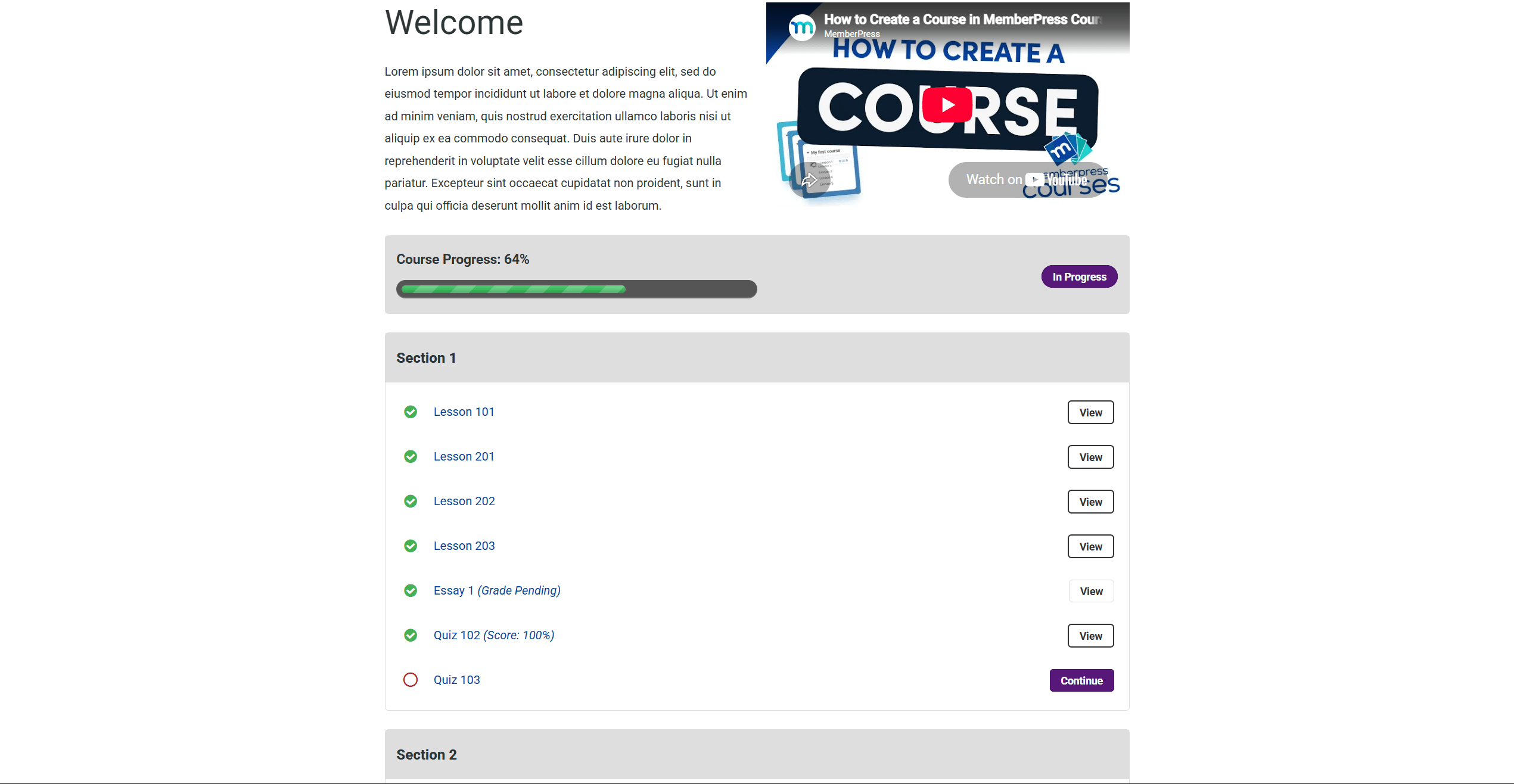
Assignments and quizzes with manually graded questions, such as essays, need your input. Until you grade them, these items will show the “Ungraded” link in the Gradebook. Also, students will see the “Grade Pending” status next to these quizzes in the course curriculum, instead of a score.
To grade a quiz or assignment, follow these steps:
- Navigate to Dashboard > MP Courses > Gradebook, and select the course Gradebook.
- Find the ungraded quiz or assignment in the list by browsing through the list or using filter and search options.
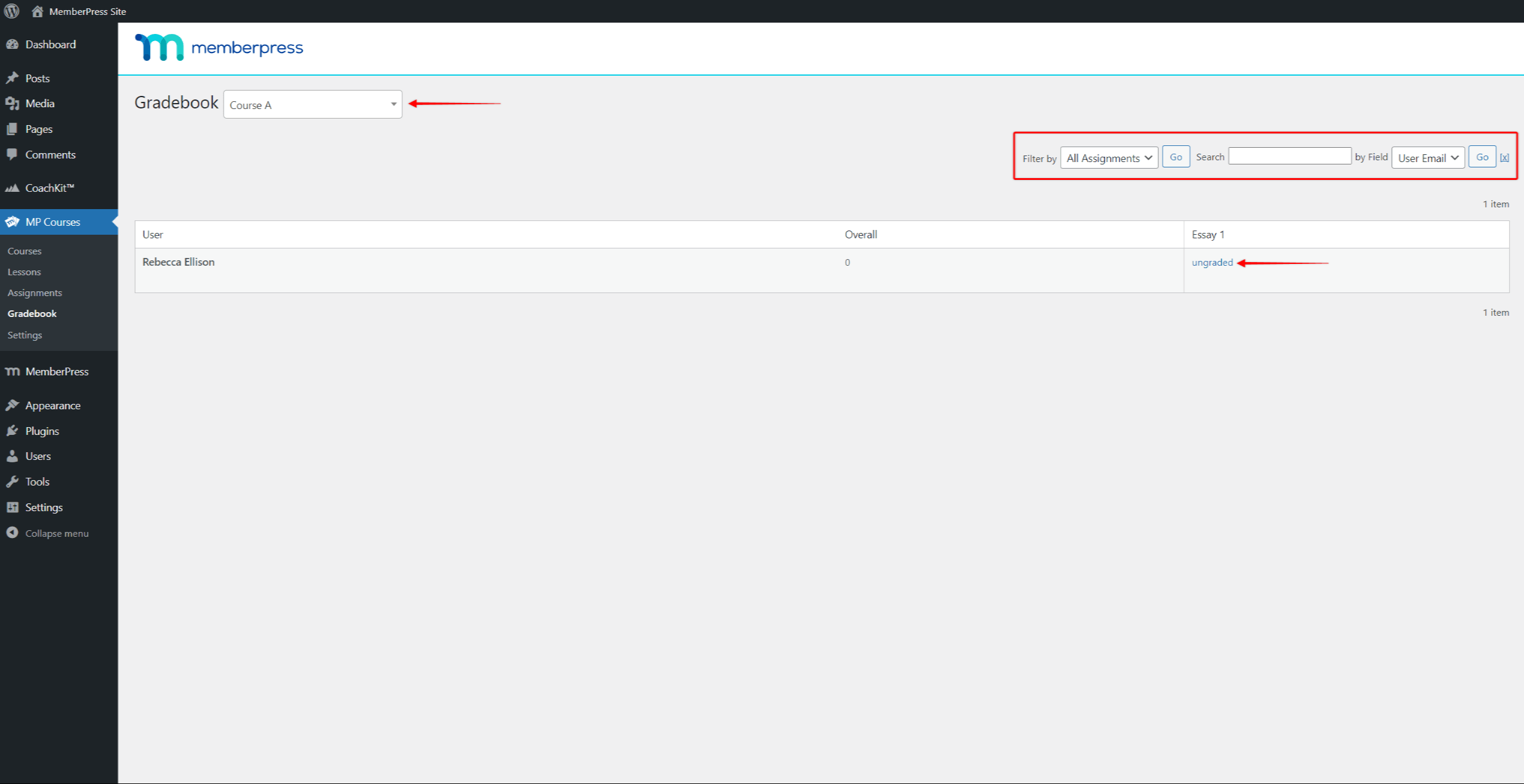
- Click on the “Ungraded” link. This will open the popup for submitted assignments or quizzes.
- When grading assignments, the popup will provide the Grade field, where you can specify the student’s grade. Here, you should assign the whole number of points out of the total available points for the assignment.
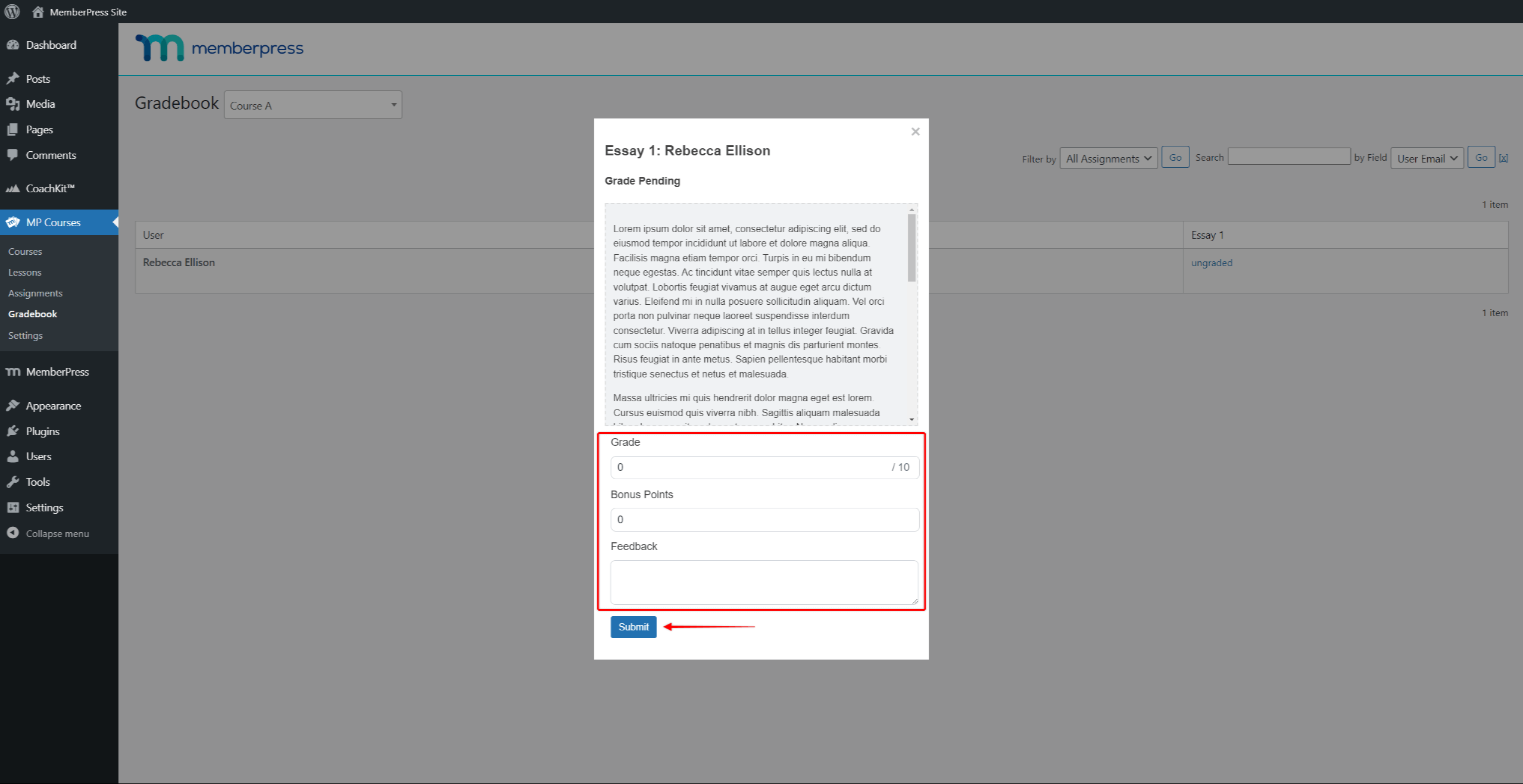
- When grading quizzes, the popup will show the student’s submitted answers. Each question provides a separate Grade field with its maximum points. For automatically graded questions, this field shows the awarded points, which you can override. Entering more than the maximum points will reset the field to zero.
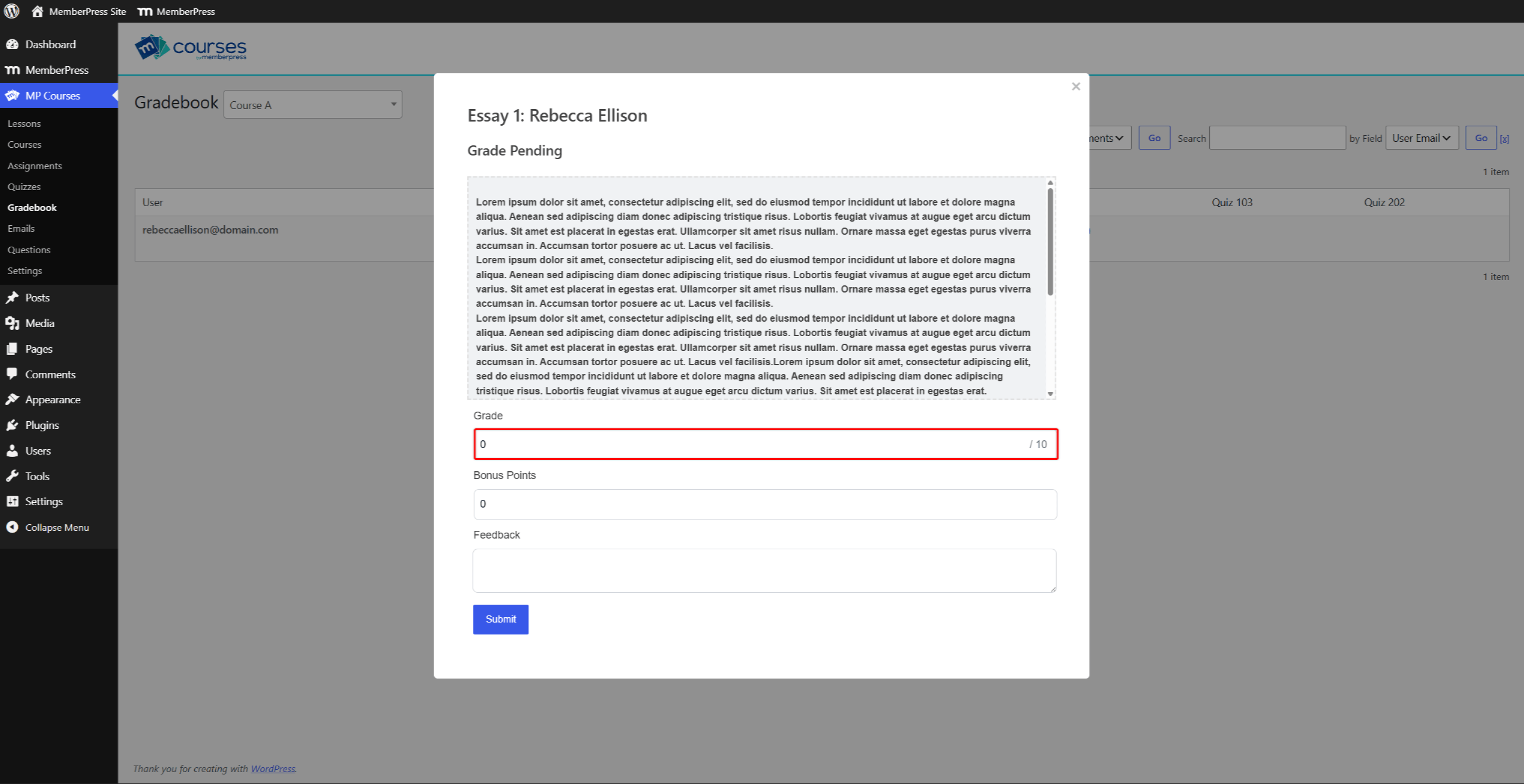
- Optionally, you can assign the Bonus Points for both quizzes and assignments. These points will be added to the base grade. This option allows you to assign points above the maximum points specified in the quiz or assignment settings.
- Also, you can leave your comments for the student in the Feedback field.
- Click the Submit button to save the grade.
Now, instead of the “Ungraded” link, you will see the grade you assigned for this assignment or quiz. You can update this grade at any time. Click the grade, and make your changes in the grading popup. Assignments and quizzes that keep the latest attempt are an exception. There, you can change only the latest grade.
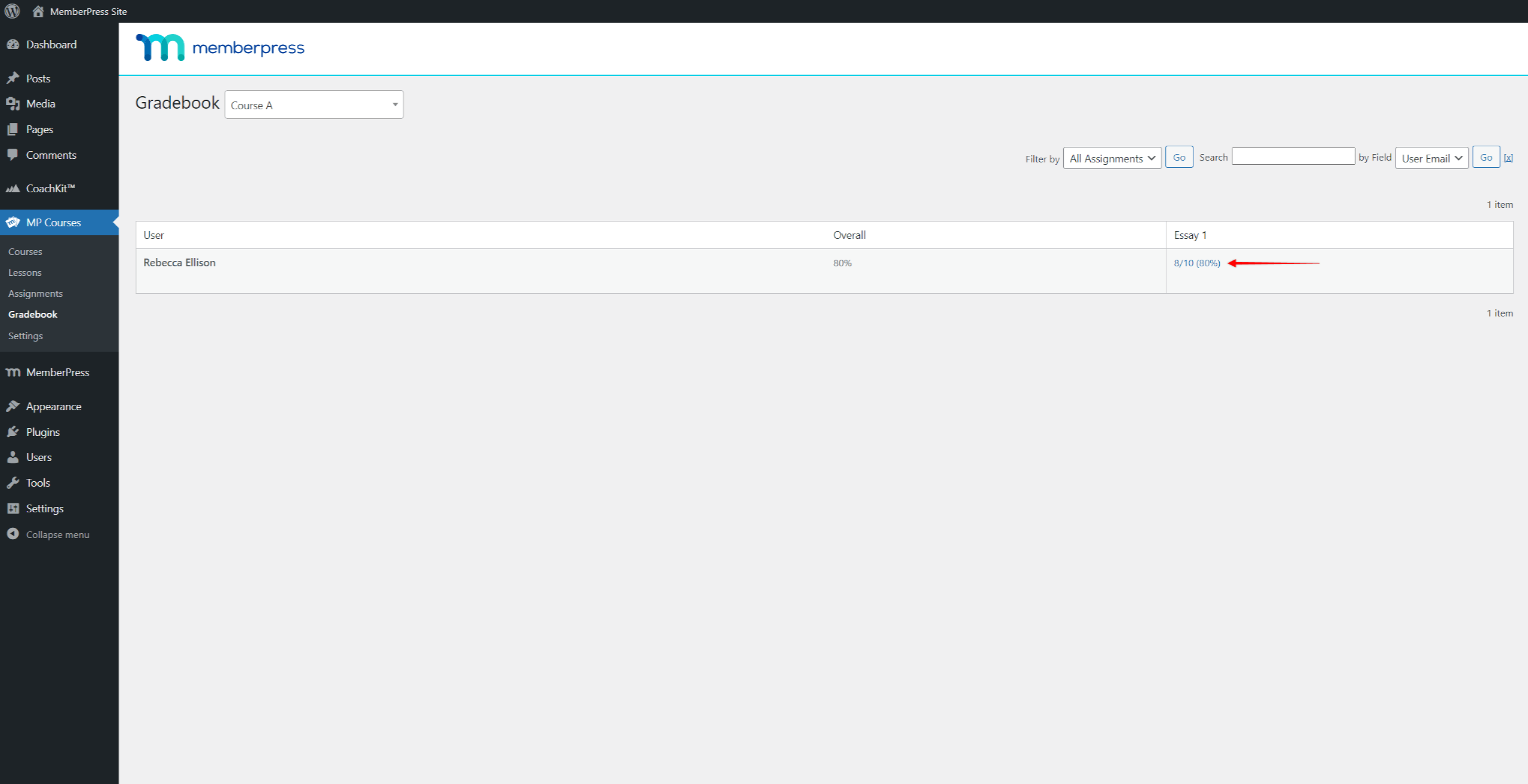
The grading popup always shows the quiz questions as they appeared when the student submitted the quiz. Thus, editing quiz questions later will not affect the grading of submitted attempts.
Reviewing Attempt and Submission History
When a quiz allows retakes, MemberPress keeps every attempt a student submits. Assignments with re-submission enabled also keep every submission. The Gradebook shows the grade of the attempt or submission that counts.
When a student has more than one attempt or submission, a number badge appears next to the grade. The badge shows how many the student made.
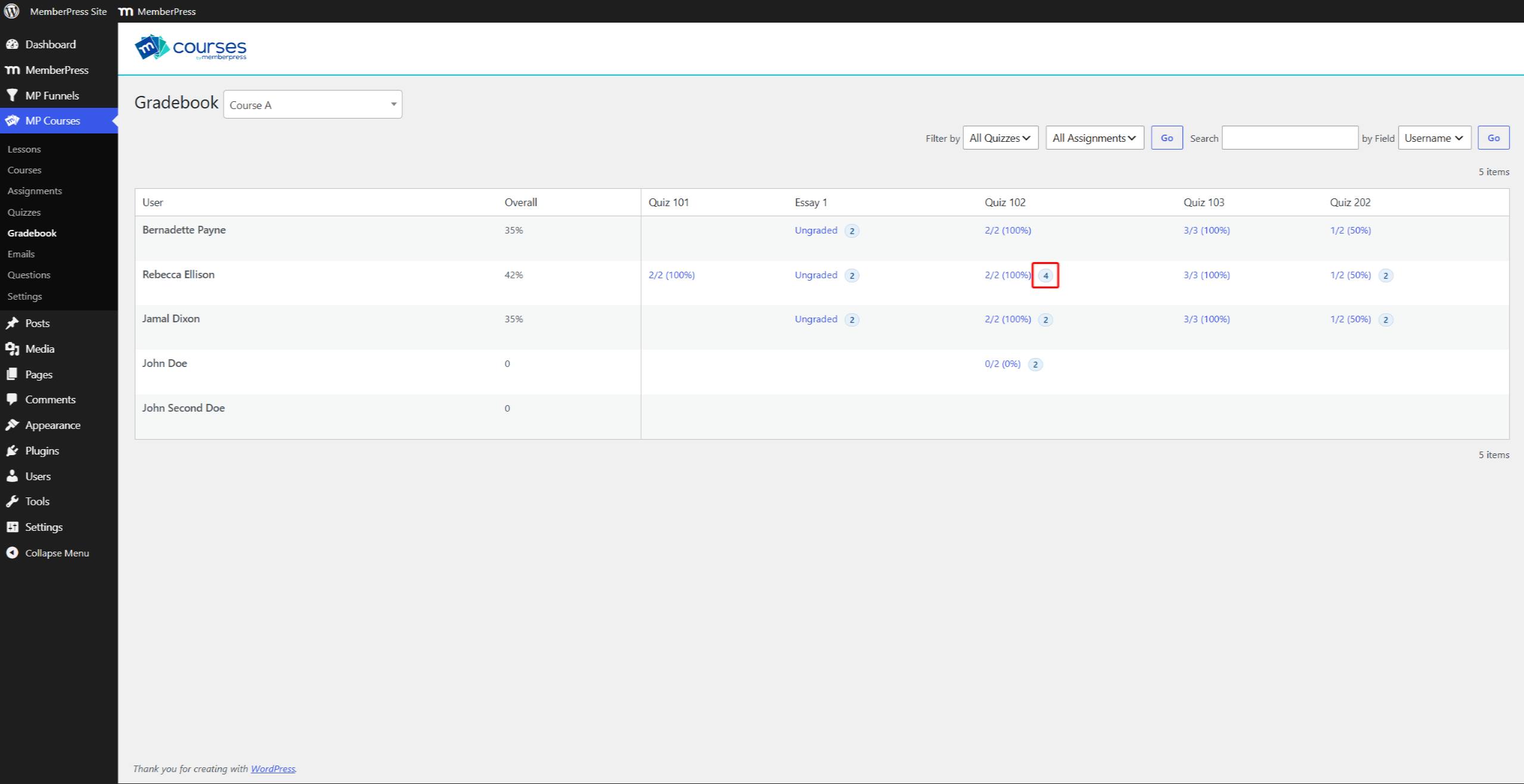
To review a student’s history, follow these steps:
- Navigate to Dashboard > MP Courses > Gradebook, and select the course.
- Click the number badge next to the student’s grade.
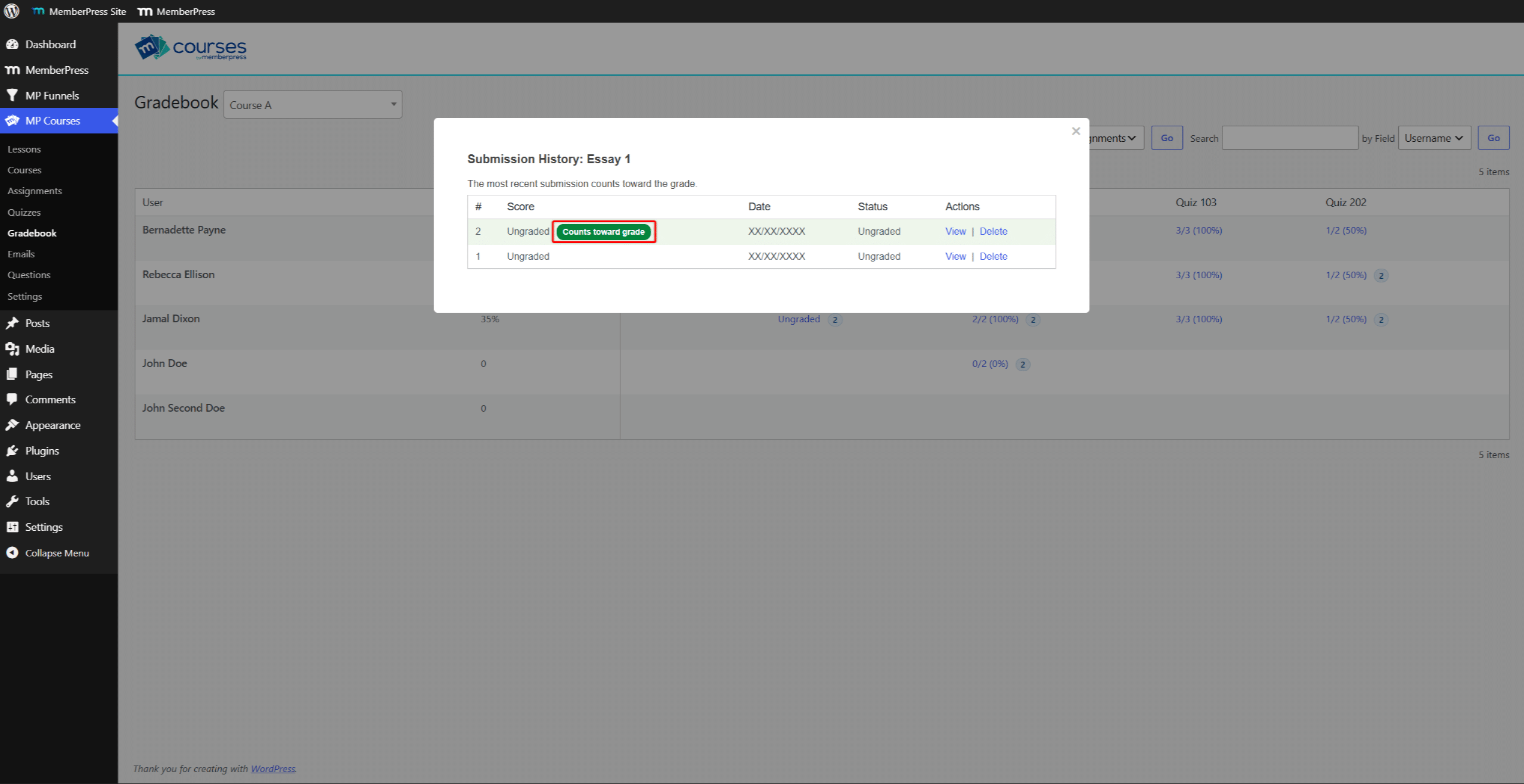
The history window lists all attempts or submissions, newest first. Its title starts with “Attempt History” for quizzes and “Submission History” for assignments. The table shows the #, Score, Date, Status, and Actions columns.
A green “Counts toward grade” label marks the attempt or submission that counts. A line above the table explains the rule, for example “The most recent attempt counts toward the grade.”
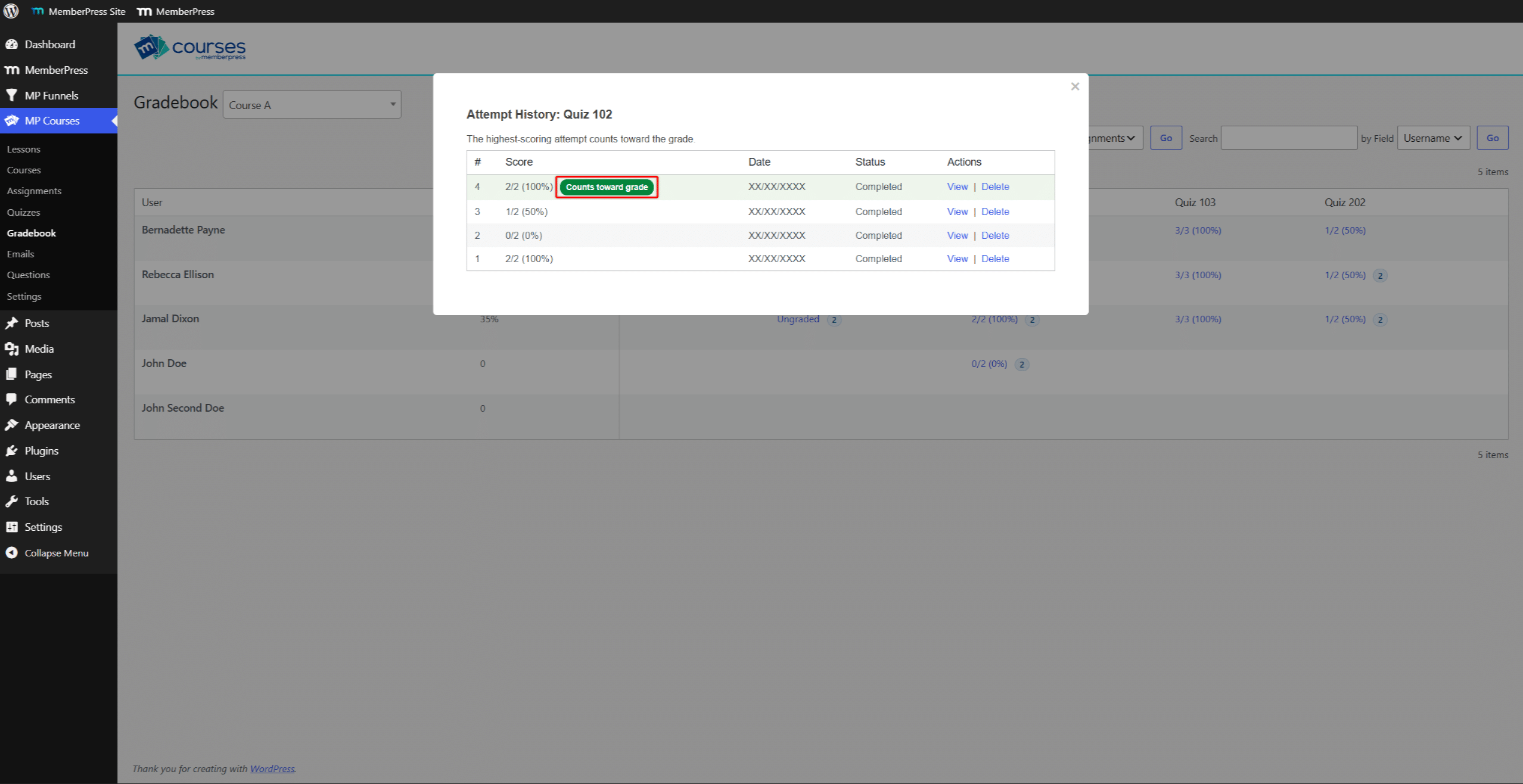
- Click View next to an attempt or submission to open it.
- Click Previous or Next to move between them.
Grading Attempts and Submissions
Which attempts or submissions you can grade depends on the item:
- Quizzes that keep the best attempt: you can grade any attempt;
- Quizzes that keep the latest attempt: you can grade only the most recent attempt. Older attempts show the “Only the latest attempt can be graded for this quiz. Older attempts are read-only.” message;
- Assignments: you can grade only the most recent submission. Older submissions show the “Only the latest submission can be graded. Older submissions are read-only.” message.
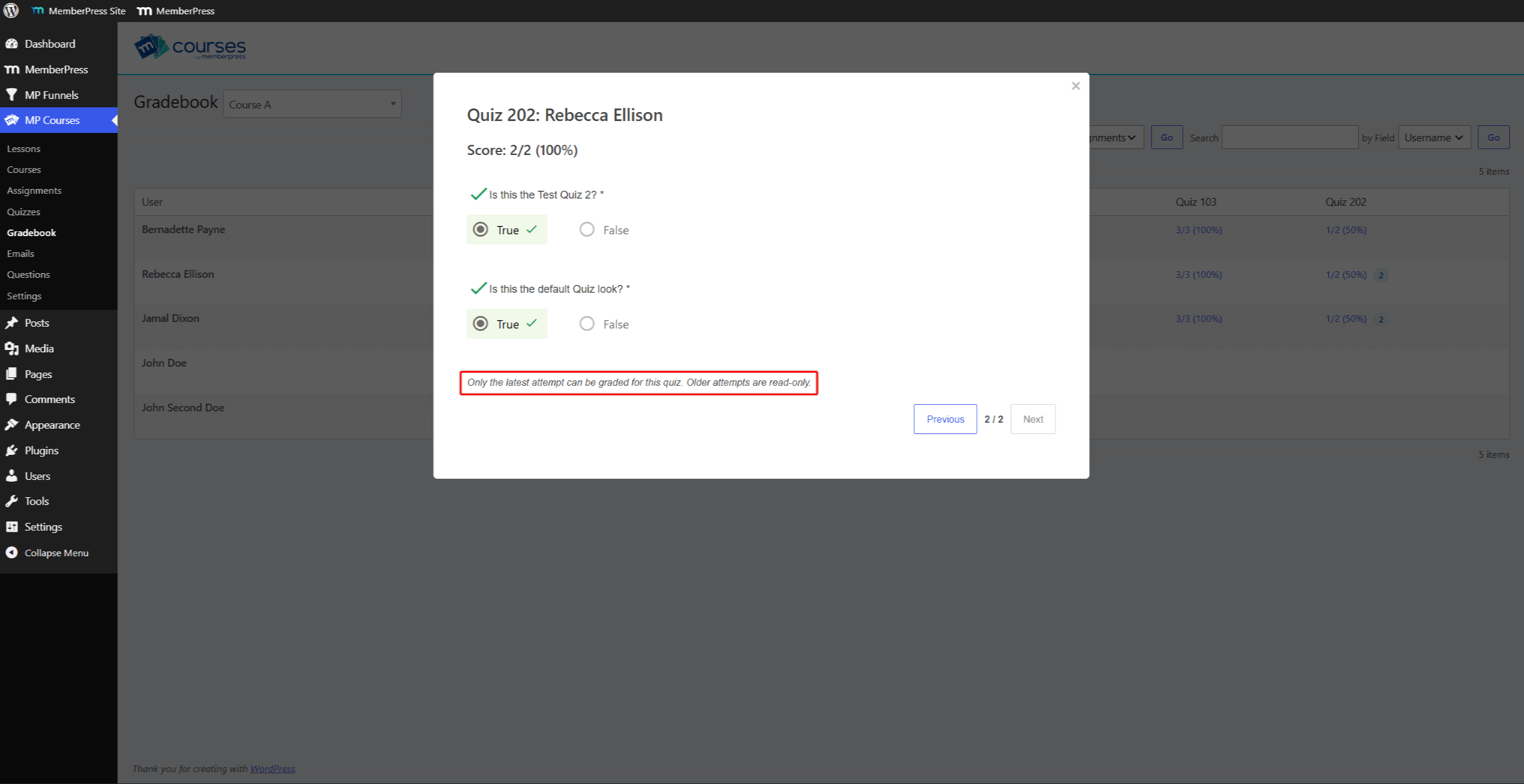
The KEEP option in the quiz retake settings decides which attempt a quiz keeps. For assignments, the most recent submission always counts.
Attempts Made Before Attempt History
Before attempt history, MemberPress stored one attempt per student and quiz. After the update, that stored attempt appears as the only row in the history.
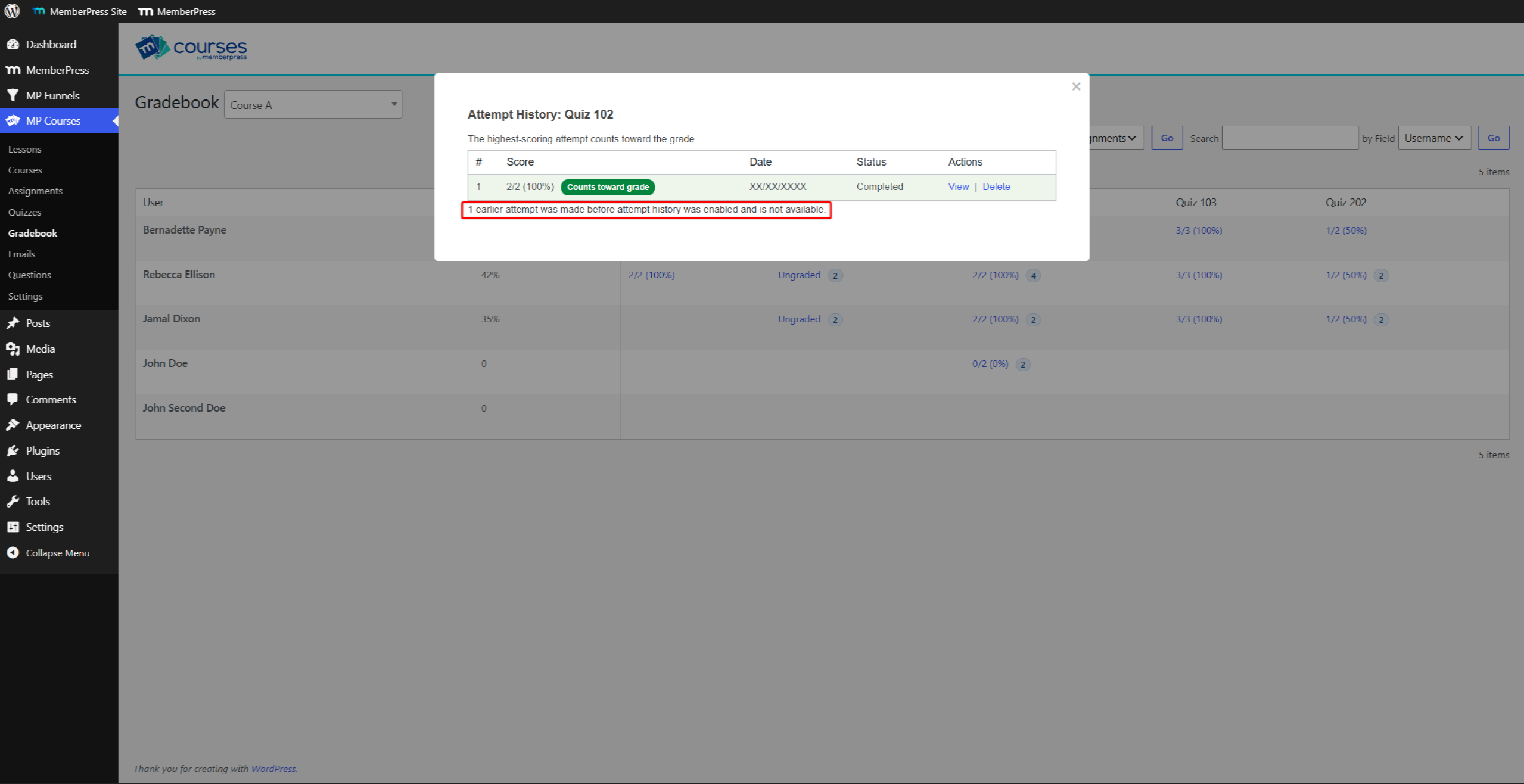
A line under the table reports how many earlier attempts aren’t available. For example: “1 earlier attempt was made before attempt history was enabled and is not available.”
Assignments work the same way. The submission history shows a similar line, for example “1 earlier submission was made before submission history was enabled and is not available.”
Deleting Attempts and Submissions
You can delete a single attempt or submission, or all of a student’s attempts or submissions for one item. MemberPress can’t restore deleted items.
Deleting a Single Attempt or Submission
Deleting one attempt removes its answers and score. The student gets one retake back. If another completed attempt remains, the quiz stays complete.
- Open the student’s history window, as described above.
- Click Delete next to the attempt or submission.
- Click OK to confirm.
Deleting All Attempts or Submissions
Deleting all attempts lets the student start the quiz over. MemberPress also removes the quiz completion, so the student’s course progress decreases. For assignments, this option deletes every submission the student made.
- Navigate to Dashboard > MP Courses > Gradebook, and select the course.
- Hover over the student’s grade, and click Delete all.
- Click OK to confirm.