

MemberPress Courses can require students to engage with a lesson before they complete it. You can set a minimum time on a lesson, require students to watch the lesson videos, or both.
This document explains how lesson engagement requirements work and how to set them up. It also describes what students see while a requirement is active.
Prerequisites
Lesson engagement requirements are part of the MemberPress Courses add-on. They are available in MemberPress Courses version 1.7.0 and later.
How Lesson Engagement Requirements Work
Each lesson has two optional engagement requirements:
- Minimum time on lesson: the student must spend a set amount of time on the lesson;
- Video watching: the student must watch the videos embedded in the lesson.
Both requirements are off by default. You can turn on one requirement or both for any lesson. With both on, the student must meet both before completing the lesson.
While a requirement is active, the lesson’s Complete and Continue button stays locked. MemberPress unlocks it once the student meets every requirement on the lesson.
These requirements encourage students to spend time with the lesson content. They measure time on the page and video playback, not understanding. To test what students learned, add a quiz to the course.
Users who can edit the lesson, such as administrators, bypass both requirements. To see a lesson as students see it, log in with a student account.
Setting a Minimum Time on a Lesson
The minimum time counts only while the lesson is open in the student’s active browser tab. The timer pauses when the student switches to another tab or window, minimizes the browser, or leaves the lesson. It continues from the same time when the student returns.
Time the student already spent on the lesson stays saved, even if they leave and return days later. Resetting the student’s course progress clears it.
To set a minimum time on a lesson:
- Open the lesson editor through the course curriculum. You can also navigate to Dashboard > MP Courses > Lessons and click the lesson title.
- In the right sidebar, click the Lesson tab, and scroll down to the Lesson Settings panel.
- Under Minimum time on lesson, enter the minutes in the min field and the seconds in the sec field.
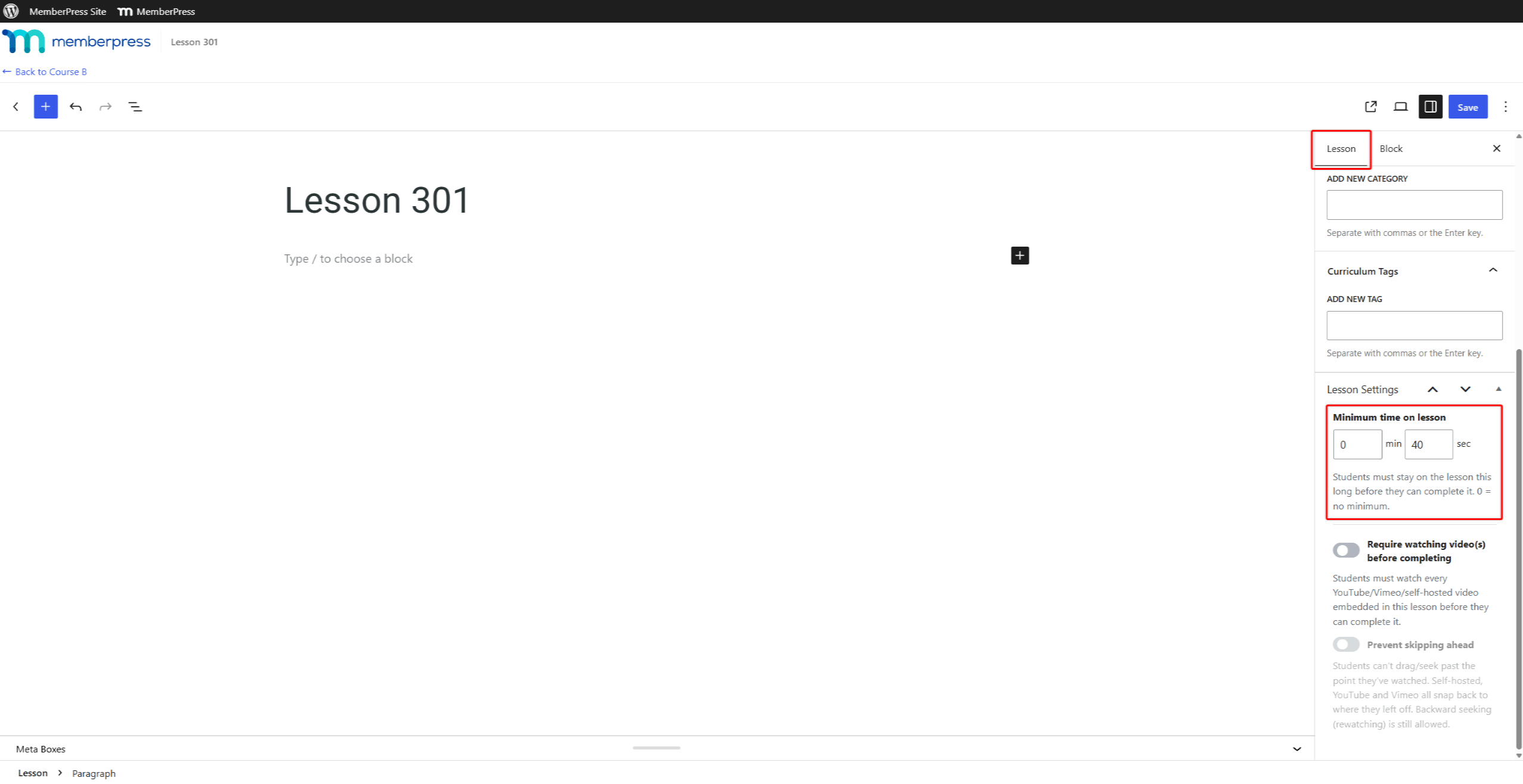
- Click Save. If the lesson is still a draft, click Publish or Save draft instead.
To remove the minimum time, set both fields to 0.
Requiring Students to Watch Lesson Videos
With this requirement on, the student must watch every supported video in the lesson. The requirement supports these video sources:
- YouTube videos embedded in the lesson;
- Vimeo videos embedded in the lesson;
- Self-hosted videos added with the Video block.
The requirement ignores other sources, such as VideoPress or TikTok embeds, plain video links, and custom iframes.
A student needs to watch at least 90% of each video. They can watch the parts in any order. Jumping to a later point does not count the skipped part as watched. Reaching the end of the video is not enough on its own.
The optional Prevent skipping ahead setting stops students from moving past the point they have watched. If a student drags the video forward, the video returns to that point. Students can still go back and rewatch earlier parts.
To require students to watch the lesson videos:
- Open the lesson editor, and scroll down to the Lesson Settings panel in the Lesson tab.
- Toggle on the Require watching video(s) before completing option.
- Optionally, toggle on the Prevent skipping ahead option. This option becomes available only after you turn on the video requirement.
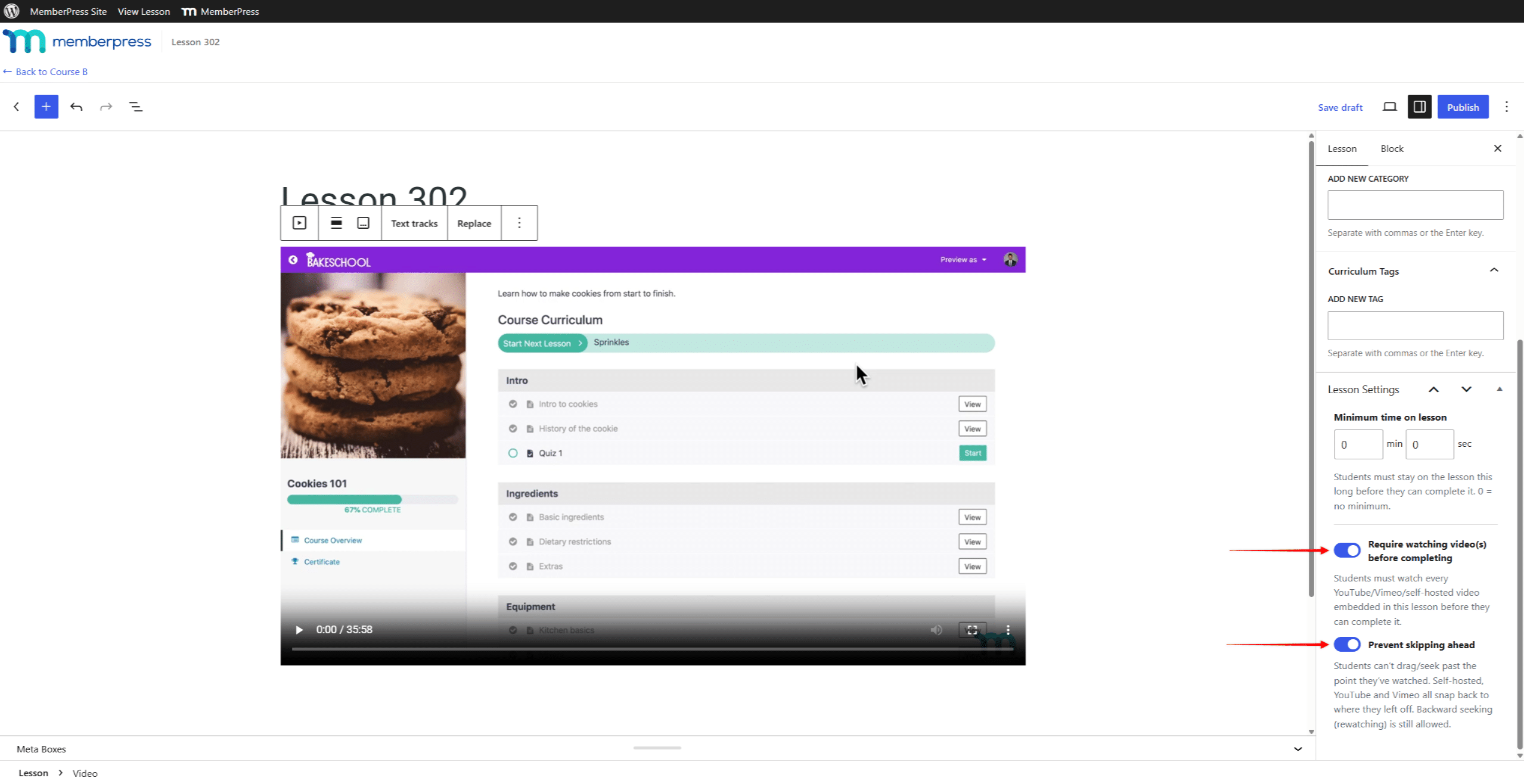
- Click Save.
Turning off the video requirement also turns off the Prevent skipping ahead option.
Showing or Hiding the Lesson Countdown
By default, lessons with a minimum time show a live countdown to students. The Show Lesson Countdown Timer course setting controls this countdown for all lessons in a course.
Hiding the countdown changes only what students see. Students still need to spend the required time on each lesson before completing it.
To hide the lesson countdown:
- Navigate to Dashboard > MP Courses > Courses, and open the course.
- Click the Settings tab, and toggle off the Show Lesson Countdown Timer option.
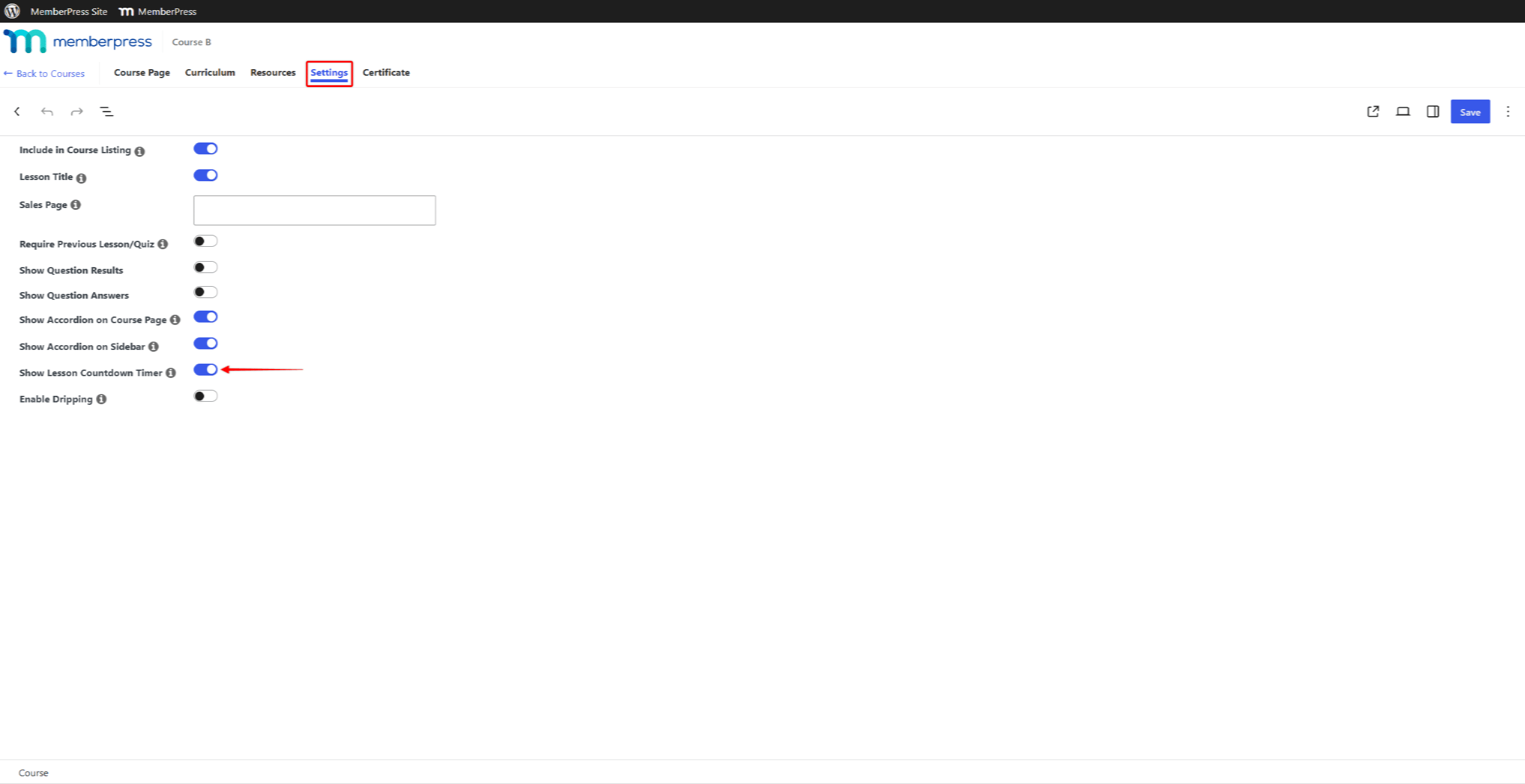
- Click Save.
This setting does not affect quiz time limits. Quiz timers stay visible whether the setting is on or off.
What Students See
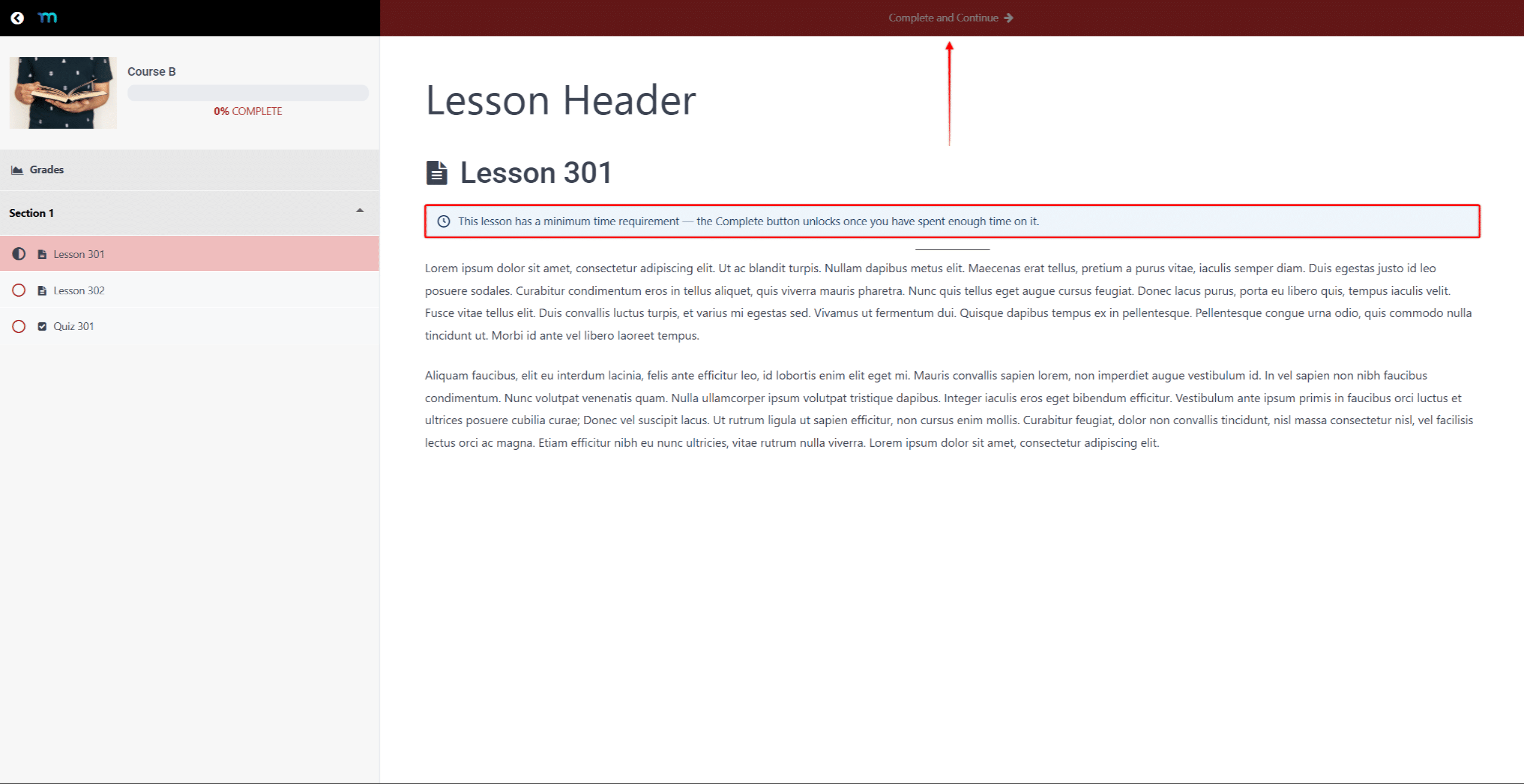
When a lesson has a minimum time, a notice above the lesson content shows the required time. The Complete and Continue button shows a countdown instead of its usual label. Once the time is up, the notice confirms it, and the button unlocks.
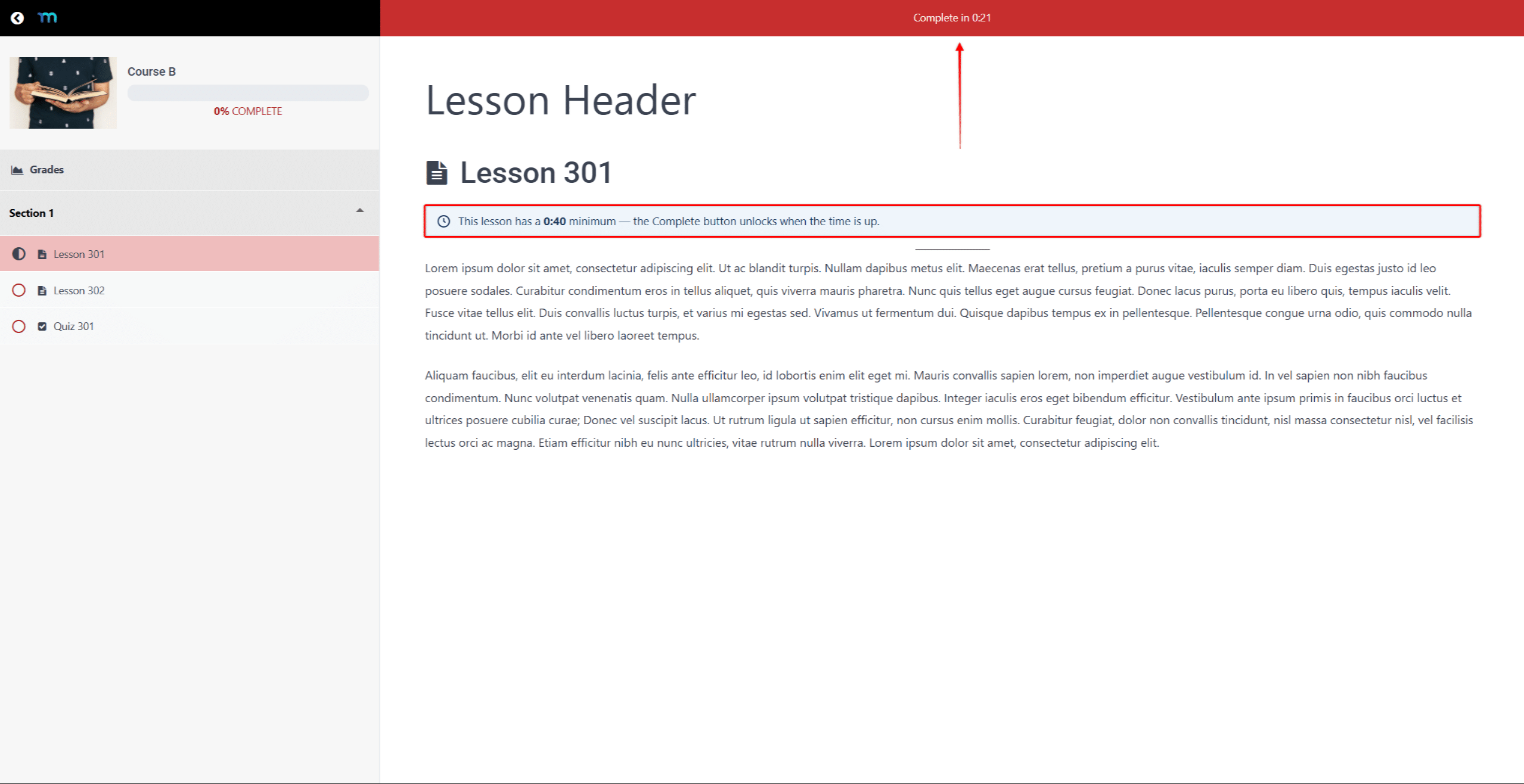
With the countdown hidden, the notice states that the lesson has a minimum time without showing the time. The button appears dimmed until the student spends enough time on the lesson.
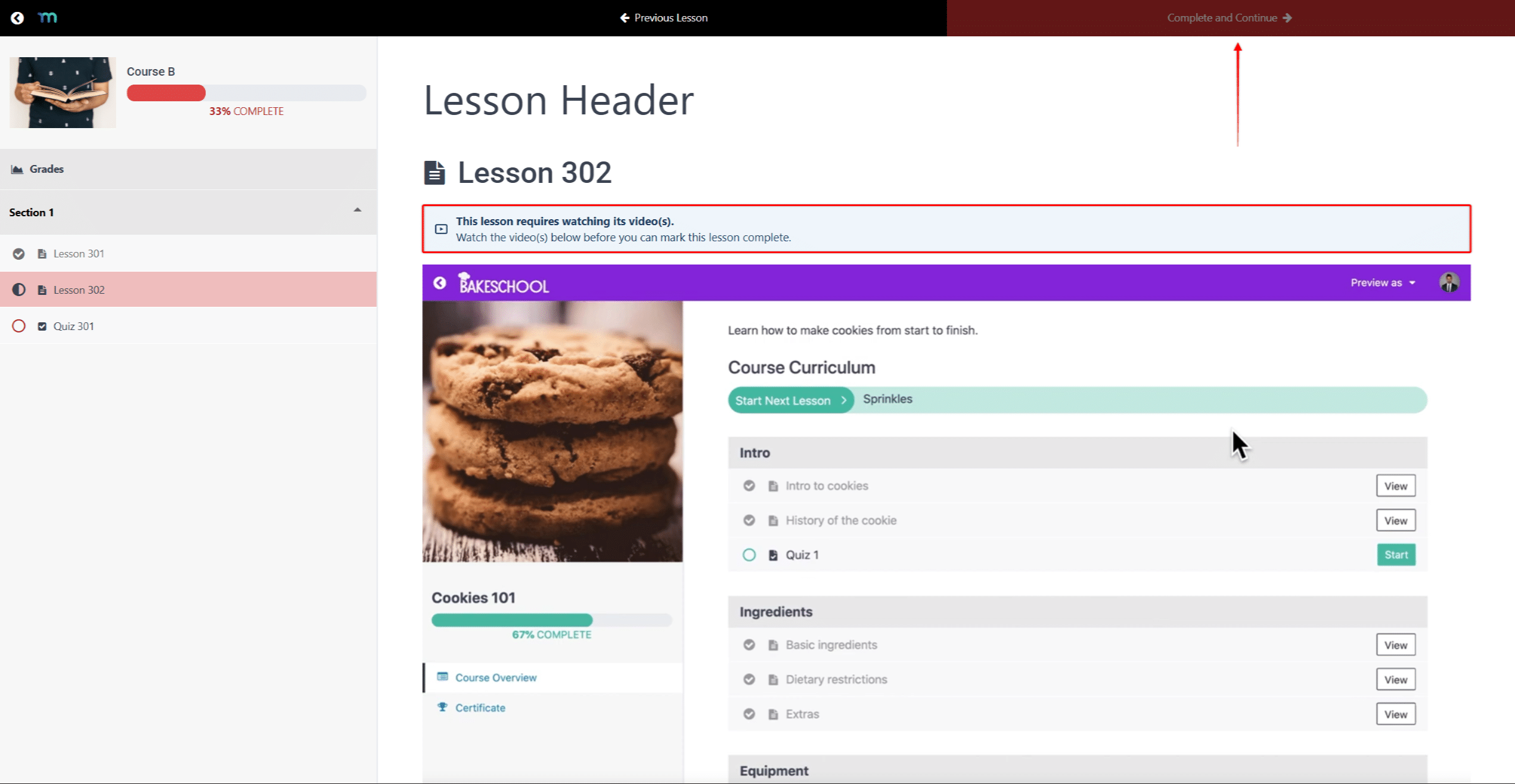
A lesson with the video requirement shows a notice asking the student to watch the lesson videos. The button stays dimmed until the student watches every supported video. The notice then confirms that the student has watched the videos.
How the Requirements Work With Other Course Settings
Lesson engagement requirements work together with other course settings and actions.
Require Previous Lesson/Quiz
The Require Previous Lesson/Quiz course setting makes students complete each course item before moving to the next one. A lesson with engagement requirements counts as complete only after the student meets them. Until then, the next item in the course stays locked.
Resetting Course Progress
Resetting a student’s course progress also clears their engagement records for every lesson in the course. After the reset, the student must meet each lesson’s requirements again. Learn how to manage student progress in MemberPress Courses.










