

The Blog Posts AppKit Block displays selected WordPress blog content in a carousel on custom app pages. This block promotes articles and provides direct access to the blog within the MemberPress mobile app.
This document explains how to add the Blog Posts block, customize its design, filter content, and preview the layout.
Understanding the Blog Posts Block
The Blog Posts block creates scrollable carousels of blog content on App Pages. The block supports filtering by categories, tags, authors, or dates. Specific posts can be manually selected for display. The carousel format encourages content discovery through horizontal swiping.
Adding the Blog Posts Block
You can edit the App Pages using the block-based (Gutenberg) App Pages Editor:
- Navigate to Dashboard > MP AppKit > App Pages.
- Locate the app page where you want to add the Blog Posts block.
- Hover over the app page name to show additional options, and click Edit.
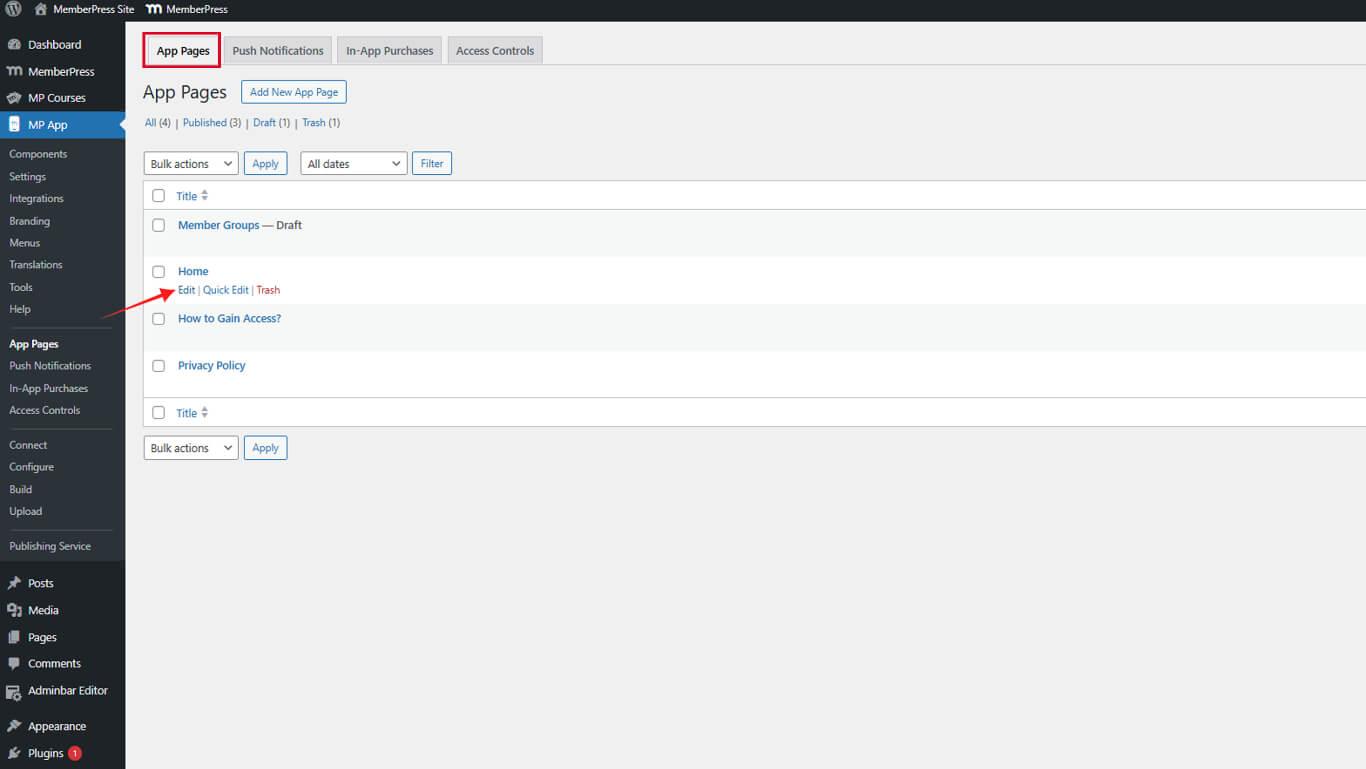
Within the App Pages Editor, the Blog Posts block is added through the block inserter:
- Click the + icon in the App Page editor to insert a new block.
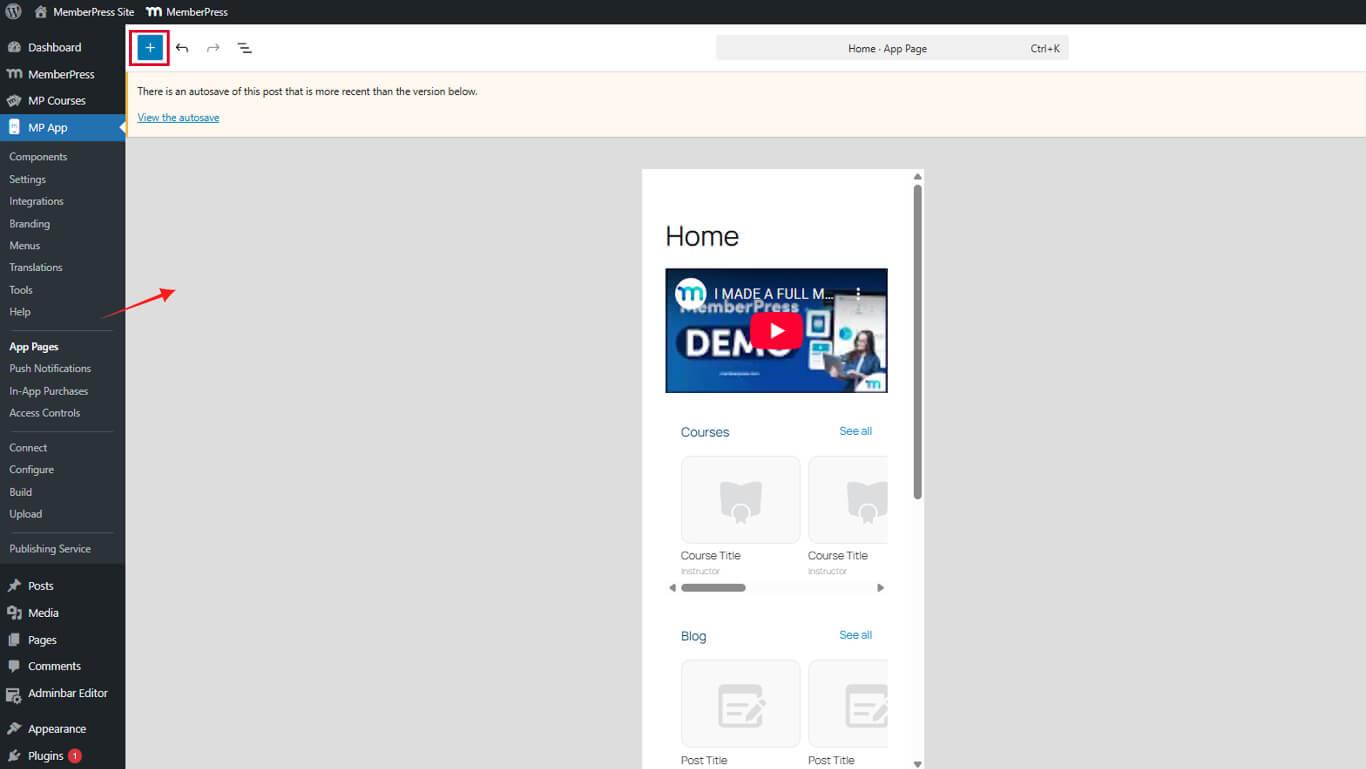
- Scroll to the MemberPress AppKit Blocks section.
- Select the Blog Posts block from the available blocks.
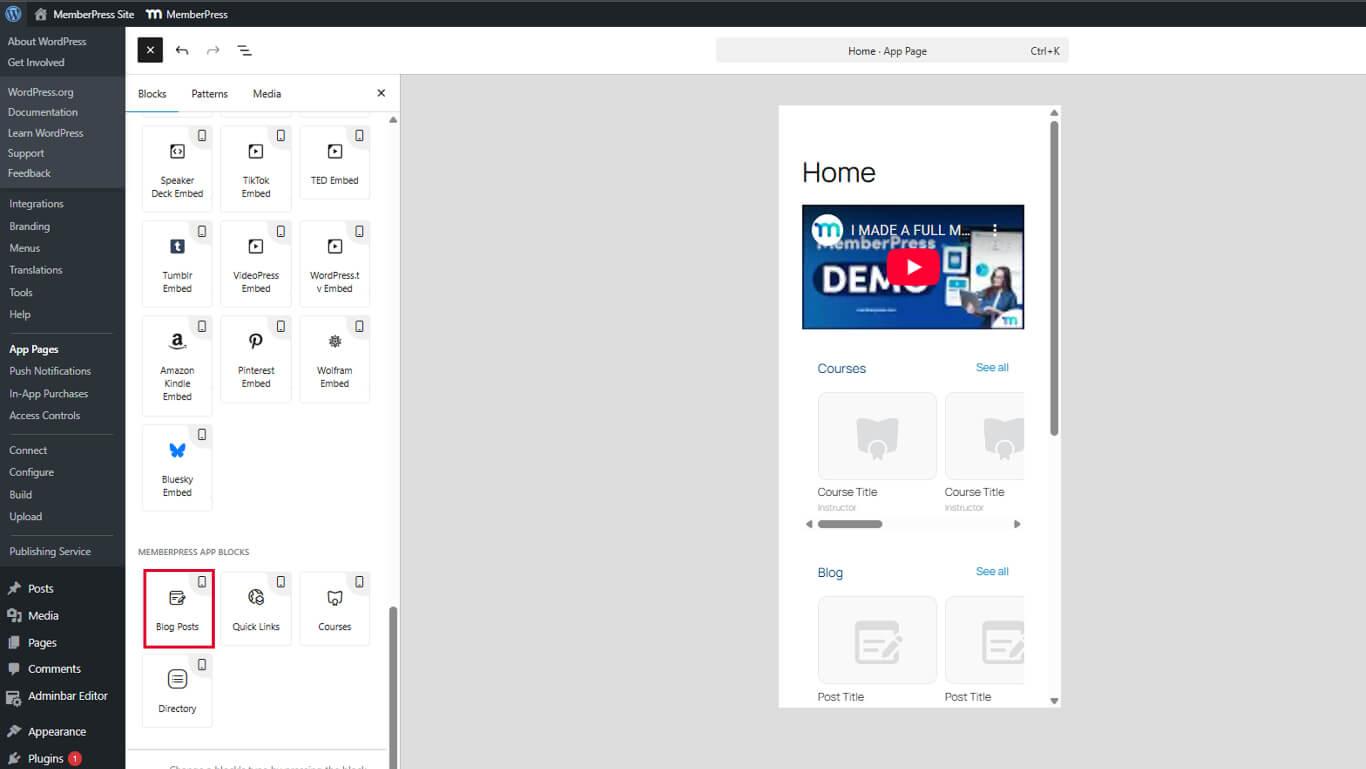
- Drag the block to the desired position on the page.
Customizing Blog Posts
Once added, you should customize the Blog Posts. You can adjust the colors and set which posts will be displayed and in which order. You can configure the block using the Settings in the right sidebar:
- While within the App Page editor, select the Blog Posts block you wish to configure.
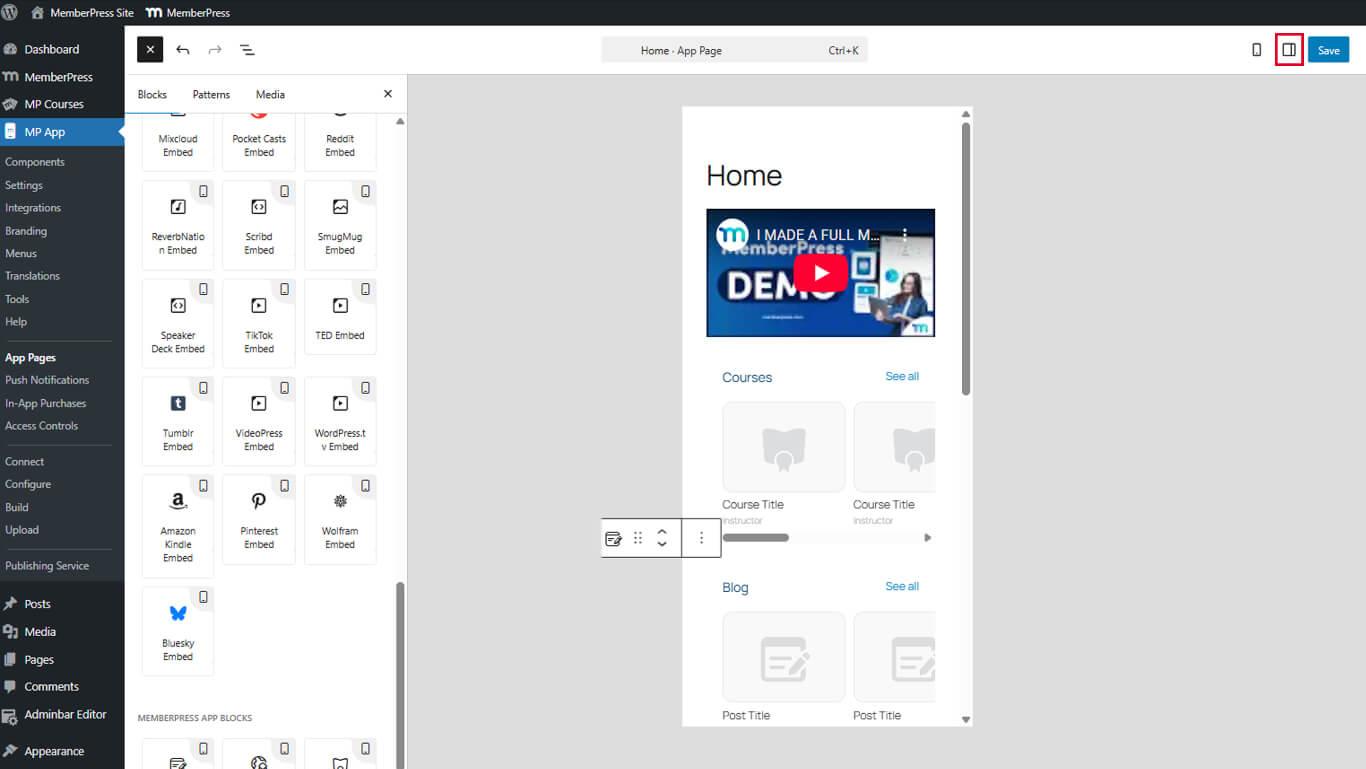
- Locate the Settings panel on the right sidebar.
Block Title and Colors
Start by customizing the block Title and colors:
- Find the Title field and the text you wish to display at the top of this post's blog.
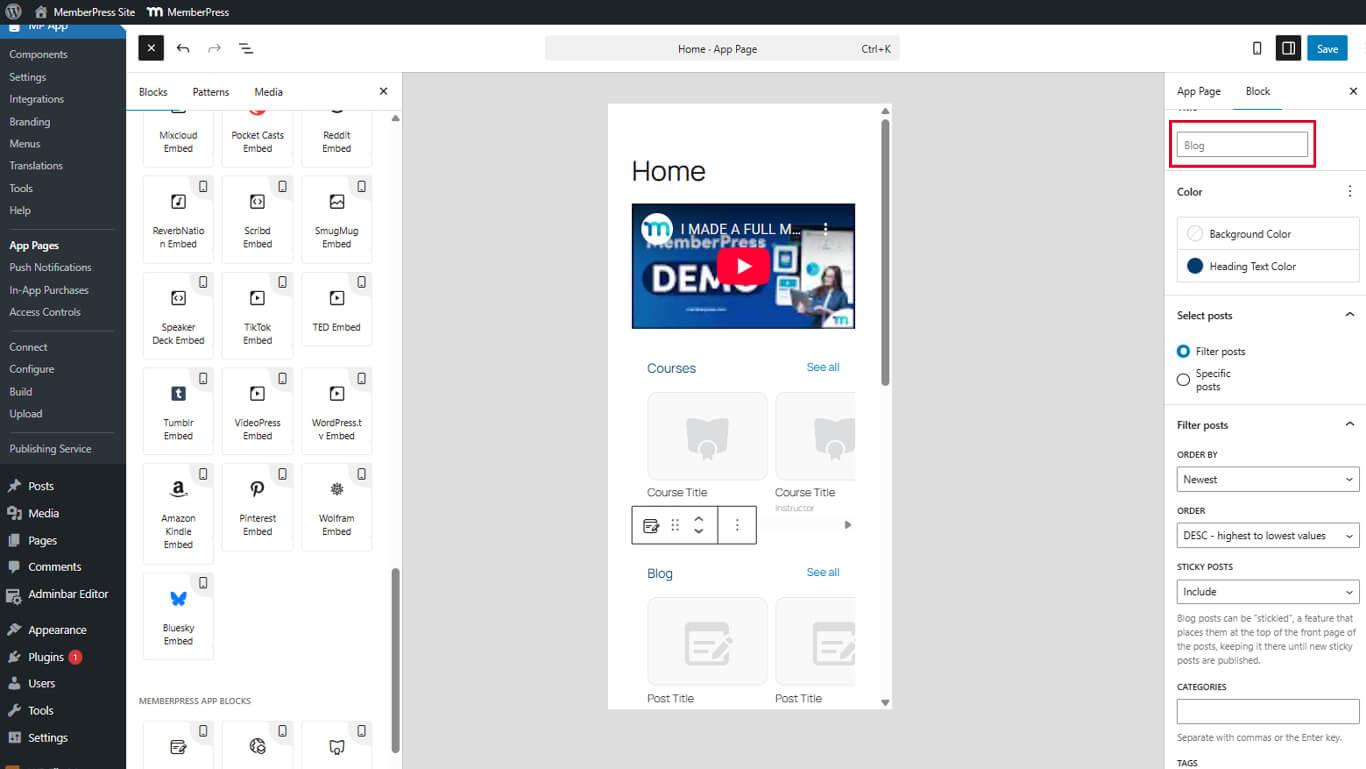
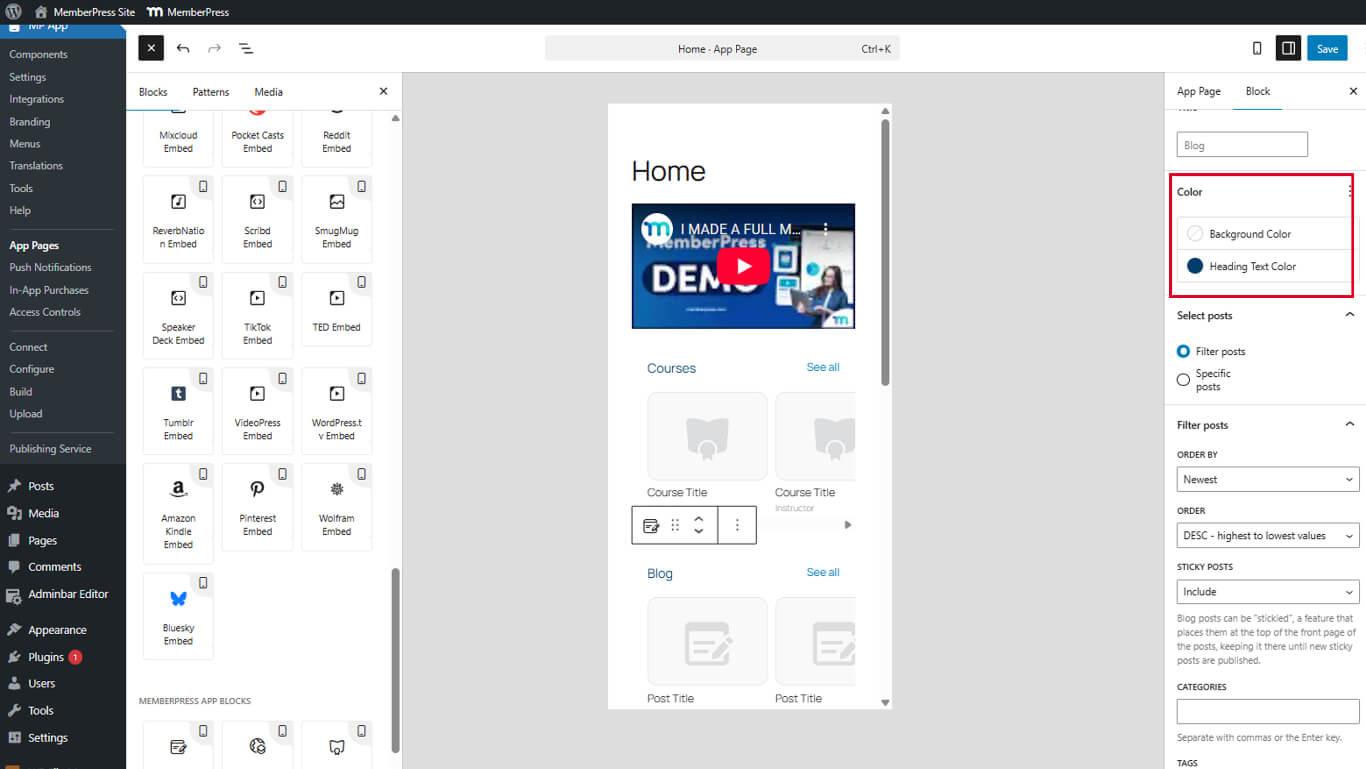
- Next, under the Color panel, you can set the Heading Text Color and Background Color options.
- Select a color using the color picker or choose transparent.
- Click Update to save changes.
Select Posts Using Filter Posts
Under the Select posts panel, you can choose to use the Filter posts option. Post filtering displays content based on specific conditions.
The Filter posts option comes with multiple customization options:
- Select the Blog Posts block in the editor.
- Locate the block Settings panel.
- Select Filter Posts to configure filtering options.
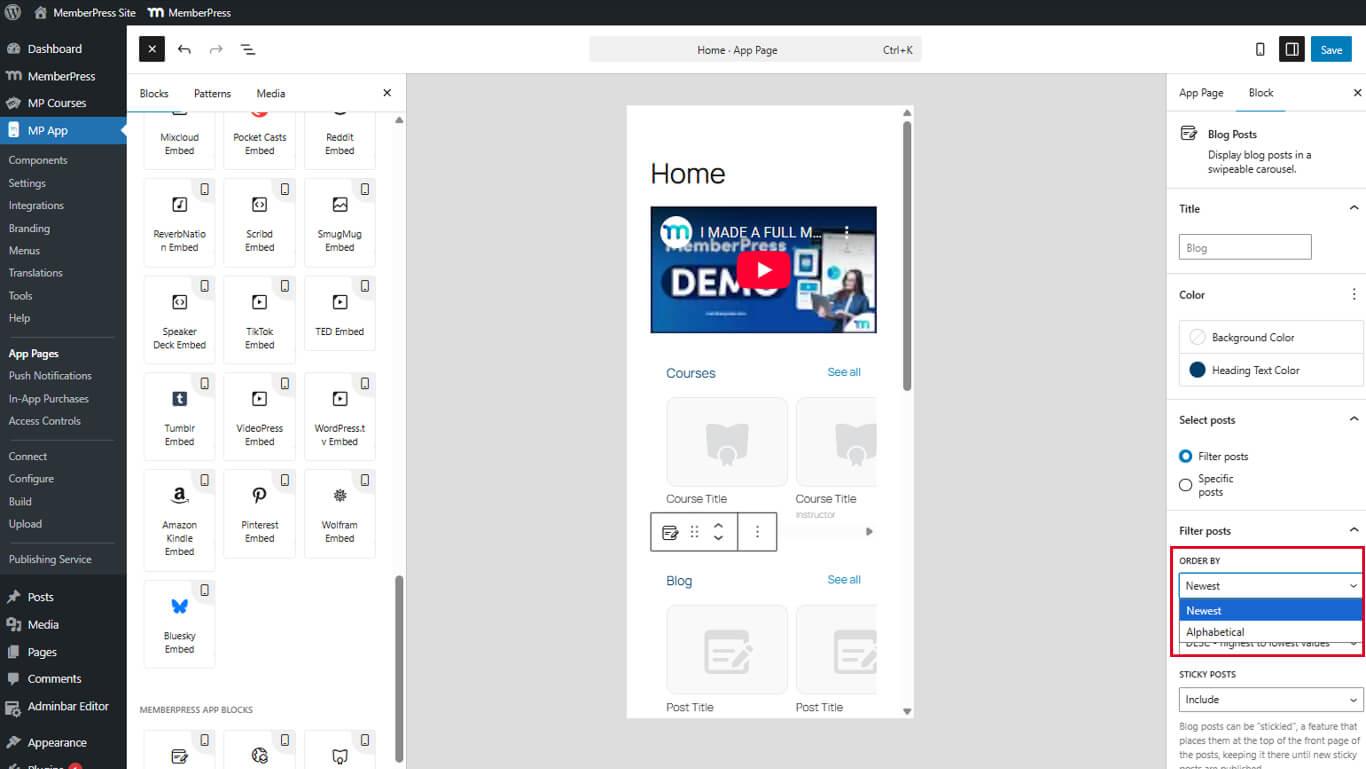
- Order By to sort by Newest or Alphabetical.
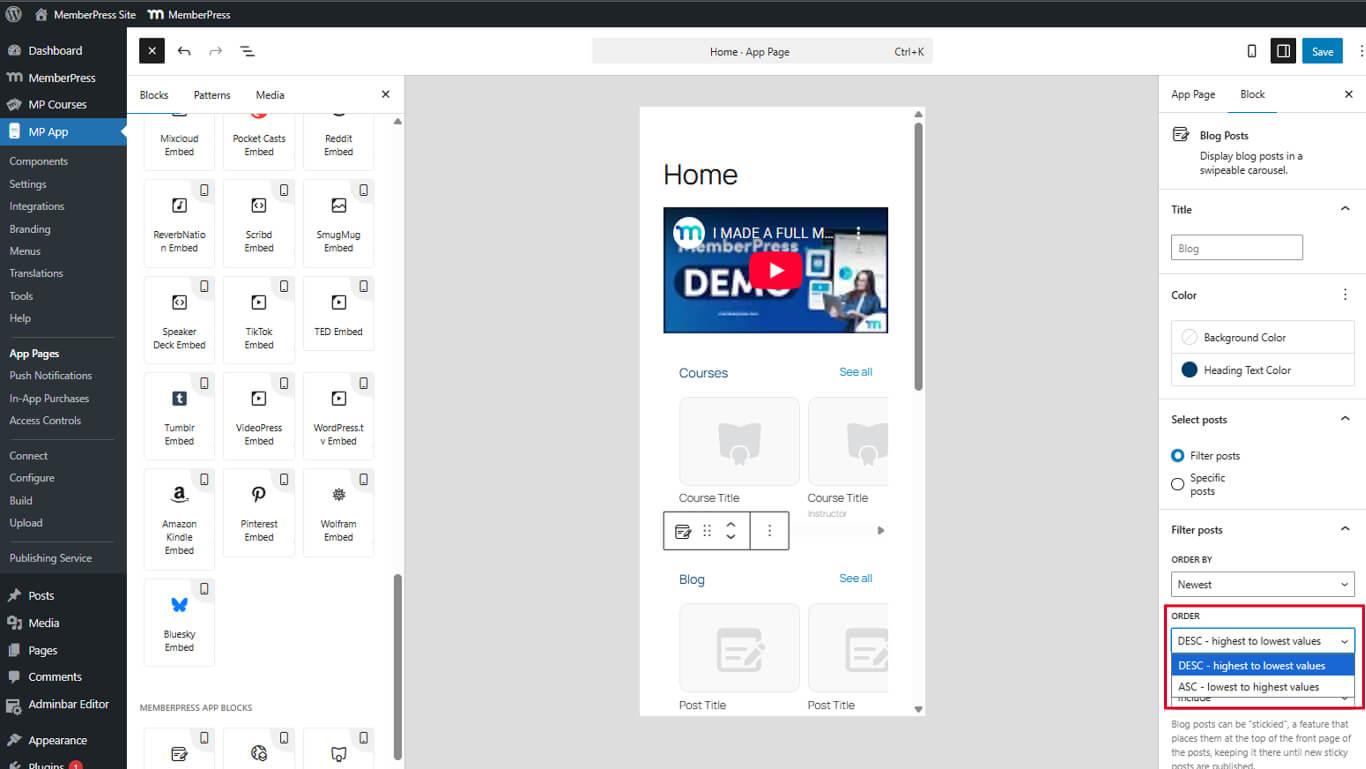
- Order to arrange Ascending or Descending.
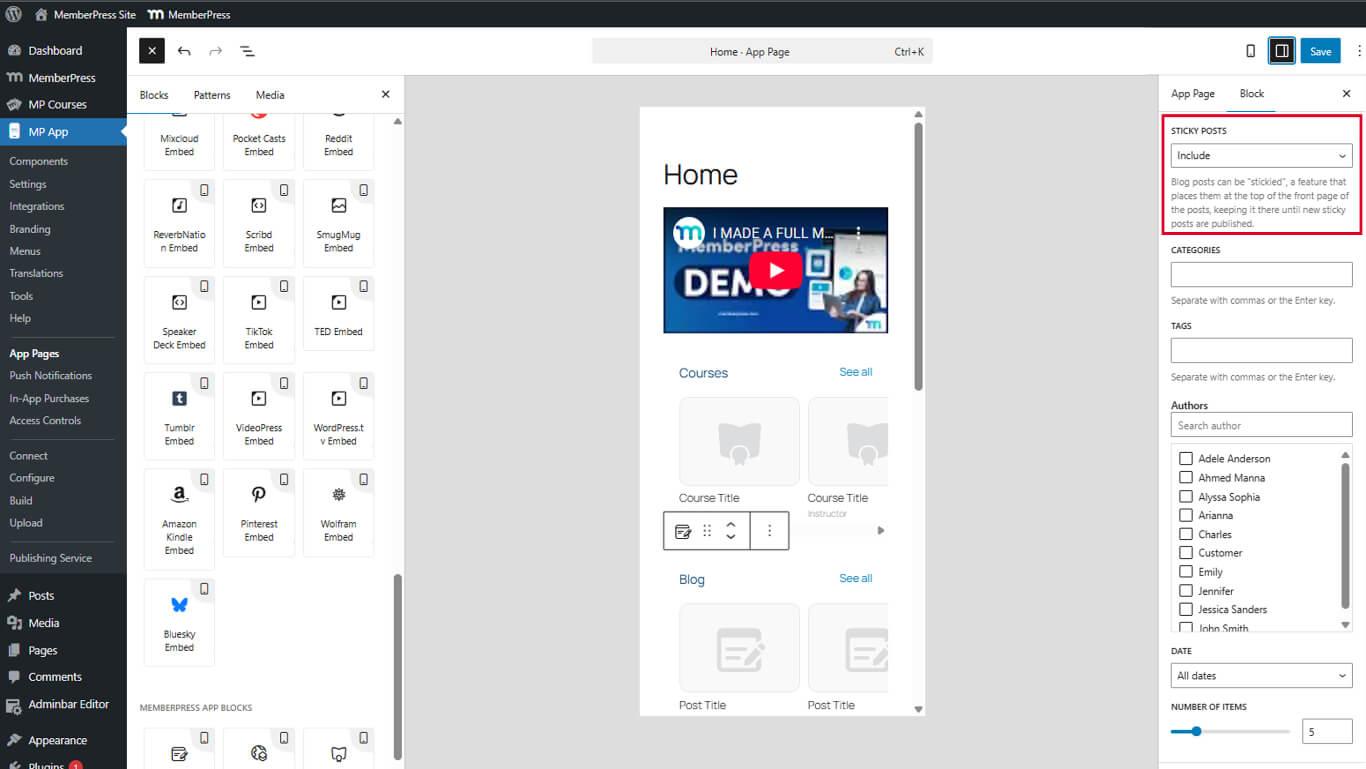
- Sticky Posts to Include, Exclude, or show Only Sticky posts.
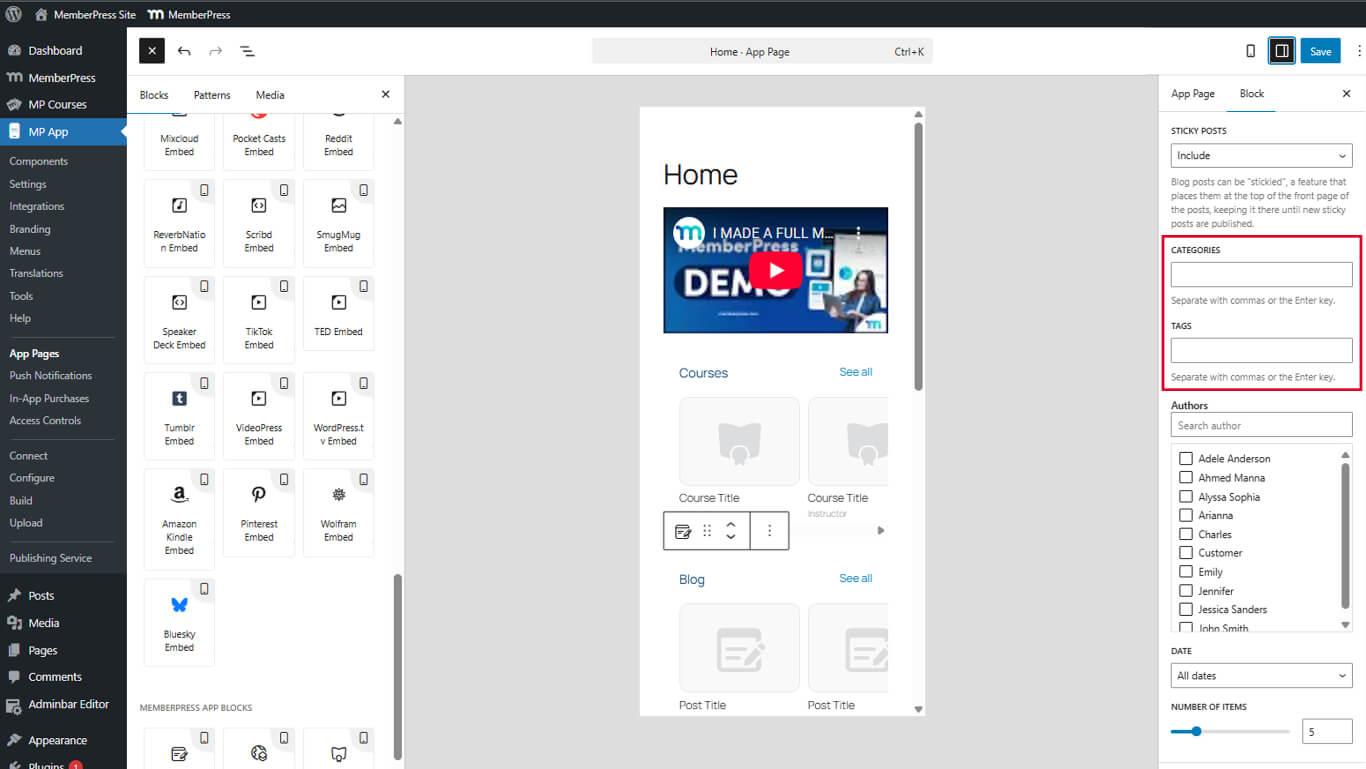
- Categories/Tags to filter by comma-separated category or tag slugs.
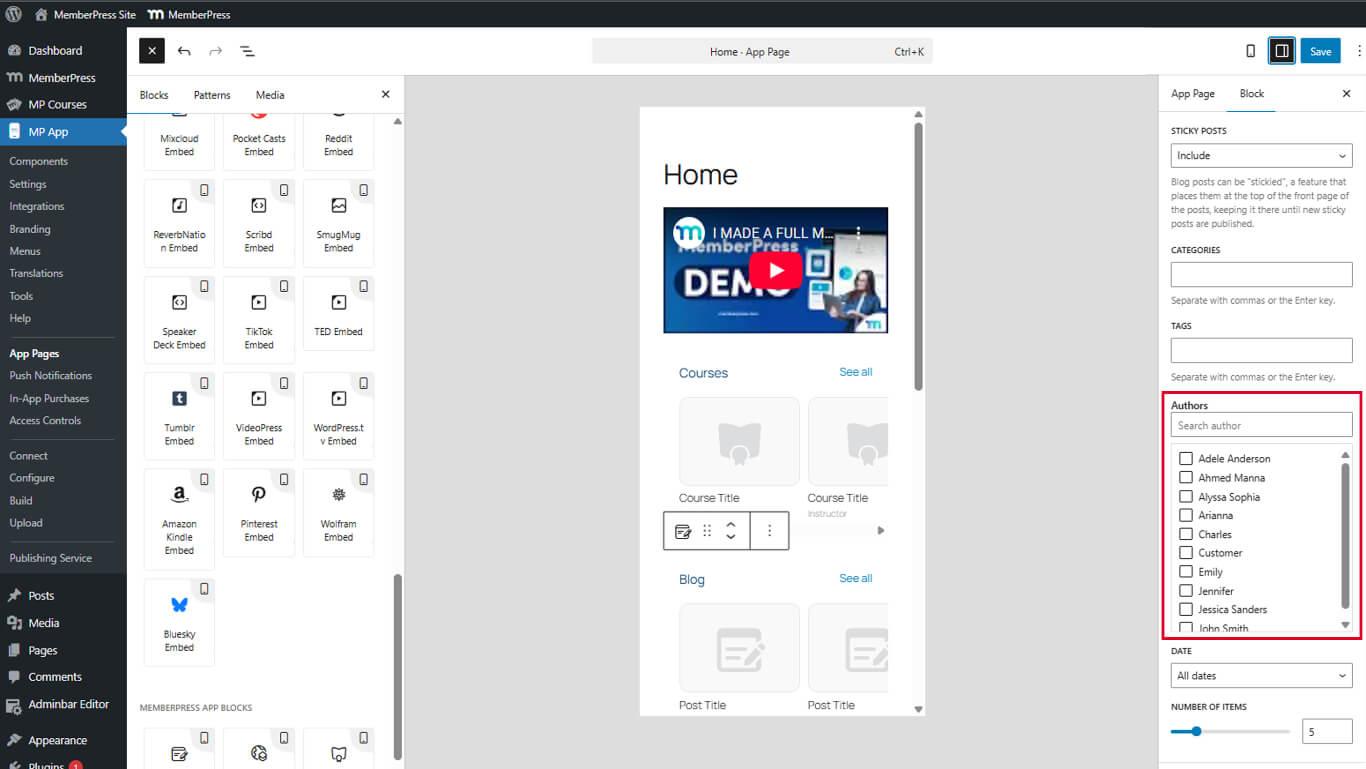
- Authors to filter by comma-separated author usernames.
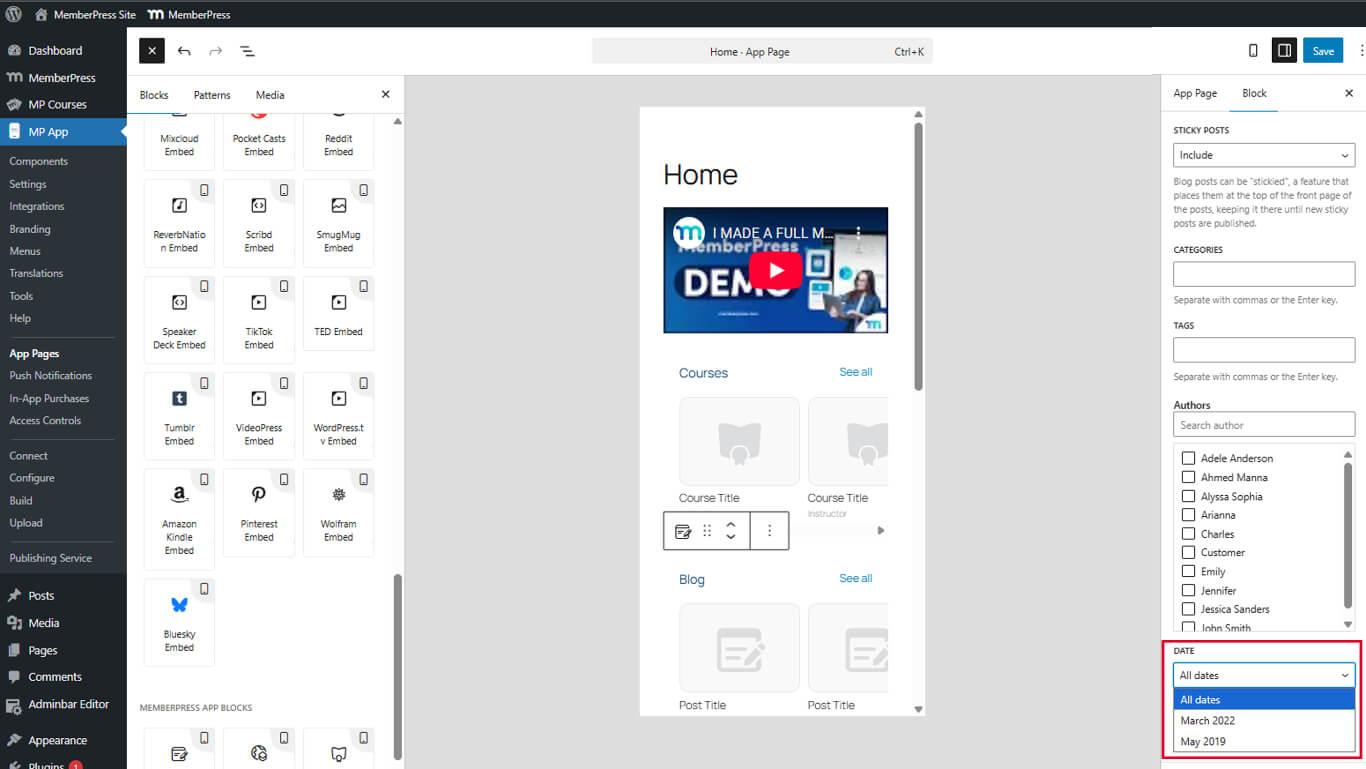
- Date to filter posts by date range.
- Items to Show to set the number of visible carousel items.
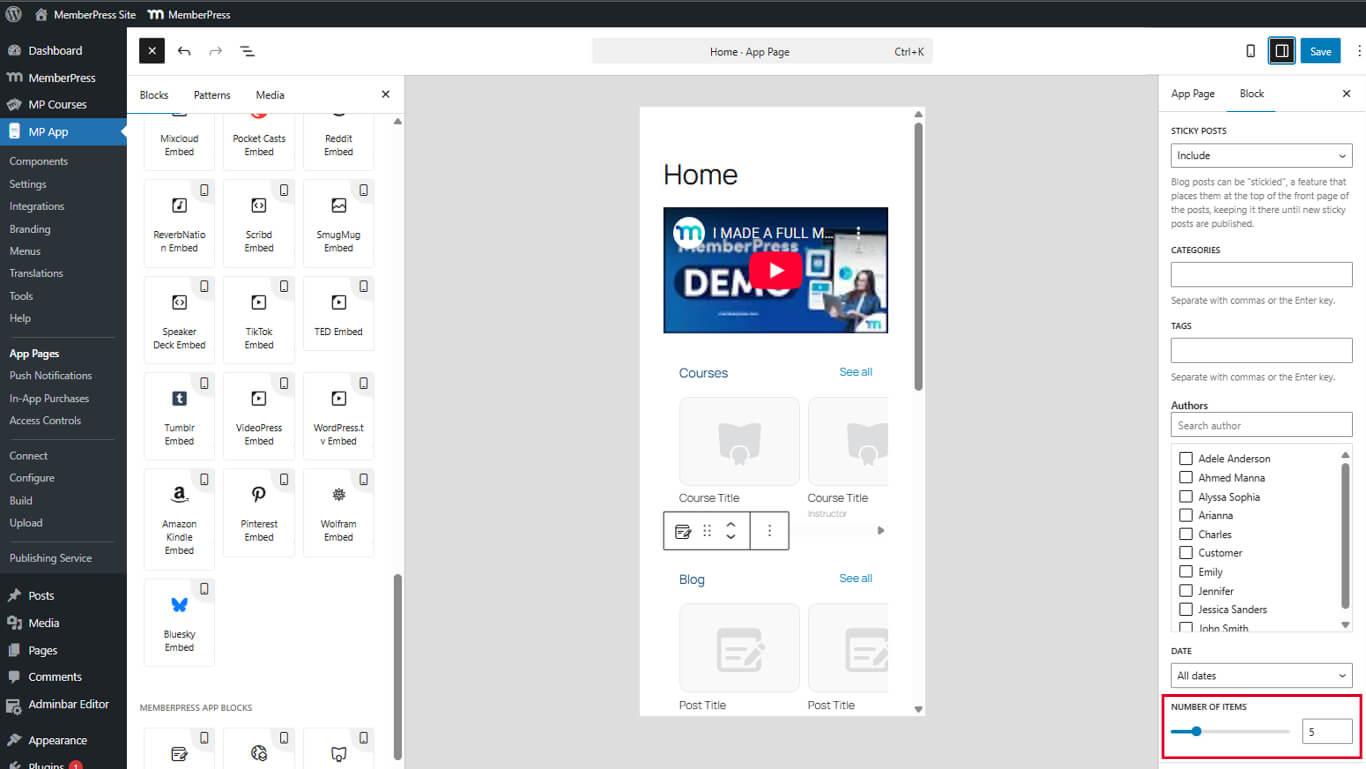
- Click Update to save the page.
Select Posts By Displaying Specific Posts
The specific post selection displays manually selected blog entries.
- Select the Blog Posts block in the editor.
- Locate the Select posts option in the Settings panel.
- Select Specific posts.
- Click the Specific posts panel to open the post selector.
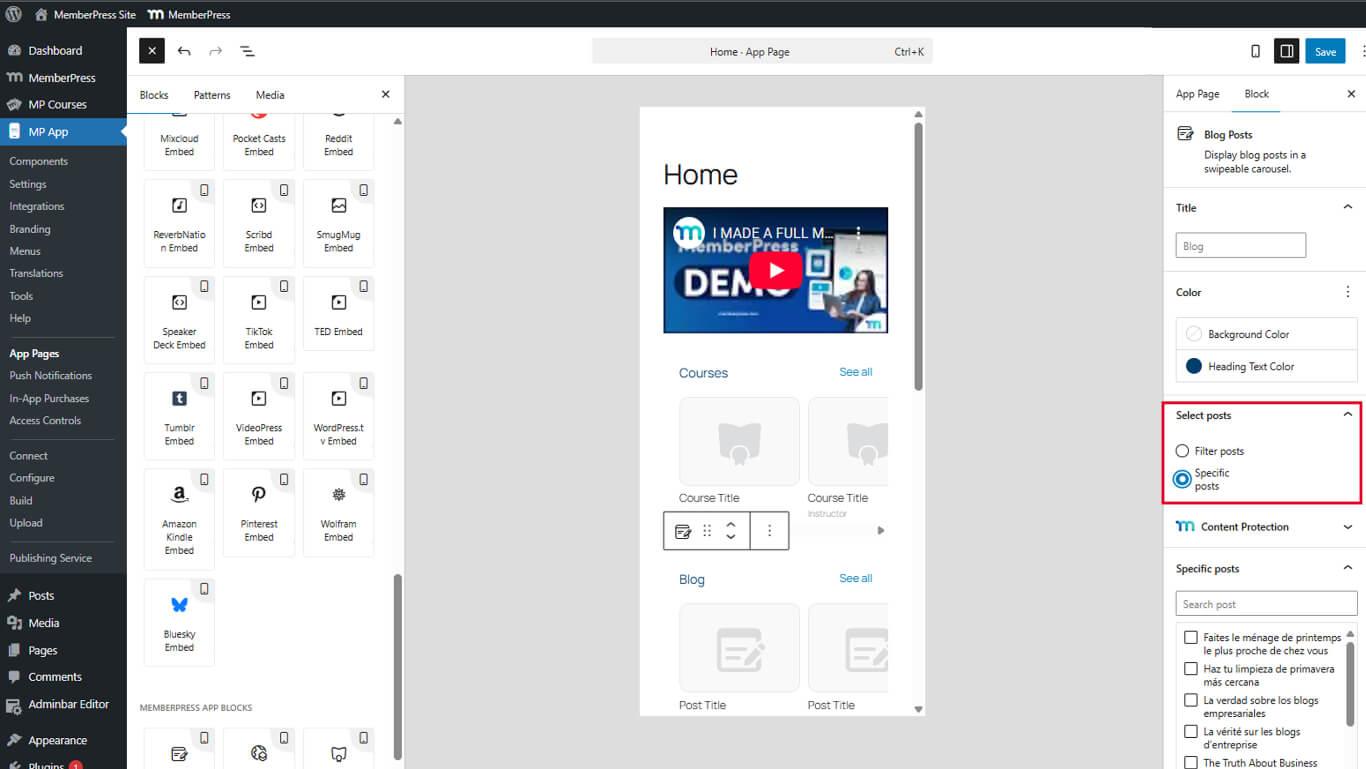
- From the available list, choose the blog posts that you wish to display.
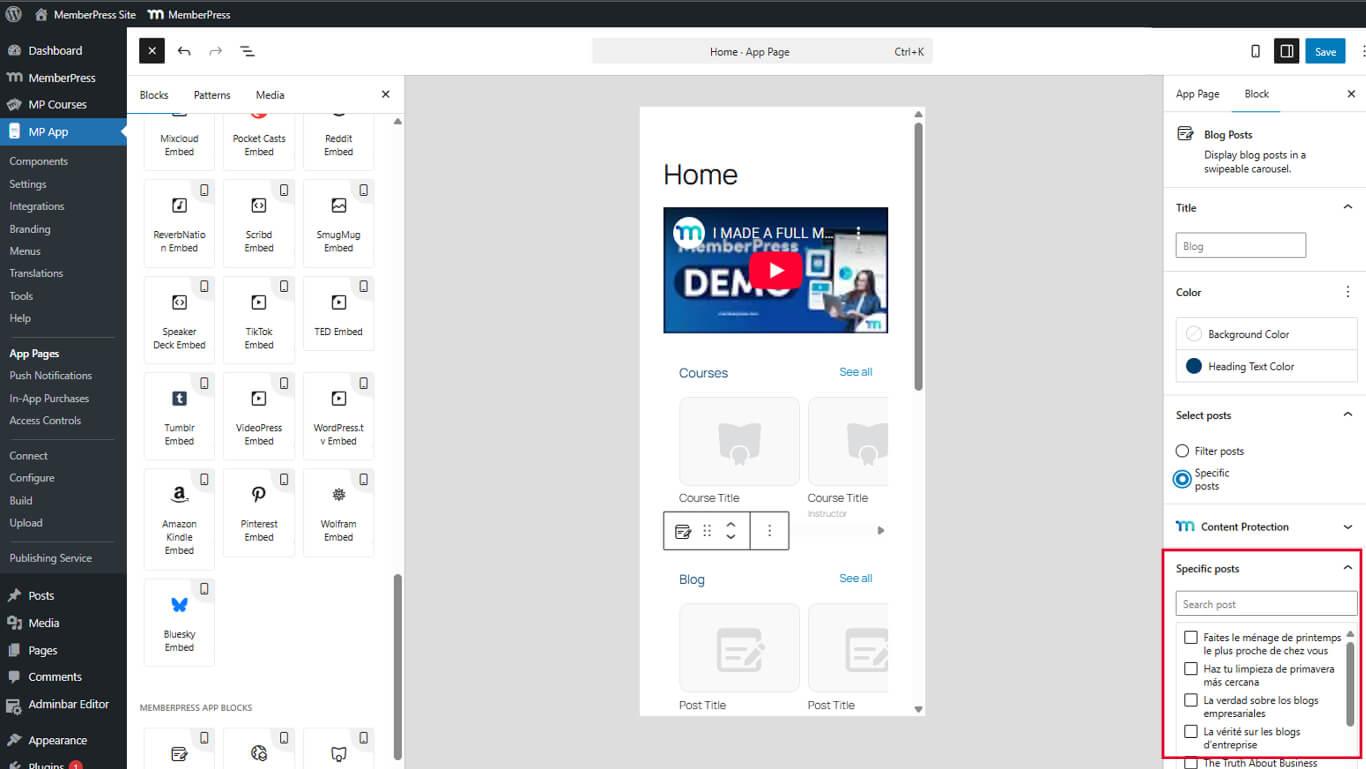
- Click Confirm or Apply to finalize selection.
- Save changes by clicking the Update button.
Specific post selection overrides any filter criteria when enabled.
Saving and Previewing
The block configuration must be saved, and the app must be restarted to view the changes.
- Click Update in the App Page editor to save changes.
- Force-close the MemberPress iOS/Android app completely on the mobile device.
- Reopen the app to reload the page configuration.
- Navigate to the page containing the Blog Posts block.
- Review the carousel display and post arrangement.
- Swipe horizontally to browse carousel items.
- Tap See All to open the full blog archive if available.
The carousel updates automatically when new blog posts are published if filtering is configured.










