

Give your newly registered members the best first impression and keep them regularly engaging with your site. Here’s our MemberPress onboarding protocol.
In my previous post on member retention strategies, I touched on how important it is to create an intentional onboarding flow. How you manage new user registrations can be make or break for your subscription business.
First impressions are everything, and not doing enough to welcome and manage new users could result in a higher churn rate. Members leave confused, or simply unaware of how to make the most of your site.
Retaining new members is a cheaper, more efficient use of your time than spending $$$ trying to replace members you previously acquired and neglected.
MemberPress is packed with ways to create a smooth onboarding experience for your members and I’m going to cover them all here.
Some are pretty straightforward, but I’m willing to bet there’s at least one method in here that you haven’t yet considered or maybe weren’t even aware of.
After reading this, you’ll be prepared to optimize your site to welcome new members and extend the length of their subscriptions.
Let’s GO!
1. Enable and Style New User Registrations
The first part of the member journey is becoming a member in the first place! Make sure you have everything in place to make the registration process easy, intuitive and attractive.
Set Up Thank You, Account, and Login Pages
When you install and activate MemberPress on your site, it automatically creates key pages, including your Thank You, Account, and Login pages, complete with the necessary shortcodes so they work immediately.
You can customize or replace them if you wish. Simply go to MemberPress > Settings from your WordPress dashboard and click on the Pages.
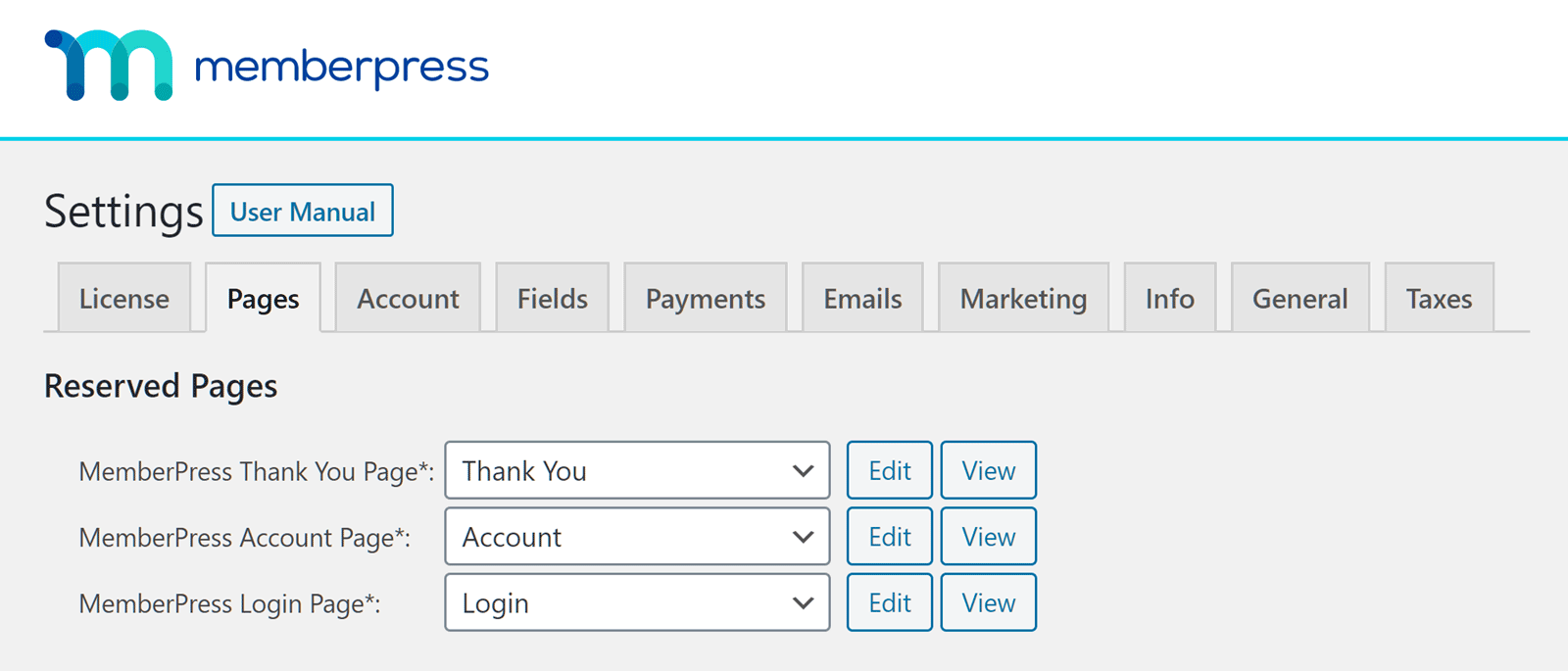
If you want to change any of the pages for existing pages on your site, click the down arrow next to the page you want to change and select the one you want to replace it with.
You’ll want to add the following shortcodes to your new pages so that they display the right information from MemberPress:
- Account Page contains the
mepr-accountshortcode, which displays tabs for subscriptions, transactions, profile editing, and more. - Thank You Page contains the
mepr-thank-youshortcode, which shows purchase confirmation details and can be customized to add upsell messages or instructions. - Login Page contains the
mepr-login-formshortcode, which renders the login form for members.
If you want to customize MemberPress’s automatically generated page, click Edit.
I’ll cover more about how and why you might want to customize your Thank You page in section 3.
Use ReadyLaunch™ to Style Mobile-Ready Pages
If you want your pages looking polished without custom design work, you can enable ReadyLaunch™ in your MemberPress settings.
This feature instantly applies a modern, mobile-responsive design to your MemberPress pages (including checkout, account, and login) so they’re styled and ready to go from day one!
Create At Least One Membership to Open Registrations
After that, you can create your first membership to give visitors a way to register as users on your membership site.
Once you’ve created at least one membership, your visitors will have a way to register through an online form and become members.
Add Registration Forms Anywhere On Your Site
With Gutenberg Blocks and MemberPress you can easily add a registration form on any page of your WordPress site.
When you go to add a new block on your page or post, scroll down to the MemberPress section and select the Registration block.
Then select the block tab in the column at the right of the screen and select the membership you want from the dropdown menu. And that’s it!
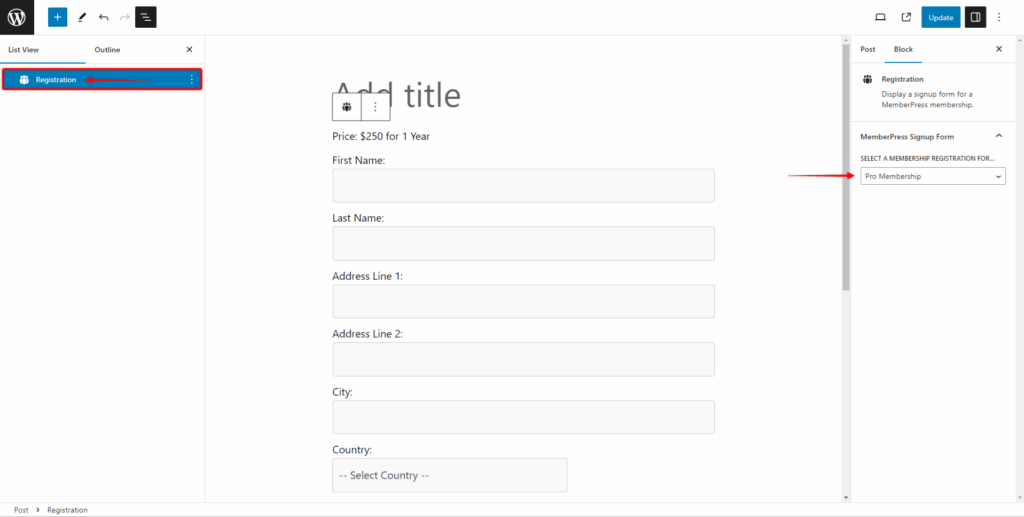
You’re not limited to a single sign-up page, either. You can place registration blocks at strategic points across your site to catch visitors’ attention and encourage them to join. For example:
- At the end of blog posts, inviting readers to get premium content.
- On a sidebar or footer widget so it’s always visible while browsing.
- On your About page to connect with visitors when they’re learning about you.
- After a free resource or download, offering them the “next step” in their journey.
Plus, if you create multiple memberships with MemberPress’s built-in page maker, ReadyLaunch™, you can easily add your pricing table with Gutenberg blocks too!
2. Customize Registration Fields
A great way to tailor the member experience from day one is by using Custom Registration Fields.
This is your opportunity to gather information that will enable you to segment your audience and deliver personalized content down the road for better engagement and retention.
Instead of just gathering their name and email address, consider adding fields like:
- Skill level (Beginner, Intermediate, Advanced): Deliver the right starting content.
- Interests or topics: Send targeted content or course recommendations.
- Business type or role: Personalize support and upsell opportunities.
In MemberPress you can add any field and options you like!
From your WordPress dashboard, go to MemberPress > Settings > Fields to:
- Add new fields like text boxes, dropdown menus, checkboxes, or date pickers.
- Reorder fields with a simple drag-and-drop interface.
- Mark fields as required depending on your needs.
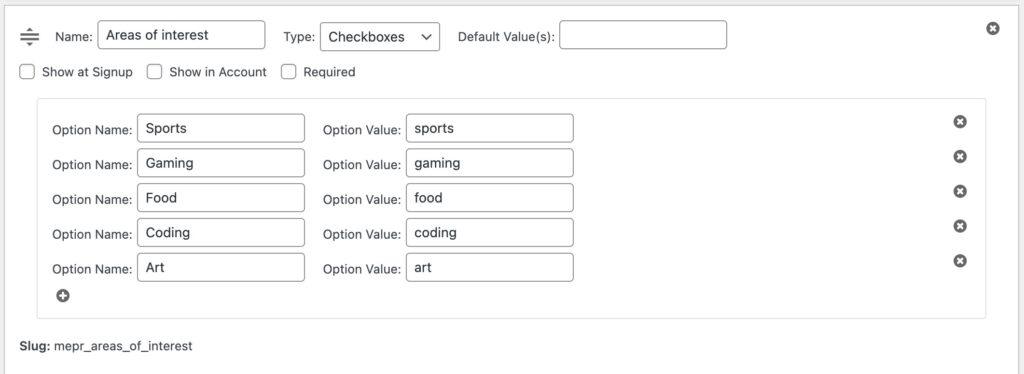
When you add a field, MemberPress automatically creates a unique slug for it. You can use this slug in:
- Third-party integrations (like email marketing platforms or Zapier) to segment and personalize campaigns.
- Email merge tags to include member-specific details in automated messages.
- Smart content rules to show or hide certain content based on a member’s answers.
3. Create a Custom Thank You Page
Your Thank You page is displayed immediately after someone registers for your site. This crucial point in the member journey is a fantastic opportunity to set the tone, guide their next steps, and keep the excitement high.
Your Thank You page is an immediate post-sign-up handshake where you confirm their purchase, reassure them they’re in the right place, and point them toward what’s next.
In Section 6, we’ll cover the Welcome Page, which appears on their first login and takes onboarding a step further.
Instead of leaving the default confirmation message, you can turn this page into a mini onboarding hub by:
- Pointing them to key resources like the member dashboard, or a dedicated welcome page (more in section 6)
- Highlighting exclusive content or perks they now have access to.
- Encouraging a first action, such as updating their profile, introducing themselves in a forum, or starting a course.
Remember, to customize your Thank You page in MemberPress:
- From your WordPress dashboard, go to MemberPress > Settings > Pages.
- Either edit the default Thank You page or create your own and assign it here.
- Make sure it includes the
mepr-thank-youshortcode so the confirmation details display correctly.
Remember, you can personalize your thank you message with useful MemberPress Shortcodes including the Custom Field Slugs I mentioned above.
By putting extra thought into this page, you guide them deeper into your site and help them get value from it right away.
4. Personalize the Welcome Email
By default, MemberPress will automatically send new members a welcome email once they’ve registered on your site.
This welcome email is automatically generated once MemberPress is activated. But you can easily edit the template to customize the onboarding experience for your new users.
You can find it by navigating to MemberPress > Settings and clicking on the Emails tab.
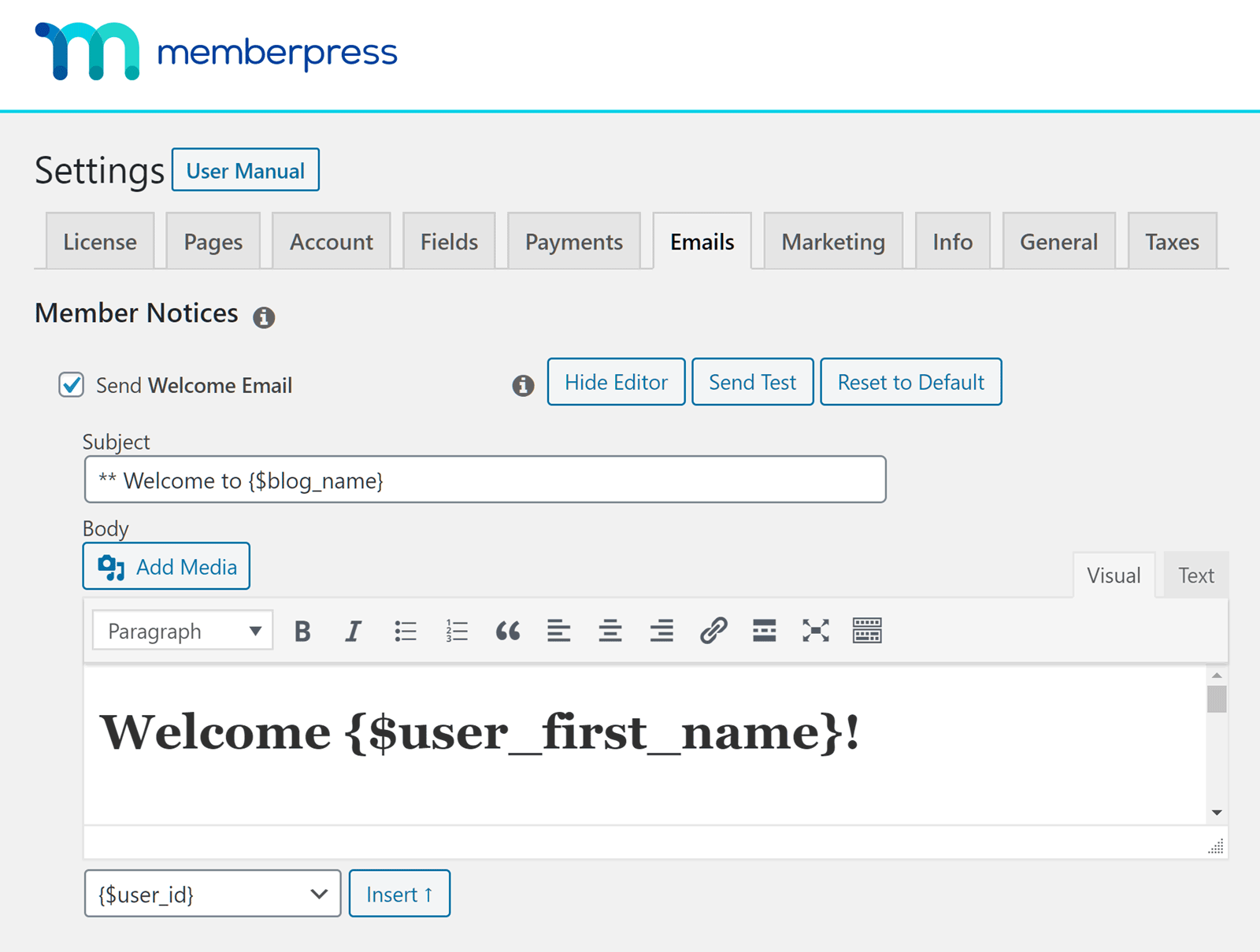
The emails you send out to welcome new users, as well as the other emails MemberPress sends out, can be auto-populated with the user’s personal details, such as their name, membership plan, and payment status, to name just a few.
To take your welcome email a step further, add a bonus resource, discount code (with MemberPress Coupons), community invite, or helpful links to get them off to a great footing on your site.
5. Make Logging In Effortless
Don’t put off new members by making the log in process a hassle. There are a couple of powerful ways you can make your members’ first sign ins a breeze:
Enable the Social Login Add-on
With MemberPress, you can offer your members the opportunity to log in with their Google, Facebook, X, or WordPress.com accounts with the Social Login Add-on.
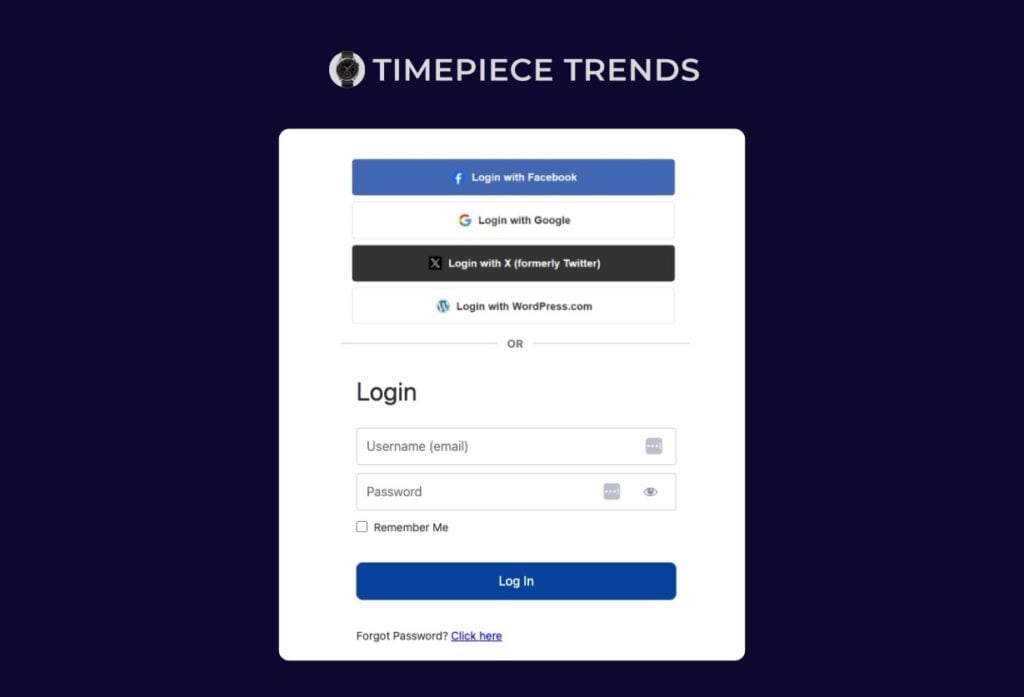
Offering this option reduces password issues and improves trust and security in your site.
As part of your onboarding process, encourage new members to connect their social media accounts to their member profile for a smoother login experience.
6. Redirect First-Time Logins to a Welcome Page
Once your members have completed registration and logged in for the first time, you have a golden opportunity to guide them toward the most important areas of your site.
Instead of dropping them straight onto a generic dashboard or homepage, send them to a dedicated onboarding page that’s designed to help them get started right away.
On your Welcome Page, you might include:
- A short introductory video from you or your team.
- A “Start Here” guide or access to a free mini-course (created with MemberPress Courses) that explains how to navigate your site.
- Links to your most valuable content, tools, or resources.
- An invite to your community space or forum.
- Answering common questions upfront with a short FAQ section to reduce early support requests.
- Details of upcoming webinars to help new users make the most of your site.

How to Set it Up in MemberPress
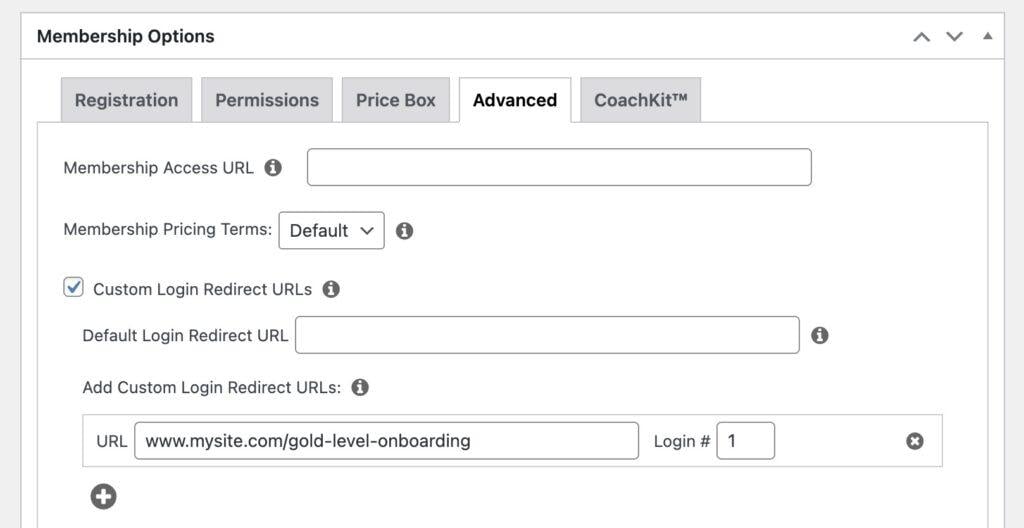
- Create your onboarding page in WordPress and add any videos, links, or content you want members to see.
- In your WordPress dashboard, go to MemberPress > Memberships and click Edit on the membership you want to set up.
- Scroll to the Advanced tab and add your onboarding page URL in the Login Redirect URL field.
- Hit Update to save the changes
- Repeat with other memberships on your site.
7. Track and Manage User Registrations in MemberPress
You can view and manage new members from inside your WordPress dashboard.
Head to MemberPress > Members to see all of the existing users who have signed up or registered with your site.
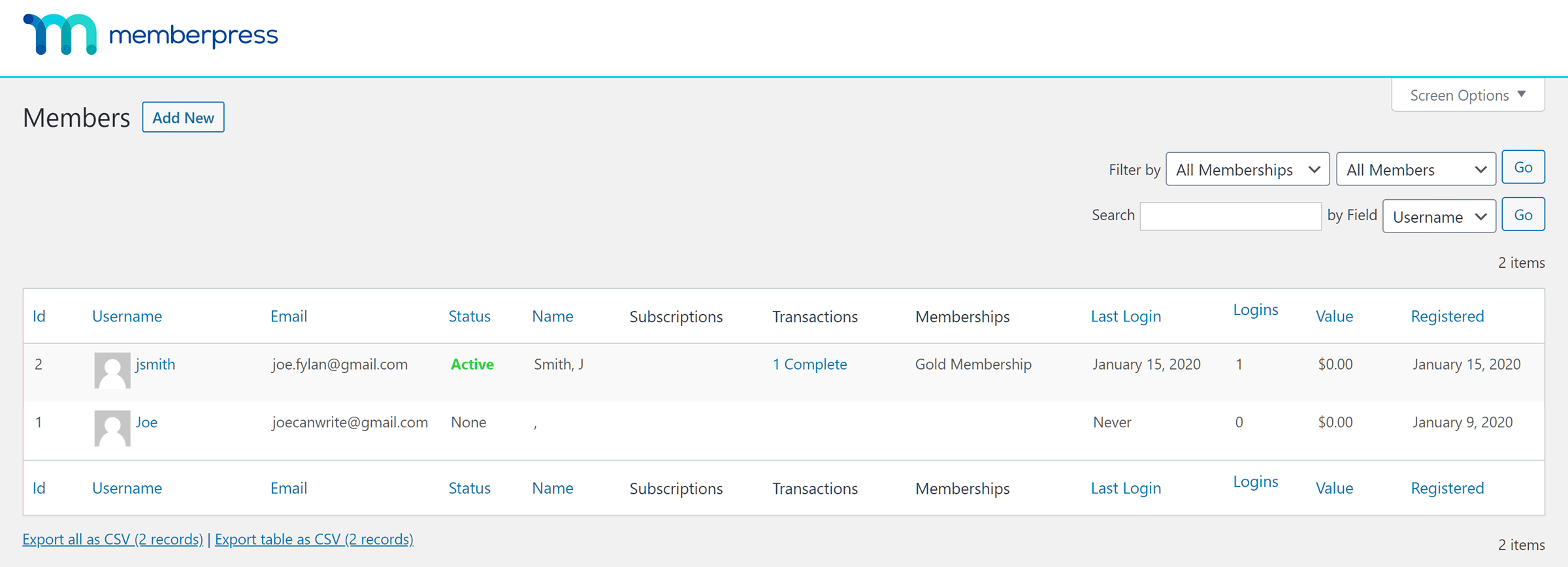
This screen provides you with information that can help you spot and manage new user registrations. Click the down arrow in the Registered field to sort members from newest to oldest to easily identify new users.
If you want to edit a member’s details, that’s straightforward, too. Simply hover over the member’s username and click on the Edit link that appears beneath it. This allows you to view their user profile as well as edit their details if needed.
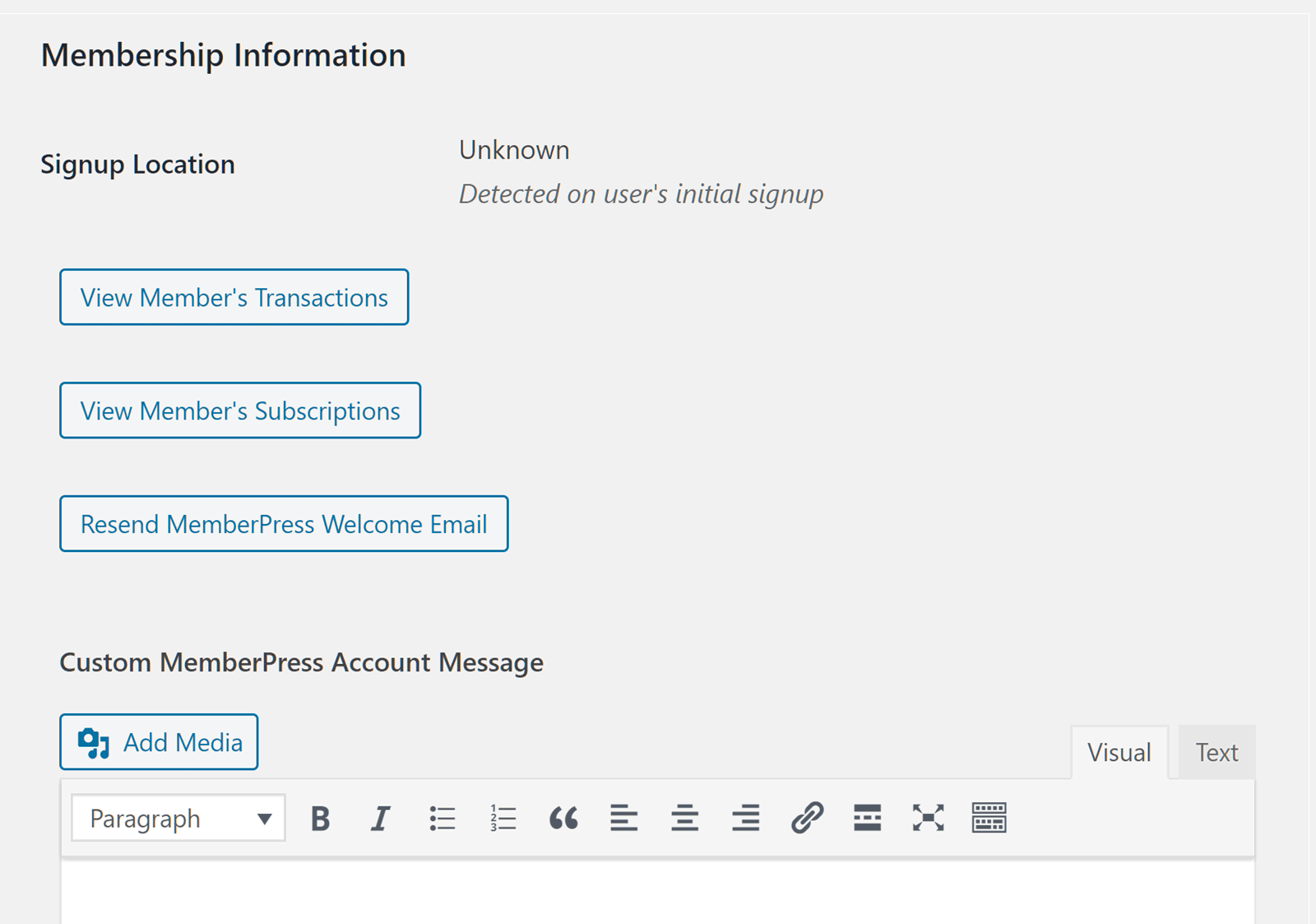
The user’s membership information is displayed at the bottom of the default WordPress user details page.
From here you can find links to their subscription information for your membership site plus the details of the transactions they’ve completed.
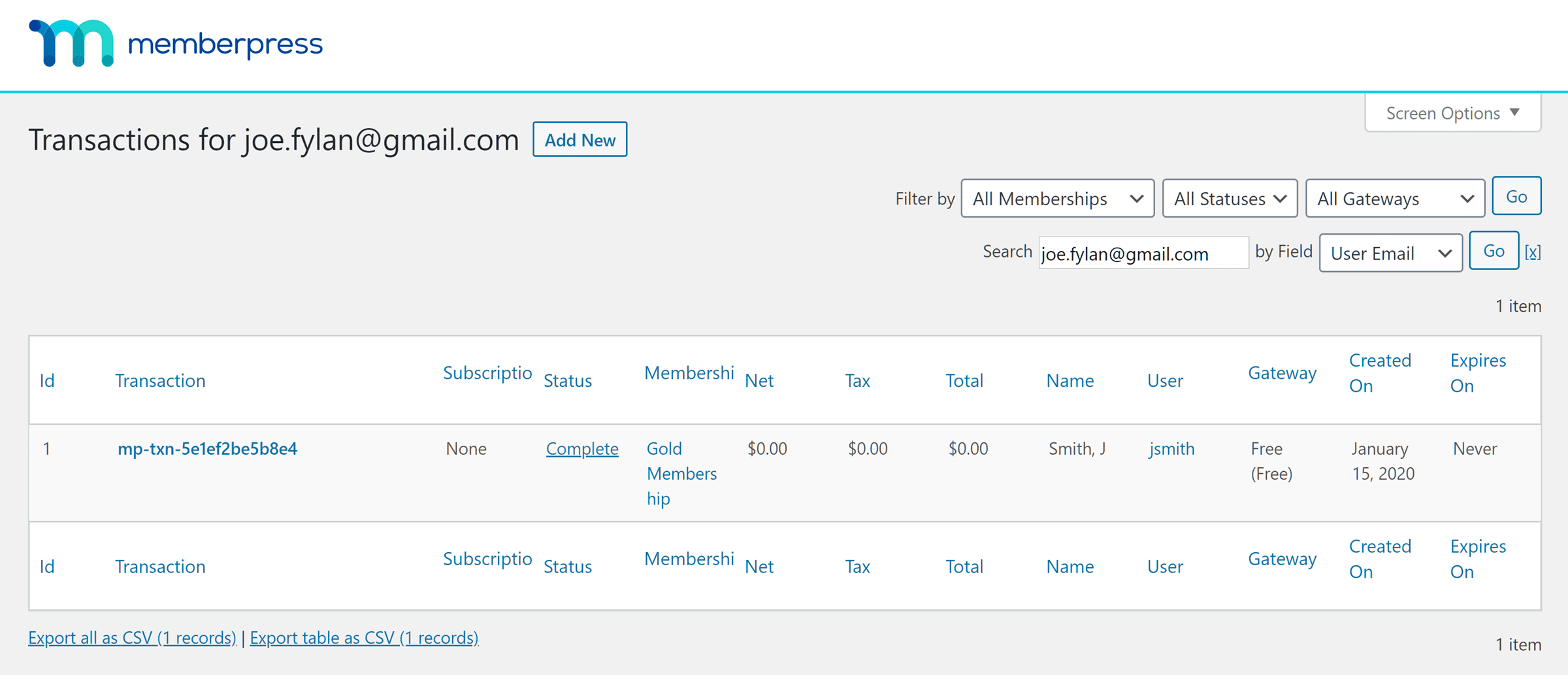
Checking this regularly helps you follow up with new members and spot anyone who might need extra support early on
Final Thoughts
As you can see, by taking advantage of the core features of MemberPress, you can up your game when it comes to managing new user registrations on your membership site.
Here’s a TL;DR recap of how to make it happen:
- Making sign-up easy: Polished registration pages, clear calls-to-action, and no unnecessary hoops.
- Collecting the right info: Use custom fields to learn what members want and tailor their experience.
- Welcoming them immediately: A Thank You page that points them to their first “win” on your site.
- Following up in their inbox: A warm welcome email that feels personal and useful.
- Keeping logins painless: Social logins, visible login buttons, and no password frustration.
- Rolling out the red carpet on first login: A dedicated Welcome Page that makes them feel at home.
- Checking in early: Track new sign-ups so you can spot and support members who might drift away.
Even adding one or two of these into your onboarding flow can make a noticeable difference in retention, but when you use them together, you create an experience members won’t want to leave!
Don’t have MemberPress yet? Get started here!
Got any questions about managing new user registrations in MemberPress? Hit us up in the comment section below.
If you liked this article, be sure to follow us on Facebook, Twitter, Instagram, and LinkedIn! And don’t forget to subscribe in the box below.












How do current subscribers create accounts to get access to content? I transferred a group from a previous membership site, but they don’t have accounts set up.
Is it possible to manually approve memberships? We only want school Alumni to register and need check them before approval. Thank you!
Hey,
I have a customer who wants to provide some content to registered users, only. Content is free of charge BUT it is super important that only manually admin-approved users can get the content.
So, is there a way that I can trick MemberPress into adding a “manually approve new user” step, where the admin gets an alert and the user has to wait to be approved?
Yes, we’d happily buy the Pro Version.
Best,
Juli
Thank you Victoria. this is really helpful.