

The MemberPress ClubConnect™ add-on brings real-time messaging capabilities to membership websites. It enables members, coaches, and community participants to communicate through chat rooms and private messages.
This document covers the installation and configuration of the ClubConnect™ add-on. It also explains how ClubConnect™ integrates with other MemberPress add-ons.
What Is ClubConnect™?
ClubConnect™ provides a messaging platform for MemberPress websites. Members can exchange messages in real-time through organized chat rooms and private conversations.
The add-on supports two primary messaging modes:
- Rooms: Group chat spaces where multiple members communicate together;
- Private Messages: One-on-one conversations between two members.
ClubConnect™ connects with other MemberPress add-ons through an adapter system. This system creates messaging spaces automatically when connected add-ons need them.
Supported Integrations
ClubConnect™ connects with the following MemberPress add-ons:
- CoachKit™: Creates messaging rooms for coaching groups and cohorts;
- ClubCircles™: Adds chat functionality to Circle communities;
- ClubDirectory™: Enables member-to-member private messaging through directories.
When these add-ons are active, ClubConnect™ automatically generates appropriate messaging spaces. For example, creating a new coaching group in CoachKit™ generates a corresponding chat room in ClubConnect™.
Key Features
ClubConnect™ includes these messaging features:
- Search: Filter through rooms and conversations using the search box;
- File Attachments: Share documents, images, videos, and audio files (MP3, MP4, PDF, Docs) with file size display;
- Drag-and-Drop Upload: Drag files directly into the message area to attach them;
- Emoji Reactions: React to messages with emoji responses;
- @ Mentions: Tag specific participants in messages to highlight content for them;
- Markdown Support: Format messages using markdown syntax for bold text and other styling;
- Coach Badge: In CoachKit™ rooms, coach messages display a “Coach” badge for easy identification;
- Email Notifications: Configurable email alerts for new messages in all room types;
- Room Labels: Conversations display labels (“Group”, “Circle”, or “Directory”) to identify the room type.
Prerequisites for ClubConnect™
Before installing ClubConnect™, verify the following requirements:
- An active MemberPress installation running on the WordPress site;
- A valid MemberPress Growth or Scale license that is properly activated;
- WordPress version 5.9 or higher;
- PHP version 7.4 or higher;
- At least one MemberPress add-on that ClubConnect™ integrates with (CoachKit™, ClubCircles™, or ClubDirectory™).
Installing the ClubConnect™ Add-on
Follow these steps to install ClubConnect™:
- Navigate to Dashboard > MemberPress > Add-ons.
- Use the search tool to find “ClubConnect” or browse the available add-ons list.
- Click the Install Add-on button on the ClubConnect™ card.
The system automatically downloads, installs, and activates the add-on. After installation, the Connect option appears under the ClubSuite™ menu in the WordPress Dashboard.
Configuring ClubConnect™ Settings
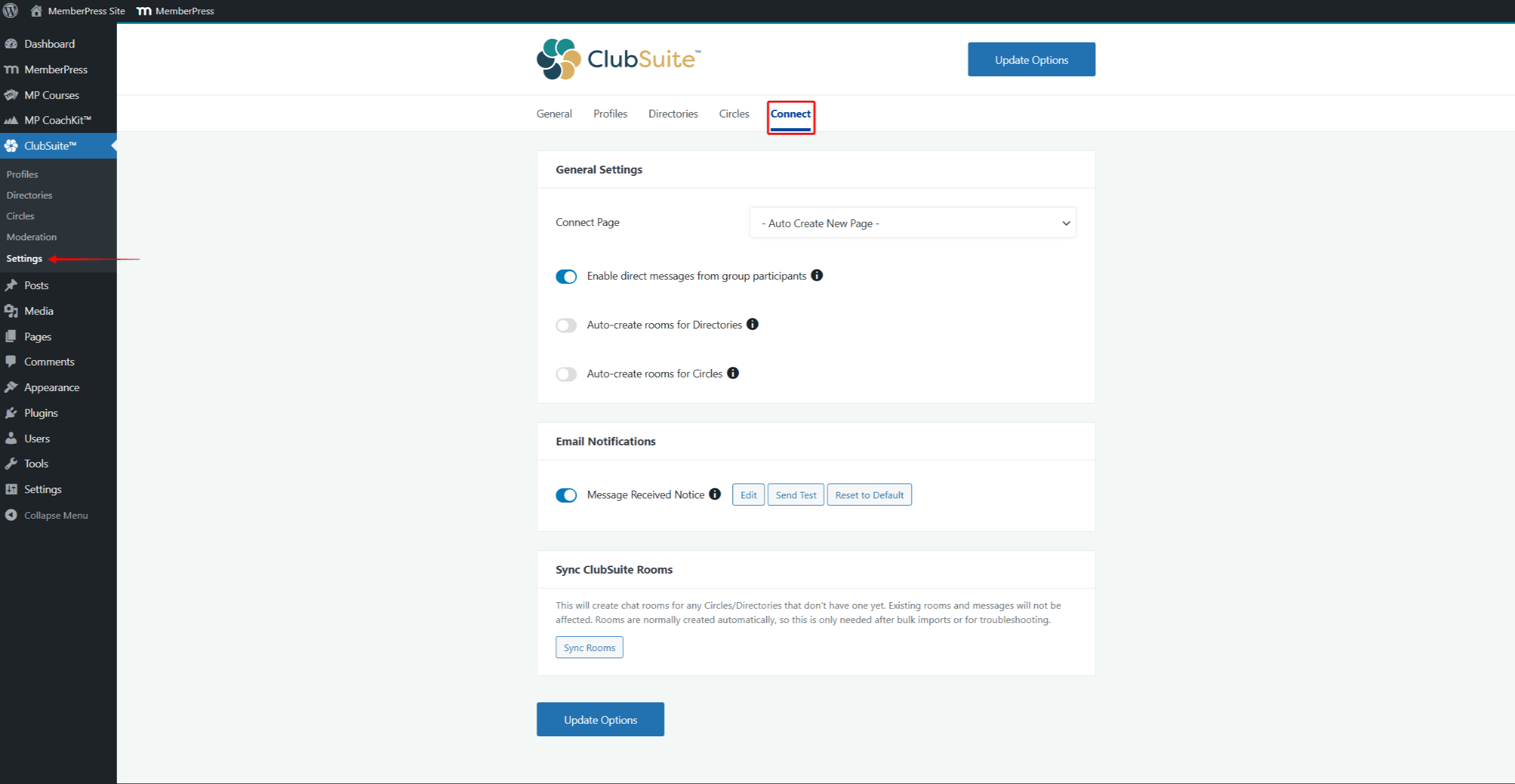
ClubConnect™ settings are located under the Connect tab within ClubSuite™ settings. Navigate to Dashboard > ClubSuite™ > Settings > Connect tab to configure messaging options.
Initial Setup
After installing ClubConnect™, complete these steps to enable the messaging features:
- Navigate to Dashboard > ClubSuite™ > Settings > Connect tab.
- Under Connect Page, select “Auto Create New Page” from the dropdown.
- Enable “Auto-create rooms for Directories” to create chat rooms for directories.
- Enable “Auto-create rooms for Circles” to create chat rooms for circles.
- Click Update Options to save changes and create the Connect page.
The system creates a page titled “Connect” at /connect/. This page serves as the unified messaging interface for all members.
General Settings
The General Settings section contains these options:
- Connect Page: Select the page used for the ClubConnect™ messaging interface. The default option “Auto Create New Page” generates a new page automatically.
- Enable direct messages from group participants: When enabled, users can click on participants in Circles and Directory groups to start private conversations. When disabled, the participants list is view-only.
- Auto-create rooms for Directories: When enabled, chat rooms are automatically created when new Directory members are enrolled. When disabled, Directory rooms must be created manually.
- Auto-create rooms for Circles: When enabled, chat rooms are automatically created when new Circle members are added. When disabled, Circle rooms must be created manually.
Email Notifications
The Email Notifications section lets you set up messaging-related email alerts.
Message Received Notice: This email is sent to users when they receive a new message. The notification applies to all room types: Circle rooms, Directory rooms, and CoachKit rooms. The notification has these options:
- Edit: Modify the email template content and subject line;
- Send Test: Send a test email to verify the notification works correctly;
- Reset to Default: Restore the original email template content.
Toggle the notification on or off using the switch next to “Message Received Notice”.
Sync ClubSuite Rooms
The Sync ClubSuite Rooms section provides a manual sync option.
Click the Sync Rooms button to create chat rooms for any Circles or Directories that do not have rooms yet. This sync does not affect existing rooms and messages.
After configuring settings, click Update Options to save changes.
How ClubConnect™ Works With Other Add-ons
ClubConnect™ uses an adapter system to work with other MemberPress add-ons. Each adapter creates and manages messaging spaces for its connected add-on.
CoachKit™ Integration
When CoachKit™ is active, ClubConnect™ provides messaging for coaching programs:
- Creating a new coaching group generates a corresponding chat room;
- Updating group participants syncs the room membership;
- Coaches and clients communicate within program-specific rooms;
- Private messaging between coaches and individual clients is available;
- Coach Badge: Coach messages display a green “Coach” label next to the coach name for easy identification;
- Room displays with “Group” label in the conversation list.
The messaging feature must be enabled in membership settings. To enable messaging for a CoachKit™ program:
- Navigate to Dashboard > MemberPress > Memberships.
- Click Edit on the membership linked to the coaching program.
- Scroll to Membership Options and click the CoachKit tab.
- In the features dropdown, select Messaging.
- Click Update to save changes.
For more information about CoachKit™ programs, see the CoachKit™ setup documentation. For details on running a coaching site, see Running a Coaching Site With MemberPress CoachKit™.
ClubCircles™ Integration
When ClubCircles™ is active, ClubConnect™ adds chat functionality to Circles:
- Publishing a new Circle generates a corresponding chat room (when Auto-create rooms for Circles is enabled);
- Circle members can communicate in real-time within the Circle;
- Chat appears as a tab within the Circle interface;
- Room displays with “Circle” label in the conversation list.
Member sync: The ClubConnect™ room participant list stays in sync with Circle membership:
- Adding members to a Circle adds them to the room;
- Removing members from a Circle removes them from the room;
- Banning a member from a Circle removes their visibility and access to the room.
For details on creating Circles, see Creating and Managing Circles With MemberPress. For the member perspective, see Member Experience With MemberPress Circles.
ClubDirectory™ Integration
When ClubDirectory™ is active, ClubConnect™ enables member-to-member messaging:
- Directory rooms are created automatically (when Auto-create rooms for Directories is enabled);
- Members can initiate private conversations from directory profiles;
- The Message button appears on member profile pages;
- Room displays with “Directory” label in the conversation list.
Member visibility in directory rooms: The participant list reflects directory visibility settings:
- Members who have opted into a directory appear in the room;
- Members who have opted out of a directory are not visible in the room;
- Members excluded by an administrator from a directory are removed from the room;
- If a directory has Require opt-in enabled, only opted-in members appear in the room.
For details on creating directories, see Creating Member Directories With MemberPress. For the member perspective, see Member Experience With MemberPress ClubSuite™ Profiles and Directories.
Using the Unified Chat Page
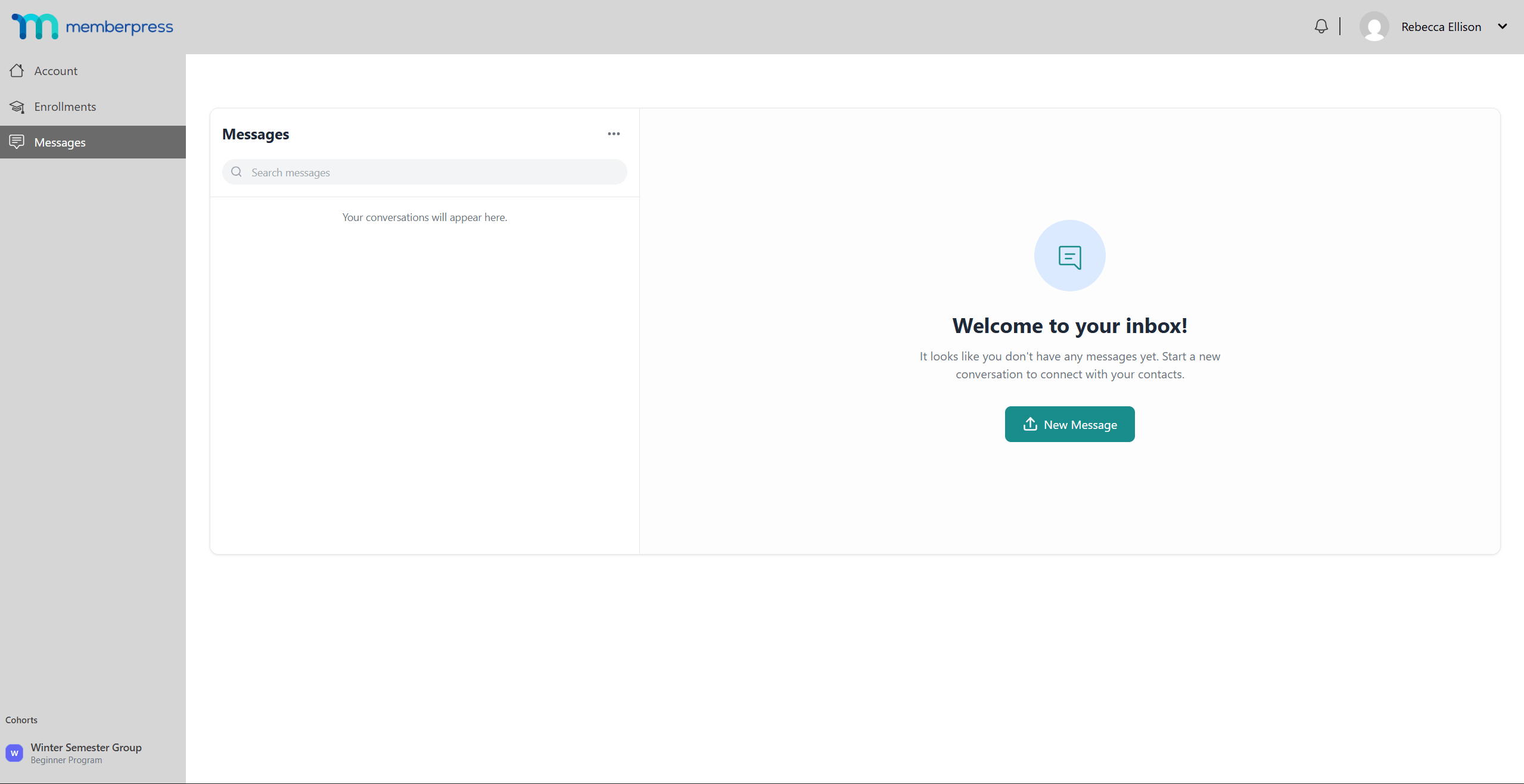
ClubConnect™ provides a unified messaging page at /connect/ by default. When the “Auto Create New Page” option is selected in settings, ClubConnect™ creates a page titled “Connect” with this slug. This page displays all conversations accessible to the logged-in member.
Chat Page Layout
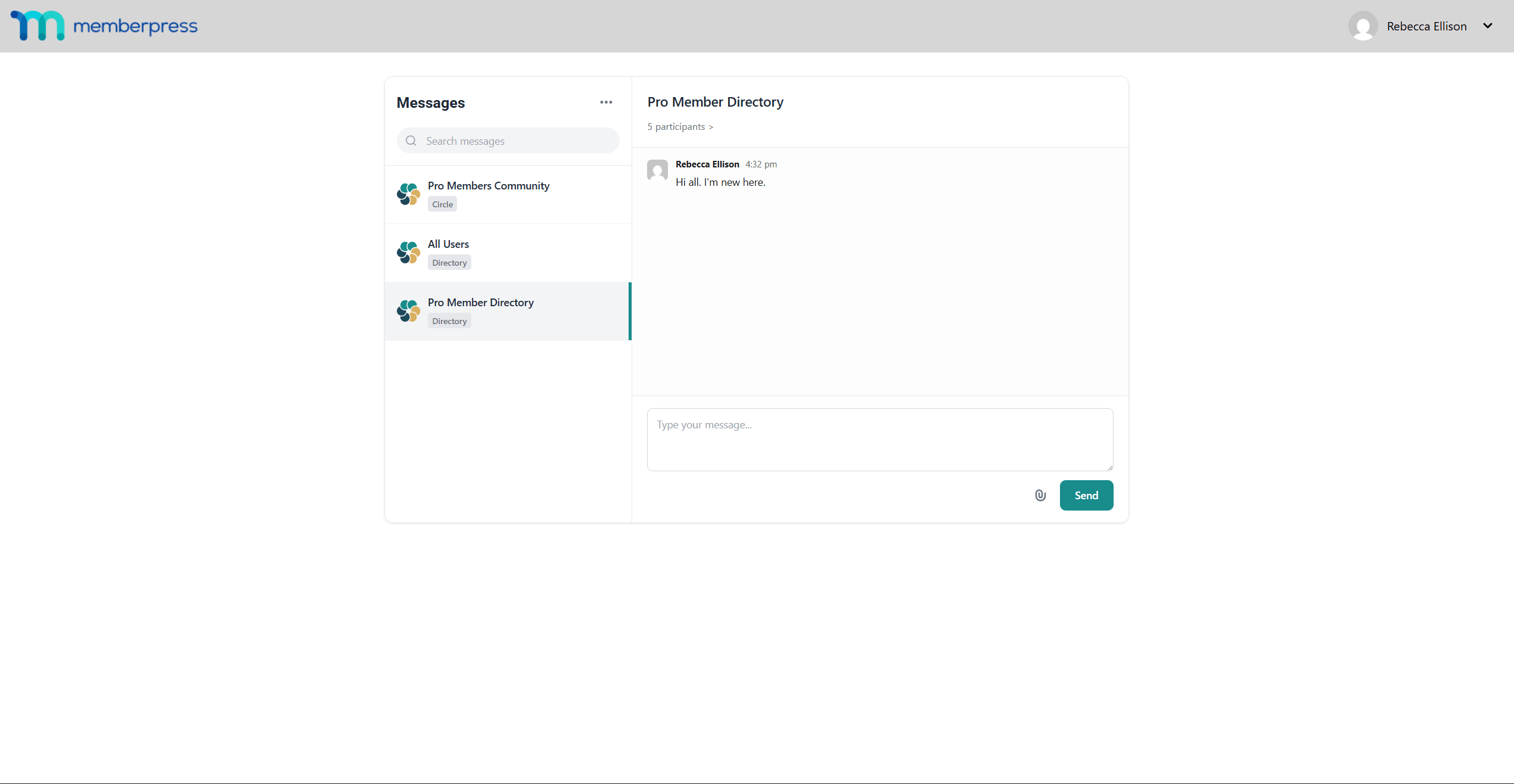
The unified chat page contains:
- Messages Header: Displays the “Messages” title with a three-dot menu for additional options;
- Search Box: Filter through rooms and DM recipients by typing in the search field;
- Conversation List: Left sidebar showing all rooms and private conversations. Labels identify room types: “Group” for CoachKit, “Circle” for Circles, “Directory” for Directories;
- Active Conversation: Main area displaying the selected conversation with the room name and participant count;
- Participant Count: Click the “X participants >” link to view all members in the current room;
- Message Input: Text area for composing messages with an attachment icon.
Sending Messages
To send a message:
- Select a conversation from the left sidebar.
- Type the message in the input area at the bottom.
- Click the Send button or press Enter to send.
Starting Direct Messages
When Enable direct messages from group participants is enabled in settings, members can start private conversations with other participants:
- Open a group room (Circle, Directory, or CoachKit room).
- Click the “X participants >” link to view all room members.
- Click on a participant name to start a direct message conversation.
Direct message conversations appear in the sidebar without a “Group”, “Circle”, or “Directory” label. This distinguishes them from room conversations.
Attaching Files
ClubConnect™ supports file sharing within conversations. Supported file types include MP3, MP4, PDF, and document files. File sizes display next to attached files.
To attach a file using the attachment icon:
- Click the Attachment icon (📎) next to the Send button.
- Select the file from the device.
- The file uploads and attaches to the message.
- Add optional message text and click Send.
To attach a file using drag-and-drop:
- Drag a file from the device to the message input area.
- Drop the file into the input box.
- Add optional message text and click Send.
Using @ Mentions
Tag specific participants in a message to highlight content for them:
- Type @ followed by the participant name.
- Select the participant from the suggestion list.
- The mentioned participant receives a notification and the mention appears highlighted in the message.
Formatting Messages
ClubConnect™ supports markdown formatting for messages. Common formatting options include:
- Bold text: Wrap text with double asterisks (
**bold**); - Other popular markdown syntax is also supported.
Message Reactions
Members can react to messages with emoji:
- Hover over a message to reveal the reaction options.
- Click the emoji icon.
- Select an emoji from the picker.
The reaction appears below the message. Click an existing reaction to add or remove a vote.
Room Synchronization
ClubConnect™ automatically creates rooms when Circles or Directories are published. The system synchronizes rooms with their source entities to ensure participant lists stay current.
To manually synchronize rooms:
- Navigate to Dashboard > ClubSuite™ > Settings > Connect tab.
- Scroll to the Sync ClubSuite Rooms section.
- Click the Sync Rooms button.
This creates chat rooms for any Circles or Directories that do not have rooms yet. Existing rooms and messages remain unaffected.
Best Practices for ClubConnect™
Follow these tips for effective messaging management:
Configuration
- Enable only the notification types needed for the site to avoid notification fatigue;
- Set appropriate file size limits based on server resources;
- Configure ReadyLaunch™ templates for consistent branding.
Moderation
- Establish clear community guidelines for messaging behavior;
- Monitor reported messages regularly;
- Remove inappropriate content promptly.
Performance
- Archive inactive rooms to maintain database performance;
- Set reasonable message pagination limits;
- Monitor file storage usage for attachments.
Troubleshooting
Messages Not Appearing
If messages do not appear:
- Verify the member has access to the room.
- Check that the source add-on (CoachKit™, ClubCircles™, ClubDirectory™) is active.
- Clear browser cache and refresh the page.
Email Notifications Not Sending
If email notifications fail to send:
- Verify email notifications are enabled in ClubConnect™ settings.
- Check WordPress email configuration using a plugin like WP Mail SMTP.
- Review server email logs for delivery errors.
File Upload Errors
If file uploads fail:
- Verify the file type is in the allowed types list.
- Check that the file size does not exceed the configured limit.
- Ensure the WordPress uploads directory is writable.
Summary
ClubConnect™ extends MemberPress with full messaging capabilities. The add-on integrates with CoachKit™, ClubCircles™, and ClubDirectory™ to provide messaging tools.
After installation, configure settings for best results and enable email notifications as needed. Use the unified chat page to access all messaging for members.
For additional assistance, contact MemberPress support.










