How To Enable Payment Methods With Stripe and MemberPress?
How To Enable Payment Methods With Stripe and MemberPress?
The built-in MemberPress integration with Stripe supports debit and credit cards, Apple Pay, and Google Pay. Depending on your country and currency settings, Stripe offers a wide range of additional payment methods.
This document will show you how to enable additional payment methods in Stripe and MemberPress.
Note: The MemberPress shopping cart is currently in beta. Some labels and steps on your site may differ slightly from this document. On MemberPress 1.14 and later, Memberships appears as Products in the WordPress Dashboard. Learn more in the MemberPress cart overview.
Stripe allows you to manage payment methods in your Stripe Dashboard. Here, you can enable and disable any payment methods available in your country.
To manage payment methods in Stripe, please follow these steps:
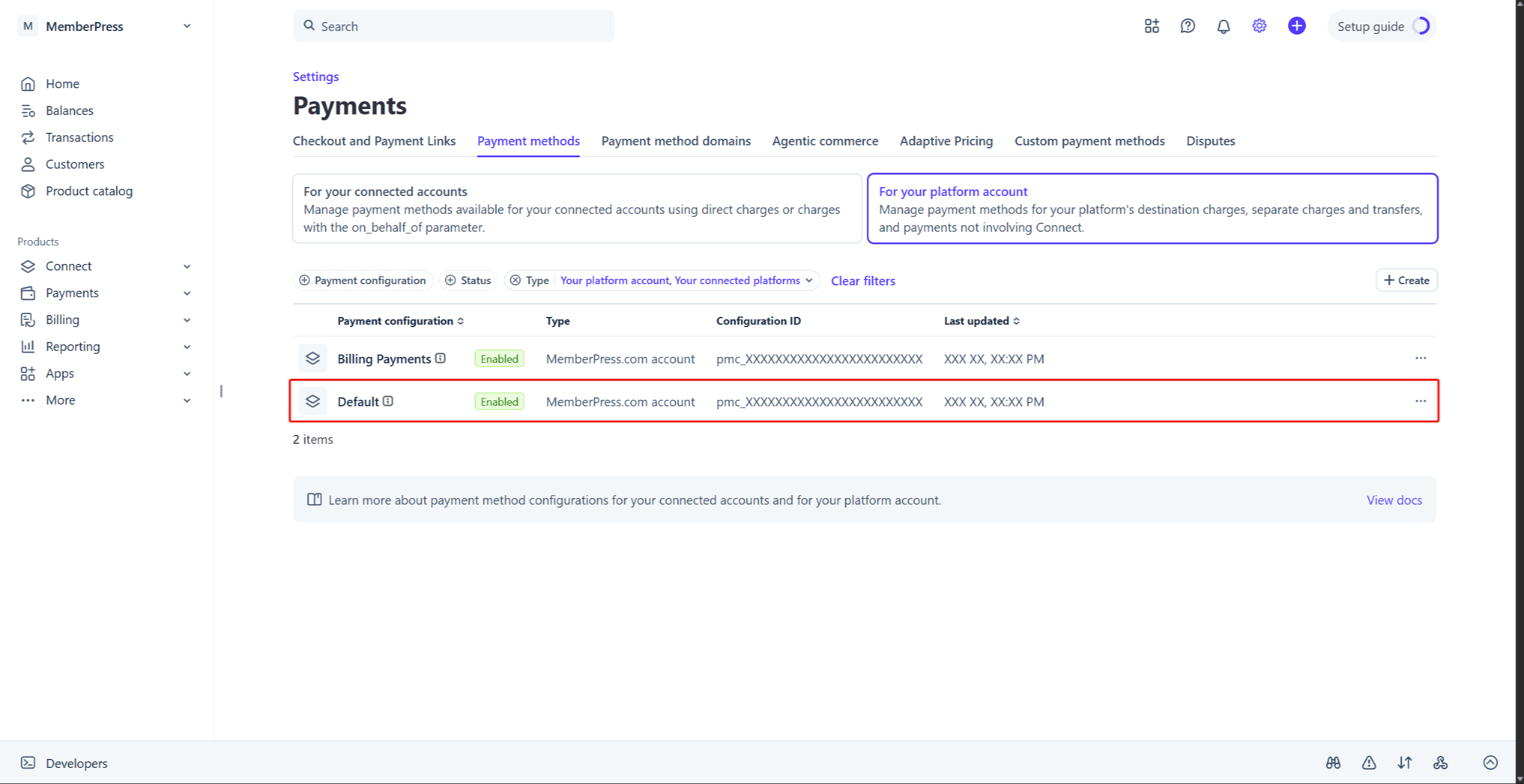
Log in to your Stripe account, and navigate to Stripe Dashboard > Settings > Payments > Payment methods tab.
Note: You may have additional platforms or WordPress plugins connected to your Stripe account. In this case, this page will show a list of payment method configurations. Each platform manages payment methods through its own configuration. Click the configuration with the “MemberPress.com account” type to manage payment methods for MemberPress. This configuration page will show the “This configuration is used by default for payments on MemberPress.com.” message.
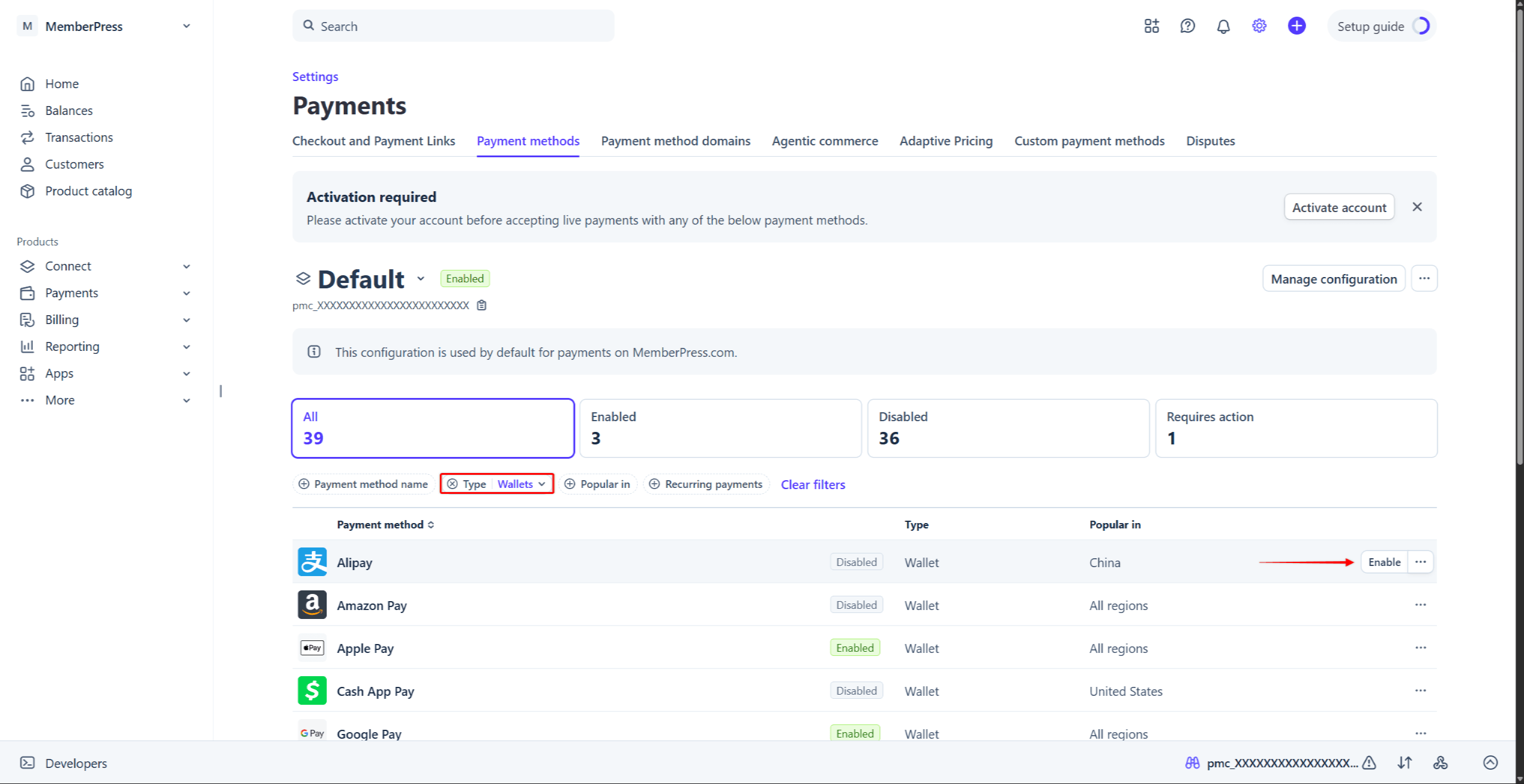
Find your payment method on the list. To narrow down the list, use the filters: Payment method name, Type, Popular in, or Recurring payments.
Hover over the payment method, and click the Enable button. Alternatively, click the three-dot icon next to the payment method, and select the Enable option.
Note: You can disable any enabled payment method only through the three-dot icon menu, using the Disable option.
Note: For some payment methods, Stripe may ask you to verify more information. In this case, the payment method will show the “Requires action” status after enabling. Click the Provide info button next to the method, and submit the required details to activate it.
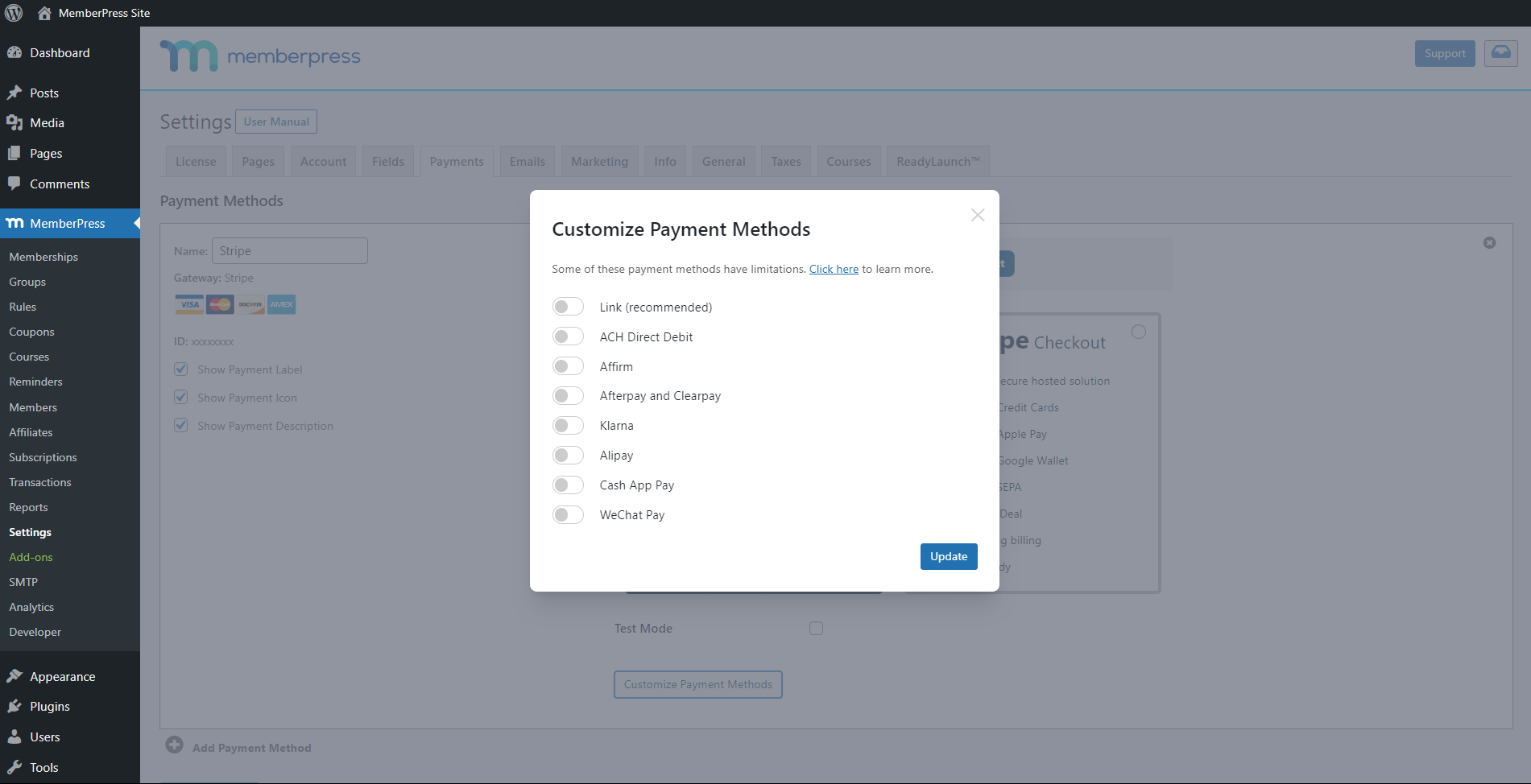
Note: For some payment methods, if the payment method is not enabled in Stripe, MemberPress will display an error. Hence, the error will prevent that payment method from being enabled in MemberPress settings.
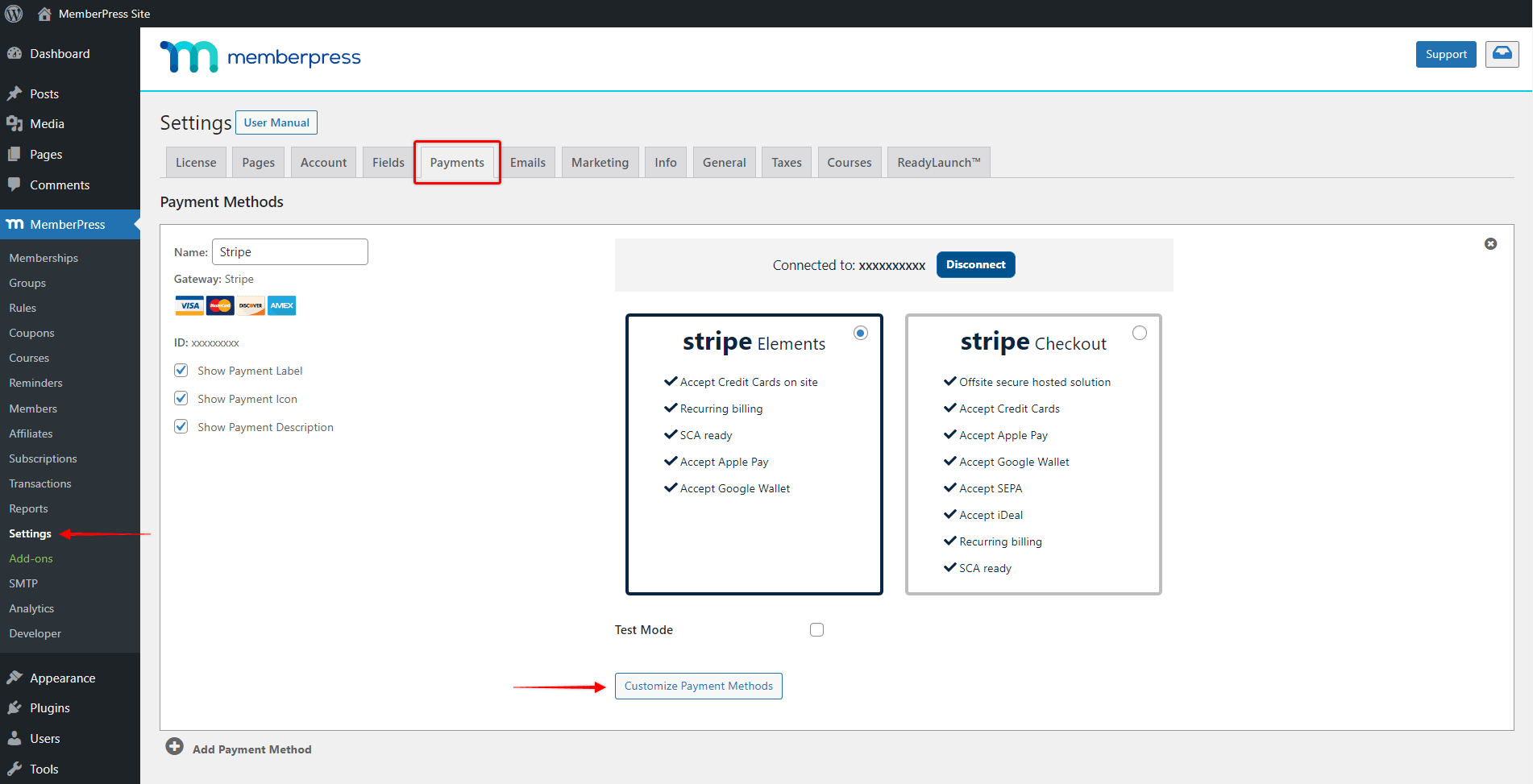
Click the Update Options button at the bottom of the Payments page to save changes.
Note: The pop-up will display the “Options saved.” message after clicking the Update button. However, MemberPress applies changes to your registration forms only after you click the Update Options button.
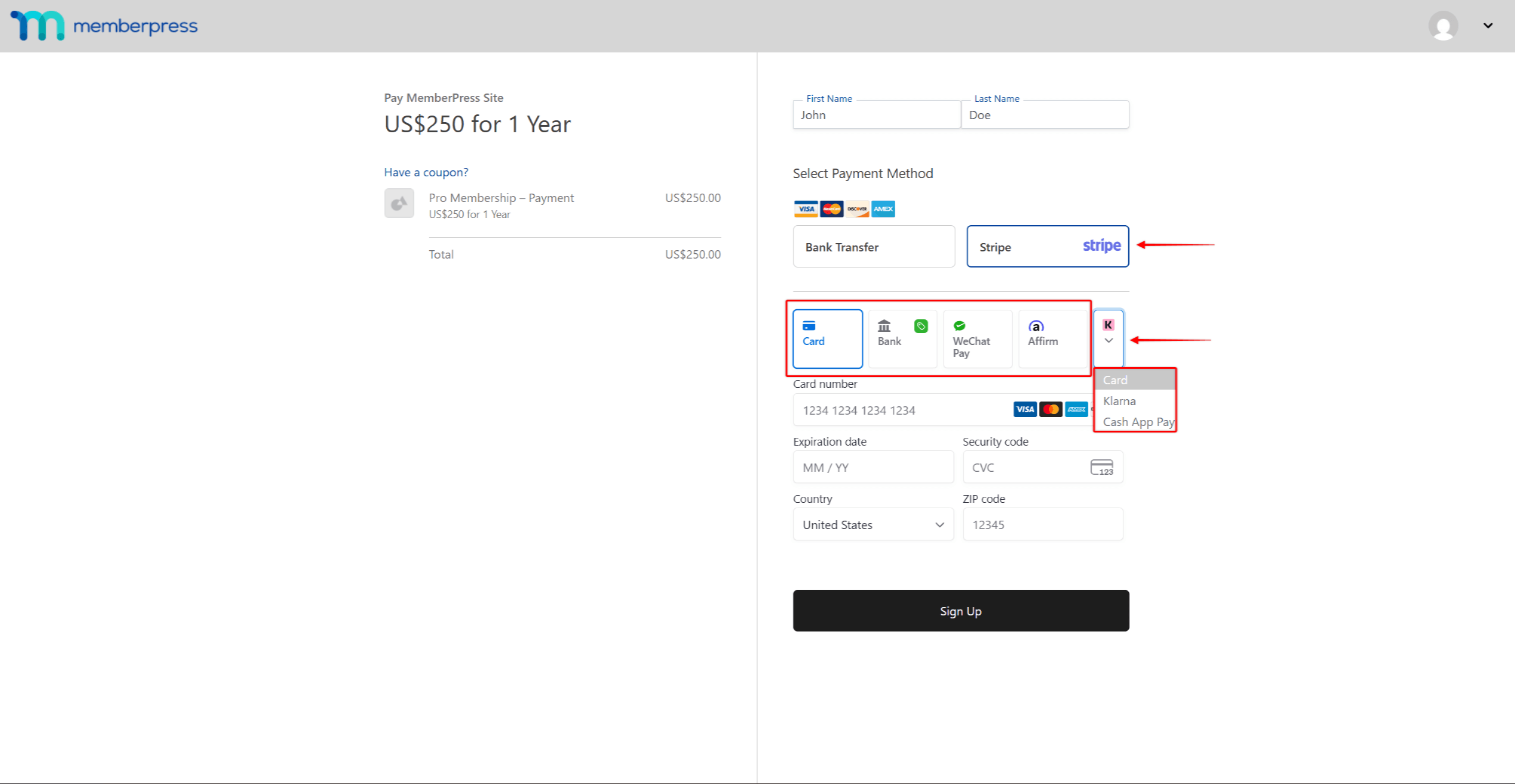
When users select Stripe as the payment gateway on your registration pages, they will see available payment methods. The methods you enabled will be visible within Stripe Elements or the Stripe Checkout forms.
Note: Please keep in mind that your Stripe payment form will show all payment methods enabled in MemberPress. This also includes those disabled in your Stripe account. To avoid issues, make sure that all methods enabled in MemberPress are also enabled in Stripe.
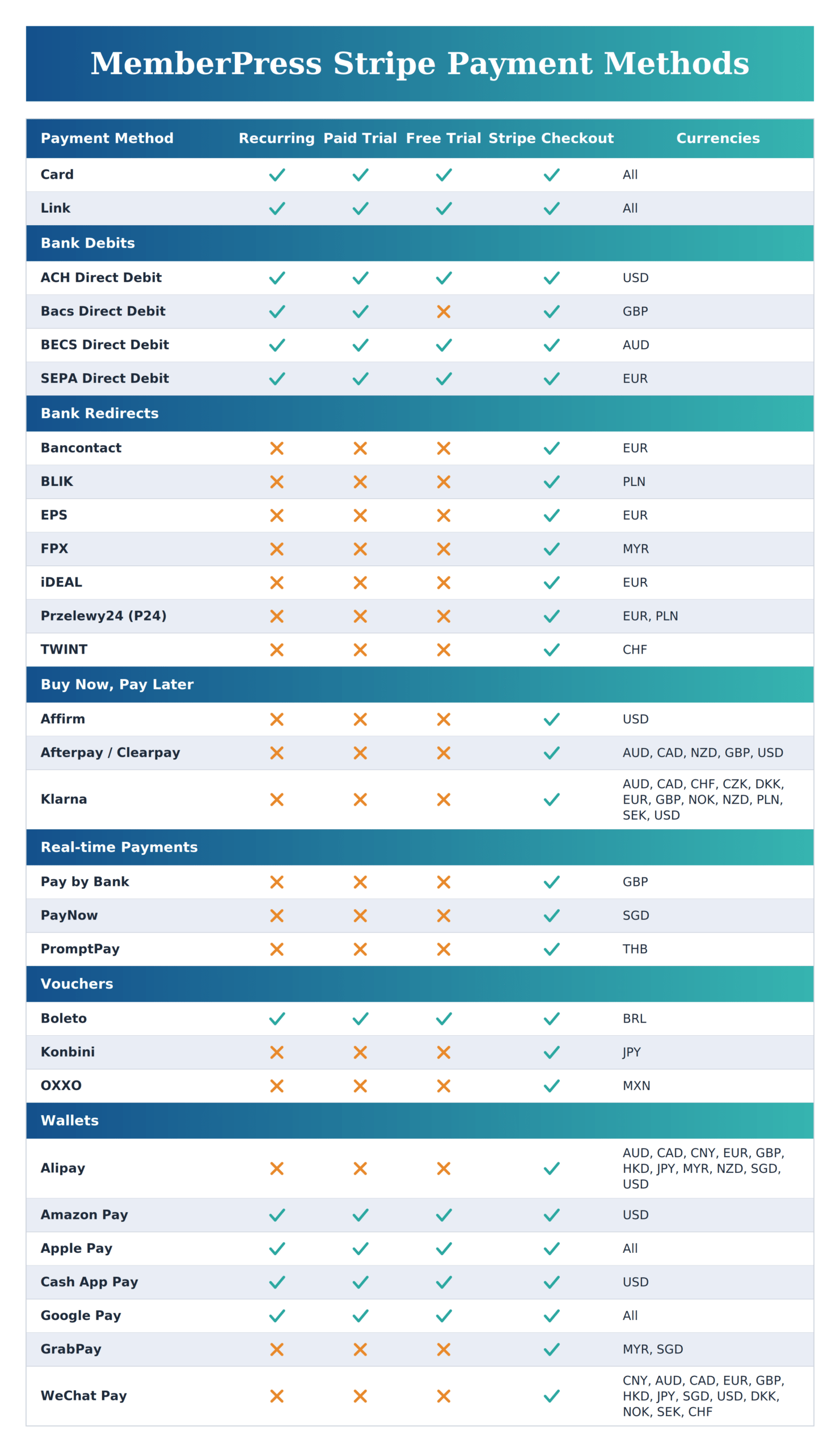
Each payment method comes with its own limitations. These relate to currency, supported payment types (recurring, non-recurring, trial), and country availability.
Note: Some methods can only be used for non-recurring payments because they do not support (recurring) subscriptions. As a result, these payment methods will not be visible on the registration pages of your recurring memberships.
Please check the available payment methods and their limitations in the chart below: