

You’ve worked hard to get someone through the door, turn them into a paying member, and keep them engaged. Then one day, they click Cancel.
It’s tempting to see that as the end of the story. But what if the member isn’t unhappy with your membership? Maybe the price no longer works for them. Maybe they don’t have enough time to use it. Or maybe they simply haven’t found enough value to justify staying yet.
There’s plenty you can do to reduce churn before a member reaches this point. But MemberPress also gives you a way to work with the moment itself, right as someone clicks Cancel.
With the MemberPress Cancel Override add-on, you can replace the standard cancellation step with a custom page built to find out why a member is leaving and, when it makes sense, offer them another option: a lower-priced plan, a discount, a pause, or just a quick question about what went wrong.
They can still cancel. But instead of the relationship ending with a single click, you get one more shot at the right offer, or at least a straight answer about why they’re going.
Here’s how Cancel Override works, and how to put it to use.
What Does MemberPress Cancel Override Actually Do?
The MemberPress Cancel Override add-on changes what happens when a member clicks the Cancel link in their account.
Without Cancel Override, the process is straightforward:
Member clicks Cancel → confirms the cancellation → subscription is canceled.
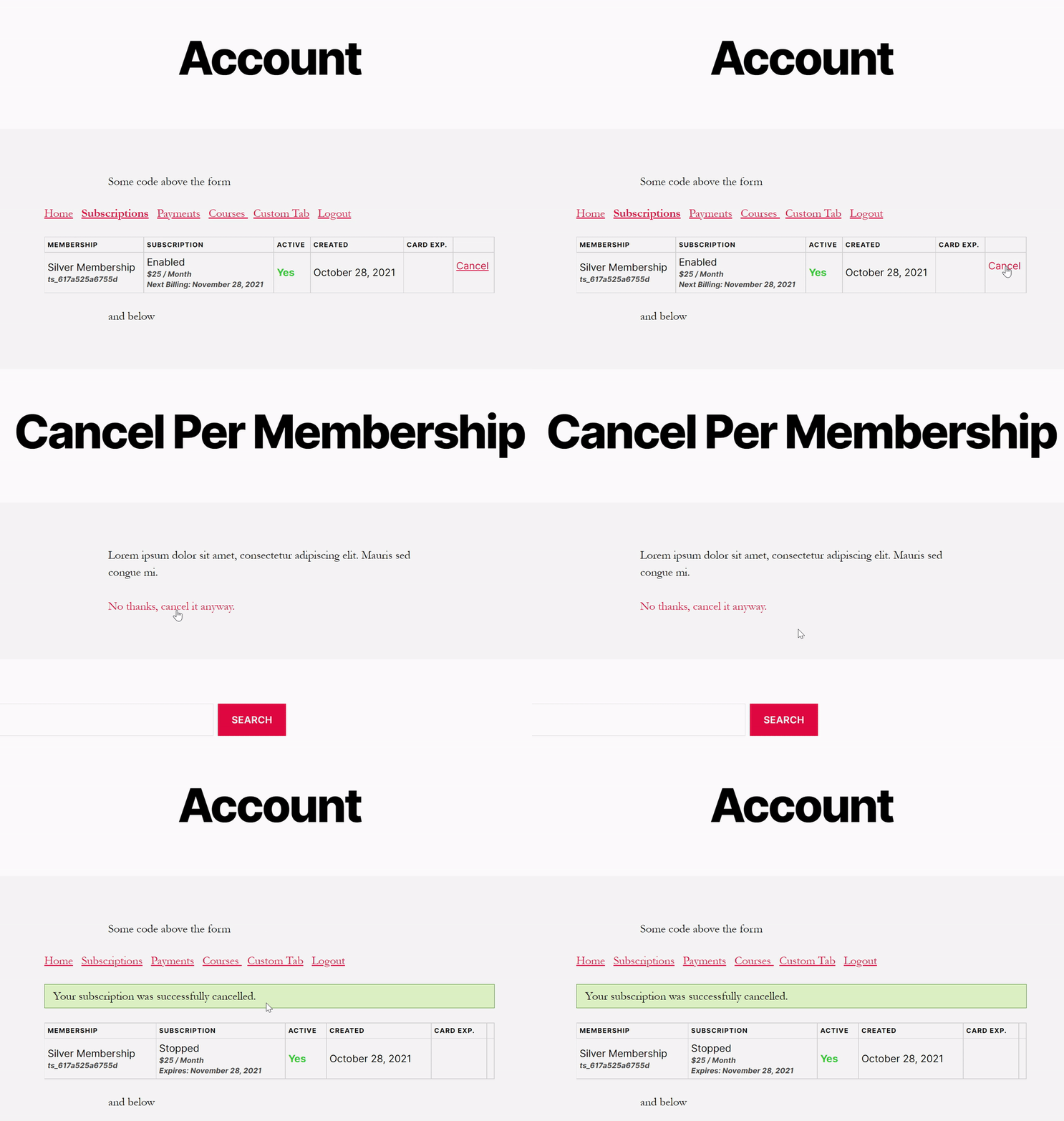
With Cancel Override enabled, there’s an extra step:
Member clicks Cancel → lands on your custom page → sees your message or alternative → decides whether to stay or complete the cancellation.
That custom page is yours to work with. You could use it to offer a different membership option, ask why they’re leaving, point them toward a better-fit solution, or make staying feel like the better option.
And you don’t have to use the same page for everyone. MemberPress lets you set a global cancellation page or create different Cancel Override pages for individual memberships.
So someone leaving your highest-tier plan could see a downgrade offer that’s completely different from what you’d show someone canceling your entry-level membership.
One important thing to know: Cancel Override works with recurring subscriptions, since those are the subscriptions members can cancel to stop future renewals.
The feature isn’t there to block someone from leaving. If they still want to cancel after seeing your page, they can.
What it gives you is a space between “I want to cancel” and “I’m gone.” What you put in is up to you.
And this isn’t just a feature that sounds useful in theory. Warren McPherson, a MemberPress user, also mentioned Cancel Override as one of the MemberPress features he uses in his membership business.
What Should You Put on Your Cancel Override Page?
A Cancel Override page works best when it gives members a useful alternative to leaving, not just another sales pitch.
Think about the most common reasons people cancel your membership, then build your page around the options that could actually solve those problems.
Offer a Lower-Priced Membership
Sometimes members still want what you offer. They just can’t justify the price they’re currently paying.
If you have multiple membership tiers, your page can point them toward a less expensive option instead of losing them completely.
MemberPress Groups make it possible to organize memberships into upgrade and downgrade paths, so members can move to a plan that better fits their needs.
For example, a member canceling a $49/month plan might be much happier staying on a $19/month plan with fewer benefits.
The member sticks around, just on a plan that fits what they can pay. They still get to use the parts of the membership that matter to them, and neither side has to treat cancellation as the only option.
Give Them a Reason to Stay
Price may also be the issue even when the member doesn’t want a different plan.
In that case, a temporary discount could make them reconsider.
MemberPress lets you create coupons for percentage or fixed-amount discounts, including discounts that apply to recurring subscriptions.
You could offer something like:
Stay for the next 3 months and get 25% off.
The important part is to use discounts selectively. If every member learns that clicking Cancel automatically gets them a better price, you could end up training people to cancel whenever they want a deal.
Reserve this kind of offer for situations where it makes financial sense to save the membership.
Give Busy Members Another Option
Not every cancellation is about price or dissatisfaction.
Sometimes the member simply isn’t using the membership enough right now.
Maybe work got busy, or they’re traveling. Or maybe they’re halfway through your course and already know they won’t touch it again for a couple of months.
If you allow members to pause their subscriptions, the page can remind them that leaving completely isn’t their only choice.
A simple message such as “Need a break instead?” may be all it takes to turn a permanent cancellation into a temporary pause.
Remind Them What They Still Have Access To
There’s also a chance the member has forgotten how much is included in their subscription.
Before offering money off, try reminding them.
If your membership includes courses, a community, live sessions, downloadable resources, coaching calls, or other benefits, this page can briefly highlight the ones members commonly overlook.
Keep this focused. You don’t need to reproduce your entire sales page.
Instead, answer one question:
Is there something this member is about to give up that could solve the reason they want to leave?
If so, make it easy for them to get there.
Ask Why They’re Leaving
And sometimes, there isn’t an offer that will change their mind. That’s okay.
This page can still help you understand what happened.
Add a short cancellation survey asking why they’re leaving. A few simple options, such as:
- Too expensive
- Not using it enough
- Couldn’t find what I needed
- Other
Can reveal patterns you might otherwise never see.
This isn’t the time for ten required questions and a lengthy feedback form, so let your cancellation survey be particularly easy to complete. Check here for how to survey your membership site’s users.
A short survey people actually finish beats a long one they abandon, and even a single answer is worth more than a silent cancellation.
Don’t Make Cancellation Harder Than It Needs to Be
Cancel Override exists to make a better offer, not to block the exit.
Your page can present alternatives, ask for feedback, or remind members what they’re giving up.
But if someone has made up their mind, they should still be able to finish canceling without hunting for the next step.
That’s good practice for any cancellation flow. How you treat someone on the way out shapes the impression they leave with, and whether they’d ever consider coming back.
A focused page does a few things well:
- Make the alternative clear.
- Explain why it might be a better fit.
- Keep any survey short and optional.
- Keep the final cancellation option easy to find.
A good Cancel Override page gives members something real to weigh before they go, not a reason to feel trapped into another billing cycle.
How to Set Up Cancel Override in MemberPress
Cancel Override is available on the MemberPress Growth and Scale plans, and getting it running takes just a few steps.
1. Install the Cancel Override Add-On
From your WordPress dashboard, go to MemberPress → Add-Ons and find Cancel Override.
Click Install Add-on to install and activate it.
2. Enable Cancel Override
Go to MemberPress → Settings → Account and scroll down to Cancel Override Settings.
Check Enable Cancel Override.
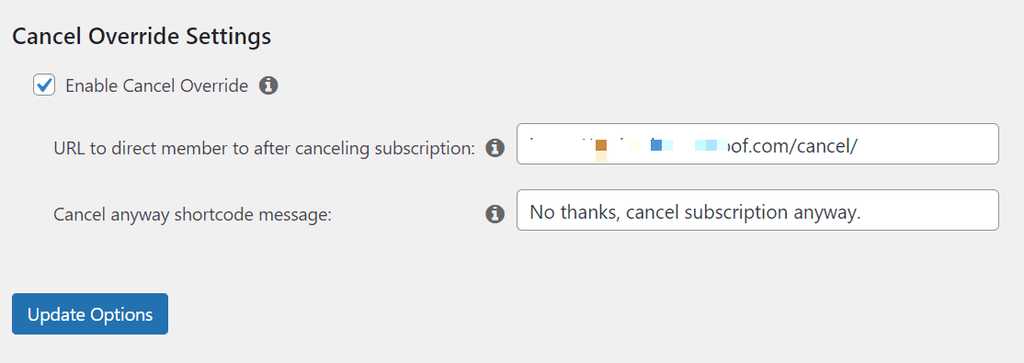
This is also where you’ll eventually add the URL of the page members should see after clicking Cancel.
3. Create Your Cancellation Page
Create a new WordPress page for your cancellation experience.
This is where you can add the alternative you decided on earlier: a downgrade, discount, pause reminder, quick survey, or another reason to stay.
You’ll also need to add this shortcode to the page:
[mepr-cancel-override]
MemberPress uses the shortcode to display the message and link members can use if they still want to continue with their cancellation.
If you only want to display the cancellation link without the accompanying message, use:
[mepr-cancel-override-url]
4. Add Your Cancel Page URL
Once the page is ready, return to MemberPress → Settings → Account → Cancel Override Settings and add its URL as your Cancel URL.
You can also customize the message that appears with the final cancellation link.
Then save your changes.
5. Customize the Experience for Individual Memberships
You don’t have to send every member to the same cancellation page.
If you want a different offer for a specific membership, open that membership and go to Membership Options → Advanced, then give it its own Cancel URL and message.
This is especially useful if you run several tiers with different reasons for canceling.
6. Test the Entire Cancellation Flow
Before putting it in front of members, test it yourself.
Click through the process from the member’s side and make sure:
- The Cancel link takes you to the right page.
- Your offer or survey works.
- The final cancellation link is easy to find.
- The cancellation completes correctly.
For a more detailed walkthrough of each setting, see the full MemberPress Cancel Override setup guide below.
Your Cancellation Page Can Tell You What to Fix Next
Not every cancellation ends with a member deciding to stay.
But a cancellation can still give you something valuable: an explanation.
Over time, the answers you collect here can reveal patterns that are difficult to spot when members simply disappear.
If “too expensive” keeps coming up, for example, it may be worth revisiting your membership pricing. That doesn’t automatically mean your price is too high. Members might not feel like the price matches what they’re getting, or your current tiers might not offer enough flexibility.
If members regularly say “I don’t use it enough,” take a closer look at your membership engagement. Are members logging in, completing content, joining discussions, or using the benefits they signed up for?
If not, the problem may start long before they reach that point.
And if you’re hearing things like “I didn’t know where to start” or “I couldn’t find what I needed,” your member onboarding process could need some attention.
You may even find that members are leaving because they’ve simply finished what they joined for. In that case, the question becomes how you can create a clearer next step that gives them a reason to remain a member.
The point isn’t to react to every individual response by changing your membership.
Look for repetition.
When the same reason keeps appearing, it’s showing you where members are getting stuck, and giving you a chance to fix the problem for everyone who comes after them.
So even when Cancel Override doesn’t turn Cancel into Stay, it can help you fix the reasons the next member might click that button in the first place.
Before Another Member Clicks Cancel
The next time a member clicks Cancel, don’t let that moment go to waste.
If you’re already using MemberPress, install the Cancel Override add-on, create a simple cancellation page, and start with one clear goal: offer a better-fit option or ask why they’re leaving.
Then test the flow yourself before sending members through it.
It doesn’t need to be elaborate to be useful. A well-built cancellation page can give some members a reason to stay, while still teaching you something from those who decide to leave.
Not using MemberPress yet? Get MemberPress and start building a membership site with more control over the member experience.

Get MemberPress Today!
Start getting paid for the content you create.










Add a Comment