

A sales funnel offers customers more products while they buy. With MemberPress Funnels, a funnel can add order bumps at checkout and show upsell and downsell offers after payment. Everything the customer accepts lands in one order.
This document explains what customers see when a funnel runs. It also covers how offers are charged and refunded, and how to track results. Building the funnel itself is covered in Setting Up MemberPress Funnels.
How a Funnel Runs
A published funnel starts when a customer buys its Checkout product through the MemberPress shopping cart. The funnel then runs in this order:
- The customer sees the funnel’s order bumps on the checkout’s Add-Ons step and can add them to the order.
- The customer pays on the Payment step. The order is complete at this point.
- MemberPress shows the first offer page. Accepting an offer charges it to the same order and moves to the next step. Declining moves to the Decline path.
- When the customer reaches a Thank You step, MemberPress shows the thank you page.
An offer never replaces the product the customer bought. Accepted offers are added to the order and charged to the payment method used at checkout. The customer does not enter card details again.
Order Bumps at Checkout
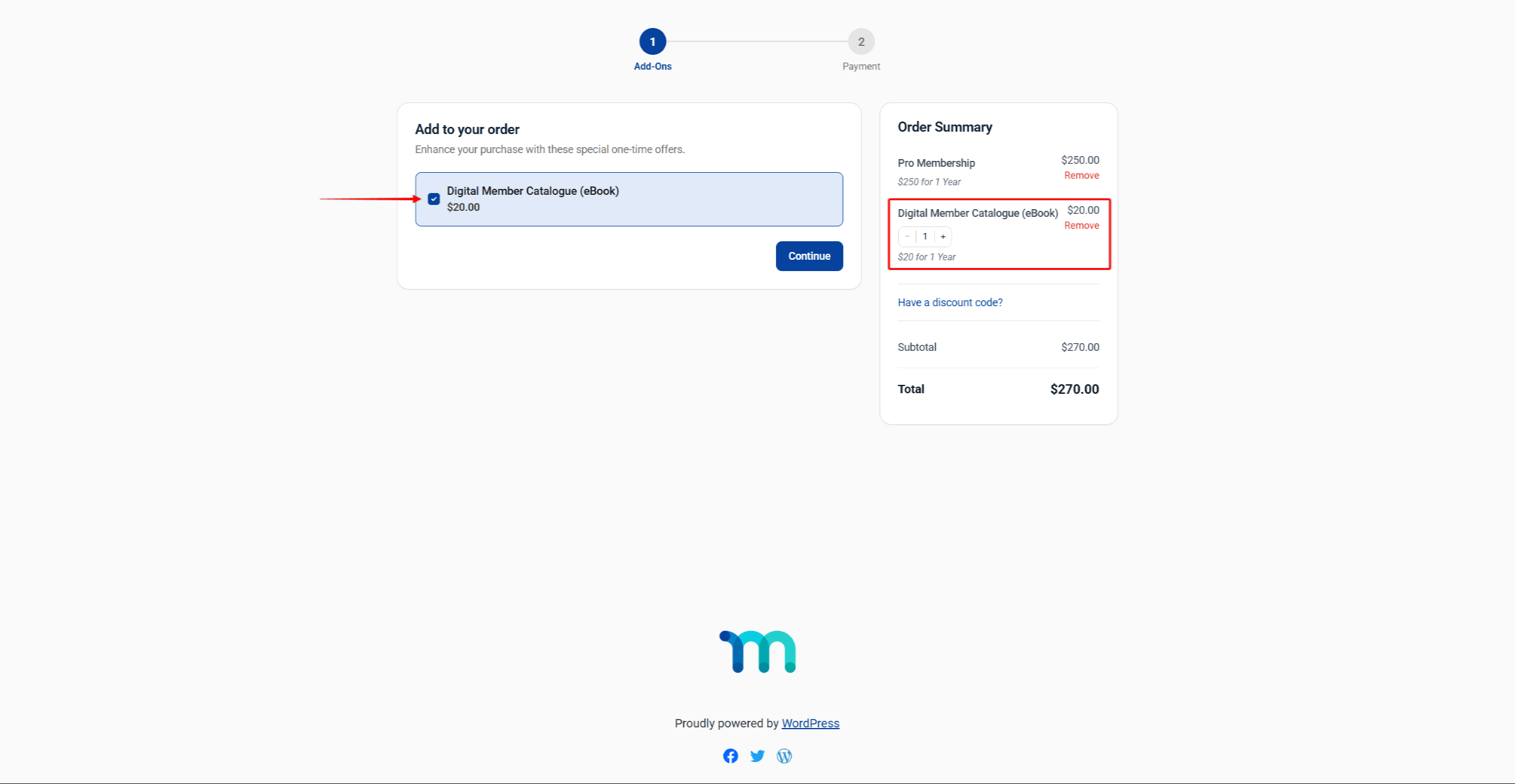
Order bumps appear on the Add-Ons step, before payment. The heading reads “Add to your order”. Each bump is a card with a checkbox, the product name, and its price. Marking a bump adds it to the Order Summary on the right.
Configuring bumps, including required bumps, is explained in the MemberPress Order Bumps documentation.
Upsell and Downsell Offer Pages
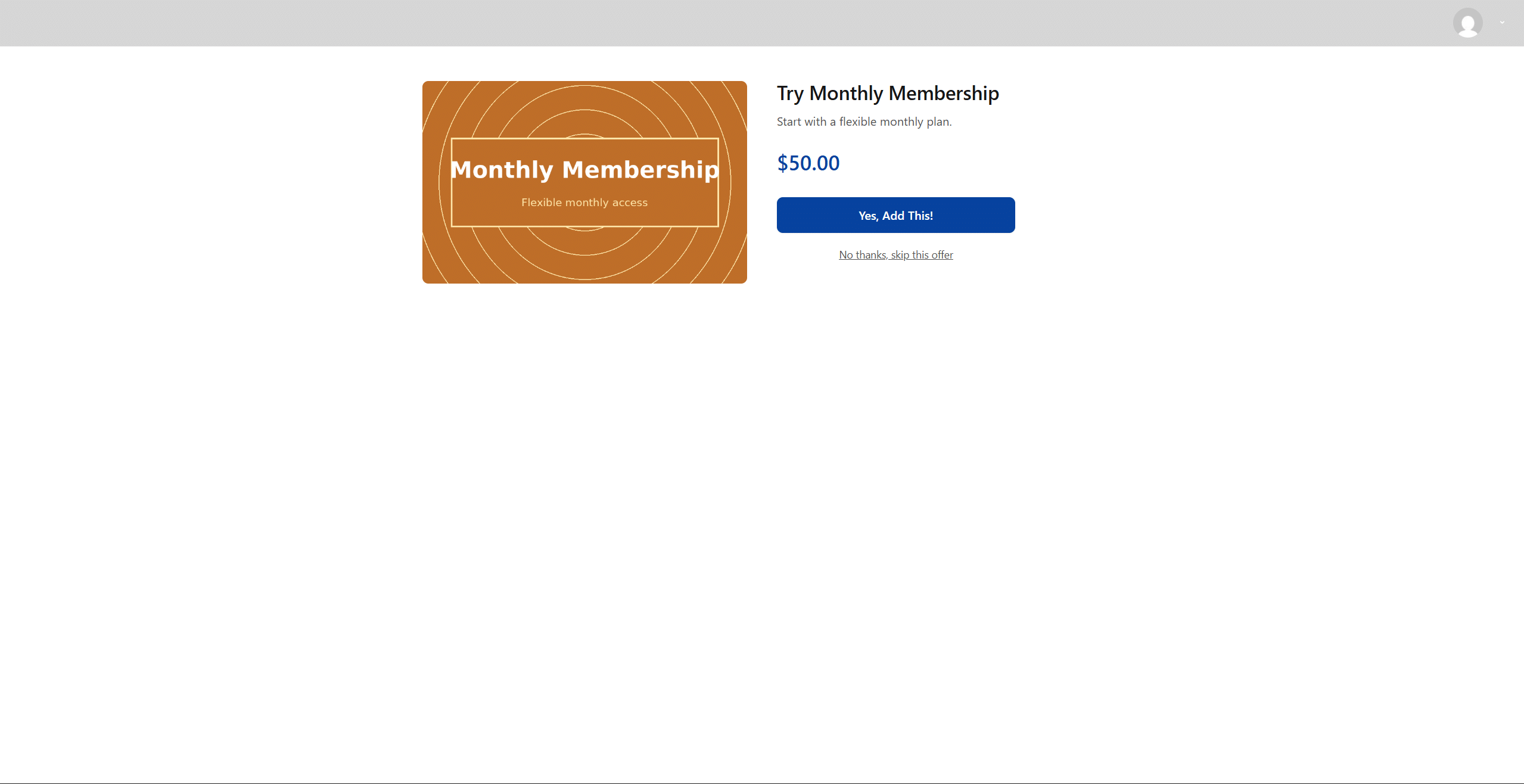
After payment, each offer step shows its own page. The page shows the Offer Title, Offer Image, and Description set in the funnel builder. It also shows the product price. It has two actions:
- Yes, Add This! accepts the offer;
- No thanks, skip this offer declines it.
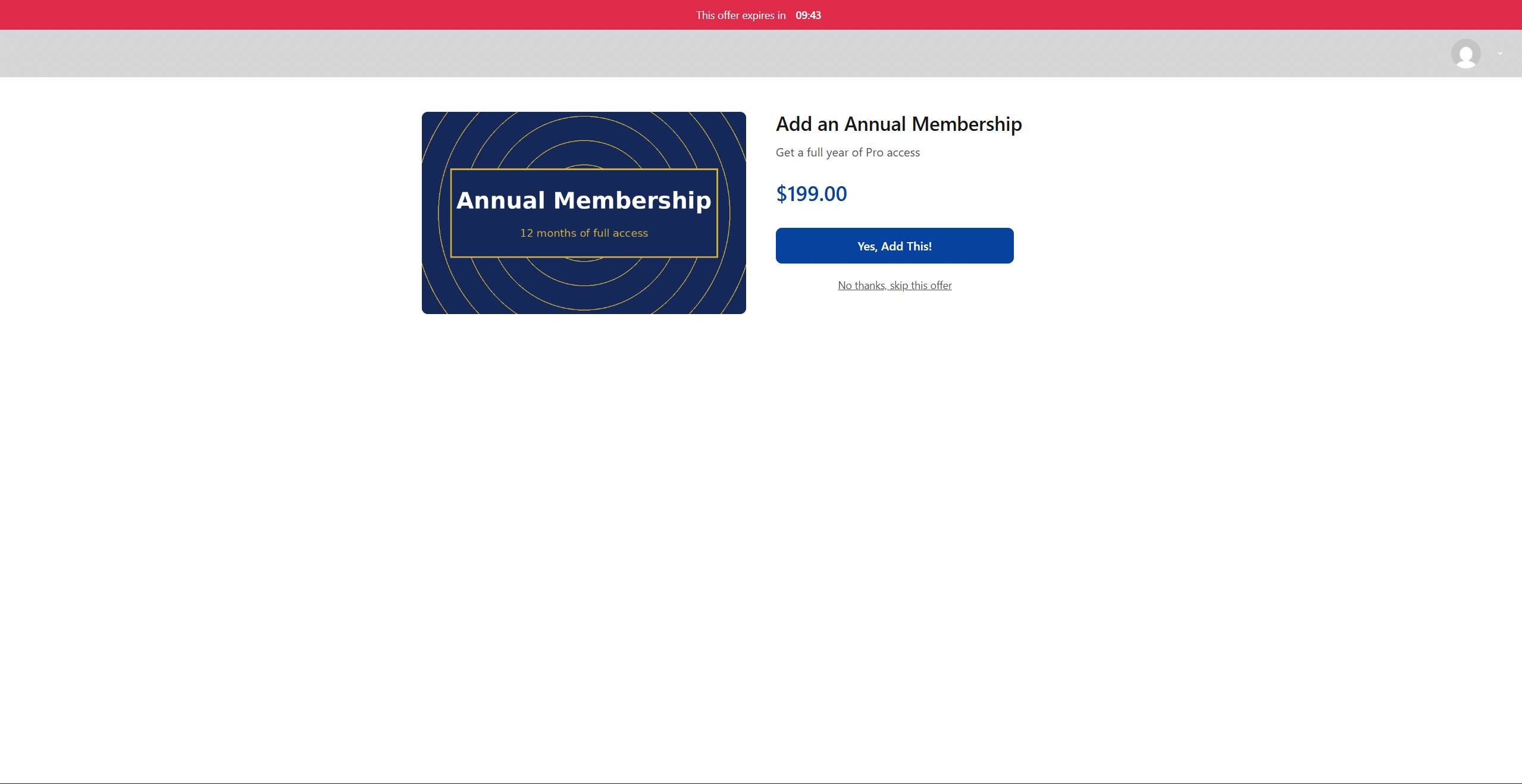
With the Countdown Timer enabled, a banner at the top reads “This offer expires in” and the remaining time. The timer is cosmetic. When it reaches zero, the offer stays available.
A Downsell page looks the same as an upsell page. It is shown only when the customer declines the upsell before it.
The Thank You Page
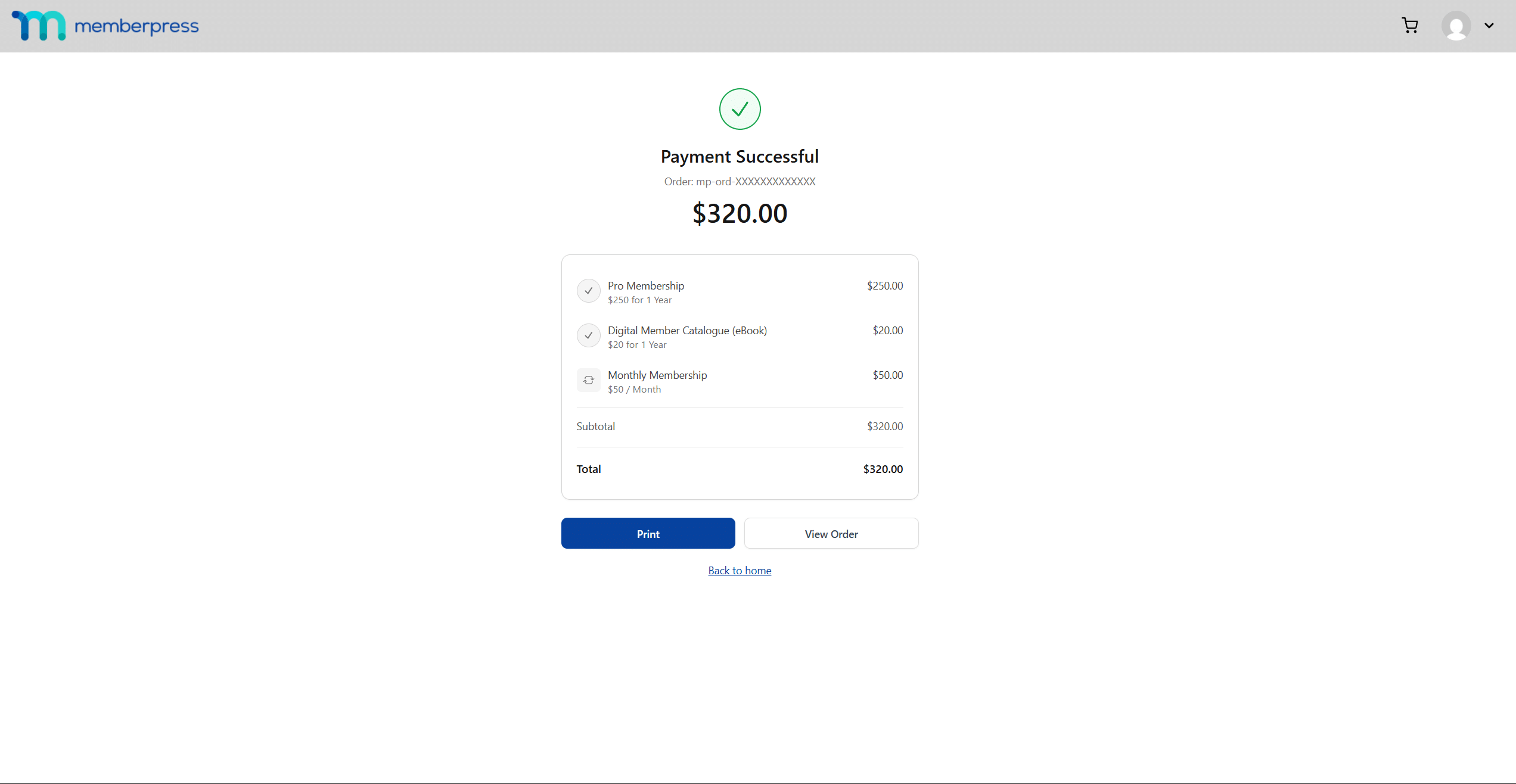
At a Thank You step, MemberPress shows the cart’s default thank you page. A Custom Page URL on that step replaces it. The default page shows “Payment Successful”, the order reference, the total, and every item in the order. It offers Print, View Order, and Back to home.
Orders, Payments, and Refunds
Everything from one funnel run belongs to a single order. You can review it at Dashboard > MemberPress > Orders. The order shows:
- each product as its own line, with its type, price, transaction number, and status;
- a Refund button on every line, and a Cancel button on recurring lines;
- a Stripe References section with one row for the Main Checkout and one for each accepted offer.
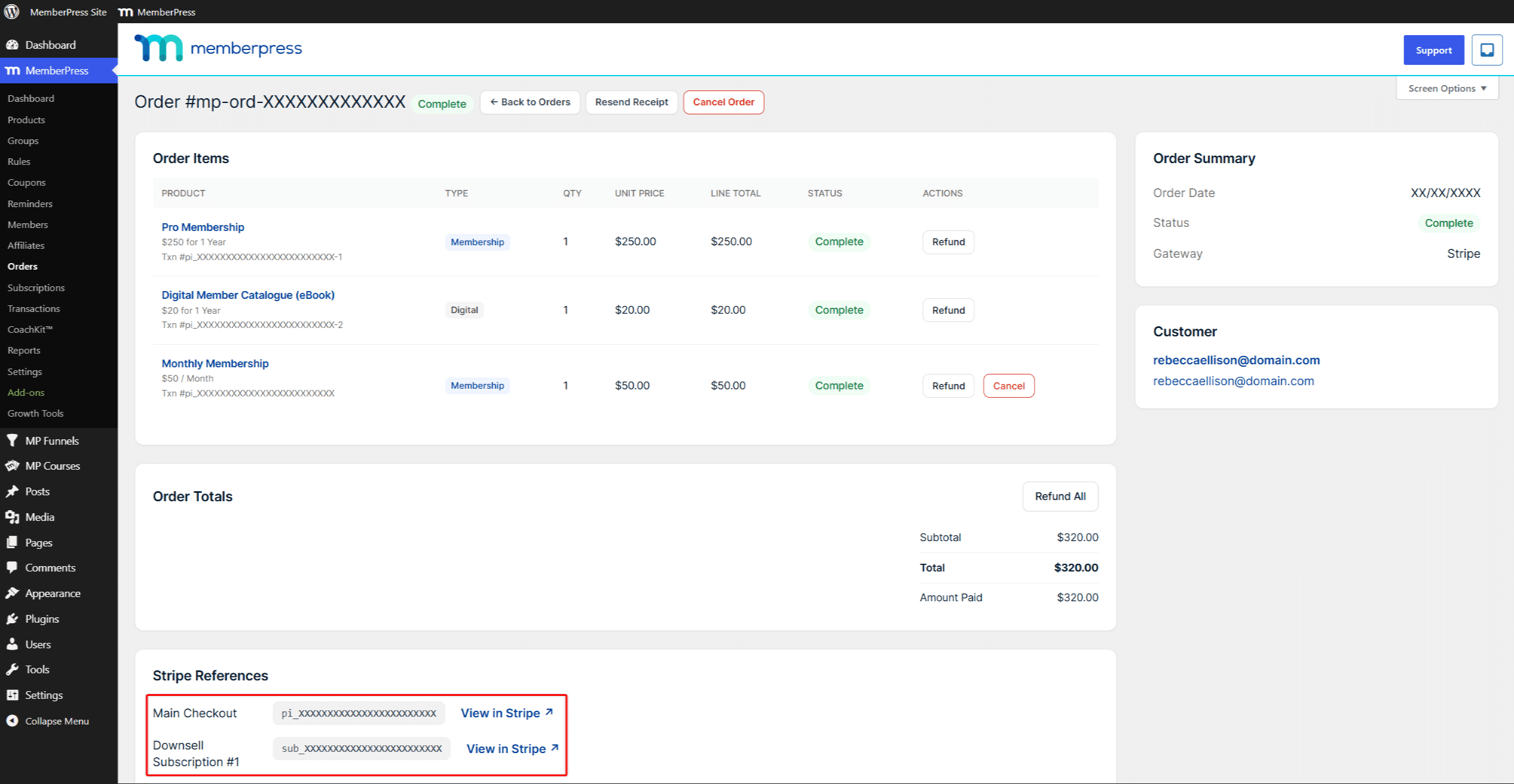
A recurring offer, such as a monthly membership, creates its own Stripe subscription. Its reference row is labelled by step type, for example Downsell Subscription #1.
Refunding or Cancelling an Offer
Recurring lines have two actions. Refund returns money to the customer. Cancel stops future renewals and leaves the current billing period in place.
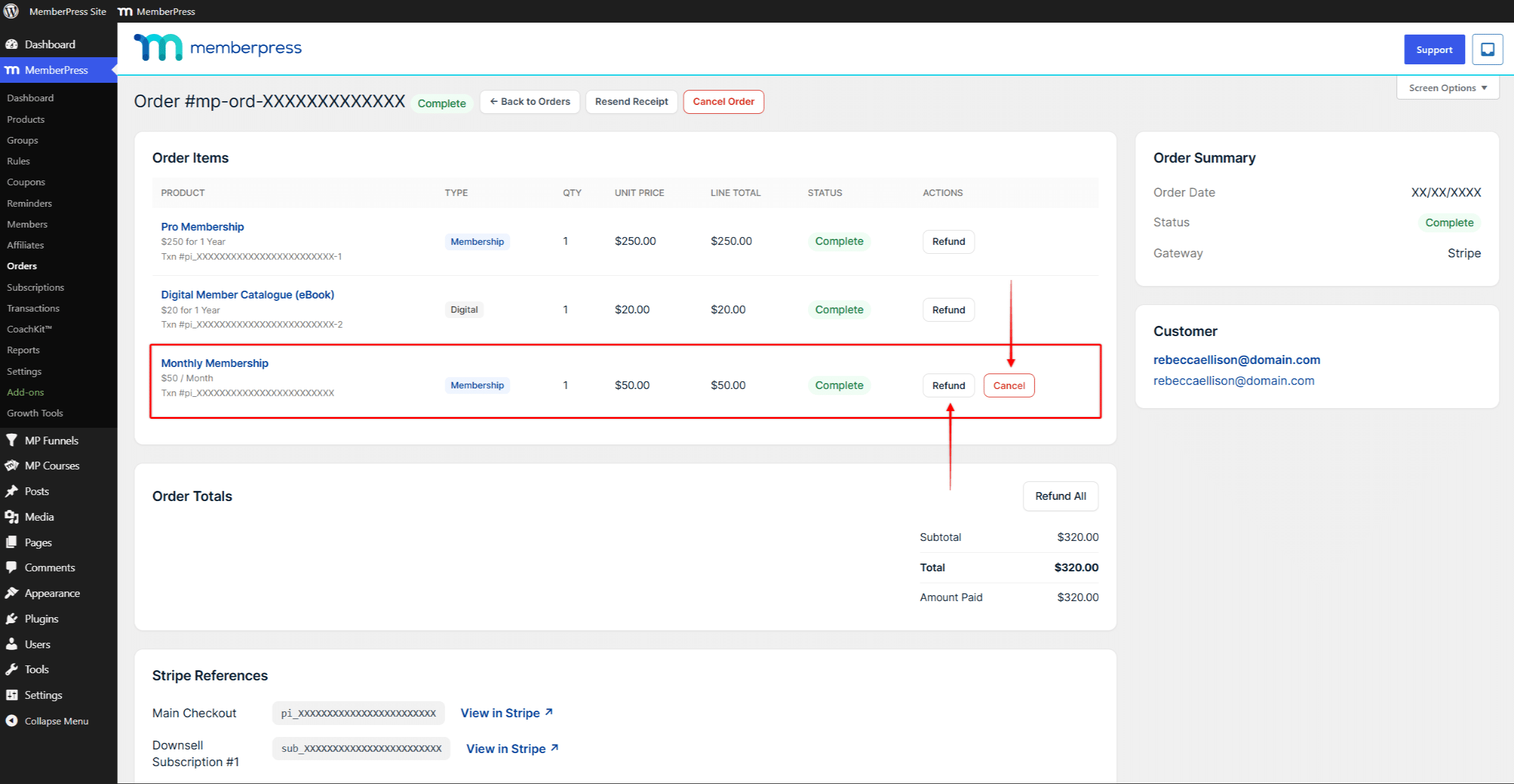
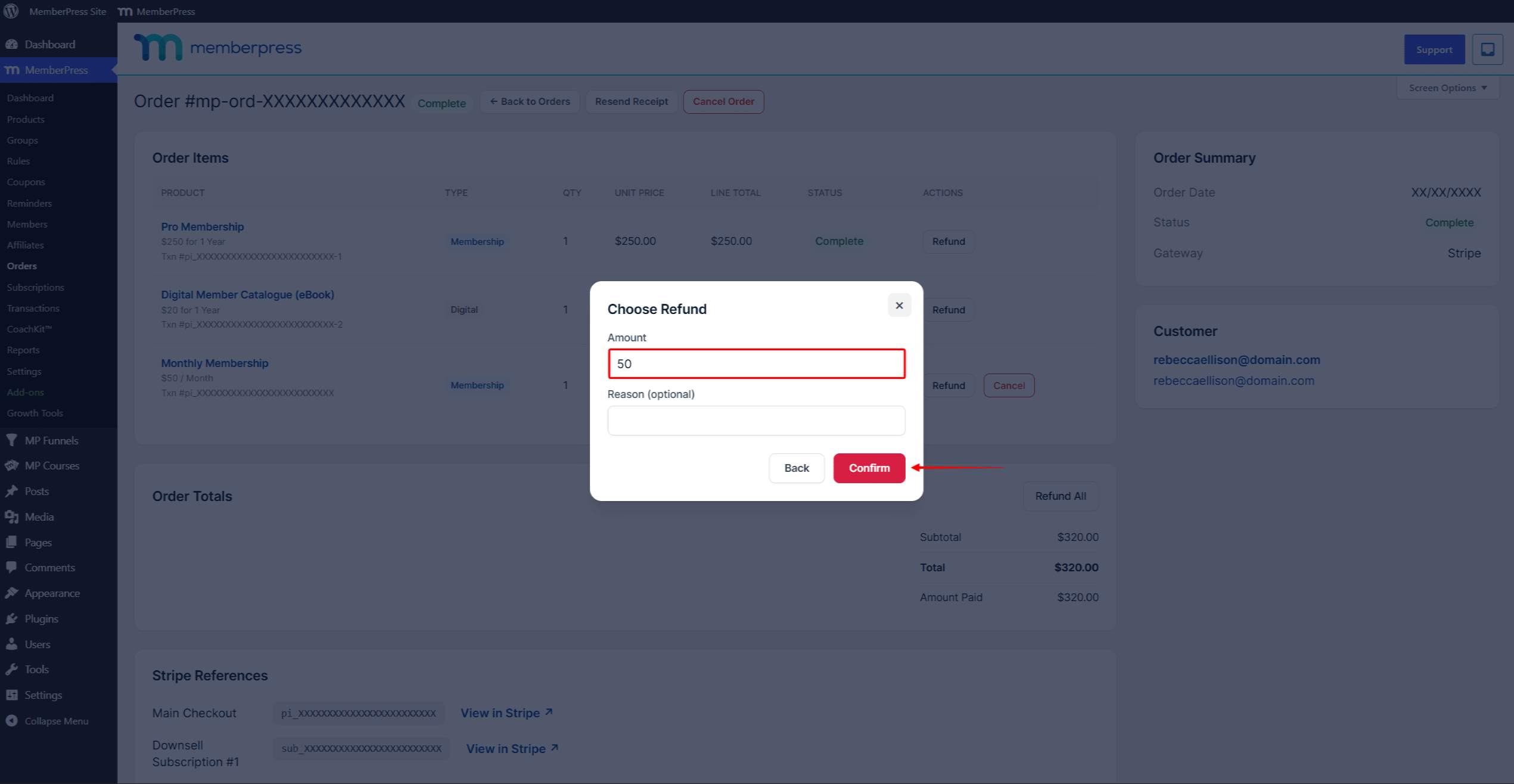
- Click Refund on the line. The Choose Refund dialog opens.
- The Amount field is set to the line total. Lower it to refund part of the payment.
- Add a Reason (optional), and click Confirm.
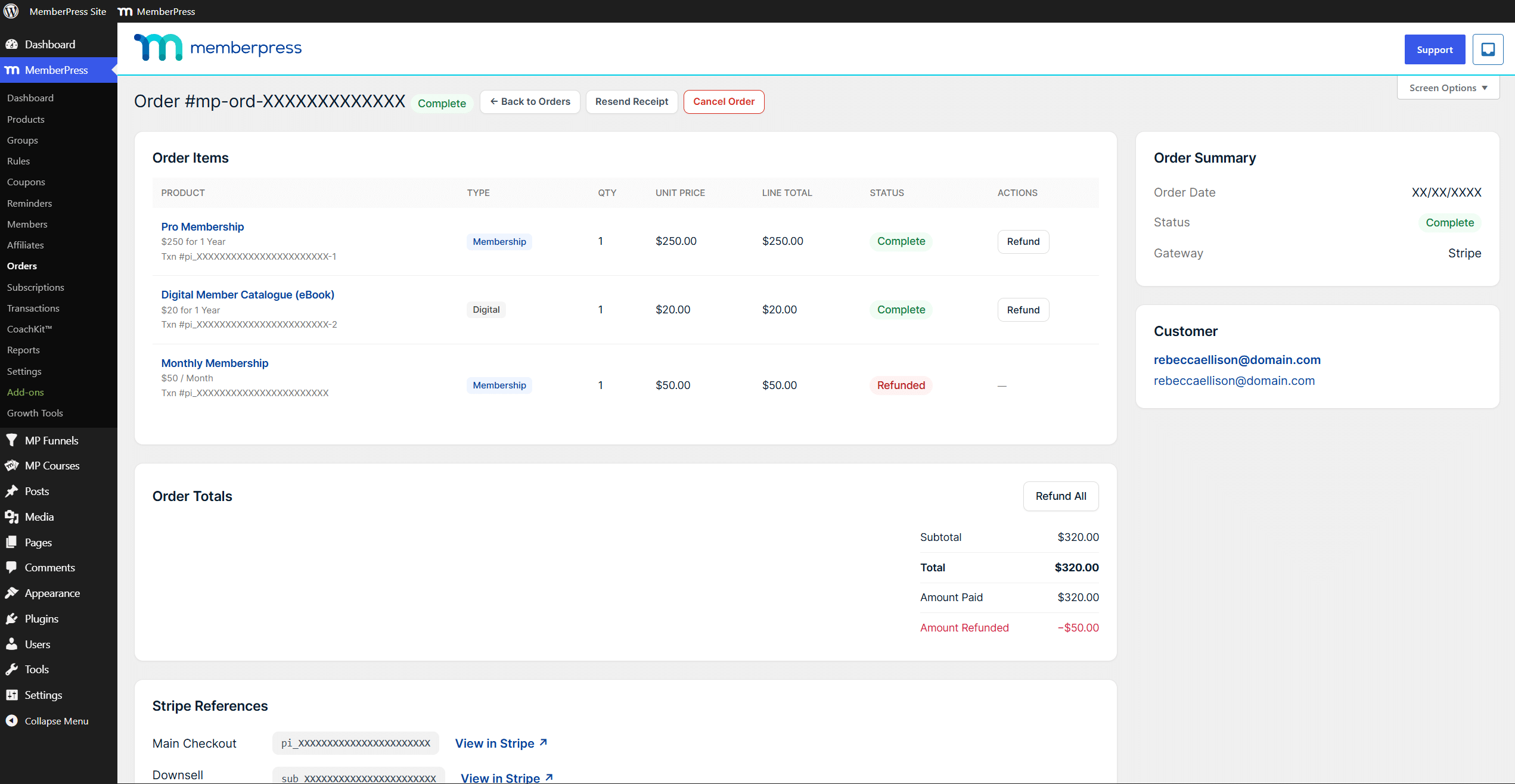
After a full refund, the line’s status changes to Refunded and its actions are removed. Amount Refunded appears in the Order Totals. To stop renewals of a refunded recurring offer, also cancel its subscription.
The order-level actions Refund All, Cancel Order, and Resend Receipt are explained in the MemberPress cart overview.
The Customer’s View
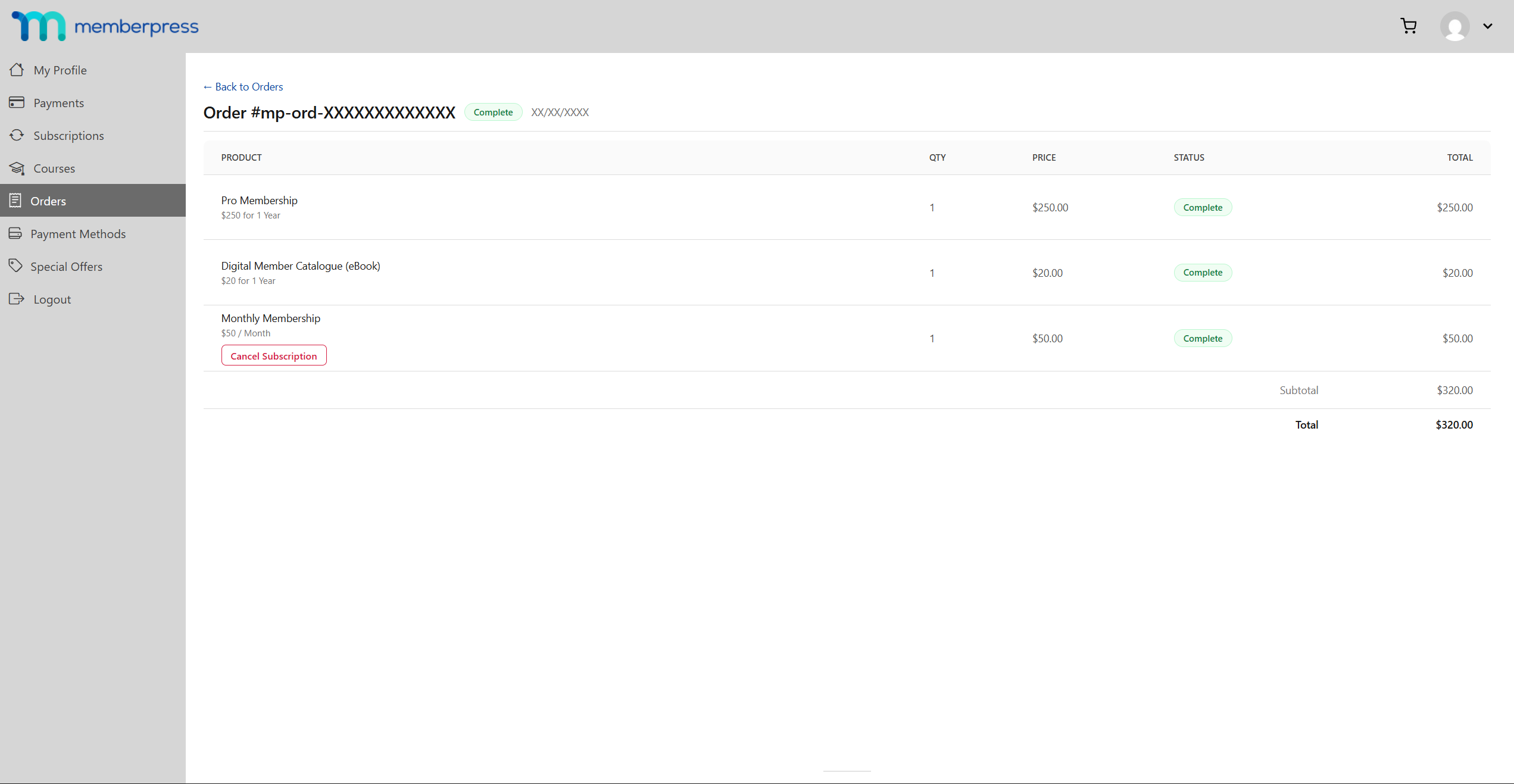
Customers see the order under Orders on their account page. The Order History lists the order number, date, item count, total, and status. Clicking View shows each product with its status, and a Cancel Subscription button on recurring lines.
The Special Offers Tab
When enabled in Funnel Settings, the customer’s account page gets a Special Offers tab. It is intended to list offers the customer declined so they can accept them later. When there is nothing to show, the tab reads “No special offers available right now.”
Funnel Analytics
Dashboard > MP Funnels > Analytics opens Funnel Analytics. Select a range with 7 days, 30 days, 90 days, or Custom.
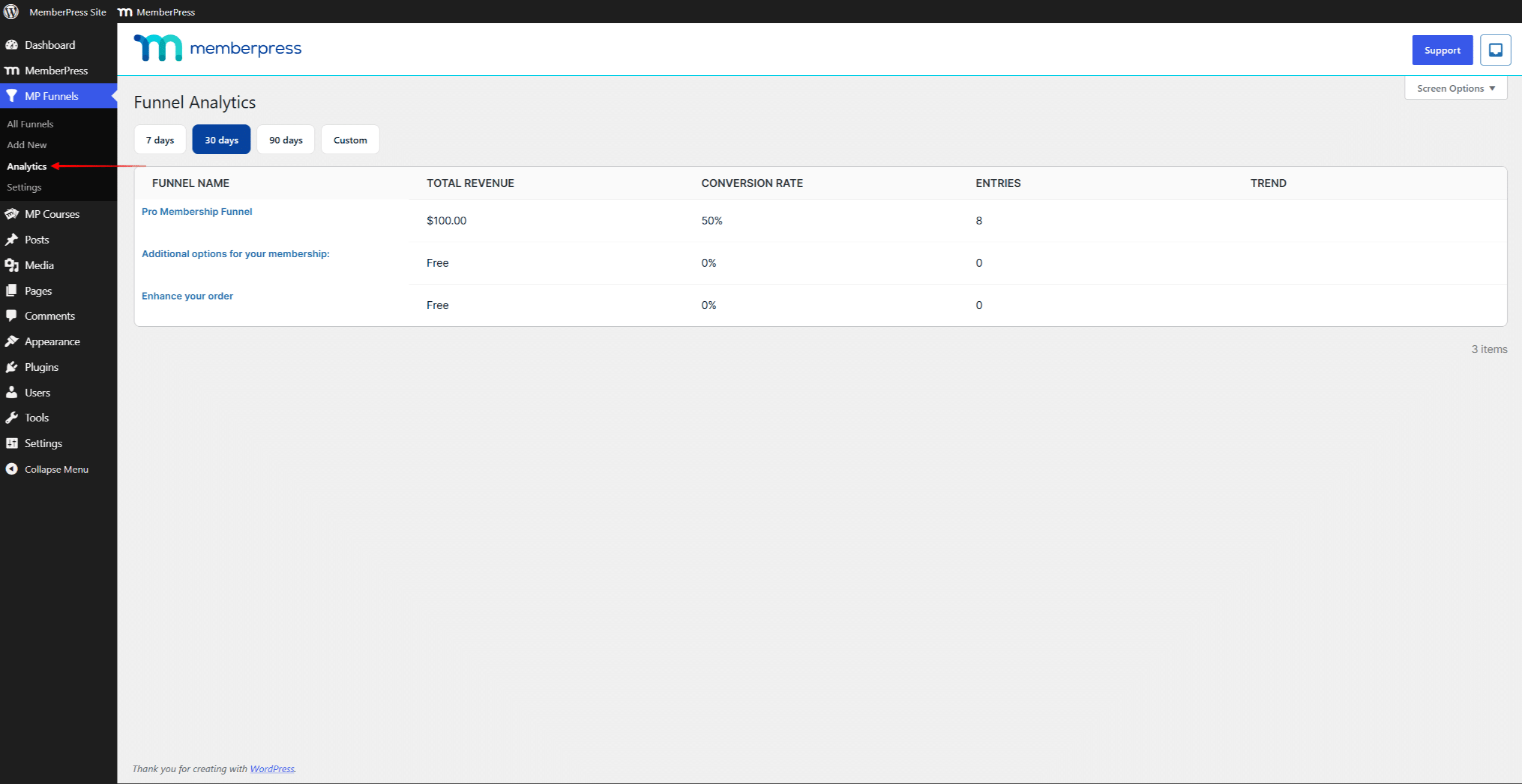
The overview lists every funnel with its Total Revenue, Conversion Rate, Entries, and Trend. Revenue counts the offers customers accepted in the funnel.
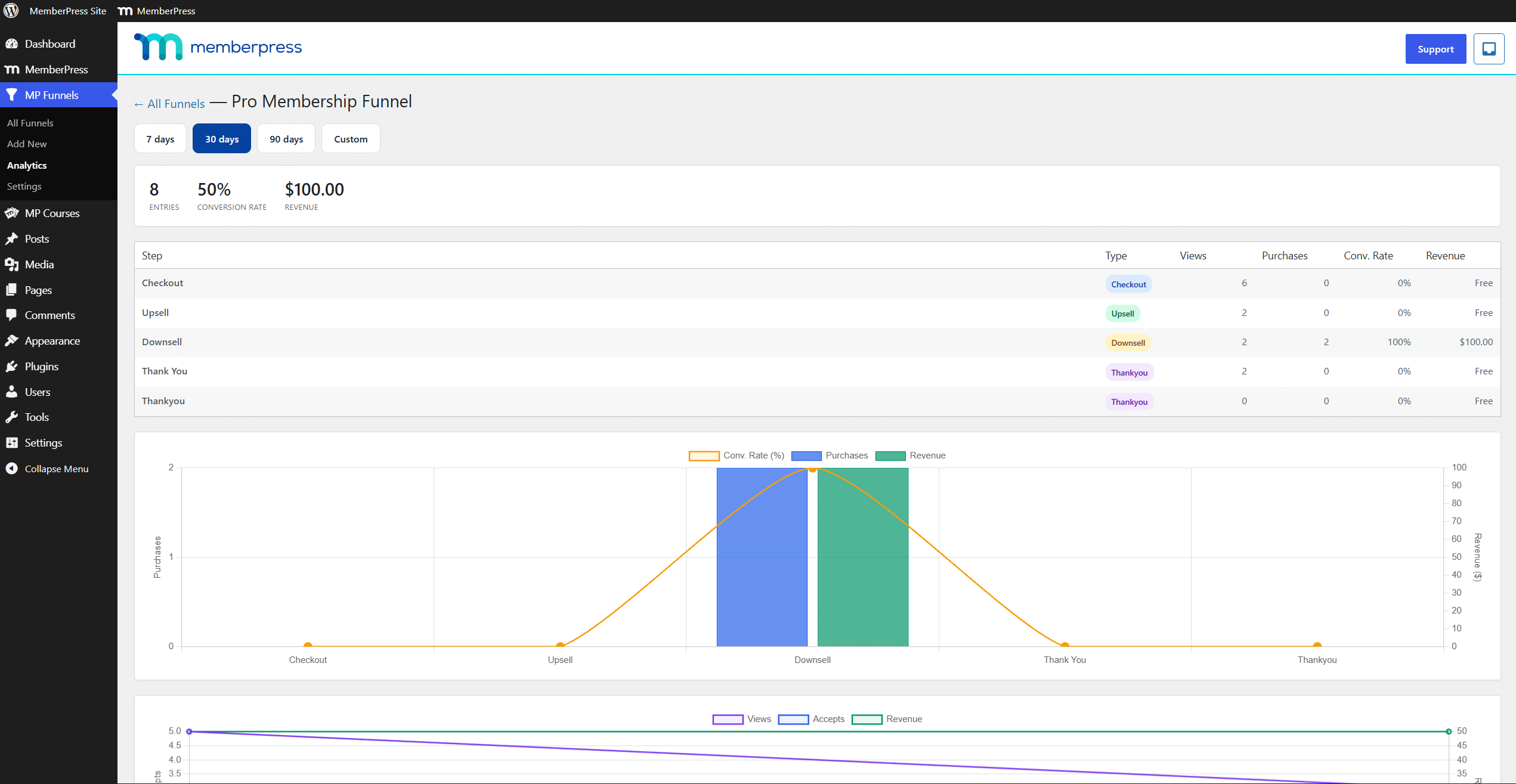
Click a funnel name to open its report. The report repeats Entries, Conversion Rate, and Revenue for that funnel. Below them, a table shows one row per step: Step, Type, Views, Purchases, Conv. Rate, and Revenue. Two charts follow: results per step, and views, accepts, and revenue over time.
Funnel Settings
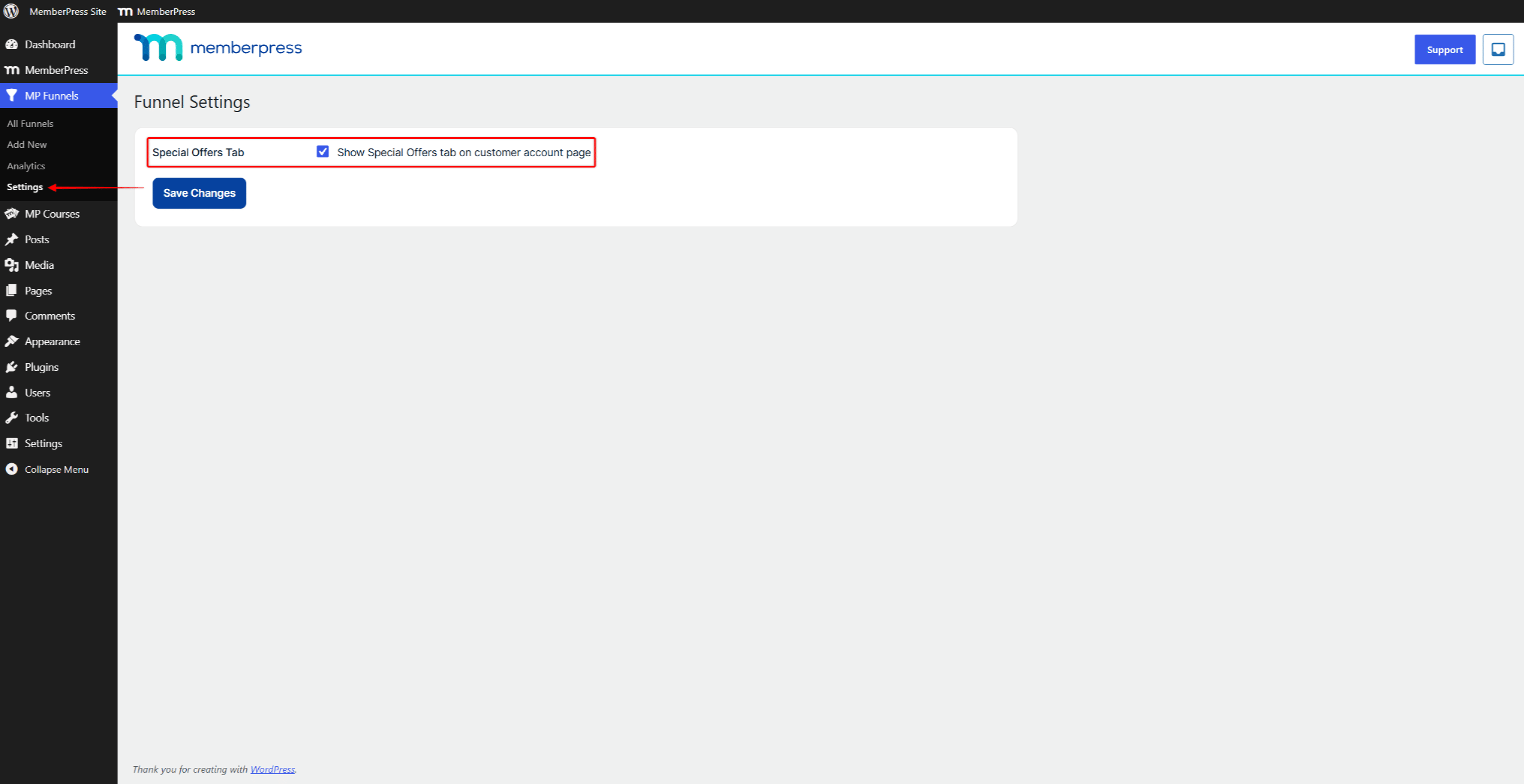
Dashboard > MP Funnels > Settings opens Funnel Settings with one option:
- Show Special Offers tab on customer account page adds the Special Offers tab to every customer’s account page.
Click Save Changes to apply it.
Pausing a Funnel and Turning Off the Cart
To stop a funnel without deleting it, open it in the builder and click Pause. The funnel returns to Draft status, and its bumps and offers stop showing. Click Publish to run it again.
MemberPress Funnels requires the shopping cart. If you disable the cart in MemberPress settings, the add-on deactivates itself. Enabling the cart again does not reactivate it. You need to activate the add-on again at Dashboard > MemberPress > Add-ons.
Funnels Migrated From the Order Bumps Add-on
If your site used the Order Bumps add-on, activating Funnels converts each product’s bumps into a published funnel. The funnel is titled after the Order Bumps Heading. It runs like any other funnel and can be edited in the builder. Details are in the MemberPress Order Bumps documentation.










